
Plotting Functions in JavaFX (LineChart)
Learn how to plot functions like f(x)=x^2 in JavaFX using a LineChart, with SceneBuilder, the controller code and downloadable NetBeans and Eclipse projects.
In this post we’re going to see how to plot functions using JavaFX graphical interfaces. If you’re new and don’t know what this JavaFX thing is all about, I recommend you first watch the following tutorial: Introduction to Graphical Interfaces with JavaFX and SceneBuilder (Video).
In this tutorial we’re going to draw the functions f(x) = x, f(x)=x^2,…,f(x)=x^5. They aren’t exactly "nasty" functions to plot, but as an example and to make things clear, they’re more than enough.
As we did in the previous tutorial, we create a new "fxml" project. Once the project is created, we’ll have the 3 files (2 ".java" and 1 ".fxml") that represent each of the parts of the Model-View-Controller pattern. The first thing we do is go to the View (that is, the ".fxml") and open it with SceneBuilder. Once there, we build the view however we like, including the "LineChart" object, which is what we’ll plot the function on. In this case we’ve used 2 "TextField" controls to bound the function we’re going to plot, that is, the maximum and minimum ‘x’. We’ll also use a "ChoiceBox" to choose the function we want to plot, and finally a button to plot the function. With all that said, the view would look like this:
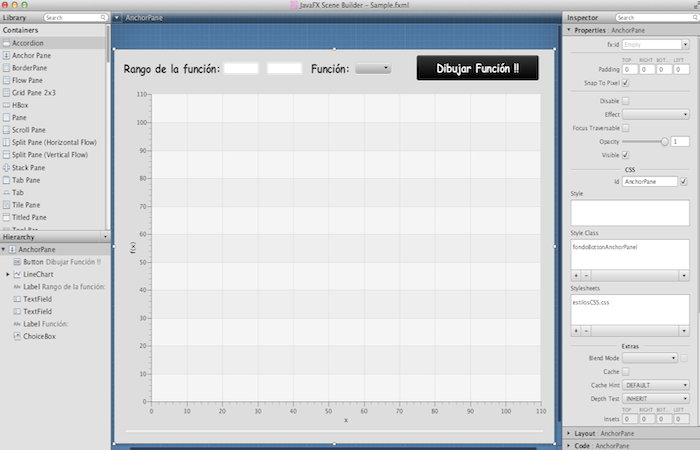
You have to be very careful with the LineChart and watch what we plot on it. In this case we’re going to plot points defined by two "double" values, so they’ll have to be defined "by hand" in the fxml. Don’t worry, at the end of the post we’ll leave the code so you can see it.
Once the view is done, we need to instantiate the view’s elements in the controller file and write the code needed to plot the function. First we’ll show how we define the elements we created in the view. We do it like this:
    @FXML private TextField rangoMin;
    @FXML private TextField rangoMax;
    @FXML private ChoiceBox choiceFun;
    @FXML private Button button;

    // Declare the "LineChart" where we'll plot the function
    @FXML private LineChart<Double, Double> graph;
    @FXML private NumberAxis x;
    @FXML private NumberAxis y;
Note that the names of the attributes we give to the view’s objects were defined in SceneBuilder, in the field called "fx:id". If we don’t do this, the application won’t know which element is which when it runs. For example, the "LineChart" object that we’ll use to plot the function is called "graph".
Now we need to create a method that plots the function for us. At this point it’s worth saying that the "LineChart" object is nothing more than an object you give a series of points to plot on the chart, and it draws them and connects them in the order you gave them. So we need to create an ArrayList, which in JavaFX is an ObservableList, where we’ll store the points to plot on the chart. Then we’ll generate the points we want to plot by computing the corresponding function (f(x)=x, f(x)=x^2,…), adding each of those points to the ObservableList, and finally we pass the ObservableList to the LineChart so it plots all those points. In short, the method in charge of doing all that is the following one, which takes as parameters the maximum and minimum of the function, as well as the degree of the function (degree = x^’n’):
/**
     * Method to plot the chart
     * @param min
     * @param max
     * @param grado
     */
    private void pintarGrafica (int min, int max, int grado){

        // Create an ObservableList to store the points we'll plot on the chart
        ObservableList<XYChart.Series<Double, Double>> lineChartData = FXCollections.observableArrayList();

        // Instantiate a series of points to plot
        LineChart.Series<Double, Double> series = new LineChart.Series<Double, Double>();

        // Print the function we're going to plot
        series.setName("f(x^"+grado+")");

        // Get the points to plot. Notice that the points to plot are defined
        // by the value of 'x' and the result of 'f(x)', where f(x)=Math.pow(x, grado) = x^grado
        for (double i = min; i<max; i=i+0.1){
            series.getData().add(new XYChart.Data<Double, Double>(i, Math.pow(i, grado)));
        }

        // Save all the points of the function we've obtained
        lineChartData.add(series);

        // If you don't want the points to be drawn, set it to false
        graph.setCreateSymbols(true);

        // Put the points on the chart
        graph.setData(lineChartData);
        graph.createSymbolsProperty();
    }
Calling this method would plot the function. All that’s left is to code the plotting action for when the button is pressed. To do this, it’s very important to remember that you have to write the method’s name in SceneBuilder so you can use it in the Controller. To do that, in SceneBuilder, select the button, go to the Code tab > On Action, and there enter, preceded by the ‘#’ symbol, the name of the method to run when the button is pressed, which in this case we’ve called "#AccionPintar". Once that’s done, we code this method like this:
    /**
     * Method that runs when the "Dibujar Funcion" button is pressed
     * @param event
     */
    @FXML private void AccionPintar(ActionEvent event) {
        int grado = getGradoFuncion(choiceFun.getValue().toString());
        pintarGrafica(Integer.parseInt(rangoMin.getText()), Integer.parseInt(rangoMax.getText()), grado);
    }
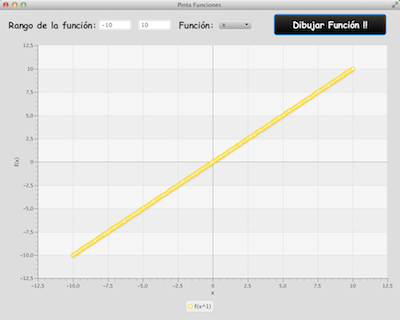
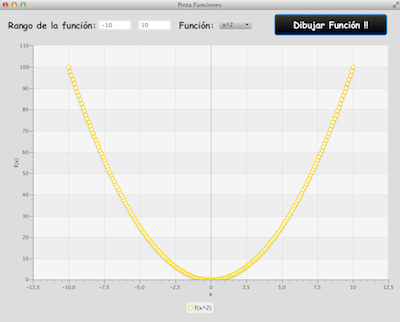
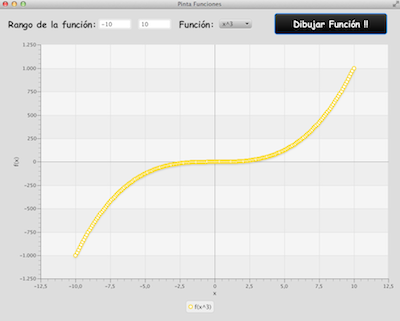
Once that’s done, and with the helper methods written, we end up with the following program:
For f(x) = x
For f(x) = x^2
For f(x) = x^3
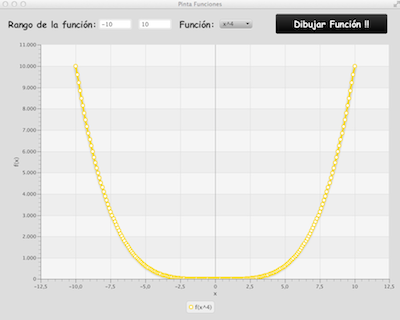
For f(x) = x^4
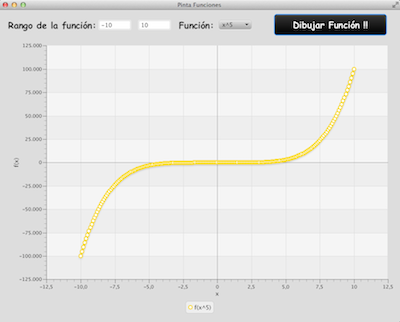
For f(x) = x^5
You can download the NetBeans project from HERE.
You can download the Eclipse project from HERE. Remember that to run this project in Eclipse you must import the "jfxrt.jar" that you’ll find in the "lib" folder.
“Plotting Functions in JavaFX (LineChart)” by Ricardo Moya at jarroba.com, licensed under Creative Commons Attribution-NonCommercial-ShareAlike 3.0. Registered at Safe Creative.

You may also like


Introduction to Graphical User Interfaces with JavaFX and SceneBuilder (Video)
Learn how to build a graphical user interface with JavaFX, NetBeans and Scene Builder in this video tutorial, with the full example project to download.
Tables with JavaFX and FXML (Video)
Learn how to work with a table element in JavaFX and FXML: a simple example of adding, editing and deleting rows in a table, with a video tutorial.
Leave a comment