
Auto Layout iOS 7 (Video)
Learn how to adapt your iOS app to every iPhone screen size with Auto Layout in iOS 7. Watch the video tutorial and follow the steps with screenshots.
With the release of the iPhone 5, iPhone dimensions changed, and one of the big advantages we iOS developers had over Android developers was that mobile device screen sizes were fixed. With this change in iPhone screen sizes, designing views gets a little more complicated, but in this post and video tutorial we are going to see that it is very easy to adapt our app for the iPhones.
You can download the project built in the tutorial by clicking HERE.
Here is the video tutorial:
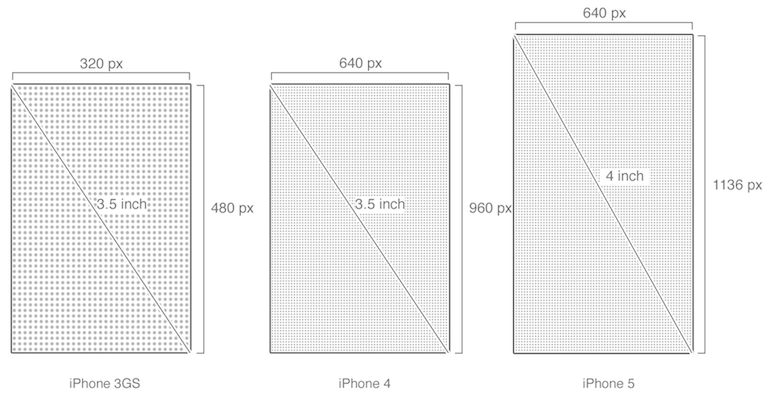
The following image shows a comparison of the iPhone screen dimensions:
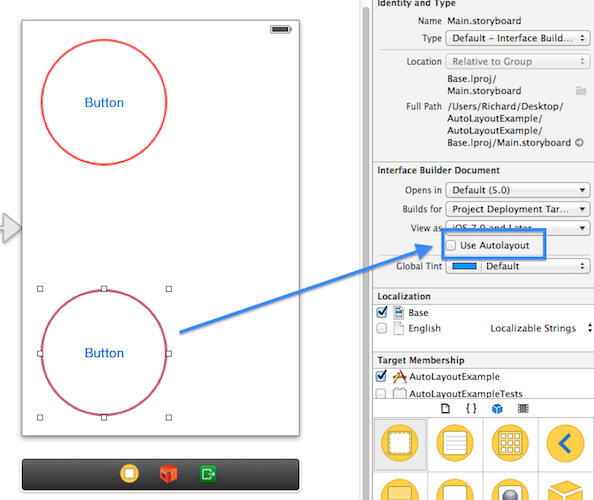
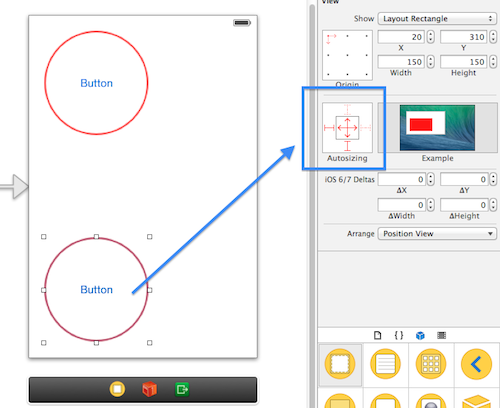
The following images show the detailed steps to make the elements fit all iPhone screens:
STEP 1 – Uncheck "Use Autolayout":
STEP 2 – Fit the element to the edges of the screen:
“Auto Layout iOS 7 (Video)” by Ricardo Moya at jarroba.com, licensed under Creative Commons Attribution-NonCommercial-ShareAlike 3.0. Registered at Safe Creative.

You may also like


UITableView in Objective-C: Example (Video)
Learn how to build dynamic tables with UITableView on iPhone in Objective-C, with a video tutorial, a UINavigationBar and a downloadable project.
Collection View (Grids) in Objective-C: Example (Video)
Learn how to build dynamic Collection Views (UICollectionView) and grids on iPhone with Objective-C in this step-by-step video tutorial and example project.
Leave a comment