
How to Generate Images of Your Face with Flux.1 for Free!
Learn how to train a LoRA on Flux.1 to generate images of your own face for free, using the replicate.com service. Step-by-step guide.
Flux.1 is an open-source artificial intelligence model, similar to Stable Diffusion, developed by Black Forest Labs. Its main purpose is generating images from text descriptions. Flux.1 comes in three versions: Flux.1 [Pro] (available only via API) and the free versions Flux.1 [Dev] and Flux.1 [Schnell].
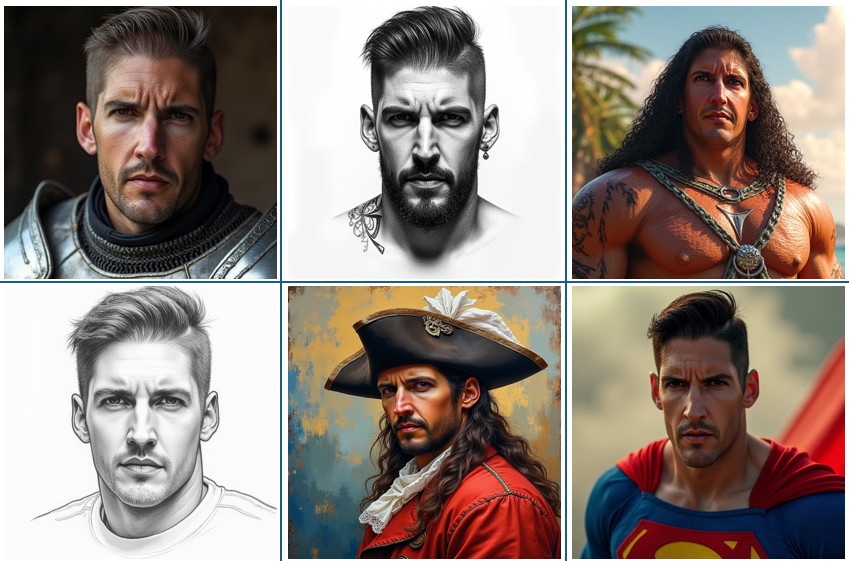
@ricardomoya_ai
You can try the model at the following link: Flux AI Image Generator (Flux 1 AI).
One of the most interesting features of open-source models like Stable Diffusion or Flux.1 is that you can train them on a set of your own images so they learn specific concepts, such as a person’s face. This process is done efficiently using the LoRA (Low-Rank Adaptation) technique.
Fully training a model like Flux.1 or Stable Diffusion to learn a specific concept, like our face, would mean readjusting a model with billions of parameters, which would be very expensive in both computation and money. With the LoRA technique, however, the weights of the original model stay frozen and you train a small additional neural network of between 3 and 10 million parameters that learns the desired concept (our face in this case), and then combines the outputs of the generator model with those of the LoRA model to generate personalized images.
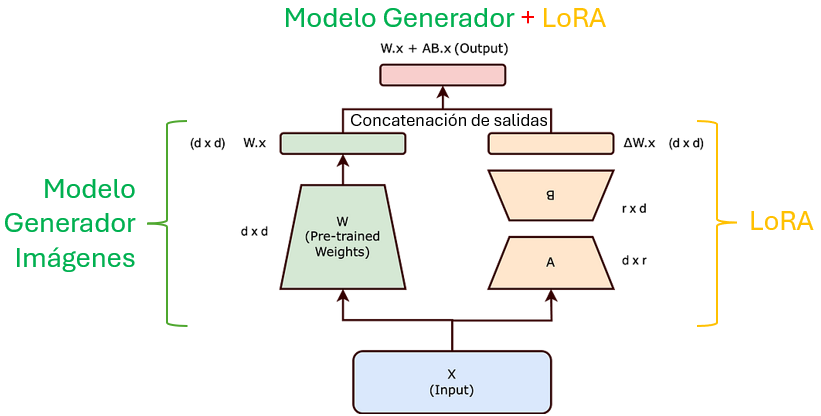
You can learn more about how this technique works at the following link: Understanding LoRA.
Let’s get to work! We’re going to train a LoRA to generate images of your face
We’ll use the Run AI with an API (Replicate) website, which is paid, but gives you $10 for free to try out its features, enough to train a LoRA with our face and generate a few dozen images.
What do you need?
- A GitHub account to sign up for Replicate.
- Between 15 and 20 square images of your face (or face and torso). The images must be in .jpg format, and a size of 512×512, 768×768 or 1024×1024 is recommended. It’s recommended that all the images share the same name, adding the image number at the end: tu_nombre_1.jpg, tu_nombre_2.jpg, etc.
Step 1: Sign up for Replicate
Go to Run AI with an API (Replicate) and sign up using your GitHub account. They’ll ask you for some basic (non-personal) information during sign-up.
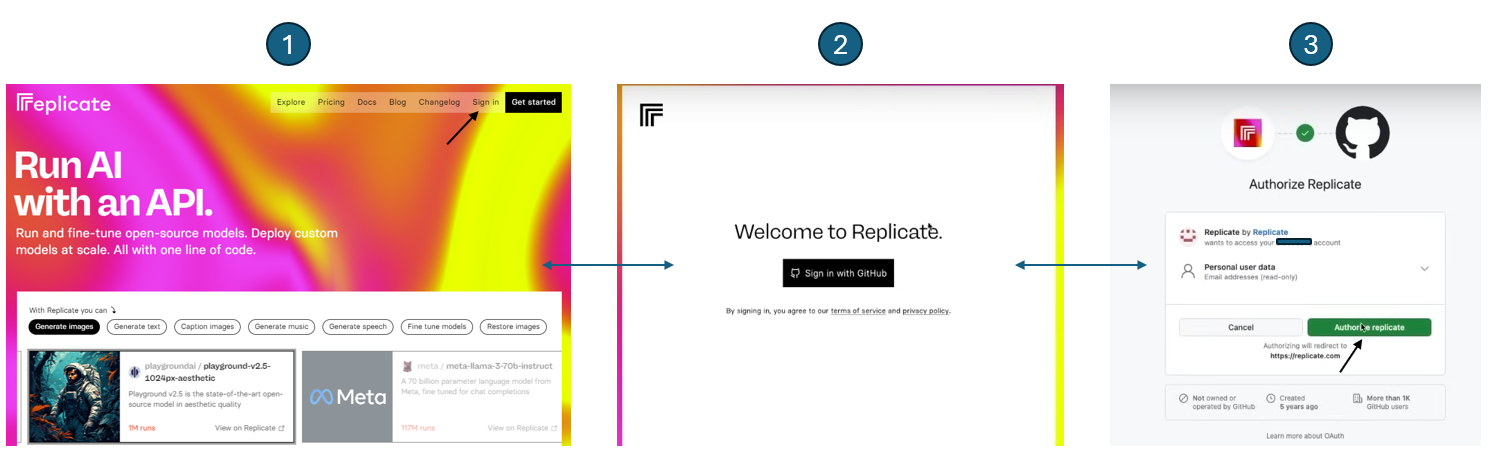
Step 2: Get the free $10
Once you’re signed up, go to this link to receive $10 in Replicate credits. You won’t need to add any payment details. When the credit runs out, you can add funds if you want, but for this tutorial, $10 will be more than enough.
Step 3: Train your LoRA
Go to Train – ostris/flux-dev-lora-trainer (Replicate) to set up the LoRA training:
-
- Give your model a name (in my case I used “rimogarflux“).
- Decide whether you want the model to be public or private. I chose private.
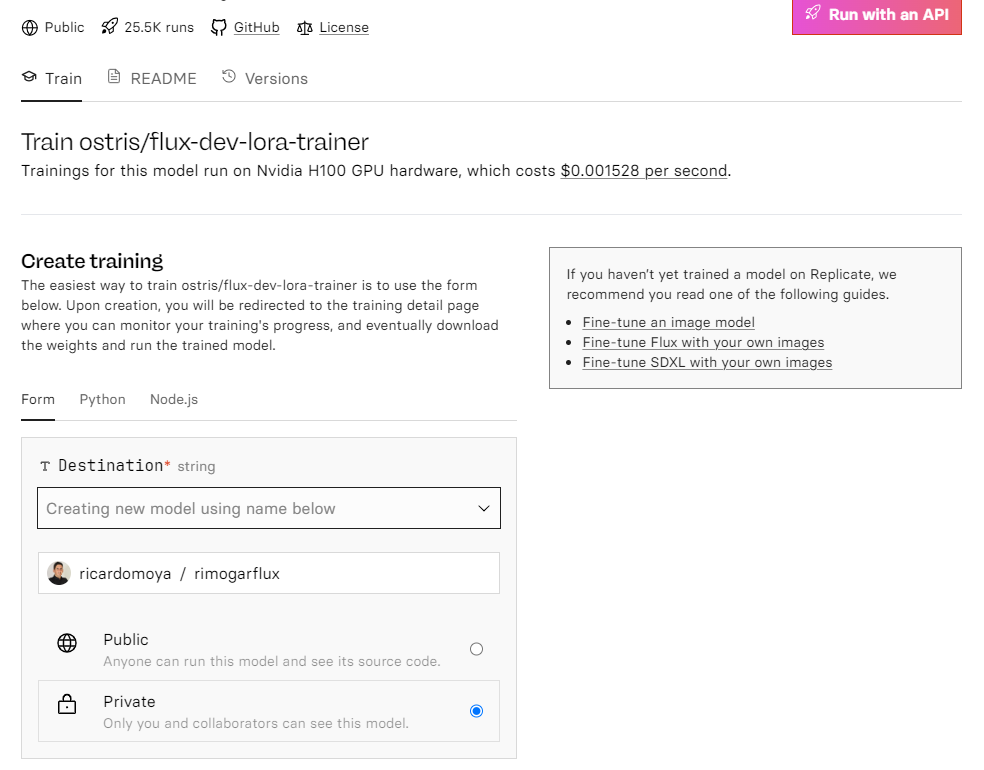
- Compress your images into a .zip file and upload it.
- Define a “Trigger Word” (keyword), which you’ll use to generate images with your face. In my case, I used “RIMOGAR” as the Trigger Word.
- Select the “autocaption” option, which will automatically generate descriptions for the images (needed to train the LoRA). In the “autocaption_prefix” field, enter “A photo of RIMOGAR”. I recommend you use the same, changing the Trigger Word.
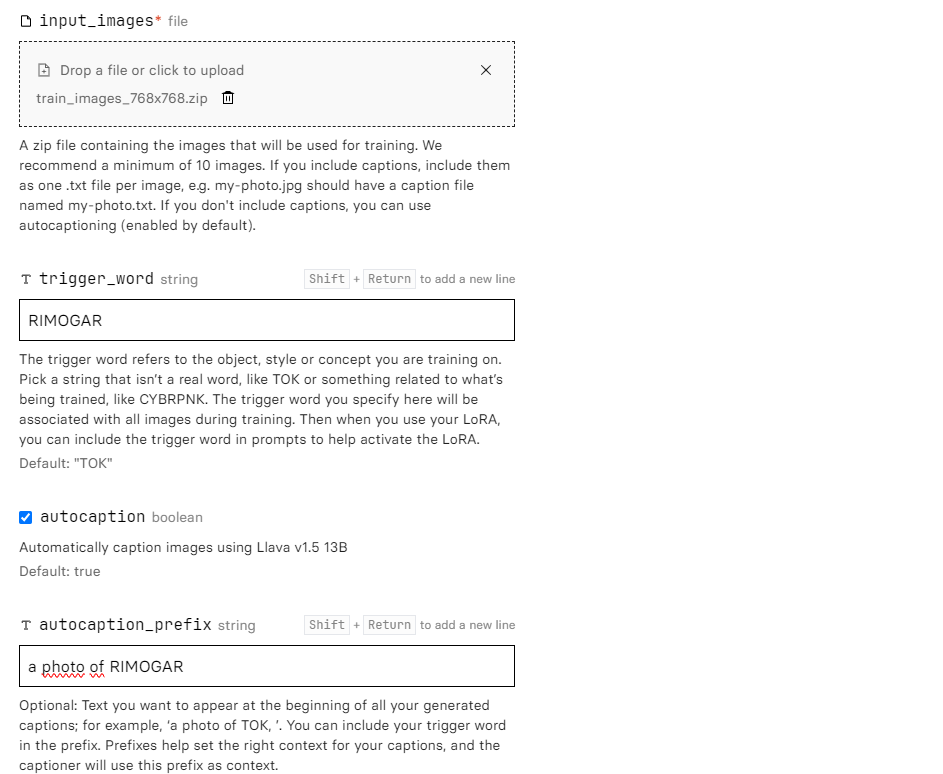
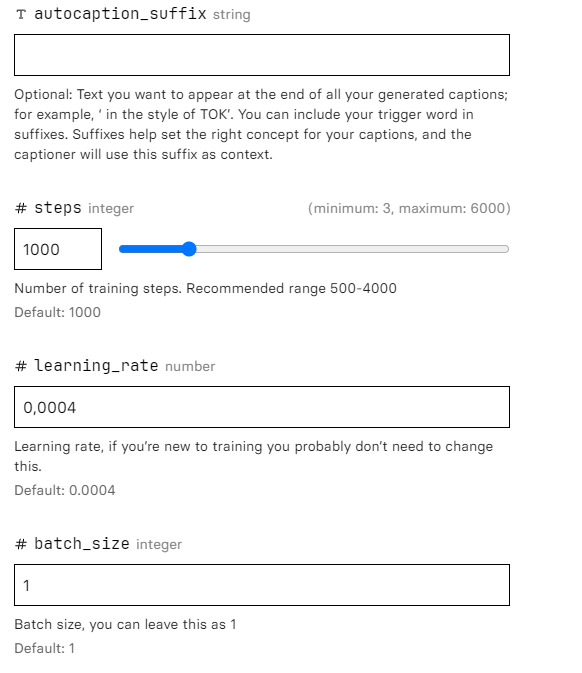
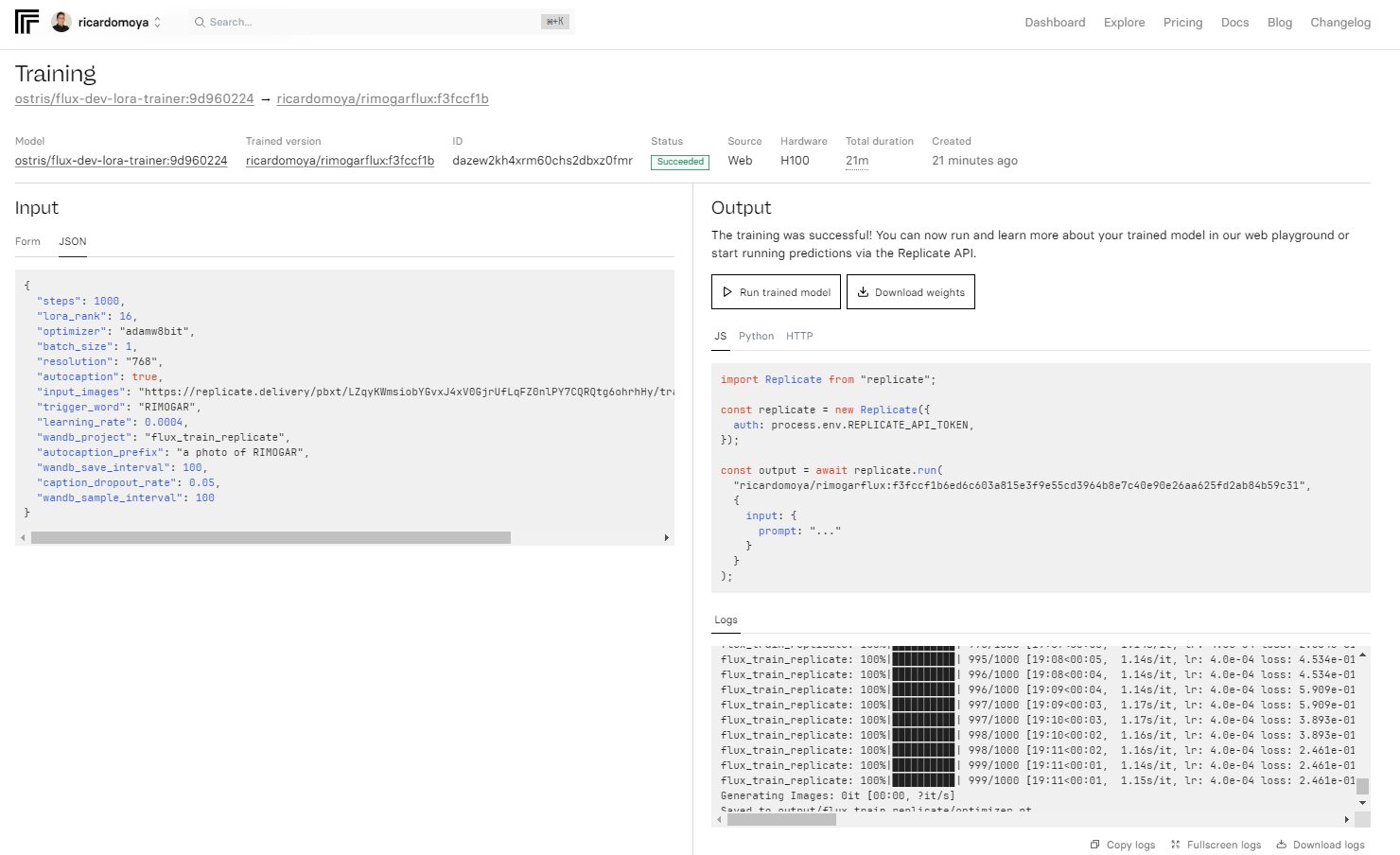
- Values like “steps”, “learning_rate” and “batch_size” can stay at their defaults, since they work well for most cases.
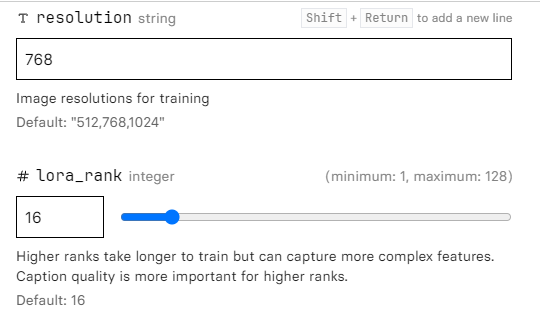
- In the “resolution” field, enter the size of the images you uploaded. In my case I uploaded them at 768×768.
- We leave the “lora_rank” field at its default value, since the results with this setting were very good.
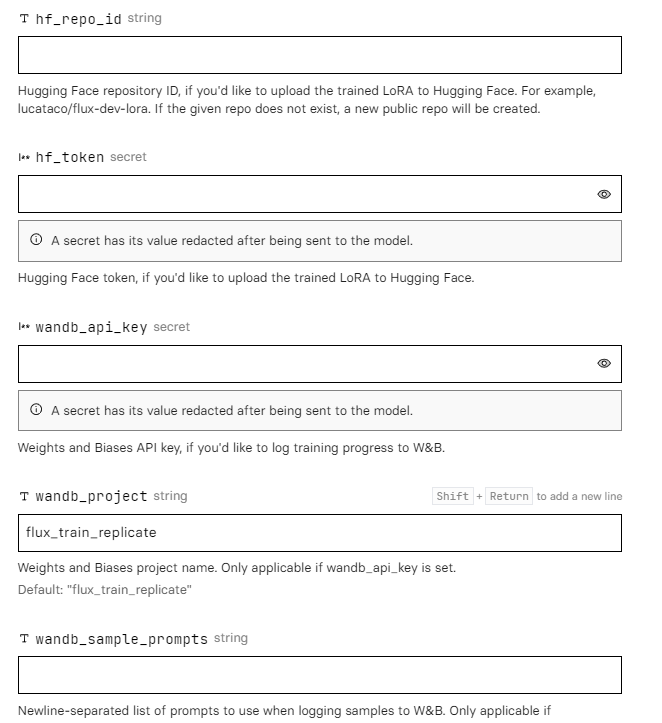
- The remaining fields are used to share the LoRA on other platforms. I left them blank.
- Click “Create Training” to start the training.
- The training process takes about 25 minutes and costs roughly $2.50. Once training is complete, you can download your LoRA by clicking “Download weights”. The downloaded file will have a “.safetensors” extension.
Note
For both training the model and generating images, Replicate uses a GPU. In my case, I used an Nvidia A100, which costs about $5/hour (at the time of publication). The $10 credit is consumed according to how long the GPU is used.Step 4: Generate images of your face
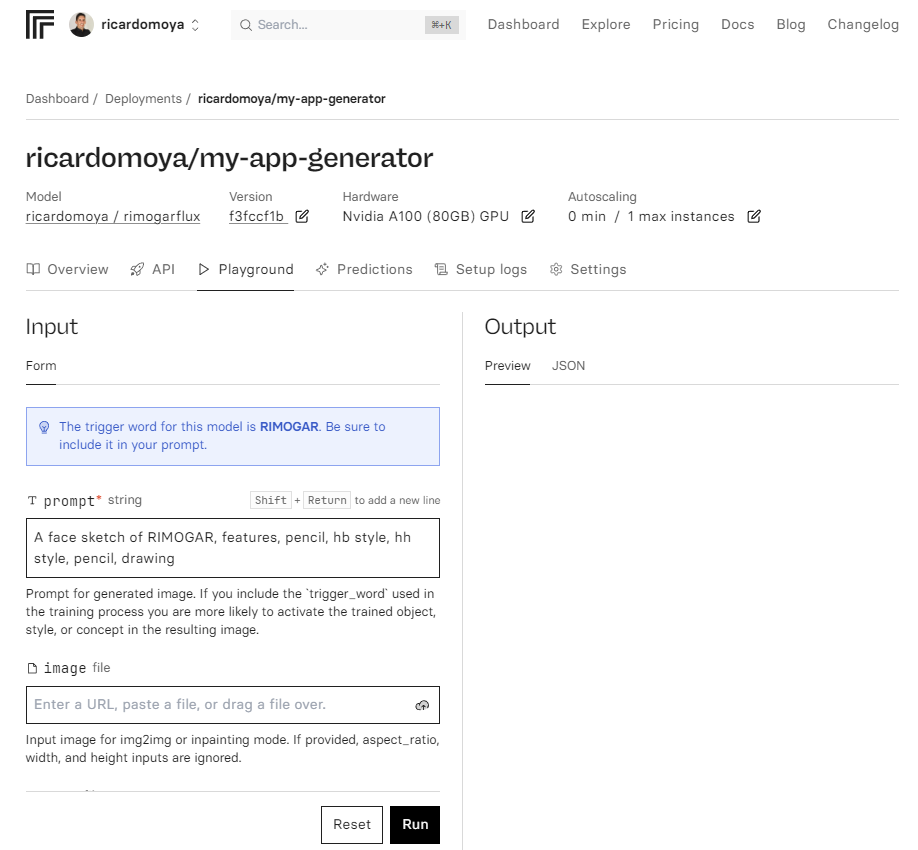
Once the LoRA is trained, click the “Run trained model” button to generate images. Here you’ll need to configure the following parameters:
- Enter a “prompt” (descriptive text) that includes your Trigger Word (in my case it was RIMOGAR), for example:
“A face sketch of RIMOGAR features pencil hb style pencil drawing”.
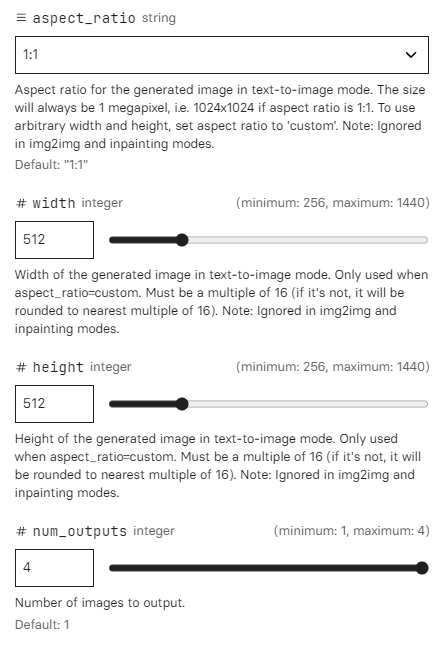
- Set the “aspect_ratio” and the image size in “width” and “height” (for example, 512×512).
- Select the number of images to generate in “num_outputs” (maximum 4).
- Make sure the “lora_scale” and “num_inference_steps” values stay at their defaults.
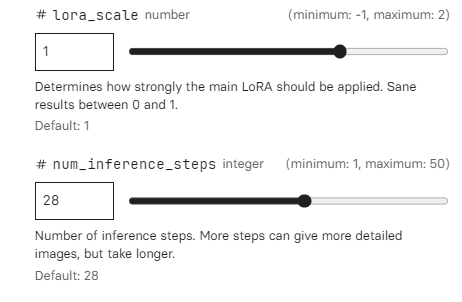
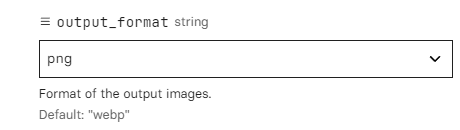
- Set the output format in “output_format”. Watch out: it defaults to webp, but you can change it to PNG if you prefer.
- Click “Run” to generate the images.
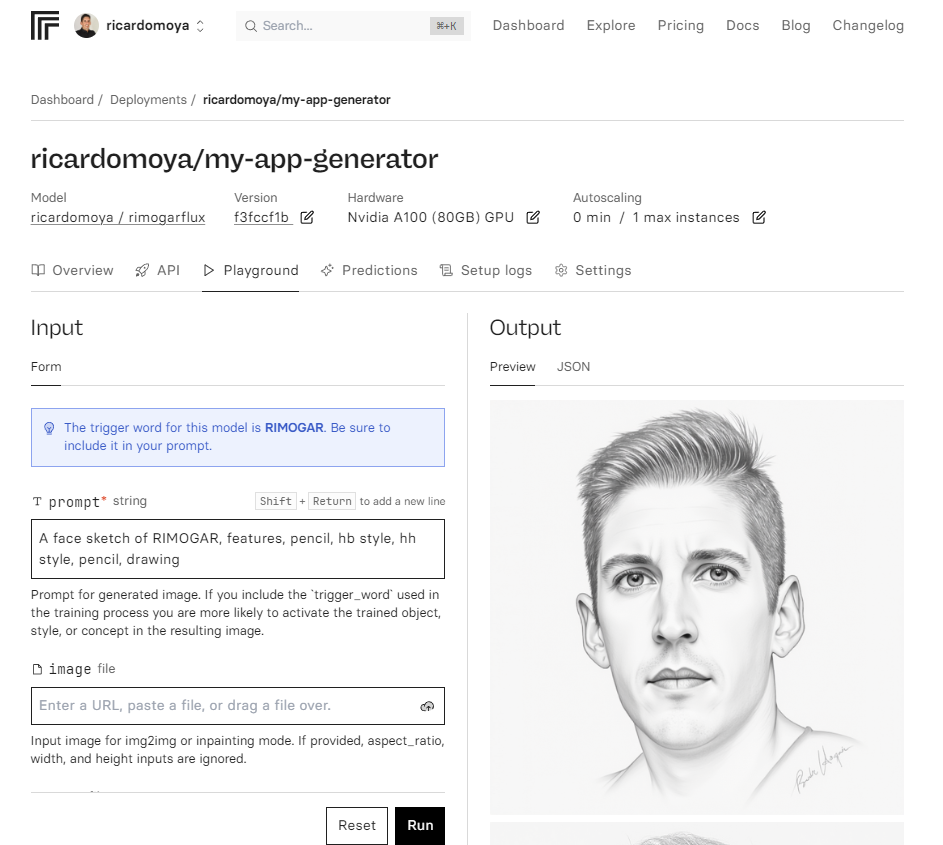
And that’s it! In a few seconds you’ll have images generated with your very own face.
If you want to see example prompts for generating images of your face, follow me on Instagram, where for a year I’ll be posting a daily AI photo of my face: @ricardomoya_ai.
“How to Generate Images of Your Face with Flux.1 for Free!” by Ricardo Moya at jarroba.com, licensed under Creative Commons Attribution-NonCommercial-ShareAlike 3.0. Registered at Safe Creative.

You may also like
“If It Works, Don’t Touch It” and Other Excuses That No Longer Hold
Four corporate excuse-phrases, why the calculus has changed with AI, and what to do if you're stuck in an inertia-bound organization.
Tricks for Using AI Well
Context before question, structured prompts, iterative refinement, adversarial agents, human linter, and knowing when to stop. Six AI tricks.
Leave a comment