
Install Snow Leopard (OS X) on VMware under Windows
Step-by-step tutorial to install Mac OS X Snow Leopard in a VMware virtual machine on Windows: requirements, BIOS setup, drivers and shared folders.
PRELIMINARY WARNING
In this tutorial you will have to "tinker" with your computer’s BIOS. IMPORTANT!!!! Be very careful when you touch the BIOS and don’t do anything you don’t know how to do, because you could wipe out your motherboard’s configuration.
IMPORTANT BEFORE YOU START THIS TUTORIAL ON INSTALLING SNOW LEOPARD IN A VIRTUAL MACHINE UNDER WINDOWS:
To install Apple’s operating system in a virtual machine under Windows, your PC must meet a few minimum requirements, which are the following:
1. The PC’s processor must be Intel. AMD processors won’t work because Apple only works with Intel (although there is an unofficial, modified version of the OS out there on the Internet that works on AMD). To find out, in Windows go to: Control Panel > System and Security > System
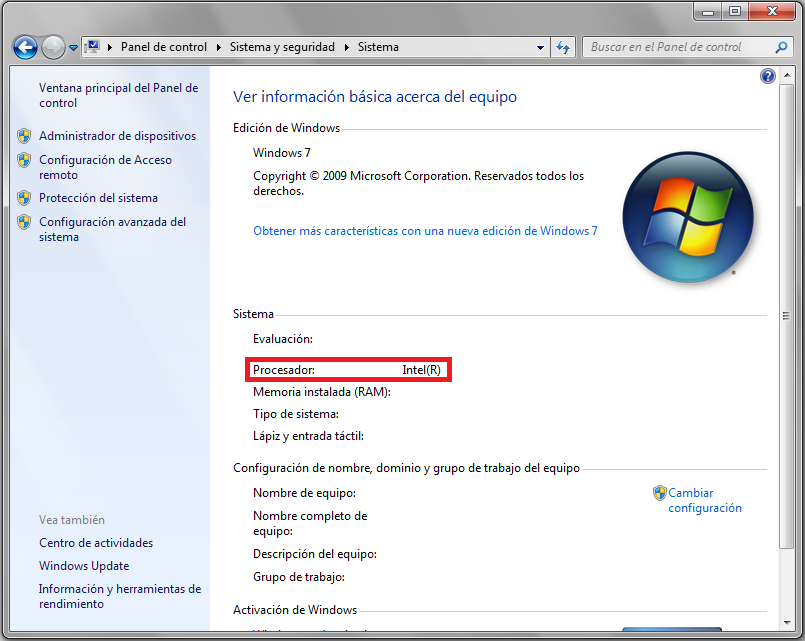
2. The processor must also have "virtualization technology". To check whether your processor has it, look at your processor’s specifications by searching for your processor model in the search box of this site: http://ark.intel.com/es-es/

Search for the processor model that appears in your system information. When it turns up, check in its features that it has virtualization technology.

3. If your processor has virtualization technology, you will most likely have to "enable" it in your PC’s BIOS, since it is usually disabled. BIOSes differ, and since you have to restart the PC to continue with this step, we recommend that you read the whole step once and take notes:
a. To enter the BIOS, right as you turn on the computer, keep pressing "ESC", "Del", or some "FX" key (that is, F1, F8, etc.), depending on the motherboard. This is shown on the first screens you see when the computer boots.
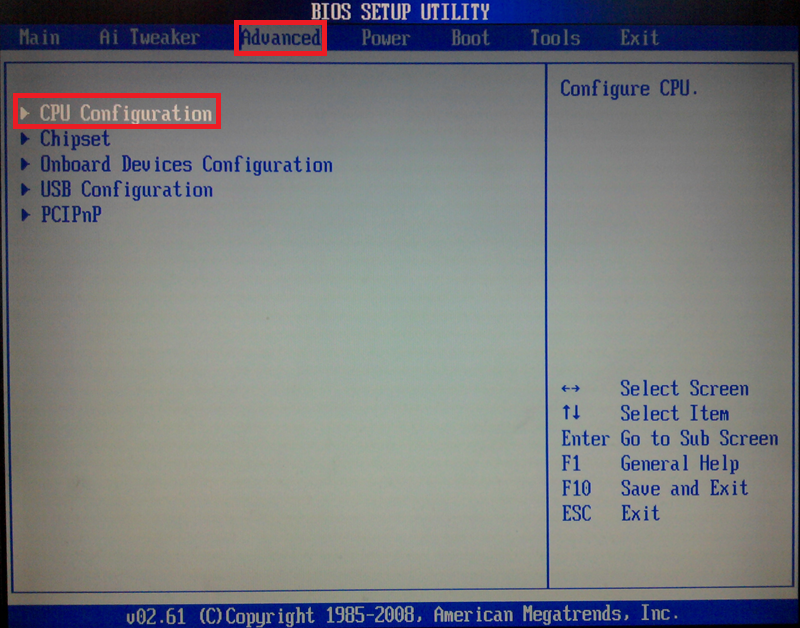
b. Once in the BIOS, you normally navigate with the keyboard arrows and press "ENTER" to choose an option. To enable virtualization technology, we have to go to the CPU configuration. In the example screenshot, we go to: Advanced/CPU Configuration
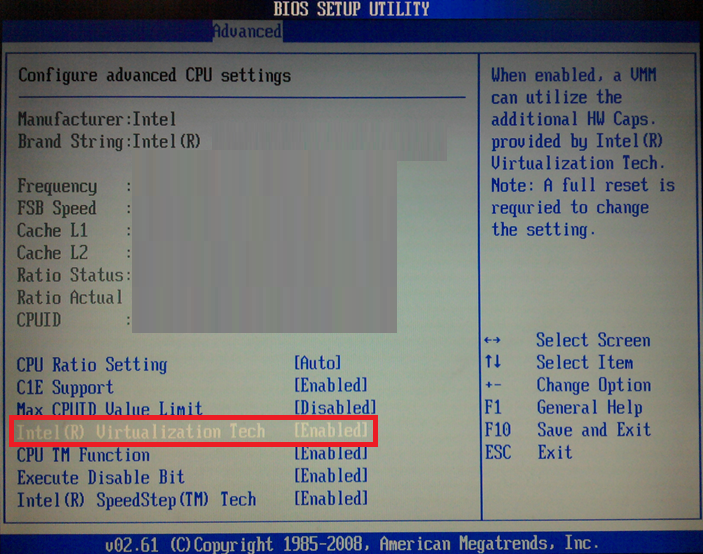
c. We make sure virtualization technology is enabled. In the example, "Intel(R) Virtualization Tech" must be "Enabled".
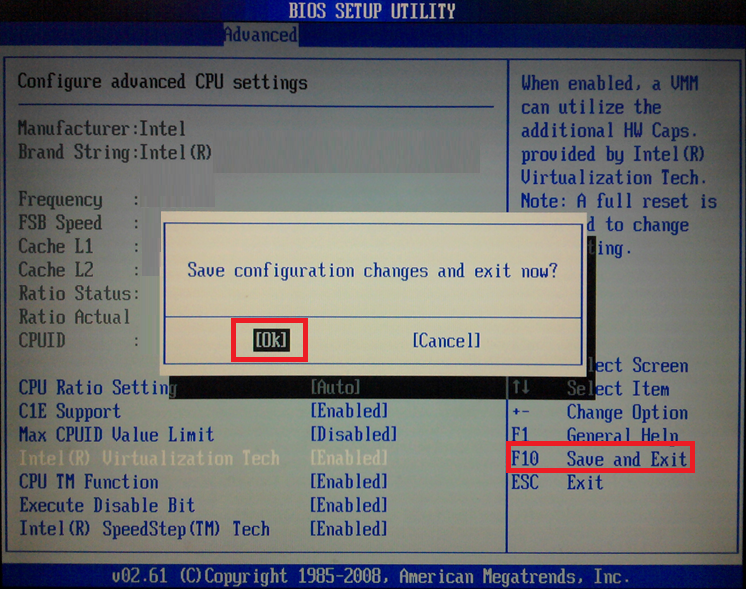
d. We exit and save the configuration. In the example, to do both at once we press F10 and click OK
TO INSTALL SNOW LEOPARD IN A VIRTUAL MACHINE UNDER WINDOWS YOU WILL NEED THE FOLLOWING MATERIAL:
1. You need the software virtualization system "VMware Workstation" 7 (or higher) with the Tools included. You can get it on the following website "VMware by Broadcom – Cloud Computing for the Enterprise" with a trial license of the product. Note: There is other free software for virtualizing operating systems, such as "VirtualBox". We haven’t tried it, but the installation might work; however, in this tutorial we will focus on using VMware.
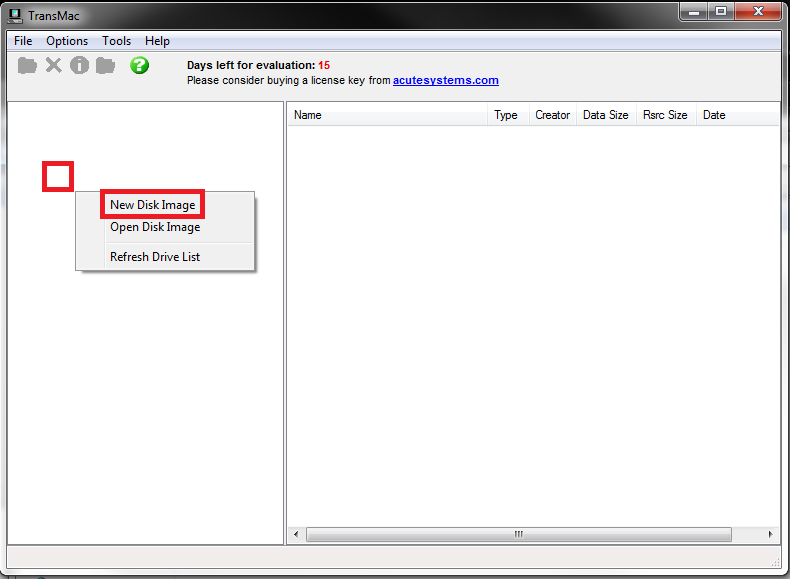
2. You need the Snow Leopard OS image expanded. To expand the image (we have a .dmg image that is NOT expanded; expanding it means converting it to .iso or to an expanded .dmg), download the TransMac program from the following link: TransMac (Acute Systems). In TransMac we load the image by right-clicking in the left area and selecting "New Disk Image" to find the .dmg file with the operating system on our computer.
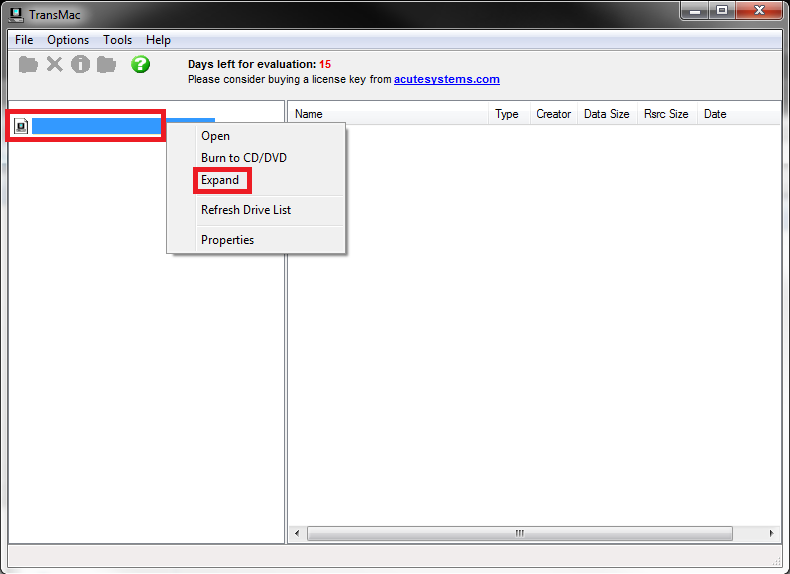
Next, we right-click the operating system image in TransMac and click "Expand".
3. A set of files and drivers. All this material can be found packaged at the following link:
To follow this tutorial you have to download all the compressed files from the following link and save them in the same folder. You also need a Snow Leopard image in .dmg format. With that you will have everything you need for the installation.
[Note: to follow this guide you need the expanded Snow Leopard image]
Now that we’ve covered whether or not you’ll be able to install Snow Leopard in a virtual machine, let’s go through the installation steps.
1.- Installing VMware:
First we need to install the VMware virtualization system. We don’t show this installation in the tutorial because it’s trivial. As the comedian "Queque" would say, this installation is done using the "Windows-style nonsense", saying "yes to everything" all the time.
2.- Starting the Configuration
Now we start with the really important part. We follow these steps:
-
- We unzip the Snowy_VM pack wherever we want to leave the operating system “installed” (once Snow Leopard is installed, it’s best not to move it from where it is). Note: It will require about 50 GB free.
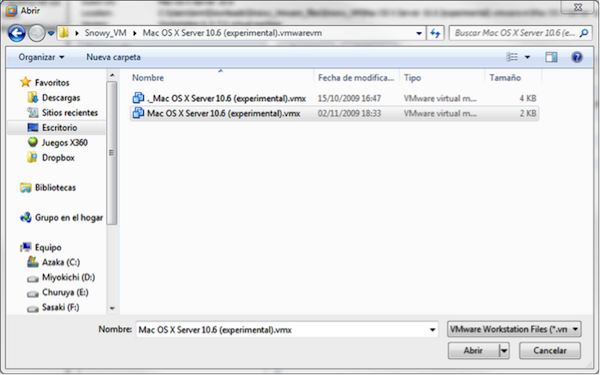
- We run VMware. Then in File/Open, select the file Mac OSX Server 10.6 (experimental).vmx.
-
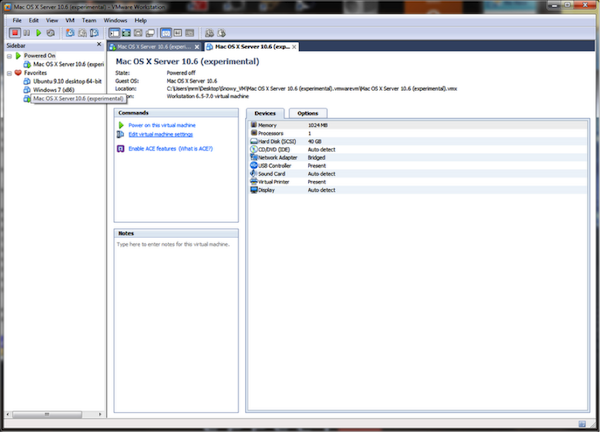
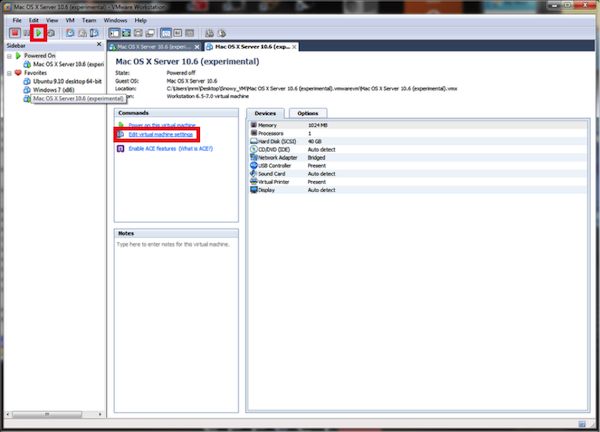
- When the virtual machine configuration window loads, go to the Commands tab and click Edit virtual machine settings.
-
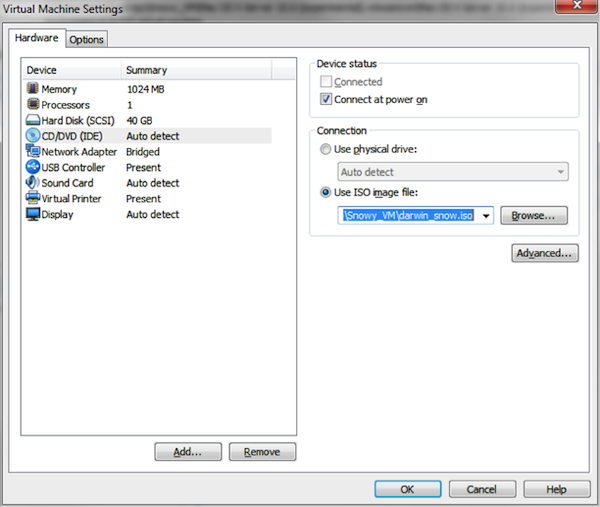
- A new window will open where we select CD/DVD (IDE). In the options box labeled Connection, select ISO image file, and with Brose… look for the file darwin_snow.iso.
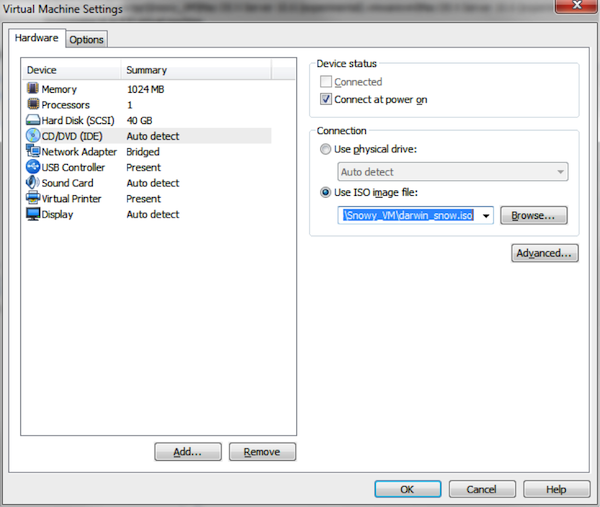
-
- We start the virtual machine by clicking the green arrow button (Play). When the VMware loading bar appears, press F8 so it shows the text-mode boot options.
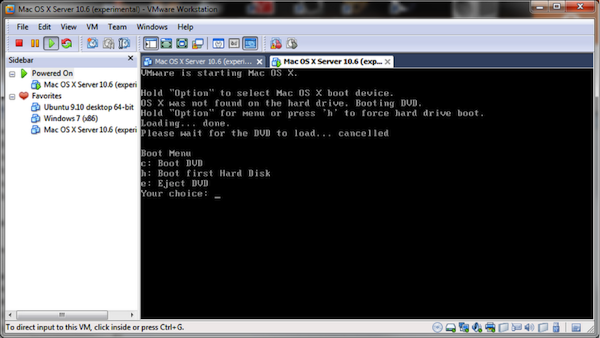
3.- Preparing the DVD image
-
- The attached Snow Leopard image (Mac OS X Install DVD.iso) is already expanded. All you have to do is mount it with VMware.
- We go back to “Virtual Machine Settings” (where we previously mounted the Darwin_snow.iso file). To do so, click the following button with a wrench on it:

-
- Remember to check the Connected option in the CD/DVD window, as shown in the following image:

4.- Installing the Operating System
-
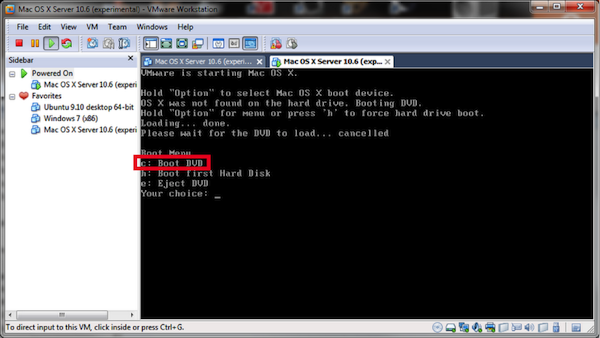
- Press “C” (the Boot From DVD option) and the installation will begin. It may ask you to press F8; at that point you’ll have to type on the command line: -v (verbose mode) and press the Enter key.
- When asked to select the language, choose Spanish ISO (this is for the normal Spanish keyboard with ñ), and continue.
- It will ask you to choose the hard drive; select it and wait several minutes for the installation to finish. When it asks to restart, continue with the tutorial (Note: the first time it restarts it will ask you to enter configuration data such as the time zone and other settings. In Snow Leopard the username and password you choose are important, since it will ask for the password quite often).
5.- Shutting down/Restarting the Operating System each time
-
- We tell the emulated Snow Leopard to restart or shut down (it does the same thing). To show that it has shut down correctly, VMware will indicate it like this:
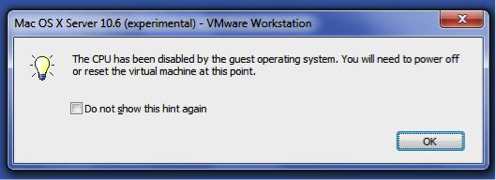
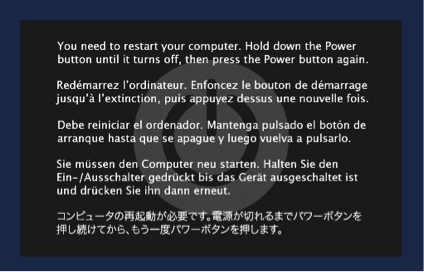
-
- We click the X, it will tell us we’ve finished running the operating system, and we close it with “Power off”. The tab will close.
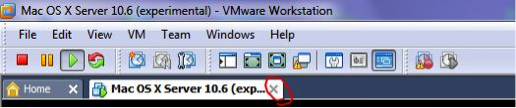
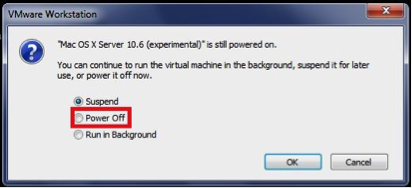
6.- Starting the Operating System each time
-
- We go to the Home tab in VMware. Click Open Existing VM or Team.
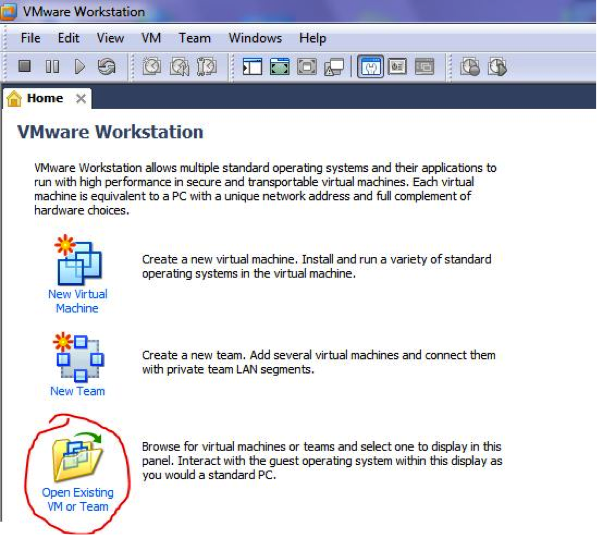
-
- We select Mac OS X Server 10.6 (experimental.vmx).
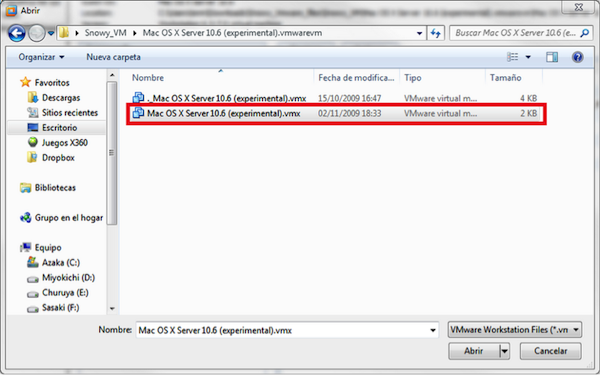
-
- Here we either click Run to boot the operating system (Note for the first time: after installing the operating system, before restarting the first time, you have to go to Edit virtual machine settings to remove the Snow Leopard image and load the one that boots the system; this is explained in the next paragraph). Or we check the options in Edit virtual machine settings.
-
- Doing this once is enough, although it doesn’t hurt to make sure: in the CD/DVD (IDE) window of Virtual Machine Setting, which we’ve already touched so much, we put back the darwin_snow.iso we had before. This image must always be loaded in order to boot the Snow Leopard operating system.
- If everything went well, the operating system will run correctly.
NOTE ON POSSIBLE FREEZES DURING BOOT: if it freezes or doesn’t finish loading, that’s normal. To fix it, stop the virtual machine and restart it.
NOTE FOR THE FIRST RUN: as with every operating system, the first time it starts it will ask for user data and a password (which in OS X will be requested every time you want to install or modify something with administrator rights, so make sure you don’t forget it).
You will have noticed that sound doesn’t work in the installed operating system. This is because the audio drivers are not installed. They are attached and are called EnsoniqAudioPCI.mpkg_.tar . You have to transfer these drivers to Snow Leopard and install them from there (Note: later on we explain how to share a folder between Windows and the emulated Snow Leopard, to pass files from one operating system to the other).
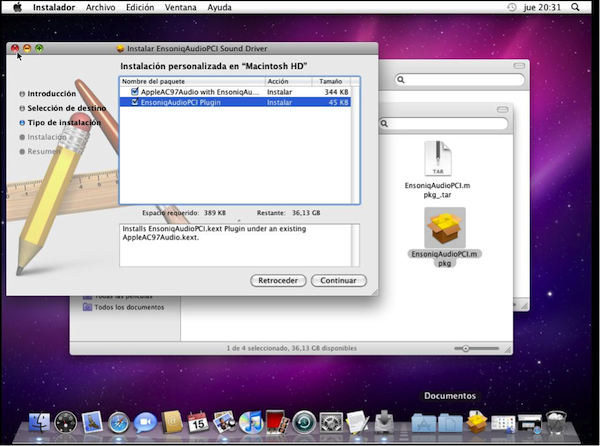
7.- Sharing folders between the emulated Snow Leopard and Windows (described for Windows 7) to transfer files between the host and guest operating systems.
-
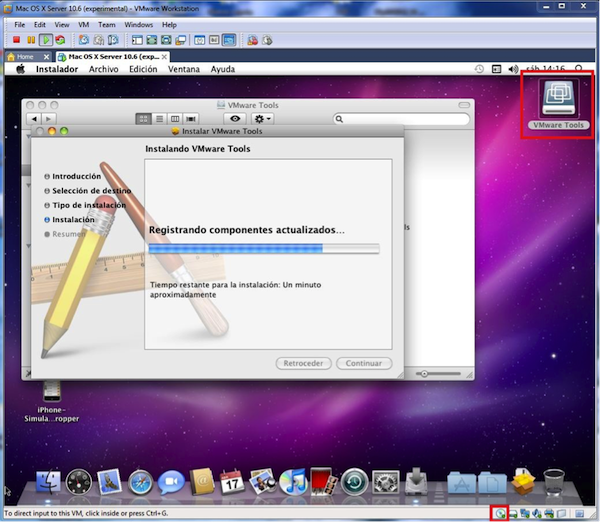
- The first thing to do is click the CD image at the very bottom right and click connect. A drive called VMware Tools will appear. Open it and click to install the Tools. Install them.
-
- Once they have installed successfully, click the CD image at the very bottom right again and click disconnect. VMware Tools will disappear.
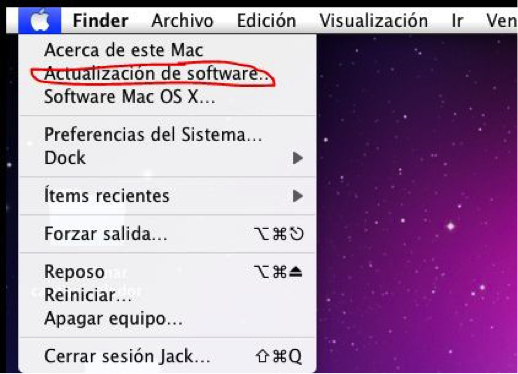
- Now we update the operating system as far as possible (it’s more than 1 GB). Restart it as many times as needed and click “Software Update…” as many times as necessary until there are no more updates available.
-
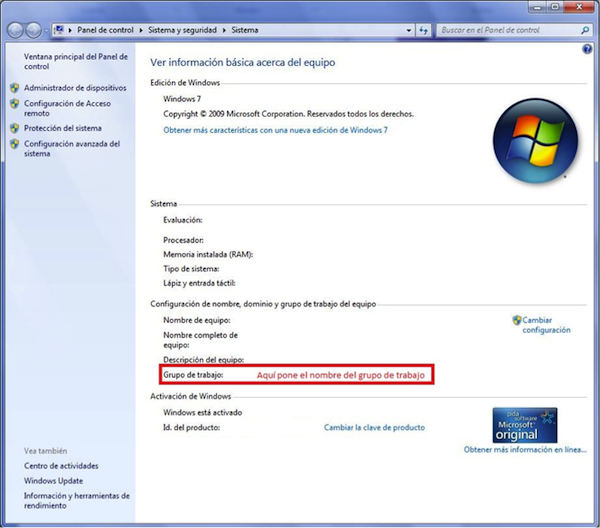
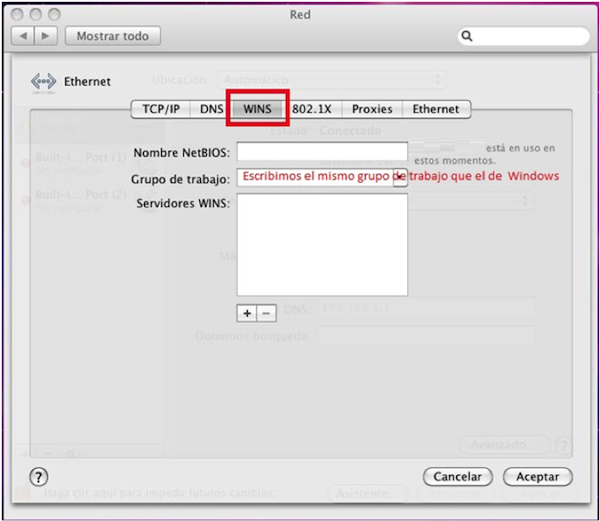
- Now we put both operating systems in the same workgroup.
- In Windows, go to Start and search for “workgroup”. Choose the option that shows the workgroup.
-
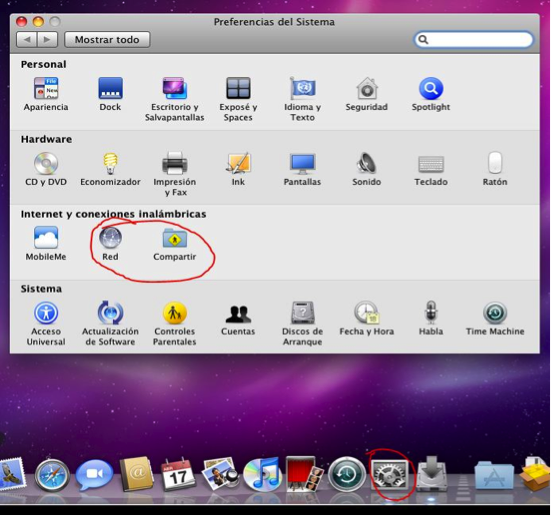
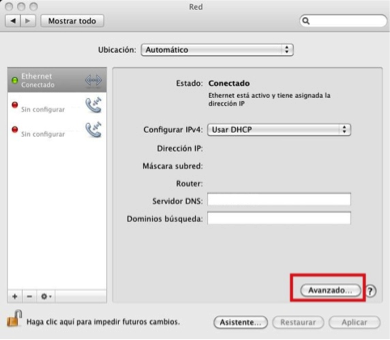
- Remember the workgroup name and go to the emulator with Snow Leopard. Click System Preferences and then Network.
-
- In Network, go to Advanced….
-
- Then click the WINS tab, type exactly the same workgroup Windows had (respecting uppercase and lowercase) and accept all the changes.
-
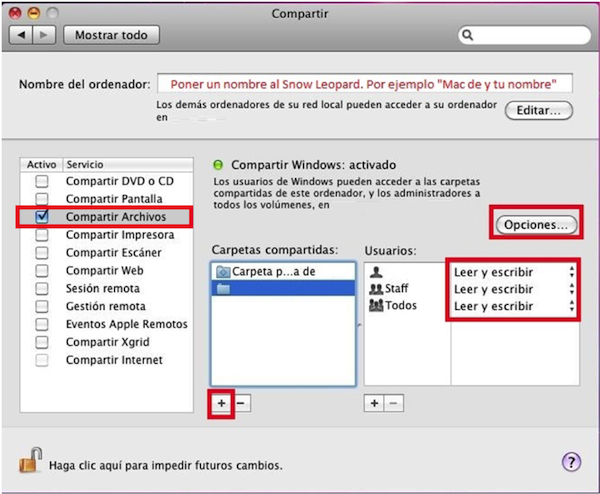
- We create a folder on the desktop of the emulated Snow Leopard. Then we go back to System Preferences to open Sharing. Next, on the left we select File Sharing, make sure it’s checked, and go into its options on the right. In “Computer Name” we type a name we can recognize later in Windows. In the box called “Shared Folders” we click the + and find the folder we created on the desktop that we want to share. Then, in the “Users” box, we set everyone to Read & Write. Then we click the Options… button.
-
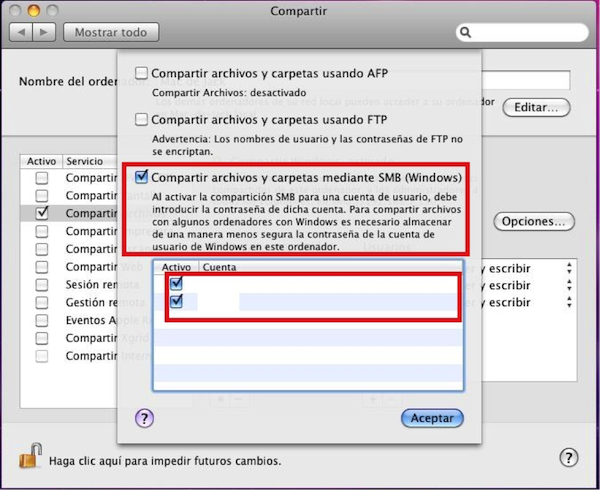
- In Options, check Share files and folders using SMB (Windows) and uncheck the rest of the options. Check the users you want to share something and accept.
-
- We go back to Windows by minimizing VMware with Snow Leopard running. In Start, search for “view network computers and devices”. We’ll see the Snow Leopard emulation; open it (Note: it may ask for a username and password; you have to enter the Snow Leopard ones, not the Windows ones).
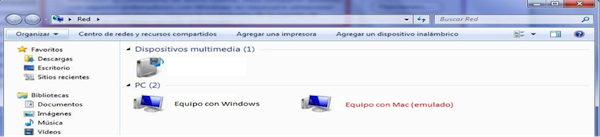
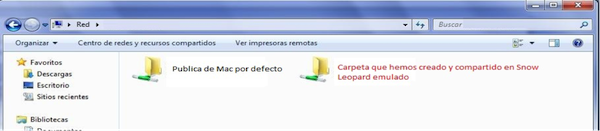
Inside the computer we’ll see the folder we created and made public in Snow Leopard. We copy a shortcut to the Windows desktop, and we can now start dropping files into it so they travel to VMware and on to Snow Leopard (the files copied here will be stored in the emulator).
-Bibliography:
To write this tutorial we based ourselves on the tutorial from the website "www.perry.es" in the following post:
http://www.perry.es/2010/02/tutorial-instalar-snow-leopard-en-vmware-7-bajo-windows/
“Install Snow Leopard (OS X) on VMware under Windows” by Ramón Invarato at jarroba.com, licensed under Creative Commons Attribution-NonCommercial-ShareAlike 3.0. Registered at Safe Creative.

You may also like

Binary: Combinations and Conversion
Learn how numeral system combination tables work and convert between binary, decimal, hexadecimal and octal with simple mental math.
Binary Number System
Learn what the binary number system is, how it relates to decimal, octal, hexadecimal and base 64, and how to read bases and number notations.
Leave a comment