
Xilinx ISE Download and Installation Tutorial
Learn how to download and install the free Xilinx ISE WebPACK on Windows, step by step: create your account, install the tool and activate the license.
The Xilinx ISE development tool, developed by Xilinx, lets you carry out a complete design based on programmable logic, so it includes all the software you need for every stage of designing a digital circuit prototype.
To get Xilinx ISE, you have to go to the Xilinx website and download the tool for free. To do so, go to “http://www.xilinx.com”. To download and install the tool, follow the steps explained below:
1) To download the application, go to "Adaptive SoCs & FPGA Design Tools Downloads – 2026.1 (AMD)". The following ISE download page will appear, with the different versions and operating systems. Choose the version of ISE you want: Windows or Linux.
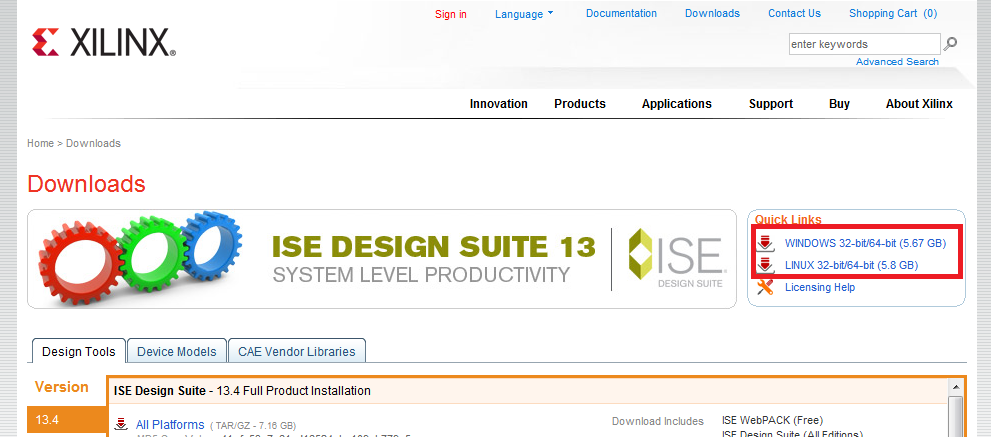
In this case we are going to download version 13 of “ISE Design Suite”, which takes up 3.2 GB. This version works on both 32-bit and 64-bit machines. In the following steps, the tutorial was made with version 12, which is the same as 13.
| Note: Since Xilinx ISE is a free tool (for certain uses) that is downloaded from the Xilinx website, it is very likely (if not certain) that the web interface will change, just like the versions of the tool (this tutorial was made for version 12.3). So the images in the first 3-4 steps of this tutorial may not match the current state of the website, but the steps to install the tool are very likely the ones shown in the tutorial. |
2) After clicking the download for Windows (compatible with Windows XP, Vista and 7), it will ask you to create an account on the Xilinx website. To do so, click “Create Account”:

3) Now it will ask you to fill in a form to register an account on the Xilinx website. The form looks like this:
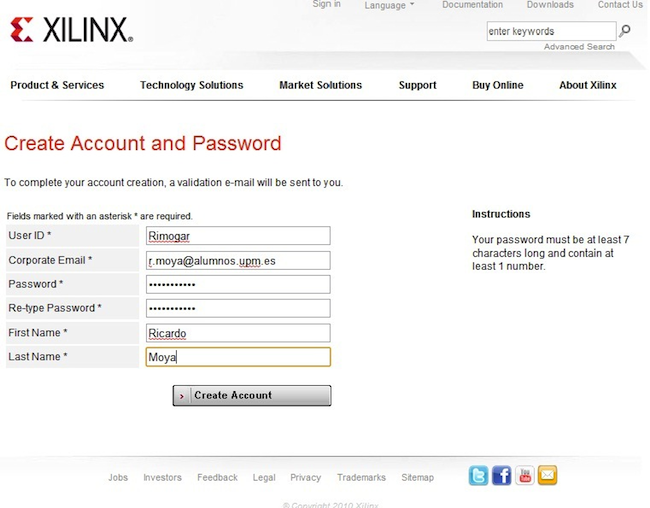
Once you have filled in your details, click “Create Account”.
4) Once the account is created, a page will appear telling you to activate the account by clicking a link they send to the email address you provided:

5) The email they send you contains the link to activate the account. You have a maximum of 30 days to activate it:

6) Once the account is activated, you will get to the following page, which asks for your username and password to access the software download:

7) The first time you access the page, it will ask you to fill in some personal information:
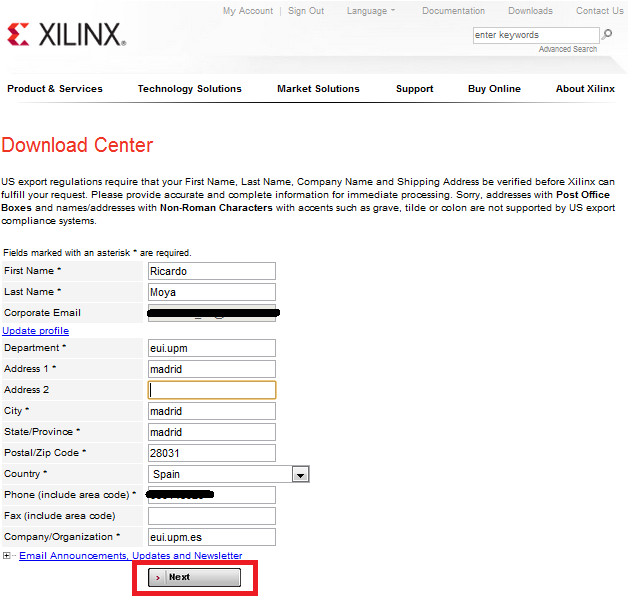
Once you have entered the required data, click the “Next” button and the version of Xilinx ISE you chose will start downloading.
8) Once you have downloaded the file shown below, extract it so you can install the software:

9) Once you have extracted the downloaded file, open the folder and double-click the “xsetup.exe” file to start the ISE installation:

10) First, a welcome window will appear to start the installation. Click “Next”:

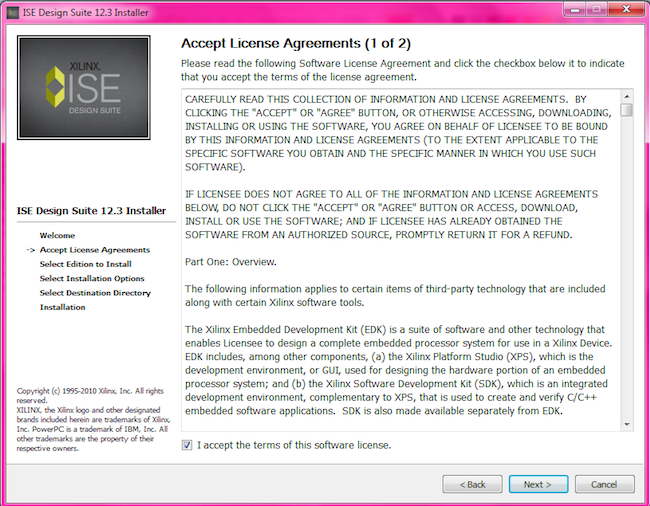
11) The next two windows in the installation are for accepting the terms and conditions of use of the product. Once you have checked the acceptance boxes, click “Next”:

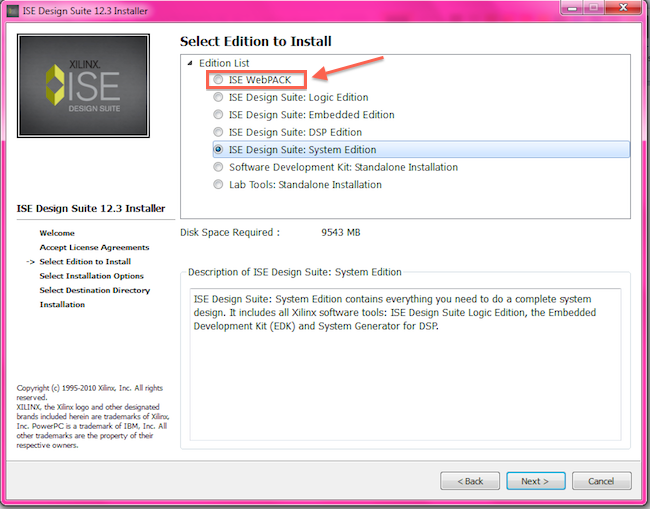
12) The next step in the installation is to select the edition of the product you want to install. Here we choose the “ISE WebPACK” option, which is the default:
13) In the next step we select the installation options. Here we also keep the default options:

14) Next we select the directory where we want to install ISE. In this case we keep the default:

15) Once we have accepted and configured the installation, we proceed to install the software on the computer. To do so, click the “Install” button in the next window to start the installation:

16) Once you click the “Install” button, the installation starts and will take several minutes, depending on the computer you are installing it on:

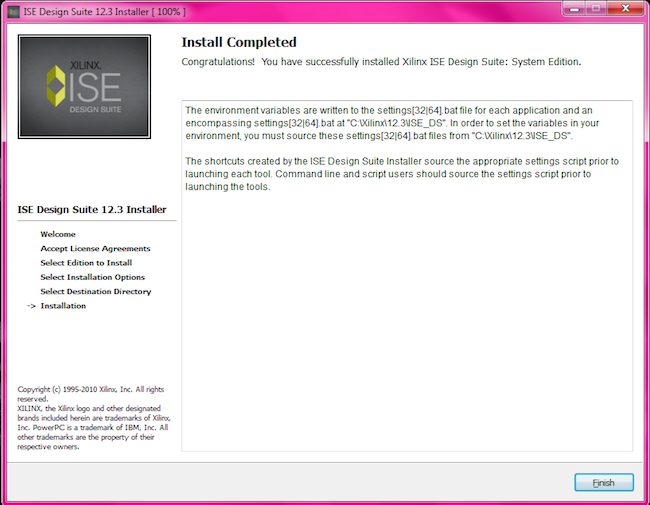
17) When the installation finishes, the following screen will appear, and by clicking the “Finish” button the installation will be done, except for activating the product license:
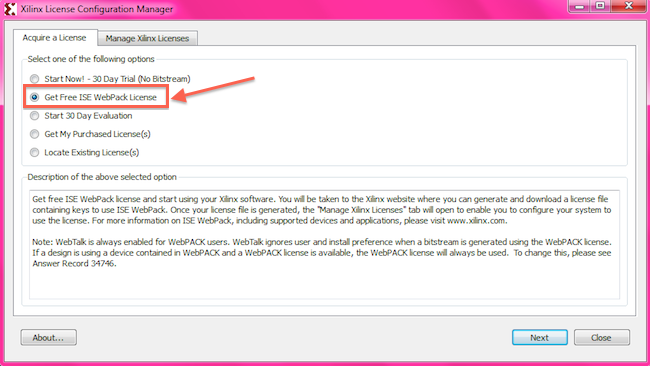
18) Now the following window will appear, asking for the software license. Select the “Get free ISE webPack License” option and click the “Next” button:
19) Next, the following window will appear:
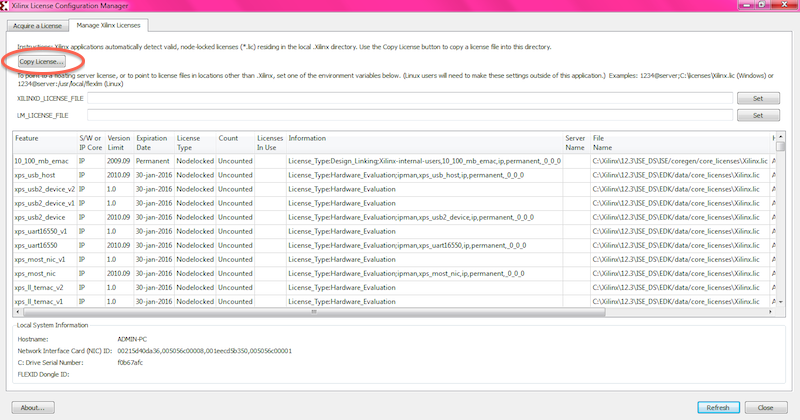
Click the “Copy License …” button and go to the path “C:Xilinx12.3ISE_DSISEcoregencore_licenses”, if you installed ISE in the default directory, and select the “Xilinx.lic” file. Once you have selected this file, the Xilinx ISE software is ready to use.
Bibliography
[1] This tutorial was taken from the final degree project by Ricardo Moya (co-founder of www.jarroba.com). For more details about his final project for the Technical Engineering in Computer Systems degree, you can see it on his personal website, under the "Proyecto fin de carrera" tab.
[2] http://arantxa.ii.uam.es/~etc1lab/Archivos_y_pdf/tutorial_descarga_xilinx.pdf
“Xilinx ISE Download and Installation Tutorial” by Ricardo Moya at jarroba.com, licensed under Creative Commons Attribution-NonCommercial-ShareAlike 3.0. Registered at Safe Creative.

Leave a comment