
First Contact with Your ADSL Router – Accessing Its Configuration Menu
Learn how to log in to your ADSL router's configuration menu from a browser, which default credentials to try, and how the admin panel is laid out.
At first it’s a mess when someone tells you, or you read somewhere: “log in to the router and set up WPA security, it’s quick and easy!” Easy for someone who knows how, well, let me correct that: easy once you understand the differences between the ADSL router, the computer you access it from, and the web browser. Quick? Yes, it’s quick after all. For a bit of encouragement, there isn’t much to dig into in an ADSL router -it’s a device that is nowhere near as complex as the digital device you are reading this on.
To understand the difference between the ADSL router, the computer you access it from, and the web browser, we can distinguish three different machines in this process. Each machine does the following: it receives information, processes it internally so the next machine in the chain can understand it, and sends it to the next machine. In this chain we have three machines: the ADSL router, the computer, and the user (yes, the user does exactly the same as the other machines, after all everything is part of the information processing cycle, but in this example the user is the final machine). So, the ADSL router receives information from the Internet, which is what it “sees” and understands, processes that information so the computer can interpret it, and shows it to the computer. The computer receives the information from the ADSL router, which is what it “sees” and understands, processes it together with the browser so the user can understand it, and shows it to the user. The user receives the whole of the web and browser information, which is what they “see” and understand, and processes it (so that when they tell it to another person or machine, that one will understand it in the future, which closes the information cycle, though as I said).
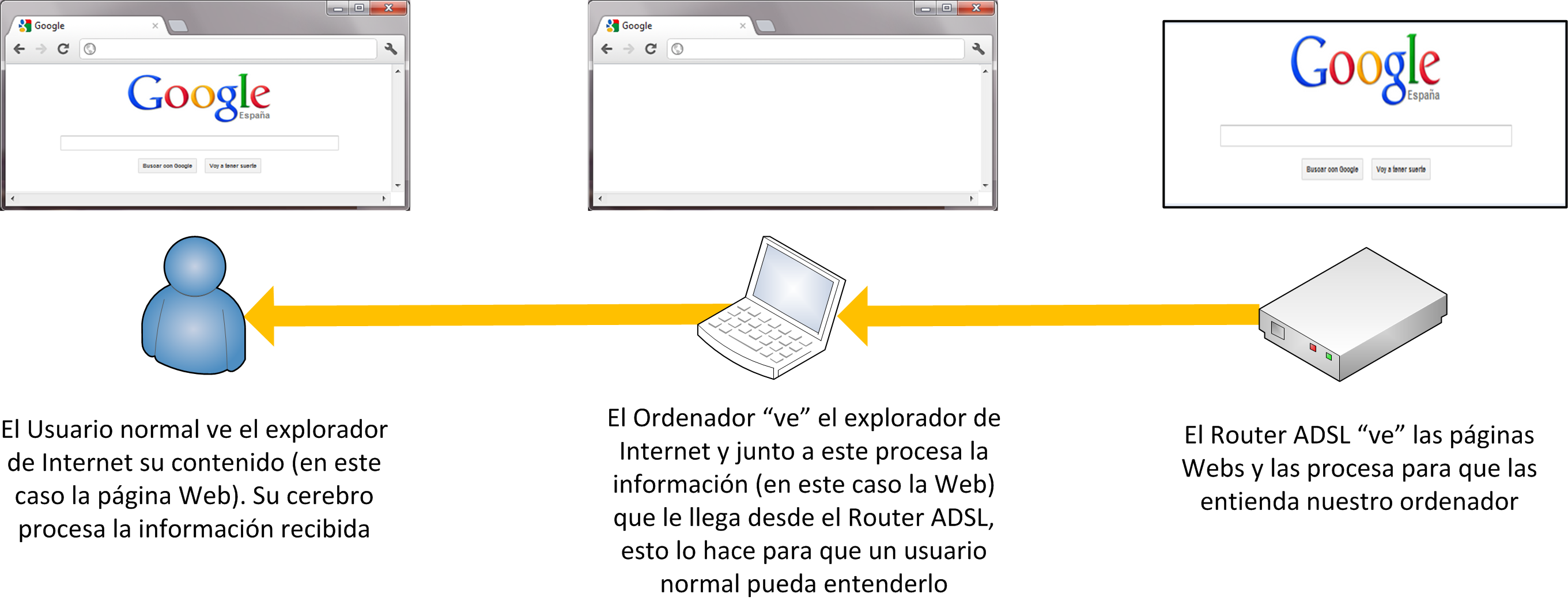
Well, an ADSL router is like a computer with its own operating system. A very small operating system, which is more of a configuration menu like the one on any video player in your living room or on the TV itself.
You access the ADSL router’s configuration menu through an Internet browser, from a computer or any device with an Internet browser that is on the same LAN or WLAN network -if the ADSL router is yours and you’re at home, you’re surely on the same LAN or WLAN (More information in the ADSL router tutorial).
Just like web pages are processed, we have the ADSL router’s configuration menu, except that the information isn’t generated somewhere on the Internet, but by the ADSL router itself.
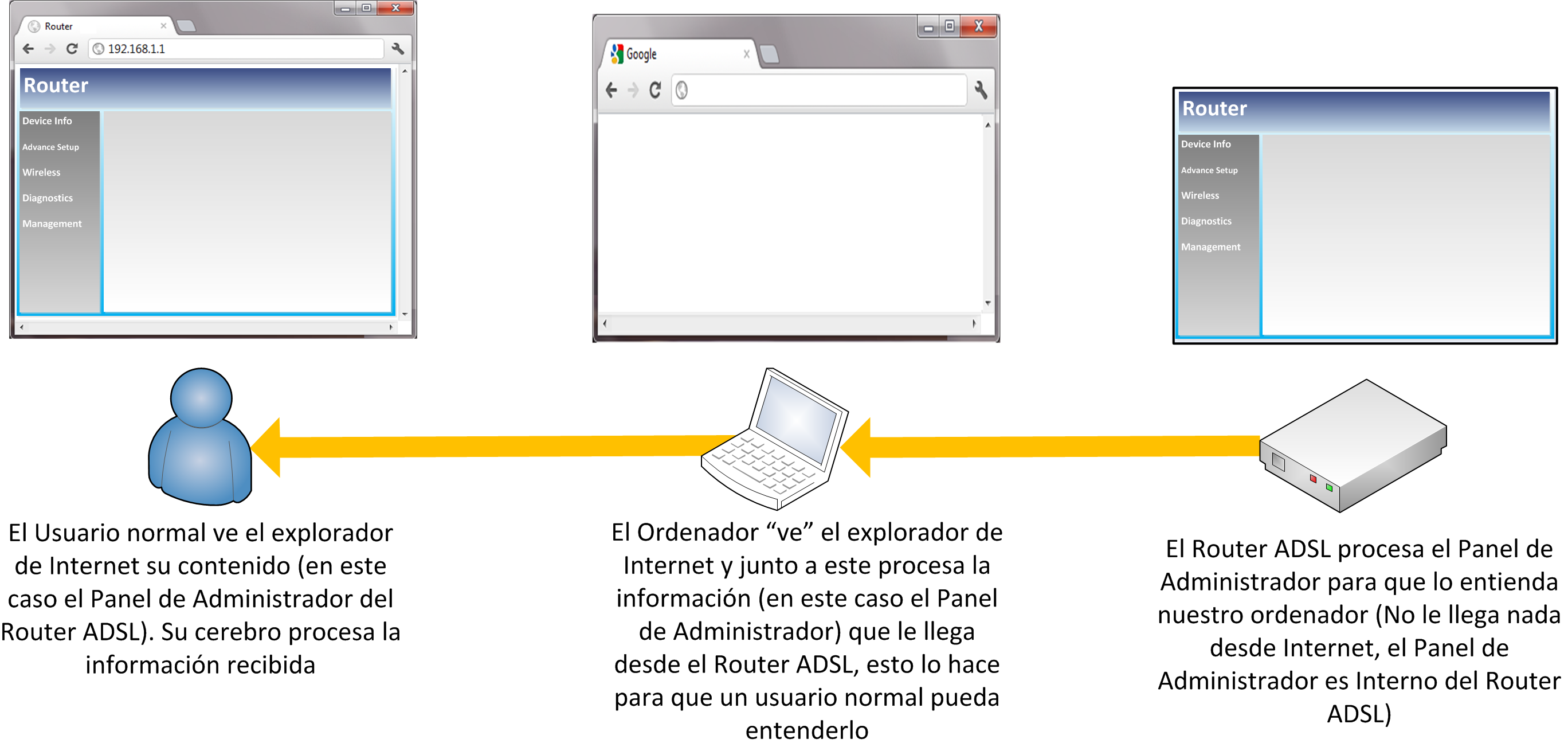
How to access the ADSL router’s configuration menu
To access the configuration menu of our ADSL router, we go to our computer, which has Wi-Fi access or is connected with an Ethernet cable (to make sure we always have access to the ADSL router, it’s important that it’s plugged in with an Ethernet cable) directly to the ADSL router we want to access.
We open any browser, such as Chrome, Firefox, Safari, Opera, or Internet Explorer:
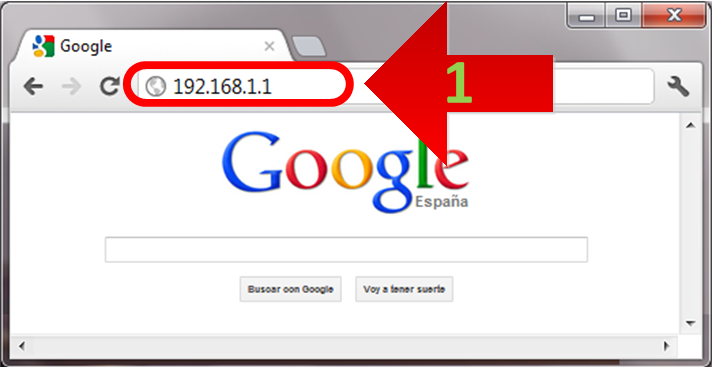
1. In the address bar (the same text box where you type web pages like www.Jarroba.com) we enter the IP address of the gateway to our ADSL router, usually: 192.168.1.1. And we navigate to that page.
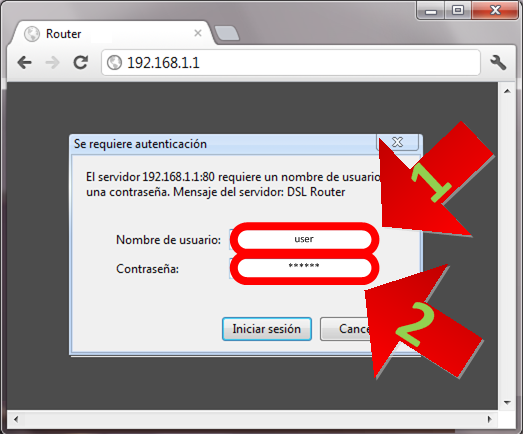
A pop-up window will open with two fields to fill in. The details you need here usually come in the ADSL router’s manual or on a sticker on the ADSL router. They may also be the most common ones, which we’ll go over next.
1. The first one is our ADSL router username. The usual defaults: admin, or leave it empty.
2. In the second field we have to enter our ADSL router password. The usual defaults: 0000, 1234, or admin.
We’ve now managed to access our ADSL router’s configuration menu.
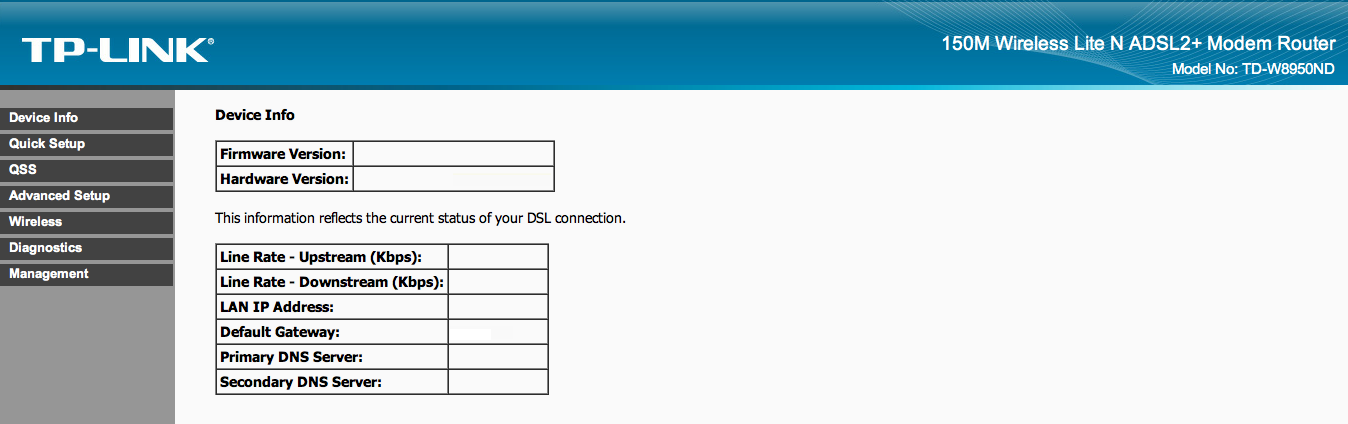
This configuration menu is usually not the same across different ADSL routers, but the options are similar, if not identical. So from here on we’ll show a generic configuration menu that will guide us through the many settings we’ll need. Each image will be accompanied by real photos of several configuration menus from different ADSL routers.
The configuration menu is easy to use in all cases. There is a navigation bar with the different options grouped into categories; this bar is usually either on the left or at the top. When you select an option in the navigation bar, it loads into a larger area, usually on the right or at the bottom, showing the available settings and information.
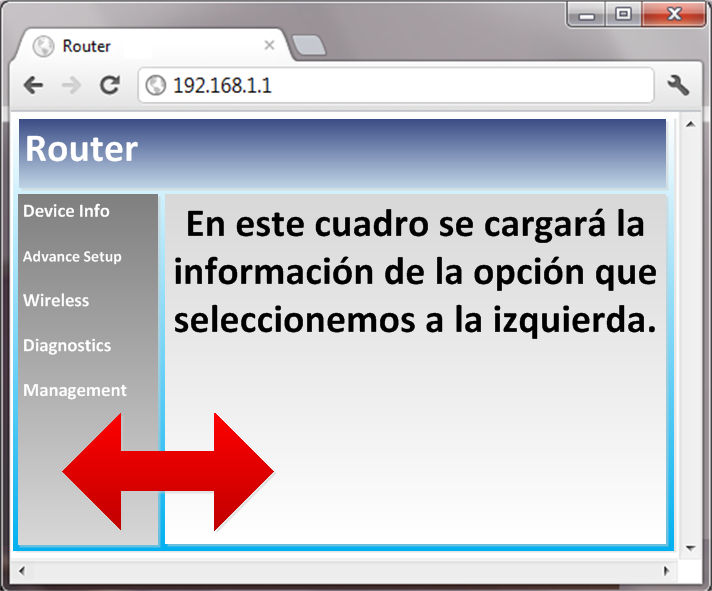
Examples of the configuration menu on several ADSL routers:

“First Contact with Your ADSL Router – Accessing Its Configuration Menu” by Ramón Invarato at jarroba.com, licensed under Creative Commons Attribution-NonCommercial-ShareAlike 3.0. Registered at Safe Creative.

You may also like


Change the Default Password for the ADSL Router Configuration Menu (Basic Security)
Learn how to change the default password for your ADSL router's configuration menu, step by step, and keep your network private and secure from intruders.
ADSL Router – How Does That Box That Just Gives You Internet Work?
Find out how your ADSL router works: LAN vs. WAN, RJ-45 and RJ-11 ports, and what's really inside that box your ISP sends you.
Leave a comment