
Attributes for Android Designers (tools:xxxxx)
Learn the tools:xxxxx attributes in Android: design-time helpers like tools:ignore, context, layout and listitem that make building your layouts easier.
When you program in Android you always think about the user, everything for them and because of them: the app should look good, be fast, be comfortable to use, and so on. But ¿Who thinks about the developers and designers of Android apps…? Let’s go over some helpers that come in very handy when designing the graphical environment (views) and that you’ll surely be glad to know. Let’s get started.
In almost any resource -any XML file inside the "res" folder- you can use some of these very useful tools for developers and designers, although for now almost all of them apply to views. To do so, we need to use the reserved “tools” namespace in the XML files, declaring it in the root of the XML file:
xmlns:tools="http://schemas.android.com/tools"These "tools" are not only used to store information that won’t affect the user (like the user’s design views), they are meant to make life easier for the designers of the XML layout files. Also, the information in the “tools” tag will not be packaged when the app is built. In other words, it stores information that has no visual effect on the Views at runtime -when running the program on the emulator or on a physical device- but does at design time -while we design our app in Eclipse or in Android Studio.
Declaring these attributes is as simple as writing the word "tools:" -which indicates its namespace- followed by the name of the attribute you want to use. That is, it will look like "tools:xxxxx".
More "tools:xxxxx" attributes will probably appear in the future, and some may become outdated. For now, the ones we have been able to try, that work and that look like they will last are:
Tools attributes
tools:ignore
To make Lint ignore a check. For example the HardcodedText value, which is used to stop Lint from reminding us with a Warning (underlined in yellow in Eclipse) about texts that we type directly instead of putting them in the "strings.xml" file
<TextView
	android:layout_width="wrap_content"
	android:layout_height="wrap_content"
	android:text="Una texto que debería Lint marcar como Hardcoded, pero no se marca por usar tools:ignore con HardcodedText"
	tools:ignore="HardcodedText"
/>
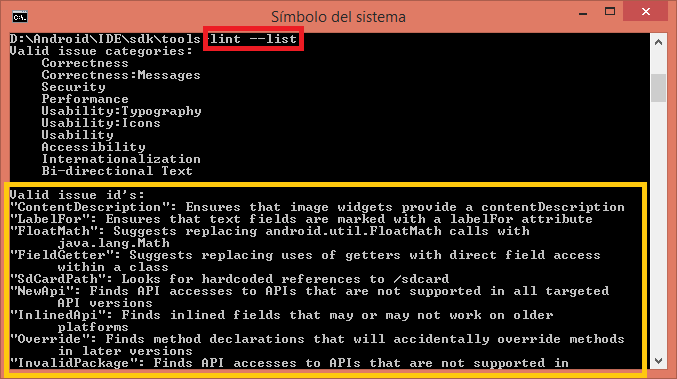
Where can I find all the possible values to ignore?
You can see them in the terminal. To do so:
1. Open the terminal
2. Go to the tools folder of the Android SDK and type: lint –list
tools:targetApi
To indicate from which API level the View will be used. For example, GridLayout wouldn’t work on versions earlier than 14. It’s simply a reminder of the minimum Android version it supports.
<GridLayout
	android:layout_width="match_parent"
	android:layout_height="match_parent"
	tools:targetApi="ICE_CREAM_SANDWICH" >
</GridLayout>
tools:context
It goes on the root View of the XML layout file, to remember which Activity will be associated with it. This way the layout editor can apply the Activity’s theme (which is declared in the AndroidManifest.xml, where it is tied to the Activity, not to the XML layout file) while we design our view (this theme only applies at design time, not the one the end user will see). You can use the dot as a prefix, just like in the AndroidManifest.xml
<RelativeLayout xmlns:android="http://schemas.android.com/apk/res/android"
	xmlns:tools="http://schemas.android.com/tools"
	android:layout_width="match_parent"
	android:layout_height="match_parent"
	tools:context=".MainActivity" >
</RelativeLayout>
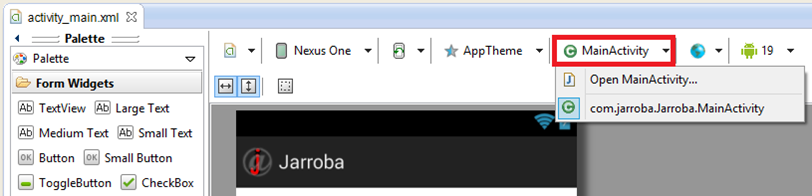
Is there an easy way to set this property in the graphical editor?
Yes, you can choose or change the property with the green circle icon with a C (for Java class). One advantage of setting it is that you can open the associated Activity directly from here by clicking “Open ActivityQueLaAsociara…”.
tools:layout
Very useful for designing Fragments. It goes on the <fragment> tag and is used to remember which XML layout file will be drawn, but only to show the designer how it looks, not the user. You can put any layout; it doesn’t have to match the Fragment’s own, although that will be the most common case. When we run the app, the layout is determined by the one you set in onCreateView()
<fragment
	android:id="@+id/fragment_A"
	android:name="com.jarroba.fragmentestaticos.EstaticoFragmentA"
	android:layout_width="fill_parent"
	android:layout_height="fill_parent"
	android:layout_weight="2"
	tools:layout="@layout/disenio_fragment" />
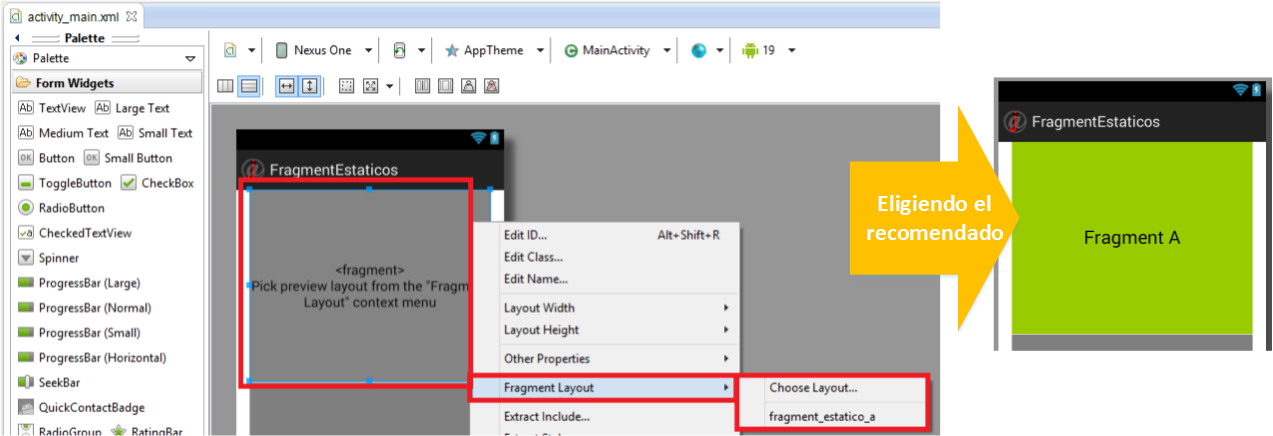
Is there an easy way to set this property in the graphical editor?
Yes. Select the Fragment in the preview, then right-click to open the options panel. Click “Frame Layout” and then choose the one it recommends (based on the one you associated in the Fragment’s onCreateView(), so it will probably be what you want) or any other layout.
tools:locale
To indicate that a “strings.xml” file corresponds to a language and, optionally, a region. Useful to indicate which language will be used in the file. res/values-en/strings.xml <resources xmlns:tools="http://schemas.android.com/tools" tools:locale="en"> <string name="app_name">Idioms</string> <string name="texto_del_textView">English text</string> </resources>
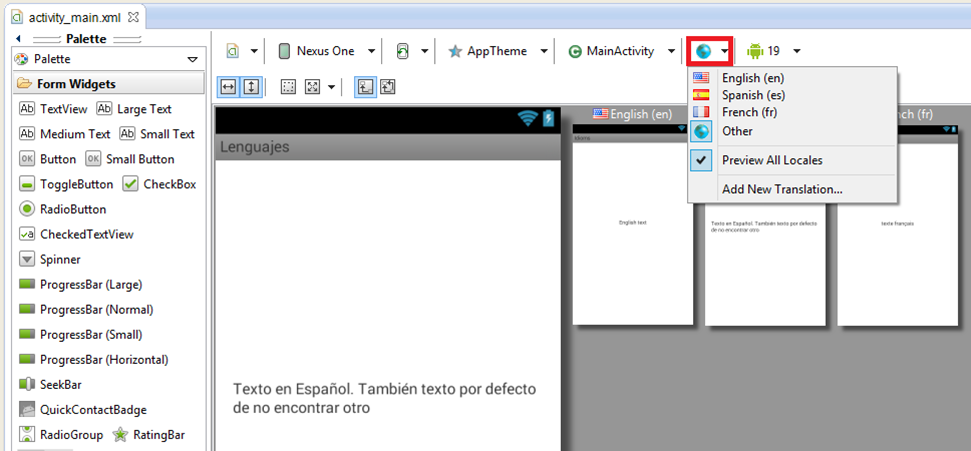
The languages appear in the graphical editor. Can I manage them from there?
No. With the globe icon you can change the language to see how it would look in another language, as long as you have the “strings.xml” files set up correctly in the “res” folder and in each “values-xx” folder (where xx can be “es”, “en”, etc). You can even see a preview of how all the views would look at once.
tools:listitem, tools:listheader, tools:listfooter
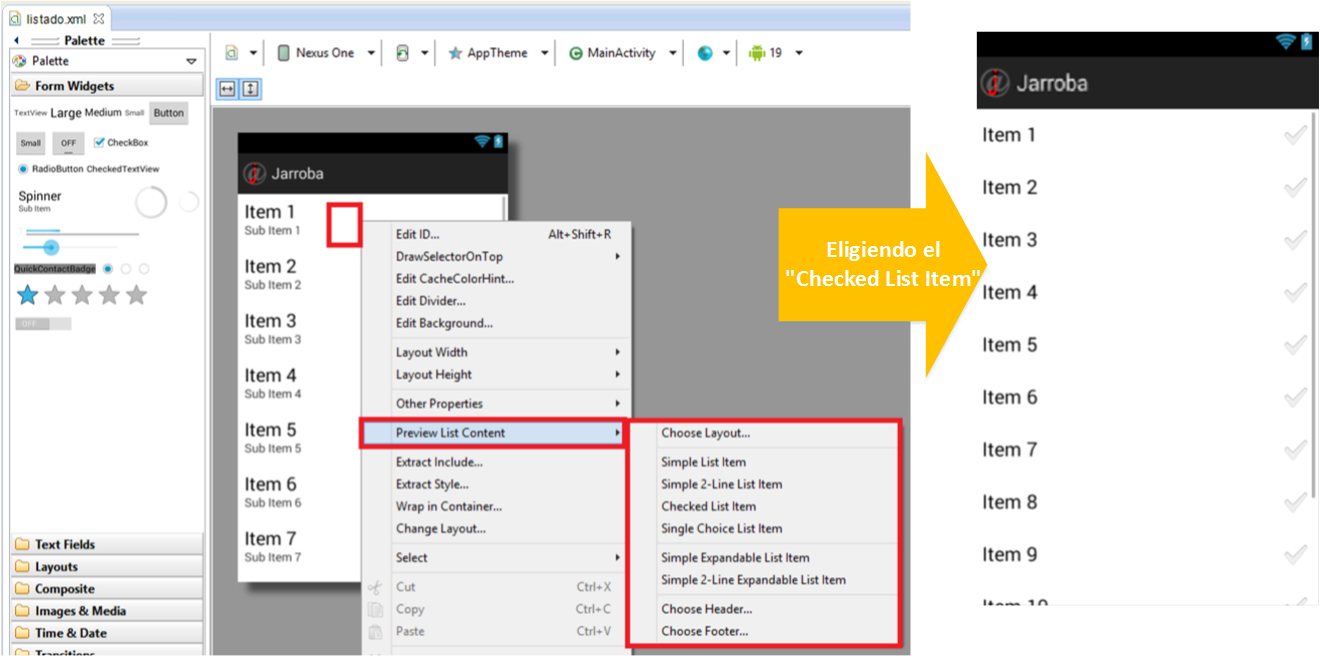
To fill the <ListView> with fake content so you can see how it looks
<ListView xmlns:android="http://schemas.android.com/apk/res/android"
	xmlns:tools="http://schemas.android.com/tools"
	android:id="@+id/container"
	android:layout_width="match_parent"
	android:layout_height="match_parent"
	tools:context="com.jarroba.Jarroba.MainActivity"
	tools:ignore="MergeRootFrame"
	tools:listitem="@android:layout/simple_list_item_checked" >
</ListView>
Is there an easy way to set this property in the graphical editor?
Yes. Wherever we have a list, in the preview we can right-click and choose “Preview List Content”. There, pick the one you want to use, either one made by us or one already made by the folks at Google. We can also choose a list header or footer.
tools:showIn
It goes on the root View of the file to remember in which <include> it will be drawn. It’s normally put on a <merge>, which is usually included through an <include> tag. It lets you point to the XML layout file that includes this other layout, and at design time this one will be included inside the layout that surrounds it
<merge xmlns:android="http://schemas.android.com/apk/res/android"
	xmlns:tools="http://schemas.android.com/tools"
	android:layout_width="match_parent"
	android:layout_height="match_parent"
	tools:showIn="@layout/disenio_que_incluye_con_include" >
</merge>
References:
“Attributes for Android Designers (tools:xxxxx)” by Ramón Invarato at jarroba.com, licensed under Creative Commons Attribution-NonCommercial-ShareAlike 3.0. Registered at Safe Creative.

You may also like
How to Use Multiple GitHub Accounts over HTTPS
Learn how to use several GitHub accounts over HTTPS: configure git so each repository gets its own credentials in your keychain and avoid 403 errors.

Android Architecture – ART vs Dalvik
Android architecture explained in a technical yet easy way. ART vs Dalvik compared, APK contents, AOT and JIT compilation, and the Odex vs Deodex difference.
Leave a comment