
How to Use Multiple GitHub Accounts over HTTPS
Learn how to use several GitHub accounts over HTTPS: configure git so each repository gets its own credentials in your keychain and avoid 403 errors.
Some of you may have several GitHub accounts (a personal one, one for work, …) and, for some reason, want to access them over https instead of ssh, which is how many of you probably have them set up.
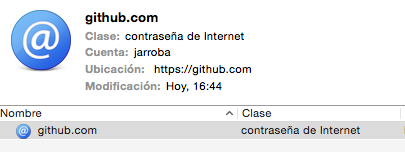
When you want to do a "Push" and you access GitHub over https, the first time it asks you to enter the username and password of the account, and once you have entered them it usually saves the credentials in your PC’s keychain for that access, so the next times you don’t have to enter your username and password again. In the following image we can see how my PC’s keychain saves the username and password of the Jarroba GitHub account; that is, it saves the password to access the website https://github.com:
On the other hand, I have created another personal GitHub account (with the username RicardoMoya), and when I try to Push to a repository it tells me access is denied and returns a 403 (Forbidden):
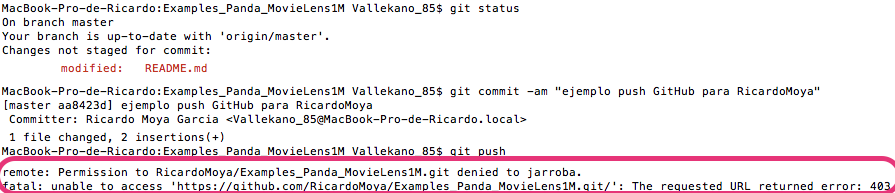
In this case access is denied because the keychain has the credentials (Username = jarroba + Password) of the Jarroba account saved, and not mine, so it takes the credentials from the "location: https://github.com".
To fix this, I have to configure git so that it generates a different location for each repository (regardless of whether I access with my personal account or with the Jarroba one). This way it will only ask me for the username and password the first time I do a "Push" in a repository. Let’s see how to set it up:
First, we are going to edit git’s configuration file. To do so, let’s run the following command:
git config --global --edit
When we run this command, it will open our git configuration file and we will enter the credentials of each of the git accounts we have (in this case, two accounts). We will also specify the use of "osxkeychain" to cache the credentials (so that it remembers our username and password) and to save them by the URL we specify in each credential; that is, one URL per project:
[credential]
        helper = osxkeychain
        useHttpPath = true

[credential "https://github.com/RicardoMoya"]
        username = RicardoMoya

[credential "https://github.com/jarroba"]
        username = jarroba
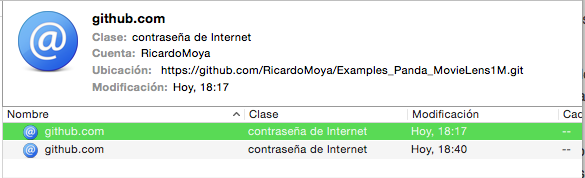
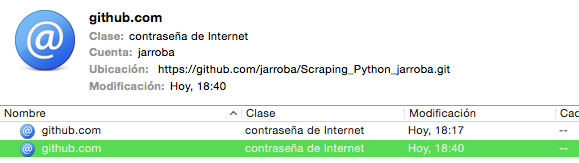
With these settings, git will create an item in the keychain for each repository, so you will only have to enter the username and password of the GitHub account that holds the repository the first time we do a "Push". Let’s see what the credentials would look like for a repository from each of the configured accounts:
-
Repository of the RicardoMoya account:
-
Repository of the jarroba account:
So we have seen how, when accessing a GitHub account over HTTPS, a credential is generated and saved by default in our PC’s keychain, and if we don’t configure git correctly it will pick the wrong credential when we access a GitHub account other than the first one. The solution to this problem is the one presented in this tutorial. It’s true that this tutorial gives a specific solution for HTTPS access, but the ideal would be to set up your GitHub accounts using SSH.
“How to Use Multiple GitHub Accounts over HTTPS” by Ricardo Moya at jarroba.com, licensed under Creative Commons Attribution-NonCommercial-ShareAlike 3.0. Registered at Safe Creative.

You may also like

Android Architecture – ART vs Dalvik
Android architecture explained in a technical yet easy way. ART vs Dalvik compared, APK contents, AOT and JIT compilation, and the Odex vs Deodex difference.


100% Free Android Book
100% free Android book that teaches everything you need to know about Android. Explained in a fun, easy way with hundreds of images.
Leave a comment