
Android Error – Eclipse Throws an Error That Doesn’t Exist Anywhere
Eclipse shows a red X on your Android project but no error anywhere? Follow these step-by-step solutions to fix the phantom error and the R.java problem.
Sometimes Eclipse throws an error that doesn’t actually exist, and it keeps you from running your code. You can recognize this error because there is only a red X next to the project’s parent folder, but nowhere else in the project, such as a class, a layout, String.xml, etc.
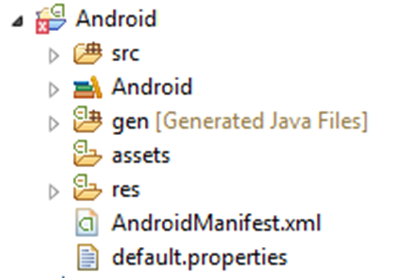
Note: If you have a project you’ve been working on for a year or more, check out this error: Debug certificate expired. If that’s not your case, keep reading.
It’s an Eclipse problem caused by not being able to reference R. This error comes from problems with references that prevent R from being regenerated. Normally it fixes itself, but sometimes it doesn’t.
There are several solutions that can fix the problem. We recommend starting with the first solution and checking whether it works; if not, move on to the next one.
Solution 1
Most likely, it’s a new resource that was added or created in one of the "res" folders. Possibly an image in the "drawable" folder or a design in "layout".
The problem is the file name, which doesn’t meet the conditions for resource names in these folders inside "res".
The rules are that resource names must always be lowercase, letters only, no spaces, and the only symbol allowed is the underscore "_". All other symbols are forbidden; they will cause an error and R.java will not be regenerated until the problem is fixed. These rules apply to the file name, not to the extension (png, xml, …), which will have a dot "." to separate it from the file name. Some examples:
- Example of an allowed resource name: "mi_imagen.png"
- Example of a NOT allowed resource name: "Mi.imagen.png" (because of the uppercase letter and the dot in the name) or "100&imagen.jpg" (because of the number in the name and the & symbol).
Solution 2
Check that the "Build Automatically" option is ticked in Eclipse, found in the "Project" menu.
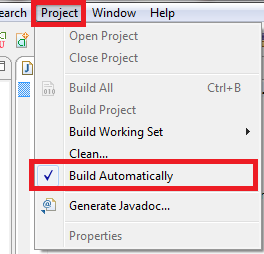
The problem should be fixed. If not, try the next solution.
Solution 3
Close the emulator and restart Eclipse.
The problem should be fixed. If not, try the next solution.
Solution 4
Check that the XML files are well formed. That is, open the files in the "res" folder one by one to see whether Eclipse flags the XML with an error (red X) or a warning that prevents the references ("deprecated" warnings or recommendations are not the cause). Normally the error comes from a warning on some ID in the XML, which you fix by deleting the entire ID line, saving everything, creating the ID again from scratch, and saving everything once more.
If that’s the case, make the appropriate changes and save everything.
The problem should be fixed. If not, try the next solution.
Solution 5
For this solution we recommend making a backup of the whole project, just in case you need to recover it.
Most of the time this error is fixed from the “Project” tab in the toolbar, by selecting “Clean…”. This cleans and reloads Eclipse’s error history. NOTE: We strongly recommend making a copy of the project before doing the “Clean…”.
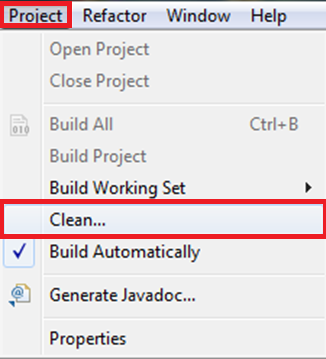
Try selecting “Clean projects selected below”, and select only the project that has the problem. Click “OK”.
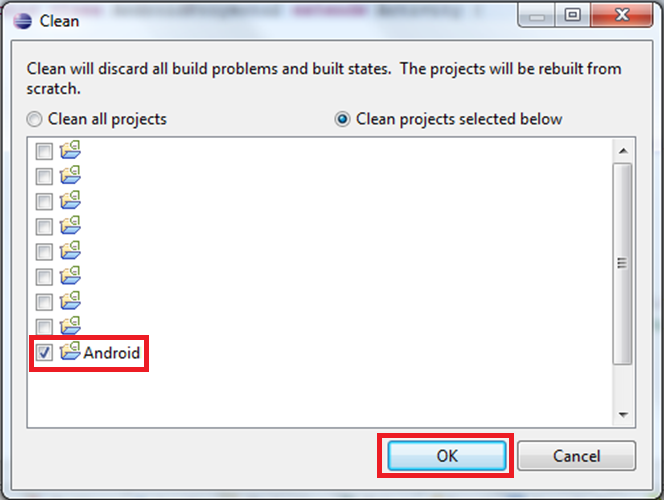
Doing the clean once is enough to find out whether it works or not; several cleans in a row increase the chances of damaging the project.
The problem should be fixed. If not, try the next solution.
Solution 6
After doing a single clean as in "Solution 4", restart Eclipse again.
Modify any XML file in the "res" folder. For example, to leave it as it is, add a space and remove it, then save everything.
“Android Error – Eclipse Throws an Error That Doesn’t Exist Anywhere” by Ramón Invarato at jarroba.com, licensed under Creative Commons Attribution-NonCommercial-ShareAlike 3.0. Registered at Safe Creative.

You may also like


Android Error – The Log Shows Nothing
Is your Android Log empty even though the emulator or device is connected? Learn how to fix this common Eclipse error with a quick restart.
Android Error – Debug Certificate Expired
Android project suddenly shows a red cross after a year? Your debug certificate has expired. Learn how to fix it by deleting debug.keystore in Eclipse.
Android Error – java.lang.NoClassDefFoundError for No Apparent Reason
Getting a java.lang.NoClassDefFoundError in Android for no apparent reason? Follow these two simple fixes in Eclipse to get your project working again.
How to Fix Errors in Android
A collection of posts that show you how to fix the most common errors you may run into when developing Android apps with Eclipse, the ADT and the SDK.
Leave a comment