
Android Error – java.lang.NoClassDefFoundError for No Apparent Reason
Getting a java.lang.NoClassDefFoundError in Android for no apparent reason? Follow these two simple fixes in Eclipse to get your project working again.
This error can show up unexpectedly -everything was working fine and suddenly you get this error- or after updating the ADT.
The following error appears in the Log, coming from one of the classes we created:
E/AndroidRuntime(5410): Caused by: java.lang.NoClassDefFoundError: miPropiaClaseDeEsteProyecto
It can also happen with an imported library, for example the "libGoogleAnalyticsV2.jar" library, showing:
E/AndroidRuntime(5410): Caused by: java.lang.NoClassDefFoundError: com.google.analytics.tracking.android.EasyTracker
Or, for example, with the "gcm.jar" library, showing:
E/AndroidRuntime(5410): Caused by: java.lang.NoClassDefFoundError: com.google.android.gcm.GCMRegistrar
Solution 1
We’ll try cleaning the project.
Note: We recommend making a backup copy of the project before continuing. Cleaning is usually safe, but sometimes it cleans more than it should.
To do so, go to the toolbar, click "Project" and, in the drop-down menu, choose "Clean…"

In the window that opens, select "Clean projects selected below" so you can pick the project you want to clean, select it and click "OK".
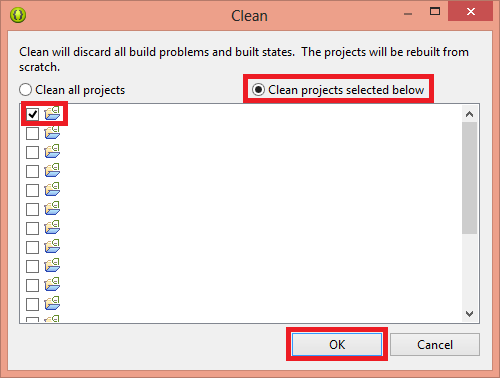
Check whether it works. If it still doesn’t, try solution 2.
Solution 2
First, check that the folder containing the jar files is named "libs".
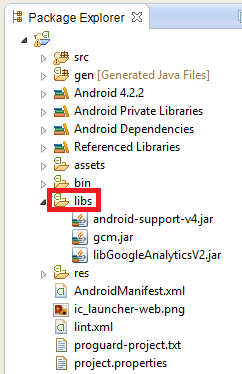
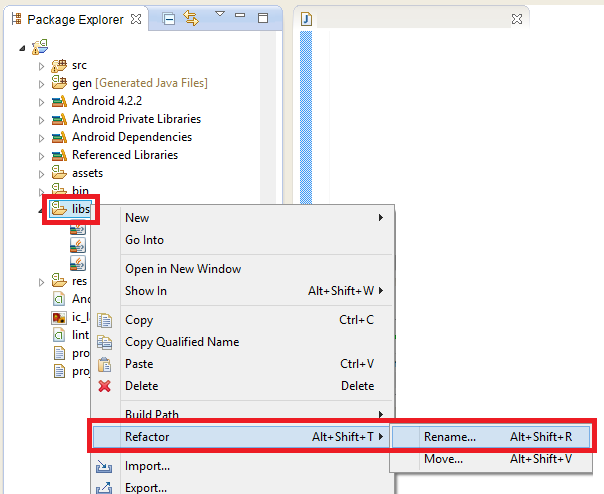
If it isn’t, you need to rename it (sometimes it’s called "lib" without the "s"; "lib" without the "s" is wrongly named, so rename it to "libs"). To rename the folder, right-click it, then choose "Refactor" and then "Rename…". In the pop-up window that opens, enter the name "libs" and confirm.
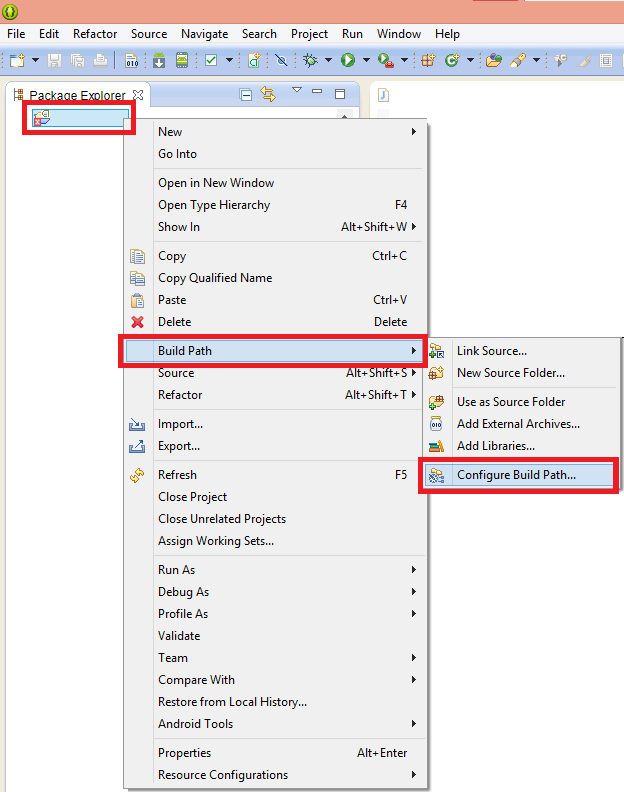
Once that’s done, we continue. Right-click the project. Select "Build Path" and then "Configure Build Path…".
Go to the "Order and Export" tab. You’ll most likely see that the ".jar" files are unchecked. Check all of them (you’ll probably have the one called "android-support-v4.jar"; in this example you can see two other libraries widely used in Android, "gcm.jar" and "libGoogleAnalyticsV2.jar", and you might have others). Click the "OK" button.
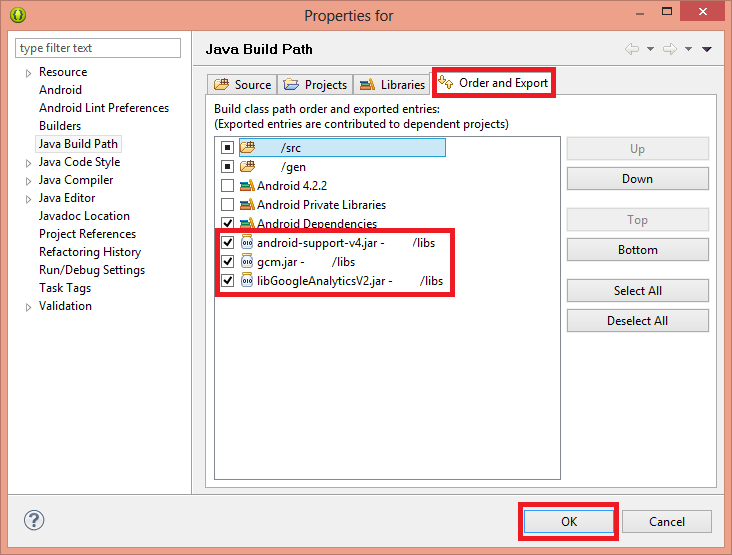
Give it a try. If it still doesn’t work, clean the project one last time (do or redo solution 1 and test again). Everything should now be working correctly again.
“Android Error – java.lang.NoClassDefFoundError for No Apparent Reason” by Ramón Invarato at jarroba.com, licensed under Creative Commons Attribution-NonCommercial-ShareAlike 3.0. Registered at Safe Creative.

You may also like


Android Error – Eclipse Throws an Error That Doesn’t Exist Anywhere
Eclipse shows a red X on your Android project but no error anywhere? Follow these step-by-step solutions to fix the phantom error and the R.java problem.
Android Error – Lost References
Getting errors across your whole Android project and "The type java.lang.String cannot be resolved"? Here's a quick fix using Organize Imports in Eclipse.
Android Error – Problems with an Imported or Sample Android Project
Getting a FileNotFoundException on AndroidManifest.xml with an imported or sample Android project in Eclipse? Here is how to fix it step by step.
Android Error – Error in Imported Libraries
Getting "Conversion to Dalvik format failed with error 1" in your Android project? Here's how to fix the error caused by imported libraries, step by step.
Leave a comment