
Android Error – The Connection to adb Is Down and a Severe Error Has Occurred
Getting the Eclipse error "The connection to adb is down, and a severe error has occured"? Here are two simple ways to restart adb and fix it.
If you get the following error:
The connection to adb is down, and a severe error has occured.
You must restart adb and Eclipse.
Please ensure that adb is correctly located at 'D:Androidandroid-sdk-windowsplatform-toolsadb.exe' and can be executed.
This is how it looks in Eclipse:

Solution 1
As the message says, you need to restart adb. To do that, go to the "Devices" view. If you don’t have it open, go to "Windows" in the navigation bar, open the drop-down menu, click "Show View" and then "Other…" in the submenu.
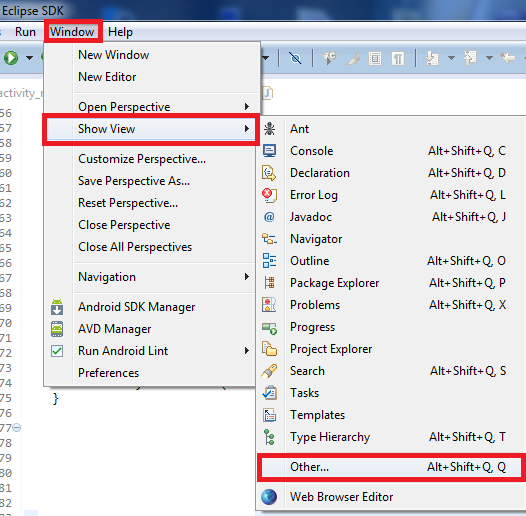
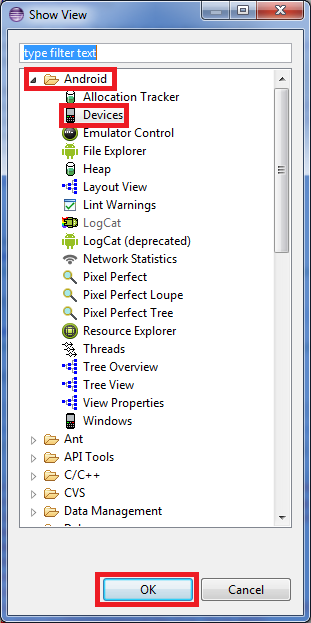
In the window that opens, expand the "Android" folder. Then select "Devices" and finish with "OK".
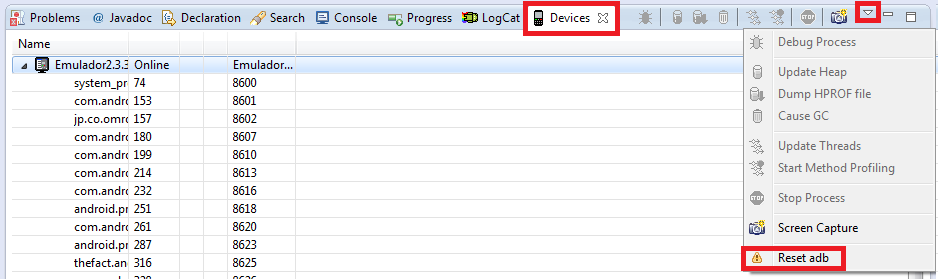
The "Devices" view will now be open in Eclipse. On the right there is a drop-down arrow, where you’ll click "Reset adb".
It takes a few seconds to work. When it finishes, you may see something similar to the following image in the "Console" view. Everything will have gone well.

Solution 2
This solution does the same thing as the previous one, so if the previous one didn’t work for you, this one isn’t guaranteed to work either.
We’ll use the command terminal for this. Search in Windows for: cmd
In this window, type the path to "adb.exe". For example, if you installed the Android SDK on the C drive, searching for "adb.exe" you’ll find it in C:Androidandroid-sdkplatform-tools. So to go to this path, type in the terminal: cd C:Androidandroid-sdkplatform-tools
Press the "Enter" key and on the next line type: adb kill-server
Press "Enter" again, and on the next line: adb start-server
Press "Enter" one last time and after a few seconds it will tell you that it has been restarted successfully.

“Android Error – The Connection to adb Is Down and a Severe Error Has Occurred” by Ramón Invarato at jarroba.com, licensed under Creative Commons Attribution-NonCommercial-ShareAlike 3.0. Registered at Safe Creative.

You may also like


Android Error – The Log Shows Nothing
Is your Android Log empty even though the emulator or device is connected? Learn how to fix this common Eclipse error with a quick restart.
Android Error – The Emulator Disconnects and Doesn’t Launch the App
Does Eclipse show "Emulator-XXXX disconnected" even though the Android emulator works fine? Find out why it happens and how to fix it quickly.
How to Fix Errors in Android
A collection of posts that show you how to fix the most common errors you may run into when developing Android apps with Eclipse, the ADT and the SDK.
Android Error – Eclipse Throws an Error That Doesn’t Exist Anywhere
Eclipse shows a red X on your Android project but no error anywhere? Follow these step-by-step solutions to fix the phantom error and the R.java problem.
Leave a comment