
ListView Expansion: Custom GridView and Spinner in Android
Answers to the most common ListView questions in Android: custom GridView, custom Spinner, clickable Views inside rows and simulating a RadioGroup.
In response to the most frequent questions about lists in Android, and as an extension of what you have already learned, in this article we gather the answers to the most common questions readers have asked us, either right here or in the article https://jarroba.com/listview-o-listado-en-android/ . Note that in this article we will use as a base the list example described in detail in the previous article. So you need to understand how a custom list works in Android before continuing.
Custom GridView in Android instead of a ListView
If you are wondering how to make a GridView in Android with custom cells, well, we want the data laid out as a mosaic. Here is an example image:
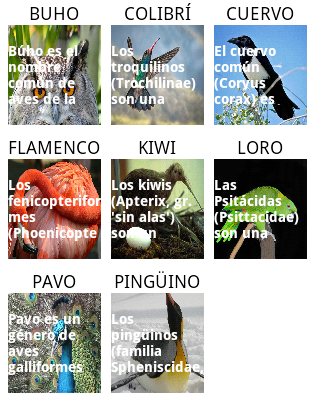
We also want the tiles to be clickable, so we can control what happens with them.
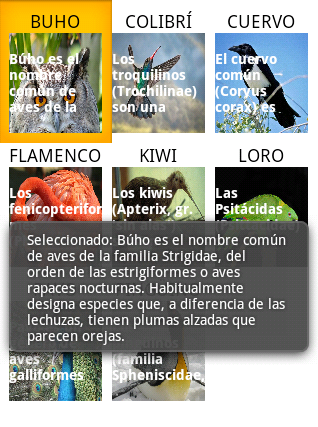
Before going on, it’s time you learned a little secret: you already know how to do this. Jarroba has forced the GridView knowledge into your head and you haven’t even noticed 🙂 How is that possible? Because a ListView and a GridView are built the same way, and the adapter we showed you is ready for this.
From the list example we don’t need to change any of the Java logic (the only thing we’ll change in Java is the two places where ListView appears, replacing it with GridView; we show it a bit later). The GridView is really a list with a different graphical representation of the elements. It’s exactly the same thing; what changes are the views (that is, the xml files “listado.xml” and “entrada.xml”)
We keep the same names as in the main list example –you can change them or keep them, I’ll keep them here so as not to change more code than strictly necessary. Where there used to be a list, we now want a list in the form of a mosaic. To do that, we modify listado.xml as follows:
<?xml version="1.0" encoding="utf-8"?>

<GridView xmlns:android="http://schemas.android.com/apk/res/android"

android:id="@+id/ListView_listado"

android:layout_width="fill_parent"

android:layout_height="fill_parent"

android:numColumns="3" >

</GridView>
In this example we keep the data of each row and place it in each tile. We’ll modify the tile to our liking. In our example, entrada.xml looks like this:
<?xml version="1.0" encoding="utf-8"?>

<LinearLayout xmlns:android="http://schemas.android.com/apk/res/android"

android:layout_width="fill_parent"

android:layout_height="fill_parent"

android:orientation="vertical"

android:padding="5dp" >

<TextView

android:id="@+id/textView_superior"

android:layout_width="wrap_content"

android:layout_height="wrap_content"

android:layout_gravity="center"

android:maxLines="1"

android:text="Large Text"

android:textAppearance="?android:attr/textAppearanceMedium" />

<FrameLayout

android:layout_width="fill_parent"

android:layout_height="fill_parent"

android:gravity="center"

android:orientation="vertical" >

<ImageView

android:id="@+id/imageView_imagen"

android:layout_width="100dp"

android:layout_height="100dp"

android:layout_gravity="center"

android:adjustViewBounds="true"

android:contentDescription="Descripción del contenido de la imagen"

android:scaleType="fitXY"

android:src="@android:drawable/ic_menu_gallery" />

<TextView

android:id="@+id/textView_inferior"

android:layout_width="wrap_content"

android:layout_height="wrap_content"

android:layout_gravity="center"

android:maxLines="4"

android:text="Small Text"

android:textAppearance="?android:attr/textAppearanceSmall"

android:textColor="@android:color/white"

android:textStyle="bold" />

</FrameLayout>

</LinearLayout>
We only have to change two words in MainActivity.java. Just replace ListView with GridView, both in the global variable, which would look like this:
private GridView lista;And in the variable assignment, which would look like this:
lista = (GridView) findViewById(R.id.ListView_listado);As you can see for yourself: you already knew how to do it 😀
Custom Spinner in Android
The Spinner (usually known in other languages as a ComboBox, dropdown, etc.) behaves just like the GridView or the ListView. Broadly speaking, the Spinner is a list of elements. Note that here we’ll explain how to customize the elements of a Spinner; if you are looking for the basic Spinner, there is a complete example at: Add spinners to your app (Android Developers)
For the example, we want the user to be able to select one and only one of the birds we have. Naturally, there will always be a selected element, even when we load the activity for the first time (this first element is usually the typical "select an option"; here, to keep it simple, we’ll use the first one entered, which is "Buho"); that’s why the image shows the toast saying something has been selected, which is the normal behavior of the Spinner.
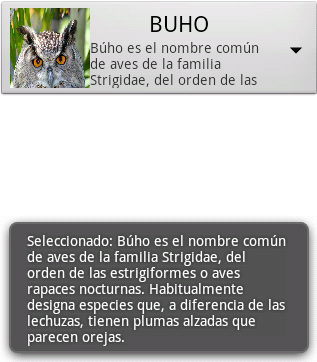
When you tap the Spinner, the list with the possible choices will drop down, customized by us.
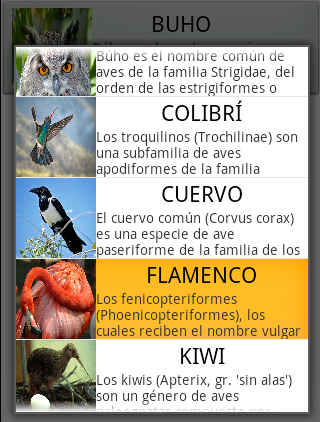
We pick one and the previous one is replaced by the one we chose.
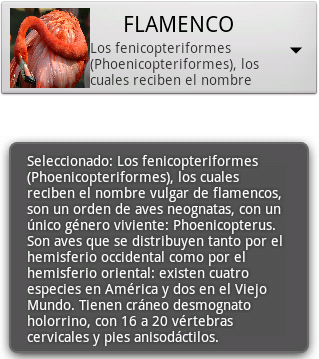
If you have read the custom GridView section, the way of working is identical, so you only need to make a couple of changes for it to work; quick and easy. So the adapter created by Jarroba works great for any list of custom elements. Here we’ll also keep the file names to avoid confusion; of course, you’re free to change them.
For this example we have changed listado.xml, which looks like this:
<?xml version="1.0" encoding="utf-8"?>

<LinearLayout xmlns:android="http://schemas.android.com/apk/res/android"
android:orientation="vertical"
android:layout_width="fill_parent"
android:layout_height="fill_parent">

<Spinner
android:id="@+id/spinner_conListadoPersonalizado"
android:layout_width="match_parent"
android:layout_height="wrap_content" />

</LinearLayout>
In MainActivity.java you have to replace ListView with Spinner, in the global variable:
private Spinner lista;And in the variable assignment:
lista = (Spinner) findViewById(R.id.spinner_conListadoPersonalizado);Also, the Spinner behaves differently when an element is chosen. So we will no longer use "OnItemClickListener", but "OnItemSelectedListener". We replace it entirely with:
lista.setOnItemSelectedListener(new OnItemSelectedListener() {
@Override
public void onItemSelected(AdapterView<?> pariente, View view, int posicion, long id) {
Lista_entrada elegido = (Lista_entrada) pariente.getItemAtPosition(posicion);

CharSequence texto = "Seleccionado: " + elegido.get_textoDebajo();
Toast toast = Toast.makeText(MainActivity.this, texto, Toast.LENGTH_LONG);
toast.show();
}

@Override
public void onNothingSelected(AdapterView<?> pariente) {
}
});
And our custom Spinner is up and running in the blink of an eye.
Solution to a problem with lists in Android: if you use Views that can be clicked inside the list row, the row itself can’t be clicked
When you add a clickable View such as Buttons, RadioButtons, EditText, CheckBox, etc. (a TextView or an ImageView, for example, is not clickable by default), the ListView’s “setOnItemClickListener” stops working, that is, it stops receiving events.
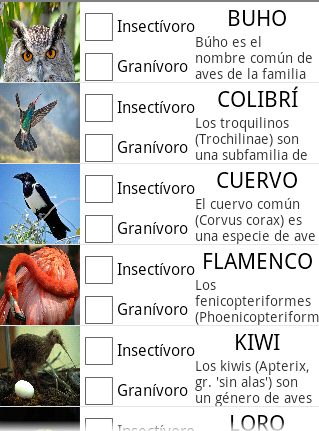
To illustrate this, imagine we want the user to be able to mark with a CheckBox whether the birds in our list eat insects (tick insectivore), seeds (tick granivore) or both (tick both insectivore and granivore). We’ll have to put some CheckBoxes in each row to make the selections we want, which looks like the following image:
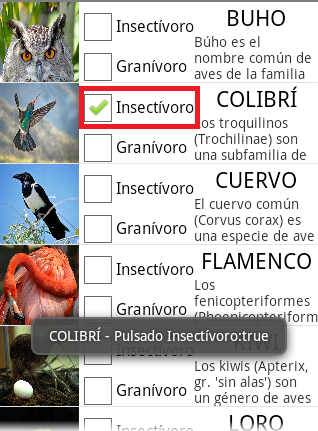
When you tap the CheckBoxes they work perfectly, just as we wanted:
But not when selecting the row itself. So the following image would not be possible (neither the Toast will show up, nor will the row turn orange, nor will the code run the contents of “setOnItemClickListener”; nothing will happen):
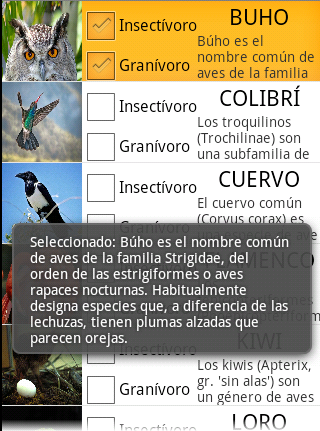
It wouldn’t let you click it, but we want it to.
This is because Android, by default, can’t have two clickable things one on top of the other, and it disables the onClick listener of whatever is underneath. In this case, we have put a CheckBox in each row. We’ll be able to click the CheckBox, but not the entry underneath, so the “setOnItemClickListener” will never be fired.
This is not a bug, it’s a feature designed this way by Android. But it can be changed. What’s more, in certain cases it will be useful.
To make it work the way we want, we have to tell Android that we’ll handle the click events ourselves. When drawing the entries, we set the attributes android:clickable="false" and android:focusable="false" on the clickable elements –the CheckBoxes. We’ll have the file entradas.xml as follows:
<?xml version="1.0" encoding="utf-8"?>
<LinearLayout xmlns:android="http://schemas.android.com/apk/res/android"

android:layout_width="fill_parent"

android:layout_height="wrap_content"

android:orientation="horizontal" >

<ImageView

android:id="@+id/imageView_imagen"

android:layout_width="80dp"

android:layout_height="80dp"

android:adjustViewBounds="true"

android:scaleType="fitXY"

android:contentDescription="Descripción del contenido de la imagen"

android:src="@android:drawable/ic_menu_gallery" />

<LinearLayout

android:layout_width="wrap_content"

android:layout_height="match_parent"

android:orientation="vertical">

<CheckBox

android:id="@+id/checkBox1"

android:layout_width="wrap_content"

android:layout_height="wrap_content"

android:text="Insectívoro"

android:clickable="false"

android:focusable="false"/>

<CheckBox

android:id="@+id/checkBox2"

android:layout_width="wrap_content"

android:layout_height="wrap_content"

android:text="Granívoro"

android:clickable="false"

android:focusable="false"/>

</LinearLayout>

<LinearLayout

android:layout_width="fill_parent"

android:layout_height="match_parent"

android:gravity="center"

android:orientation="vertical" >

<TextView

android:id="@+id/textView_superior"

android:layout_width="wrap_content"

android:layout_height="wrap_content"

android:text="Large Text"

android:textAppearance="?android:attr/textAppearanceLarge" />

<TextView

android:id="@+id/textView_inferior"

android:layout_width="wrap_content"

android:layout_height="wrap_content"

android:text="Small Text"

android:textAppearance="?android:attr/textAppearanceSmall" />

</LinearLayout>

</LinearLayout>
Then, in MainActivity.java, we can call the OnClick handlers inside onEntrada to tell the CheckBox clicks apart:
lista.setAdapter(new Lista_adaptador(this, R.layout.entrada, datos){

@Override

public void onEntrada(final Object entrada, View view) {

if (entrada != null) {

TextView texto_superior_entrada = (TextView) view.findViewById(R.id.textView_superior);

texto_superior_entrada.setText(((Lista_entrada) entrada).get_textoEncima());

TextView texto_inferior_entrada = (TextView) view.findViewById(R.id.textView_inferior);

texto_inferior_entrada.setText(((Lista_entrada) entrada).get_textoDebajo());

ImageView imagen_entrada = (ImageView) view.findViewById(R.id.imageView_imagen);

imagen_entrada.setImageResource(((Lista_entrada) entrada).get_idImagen());

CheckBox checkA = (CheckBox) view.findViewById(R.id.checkBox1);

CheckBox checkB = (CheckBox) view.findViewById(R.id.checkBox2);

checkA.setOnClickListener( new OnClickListener() {

public void onClick(View v) {

CheckBox check = (CheckBox) v ;

Toast toast = Toast.makeText(MainActivity.this, ((Lista_entrada) entrada).get_textoEncima()+ " - Pulsado Insectívoro:"+ check.isChecked(), Toast.LENGTH_LONG);

toast.show();

}

});

checkB.setOnClickListener( new OnClickListener() {

public void onClick(View v) {

CheckBox check = (CheckBox) v ;

Toast toast = Toast.makeText(MainActivity.this, ((Lista_entrada) entrada).get_textoEncima()+ " - Pulsado Granívoro:"+ check.isChecked(), Toast.LENGTH_LONG);

toast.show();

}

});

}

}

});
And it would work just the way we want it to.
Communicating the Views of one row with the Views of others
Similar to the previous one. This time we want to vote for one and only one bird. For that we’ll use one RadioButton per entry, but since we can’t use the RadioGroup, we’ll simulate it ourselves.
We want to be able to select the entry itself.
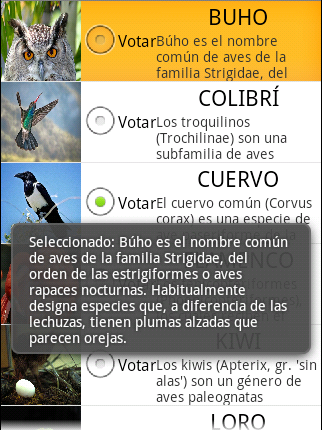
And also vote. For this we need that, when we select the RadioButton of a bird, the selection of any other one previously selected is cleared. This is because we only want a single RadioButton to be selectable among all those in the list, so we have to know which one was selected before in order to clear it.
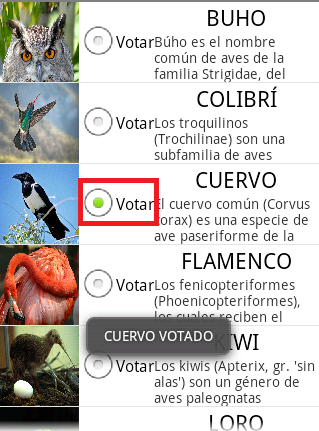
For this example we’re using the following entradas.xml:
<?xml version="1.0" encoding="utf-8"?>

<LinearLayout xmlns:android="http://schemas.android.com/apk/res/android"

android:layout_width="fill_parent"

android:layout_height="wrap_content"

android:orientation="horizontal" >

<ImageView

android:id="@+id/imageView_imagen"

android:layout_width="80dp"

android:layout_height="80dp"

android:adjustViewBounds="true"

android:scaleType="fitXY"

android:contentDescription="Descripción del contenido de la imagen"

android:src="@android:drawable/ic_menu_gallery" />

<LinearLayout

android:layout_width="wrap_content"

android:layout_height="match_parent"

android:gravity="center"

android:orientation="vertical" >

<RadioButton

android:id="@+id/radioButton_votar"

android:layout_width="wrap_content"

android:layout_height="wrap_content"

android:clickable="false"

android:focusable="false"

android:text="Votar" />

</LinearLayout>

<LinearLayout

android:layout_width="fill_parent"

android:layout_height="match_parent"

android:gravity="center"

android:orientation="vertical" >

<TextView

android:id="@+id/textView_superior"

android:layout_width="wrap_content"

android:layout_height="wrap_content"

android:text="Large Text"

android:textAppearance="?android:attr/textAppearanceLarge" />

<TextView

android:id="@+id/textView_inferior"

android:layout_width="wrap_content"

android:layout_height="wrap_content"

android:text="Small Text"

android:textAppearance="?android:attr/textAppearanceSmall" />

</LinearLayout>

</LinearLayout>
And to simulate the RadioGroup, in MainActivity.java, we declare as a global:
private RadioButton radioButton_pulsado;And the code that simulates it is:
lista.setAdapter(new Lista_adaptador(this, R.layout.entrada, datos){

@Override

public void onEntrada(final Object entrada, View view) {

if (entrada != null) {

TextView texto_superior_entrada = (TextView) view.findViewById(R.id.textView_superior);

texto_superior_entrada.setText(((Lista_entrada) entrada).get_textoEncima());

TextView texto_inferior_entrada = (TextView) view.findViewById(R.id.textView_inferior);

texto_inferior_entrada.setText(((Lista_entrada) entrada).get_textoDebajo());

ImageView imagen_entrada = (ImageView) view.findViewById(R.id.imageView_imagen);

imagen_entrada.setImageResource(((Lista_entrada) entrada).get_idImagen());

RadioButton voto = (RadioButton) view.findViewById(R.id.radioButton_votar);

voto.setOnClickListener(new OnClickListener() {

@Override

public void onClick(View v) {

if (radioButton_pulsado!=null)

radioButton_pulsado.setChecked(false);

radioButton_pulsado = (RadioButton) v;

Toast toast = Toast.makeText(MainActivity.this, ((Lista_entrada) entrada).get_textoEncima()+ " VOTADO", Toast.LENGTH_LONG);

toast.show();

}

});

}

}

});
“ListView Expansion: Custom GridView and Spinner in Android” by Ramón Invarato at jarroba.com, licensed under Creative Commons Attribution-NonCommercial-ShareAlike 3.0. Registered at Safe Creative.

You may also like


ListView in Android: Building a Custom List
Learn how to create an Android ListView quickly and effectively. Everything you need to know about ListView and Adapter in Android, with full example code.
Android ListView in Just a Few Lines
Learn how to build an Android ListView with the least code possible, using ListActivity, SimpleCursorAdapter and a MatrixCursor. Clean, short and easy.
Leave a comment