
Installing MongoDB on Mac OS X
Learn how to install MongoDB on a Mac step by step: download, unpack, configure, register the server on OS X and add it to your PATH.
In this post we are going to see how to install mongoDB on a MAC. For now, we are not going to explain what mongoDB is or what its features are (we’ll leave that for later).
We have a few options for downloading mongoDB. The first one is to go to its website and, in the downloads section (Try MongoDB Atlas Products (MongoDB)), download mongoDB for your operating system, which in this case will be MAC.
The second option (the one we’ll follow in this tutorial) is to open a terminal and download the mongoDB version you want for MAC (in this case it will be version 2.4.6):
curl -O http://downloads.mongodb.org/osx/mongodb-osx-x86_64-2.4.6.tgzWe unpack what we have downloaded with the following command:
tar xzf mongodb-osx-x86_64-2.4.6.tgzWe move what we have unpacked to the /usr/local/mongodb directory with the following command:
sudo mv mongodb-osx-x86_64-2.4.6 /usr/local/mongodbAfter entering this command it will ask for the root password (that is, the password you use on your computer). Enter it and you’re done.
Then we create two new folders with the following command:
sudo mkdir /usr/local/mongodb_data /var/log/mongodbWe change the permissions of the following folder:
sudo chown -R root /usr/local/mongodbOnce you get to this point, you need to create a configuration file called "mongod.conf" with the following content:
# Store data alongside MongoDB instead of the default, /data/db/
dbpath = /usr/local/mongodb_data

# Only accept local connections
bind_ip = 127.0.0.1
You need to save this file at "/usr/local/mongodb/mongod.conf".
The next step is to register the mongoDB server on OS X. To do that, you need to create a file called "org.mongodb.mongod.plist" with the following content:
<?xml version="1.0" encoding="UTF-8"?>
<!DOCTYPE plist PUBLIC "-//Apple//DTD PLIST 1.0//EN"
  "http://www.apple.com/DTDs/PropertyList-1.0.dtd">
<plist version="1.0">
<dict>
  <key>Label</key>
  <string>org.mongodb.mongod</string>
  <key>ProgramArguments</key>
  <array>
    <string>/usr/local/mongodb/bin/mongod</string>
    <string>run</string>
    <string>--config</string>
    <string>/usr/local/mongodb/mongod.conf</string>
  </array>
  <key>RunAtLoad</key>
  <true/>
  <key>KeepAlive</key>
  <true/>
  <key>WorkingDirectory</key>
  <string>/usr/local/mongodb</string>
  <key>StandardErrorPath</key>
  <string>/var/log/mongodb/output.log</string>
  <key>StandardOutPath</key>
  <string>/var/log/mongodb/output.log</string>
</dict>
</plist>
Once you have created this file, save it at "/Library/LaunchDaemons/org.mongodb.mongod.plist". Then run the following two commands to load the server (if you are in root mode, run only the second one):
sudo chown root /Library/LaunchDaemons/org.mongodb.mongod.plist
sudo launchctl load /Library/LaunchDaemons/org.mongodb.mongod.plist
At this point you should be able to access the following URL (http://localhost:28017) to see the status of the database.
Finally, you need to add the "bin" folder we downloaded to your PATH so you can use the binary files directly. We do this by running the following command:
sudo sh -c 'echo "/usr/local/mongodb/bin" > /etc/paths.d/mongodb'Once you have done these steps, MongoDB should work. If you open a terminal and simply type "mongo", that terminal will switch to "shell mode" (what I just said is surely not accurate, but I say it so we understand each other) to work with mongoDB.
In upcoming posts we will talk about mongoDB and how to use it with JAVA.
“Installing MongoDB on Mac OS X” by Ricardo Moya at jarroba.com, licensed under Creative Commons Attribution-NonCommercial-ShareAlike 3.0. Registered at Safe Creative.

You may also like
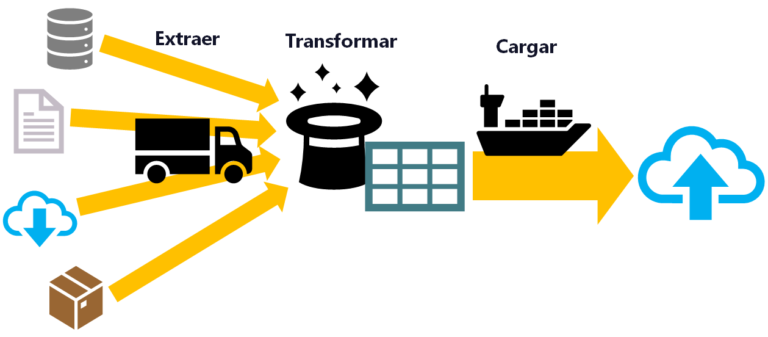
ETL: Extract, Transform, and Load
ETL is used for massive, real-time data processing (Big Data): Extract data from different sources, Transform it into a useful structure, and Load it where you can use it.
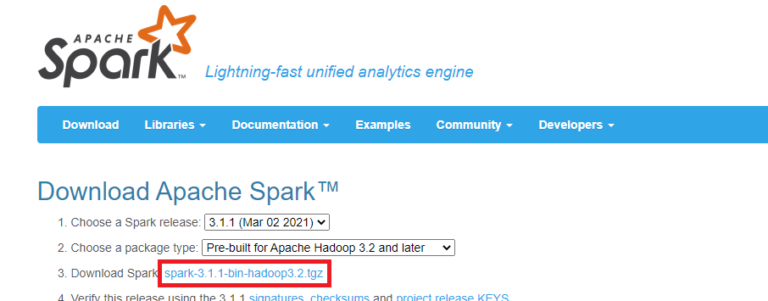
Install Apache Spark on Any Operating System and Learn to Program It with Python, Scala or Java
Install and test Apache Spark step by step with Python, Scala and Java, also with Jupyter Notebook and JupyterLab. Work with Big Data the easy way.
Leave a comment