
Install Apache Spark on Any Operating System and Learn to Program It with Python, Scala or Java
Install and test Apache Spark step by step with Python, Scala and Java, also with Jupyter Notebook and JupyterLab. Work with Big Data the easy way.
If we want to work with “Big Data” (so much data that a single machine can’t process it, at least not in a reasonable amount of time, much less in a single thread), we need the data to be processed in parallel, decentralized, self-balanced and with error correction. One of the most powerful options out there is Apache Spark (which simplifies working on top of Apache Hadoop, since it is based on it).
Spark can be installed on any operating system (Windows, Linux, Mac), although to do it in a more uniform way we are going to focus on installing it on Linux from the terminal (which is very similar on Mac). On Windows it is the same, but we will use WSL2 (so we will be using Linux); in fact, for this article it has been tested on WSL2 with Ubuntu on Windows.
Note about installing WSL2 on Windows: it is very quick to install. You just have to enable a Windows feature, “Windows Subsystem for Linux”, and install an operating system like Ubuntu from the Store; you can find the steps at Instalación de WSL (Microsoft Learn) .
In this article I’m going to explain it step by step and from scratch, so it’s easy to get all the way to a small working Spark program with Python, Scala or Java, both from the terminal and working with Jupyter (this one only with Python and Scala). The installation really takes no more than a few minutes, even though I explain a lot here, and once it’s installed all that’s left is to program.
Download Spark
Spark can be downloaded from Downloads (Apache Spark)
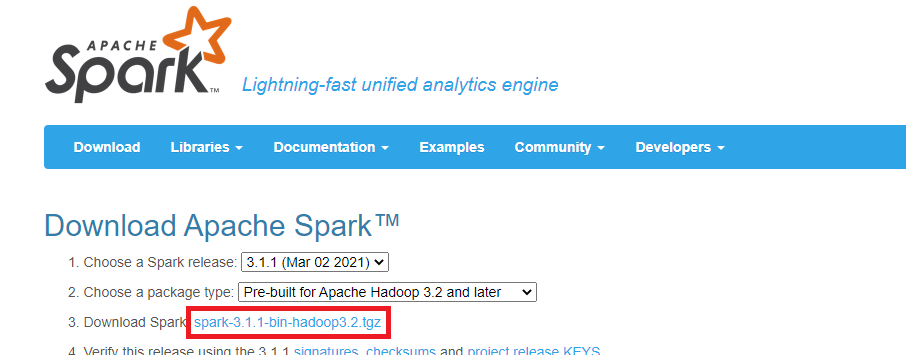
We are NOT going to download Spark directly. Instead, we are going to select the Spark version we want to download (for this example I’m going to select version “3.1.1 (Mar 02 2021)”) and the package type (in this example I select “Pre-built for Apache Hadoop 3.2 and later”). Then we click to download, which is the third step, where it says “Download Spark” (in my case the link called “spark-3.1.1-bin-hadoop3.2.tgz”).
This is important, because Spark isn’t downloaded directly. It takes us to a web page (like the following image), from which we want to copy the real download link (in my case it is “https://ftp.cixug.es/apache/spark/spark-3.1.1/spark-3.1.1-bin-hadoop3.2.tgz”).
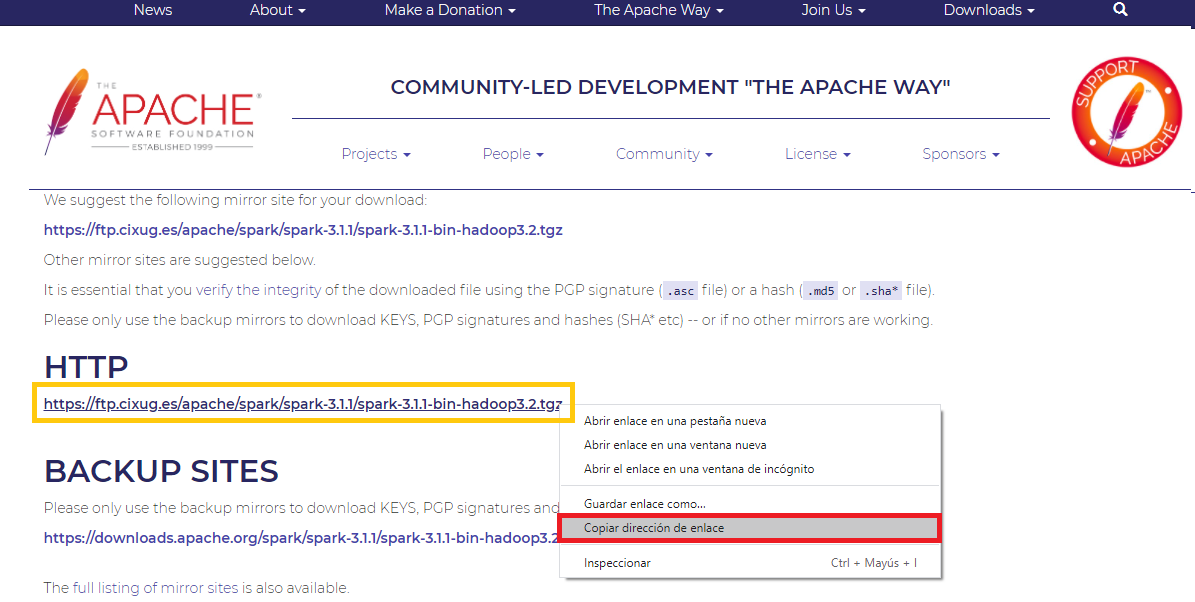
Note: here we copy the URL to download this software from the Linux terminal (as you’ll see next), but you can do it another way if you prefer.
We will download from the Linux terminal with the “wget” command, adding after the command (and a space) the URL of the Spark download we copied earlier.
wget https://ftp.cixug.es/apache/spark/spark-3.1.1/spark-3.1.1-bin-hadoop3.2.tgzRunning this command will download the compressed Spark file into the path where we are.
Install Spark
We will create a folder called “hadoop” to install Spark in, with the following command:
mkdir hadoopTo extract the contents into the “hadoop” folder we created earlier, we will use the following “tar” command:
tar -xvzf descargas/spark-3.1.1-bin-hadoop3.2.tgz -C ~/hadoopLet’s check what has been extracted; a quick look at everything inside the “hadoop” folder is enough (you can use “ls” or “ll”):
ls hadoop/
This is important to see the correct path we need to use to add it to the environment variables (in my case it’s under my user, so it would be “~/hadoop/spark-3.1.1-bin-hadoop3.2”).
Note
Getting the full path
A path starting with the tilde symbol “~” is more than enough, since in Linux it stands for the current user’s home. But if we want the full path with our username, we can get it with the “readlink” command:
readlink -f hadoop/spark-3.1.1-bin-hadoop3.2/It would return something like this: /home/usuario/hadoop/spark-3.1.1-bin-hadoop3.2
Although if we want the path to be more universal (and the one I’ll use): ~/hadoop/spark-3.1.1-bin-hadoop3.2
We will add the SPARK_HOME environment variable to our system with the “export” command, adding the path of our Spark installation:
export SPARK_HOME=~/hadoop/spark-3.1.1-bin-hadoop3.2And we add SPARK_HOME to the PATH environment variable with the following command:
export PATH=$SPARK_HOME/bin:$PATHInstall Java (a required Spark dependency)
Spark is written in Scala, which in turn requires Java, so we need Java for Spark to work.
Note if you want to program with Python instead of Scala or Java: it doesn’t matter whether you are going to program with Python, Java or Scala, Spark needs Java to work (the long explanation is that the Spark server runs Scala, and Scala compiles its files into Java “.class” files, which run on the Java virtual machine; the libraries we use in Python, Java or Spark are independent from the Spark server, but they work against it).
It’s important to install dependency versions compatible with Spark. You can check the dependency versions compatible with the latest version of Spark at: https://spark.apache.org/docs/latest/ . For Java it is very important to pay attention to the compatible versions (in my case Java 8 and Java 11 will work).
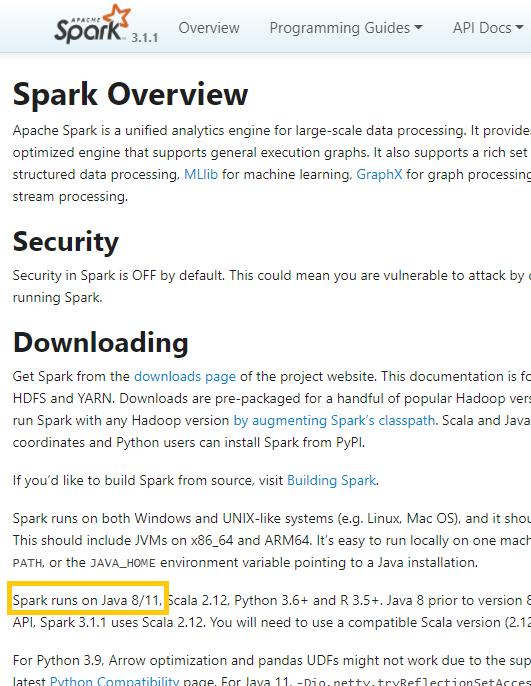
Note for checking dependencies of other Spark versions: if you haven’t downloaded the latest version of Spark, you’ll have to select yours from Index of /docs (Apache Spark)
Warning
Update APT
If APT doesn’t have up-to-date links to the repositories, it might not find everything we’ll need next (giving an error when downloading).
To update the APT package lists just run (this doesn’t update the installed software):
sudo apt updateInstall the Java JDK with APT that you want; I’m going to install version 11, which will be openjdk-11-jdk:
sudo apt install openjdk-11-jdkWhen you press the “Enter” key, the download and installation will start, which will take a few minutes.
Note about the installation: while the APT command is running, it may ask us to confirm that we want to continue with the installation. Just type the letter “Y” and press the “Enter” key.
Java is normally installed in the “/usr/lib/jvm” folder, so we can check the installation with “ls” (or “ll” if we want to see everything):
ls /usr/lib/jvm
To create the JAVA_HOME environment variable it’s important to copy the path to the Java executable (I recommend copying the “symbolic link”, the one that appears in light blue) to build the path for the environment variable. In my case it would be:
export JAVA_HOME=/usr/lib/jvm/java-1.11.0-openjdk-amd64And to test that Java is properly installed, just run the following command, which shows the Java version:
java -version
Tip
If we want to use another version of Java
We can see which versions are available in the APT repository if we do NOT complete the command (we type up to just before the version) and press the tab key:
sudo apt install openjdk-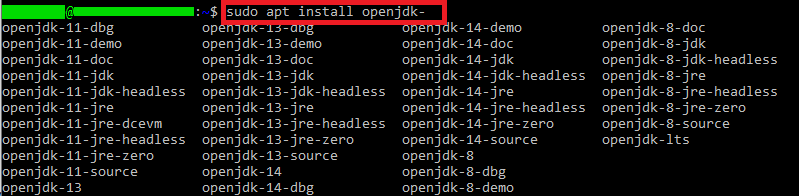
Then we complete the command with the Java JDK version we’re interested in and install it.
And, if you have several Java versions installed, you can choose which Spark-compatible Java version to work with, using the command:
sudo update-alternatives --config javaTry the Spark Shell and program with Scala
At this point we already have Spark installed. Whether or not you are going to program with Scala, I recommend trying this. We can test by launching the Spark Shell with:
spark-shellThe first time, the server takes about a minute to start. You know it has started because “scala>” appears, which lets you start programming in the Scala language.
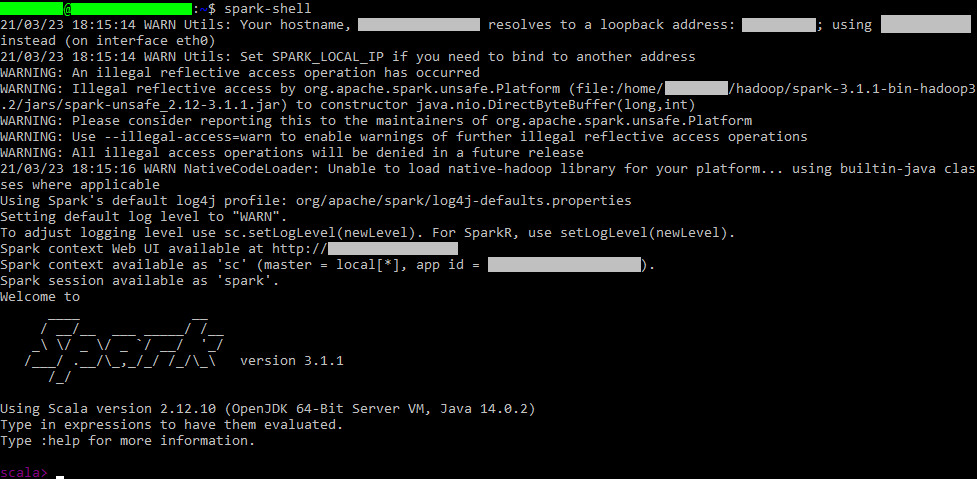
Here we can already work with Spark using the Scala language (if you want Python or to install JupyterLab, keep reading the rest of the article).
A quick example of how it works with Scala: we do a simple example with a parallelized list of integers and take 2 (as you can read in the text shown in the terminal, it already gives us a SparkContext instantiated in the variable “sc” that we can use directly):
val rdd = sc.parallelize(List(1, 2, 3, 4))
rdd.take(2)
To exit the Spark Shell, just press: [ctrl] + [c]
Set up Python, install PySpark
For this section you at least need to install Python as explained step by step in this other article (and I even recommend that you install Jupyter as described there, so you can work more comfortably with Spark in Python and Scala).
If we want to use Spark in Python, we’ll have to install the PySpark Python library with:
pip install pysparkNote
Findspark is NOT necessary
If you have added the environment variables described in this article and in the article about installing Python, then you DON’T need findspark, so you can skip this box.
In case you need it, it can be installed with:
pip install findsparkAnd in your Python code you have to add at the beginning:
import findspark
findspark.init()
As I said, if you have followed this tutorial and the suggested one properly, you don’t need it; that way we save extra lines of code and extra packages.
At this point we can program with Python from the Python console with the command:
pythonAnd we can test that it works with the following Python code, where the first line imports SparkContext from the PySpark package and then we instantiate it:
from pyspark import SparkContext
sc = SparkContext()
The server will start and we can try it with a small list of data (in the following example, a list of numbers), taking the first 2 items of the list parallelized with Spark:
datos = sc.parallelize([1, 2, 3, 4])
datos.take(2)![Screenshot of the Python console with PySpark: a SparkContext is created, a list is parallelized and [1, 2] is returned](https://jarroba.com/wp-content/uploads/2021/04/Programar-en-Spark-con-Python-desde-la-consola-de-Python-www.Jarroba.com_.png)
To exit the Python interpreter, type the following function ([ctrl]+[c] doesn’t work, since that signal is captured so it can be used inside our programs):
exit()Note if you want to learn Python: we have opened a free Python course at https://jarroba.com/courses/curso-de-python-gratis/ where you will learn Python from a professional perspective for working with large amounts of data, with lots of code examples and video theory.
Python with Spark in Jupyter Notebook or JupyterLab
To follow this section we need to have Jupyter Notebook or JupyterLab installed; we explain step by step how to do it in this other dedicated article (we explain how to create a new Notebook file, which is needed for this section).
Enter the following Python code to test Spark (described above, in “Install Python and PySpark”) in the cells of our Notebook (I recommend putting the “import” lines in the first cell, and the “sc = SparkContext()” line in a separate cell because it only starts the server once, and it takes a minute to start; after that we can work as much as we want, placing the rest of the lines of code however we like):
from pyspark import SparkContext

sc = SparkContext()

datos = sc.parallelize([1, 2, 3, 4])
datos.take(2)![Screenshot of a JupyterLab notebook with PySpark code that creates a SparkContext and returns [1, 2]](https://jarroba.com/wp-content/uploads/2021/04/Ejecutar-Spark-con-codigo-Python-en-un-Notebook-en-Jupyter-Lab-www.Jarroba.png)
Scala with Spark in Jupyter Notebook or JupyterLab with Spylon-kernel
We can install a “plugin” for Jupyter (it affects Jupyter and JupyterLab) called “spylon-kernel” as follows:
pip install spylon-kernelThen you need to run spylon_kernel in Python (this creates a kernel for Jupyter; in other words, it activates the “plugin”):
python3 -m spylon_kernel install --user
Warning
If you installed it with SUDO
Then you’ll have to run (instead of “python3 -m spylon_kernel install –user”):
sudo python3 -m spylon_kernel installIf you start JupyterLab (or Jupyter) you’ll be able to start a new Notebook with “spylon-kernel” to program with Scala on Spark:
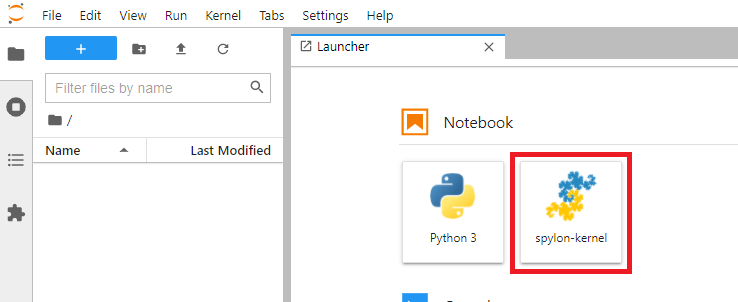
We initialize the Scala interpreter (and the Spark context) by running the following in a Notebook cell (it takes about a minute to start):
scAnd in other cells we can run any Scala code we want on Spark:
val rdd = sc.parallelize(List(1, 2, 3, 4))
rdd.take(2)
Java with Spark
We need to add the “spark-core” library to our project (you can see all the versions and download the one you need at: org.apache.spark » spark-core (Maven Repository)).
Next, I’m going to quickly explain how to build a working Spark project with Java from scratch from the Linux terminal.
Note about other ways of working with Spark in Java: there are other, more convenient ways to work with Java using IDEs, but since I’m explaining how to work with commands, I’m going to focus on this approach.
Install Maven on Linux from the terminal and create a quick archetype
There are other ways to have Maven installed (for example, your IDE may ship with it, or you can use an installer), but here I’m going to do everything from the Linux terminal (WSL’s if you use Windows; to learn more about Maven and its tricks I recommend reading the dedicated article https://jarroba.com/maven/ ).
To install Maven:
sudo apt install mavenWe check that it is properly installed:
mvn --version
We create a folder for our Java project:
mkdir proyectoJavaWe go into it:
cd proyectoJavaWe create an archetype (an “archetype” is a Maven project ready to work with, which will create a directory named after the value we put in “-DartifactId=”, and the project structure will follow the value we put in “-DgroupId=”; here I’m going to create a quick, simple one; if we want to create an archetype step by step, you’ll find all the information in this article about Maven):
mvn archetype:generate -DgroupId=com.jarroba.app -DartifactId=miProyectoJava -DarchetypeArtifactId=maven-archetype-quickstart -DarchetypeVersion=1.4 -DinteractiveMode=false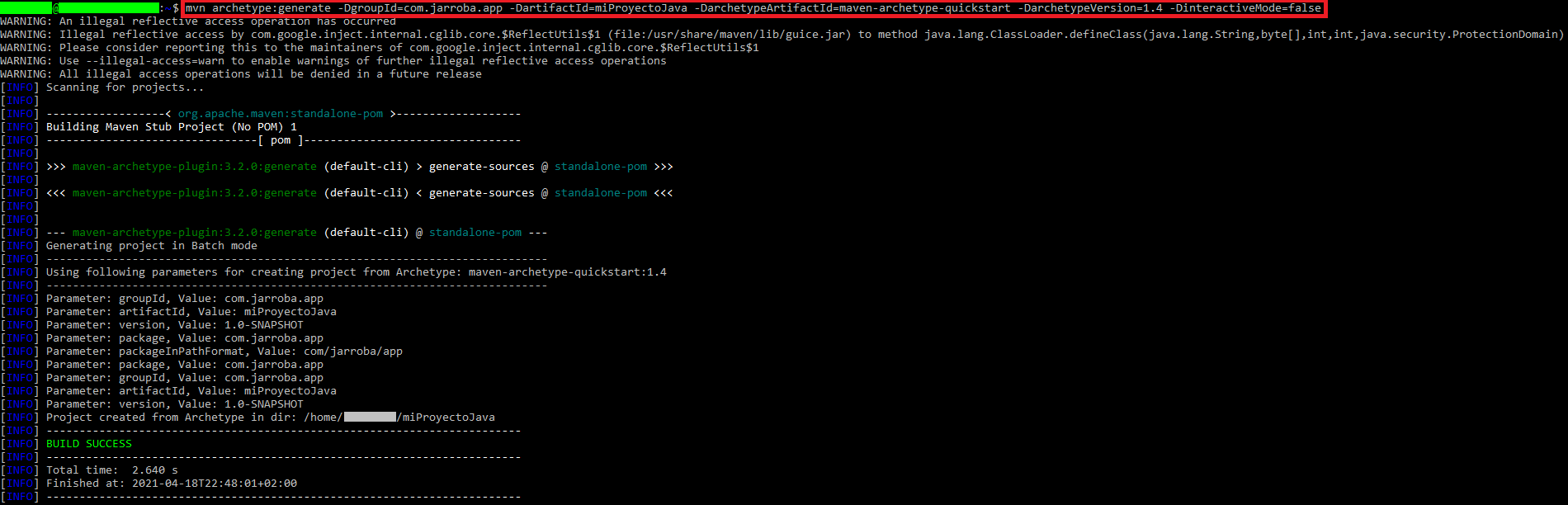
If you look inside this folder generated by Maven, there will be a “pom.xml” file and a “src” directory:
ls
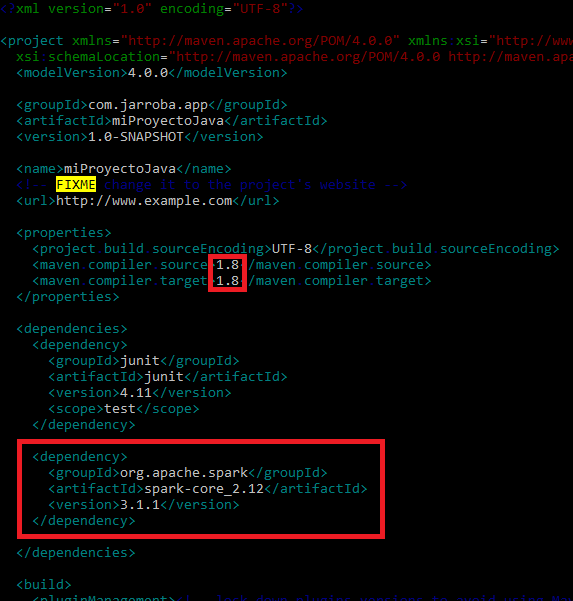
I’ll use Maven to add the “spark-core” dependency to the “pom.xml” (it’s important to add the following XML inside “dependencies”):
<dependency>
    <groupId>org.apache.spark</groupId>
    <artifactId>spark-core_2.12</artifactId>
    <version>3.1.1</version>
</dependency>
We will also have to make sure it compiles with at least Java 8 (since it’s a Spark dependency), and for that, in the pom.xml, we will change “maven compiler source” and “maven compiler target” to 1.8 if they aren’t already.
The following image shows both the “spark-core” dependency added in the “dependencies” section and the change of “maven compiler source” and “maven compiler target” to 1.8 (to edit “pom.xml” I used VIM, but you can use whichever editor you want):
We’ll write our Java code. To do so, we’re going to modify the Java file that will have been created in the “src” folder (in my case “App.java”).

And I’ll replace what’s there with the following code (which does the same as the Python and Scala examples: a list of numbers that we parallelize and then print the first two numbers to see that it works); by the way, change the first line (“package com.jarroba.app;”) and the class name (“public class App {”) to your own:
package com.jarroba.app;

import java.util.List;
import java.util.Arrays;

import org.apache.spark.SparkConf;
import org.apache.spark.api.java.JavaSparkContext;
import org.apache.spark.api.java.JavaRDD;


public class App {
    public static void main( String[] args ){
        SparkConf conf = new SparkConf().setMaster("local").setAppName("MiAplicacionSpark");
        JavaSparkContext sc = new JavaSparkContext(conf);

        List<Integer> miLista = Arrays.asList(1, 2, 3, 4);
        JavaRDD<Integer> rdd = sc.parallelize(miLista);

        List<Integer> miSubLista = rdd.take(2);

        System.out.println(miSubLista.toString());

        sc.stop();
    }
}
Once we’ve saved, we run the Maven “Package” command to build our project (and compile the Java code) in the directory where the “pom.xml” is:
mvn packageIf everything went well, with no errors, the text “BUILD SUCCESS” will appear and we’ll have our project in a JAR package in the folder called “target” at the root of our project (given the name I used earlier, mine is called “miProyectoJava-1.0-SNAPSHOT.jar”).

It’s time to run our Spark project in Java using the “spark-submit” executable, which is inside the “bin” folder of our Spark installation (where we extracted it a few steps back). This executable requires us to set the value of “–class” to the name of our class with its namespace (in my case “com.jarroba.app.App”); for “–master” we write “local” so it runs locally (and the Spark context is passed to our Java program from there); and we finish with the path to our JAR file in the “target” folder (in my case “~/miProyectoJava/target/miProyectoJava-1.0-SNAPSHOT.jar”):
~/hadoop/spark-3.1.1-bin-hadoop3.2/bin/spark-submit --class "com.jarroba.app.App" --master local ~/miProyectoJava/target/miProyectoJava-1.0-SNAPSHOT.jarAfter a lot of Spark output, toward the end of the execution, you’ll see the output of our program:
![Screenshot of spark-submit output with the Java Spark program's result highlighted: [1, 2]](https://jarroba.com/wp-content/uploads/2021/04/Salida-de-la-ejecucion-de-nuestro-proyecto-Java-con-Spark-con-spark-submit-www.Jarroba.com_-1.png)
Warning
We can’t run a Spark program with Java (the traditional way)
At least I haven’t found any way to, because if we try to run the Java program with:
java -cp target/miProyectoJava-1.0-SNAPSHOT.jar com.jarroba.app.AppJava won’t find the Spark files and will return an error:
Exception in thread "main" java.lang.NoClassDefFoundError: org/apache/spark/SparkConf
        at com.jarroba.app.App.main(App.java:25)
Caused by: java.lang.ClassNotFoundException: org.apache.spark.SparkConf
        at java.base/jdk.internal.loader.BuiltinClassLoader.loadClass(BuiltinClassLoader.java:581)
        at java.base/jdk.internal.loader.ClassLoaders$AppClassLoader.loadClass(ClassLoaders.java:178)
        at java.base/java.lang.ClassLoader.loadClass(ClassLoader.java:522)
References
- Scala with Spark, notes from the course “Data Management Systems and Infrastructure” (at Universidad Europea de Madrid).
- spark.apache.org/docs/0.9.1/scala-programming-guide.html
- Submitting Applications (Spark 4.2.0 Documentation)
- spark.apache.org/docs/0.9.1/java-programming-guide.html
- spylon-kernel 0.4.1 (PyPI)
“Install Apache Spark on Any Operating System and Learn to Program It with Python, Scala or Java” by Ramón Invarato at jarroba.com, licensed under Creative Commons Attribution-NonCommercial-ShareAlike 3.0. Registered at Safe Creative.

You may also like
Install Jupyter Notebook and JupyterLab from the Terminal from Scratch and Learn How to Use Them
Install Jupyter Notebook and JupyterLab easily on any operating system and learn how to work in an interactive, multi-language environment.
ETL: Extract, Transform, and Load
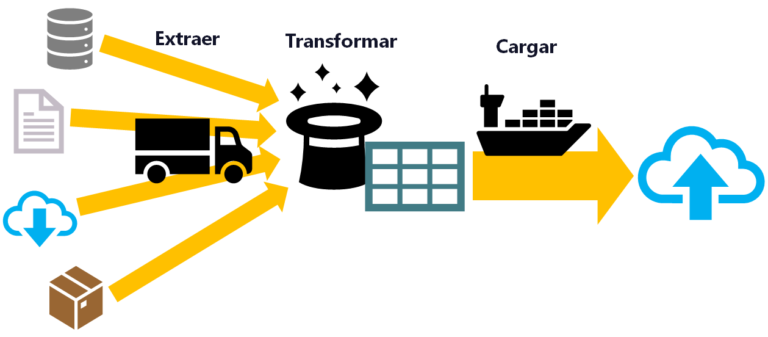
ETL is used for massive, real-time data processing (Big Data): Extract data from different sources, Transform it into a useful structure, and Load it where you can use it.
Leave a comment