
Units of Measurement for Information
Learn the units of information: bit, byte, kilo vs kibi, GB vs GiB. Understand the old and new systems so nobody fools you about storage or speed.
It is very important to know the units of measurement for information, and to tell the old system from the new one (and the mix of both). First, you need a minimum awareness so nobody “fools” you (Is your Internet provider really selling you the download speed you think you’re paying for? Does the hard drive or memory card you bought have less capacity than you thought before buying it?); and second, so you can work fluently with computers, tablets, smartphones, and other digital devices (How much space does a photo or a movie take up? Roughly how long will a file or a game take to download? Is an app using a lot or a little of your device’s resources?).
We know many media where information is stored (like hard drives or RAM) and also where it is processed (like processors). To work with this information we need to know not only how it is used but also how it is measured.
“1 bit” can be a binary “0” or a binary “1”. The bit is the smallest unit of measurement of information, and 1 doesn’t always mean 1, and 0 almost never means 0 (I recommend reading this other article about the bit, to clear up doubts and understand the concept of binary states). Like any other unit of measurement, such as the “liters” used to measure volume (widely used for liquids, like the amount of water or how much fruit juice there is), the “grams” to measure weight, or the “meters” to measure distance; but with the bit we measure the amount of information (it would be like counting the letters in a book, but at a much lower level, as we will see).
Think of “1 bit” as an empty box that may or may not have something in it (the binary 1 or 0), and that “something” or the “emptiness” represents information (imagine I have a friend who knows that if I put anything inside the box it means “buy pastries”, and if I leave the box empty it means “buy fruit”; I’m conveying information to my friend, and he knows what to do with it, even though nobody else knows what this box means, or someone else might interpret whether the box has something in it or not differently).
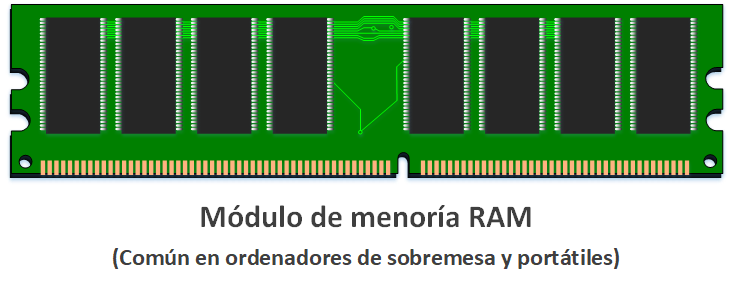
Imagine you own a company that makes RAM modules (or hard drives or memory cards, whatever you like, since they’re similar; for the example I’ll use RAM because the idea shows up very well in the drawings).
Note
Note about the example:
For this example I’m going to draw RAM as a card (used in desktop computers and laptops; smartphones and tablets have the RAM chips built directly into the motherboard); each of these cards is called a “RAM module”.
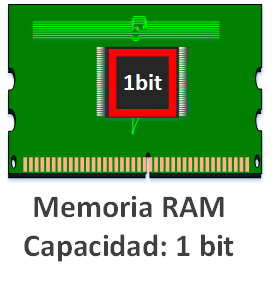
Since we’re just starting our company, our first RAM will only have 1 bit of capacity (only a binary “0” or a binary “1” fits in it, one of the two states).
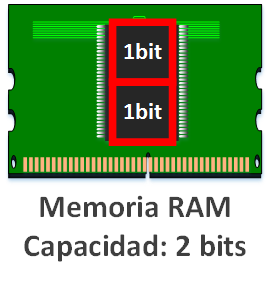
We live in an era when computers are just being born, so we have no competition and everybody buys our wonderful 1-bit RAM, but competition quickly appears and we have to improve our product. Since you’re the manufacturer you want to make money, so you have to think about getting the maximum profit at the minimum cost (that is, buy cheap materials and keep manufacturing cheap, to sell the resulting product to customers at the highest price they’re willing to pay). With these premises, the best approach is to use as little material as possible with the highest feasible quality at the price we want to build each RAM module for. We want to double the capacity of our RAM’s central chip so more information fits. With that we have our 2-bit memory card.
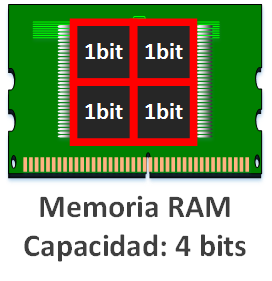
Also, users will want the memory we make to take up as little space as possible and have the maximum capacity. So we have to decide how much space we want it to take up (for example, the size of a hard drive or a RAM module). Then, to take up the minimum space using the minimum resources, the easiest thing is to make the most of the materials (the chip’s internal wires, the plastic, the silicon, etc.) to build more bits.
Adding 1 more bit -so there are 3 bits in the RAM- is very expensive, since arranging them in a triangle wastes resources. The most optimal choice for the price of materials and the capacity is to jump straight to 4 bits.
Also -as a manufacturer- when we want to sell a “data storage device” (a “data storage device” is usually a hard drive, a DVD, or a RAM module, for example) to the consumer, we’ll sell double the previous technology (which is what you usually see in stores with digital products, like the new 1 TiB hard drives, then 2 TiB, soon after 4 TiB, then 8 TiB, etc.).
Note
Expansion of the “Bit” article:
If you’ve read the article I recommended about the states of a bit, there we dealt with magnetic core technology (which is great for getting an overview of how bits are written and read). If not, you can skip this box.
In this article I’ve shown the current “RAM” module, which could be based on SRAM technology (Static Random Access Memory; based on semiconductors) or DRAM technology (Dynamic Random Access Memory; based on capacitors). But there was also magnetic core memory (known in Spanish as “memoria de toros”, which we explained in the previous article; you can find more information at Memoria de núcleo magnético (Wikipedia) ), which was similar to RAM. But the manufacturing idea is the same:
- 1 magnetic core can store 1 bit
- 2 magnetic cores, sharing one of the wires, can store 2 bits
- 4 magnetic cores, sharing two of the wires, can store 4 bits
- etc.
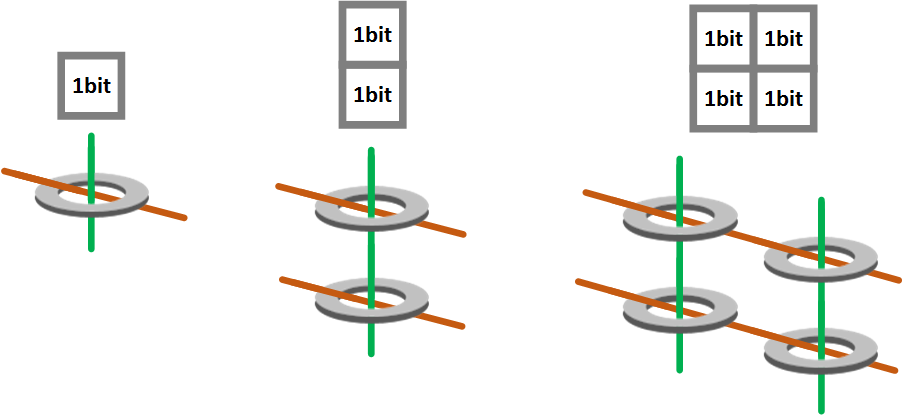
In the previous image, at the top I show the capacity in squares of 1 bit each (a memory with 1 magnetic core holds 1 bit, one with 2 magnetic cores holds 2 bits, one with 4 holds 4 bits).
By making the most of the wires to be optimal, we always end up with powers of two every time we expand.
From here on I’ll represent bits as squares, since they don’t have to be “RAM” or “magnetic cores” (above you have examples of “RAM” and “magnetic cores” with bits taking up squares).
That said, if we start with 1 bit (I recommend following this paragraph with the next image from left to right; I explain the word “Byte” below, and the shades of gray of the squares are groups of 8 bits to make it more visual), double the previous is 2 bits (2 x 1 bit), double the previous is 4 bits (2 x 2 bits), double the previous is 8 bits (2 x 4 bits), double the previous is 16 bits (2 x 8 bits), double the previous is 32 bits (2 x 16 bits), double the previous is 64 bits (2 x 32 bits), and so on to infinity.
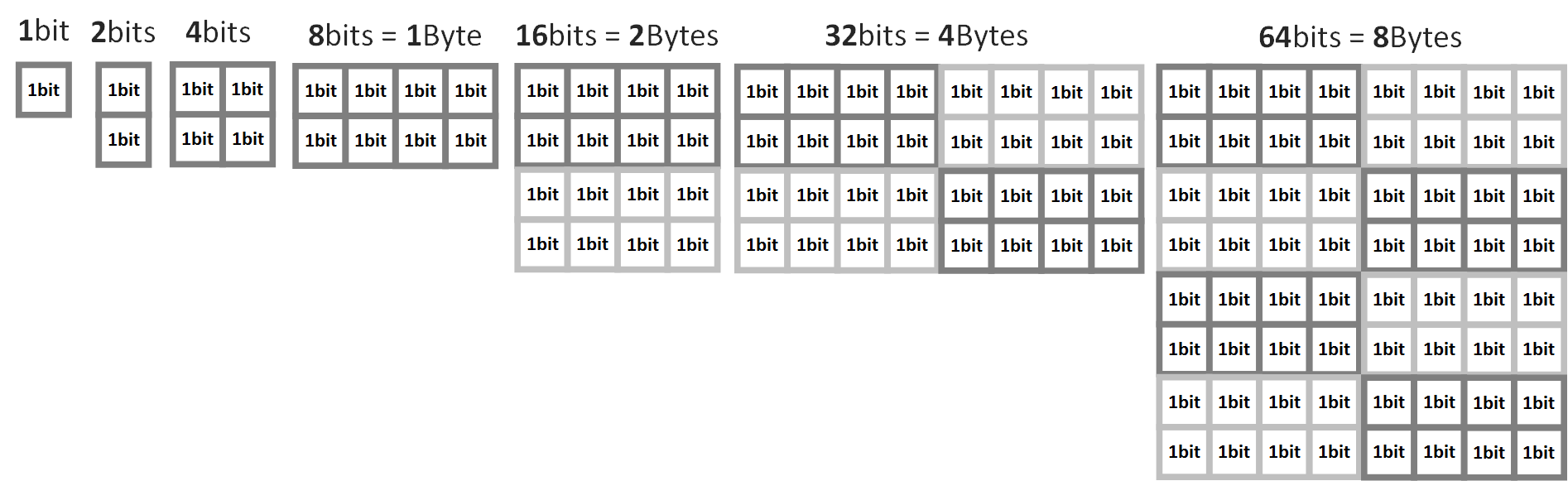
As you can see, this grows very fast, so we need a name that groups several bits to make them easier to work with. For example, would it be easy for your friend to understand if we tell him to “record on his computer a movie that takes up 858,993,459,200 bits” because it’s in 4K quality? I think at first glance our friend would know that “858,993,459,200 bits” is a lot, but without a calculator he couldn’t say whether it fits in his computer’s memory; but if you tell your friend it takes up 100 Gib, things change, and it’s easier for your friend to quickly know whether the movie will fit on his computer or not).
Note
Reasons why memories are manufactured in powers of two:
Note that there are also other reasons why memories come in powers of two, such as:
- As mentioned, manufacturing memories in powers of two saves costs.
- It’s easier to work with powers of two because they’re binary numbers (just as you probably find it very easy to work with powers of 10 in decimal numbers. Which of the following two operations is easier to multiply in your head: “79,584×9,879” or “79,584×10,000”?)
- Memory addressing optimization (for example, if we have several RAM modules, it’s faster for the CPU to read data from the different RAM modules in powers of two, since it doesn’t have to do many calculations)
Because of the fixed word size in bytes (the minimum number of bits the processor or memories always work with; even if we only want to process 5 bits, the minimum to process may be 32 bits, so the 32 bits that include our 5 bits will be processed, but we only care about those 5 bits and the remaining 27 bits will be discarded; we’ll see this later)
Byte
That’s why the unit of measurement after the bit is the byte, which is a group of 8 bits (1 byte = 8 bits). Take a look at the previous image again: I’ve painted the groups of 8 bits (which represent 1 byte) in different shades of gray so they stand out at a glance.
And why 8 bits and not a round number like 10? For the reason we explained before about “manufacturing double what there was before”. It’s easier for manufacturers to create larger spaces by doubling what was there before. This is what in mathematics is known as powers of two (two raised to some number, represented as 2n ), that is, a two multiplied by itself a number of times:
- 1 = 20
- 2 = 21
- 4 = 2×2 = 22
- 8 = 2x2x2 = 23
- 16 =2x2x2x2 = 24
- 32 = 2x2x2x2x2 = 25
- 64 = 2x2x2x2x2x2 = 26
- 128 = 2x2x2x2x2x2x2 = 27
- 256 = 2x2x2x2x2x2x2x2 = 28
- 512 = 2x2x2x2x2x2x2x2x2 = 29
- 1024 = 2x2x2x2x2x2x2x2x2x2 = 210
- And so on to infinity …
Some of the numbers above you surely recognize immediately as “digital”. When commercial ads or the product packaging itself say things like (don’t focus on the abbreviations, since they can be strange and confusing, just read the ad examples and I’ll explain afterwards):
- “Laptop with 512 GiB SSD hard drive and 16 GiB of RAM”
- “SD memory card for cameras with 128 GiB of capacity”
- “New 16 TiB hard drive”
- “Processor with L1 cache of 32 KiB, L2 of 256 KiB and L3 of 8 MiB”
“GiB”? Isn’t it just GB without the “i”? Although you can say it both ways, we need to pay attention to the new nomenclature, which indicates different amounts of bits. For example, 4GB is not the same number of bits as 4GiB. There is a lot of confusion and I want it to be very clear forever; you’re about to find out.
First and most important, be very clear that 1 bit is the basic unit and 1 byte is 8 bits. What matters more is how they are represented. The symbol (the word shortened to one or a few letters) for bit is a “b” (lowercase) and for byte is a “B” (uppercase). This way, you can say you have a memory of “16b” or, equivalently, “2B” (2B = 2 x 8b = 16b). What might be confusing in this paragraph is that the small (lowercase) “b” is the smallest thing, 1 bit; and the big (uppercase) “B” is several bits, specifically a group of 8 bits. These “b letters” (“b” and “B”) are placed as a suffix (at the end) after other multiplier prefixes (like the G of “Giga”: Gb or GB).
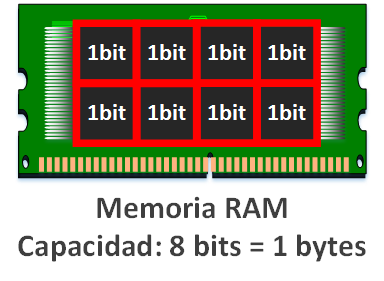
Going back to the example of being manufacturers of “RAM” modules. For the next technology we would already have 1 byte (1B = 8b) of capacity.
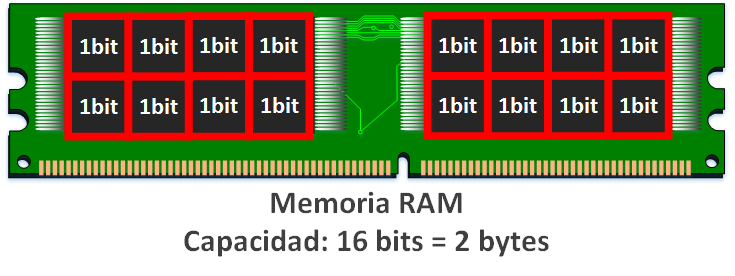
There comes a point where it’s no longer worth making the memory chip itself bigger (because it gets too hot, because it’s cheaper to duplicate the chip, because several take up less space, or for other reasons), and it’s better to put several memory chips of the same size. In our example we want to put several memory chips to double the total capacity of the RAM module. This way we’ll have a RAM with 16 bits (which is 2 bytes) of capacity.
Units of measurement
But we can’t stop at just 8 bits; there are much larger representations that, combined with the previous ones, let us represent the size of information (the sizes of memories).
Note about punctuation in decimal numbers in this article: Below, I use a period as the thousands separator (example: 1.000.000) and a comma as the decimal separator (example: 1.000.000,37).
Some well-known prefixes are used, like the “k”, which you’ve surely seen in many places, such as with money (in the example I use the Euro symbol at the end, replace it with whichever is convenient for you): “We made 25k €”, which means “We made 25.000 €” (or in other words, 25 thousand euros). So the “k” means “thousand” or “kilo”, and therefore to measure information (in computing) 1k = 1.000 bits too, which is 10 raised to 3 (represented as 103 , so: 1k = 10x10x10 = 103 = 1.000 ).
Note
Wait a second! Didn’t we agree that we work with powers of two (2 raised to something, 2n )? I’ve often seen k for kilo used in computing as a power of 2, specifically 2 raised to 10, which equals 1.024 ( 210 = 1.024 ), and not 1.000 ( 103 = 1.000 ). What’s wrong?
Yes, and unfortunately you’ll keep seeing it written wrong (hopefully not for much longer). It was a human error that is being corrected over time, and meanwhile we have no choice but to live with the error.
It wasn’t really an error “on purpose” but a lack of notation. Long ago (around 1964), when computers were starting to be invented, there was no nomenclature for working with bits and people used what existed, like the k for kilo. But -as we’ve seen- memory is always built in powers of two.
Think of a time when we build the first 1.024-bit memory. We want to represent this amount in a slightly more “round and pretty” way (since 1.024 bits is 128 Bytes, and talking about 128 already feels like a “big, ugly” number). We know that all over the world “kilo” represents “1.000”, which is very close to “1.024”, so it’s very easy for people to use the abbreviations they already know (and not have to invent words that didn’t exist). So we decided to sum up 1024 bits and call them 1 kilobit. Perfect! We have just made the “mistake” that gives us headaches today. It turns out the word kilo was used to multiply everything you can imagine by 1000, except for bits, which would be multiplied by 1024 (and not in all cases).
This error spread to the whole table of whole multiples of the International System of Units (more information about the International System of Units at Sistema Internacional de Unidades (Wikipedia) ); since then all the prefixes for whole decimal multiples were used incorrectly (“decimal multiples” are powers of 10, that is, whatever we want to measure times 10 raised to something; and “whole” because it made no sense to say “half of 1 bit” if 1 bit was the smallest unit): kilo, mega, giga, peta, exa, zetta, yotta, etc.
For quite a few years representations like these coexisted (for this article you only need to pay attention to “bits” and “bytes”, but understand the context of the implication):
- 16 km = 16.000 meters (16 x 1.000)
- 16 kg = 16.000 grams (16 x 1.000)
- 16 ks = 16.000 seconds (16 x 1.000)
- 16 kA = 16.000 amperes (16 x 1.000)
- 16 kK = 16.000 kelvins (16 x 1.000)
- 16 kmol = 16.000 moles (16 x 1.000)
- 16 kcd = 16.000 candelas (16 x 1.000)
- 16 kcal = 16.000 calories (16 x 1.000)
- 16 kW = 16.000 watts (16 x 1.000)
- 16 kV = 16.000 volts (16 x 1.000)
- 16 kb = 16.384 bits (16 x 1.024)
- 16 kB = 16.384 Bytes (16 x 1.024)
In short, it was and still is a mess: you have to think in powers of 10 for most things and in powers of 2 only for bits (which made calculation errors easy; you ended up mentally associating kilo with 1024, the same with mega and giga, and then the errors came). You got used to it, but it was still complex and impractical, especially for what these unified and standardized representations are really for: understanding each other and communicating effectively among all of us on planet Earth.
So a new representation system was proposed for powers of two (the powers of ten were respected since they already existed; the representation that came later had to change, however much that pains the bits). And it’s very simple; it’s mainly based on introducing an “i” (lowercase Latin i) at the end of the prefix (for example, kib or kiB for powers of 2; leaving kb or kB for powers of 10). With this we get a clear difference between decimal and binary. This “i” comes from “binary”, the full prefix is “bi”. So “kilo” was reserved for 10 raised to 3 and “kibi” for 2 raised to 10. At last we’ve fixed it and can say things properly, depending on the number of bits we want to express:
- 16 kilobits = 16 kb = 16.000 bits (16 x 1.000)
- 16 kilobytes = 16 kB = 16.000 Bytes (16 x 1.000) = 128.000 bits (8 x 16 x 1.000)
- 16 kibibits = 16 kib = 16.384 bits (16 x 1.024)
- 16 kibibytes = 16 kiB = 16.384 Bytes (16 x 1.024) = 131.072 bits (8 x 16 x 1.024)
As a curiosity, the same works for other units of measurement. I could ask the grocer for 3 kig (3 kibigrams = 3 x 1024 = 3072 grams) of apples, which is more than 3kg (3 kilograms = 3 x 1000 = 3000 grams) of apples, although the grocer might give me a strange look 😛
Note that this new unit in powers of 2 was defined by the International Electrotechnical Commission (more about the IEC at Comisión Electrotécnica Internacional (Wikipedia))
Besides the units mentioned above, if you’ve used or bought a smartphone, tablet, laptop, digital camera, computer, etc. (if you’re reading this article I’ll assume you’ve probably heard the following units hundreds of times), you’ve surely come across multiplication in powers of 10 in many product specifications. For example:
- 3,2 Ghz processor (Gigahertz) = processor whose frequency is 3.200.000.000 hertz (3,2 x 1.000.000.000)
- 12 Mpx camera (Megapixel) = The camera can capture 12.000.000.000 pixels (12 x 1.000.000.000) per photo
Confusions with some units:
- 4K television = screen with nearly 4000 pixels horizontally (the uppercase “K” in 4K, although it’s meant to express 1000, doesn’t mean 1000; for that it would have to be 4k with a lowercase “k”. “4K” is the name of a technology). There are several 4K formats, such as Full 4K (resolution of 4096 pixels wide × 2160 pixels high) or 4K UHDV (3840 x 2160)
- 3.000 mAh battery = 3 Amperes for one hour (the lowercase “m” means “milli” and equals “10 raised to -3”, 10-3 = 0,001; “mAh” is “milliampere hours”, so 3000 x 0,001 = 3 Ah)
Note about what the change of units may imply for those of us who learned the old way: The author of this article feels this more than those of you who are just starting to study this, because I had to learn it with the “error” and now I have to make double the effort to say things correctly. If you’re just starting, then you have to live with both symbols. It’s worth knowing what was wrong so they don’t “fool” you, and applying the correct one until one day only the correct one is used (each unit of measurement should be used as it was standardized).
Multiples tables
You need to be very clear about the difference between the multiples each prefix represents in the current standards:
International Electrotechnical Commission (ISO/IEC 80000)
In powers of 2 (the one that mainly interests us because of how easy binary calculations are and for what was explained earlier). It is characterized by including “bi” (from binary) in the text of the unit of measurement, or the “i” in the symbol.
| Prefix | Symbol | Number of bits (in decimal) |
| kibi- | ki | 210 = 1.024 |
| mebi- | Mi | 220 = 1.048.576 |
| gibi- | Gi | 230 = 1.073.741.824 |
| tebi- | Ti | 240 = 1.099.511.627.776 |
| pebi- | Pi | 250 = 1.125.899.906.842.624 |
| exbi- | Ei | 260 = 1.152.921.504.606.846.976 |
| zebi- | Zi | 270 = 1.180.591.620.717.411.303.424 |
| yobi- | Yi | 280 = 1.208.925.819.614.629.174.706.176 |
International System of Units (SI)
In powers of 10.
| Prefix | Symbol | Number of bits (in decimal) |
| kilo- | k | 103 = 1.000 |
| mega- | M | 106 = 1.000.000 |
| giga- | G | 109 = 1.000.000.000 |
| tera- | T | 1012 = 1.000.000.000.000 |
| peta- | P | 1015 = 1.000.000.000.000.000 |
| exa- | E | 1018 = 1.000.000.000.000.000.000 |
| zetta- | Z | 1021 = 1.000.000.000.000.000.000.000 |
| yotta- | Y | 1024 = 1.000.000.000.000.000.000.000.000 |
Note
Note about the symbol “k”:
the symbol “k” of “kilo-” is lowercase, and the “k” of “ki” in “kibi-” is also lowercase (don’t confuse it with the uppercase “K” symbol that represents the kelvin unit, used to measure temperature). Except for the “k”, the rest of the symbols are written in uppercase.
Now we know what each symbol represents. Next we have to attach to each prefix the suffix we want, bit or byte, which we saw earlier.
Table of basic multiples of bit and byte
Easy, we already know it:
| Unit of measurement | Symbol | Number of bits (in decimal) |
| 1 bit | b | 20 = 1 bit |
| 1 byte | B | 23 = 8 bits |
Before showing you the complete tables with bits or bytes, I want to show you how easy it is to write and understand these symbols (it’s as simple as multiplying everything: the number and the split symbols, except the unit, which is indivisible; let’s see examples). For example What does “37 Mib” mean?
- 37 is the amount that multiplies what comes after, “Mib”
- We have to split the symbols “Mi” and “b”
- “Mi” we know is 220, which equals 1.048.576
- “b” is the indivisible unit, which we can say is worth 1 (decimal) per unit, but we want it to mean its word “bit”
- We multiply all the numbers: 37 x 1.048.576 = 38.797.312 (we use a calculator to compute the result). So “37 Mib” equals “38.797.312 bits” (we’ve added the word “bit” representing the unit at the end, so we know we’re talking about “bits” and not something else; because if I tell my friend “I have 38.797.312”, he will surely ask me “You have 38.797.312 what?”)
I’ve stressed the “unit” at the end for two reasons: one so we understand each other and the other for the following reason. What does “37 MiB” mean? Let’s do the same as before:
- 37 x MiB
- “MiB” consists of “Mi” and “B”
- Mi = 220 = 1.048.576
- Watch out! We have to understand the meaning of “B”, which means “byte”, and 1 byte is 8 bits. 1byte = 8 bits (or with symbols: 1 B = 8 b)
- Here we have two options, depending on how we want to leave the result, in bytes or in bits (for the latter we have to multiply by 8 to go from 1 byte to 8 bits):
a. 37 x 1.048.576 = 38.797.312 bytes
b. 37 x 1.048.576 x 8 = 310.378.496 bits
This splitting and multiplying of symbols is a drag!
I can promise you it’s learned very quickly (it’s all the same, multiplying by some things or others). If you devote a little time to it, I assure you it will be as easy as adding and so useful you won’t want to stop using it 🙂
This doesn’t only apply to binary units. It also applies to more mundane, physical things (that you can hold and use around you), such as What does it mean that a box holds “37 Kg” of pure gold bars?
- 37 x kg
- “kg” consists of “k” and “g”
- k = 103 = 1.000
- 37 x 1.000 = 37.000 g of pure gold
- But let’s not stop here, let’s go down to the basic unit of anything, “the atom” (for this example “an atom” would be the equivalent of “a binary bit” for physical things; the atom is divided into more things, but here it’s enough to understand the atom as it was believed in ancient times, “Without division”, to put it in equivalence with the “bit” in the example). Note about chemistry: You don’t need to know chemistry to understand this article; here I give a free example to understand the relationship between abstract and physical units, since binary units are, if anything, easier than the units of the “physical and mundane”, and the calculations are the same with different values; if you don’t get it or don’t feel like reading basic chemistry, you can skip this box (on the other hand, if you keep reading you get a free basic chemistry class 🙂 )
- We know that 1 mole of anything is 6,022 × 1023 atoms (Avogadro’s number rounded, Mol (Wikipedia)). Example note: the “mole”, which is a group of atoms (specifically 1 mole is 602.214.129.000.000.000.000.000 atoms), would be the binary equivalent of the “byte”, which is a group of “bits” (specifically 1 byte is 8 bits)
- We know that 1 mole of gold weighs 196,967 g (rounded atomic mass of gold, which we can look up in the periodic table of chemical elements; for gold there is more information at Oro (Wikipedia))
- Then 37.000 grams divided by 196,967 grams (the weight of 1 mole of gold) gives us the number of moles. 37.000 / 196,967 = 187,85 moles of gold
- All that’s left is to multiply the moles by the number of atoms in each mole (1 mole = 6,022 × 1023 atoms). 187,85 x 6,022 × 1023 = 1.131.232.700.000.00.000.000.000.000 atoms in 37 kg of gold
It turns out “information” units are easier to calculate than “chemical” ones 😀
In favor of any system of units: if you understand one and know how to use it, the rest are the same with different values (that is, they’re all equally simple, although you still have to understand what each one is for).
The following tables write themselves once you know how to interpret and form the unit multiplication symbols above. But it’s always good to have these tables at hand to quickly get to the result, and here I want to leave them for you.
I keep the table colors orange for the “International Electrotechnical Commission” and blue for the “International System of Units”.
International Electrotechnical Commission (ISO/IEC 80000) for bits
| Unit of measurement | Symbol | Number of bits (in decimal) |
| 1 kibibit | kib | 210 = 1.024 bits |
| 1 mebibit | Mib | 220 = 1.048.576 bits |
| 1 gibibit | Gib | 230 = 1.073.741.824 bits |
| 1 tebibit | Tib | 240 = 1.099.511.627.776 bits |
| 1 pebibit | Pib | 250 = 1.125.899.906.842.624 bits |
| 1 exbibit | Eib | 260 = 1.152.921.504.606.846.976 bits |
| 1 zebibit | Zib | 270 = 1.180.591.620.717.411.303.424 bits |
| 1 yobibit | Yib | 280 = 1.208.925.819.614.629.174.706.176 bits |
International Electrotechnical Commission (ISO/IEC 80000) for bytes
| Unit of measurement | Symbol | Number of bits (in decimal) |
| 1 kibibyte | kiB | 8 x 210 = 8.192 bits |
| 1 mebibyte | MiB | 8 x 220 = 8.388.608 bits |
| 1 gibibyte | GiB | 8 x 230 = 8.589.934.592 bits |
| 1 tebibyte | TiB | 8 x 240 = 8.796.093.022.208 bits |
| 1 pebibyte | PiB | 8 x 250 = 9.007.199.254.740.992 bits |
| 1 exbibyte | EiB | 8 x 260 = 9.223.372.036.854.775.808 bits |
| 1 zebibyte | ZiB | 8 x 270 = 9.444.732.965.739.290.427.392 bits |
| 1 yobibyte | YiB | 8 x 280 = 9.671.406.556.917.033.397.649.408 bits |
International System of Units (SI) for bits
| Unit of measurement | Symbol | Number of bits (in decimal) |
| 1 kilobit | kb | 103 = 1.000 bits |
| 1 megabit | Mb | 106 = 1.000.000 bits |
| 1 gigabit | Gb | 109 = 1.000.000.000 bits |
| 1 terabit | Tb | 1012 = 1.000.000.000.000 bits |
| 1 petabit | Pb | 1015 = 1.000.000.000.000.000 bits |
| 1 exabit | Eb | 1018 = 1.000.000.000.000.000.000 bits |
| 1 zettabit | Zb | 1021 = 1.000.000.000.000.000.000.000 bits |
| 1 yottabit | Yb | 1024 = 1.000.000.000.000.000.000.000.000 bits |
International System of Units (SI) for bytes
| Unit of measurement | Symbol | Number of bits (in decimal) |
| 1 kilobyte | kB | 8 x 103 = 8.000 bits |
| 1 megabyte | MB | 8 x 106 = 8.000.000 bits |
| 1 gigabyte | GB | 8 x 109 = 8.000.000.000 bits |
| 1 terabyte | TB | 8 x 1012 = 8.000.000.000.000 bits |
| 1 petabyte | PB | 8 x 1015 = 8.000.000.000.000.000 bits |
| 1 exabyte | EB | 8 x 1018 = 8.000.000.000.000.000.000 bits |
| 1 zettabyte | ZB | 8 x 1021 = 8.000.000.000.000.000.000.000 bits |
| 1 yottabyte | YB | 8 x 1024 = 8.000.000.000.000.000.000.000.000 bits |
We need to be clear about the difference between the types of binary size measurements, so we avoid getting confused:
- No prefix. Example: 1B = 1 byte
- Binary prefixes with International Electrotechnical Commission (IEC) symbols. Example: 1kiB = 1.024 bytes
- Binary prefixes with International System (SI) symbols. Example: 1kB = 1.024 bytes (The old and “wrong” way of representing binary size)
- Decimal prefixes with International System (SI) symbols. Example: 1kB = 1.000 bytes
With this, they won’t fool us anymore and we’ll know who is still using the old (wrong) way.
Online Calculators
We can also use calculators to do the conversions.
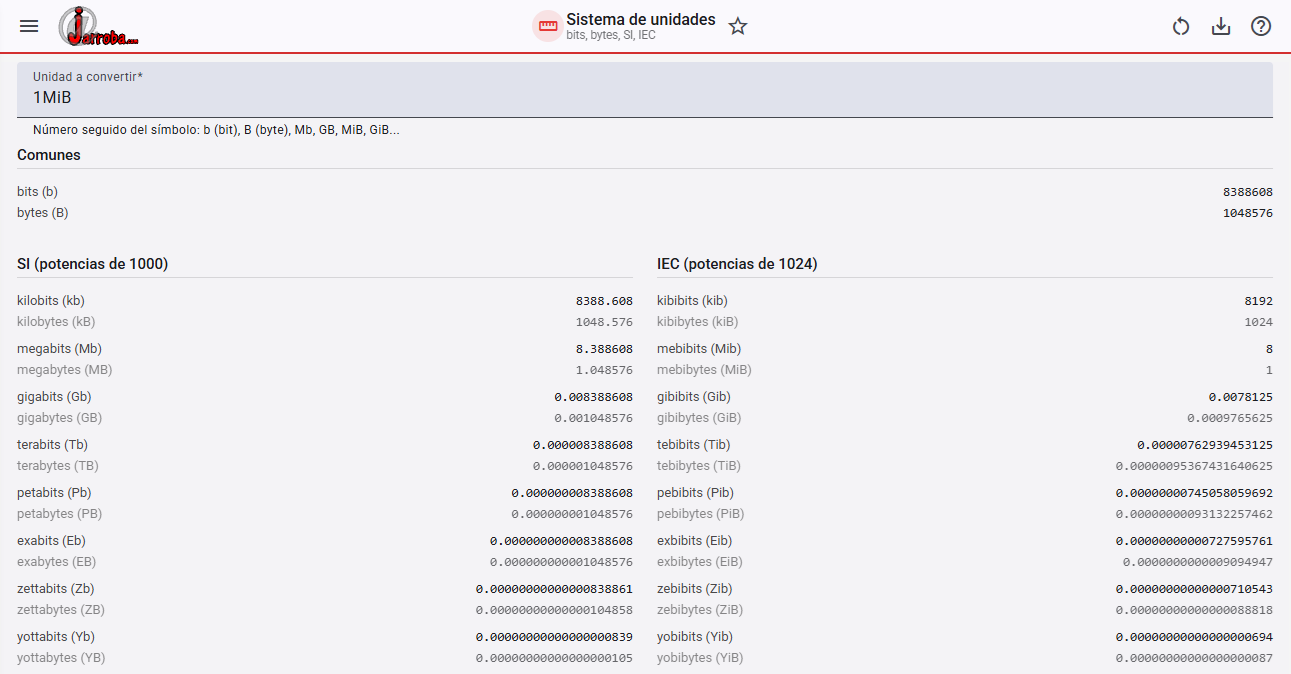
Like the Jarroba Online Calculator to automatically convert any value to all the others. You just enter a value and the calculator automatically suggests the values (You can check the result directly at the following address https://jarroba.com/tools/es/unitsystem ). A very important and useful feature is that you can try any value regardless of its size, since it has no input or output limit, it calculates huge numbers and all values at once (and you can share the result).
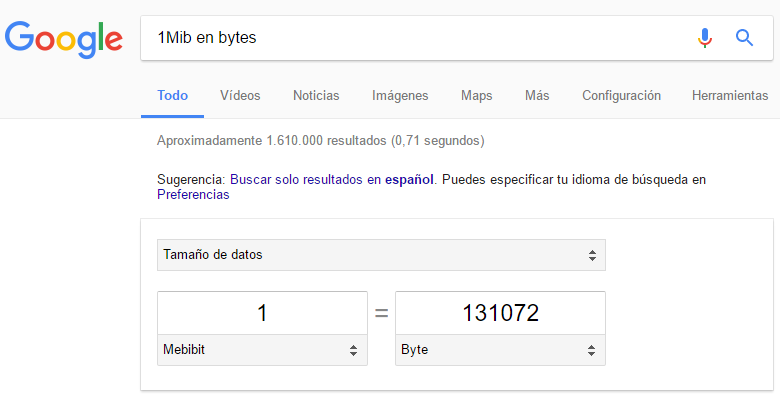
Or like the Google online calculator. It’s enough to search for what I want to convert in the Google search engine, such as “1Mib en bytes” (You can check the search result for the example at the following address: https://www.google.es/webhp?sourceid=chrome-instant&ion=1&espv=2&ie=UTF-8#q=1Mib+en+bytes&* )
Most Common Confusions with Units
Examples of confusion in products
A few paragraphs above I tricked you, and I don’t know if you noticed, but who cares! The fact is I tricked you on purpose about how manufacturers and ads promote their products. Of the previous “tech product ads”, what you usually see is:
- “Laptop with 512 GB SSD hard drive and 16 GB of RAM”
- “SD memory card for cameras with 128 GB of capacity”
- “New 16 TB hard drive”
- “Processor with L1 cache of 32 KB, L2 of 256 KB and L3 of 8 MB”
Oops! It’s no longer so clear what advertisers and manufacturers mean. When they say “GB”, for example, do they really mean “GB” as powers of 10? Or are they wrongly using “GB” in the old way when they mean “GiB” (powers of 2, 2n )? This difference matters, because it’s not the same if they mean 512 GB as 512 GiB or 512 GB of the International System of Units, since:
- 512 GB = 512 x 109 x 8 = 4.096.000.000.000 bits
- 512 GiB = 512 x 230 x 8 = 4.398.046.511.104 bits
The most common thing is that we believe they’re selling us a 512 GiB hard drive, and if we’re really buying a 512 GB one we’re losing:
4.398.046.511.104 bits – 4.096.000.000.000 bits = 302.046.511.104 bits
Which in GiB is (we divide instead of multiply to convert from bits to GiB):
302.046.511.104 bits = 302046511104 / 230 / 8 = 35,17 GiB
They’re selling us 35,17 GiB less (where 7200 photos of 5MiB each fit, or 7 standard 4,7GiB DVD movies) than what we wanted!
And the bigger it is, with this misunderstanding the more we lose compared to what we really thought. That’s why, when we buy a storage medium, it seems to have lost space just by plugging it in. It hasn’t lost space, they’re confusing us with the units, which aren’t the same! (sometimes the loss of space when buying a product is justified, for example, if we buy a laptop with the operating system installed, if the hard drive was 512 GiB and the operating system takes up about 50 GiB, that’s the amount we’re missing; but when we buy empty ones not so much, and you have to be careful here.
The trick to see what they’re really selling us is to look at the label or ask them to tell us the space in bytes or bits. If you see 512 GB in big letters on the product box, when we look at it in bytes it should be close to 512.000.000.000 bytes (512 GB of the International System) or to 549.755.813.888 bytes (512 GiB); I won’t tell you nothing is lost from the product (in the case of an empty hard drive or memory card, some of the product’s own boot data takes up space on the product itself), but it will surely come close to one of these two figures.
And if it’s still not clear what they want to sell you (I recommend asking to clear up doubts), I think it’s best to assume by standard rule (the new one) that, for example, “512 GB” is 512.000.000.000 bytes and not 549.755.813.888 bytes (512 GiB), for two reasons:
- If I read GB on a product (the units in powers of 10), why shouldn’t we trust it if it’s the universal standard? They would put GiB if they meant GiB and not GB
- GB will always be smaller than GiB (powers of 10 are smaller than those of 2, for example, 1kb is 1000 bits while 1kib is 1024 bits). That way I make sure they at least don’t rip me off, and if I later get the surprise that it’s more, all the better.
It’s important to be alert to avoid confusion and not let some sellers or manufacturers “fool” us, who knowingly exploit the confusion (selling us GB as GB of the International System, which is quite a bit less than the GiB), or simply don’t want to confuse old consumers with their products (for them GB means GiB). If the product already uses the new units (labeled as GiB) then perfect, there’s no confusion at all; but if not, you have to calculate a bit to avoid traps (let’s not forget that it’s legal to “deceive” or take advantage of the lack of knowledge or the partial truth about the confusion in the representation of digital units).
Example of confusion in service advertising (Internet connection)
This is a real, very recurring advertising example that takes advantage of the maximum confusion between systems of units.
An example of maximum confusion in ads is usually found in telecommunications, when they sell us an Internet connection:
- “New Internet connection offer of 300 Mbps download and 100 Mbps upload”
Mbps? It means “Megabits per second”, it’s the maximum your provider will offer you (that is, it doesn’t mean you’ll download at 300 Mb per second; if you’re lucky, due to various factors like the distance to the exchange or network problems, at most you’ll reach 300 Mb per second of download). And what’s the minimum the provider offers? It depends on the contract; there may be a guaranteed minimum percentage or no minimum at all (if there’s a minimum, for example, 20% of what you contracted, the minimum would be 240 Mbps out of 300 Mbps; if there’s no minimum, it could be 0 Mbps)
Isn’t it in Bytes? No. They would have to put the ad with an apparent speed “8 times” lower (the conversion from 8 bits to 1 byte), and they want it to seem 8 times higher (a marketing strategy: tell the truth but make it seem like what we want it to seem). For example: 300 Mb / 8 = 37,5 MB per second
And the “M” of “mega”, in which system is it expressed? In the International System of Units, that is, in powers of 10 (which is less than the “mebi” in powers of two that we saw before)
So how much is 300 Mb in MiB? Let’s calculate, first converting to a unit common to both systems of units and then transforming it to the new one (if you don’t want to do calculations, you can use the online calculators I showed you before):
300 Mb = 300 x 106 = 300.000.000 bits = 300.000.000 / 220 / 8 = 35,76 MiB
In short, of the magnificent maximum 300 Mb per second that Internet providers offered us in the ads, the speed correctly expressed in bytes doesn’t seem so good, since it’s only 35,76 MiB per second (but it’s just an illusion, both that 300 Mb seems like a lot and that 35,76 MiB seems like a little; in logical and real terms 300 Mb = 35,76 MiB. Don’t let appearances fool you!).
Most users fall for the trick of thinking that “Mbps” means “MiB per second”, and as I’ve shown you, it doesn’t.
Note about the speed tests found on the Internet: At least all the ones I’ve found and used are expressed in Mbps (SI Megas and in bits). I haven’t found any that express it in bytes or in “mebi”, so you can see how far the advertising “trick” goes and that as a user it isn’t easy for you to find out the “trap”. Although you always have the right to know the truth and here we’ve shown it to you 😀
Example of confusion in on-screen information
Another quite common example. If you’re a Windows user and you check the hard drive space (Type “Computer” in the box at the bottom left of the Windows taskbar; right-click a hard drive of your computer; then click “Properties”)
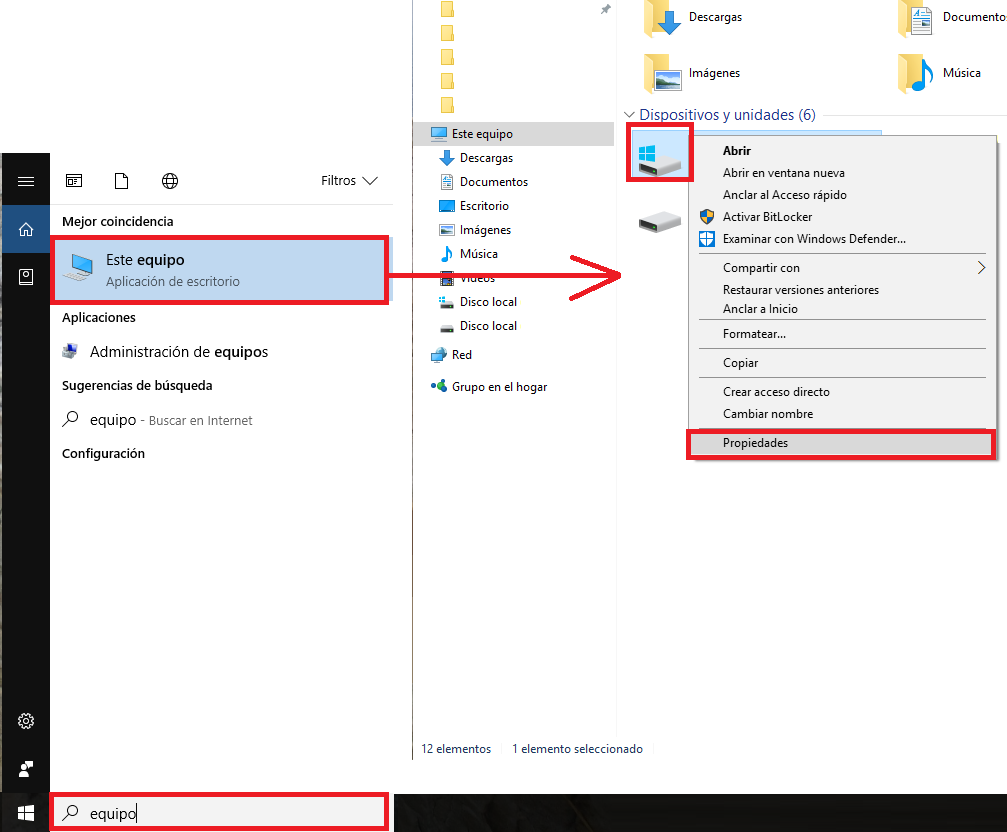
It turns out the units are expressed the old way 🙁 ! GB, MB, etc. appear.

Although I’m in favor of using the new system of units, in this case I’m going to give Windows a pass (since I don’t think a company dedicated to developing software and hardware lets these things slip by). It turns out a very large portion of the population still uses the old and wrong conversions, and not everyone risks changing from GB to GiB so as not to confuse their users (even though changing it is the right thing). We can forgive them because they also add the bytes, so we can calculate whatever we want. If you convert the figure in the image above from any bytes unit to GiB, for example, let’s look at the 931GB one:
1.000.068.870.144 bytes = 1.000.068.870.144 / 230 = 931,37 GiB
Hence the trick. To make everything understandable, the best thing is to convert from bytes or bits to the unit we want, so there’s no confusion at all.
In the future, it’s foreseeable that Windows will change its system of representing units.
On the other hand, other operating systems like Ubuntu do use the units correctly. For example, when GB appears it’s in the International System, or else as GiB with the respective conversion of values.
References
“Units of Measurement for Information” by Ramón Invarato at jarroba.com, licensed under Creative Commons Attribution-NonCommercial-ShareAlike 3.0. Registered at Safe Creative.

You may also like

Bit
The bit, the basic unit of digital information. It represents two states: the binary system. Something so simple, yet important and full of potential.

Binary: Combinations and Conversion
Learn how numeral system combination tables work and convert between binary, decimal, hexadecimal and octal with simple mental math.
Leave a comment