
Android Error – Problems Installing the ADT or SDK
Getting "Cannot complete the install because one or more required items could not be found" when installing the Android ADT or SDK? Here is how to fix it.
When you try to install the ADT or SDK, you may get the following error:
Cannot complete the install because one or more required items could not be found.
Solution
Go to “Help” and click “Install New Software…”

Click the “Avaible Software Sites” button.
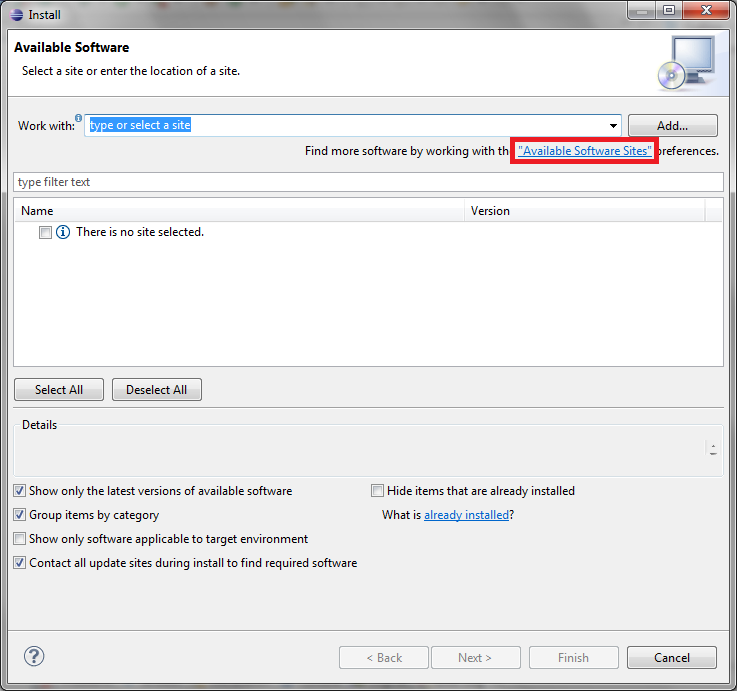
Click the "Add…" button.
In the dialog that opens, type the name of the Eclipse version you are using in "Name", for example "Indigo". In the "Location" field, type the repository address for your Eclipse version. For "Indigo", type:
http://download.eclipse.org/releases/indigo
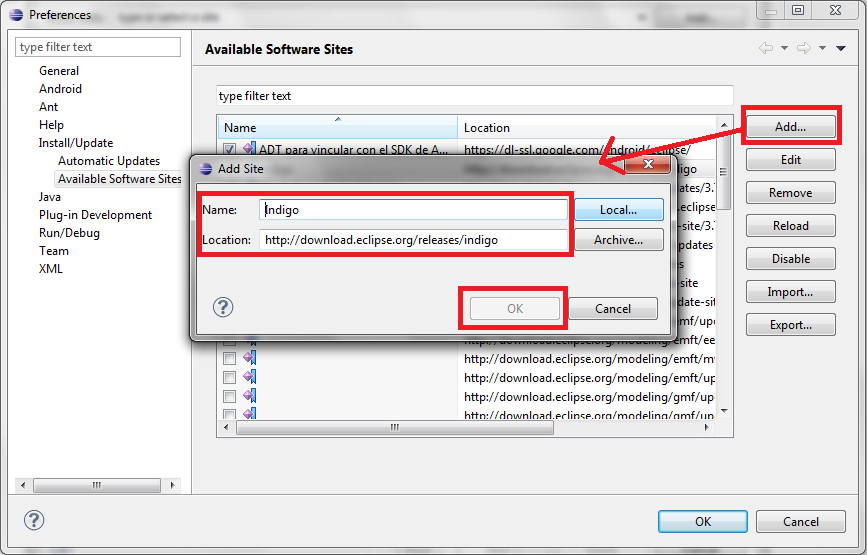
For other Eclipse versions, usually only the end of the address changes. For example, for the "Helios" version of Eclipse, the address you would need to enter is:
http://download.eclipse.org/releases/helios
So, for other versions the address is:
http://download.eclipse.org/releases/<Eclipse version>
“Android Error – Problems Installing the ADT or SDK” by Ramón Invarato at jarroba.com, licensed under Creative Commons Attribution-NonCommercial-ShareAlike 3.0. Registered at Safe Creative.

You may also like


Android Error – A Newer ADT Version Is Required
Getting the Android error "This Android SDK requires Android Developer Toolkit version X or above"? Learn how to install or update the ADT plugin in Eclipse.
Android Error – SDK Installer Doesn’t Detect the Java JDK
The Android SDK installer can't find the Java JDK and won't let you continue? Here are three solutions, including the common Windows 8 case.
Android Error – Android SDK Not Found
Fix the Android error "Location of the Android SDK has not been setup in the preferences" that appears when you create a new Eclipse workspace.
Android Error – Eclipse Doesn’t Show the Android Buttons After Installing the ADT and the SDK
Eclipse doesn't show the Android SDK Manager and AVD Manager buttons after installing the ADT and SDK? Here's how to bring them back in a few steps.
Leave a comment