
Android Error – SDK Installer Doesn’t Detect the Java JDK
The Android SDK installer can't find the Java JDK and won't let you continue? Here are three solutions, including the common Windows 8 case.
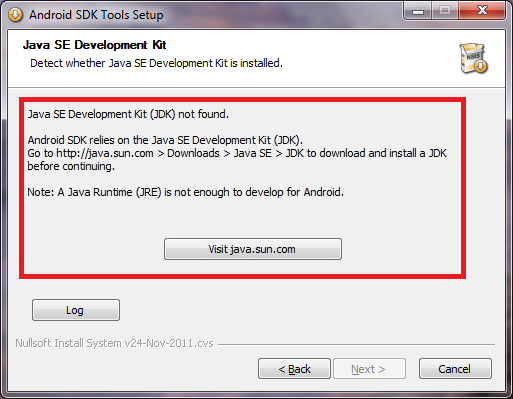
When you try to install the Android SDK, the installer doesn’t detect the JDK, so it won’t let you continue. The following error appears:
Error: Java SE Development Kit (JDK) not found.
Android SDK relies on the Java SE Development Kit (JDK).
Go to http://java.sun.com > Downloads > Java SE > JDK to download and install a JDK before continuing.
Note: A Java Runtime (JRE) is not enough to develop for Android.
The error will look like the following image:
Solution 1 – If the Java JDK is really not installed
The Java JDK is used to develop Java software and gives you additional tools. The JDK is a development environment for building applications, applets and various components using Java.
To download it, click here.
Here, click “Download” below the word JDK.
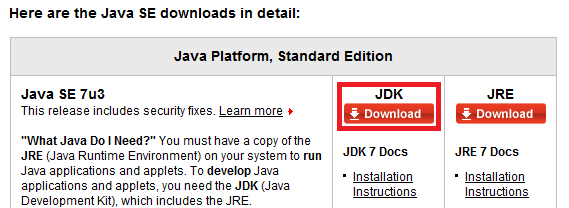
It will take you to a new window.
There, click “Accept License Agreement” so it lets you select the download.
Then download the Windows version that matches your system. If you don’t know which one, download the one called “Windows x86” (it’s best to download the one for your operating system; if your computer is modern, it’s probably x64).
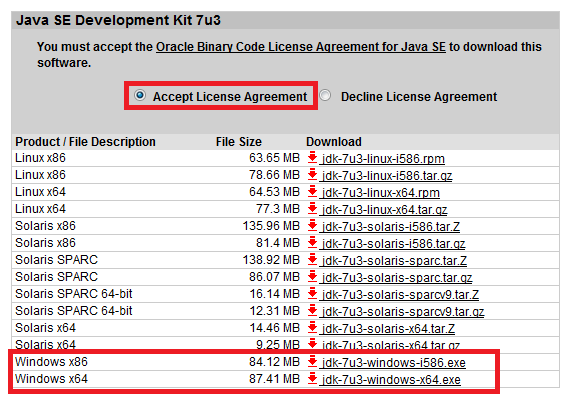
Once it has downloaded, run it and follow the wizard until it’s installed.
Solution 2 – The JDK is installed but the installer doesn’t detect it
This is a common problem and it’s fixed quickly. Don’t despair, it has a solution. To fix it, first click “Back” and then try one of the following solutions:
- Click “Next” again. This isn’t guaranteed to work, but sometimes it finds the JDK after going back to the JDK installation check screen a couple of times.
- Go to where the Java JDK is installed, usually at: “C:Program FilesJavajdk1.7.0_03bin”. Run the one called “javac” (a window will appear and disappear). Click “Next” in the SDK installer so it searches for the JDK again.
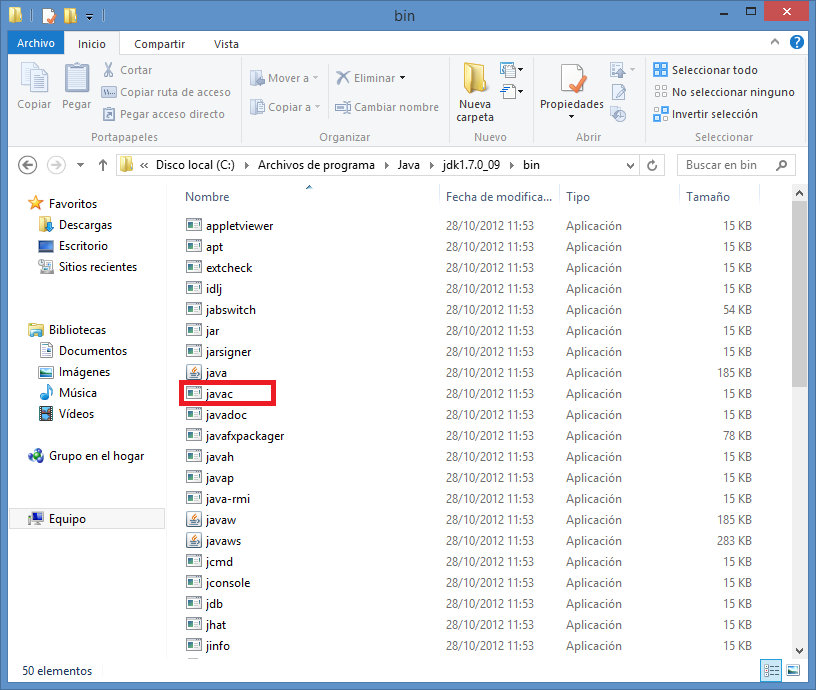
Solution 3 – The JDK is installed but the installer doesn’t detect it (common error on Windows 8)
This error usually happens on Windows 8, but it could also happen on other operating systems. The new operating system isn’t 100% compatible with everything yet, but there’s always a way to make it work.
The error may be slightly different, more like this:
Java SE Development Kit (JDK not found).
Error: Failed to find Java Version for 'C:Windowssystem32java.exe': [2] El sistema no puede encontrar el archivo especificado.
Android SDK relies on the Java SE Development Kit (JDK).
Go to http://java.sun.com > Downloads > Java SE > JDK to download and install a JDK before continuing.
Note: A Java Runtime (JRE) is not enough to develop for Android.
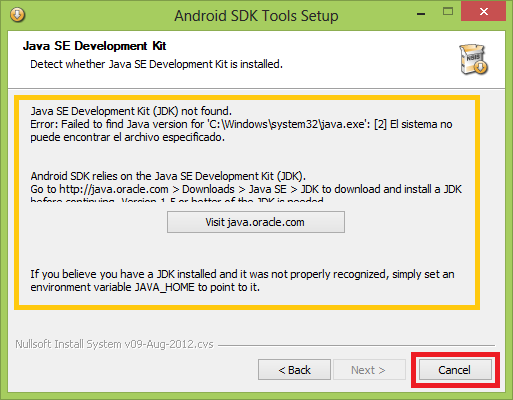
But it basically says the same thing. Close the installer window.
To fix it, go to the search box (it’s in the top-left corner; click the magnifying glass) and search for "environment variables". Click the "Settings" box, and there choose "Edit the system environment variables".
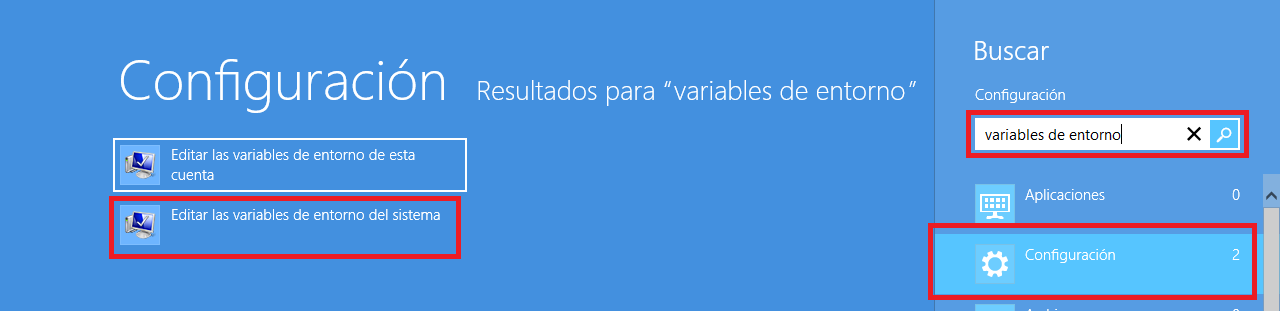
A window called "System Properties" will open on the desktop, where you click the "Environment Variables…" button. In the new window, called "Environment Variables", click the "New…" button. In the "New System Variable" box, enter the following:
- Variable name: JAVA_HOME
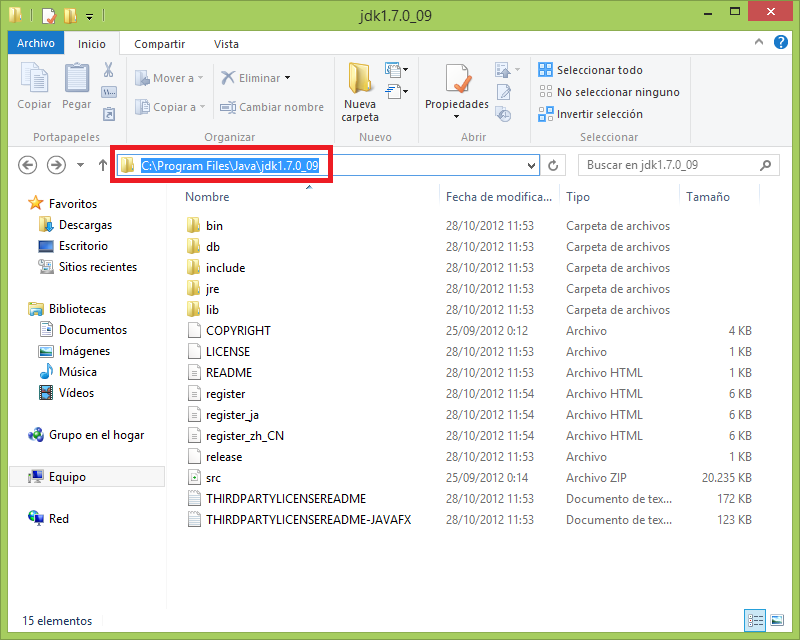
- Variable value: The path where the Java JDK is installed; by default it’s C:Program FilesJavajdk

In my case, which is the default location, the JDK is installed in the following folder; I copy its path and paste it into the "Variable value:" field.
Run the Android SDK installer again. It should now install normally.
“Android Error – SDK Installer Doesn’t Detect the Java JDK” by Ramón Invarato at jarroba.com, licensed under Creative Commons Attribution-NonCommercial-ShareAlike 3.0. Registered at Safe Creative.

You may also like


Android Error – Problems Installing the ADT or SDK
Getting "Cannot complete the install because one or more required items could not be found" when installing the Android ADT or SDK? Here is how to fix it.
Android Error – Android SDK Not Found
Fix the Android error "Location of the Android SDK has not been setup in the preferences" that appears when you create a new Eclipse workspace.
Android Error: The Android SDK Won’t Let You Update
Android SDK update failing with a 'folder failed to be renamed or moved' warning? Learn why it happens and two simple ways to fix it.
Android Error – Eclipse Doesn’t Show the Android Buttons After Installing the ADT and the SDK
Eclipse doesn't show the Android SDK Manager and AVD Manager buttons after installing the ADT and SDK? Here's how to bring them back in a few steps.
Leave a comment