
Charts on Web Pages with Google Charts
Learn how to create line, pie and geo charts on your web pages with the free Google Charts API and JavaScript, with complete code examples.
You can download the project for this post by clicking HERE.
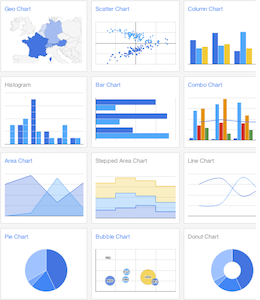 A while ago, in the post "Charts on Web Pages with Highcharts", we talked about how to create charts in JavaScript for web pages. “Highcharts JS” undoubtedly offers a very good API for creating charts, but it has the drawback that it’s paid, and the free charts show the Highcharts logo and a link to their website.
As you’d expect, the folks at Google have created an API to create endless charts, and on top of that, they’re much easier to understand than the Highcharts ones. At the following link: Google Charts (Google for Developers), you can access the documentation for this API, which also includes many examples of how to make these charts.
On this website we’ve already started using this type of chart in the visits section (the data comes from Google Analytics), and in this post we’re going to explain how we made them. As I said, everything is very well explained in Google’s documentation, so if you want to make any other type of chart, just follow its instructions.
We’ll start with a line chart, which is the one shown below. It shows the number of visits, unique visitors and page views our website has had up to the date this post was written:
To make this chart, the first thing we’ll show is the JavaScript. In it we create a function (dibujarGraficaVistas2013) in which we put the visit data in an array, and in the "options" variable we set the chart’s options. In this case we’ve set the points to a size of '5', and we’ve given names to the vertical and horizontal axes. We could have added other options such as the title, but check the documentation for more options. Once that’s done, we tell it to draw the chart in the "<div>" called "graficaVisitas2013_div" in the HTML.
google.load("visualization", "1", {packages:["corechart"]});
google.setOnLoadCallback(dibujarGraficaVistas2013);

 function dibujarGraficaVistas2013() {
 var visitas2013 = google.visualization.arrayToDataTable([
 ['Mes', 'Visitas', 'Visitantes Únicos','Páginas Vistas' ],
 ['Avg2012', 1161, 910, 2053 ],
 ['Ene13', 4505, 3655, 6482 ],
 ['Feb13', 8090, 6400, 11503 ],
 ['Mar13', 7493, 5818, 11937 ],
 ['Abr13', 7048, 5581, 9751 ],
 ['May13', 11408, 8529, 16061 ],
 ['Jun13', 10886, 8261, 15643 ],
 ['Jul13', 11095, 8372, 16258 ],
 ['Ago13', 12900, 9848, 18585 ],
 ['Sep13', 15428, 11805, 21873 ],
 ['Oct13', 19978, 15455, 27169 ],
 ['Nov13', 20159, 15531, 27470 ],
 ['Dic13', 15093, 11358, 20863 ],
 ['Ene14', 16311, 12036, 24678 ],
 ['Feb14', 20572, 15450, 29638 ],
 ['Mar14', 25625, 19129, 36395 ],
 ['Abr14', 27106, 20059, 37410 ],
 ['May14', 34810, 25617, 48192 ],
 ['Jun14', 35255, 25868, 49291 ],
 ['Jul14', 37605, 27251, 53759 ]
 ]);

 var options = {
 legend: { position: 'bottom' },
 pointSize: 5,
 hAxis: {title: 'Meses', titleTextStyle: {color: '#0000FF'}},
 vAxis: {title: 'Número de Visitas', titleTextStyle: {color: '#0000FF'}},
 curveType: 'function',
 };

 var graficaVisitas2013 = new google.visualization.LineChart(document.getElementById('graficaVisitas2013_div'));
 graficaVisitas2013.draw(visitas2013, options);
 }
Now we need to draw the chart in the HTML. To do that, we need to import Google’s library, which we do like this in the "head":
<script type="text/javascript" src="https://www.google.com/jsapi"></script>Once that’s done, we can draw the chart in the corresponding "div":
<div id="graficaVisitas2013_div"style="width: 1000px; height: 500px;"></div>So you can see what the whole HTML looks like, here it is:
<html>
 <head>
   <meta http-equiv="content-type" content="text/html; charset=UTF-8">
   <script type="text/javascript" src="https://www.google.com/jsapi"></script>
   <script src="charts.js"></script>
 </head>
 <body>
   <div align="center">
     <div id="graficaVisitas2013_div" style="width: 1000px; height: 500px;"></div>
   </div>
 </body>
</html>
Another type of chart we also had was the circular chart. It’s called a "Pie Chart", and the one we’re going to make is the following:
To make this chart we don’t need to calculate the percentage ourselves (the API does it), we just have to provide the values and that’s it. In JavaScript it would be the following:
google.load("visualization", "1", {packages:["corechart"]});
google.setOnLoadCallback(porcentajeVisitasPaises);
 function porcentajeVisitasPaises() {
 var porcentajeVisitas = google.visualization.arrayToDataTable([
 ['Pais', 'Visitas'],
 ['España', 111740],    ['Mexico', 75735],
 ['Colombia', 36998],   ['Peru', 24517],
 ['Chile', 19345],      ['Argentina', 18872],
 ['Ecuador', 13148],    ['Venezuela', 9827],
 ['Bolivia', 6799],     ['Costa Rica', 5300],
 ['Guatemala', 4857],   ['United States', 4042],
 ['Otros', 26330],
 ]);

 var options = {
 title: 'Porcentaje de vistas por paises'
 };

 var porVisitasChart = new google.visualization.PieChart(document.getElementById('porcentajePaises_div'));
 porVisitasChart.draw(porcentajeVisitas, options);
 }
The HTML to load this chart would be the following
<div id="porcentajePaises_div"></div>Other really cool charts are the "Geochart" ones, which show information on maps. In the following chart we can see the number of views we get by country (with more than 10 visits) around the world. We give this chart a color range, and depending on the number of views, it will paint the countries one color or another:
To make this chart we have the following JavaScript code:
// Mapa
google.load('visualization', '1', {'packages': ['geochart']});
google.setOnLoadCallback(visitasPorPaisesMap);

 function visitasPorPaisesMap() {
 var visitas = google.visualization.arrayToDataTable([
 ['Pais', 'Visitas'],
 ['España', 111740], ['Mexico', 75735], ['Colombia', 36998],
 ['Peru', 24517], ['Chile', 19345], ['Argentina', 18872],
 ['Ecuador', 13148], ['Venezuela', 9827], ['Bolivia', 6799],
 ['Costa Rica', 5300], ['Guatemala', 4857], ['Estados Unidos', 4042],
 ['Uruguay', 3221], ['El Salvador', 3201], ['Republica Dominicana', 2806],
 ['Paraguay', 2510], ['Nicaragua', 1546], ['Honduras', 1436],
 ['Panama', 1384], ['Brazil', 1245], ['Cuba', 961],
 ['Alemania', 939], ['India', 620], ['Francia', 618],
 ['United Kingdom', 598], ['Italia', 286], ['Puerto Rico', 240],
 ['Canada', 218], ['Portugal', 197], ['Suiza', 147],
 ['Indonesia', 147], ['Irlanda', 136], ['Polonia', 113],
 ['Australia', 103], ['Belgium', 99], ['Belgica', 98],
 ['Japón', 94], ['Andorra', 91], ['Marruecos', 72],
 ['Suecia' , 72], ['Russia' , 63], ['Noruega' , 59],
 ['Austria', 49], ['Turkia' , 48], ['Rumania', 43],
 ['Finlandia', 42], ['Ucrania', 40], ['Republica Checa', 39],
 ['Dinamarca', 35], ['China', 31], ['Korea del sur', 30],
 ['Tunisia', 30], ['Taiwan' , 29], ['Greece' , 26],
 ['Israel' , 25], ['Vietnam', 25], ['Pakistan', 24],
 ['Angola' , 23], ['Thailand', 21], ['Luxenburgo' , 20],
 ['Emiratos Arabes', 18], ['Algeria', 18], ['Saudi Arabia', 18],
 ['Sri Lanka', 16], ['Belarus', 14], ['Iran', 14],
 ['Malaysia', 13], ['Serbia' , 13], ['Estonia', 11],
 ['Slovakia', 11], ['Hungria', 10], ['Malta', 10],

 ]);

 var options = {
 colorAxis: {colors: ['#FFEDED', '#3399ff']},
 };

 var visitasPorPaises = new google.visualization.GeoChart(document.getElementById('paises_div'));
 visitasPorPaises.draw(visitas, options);
 };
In the HTML we load it like this:
<div id="paises_div"></div>Finally, we’re going to show a chart that only includes the region of Spain, but it could include any other country in the world. The chart is the following, and it shows the number of views we have in certain regions of Spain:
In the JavaScript we specify the number of views per region, and the API itself takes care of knowing where each region is located:
google.load('visualization', '1', {'packages': ['geochart']});
 google.setOnLoadCallback(puntosMapSpain);

 function puntosMapSpain() {
 var visitasPorRegion = google.visualization.arrayToDataTable([
 ['Ciudad', 'Visitas'],
 ['Madrid', 28280], ['Barcelona', 9055],
 ['Valencia', 4442], ['Sevilla', 4323],
 ['Malaga', 2523], ['Zaragoza', 2417],
 ['Vigo', 1826], ['Granada', 1792],
 ['A Coruna', 1741], ['Murcia', 1670],
 ['Bilbao', 1650], ['Valladolid', 1553],
 ['Palma de Mallorca', 1526], ['Las Palmas de Gran Canaria', 1424],
 ['Pamplona', 1388], ['Alicante', 1270],
 ['Oviedo', 1173], ['Santa Cruz de Tenerife', 1133],
 ['Alcobendas', 1124], ['Salamanca', 989],
 ['Leon', 942], ['Cordoba', 926],
 ['San Sebastian', 917], ['Girona', 906],
 ['Santiago de Compostela', 852], ['Almeria', 842],
 ['Toledo', 838], ['Santander', 781],
 ['Tarragona', 741], ['Jaen', 734],
 ['Huelva', 687], ['Gijon', 682],
 ['Albacete', 679], ['Lleida', 679],
 ['Castellon de la Plana', 640], ['Burgos', 612],
 ['Vitoria-Gasteiz', 569], ['Ciudad Real', 566],
 ['Getafe', 561], ['Benidorm', 94],
 ['Plasencia', 72]
 ]);

 var options = {
 region: 'ES',
 displayMode: 'markers',
 colorAxis: {colors: ['red', 'blue']}
 };

 var regionesChart = new google.visualization.GeoChart(document.getElementById('regiones_div'));
 regionesChart.draw(visitasPorRegion, options);
 };
To load it in the HTML we write it like this:
<div id="regiones_div"></div>This Google charts API has many options and we could keep adding more charts, but we’ve only shown 4 of them as examples. Depending on your needs, you can customize them however you like. In short, this API is great, very easy to use, and on top of that it’s free.
“Charts on Web Pages with Google Charts” by Ricardo Moya at jarroba.com, licensed under Creative Commons Attribution-NonCommercial-ShareAlike 3.0. Registered at Safe Creative.

You may also like


Charts on Web Pages with Highcharts
Learn how to add line and pie charts to your web pages with Highcharts JS and jQuery, and feed them with JSON data from a database using PHP.
LAMP Step by Step on Your Own Server
Learn step by step how to build a dynamic website with the full LAMP architecture: Linux, Apache, MySQL or MariaDB, and PHP, Perl or Python.
Leave a comment