
How to Configure Apache on a Linux Server (DigitalOcean) with a Domain and Subdomains (Video)
Learn how to set up Apache on a Linux server at DigitalOcean with your own domain and subdomains using VirtualHosts, step by step, with a video.
Before we explain how to configure Apache on a Linux server at DigitalOcean (you can do the same with any other hosting provider), let’s go over some concepts so you understand the elements you will need to set up a web application.
The first thing you need is a domain, such as jarroba.com or vallekano.es, which is the one we will use for the example we are going to build. You can buy domains from any domain provider. In our example, the domain was bought from the company OVH, but you can buy it anywhere else. Your domain provider is the one in charge of propagating the DNS records, which we will explain in a moment.
The second thing you need is a hosting service, which is where the source code of your web application (PHP, Java, Python, Ruby, …) will be stored, and where you will have your database (MySql, MongoDB, …) if you need one. In this example we have hired hosting from the company DigitalOcean, which offers dedicated hosting at a very good price, and you can "customize" it however you like, since what it does is create virtual machines for you, very similar to what we did in the post "How to create development environments with Vagrant and Puppet". Once you have created the machine in DigitalOcean (they call them "Droplets"), they give you an IP address (nowadays an IPv4) and in this case they gave us the IP 104.131.133.244.
At this point we have a domain, a hosting service and an IP address. Now we need to see how to link these three elements so our web application works. The next thing to do is go to our domain provider (OVH) and tell it that the URL (vallekano.es) should point to the IP address (104.131.133.244) that DigitalOcean gave us.
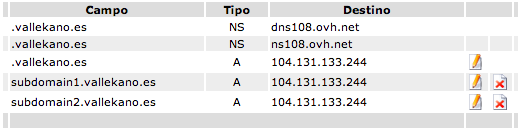
The next thing our domain provider has to do is what is known as "propagating the DNS". You have probably heard a lot about DNS. It is nothing more than a text file that internet service providers (like Telefonica, Ono, …) keep, in which they store the IP address associated with each domain. This way, when you type a URL in the browser, our internet provider knows the IP address associated with that domain and "routes" the request to the corresponding server so it can respond to the user. This is so because it is much easier for people to remember domain names than IP addresses, although underneath, without us noticing, everything works with IP addresses. What I mean is that in this case it would make no difference whether we type "vallekano.es" or the IP "104.131.133.244" in our browser. In short, IP addresses are something like phone numbers: when we dial a phone number, the telephone service providers know where the phone we are calling is and establish the connection so we can talk, no matter how they make that connection or set up the call.
In short, you can see the flow I have described in the following image:

In general, most hosting providers are also domain providers, so everything we are explaining in this post is usually done for you automatically or through a panel to manage all of this.
The next thing we are going to do is create the Linux virtual machine (Ubuntu 14.04) in DigitalOcean. You can see the process of creating the virtual machine in the video, since it is a very simple process and takes less than a minute, so with that we will have our server created. If you hire a dedicated Linux server from another company, Linux will already come installed and you won’t have to do this step.
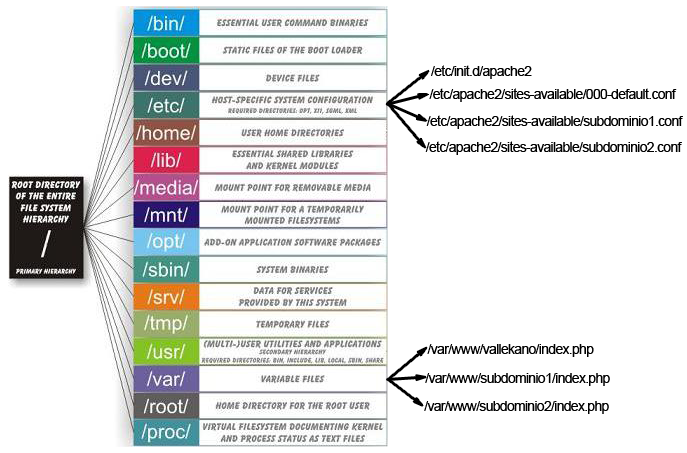
Once we have Linux on our server, we can configure it however we like. Below is an image showing the folder structure of a Linux system, along with the folders and files we will create and modify when setting up the Apache server and configuring the domain and subdomains:
#Installation and configuration steps
1.- We install vim (a text editor) and a2ensite (to create a symbolic link for the virtualhost), which are programs that will make it easier to configure Apache. If you don’t like vim, you can install another text editor: vi, nano, …
$ sudo apt-get install vim
$ sudo apt-get install a2ensite
2.- We install Apache and then restart it:
$ sudo apt-get install apache2
$ sudo /etc/init.d/apache2 restart
3.- Although it is not the goal of this post, we are going to install PHP and MySQL so we can tackle LAMP projects (Linux-Apache-MySQL-PHP):
$ sudo apt-get install php5  			# We install php5
$ sudo apt-get install libapache2-mod-php5   	# We add packages
$ sudo /etc/init.d/apache2 restart		# we restart apache
$ sudo apt-get install mysql-server		# server installation
$ sudo apt-get install php5-mysql		# installation so it runs with php
4.- We create the domain’s Virtualhost. When we installed Apache, it created a default configuration in the file "000-default.conf". Since we want to change this configuration, we will change the content of this file:
$ cd /etc/apache2/sites-available
$ vim 000-default.conf  		# If you want, you can use an editor other than vim
We put the following in the file "000-default.conf":
<VirtualHost *:80>
	ServerName vallekano.es
	ServerAlias vallekano
	DocumentRoot /var/www/vallekano

	DirectoryIndex index.php

	<Directory />
		Options FollowSymLinks
		AllowOverride None
	</Directory>
	<Directory /var/www/vallekano>
		Options Indexes FollowSymLinks MultiViews
		AllowOverride None
		Order allow,deny
		allow from all
	</Directory>

	ErrorLog ${APACHE_LOG_DIR}/error.log
	CustomLog ${APACHE_LOG_DIR}/access.log combined

</VirtualHost>
What we are doing with this configuration is telling Apache that when the request is for the URL "vallekano.es", it should go to the folder "/var/www/vallekano" and run the file "index.php". We could tell it to go to any other folder and run any other file, but in this case we are going to use this configuration.
5.- We create a symbolic link to enable the virtualhost, so inside the folder /etc/apache2/sites-available we run:
$ sudo a2ensite 000-default.conf
6.- We create the subdomains. To do so, we are going to make a copy of the configuration file (in this case 000-default.conf) for each subdomain. Inside the folder /etc/apache2/sites-available we make that copy:
$ sudo cp 000-default.conf subdominio1.conf
$ sudo cp 000-default.conf subdominio2.conf
7.- We edit the subdomains’ virtualhosts. Inside the folder /etc/apache2/sites-available we run:
$ vim subdominio1.conf
And we configure it by changing the folders where the web application’s files are located:
<VirtualHost *:80>
	ServerName subdomain1.vallekano.es
	ServerAlias subdomain1
	DocumentRoot /var/www/subdominio1

	DirectoryIndex index.php

	<Directory />
		Options FollowSymLinks
		AllowOverride None
	</Directory>
	<Directory /var/www/subdominio1>
		Options Indexes FollowSymLinks MultiViews
		AllowOverride None
		Order allow,deny
		allow from all
	</Directory>

	ErrorLog ${APACHE_LOG_DIR}/error.log
	CustomLog ${APACHE_LOG_DIR}/access.log combined

</VirtualHost>
And we do the same with subdomain 2, assigning it a different folder
$ vim subdominio2.conf
<VirtualHost *:80>
	ServerName subdomain2.vallekano.es
	ServerAlias subdomain2
	DocumentRoot /var/www/subdominio2

	DirectoryIndex index.php

	<Directory />
		Options FollowSymLinks
		AllowOverride None
	</Directory>
	<Directory /var/www/subdominio2>
		Options Indexes FollowSymLinks MultiViews
		AllowOverride None
		Order allow,deny
		allow from all
	</Directory>

	ErrorLog ${APACHE_LOG_DIR}/error.log
	CustomLog ${APACHE_LOG_DIR}/access.log combined

</VirtualHost>
7.- Once we have the virtualhosts configured, we are going to enable them. To do so we will use the a2ensite program, which will create a symbolic link from the virtualhosts to the “sites-enabled” folder:
$ sudo a2ensite subdominio1.conf
$ sudo a2ensite subdominio2.conf
8.- Now we are going to create the folders we defined in the virtualhosts, where the files of our web application will be located. These folders are “/var/www/vallekano” for when a request is made to “vallekano.es”, “/var/www/subdominio1” for when a request is made to “subdomain1.vallekano.es” and “/var/www/subdominio2” for when a request is made to “subdomain2.vallekano.es”. It should be noted that we have defined the “index.php” files as the first file that will be loaded when requests are made. So we create the folders:
$ mkdir /var/www/vallekano
$ mkdir /var/www/subdominio1
$ mkdir /var/www/subdominio2
9.- In each of the folders we create our “index.php” files, which we will program to “echo” the domain being requested:
$ vim /var/www/vallekano/index.php
We write:
<?php
	echo "vallekano.es";
For subdomain 1:
$ vim /var/www/subdominio1/index.phpWe write:
<?php
	echo “subdominio1.vallekano.es";
For subdomain 2:
$ vim /var/www/subdominio2/index.phpWe write:
<?php
	echo “subdominio2.vallekano.es";
10.- Finally, we restart Apache so the configurations are loaded:
$ sudo service apache2 restartOnce you have done all these steps correctly, it should work. This whole process is a bit tedious but simple, and there are a lot of things to keep in mind. If something didn’t work for you, it’s because you skipped a step. If for whatever reason it didn’t work, watch the video and follow it step by step. Good luck 😉
“How to Configure Apache on a Linux Server (DigitalOcean) with a Domain and Subdomains (Video)” by Ricardo Moya at jarroba.com, licensed under Creative Commons Attribution-NonCommercial-ShareAlike 3.0. Registered at Safe Creative.

You may also like

Using Servers and Building a Website
Learn what you can do with a physical server: install Apache, build your first website, edit it with Vim or an IDE, upload files over SFTP and pick a domain.

Binary: Combinations and Conversion
Learn how numeral system combination tables work and convert between binary, decimal, hexadecimal and octal with simple mental math.
Leave a comment