
Using Servers and Building a Website
Learn what you can do with a physical server: install Apache, build your first website, edit it with Vim or an IDE, upload files over SFTP and pick a domain.
Maybe you have a Physical Server (built by you or rented from a Hosting provider) and you want to use it. The best thing to do is to start by getting an idea of what you can do with it, and then learn how to do what you want (a website, your own Software server, etc.).
Note: In this article I wanted to make everything very clear (you could consider it a complete web course where I’ll teach you some professional tricks). I’ve detailed every section down to the smallest thing so that it can be understood whatever your level is. If you’ve ever worked with the web, you can probably skip the parts you already know (like using Vim or installing an IDE).
If you know how Physical Servers work, you’ll be able to follow the article just fine. For the practical part we’ll build on what we learned in the previous article on how Servers and Hosting Services work, where we learned about and got a physical server (specifically a Cloud VPS Server), and we also saw how to connect to our own Physical Server through SSH.
To make use of our “Physical Server” it’s usually a good idea to install (or use, if it’s already installed) one of the many Software Servers that exist (at the end I give you a list). To start, we’ll use a “Web Server”, which is usually the most appealing option (having your own website). It also lets us learn a lot about other Software servers: once you’ve learned one, the rest are very similar (and by following each one’s manual they are pretty simple once you understand the general idea).
Note about the term “Physical Server” throughout this article: I’ll use the term “Physical Server” for the machine with the operating system, which can be dedicated, shared or a VPS.
Can I do whatever I want if I have a physical server?
It depends. We can sum it up like this.
For example, if you have a physical server that you built at home, you can do pretty much whatever you want. It has practically no limitations (the only one is that it will depend on your knowledge to manage it). To give an example of a limitation: if you have a Linux distribution installed as the operating system, you won’t be able to use programs that are exclusive to Windows Server, and vice versa (although you can always work around it somehow with virtual machines or by replacing it with a similar program).
If you’ve rented a dedicated server from a hosting company, then it will be as if it were all yours and you’ll be able to do pretty much what you could do with one at home, but it’s expensive. That’s why VPS servers (virtual) appeared; you can do whatever you want with them (as long as the virtualization allows it, although that’s usually not a problem with a good VPS server) and much more cheaply.
And then there are shared servers, with which you can NOT do whatever you want; they tend to be quite limited because they share practically all their physical resources with other customers. These are usually what’s simply called “Hostings” and, although they are quite cheap, they tend to be good for very specific things and that’s it. For example, to have a mail server or to create an ordinary Website (database and web programming. Is there anything else to creating a website? A whole lot, as we’ll see later on). To have a blog you don’t need much more (a “Hosting” usually comes with the most popular tools preinstalled so you can focus only on the content of the website itself, such as WordPress, Joomla, Prestashop or Drupal). The downside is that you won’t be able to do much more than what they offer (you’ll barely have any permissions on the “Hosting”, you won’t be able to install anything it doesn’t already have, and if you can, it will be only very specific programs chosen by the Hosting company). Examples of things you can’t do: efficient low-level image processing, Machine Learning, Big Data (processing huge amounts of information and extracting value from the data), Scraping (analyzing other websites), programming in other languages (for example, if you want to run Python code you can’t unless it comes with Python installed, and if it does, you won’t be able to update it yourself because you don’t have permissions), or if you want to install a VPN server, you can’t either. So, are “Hostings” bad? No, if what you want is to pay as little as possible and have a basic blog or online store. However, if you really want to learn, you need something more advanced and to be able to play with the server without limits, so you need one that allows it (as we mentioned in the previous paragraph: a dedicated one or, better and more affordable, a VPS).
By the way, don’t confuse a “Hosting service company” with a “Hosting”. A “Hosting service company” is a company that rents out its servers. It may offer “Hostings” (as one of the services it provides) or not, and it may also rent out other things (services) such as dedicated servers, VPS servers, servers exclusively for data processing and analysis (like Big Data), etc.
Note if you have a Hosting: I’m mentioning this in case what you have is a Hosting plan. In that case you can learn by practicing the programming part and the SFTP connection later on; you can read the rest of the article, but you won’t be able to use it (for example, you won’t be able to install anything, since it comes already installed; or run certain commands on the server).
In the previous article I explain step by step how to try a “cloud VPS server” for free for more than a month with clouding.io, so you’ll be able to follow the practice in this article perfectly (or, if you have a physical server rented from another company, you can also follow this article; the only thing that changes is the “control panel”, since each company has its own, but they are similar and the technical words on the “control panel” buttons are the same or synonyms).
Installing our Web Server (Software)
You probably feel like setting up your own website (like this one, www.Jarroba.com), so that when you type your domain name into the browser (Chrome, Firefox, Safari, Edge, etc.) (example domain names are: Google.com or Jarroba.com) it opens the home page of your website.
Note: we have dedicated a whole article to explaining the “Client-Server” architecture that you can read before continuing by clicking here. In that other article we explain in detail, in just a few minutes of reading, what we summarize here.
We’ll make requests to the “Web Server” from what we’ll call a client. A client is whatever requests data from the server. A client can be a browser (Chrome, Firefox, Safari, Edge, etc.), but it could also be an application (a program running on the Windows operating system that needs data from the server, or a smartphone App; for example, a weather app that has to ask the server every day what the weather is like), a single-board computer (like an Arduino or Raspberry Pi) that sends the weather data collected by its sensors (temperature and humidity sensors) to the server (which the weather app mentioned before would then download from), etc.
Since right now we don’t have a “domain name” registered (we can get one later if we want; you don’t need one for your website to work, although it’s desirable so the address is easier to remember and looks more professional), we’ll use the “public IP”.
Note before continuing (in case you haven’t done it yet): I recommend reviewing the previous article on how Servers and Hosting Services work, to quickly learn how to connect to our server through SSH and to understand the “public IP” and the “private IP”. If you don’t have a physical server, you’ll see step by step how to get one temporarily for free so you can learn everything that follows by practicing.
Note
Where can I get my public IP?
Remember that you can find your “public IP” in the “control panel” of the hosting service you’ve signed up for. In my case, the “control panel” https://portal.clouding.io/ of the hosting service company clouding.io lets me control the VPS Server I created and therefore copy the “public IP” from there.
Or through SSH with the command (the IPv4 will appear after the word inet and the IPv6 after inet6):
ip addr show eth0 In my case the “public IP” is “85.208.20.119”.
If we try to access the “public IP” from our browser, we’ll see that it shows us nothing (except an error), since there is no “Web server”.
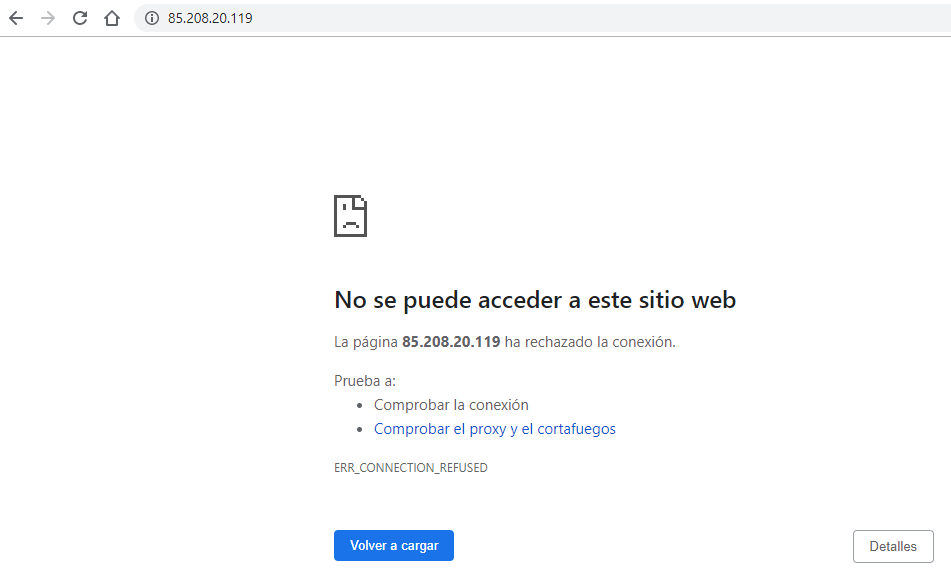
Our physical server (our “clouding VPS server” if you’re following the previous article) doesn’t know what to do with this request, so it needs “something” that prepares our website and serves it to us (sends it to our browser). That “something” is a “Web server”. A “Web server” is in charge of listening for requests (it listens on port 80 for HTTP requests and on port 443 for HTTPS requests; the words HTTP and HTTPS are what you type before the “domain name”, for example: https://jarroba.com/), of processing the information (in this example, it could be returning the home page of our website, that is, the so-called “index.html”) and of serving it to the client (in this example the client is the browser).
There are many web servers, like Tomcat, Jboss, Glassfish, Jetty, weblogic, etc. For this example we’ll install a very widely used one that is simply called “Apache HTTP” (or “Apache Web Server”). To install it on the Ubuntu Operating System of our Physical server, we simply run the following command (in the terminal where we’ve established the SSH connection; remember that we saw how to establish an SSH connection in the previous article):
sudo apt install apache2All this command does is:
- Sudo: ask for superuser permission (which is why it may ask for the Linux password again; if we haven’t changed anything we’re already superusers and it won’t ask).
- Apt: a program that queries a repository (another “physical server” out there on the Internet that has the program we want to download). We can say it’s like the “Linux app store” in terminal mode.
- Intall: a parameter of the “Apt” application that says we want to install the package written after it.
- Apache2: the program we want to install. In this case it’s the “Apache Web Server” (on its website you’ll find news and the official documentation: Welcome! (The Apache HTTP Server Project); you don’t need it to follow this article).
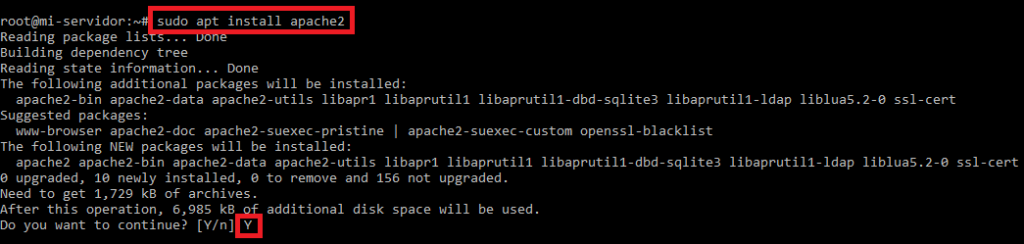
When the “Apt” program has gathered the packages, it will ask whether we want to continue with the installation; we type “Y” to confirm.
The installation takes a few minutes to finish. When it completes, the “Apache Web Server” will start by itself and stay listening. So we can test it by going to our browser and typing the “public IP” again:
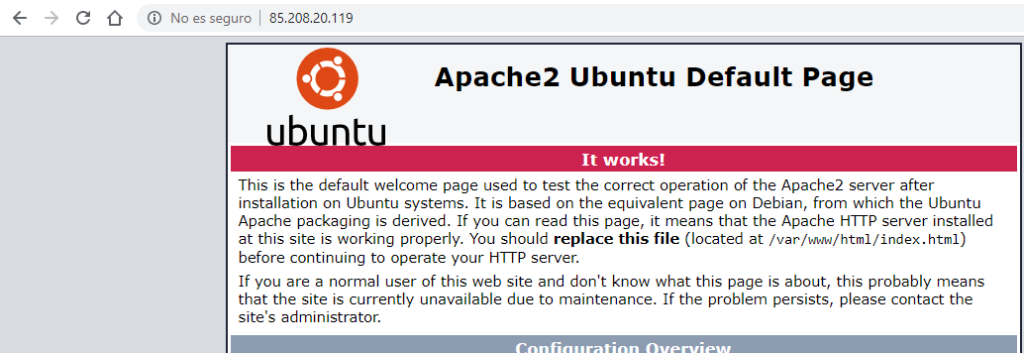
We’ll see the home page (the “index.html” file) that the “Apache Web Server” installation put there automatically. So our first software server (a “web” one in this case) is working correctly! 🙂
Checking that our server is running, the more professional way
Through SSH we can open Linux’s “Process manager” to see the processes running on our VPS server with the command:
htop
And among all the other processes, we’ll be able to see several running that are called “apache2” (the “web server” processes):

To exit “htop”, simply press the key combination: “Ctrl (left)” and “C” at the same time.
Opening the ports
You need to check that the ports the Software server wants to listen on are open in the Firewall, because data arrives through those ports. If the ports it needs are closed, the Software Server will listen, but it won’t receive anything through them.
And how do we know which ports a Software Server listens on? There are several ways, but it’s easy; for example, any Web Server by standard is going to listen on port 80 for HTTP connections and port 443 for HTTPS connections. We can search the Internet for which ports we need to open, or look at which ports any Software Server wants to listen on while it’s running with the following command:
sudo netstat -lnpt

We see that our Apache web server wants to listen on port 80 (port 443 doesn’t show up because the Apache Web server isn’t listening on it by default; for HTTPS to work you have to configure it and have certificates).
The netstat parameters we’ve used show what we need:
- l: show only the ports that are being listened on
- n: show well-known ports as numbers (otherwise, instead of showing port “80” it will show “http”)
- p: show the program’s PID
- t: filter by the TCP protocol (if we also want it to show the UDP protocol, we add the letter “u”)
Interestingly, people really like using this “netstat” command with the parameters that spell the Spanish word “atun” (tuna; this “fish” is a mnemonic to remember them: it means “netstat” will filter by TCP, UDP, show the ports as numbers, and the “a” shows both the connections being listened on and those that aren’t; if you’re curious, you can find more information about the Netstat command on Wikipedia).
The good thing about so-called well-known ports is that they’re usually open by default in Firewalls, but let’s check just in case.
A quick summary of how a Firewall works:
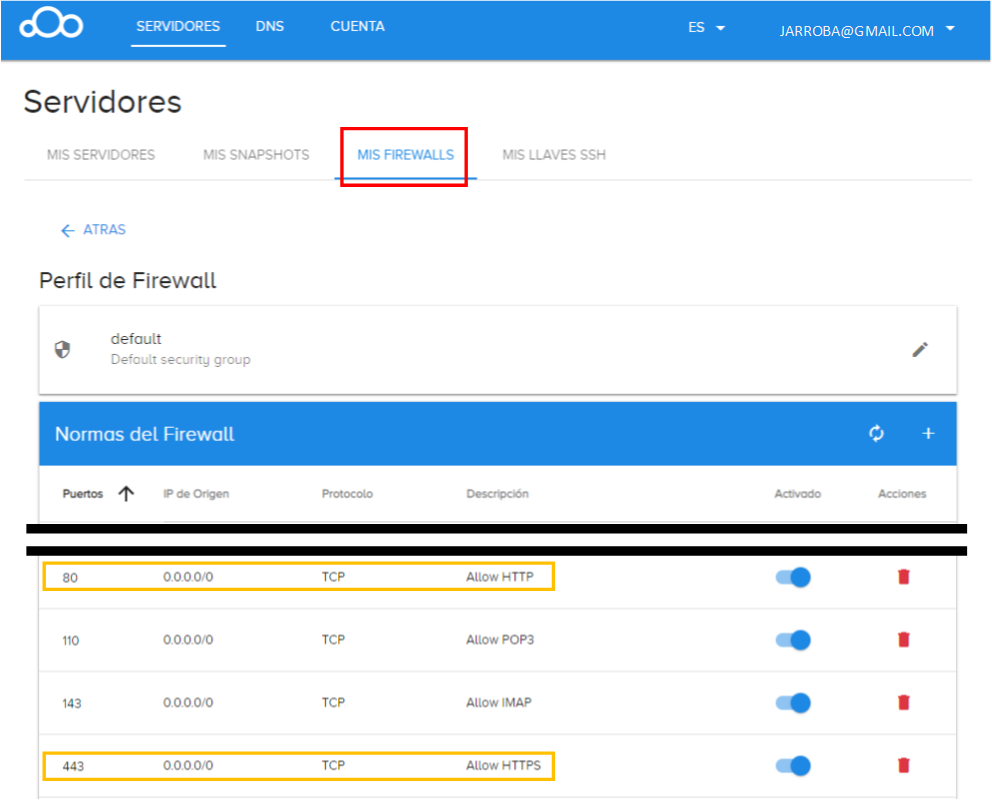
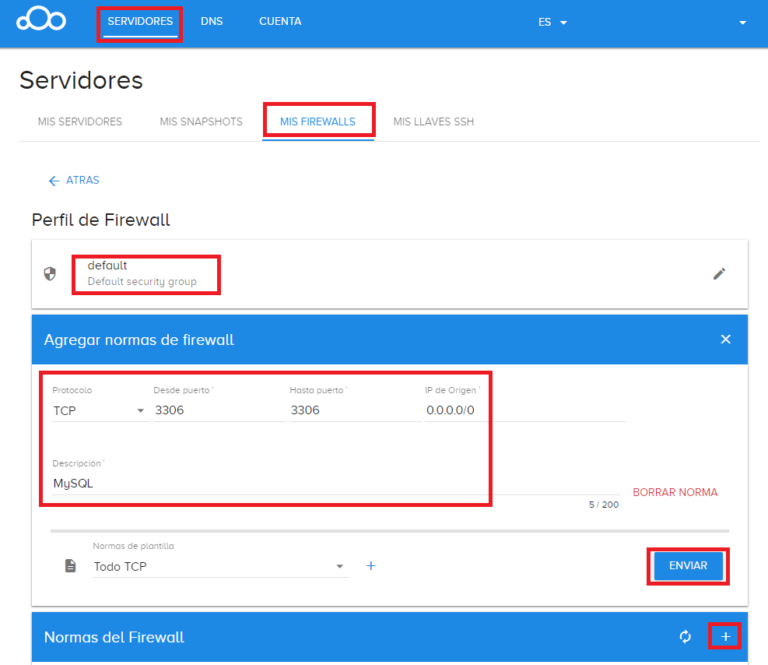
- A Physical server can have several Firewalls (at least one for security, and as restrictive as possible; by default they always come with one assigned, in my case the Firewall is called “default” as you can see in the following image).
- A Firewall is made up of a series of “rules” that are applied to a Physical server
- Each “rule” opens a port (or a range of ports), for a “private IP” and a “protocol” (usually TCP or UDP); and as an extra they’ll have a “description” so we remember what that “rule” was for
- The “private IP” can point to the same machine with “127.0.0.1” (localhost), to all addresses with “0.0.0.0”, or to one specific IP.
We can check this directly in the “control panel” of the Hosting service company we’ve signed up with.
In my example I’m using clouding.io, so in its “control panel” I’ll go to “Servers” and under “My Servers” we’ll choose the Clouding VPS Server we’re working with; there we’ll click on “Network” and we’ll see the Firewall rules we’re using. Notice that we have the Firewall called “default” linked, and in the “three dots” we click “Edit” to go to that Firewall.
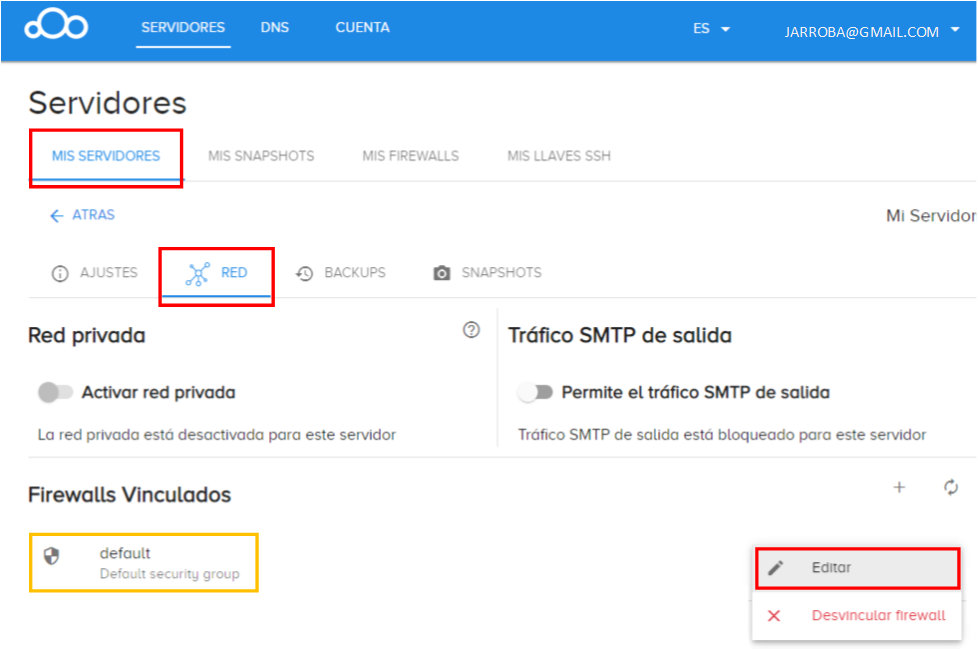
It will have taken us to the “My Firewalls” tab (we could also have come here directly, but I wanted you to notice that our Physical Server has one of these Firewalls linked, and that it could have more). If we scroll down a bit to the part that says “Firewall Rules” we’ll see that both 80 and 443 are already created and that we don’t have to do anything:
Useful Apache web server commands
See the status of the Apache server (with this we’ll see whether it’s working correctly):
sudo service apache2 status
Stop the Apache server:
sudo service apache2 stop
Start the Apache server:
sudo service apache2 start
Restart the Apache server (does a stop and a start):
sudo service apache2 restart
Although it isn’t necessary for this article, here’s more information about how the Apache Server works at Compilar e Instalar (Servidor HTTP Apache Versión 2.5) and at Iniciar y Parar el servidor Apache (Servidor HTTP Apache Versión 2.4)
Note: You’ll find that for all Software servers the commands are similar: status, start, stop and restart; but calling the specific service that keeps that Software server running.
Creating our website from scratch
We came here to create a website, so now we want to know where the “index.html” is (to create our own), since it has to be somewhere. Let’s go to the folder that the “Apache Web Server” also created for us:
cd /var/www/html/We want to see what’s inside this “html” folder. To list the contents we can use (you can list directories in Linux with the commands “ll”, “ls” or “dir”):
llWe’ll see that the “index.html” file that was created by default when we installed the Apache Web server is here:
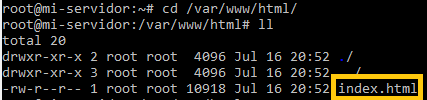
The one it created isn’t useful for building our website, so we’ll delete it (or rename it so we can read it calmly, since it contains useful tips). To delete the default index.html it’s enough to type:
rm index.htmlBut if you want to keep it (to read it at your leisure and not lose that information), we can rename it with (I’ll use the “mv” command, which lets us move a file; here I use it to “rename” the file by “moving” it to the same directory but with a different name):
mv index.html index_por_defecto_de_apache.htmlNote about public and private files: The Apache Web server monitors and publicly shows everything that’s in the “www” folder. So if you want the old “index.html” file not to be visible to any browser, you’ll have to move it outside (more information about these dangers and others in the “Client-Server” architecture article). It’s enough to add a directory to the previous command, like this (if you’re following the article using clouding.io, the default “user” is “clouding”):
mv index.html /home/usuario/index_por_defecto_de_apache.htmlNow let’s create our own “index.html” from scratch. To do that we can create and open the “index.html” file with a preinstalled program called “Vim” (some people may frown at the premature comparison, but to give you an idea, we could say in very broad strokes that Vim is like Windows’ “Notepad” 😛 I’ll give more details later).
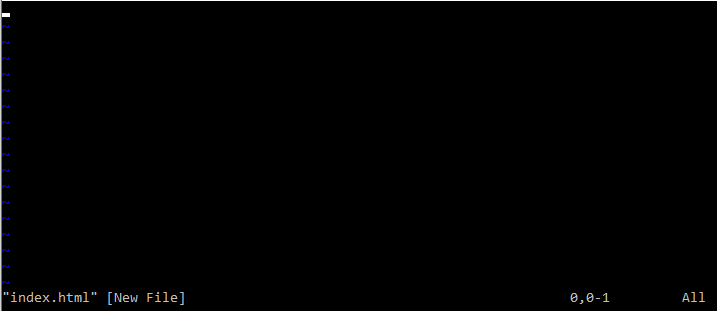
sudo vim index.htmlIt will have opened something like this in “full window” (taking up the whole terminal window):
If you don’t have Vim installed: you can install it with the following command (or instead of Vim, you may have “Nano” or “Vi” installed, which are similar to Vim and you can use them just the same):
sudo apt install vimLearn to use VIM in a couple of minutes
I didn’t sell it very well earlier by saying it was like “Notepad”. Vim actually has a ton of features that are quite handy; it’s more of an IDE, but instead of buttons in a graphical interface it works with commands and instructions (knowing them makes you fast). To start writing code and get it working, you only need to know a little.
Couldn’t we just use an IDE with a graphical interface directly? Yes, but at this point I want to teach you to work with files directly on the remote physical server (if you’ve read the previous article, remember that a server is usually a rack with no screen; therefore, the operating system probably won’t have a graphical interface, and with Vim you can work directly on the file that’s on the remote server without taking it off that machine). Later I’ll teach you to use an IDE and work locally (with the files on your computer). In this article you’ll learn both to use a graphical IDE and a text editor like VIM.
Vim has several modes, which are quite simple, of which we’ll use:
- Command mode (the one you start in when you open the file): Here we can work with commands, which really means pressing a key and something happens with it (for example, typing “5dd” does NOT type a number “5” and two letters “D”; instead it deletes the next five lines starting from where the cursor is). You can get to this “command mode” from any of the other modes below by pressing “Esc”.
- Insert mode: Here we can write any text we want. You get into it from “Command mode” by pressing the “Insert” key (on some keyboards this key may appear as “Ins”) or the “i” key. You can tell you’re in this mode because at the bottom left the text “–INSERT–” appears, and you can type whatever text you want into the file.
- Command-line mode: Here you can give complex instructions to the file (like regular expressions to do searches, or run operating system instructions like listing the directory where the file was created). You get into “Command-line mode” simply by pressing the “:” (colon) key. You can tell you’re in this mode because at the bottom left a “:” (colon) appears, and after it you can type an instruction (which will run when you press the “Enter” key).
Note in case you get lost and don’t know which mode you’re in: press “Esc” to go back to “Command mode” and start from there.
A very quick test so you get it the first time.
Be aware, though, that you should use the keyboard arrow keys to move the cursor (the mouse is very limited in this Vim; there is a graphical Vim for, say, the Ubuntu operating system with a graphical interface, but remember that a server has no graphical interface and therefore no mouse cursor as such). And isn’t it a pain not having the mouse pointer? I can assure you that you get used to it quickly, it’s easy (and even faster if instead of using the arrow keys you use the “h”, “j”, “k”, “l” keys to move around from “command mode”, but that’s beyond the scope of this article).
Press “Insert” (or “i”) to enter “edit mode” and write whatever you want on several lines (in this mode you can type the way you normally do with the keyboard):
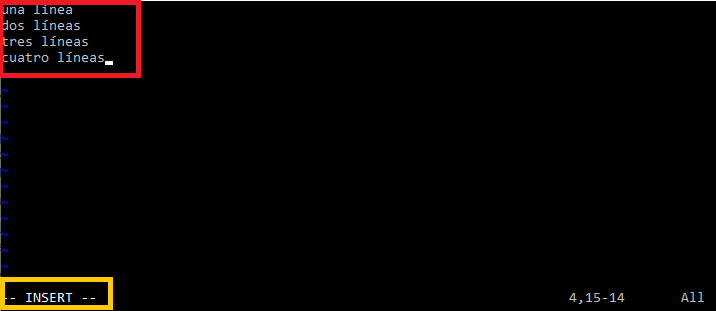
You’ve inserted text, which is why it’s called “insert mode”.
Now press “Esc” and you’ll be back in “command mode” (the “—INSERT–” from before will have disappeared). Place the cursor, for example, on the second line. We’ll use the delete-lines command (to delete the cursor’s line, just type “dd”). A nice feature is that commands here can be repeated by putting a number in front, so we can delete, for example, two lines at once by typing “2dd”. You’ll notice that when you type the “2” and the first “d” they aren’t written into the file, but appear at the bottom right, and when you press the last “d” that completes the command, it runs and deletes two lines (starting from where the cursor is).
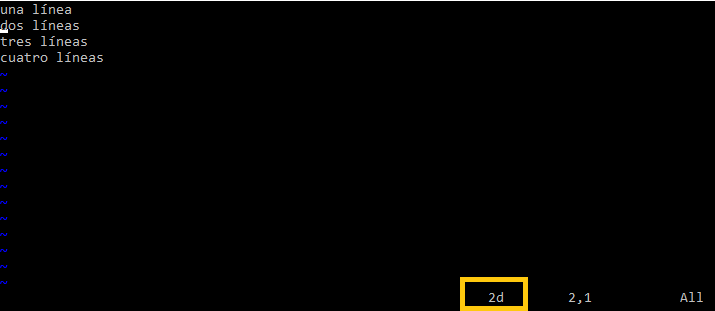
You’ve run a command, which is why it’s called “command mode”.
Since we now want to save the file, we need to run an instruction on the operating system so that it saves the file.
Note: I want to stress that the term “command” is different from “instruction”: the first belongs to “command mode” and the second to “command-line mode”.
To do that we type “:” (colon) to enter “command-line mode”. And we type “w” to save, so that “:w” will have appeared at the bottom left, and we press the “Enter” key (if an error shows up, we can use “!” to force Vim to save by typing “:w!”; I put the “sudo” before “vim” when I opened Vim precisely so we wouldn’t have to force it with “!”).
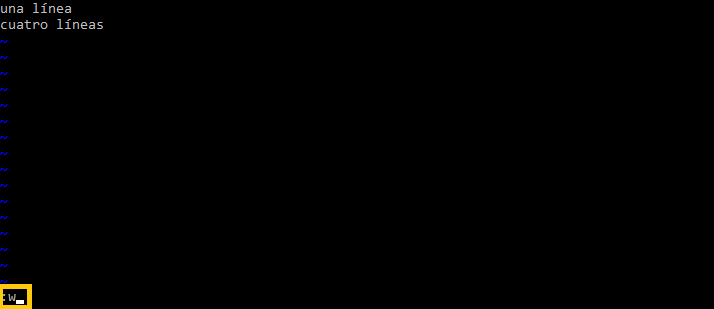
You’ve run an “instruction”, which is why it’s called “command-line mode”.
To exit Vim it’s as easy as typing the quit instruction “q” (by typing “:q”). And if we want to save and exit at the same time, we can type the instruction “x” (“: x”).
The commands of “command mode” and the instructions of “command-line mode” can be a bit confusing, but remember this: a “command” affects the content of the file (deletes lines or words, duplicates them, replaces, copies and pastes, etc.) and an “instruction” affects the file system (saves the file, exits Vim, lists directories, etc.; try typing “:! ls”, it will list the files in the folder you’re working in without leaving Vim).
If you’ve exited Vim (with “:q”), you can go back into the file that will have been created with:
sudo vim index.html
To erase all the content of the file and be able to continue with the article, place the cursor on the first line in “command mode” (remember you get there by pressing “Esc”) and type the command to delete multiple lines that we typed earlier (“Ndd”, where N is the number of lines you want to delete; for my example, typing “2dd” is enough) and save the file with “:w” (command-line mode).
As you can see, Vim is much more than a simple “Notepad” and it isn’t very hard to learn.
Let’s go into Vim’s “insert mode” (pressing “ins” or “i”). We type the HTML code we want to appear on our website. I’m going to type the following HTML code (if you’re just starting to understand the HTML language, I recommend typing it by hand, and after the code I’ll explain what each <tag> is for):
<!DOCTYPE html>
<html>
        <head>
                <meta charset="UTF-8">
                <title>Aparecerá en la pestaña del navegador de mi Página web</title>
        </head>
        <body>
                <h1>Título de mi Página web</h1>
                <p>Un párrafo de texto de mi página web</p>
                <img src="https://jarroba.com/images/logos/logo_jarroba.png"/>
        </body>
</html>
I also provide the code to download from Github by clicking here.
This HTML is going to tell the browser on my computer what to do (the HTML code isn’t interpreted on the server; the Apache web server simply copies it and sends it to the client, your computer, so that the browser interprets it however it likes). In the “<head>” tag I’ll write what I want the web page to do but that isn’t part of the page’s content (for example, we will NOT put the text you’re reading right now here). The tags:
- <meta>: where I tell the browser that the text I’m going to write is UTF-8 (that is, that it will contain non-English letters; in other words, that the accents on vowels and the letter “Ñ” will show up)
- <title>: I’ll tell the browser that I want it to write this text on the “tab” of the browser tab (if the browser has no tabs it will ignore this tag, and if it does and it wants to listen to me, it will write this text).
Inside the body “<body>” I’ll write what I really want the user to see on my website: the content of my website (for example, the “content” would be the text you’re reading). For example, I’m going to use the tags:
- <h1>: where I’ll write the title of what I want to show before the paragraph of text.
- <p>: the paragraph of text with my website’s content.
- <img>: an image to appear on my website so the content isn’t too bland.
After writing in Vim, remember to press the “Esc” key to go to “command mode” and save with “:w” (“command-line mode”).
Go back to the browser and refresh the browser tab that has our website (with the “public IP”). To refresh a browser you can press the “F5” key (and if nothing changes you can try the combination “F5” + “Ctrl (Left)”, which forces the browser to clear the cache and request all the website’s data from the server again, which is what we want).
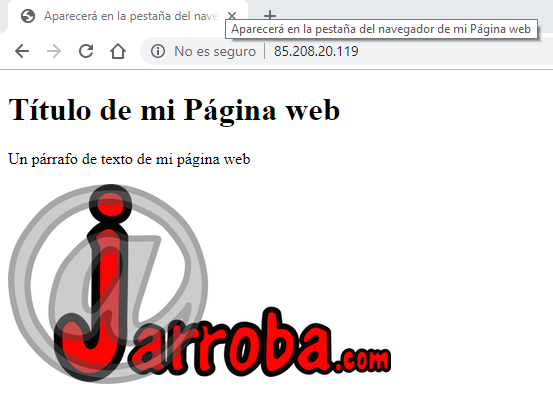
In the next step we’ll see how to edit our web code from our computer (locally) with an IDE (now with a graphical interface, yes).
Note on the Vim/Vi vs IDEs “war”: Using Vim is just as respectable as using an IDE to program. Here we teach you both so you can choose, to each their own taste. Personally, I think each tool (Vim or any IDE) has its advantages, and in certain environments you can get much more out of some than others; so I think it’s best to gradually learn as many tools as we can to have a broad perspective and plenty of resources.
Installing an IDE (Integrated Development Environment)
Now it’s the turn of IDEs (Integrated Development Environments) with a graphical environment. You can install these IDEs on your computer (remember, the Physical server’s operating system doesn’t have a graphical interface). An IDE will give us a set of tools that will make our work much easier (creating a website, creating our own server, etc.) when working locally (on your own computer, without having to worry about your Internet connection).
The IDEs I’m going to list are either free or have a free version (with no time limit).
If you’re just starting out, I recommend installing a “lightweight” IDE (“lightweight” in the sense that it installs quickly, takes up little space, doesn’t overwhelm you with tools and starts instantly) such as:
- Sublime Text (the one I’ll use in the examples)
- NotePad
If you’ve already programmed, using more advanced IDEs becomes essential to gain speed by learning to use their advanced tools (these IDEs are “heavier”, since they take longer to install and start, because they have many more tools and development aids to offer us) such as:
- Jet Brains (They’re split up depending on what you want to program: for Web, for Python, for Java, etc.)
- Visual Studio Code
- Eclipse
You can also take a look at the article on Installing Eclipse.
Note about graphical interfaces on the Physical server: Didn’t we agree that a physical server does NOT have a graphical interface? That’s not entirely true; I’m just “lying” to you so you learn to clearly tell apart the physical server side from your local computer (which usually has a graphical interface, being a computer with Windows, Mac or some Linux distribution with a graphical interface). For example, Windows servers (the “Windows Server” operating system for physical servers, which you can take a look at if you’re curious at Windows Server 2019 (Wikipedia)) usually come with a basic graphical interface by default. So we could install any of these IDEs directly on our physical server, as long as it has a graphical interface (and be careful, because by using a heavier IDE while we work we’ll be taking resources away from other users). That means we could modify the files directly on the physical server (which I won’t do in this article, I just wanted to tell you about this possibility).
Uploading files over SFTP
Before, we edited the “index.html” file directly on our physical server with the preinstalled program “Vim” on the Linux operating system (Ubuntu distribution) of our physical server. Now we’re going to edit the “index.html” file and add a few more with a program installed on your computer.
To work locally, the steps we’re going to follow will be:
- Download the “index.html” file from the remote server (our physical server, which may be on the other side of the planet) to “our computer” (you’ll also hear it called “the local computer” or simply “locally”. Have you heard the joke that isn’t really a joke, “it works on my local”? Well, from now on you may hear it or say it 😛 ).
- Modify the file on the local computer with an IDE.
- Upload the file again with the changes from our (local) computer to our physical server.
To download or upload files to the physical server we can do it easily through an SFTP connection. SFTP comes from the old and insecure FTP, which stands for “File Transfer Protocol”; FTP evolved into the new and secure SFTP, which stands for “SSH File Transfer Protocol”.
To make it easy (as simple as dragging and dropping the file) we’re going to use a program called FileZilla that will make our work easier. Let’s download “FileZilla Client”. We’ll click “Download FileZilla Client” and download the regular “FileZilla”:
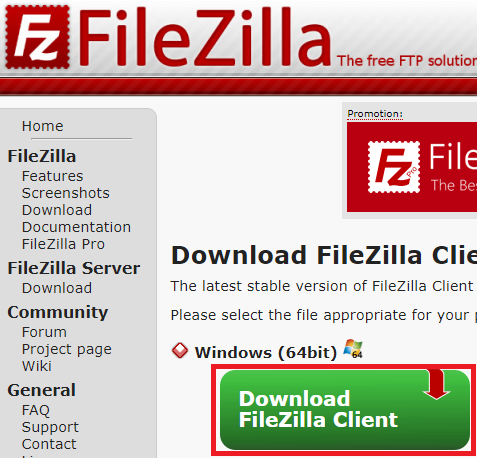
We’ll install it (it’s easy to install; but watch out, at one of the steps there’s an ad and it wants to install another third-party product. If we don’t want it, just uncheck the box and we’ll continue with the installation). We’ll open Filezilla once it’s installed.
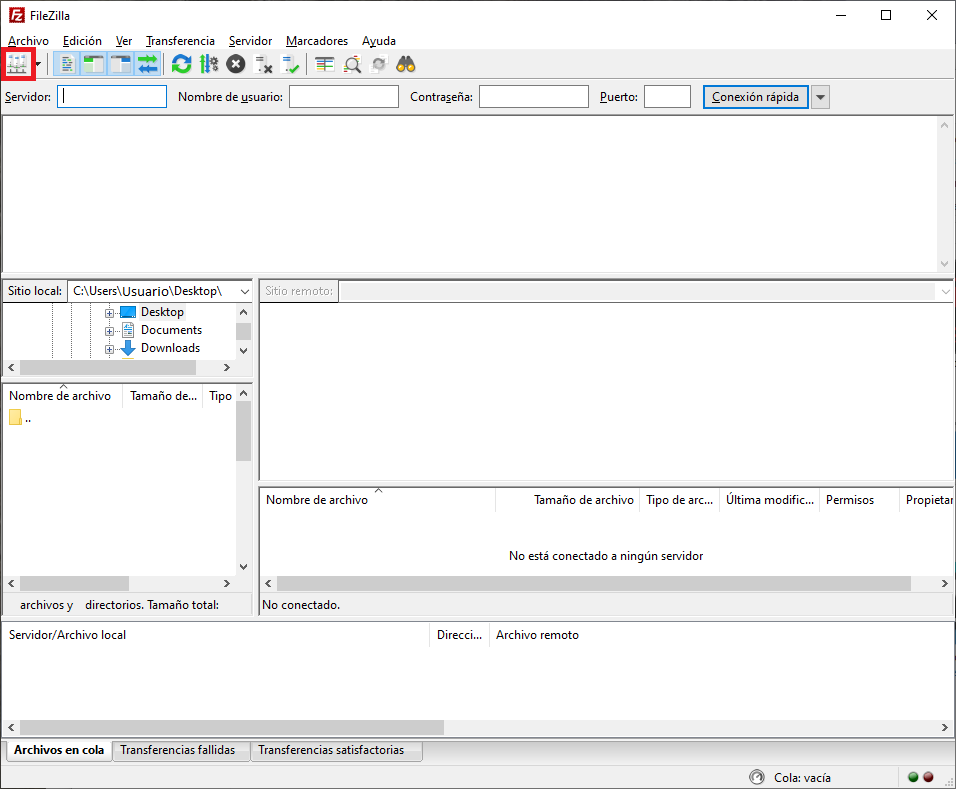
The program is quite simple, as you can see. To enter our credentials for accessing our physical server (with them we’ll be able to upload and download files from our physical server), we’ll click the “Site Manager” icon (the icon on the toolbar, right below “File”):
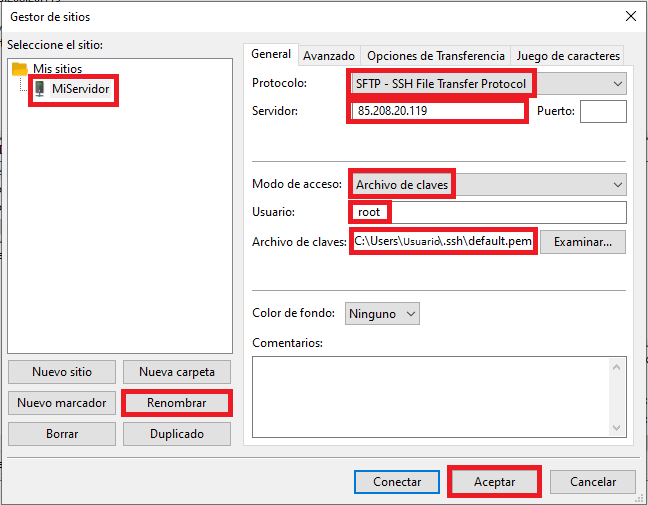
A window will open, and on the left an empty default site called “New Site” will have been created, which I recommend renaming with the “Rename” button (I’ve renamed it to “MiServidor”). Now on the right, in the “General” tab:
- In “Protocol” we’ll select “SFTP – SSH File Transfer Protocol”
- In the “Host” field we’ll put the “public IP” that points to our physical server.
- In “Logon Type” we’ll choose “Key file” (if you followed the previous article, for the hosting service clouding.io we’ll use our “PEM” file as the access key to our “Cloud VPS Server”; if you use a different way of connecting to your physical server, you have to choose the access type here).
- In “User” we’ll put the operating system user of our Physical server (if following the previous article, remember that on clouding.io it’s “root” by default).
- In “Key file” we’ll browse for our “PEM” file (remember that in the previous article we placed it in the “.ssh” folder).
Now there are two options to save: “OK” (to just save and close the window) and “Connect” (to save, close the window and connect directly to our server). To show a complete example I’ll click “OK”.
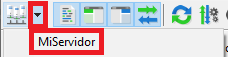
To connect normally in FileZilla, we’ll click on the arrow pointing down next to the “Site Manager” icon (the icon from before). Our server will appear with the name we gave it, and we’ll click on it to connect.
If everything went well, the text <<Status: Directory listing of “/root” successful>> will appear; it means we’ve connected to our VPS server, so we can now upload and download files.
If you take a quick look at what FileZilla is showing you, you’ll see your physical server’s folders.
Automatically opening the files to edit with an IDE (Integrated Development Environment)
If we don’t have any IDE configured in FileZilla, in the next step the “index.html” will open by default with “Notepad” (if you use Windows, this really is the good old “Notepad”), which isn’t very comfortable to work with (it doesn’t color the code, for example).
You can choose one of the IDEs described above and install it before continuing.
With a favorite IDE installed on our computer, in FileZilla let’s go to “Edit” and “Settings…”.
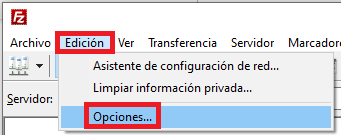
In the window that opens, on the left go to “File editing”. On the right select “Use custom editor” and with “Browse…” look for the IDE’s executable (in my case, since I have Sublime Text installed, the executable is at “C:\Program Files\Sublime Text 3\sublime_text.exe”).
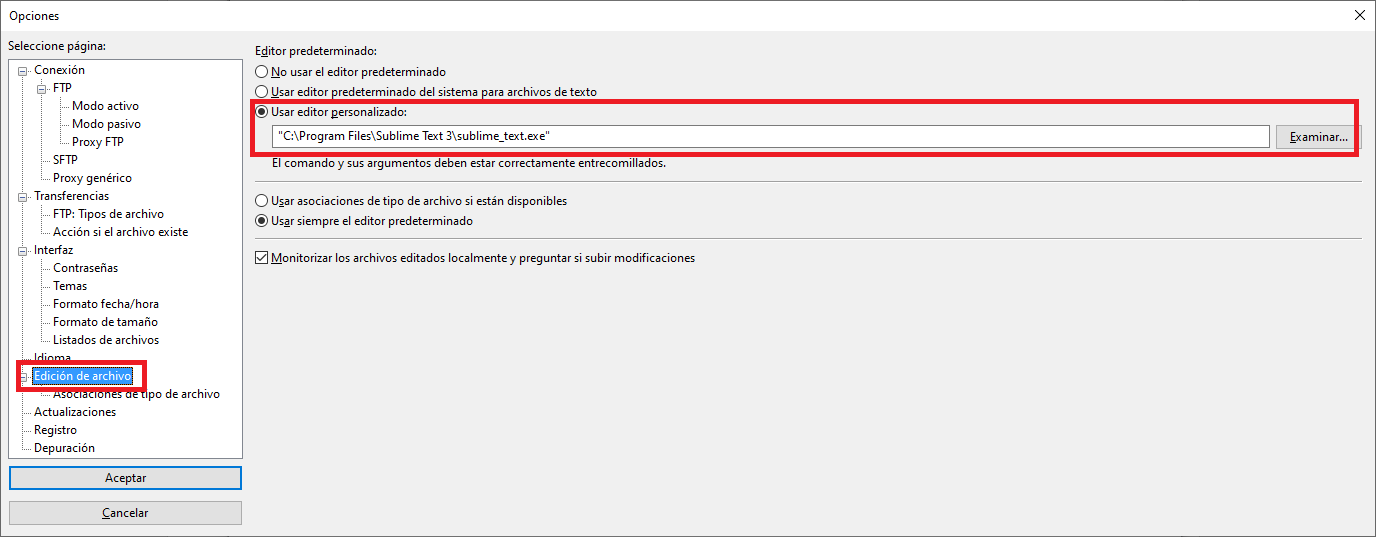
We click “OK” and it will be configured.
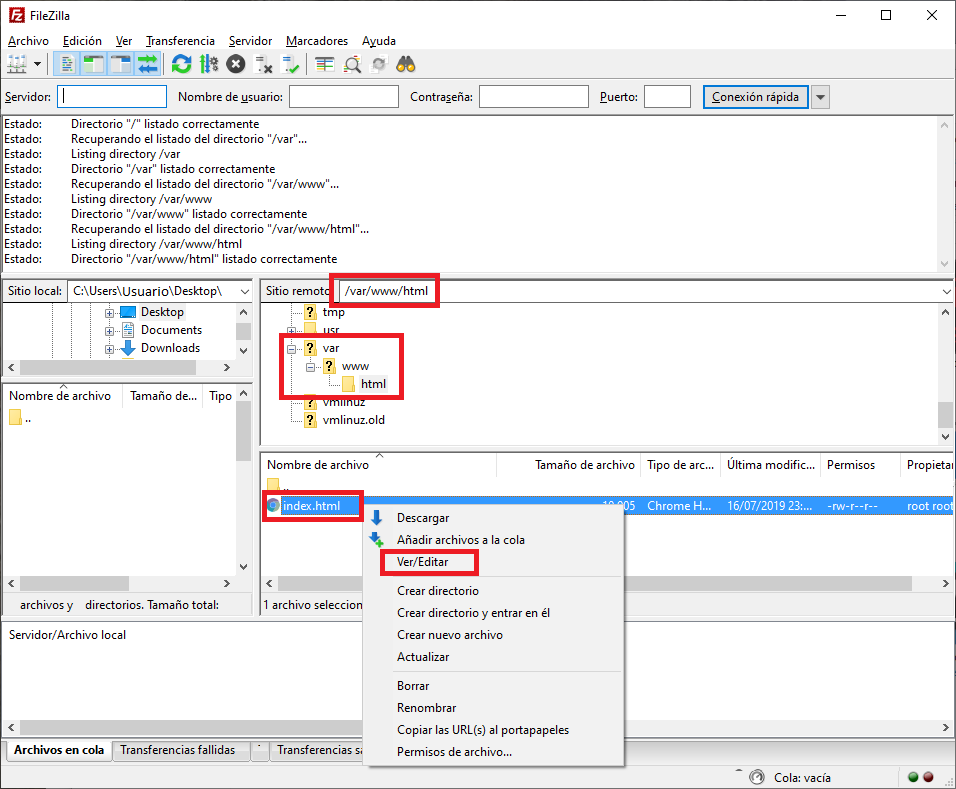
The “index.html” is still in the same directory we went to earlier, “/var/www/html” (since nobody has moved it from there 😉 ). So either we type the path “/var/www/html” in “Remote site”, or we navigate through the folders in the graphical interface to that path (if you’re in the “root” folder, you first have to go back by clicking the folder with the “/” slash, the one at the very top). Once in the path “/var/www/html”, we can download the “index.html” file in many ways:
- Dragging it outside the window of the FileZilla program (for example, we can drag the file directly to the Desktop)
- Dragging it to the left area of FileZilla. If the right area represents the folder structure of the Server, the left area represents the folder structure of our computer.
- Clicking on the file with the right mouse button, a context menu will open and we can choose “Download”.
I’m going to choose the one from the context menu (by right-clicking on the file to edit) at “View/Edit”, which will download the file, automatically open it with the IDE we’ve configured, and when we save the changes the file will be uploaded to the server by itself (after accepting a security pop-up window). It’s much more convenient for making a quick edit locally.
After downloading, the “index.html” file has opened in the IDE I had configured (in my case “Sublime Text”). Change something. For example: I’ve grouped the previous image “<img>” and paragraph “<p>” inside a “<div>” to make it easier to position in the browser; I’ve also added another “<div>” group with a button “<button>” (which won’t do anything right now) and a text area “<textarea>” to show the result when the button is pressed.
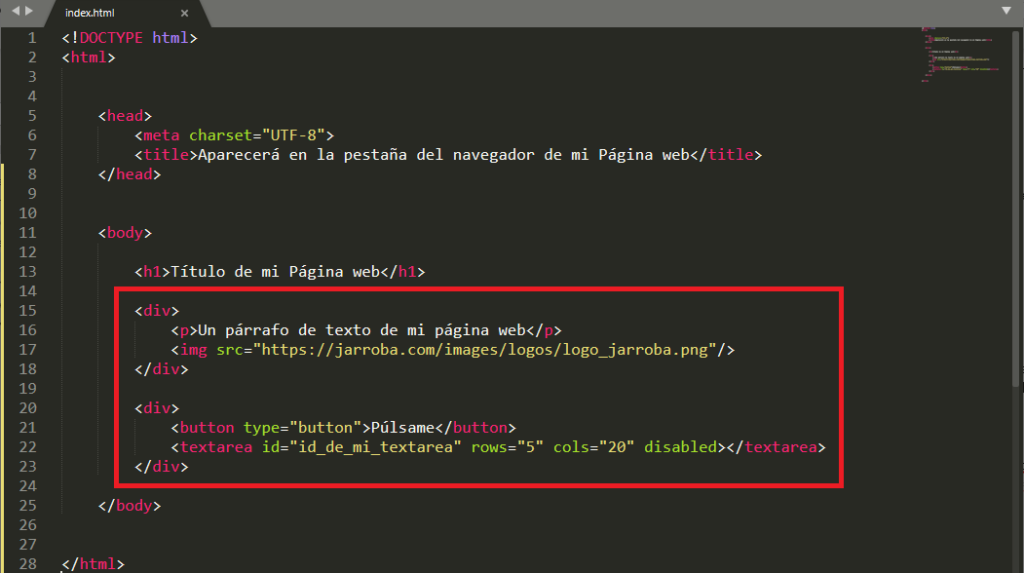
<!DOCTYPE html>
<html>


	<head>
		<meta charset="UTF-8">
		<title>Aparecerá en la pestaña del navegador de mi Página web</title>
	</head>


	<body>

		<h1>Título de mi Página web</h1>

		<div>
			<p>Un párrafo de texto de mi página web</p>
			<img src="https://jarroba.com/images/logos/logo_jarroba.png"/>
		</div>

		<div>
			<button type="button">Púlsame</button>
		 	<textarea id="id_de_mi_textarea" rows="5" cols="20" disabled></textarea>
	 	</div>

	</body>


</html>
You can also download this code from Github: View on GitHubInvarato/JarrobaWeb / basicoSFTP
We’ll save the changes to the “index.html” file (it will depend on the IDE program, but saving is usually under “File”, and “Save”).
We’ll go back to FileZilla (which is probably blinking to get our attention), and it will have a window that will tell us the file has changed. We’ll click “Yes” to upload it (it will overwrite the previous one).
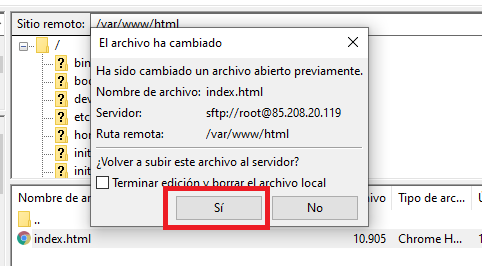
Note in case we downloaded it in one of the other ways: simply by dragging the modified file from our computer back to the Server area, it will upload just the same (watch out: wherever we drag it, it will be uploaded to that directory, and in this example we want to upload it to “/var/www/html” so that the “Apache server” can work with it).
And if we refresh the browser we’ll see the changes applied.
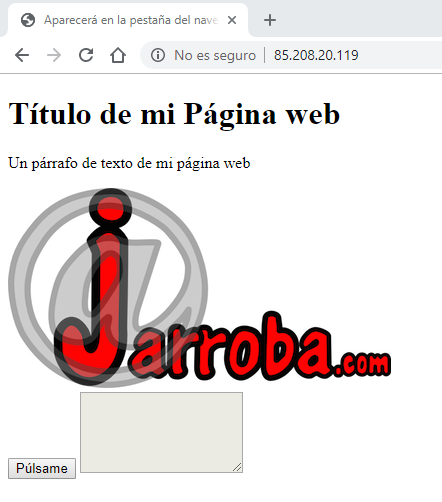
It all looks a bit ugly (no CSS styles) and the button doesn’t work (no executable JavaScript code).
For that, we can create directories and files on our server with the FileZilla program very easily. To create a directory we’ll right-click and choose the option “Create directory”, and give it a name
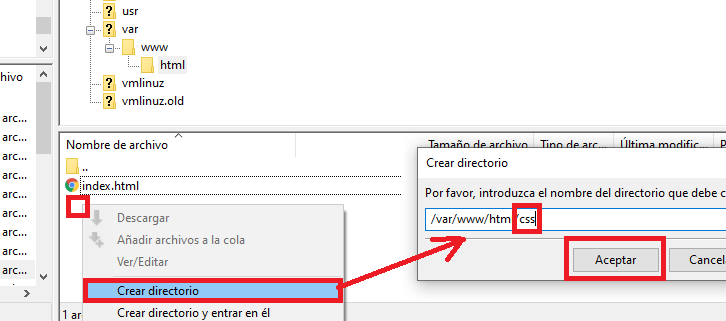
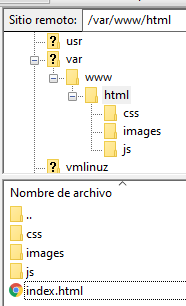
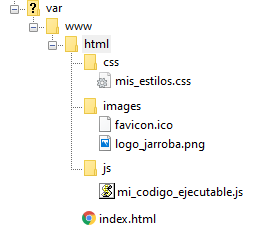
To keep my website well organized, next to my “index.html” file I’ll create these three folders:
- css: where my website’s styles will go (CSS files tell the browser to make the HTML look nice; that is, the colors, margins, shapes, layout, etc.).
- images: A folder to hold the images my website will have. A favicon.ico (an image 32×32 pixels in size, which instead of ending in “.png” or “.jpg” ends in “.ico”) will be needed for the icon to appear on the browser tab, along with the images our website needs.
- js: the JavaScript code that will run in the browser (JavaScript code does NOT run on the server, but in the client browser) and with which I’ll program it so that when the button is pressed one unit is added to the counter and a line is added so it shows in the “<textarea>”.
It will look like this:
We’ll get the images from somewhere or create them for our website (put your images inside this folder by dragging them from your computer to this folder).
And inside the “css” folder we’ll create a file called “mis_estilos.css”, and in the “js” folder I’ll create another file called “mi_codigo_ejecutable.js” (exactly the same way we did before).
The following code can also be downloaded from Github by clicking this link (I’m giving you the code in advance as a solution, in case any doubt comes up while you practice; I recommend that you don’t look at it and try to follow the next steps, which are detailed so that you can understand everything effectively and very quickly)
We’ll create the files with FileZilla by right-clicking and choosing “Create new file” (we could also have created them on our computer and dragged them into their respective folders).
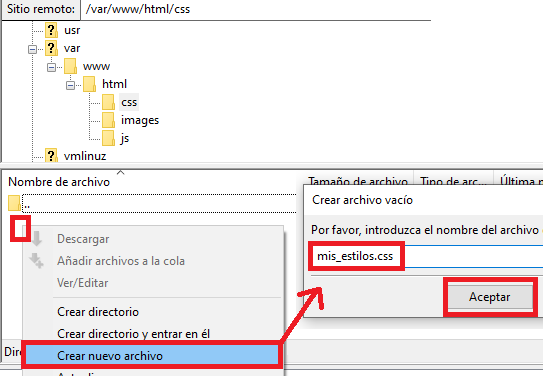
In the end we’ll have a directory structure like this:
I’ll first edit “mi_codigo_ejecutable.js” (which we just created in the “js” folder; you can modify it just like we did before: right-click on the file and “View/Edit”), which will be quite simple:
var contador = 0;

function botonPulsado() {

	contador += 1;

	// Adds a line to the textarea
	document.getElementById("id_de_mi_textarea").value += "línea " + contador + "\n";

}
It does what we want. It’s a function that, when the button is pressed, adds one to the counter and appends it to the “<textarea>” (whose id we’ve set as “id_de_mi_textarea”).
Now edit “mis_estilos.css” to add some styles to each tag so it looks the way we want:
body {
	margin: 3em;
}

h1 {
	text-align: center;
	color: red;
	font-size: 2em;
}

img {
	width: 10em;
}

div {
	background-color: lightgray;
	margin: 1em;

	display: flex;
	justify-content: space-around;
}
In this case I apply these styles to the tags (here I simplify this CSS to direct tag selectors; I don’t intend this to be a CSS course, I just want to leave you at the door so you can go deeper into whatever you like most afterward):
- <body>: I add a margin (margin: 3em) of 3em to the whole website (the em unit equals the font size of the text shown on screen, so if the user has very large text it will scale in that proportion; or on a Smartphone the text looks smaller, so it will scale in that other proportion)
- <h1>: I center the website’s title (text-align: center), color it red (color: red) and tell it I want the font size to be 2 times the browser’s default (font-size: 2em)
- <img>: I set the image to a proportion (width: 10em)
- <div>: I’ll paint the containers light gray (background-color: lightgray) and add a margin (margin: 1em); I also tell them to follow a flexible horizontal layout (display: flex) and to space each object inside the <div> with proportional space (justify-content: space-around).
We re-edit the HTML and tell the button to call the JavaScript method when it’s pressed (onclick=”botonPulsado()”). We also have to tell the HTML to import (inside the “<head>”) the JavaScript file “mi_codigo_ejecutable.js” with the “<script>” tag, and the css style file “mis_estilos.css” and favicon.ico each with a “<link>” tag. I also change the <img> image so it points to the images on my server (before it was pointing to an image on another server, which wasn’t where I was going to upload this new website; it’s a bit tacky to point to images on other people’s servers because you use up their resources, and besides, if they change or delete the image on the other server, you’ll stop seeing it on your website).
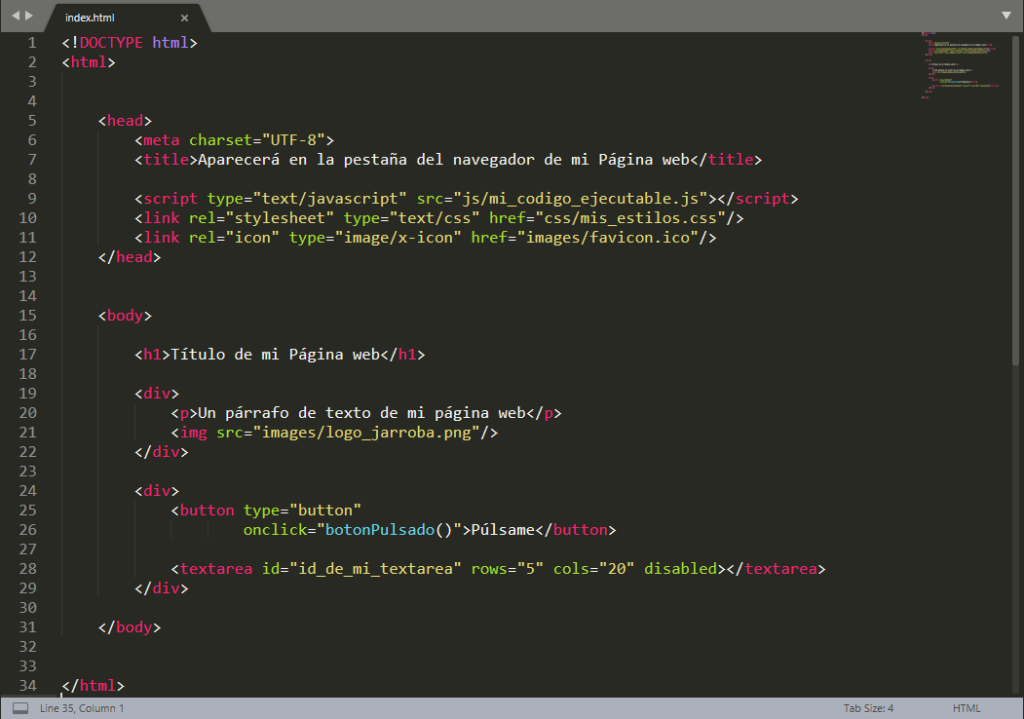
<!DOCTYPE html>
<html>


	<head>
		<meta charset="UTF-8">
		<title>Aparecerá en la pestaña del navegador de mi Página web</title>

		<script type="text/javascript" src="js/mi_codigo_ejecutable.js"></script>
		<link rel="stylesheet" type="text/css" href="css/mis_estilos.css"/>
		<link rel="icon" type="image/x-icon" href="images/favicon.ico"/>
	</head>


	<body>

		<h1>Título de mi Página web</h1>

		<div>
			<p>Un párrafo de texto de mi página web</p>
			<img src="images/logo_jarroba.png"/>
		</div>

		<div>
			<button type="button"
		 		    onclick="botonPulsado()">Púlsame</button>

		 	<textarea id="id_de_mi_textarea" rows="5" cols="20" disabled></textarea>
	 	</div>

	</body>


</html>
We’ve done the same thing as before over the SSH connection when working with our website’s files. Working locally can be more comfortable, since on our computer we’ll have other tools available and we won’t have to stay connected all the time to work with our server files (except to upload the files once we’ve finished editing them).
If we’ve uploaded the files over SFTP and refresh the browser, we can see the style changes we made with CSS and click the button to see that the JavaScript code does indeed work.
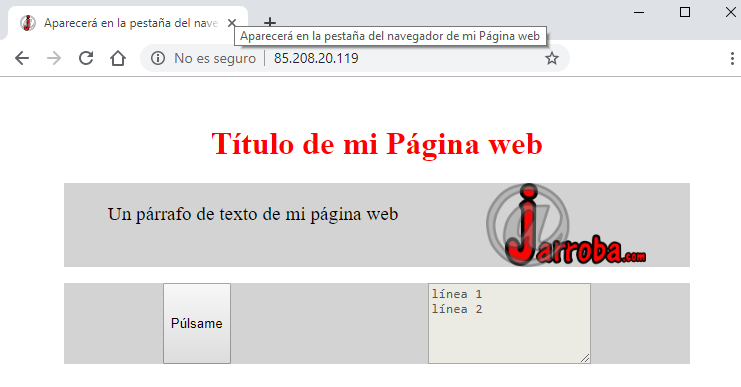
That’s everything you need to start building your own website, all managed by you, and along the way you’ve learned a ton of professional concepts, so you can let your imagination run wild and create whatever website you want.
Registering a domain name
If you don’t want to keep using the public IP and you want your own domain name, you can register one.
Registering a domain usually costs around €10 a year (although the first year is almost always cheaper); the price will depend on the extension. The hardest part is finding a domain that’s available and that you like.
Some tips for choosing a good domain are:
- It should be easy to remember (it could be a simple word like “meneame.net”; a sound like “Yahoo.es” or “Google.com”; or a play on words like “jarroba.com”, which comes from “J” and “@”, or “Facebook.com”, which comes from “Face” and “Book”; letters, initials or acronyms like “IBM.com”)
- It should be as short as possible (this is tricky, since the fewer letters, the harder it is for the domain to be available; the recommendation here is to choose among the domains that are available and that you like, making small variations on your initial idea of the name you wanted)
- The extension should relate to what your website/company is about (that will make the domain easier to find, since the “.com” extensions and country ones like “.es” are pretty much taken; for example, if your website is about technology, it could be interesting to have the extension “mydomain.tech”). For a big company, it’s usually worth registering as many extensions as possible pointing to the same domain; for an individual building a personal website, one or two extensions are usually enough (for example, your country’s, such as “.es” for Spain, and a better-known one like “.com”; remember that each extension costs money and the payment renews every year). You have the full list of extensions at List of Internet top-level domains (Wikipedia)
- Avoid buying domains of registered trademarks, designations of origin or names that clearly identify a third person (such as a famous person). If you buy one of these domains, you’ll most likely get an email threatening a lawsuit from their law firm (which is usually on the hunt for anything on the Internet that could damage their client’s reputation). If you can prove it’s yours (for example, you want to create a résumé-type website and your name on your ID happens to be exactly the same as a celebrity’s, or you bought a domain before such a company existed), then go ahead and buy it.
Some hosting service companies offer the domain and already have the DNS configured.
As a clouding.io customer you can register the domain at a special price at Mejor plataforma de registro y reventa de dominios (Openprovider) (with a promotion code they send to your email when you sign up at clouding.io). Once you’ve registered it, you just have to copy the DNS of clouding.io to openprovider.com. You have all the information at: Cómo configurar los NS de Clouding en OpenProvider (Clouding.io)
A warning based on a suspicion about domain speculation: there are many domain search tools to find out whether a domain with a given extension is available or not, along with the price of each domain. I recommend that from the moment you’ve searched for it, you register it as soon as possible; above all, avoid typing the name of the domain you like (the one you haven’t registered yet) into lots of search engines on the Internet. It seems there are some domain search sites of dubious reputation that “seem to register the domain you’re interested in and then sell it to you for more” (this is a supposition based on some cases I’ve come across; besides, some people make money reselling domains, so it isn’t far-fetched). The same goes for domain expiration: “it seems that when your domain expires and you don’t renew it, a third party automatically registers it, by coincidence”. So, if you want them, take care of your domains (it doesn’t hurt to leave the domain auto-renewal option enabled so it’s re-registered every year before it expires).
Other Interesting Software Servers You Can Try Installing
There are many Software Servers you can install on your Physical Server to take a look at, try out, and use depending on what you need them for. Here are a few (read each one’s license, since some are free and others not so much):
Web Servers (HTTP):
- HTTP Apache (the one we saw earlier)
- NGINX
- IIS
- NodeJS
Java Application Servers:
Database Servers:
Video Streaming Servers:
Message Broker Servers:
Video game servers:
- Steam (full list at: https://developer.valvesoftware.com/wiki/Dedicated_Servers_List)
- If a dedicated server is available to install for a specific video game, it’s usually distributed from the developers’ own website (not all of them are available, since some games are maintained privately by their companies; and not all the ones you find on the Internet are official).
Bibliography
“Using Servers and Building a Website” by Ramón Invarato at jarroba.com, licensed under Creative Commons Attribution-NonCommercial-ShareAlike 3.0. Registered at Safe Creative.

You may also like
How Servers and Hosting Services Work
Learn how servers and hosting services work, from DNS and ISPs to creating your own cloud VPS server and connecting to it securely over SSH.
LAMP Step by Step on Your Own Server
Learn step by step how to build a dynamic website with the full LAMP architecture: Linux, Apache, MySQL or MariaDB, and PHP, Perl or Python.
Leave a comment