
How to Configure Code Formatting in Eclipse
Learn how to customize, export and share a code formatting style in Eclipse for Java and PHP so your whole team writes clean, consistent code.
One of the most important things (though there are many more) when it comes to “clean code” is that the code we write has the right format (indentation, line breaks, etc.). The Eclipse IDE gives us the option to format code by right-clicking in the code and choosing “right click > Source > Format“, and it also lets us do it with a keyboard shortcut, depending on the OS we are using.
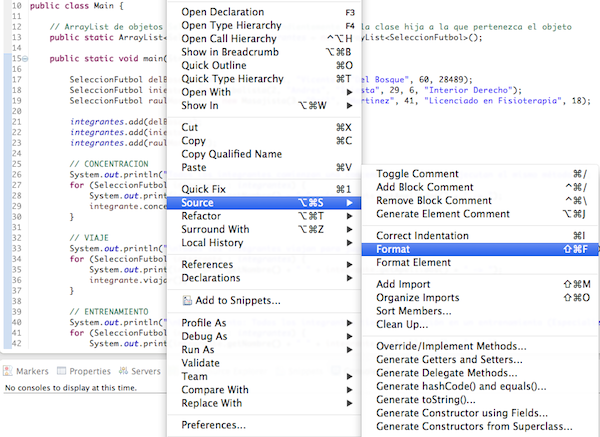
When we choose the “code formatting” option, Eclipse applies a default formatting style depending on the programming language being used. If you work on a team (which is very common in companies), it would be a good idea (well, what good companies should do) for the whole team to follow the same code style, and one thing that can help with this is using the same code formatting style. Eclipse lets you customize that formatting style and, once you have done so, export it to an “.xml” file. Next we are going to see how to customize the formatting style for Java projects, although you can do the same for every language that Eclipse supports.
The first thing to do is go to the preferences panel. If you are on Windows or Linux, go to “Window > Preferences“, and if you are on a Mac, go to “Eclipse > Preferences“.
Once there, go to “Java > Code Style > Formatter“:
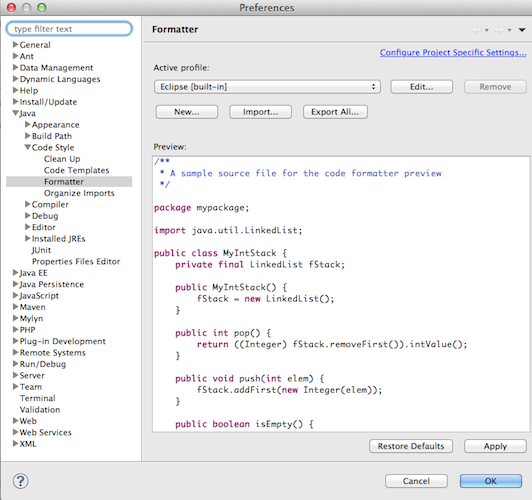
We can see that Eclipse gives us a default formatting style, but we can customize it by clicking the “Edit…” button. When we click it, the following screen appears:
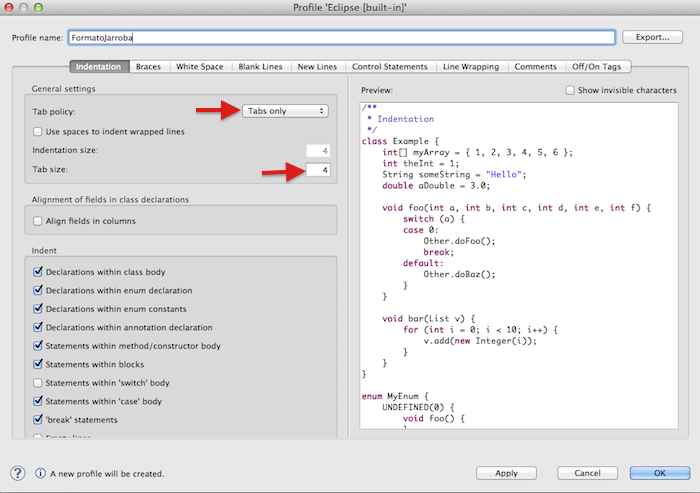
From this screen we can start customizing our code style. For example, in the “Indentation” tab we can choose whether we want the formatting to use spaces or tabs; if we choose tabs, the number of spaces per tab, and so on. As you can see, the style editing window is split into two parts: on the left we define the style, and on the right we see how the code would look once the style is applied. By browsing through each of the tabs you can edit your code style. Here are some of the most interesting tabs:
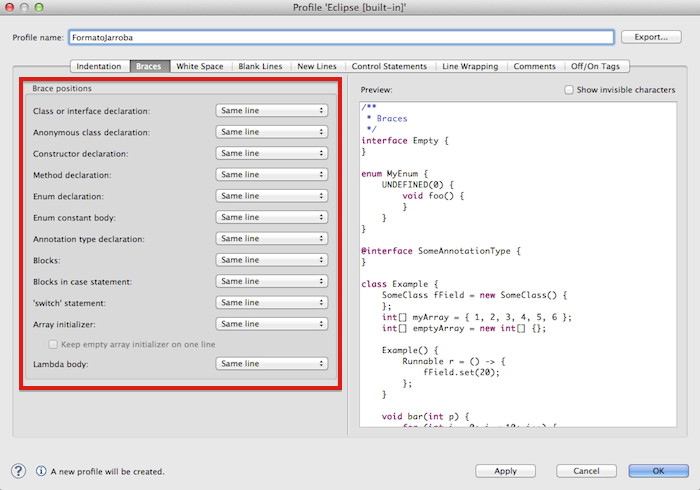
In the “Braces” tab, you can set how the “curly brackets” will look in classes, methods, etc.:
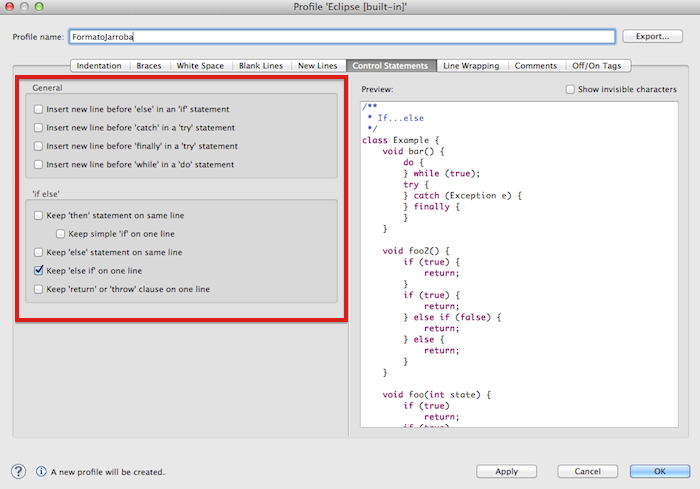
In the “Control Statements” tab, you can adjust the style for the different control statements in Java:
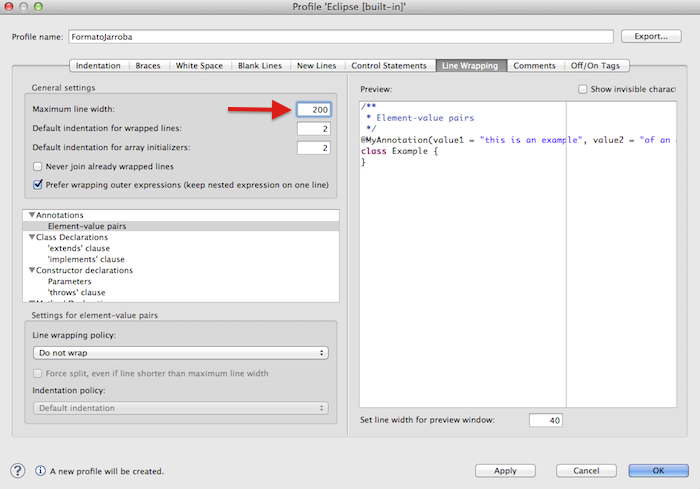
In “Line Wrapping” you can define, among other things, the number of characters per line. This is an important section because the default is 80 characters per line, and that formatting looks pretty bad, so you should allow more characters per line. In this case I set it to 200:
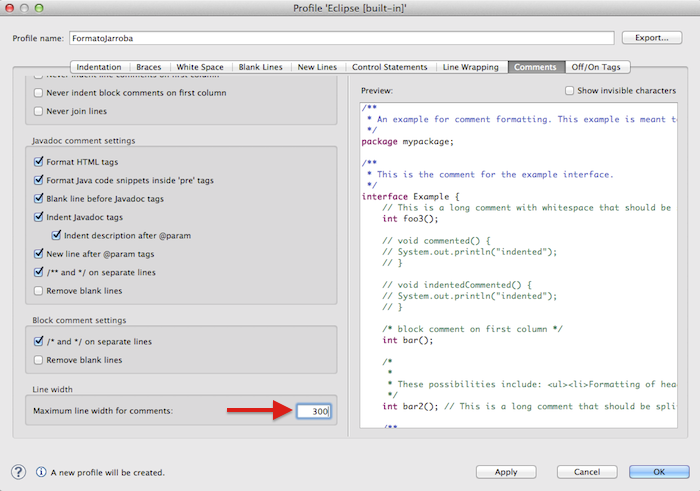
In “Comments” you can adjust the format of comments. Here it is also a good idea to increase the number of characters per comment line, because the default is 80. In this case I set it to 300 characters per line:
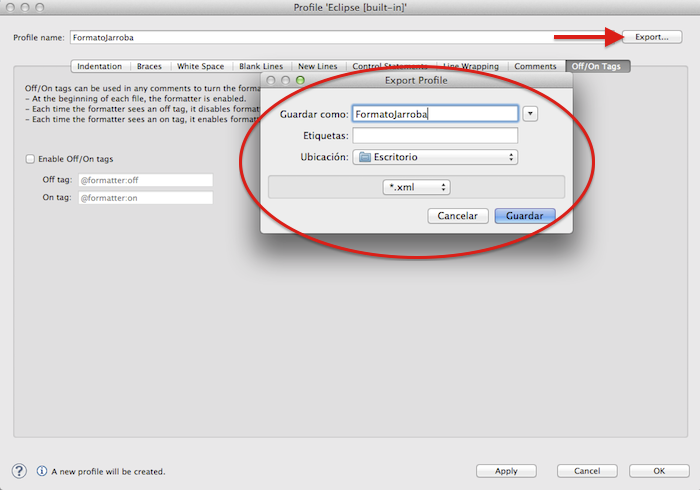
Finally, once you have customized your code style, Eclipse lets you export it (to an .xml file) so that you can import that style automatically into other IDEs, and so all the members of the team can format code the same way. So, once we reach the end, we give the style a name (in our case we called it “FormatoJarroba”), click export, and save it:
If you open the generated “.xml” file, you will see that it contains all the style parameters that can be customized. If you share this file with your teammates, they can import the style this way: “Eclipse or Window > Preferences > Java > Code Style > Formatter” and then follow the steps in the next image:
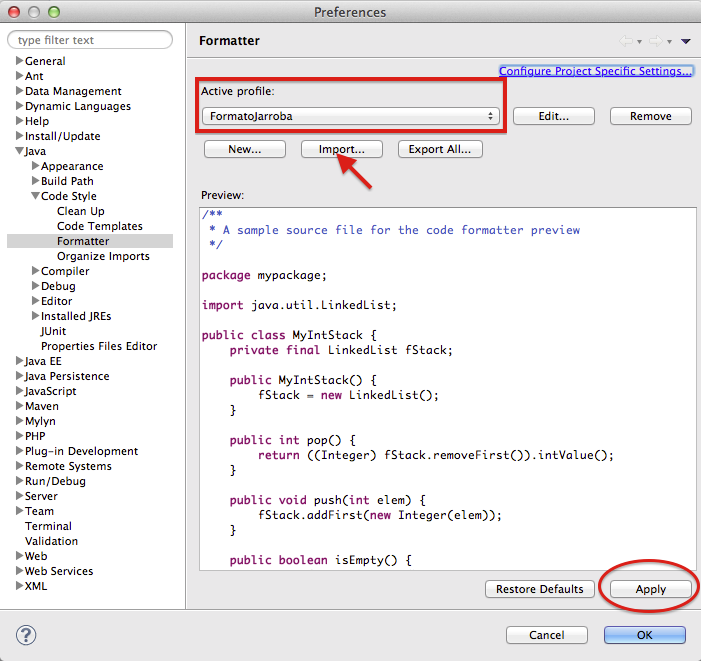
So far we have seen how to create our own code style simply by configuring a series of parameters. Of course, it will be up to the team to define other clean code guidelines, such as naming of variables and methods and the style of comments, although that is more of a personal matter for each team to settle.
Another of the most widely used languages today is PHP, and Eclipse lets you work with it, so we can create a code style for it too. In PHP there is a framework called Zend that, among other things, defines good practices for PHP development, and it has therefore defined a code style that you can select by default in Eclipse if you have installed the corresponding plugins for working with PHP (see the post: “How to configure Eclipse to program in PHP (VIDEO)“). So if you go to “Eclipse or Window > Preferences > PHP > Code Style > Formatter“, select the “Zend Framework” style in “Active Profile”:
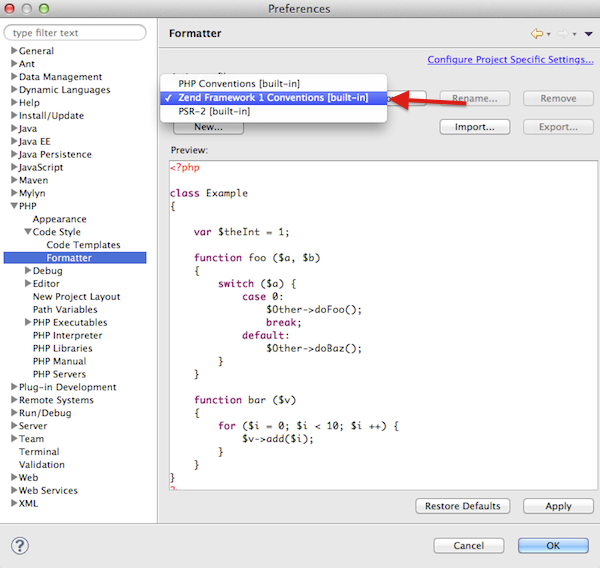
Lastly, you can modify the Zend style however you like, although in this case it is not advisable to change it too much (except for small details agreed on by the whole team), since it is a style adopted by a large and important community of developers.
“How to Configure Code Formatting in Eclipse” by Ricardo Moya at jarroba.com, licensed under Creative Commons Attribution-NonCommercial-ShareAlike 3.0. Registered at Safe Creative.

You may also like


How to Set Up Eclipse for PHP Programming (VIDEO)
Learn how to set up the Eclipse IDE for PHP development with a local XAMPP server. Follow our video tutorial and try the example PHP code step by step.

How to Install Eclipse the Right Way (One IDE Among Many)
Learn how to download and install Eclipse step by step: pick the right version, set up your workspace, install Java and the JDK, and fix common startup errors.
Leave a comment