
How to Install Eclipse the Right Way (One IDE Among Many)
Learn how to download and install Eclipse step by step: pick the right version, set up your workspace, install Java and the JDK, and fix common startup errors.
Eclipse is a good IDE to start with, since it handles Java perfectly. Some people don’t like it when folks with no programming background start learning Java in a professional IDE, because of the overwhelming number of options available and the number of warnings it tends to generate. Personally, I think it’s the best way to start programming, since you can see the results easily and get familiar with an environment that is quite complete. You learn to play by playing! As we’ll see, what we call professional isn’t that big a deal; there’s no need to be scared, anyone can do it if they set their mind to it.
To get rid of the fear (and anyone would feel it when seeing so many possibilities), the answer is to narrow things down, and that’s what we’re here for: to go step by step and only with what is strictly necessary for what you need to know.
To download Eclipse click here. But what…? What a bunch of Eclipses there are on the official website! Which one do I need? Madness! It’s not that crazy, we download the one called Standard, which is enough for everything we need.

I’ll leave the choice between the 32-bit and 64-bit version up to you (it should be the same as your operating system; if you don’t know which one to download, pick 32-bit). It will redirect you to another page where you choose a download link; pick any of the available ones.
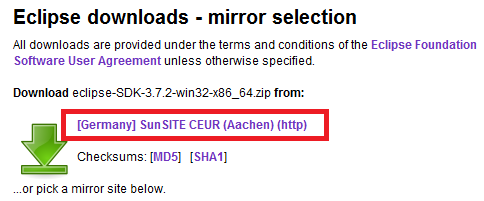
After that the download should start; if it doesn’t, click "click here" right below the text that says "Thank you for downloading Eclipse" (and if you like Eclipse and want to donate to the Eclipse Foundation, you can do it on this thank-you screen, that would be nice 🙂 )
While it downloads, let me tell you a bit about my life. After a ton of years programming with the Eclipse Standard version -formerly called Classic- it’s still the one I use today and the one with the biggest user community. So don’t worry about the other existing Eclipses, which have special features that, unless we specialize, we won’t need (besides, in the future you’ll be able to download the plugins you need for this Eclipse and turn it into an even more powerful working environment). This version of Eclipse has everything you need to start programming comfortably and with ease.
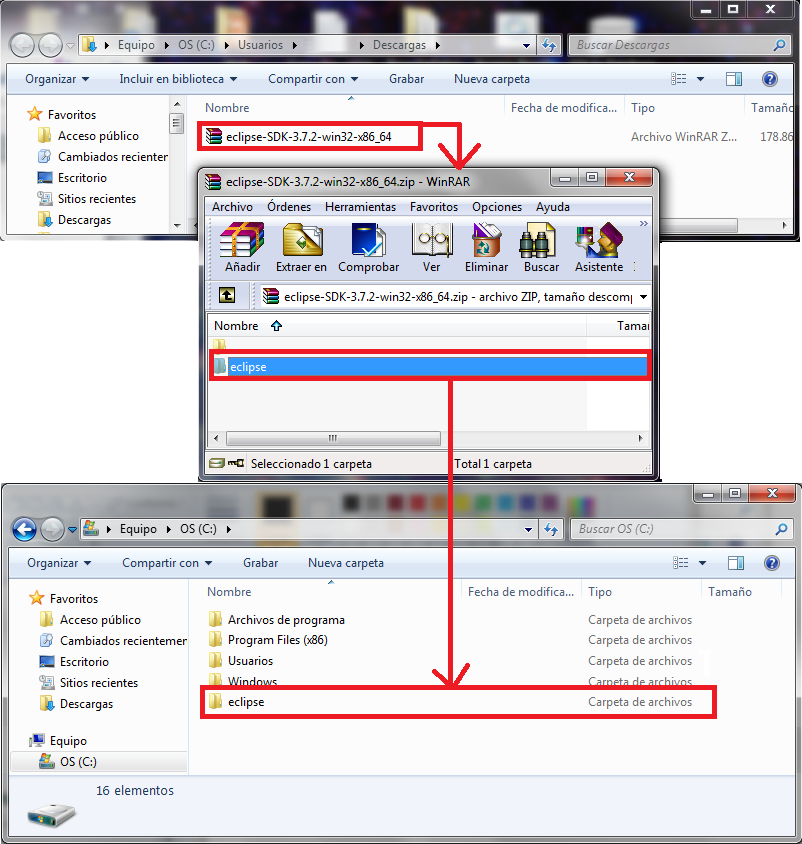
Once we’ve downloaded it, unzipping it is the installation. So you need to unzip it somewhere that won’t be moved until you uninstall it (to uninstall, just delete the unzipped folder), which hopefully will be in the distant future. I recommend unzipping directly into the “C” drive, or your main drive, so that the whole of Eclipse sits there, as in the following image.
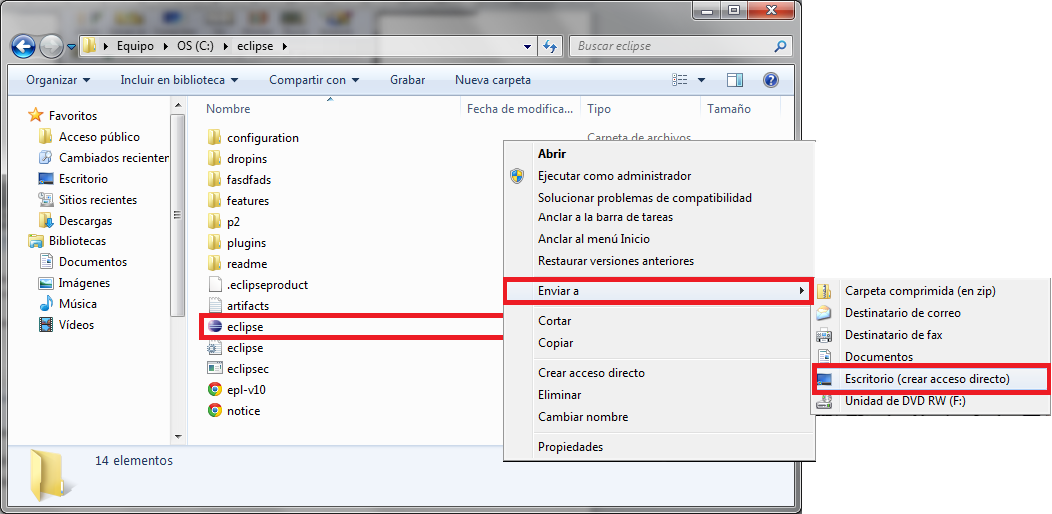
OK, it’s installed. Let’s create a desktop shortcut so we can open it more comfortably. To do that, go into the newly unzipped folder called “eclipse” and look for the icon also called “eclipse” (the one that is “eclipse.exe”; the extension is usually hidden). Right-click it, select “Send to”, and then “Desktop (create shortcut)”.
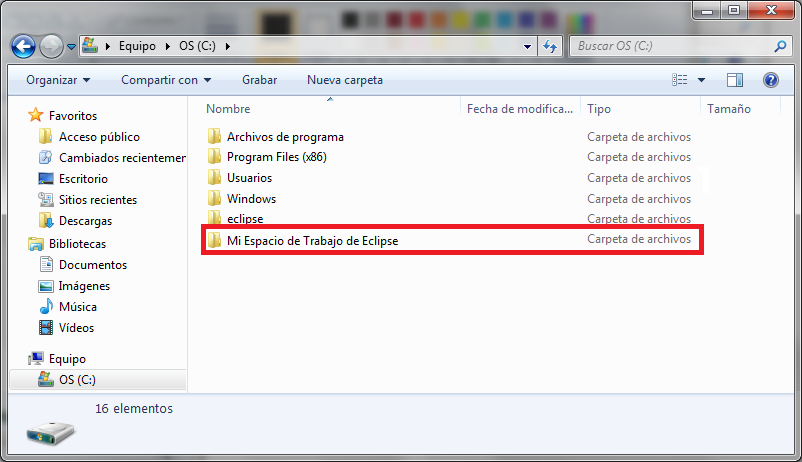
Now we’ll have the shortcut on the desktop. But before running Eclipse, one last thing. Anywhere, for example next to where we unzipped Eclipse, we create a folder that will be our workspace in Eclipse (to see how workspaces work you can read a description here). All we have to do is create a new folder called, for example, “My Eclipse Workspace” -yes, it’s a long name, but it makes it clear that our workspace for working with Eclipse will be stored here; we’ll explain it a bit more later.
|
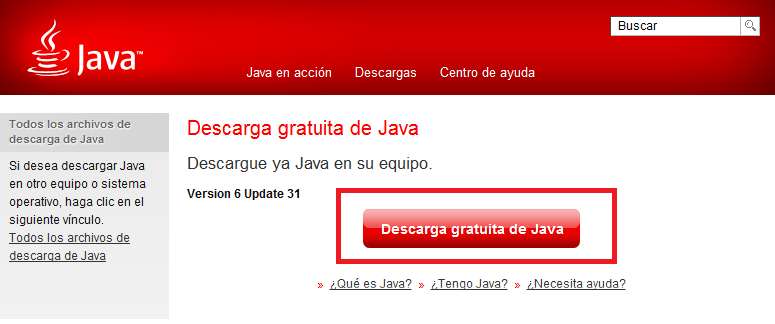
Note 1: If we don’t have the Java virtual machine installed, we have to install it. Otherwise we won’t be able to start Eclipse. If you’ve ever seen the coffee cup from the Java logo next to the Windows clock, it’s installed. If it’s installed, we can skip this box. Java is an object-oriented programming language that runs on a Java virtual machine. That way Java can run on many devices, such as computers with many different operating systems or mobile phones, among many other gadgets. To install the Java virtual machine we just have to go to the following link here.
We click “Free Java Download” to start the installation. When it’s downloaded, we run the file. If it’s already installed, it will let us know. If it isn’t, we follow the steps until it’s installed. |
|
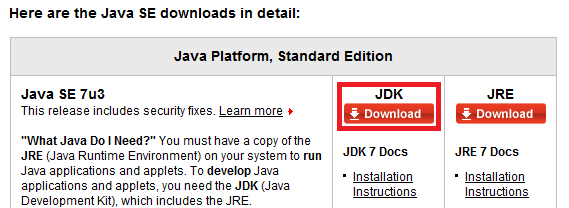
Note 2: I strongly recommend installing the JDK as well. It’s not mandatory, but it will save you headaches down the road. The rest of the tutorials will assume it’s installed. If you already have it installed, skip this box. The Java JDK is used to develop Java software and gives you additional tools. The JDK is a development environment for building applications, applets and various components using Java. To download it, click here. Here we click “Download” under the word JDK.
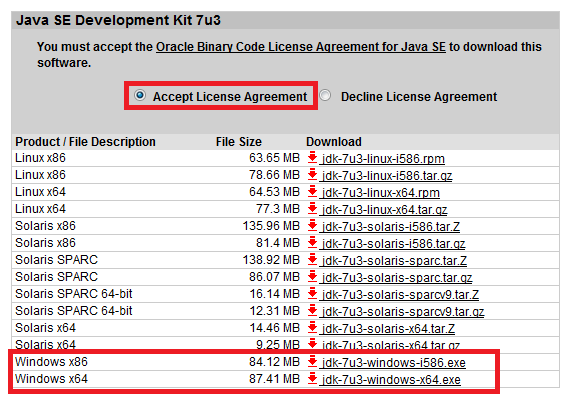
It will redirect us to a new window. Here we click “Accept License Agreement” so that it lets us select the download. Then we download the Windows one that matches our system. If we don’t know which of the two, we download the one called “Windows x86”.
When it’s downloaded, we run it and follow the wizard until it’s installed. |
At last we can run Eclipse for the first time. On the desktop, double-click the Eclipse icon we created earlier.
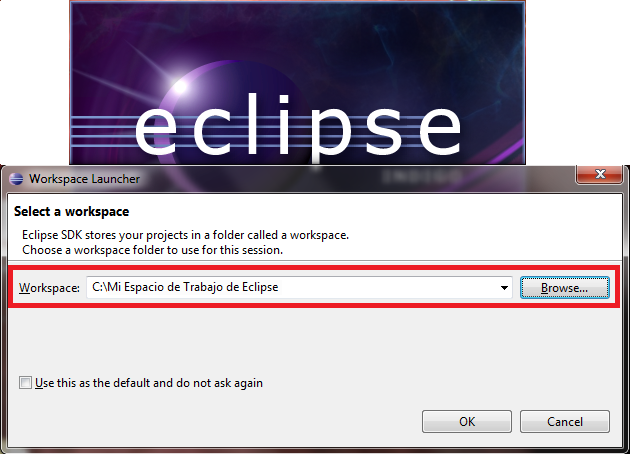
The Eclipse logo will appear and shortly after, a dialog will open asking us to select the “Workspace” we want. Since we don’t have one yet, we use “Browse…” to find the empty folder we created earlier called “My Eclipse Workspace”. Eclipse will take care of creating our workspace here; all the code we write in Eclipse will live in this folder. If we want to move our code somewhere else, it’s enough to move this folder we call “My Eclipse Workspace” –our workspace will move, not the IDE, which in this case is Eclipse.
If, when running Eclipse, an error window appears saying:
A Java Runtime Environment (JRE) or Java Development Kit (JDK) must be available in order to run Eclipse. No Java virtual machine was found after searching the following locations: C:Users…eclipsejrebinjavaw.exe javaw.exe in your current PATH
To fix it, do the following. Close the error window. Go to your operating system’s search:
- In Windows 8: the search is in the top right corner; select the magnifying glass
- In Windows 7 or Vista: it’s in the Start button.
- In XP we have no choice but to go to the control panel.
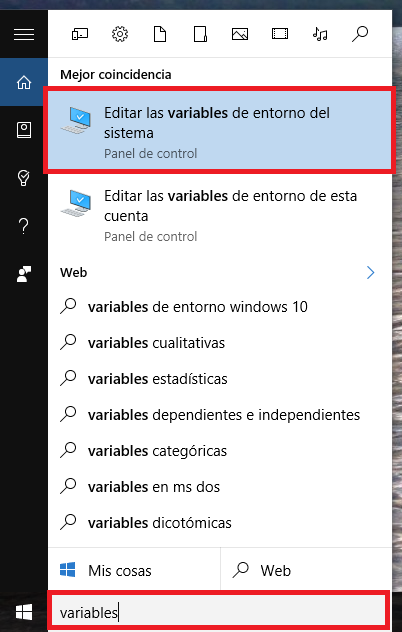
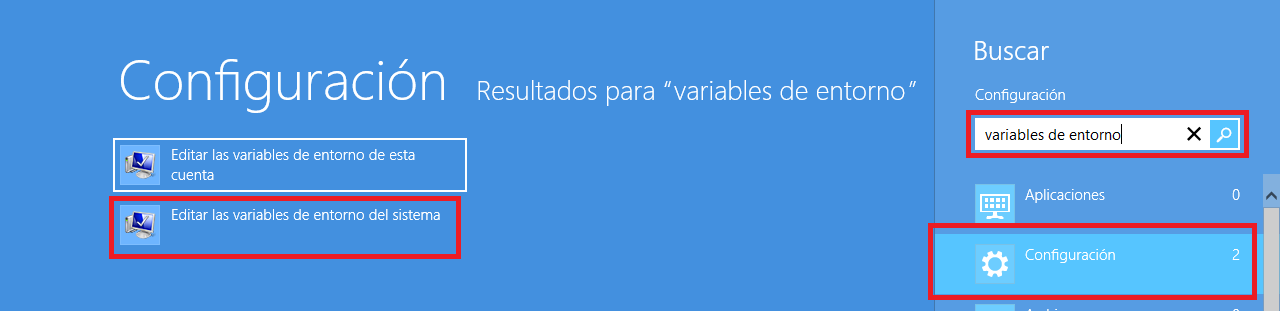
Search for "environment variables". Click the "Settings" box, and there choose "Edit the system environment variables". The following image shows how to find this in Windows 10:
Or in Windows 8:
A window called "System Properties" will open on the desktop, where we click the "Environment Variables…" button. In the new window, called precisely "Environment Variables", we click the "New…" button. In the "New System Variable" box we enter the following:
- Variable name: JAVA_HOME
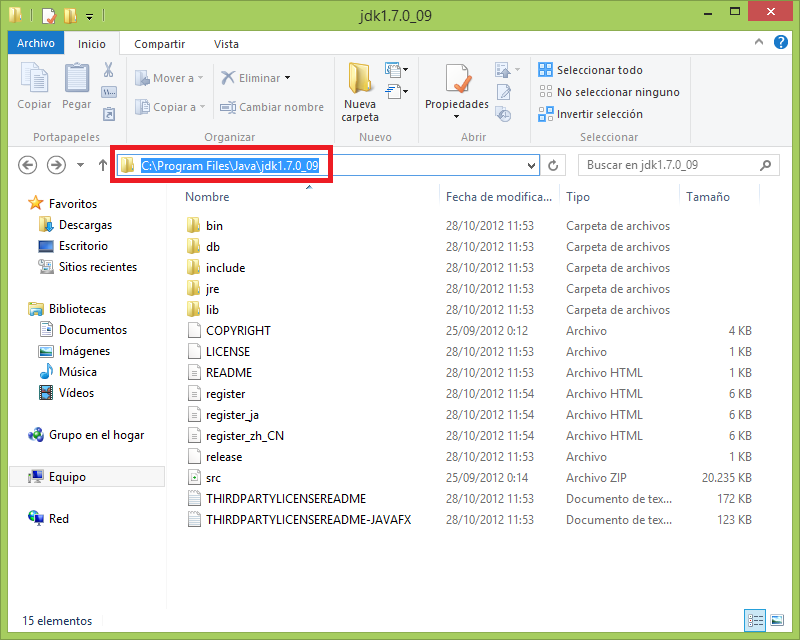
- Variable value: The path where the Java JDK is installed; by default it’s in C:\Program Files\Java\jdk

In my case, which is the default location, the JDK is installed in the following folder; I copy its path and paste it into the "Variable value:" field.
We run Eclipse again and it will work.
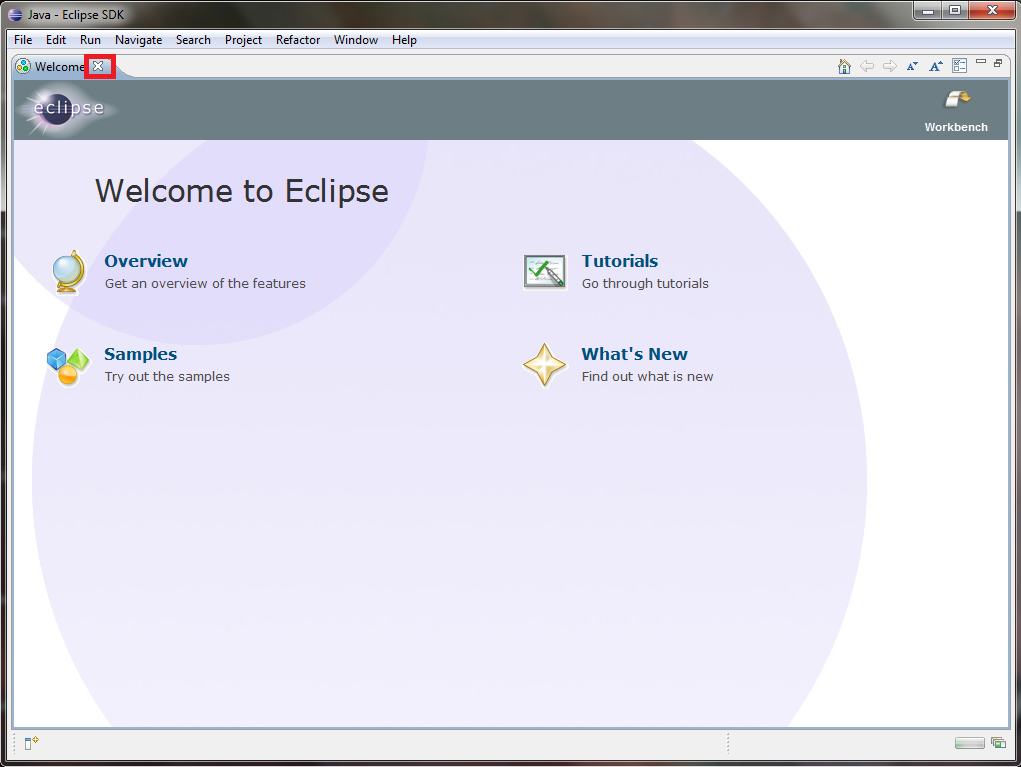
When it loads for the first time, the welcome tab will appear. We close it with the small X on the “Welcome” tab.
Now our workplace is ready. If you’ve read the previous tutorial, I recommend going back to it to compare with the image of the work desk and see the different parts of the Eclipse IDE: work environment, development area, and integrated tools. If you haven’t read it and don’t understand what an IDE is and what its features are, I strongly recommend reading it.
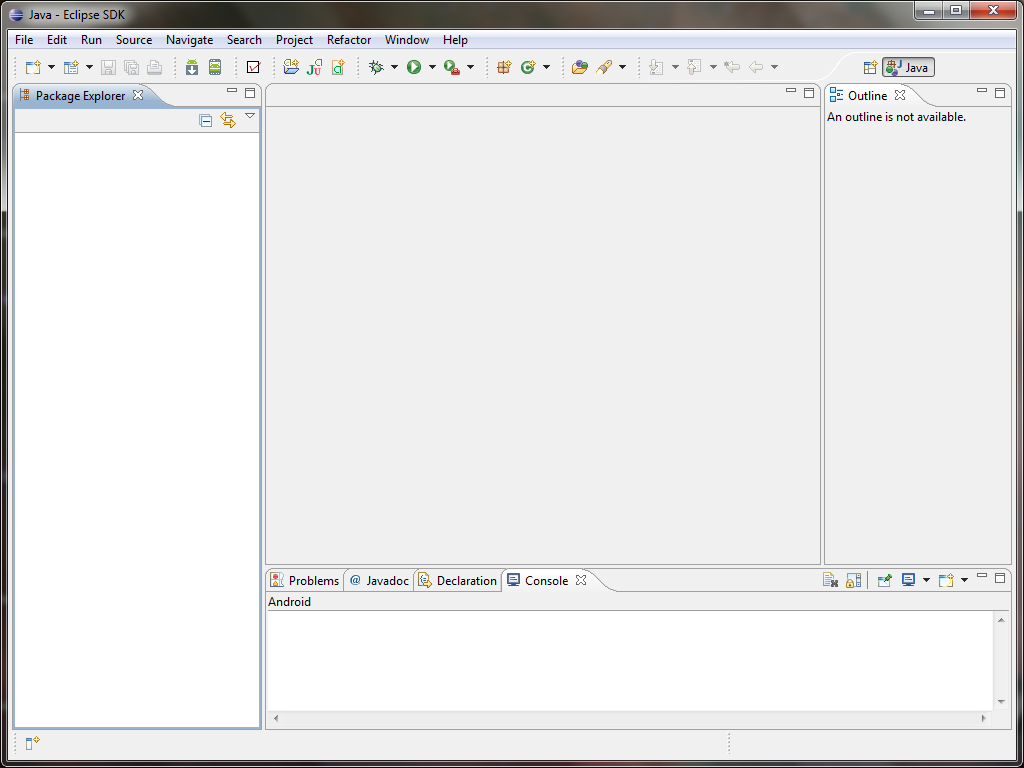
We’re now ready to start using our IDE.
Note: this tutorial explains how to install Eclipse Indigo; earlier and later versions install the same way and are very similar. See the following screenshot showing Eclipse Juno, a later version; it’s the same but with different colors in the program.
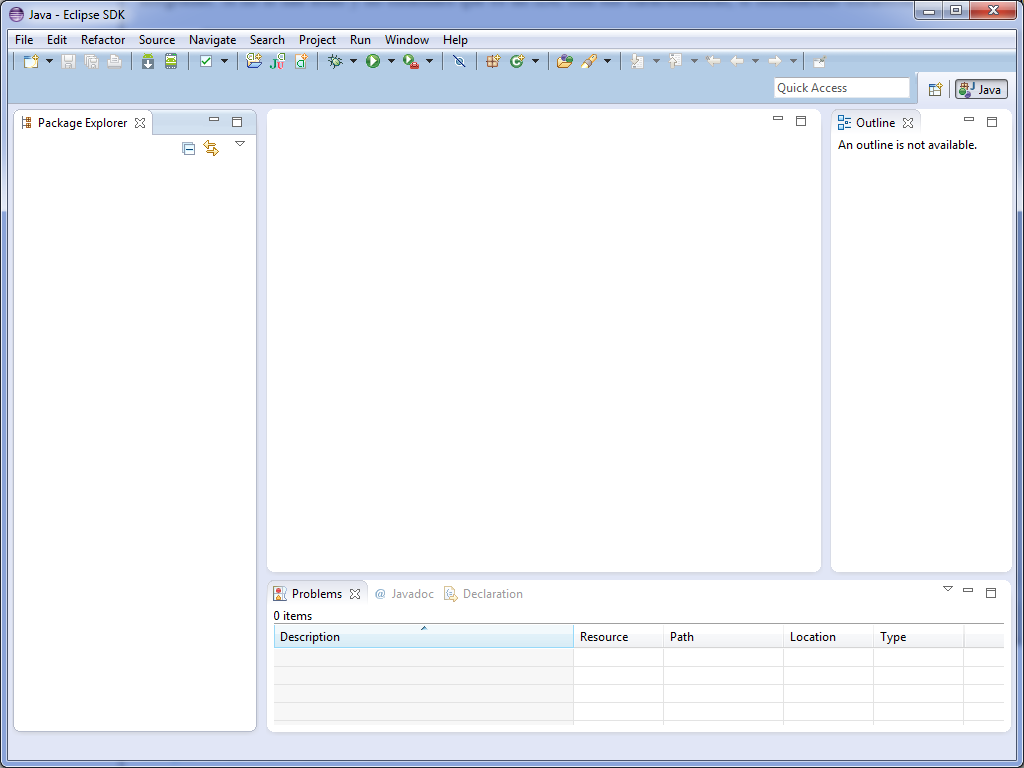
What we mean by this is that in other tutorials, where the Eclipse screenshot is the older one, it works exactly the same, just with different window colors.
“How to Install Eclipse the Right Way (One IDE Among Many)” by Ramón Invarato at jarroba.com, licensed under Creative Commons Attribution-NonCommercial-ShareAlike 3.0. Registered at Safe Creative.

You may also like


Installing the Android SDK and Linking It with Eclipse
Learn how to install the Android SDK and link it to Eclipse with the ADT plugin, step by step, so your Android development environment works perfectly.

Workspace for Storing the Projects We Create in Eclipse
Learn what the Eclipse workspace really is, how it relates to a folder on your computer, and create your first Java project, package and class step by step.

Maven in Eclipse
Learn how to get started with Maven in Eclipse and use it. Step-by-step installation and usage. Everything you need to know about Maven.

How to Program Web Apps and Servlets in Eclipse
Learn how to set up Tomcat in Eclipse, install the web development plugins and run a local server to program web apps and servlets step by step.
Leave a comment