
Workspace for Storing the Projects We Create in Eclipse
Learn what the Eclipse workspace really is, how it relates to a folder on your computer, and create your first Java project, package and class step by step.
You may have gotten confused about what the words “Workspace” mean. It is mentioned in the introduction to an IDE and in the previous tutorial on installing Eclipse, and it seems to refer to different things.
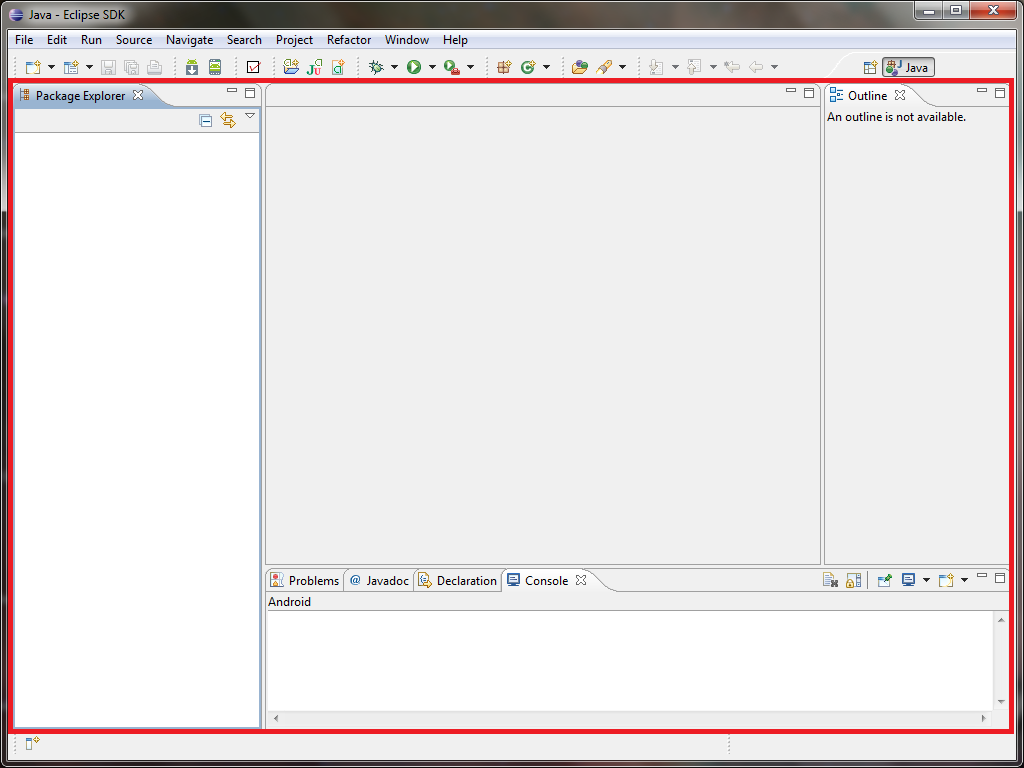
On one hand, we have our “Workspace” in Eclipse.
And on the other hand, we have our “Workspace” in a folder.
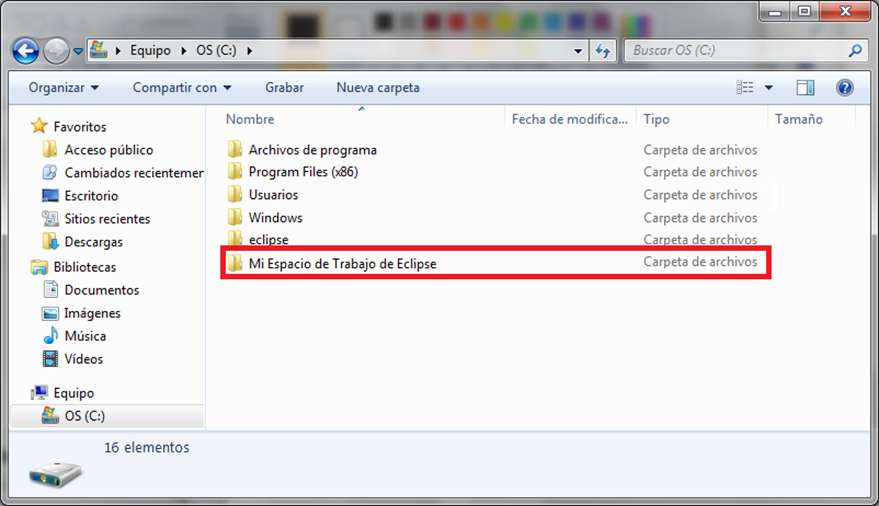
They look like the same thing, right? It is exactly the same “Workspace”. What Eclipse opens are the files in that folder. In other words, the folder “My Eclipse Workspace” is our “briefcase” with our notes. And Eclipse, being a good IDE, acts as the “desk” (as we said in the tutorial about what an IDE is) where the notes are spread out so we can work with them.
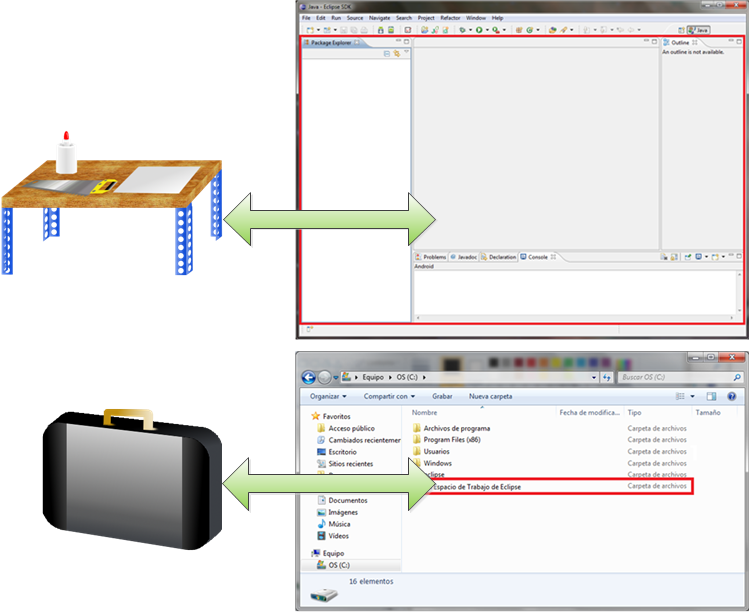
Everything we do and save in the “desk” called Eclipse, will be saved in this “briefcase” folder. And anything we modify in the “briefcase” folder will have an effect when Eclipse loads the data.
Therefore, we can move the briefcase folder between computers -saving it on a flash drive, for example- and use it with different Eclipse installations. You have to take care of that folder as if it were your child -and it really is- since it holds all the hours you have put into your creations with Eclipse. The briefcase folder contains all your work, plus the Eclipse settings that make your life easier.
Now we know how the “Workspace” works. Next we will create notes -programs- for the briefcase -folder- from the desk -the IDE, in this case Eclipse. If you still don’t see it clearly, I recommend reviewing the previous tutorials mentioned at the beginning of the article.
Let’s look at our “Workspace” side by side: the inside of the folder (briefcase) on the left of the following image, and the Eclipse IDE (desk) on the right.
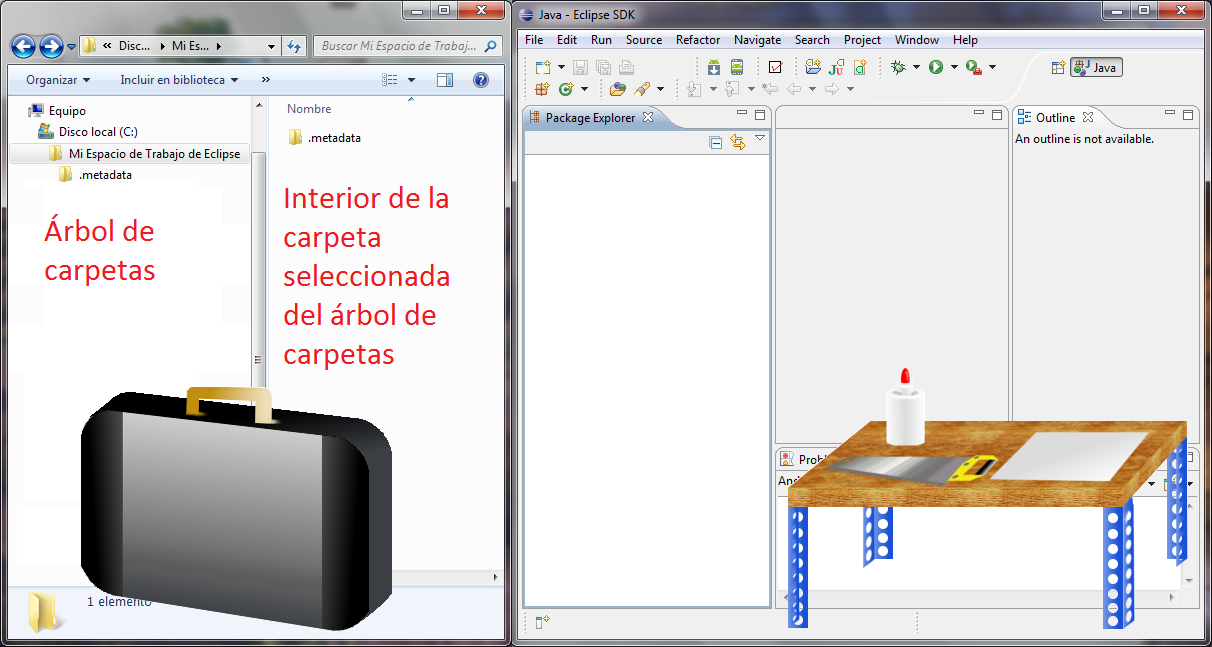
The briefcase folder contains a folder called “.metadata”. It is the first folder Eclipse creates, and it is where all the settings are saved -its contents are updated automatically by Eclipse, so you must not touch it under any circumstances.
Of course, what we want with all this is to make our own projects. Suppose we have come up with the brilliant idea, even if it sounds a bit simple and has nothing to do with Java, of making a “ship in a bottle”. We have created in our head a project called “proyecto_barco_en_una_botella”, and we want to take it from imagination to reality.

To do that, we go to our “desk”, that is, Eclipse, and set up the environment for our new project so that we can build a ship inside a bottle.
In Eclipse, in the panel called “Package Explorer”, we right-click and a few options appear. We click “New” and from what appears we choose “Java Project”.
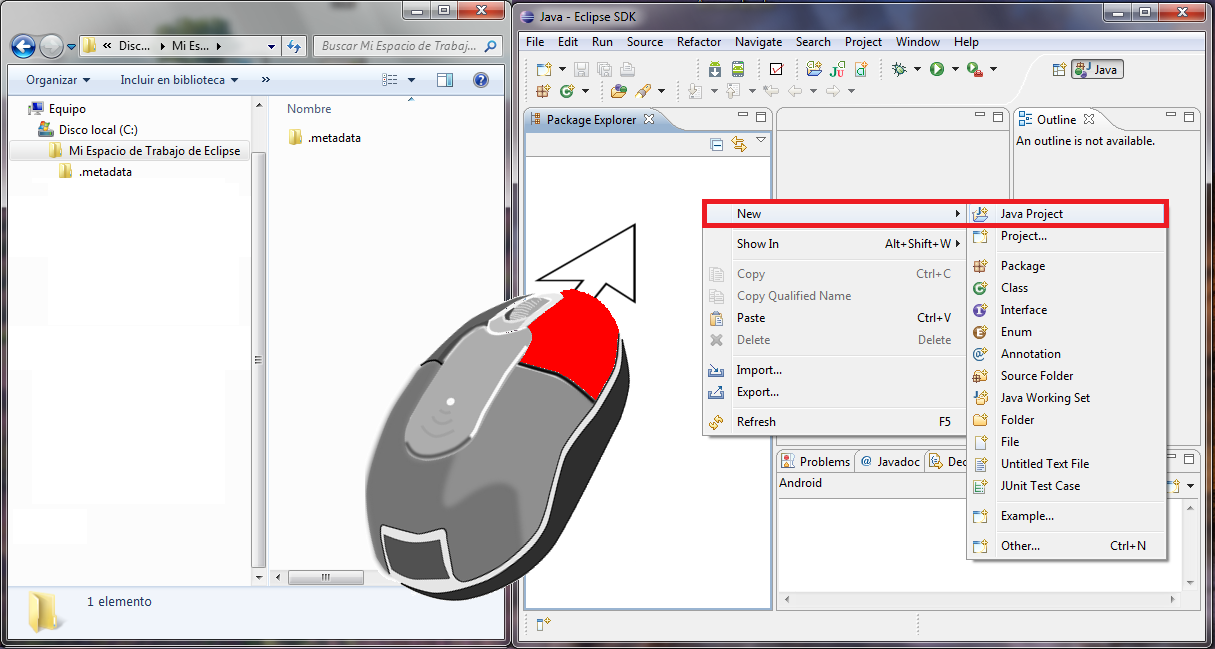
What a name: inside New, it says Project, and a Java one at that! Well yes, it is all related even if it doesn’t look like it.
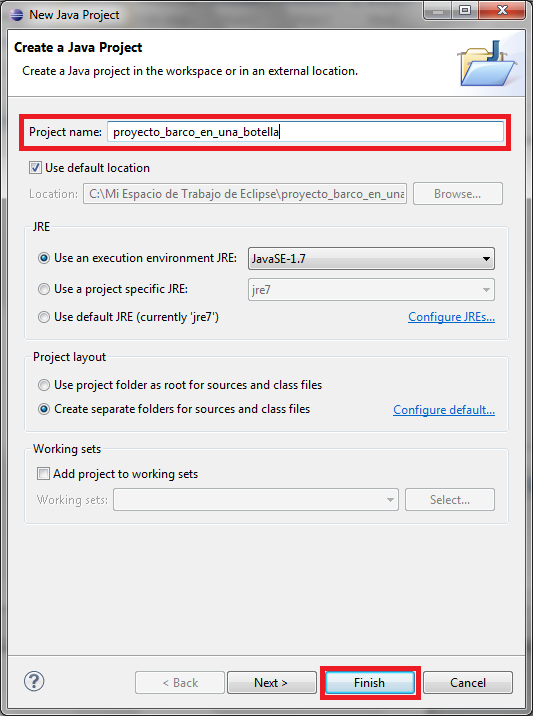
In the pop-up window that opens, we type a name for our project in “Project name” –the name must be all together with no spaces, and only accepts letters (no ñ) and numbers. For example “proyecto_barco_en_una_botella”, which is what we had in mind. Our ideas are already becoming real, even if for now it is nothing more than a sign with the title of our project on the “desk”. The rest of the options in the pop-up window are very useful tools, but as they are, they work for us. We click “Finish”.
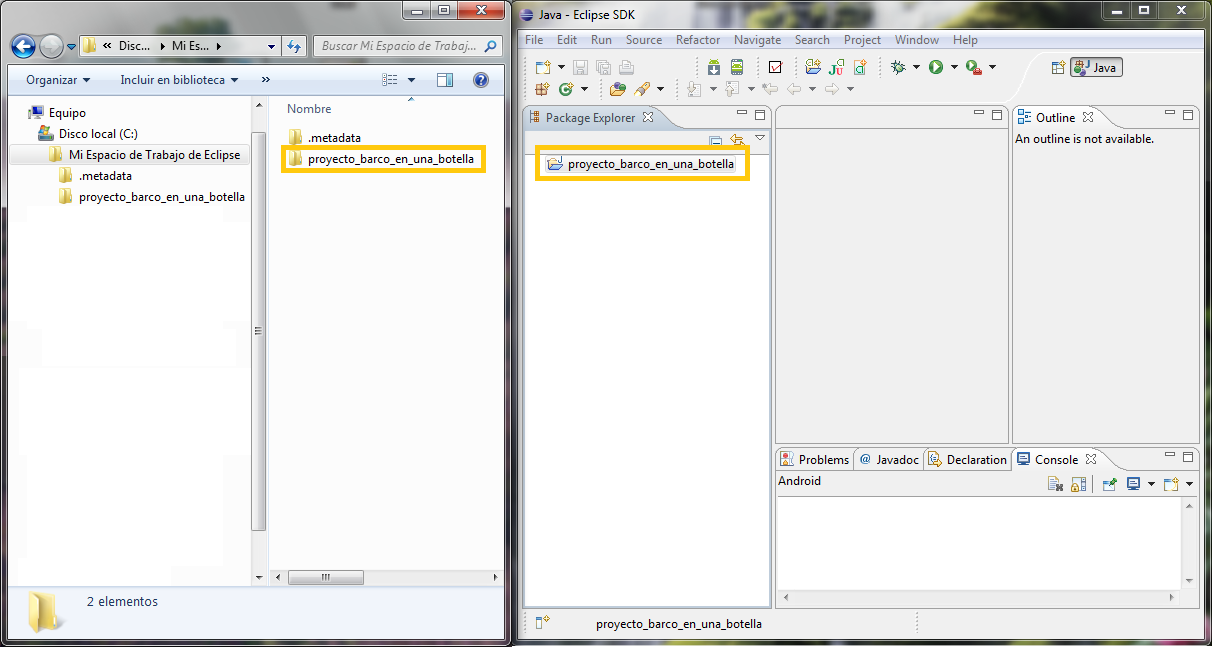
We will see our expectations come true. The project we created appears both saved in the “briefcase” and laid out on the “desk”.
And let’s see that what we said still holds. If we go into the newly created project in the briefcase folder, and click the arrow next to the project to show its contents, we will discover, to our great doubt -let’s not despair- that it only has one miserable folder, the same on both sides, called “src”.

Then you will surely tell me: was everything above a lie? Nothing is the same, except for a crappy three-#%&#$@%#% letter folder called “scr”.
And yet it is all the same. This folder called “scr”, which comes from “Source Code”, is where all the code we write will be stored in an orderly way in the future. So it makes sense that it shows up on both sides, both in the briefcase folder and in our IDE called Eclipse.
|
NOTE ABOUT THE OTHER FOLDERS: In the briefcase folder there are several folders with a dot “.” in front. These are automatic settings generated by Eclipse, don’t touch them. It makes no sense for these folders to show up in Eclipse’s “package Explorer”, because, as a desk, the settings could be, for example, that the desk lamp is turned on. If we jot a note in the briefcase: “to work comfortably, turn on the desk lamp”, then when we open our project we will turn on the lamp but we won’t show the note; it would be silly for the note to take up space on the desk when what we want is for the lamp to be on. Of course, Eclipse manages all these settings automatically; we don’t have to do anything. There is also a folder called “bin” in the briefcase folder. We won’t go into details in this tutorial; we will do it later. This folder is where the “.class” files are generated, which allow any computer to run them (if you are curious right now, it will contain the binary files generated by Java, in ".class" files; what is known as Java Bytecode). They are generated automatically, so there is nothing to touch here either. If we look at our project in Eclipse, we will see the name “JRE System Library”, which we won’t touch. This will also be explained in later tutorials, so I won’t go deep into it. Here are all the libraries that Java includes by default. “System” doesn’t mean system as such, but the package that contains all the default libraries –we will see it in the next tutorial. To put it simply, “JRE System Library” is the library and what is inside are the books; if we want to write a chemistry book, for example, we have to use that library, which is the one we have. From this it follows that we could add other libraries to increase our knowledge, and so write a chemistry book with better data. This chemistry book we are writing is our project and the libraries are our bibliographic references. |
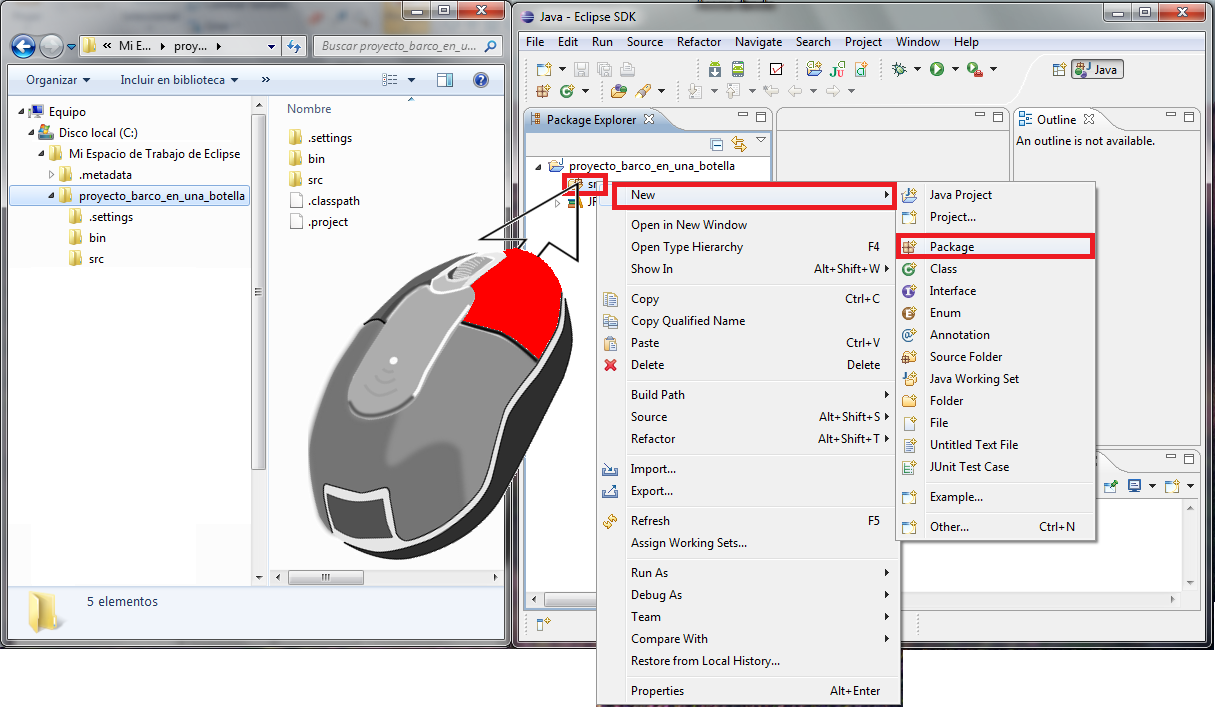
To do that, we go to Eclipse and right-click on the “src” folder. We create a package to organize things by choosing “New” and then “Package”.
In the pop-up window we enter a name in “Name”, such as “barco”, and finish.
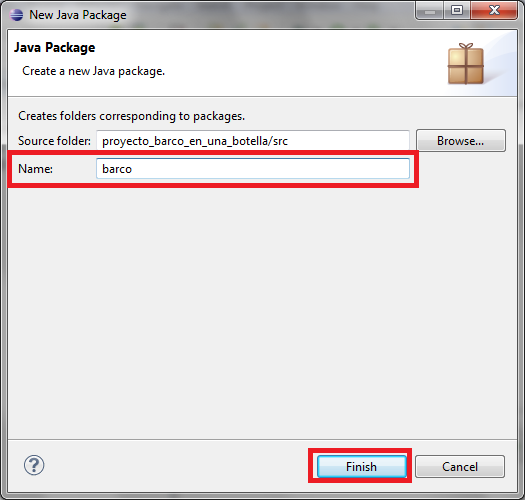
A new empty package will have been created.
To clear things up and avoid getting tangled in names: what we have done is create a new folder (okay, it is called a package, but that is object-oriented programming jargon; for all practical purposes it is a folder inside our project). What’s more, if we look in the briefcase we will see a new folder with the name we gave the package, so it is the same thing.
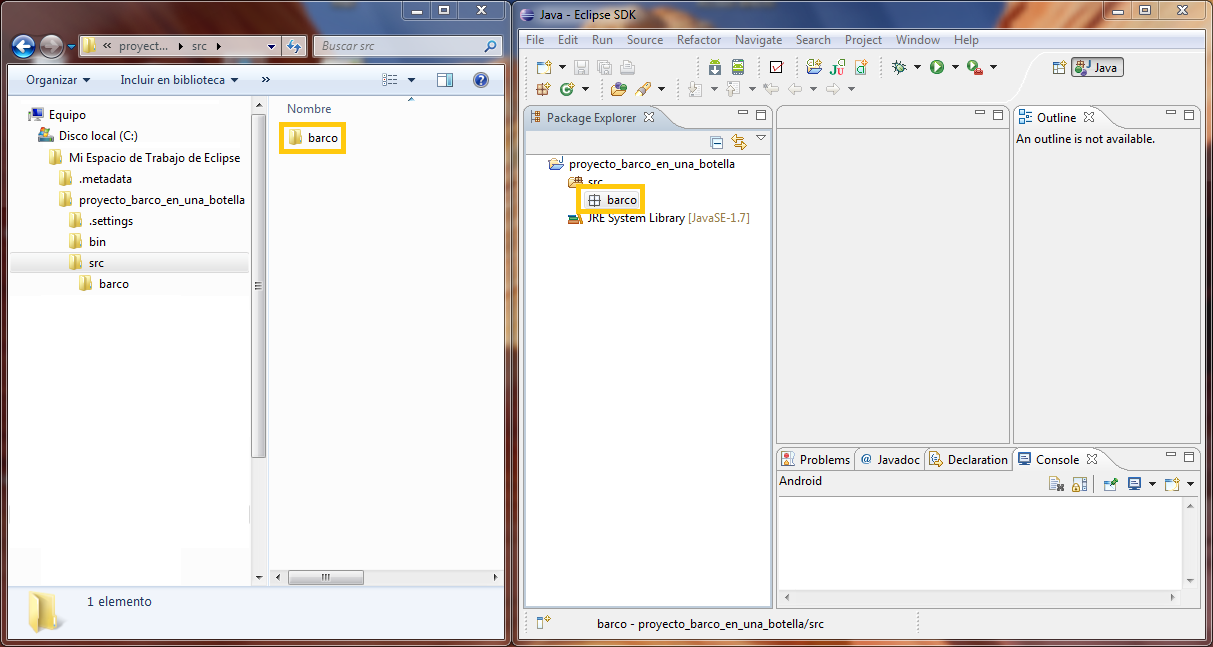
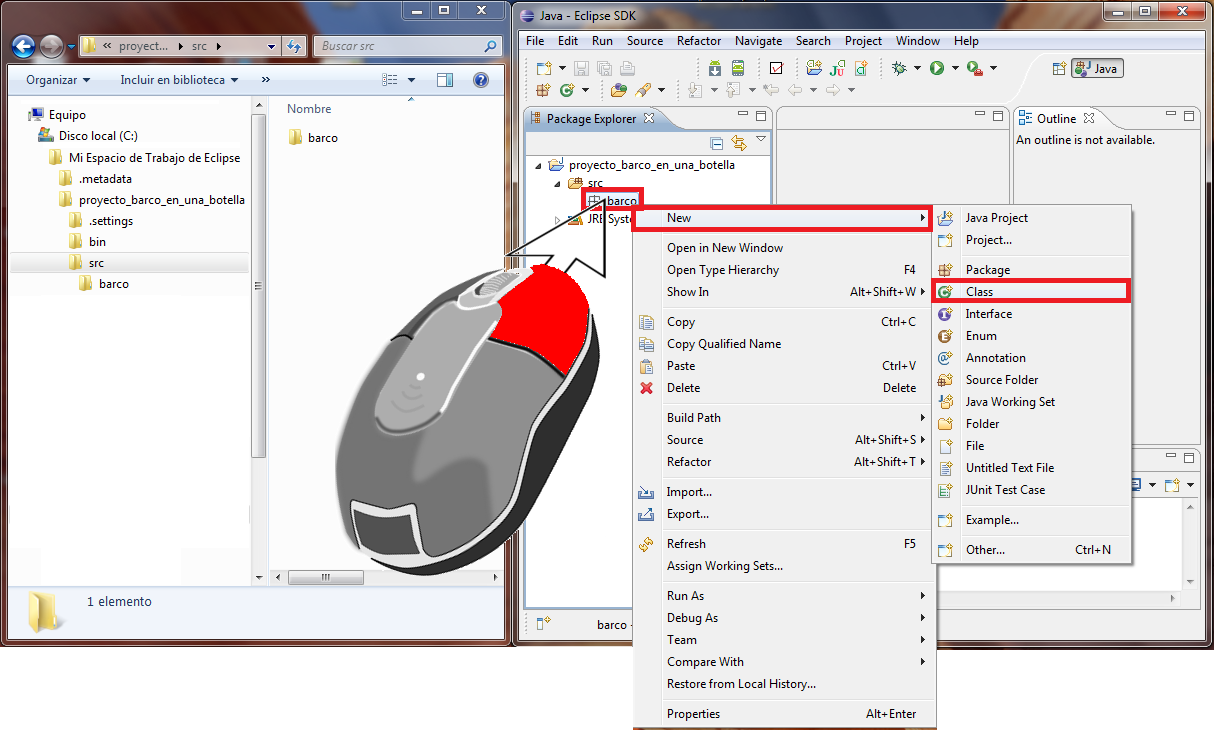
Now we have the package. We have reached the fun part: writing our first code. For that we need to create a blank sheet of paper to write on. So we right-click on the package we created, go to “New” and choose “Class”.
For now, in the pop-up window, without touching anything else, we enter a name in the “Name” field; for example “Primera_parte_del_barco”. And we click finish, "Finish".
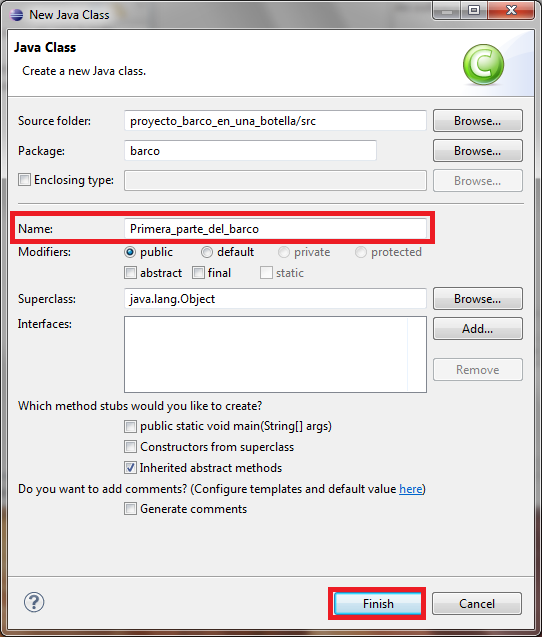
You could say that what we call a class is like a “.txt” file, a notepad or, loosely speaking, a Word document if you prefer. But a class has the “.java” extension.
If we review what we have done: we created a new folder -package- and inside the folder we created a notepad -class-. We are ready to start programming.
If we take a look at both the briefcase folder and the Eclipse desk, we will find that our class also appears inside the package on both sides.
Let’s write our first program. Roughly in the center of Eclipse, a tab with the name we gave the class will have appeared, with a blank area containing some automatically generated code.
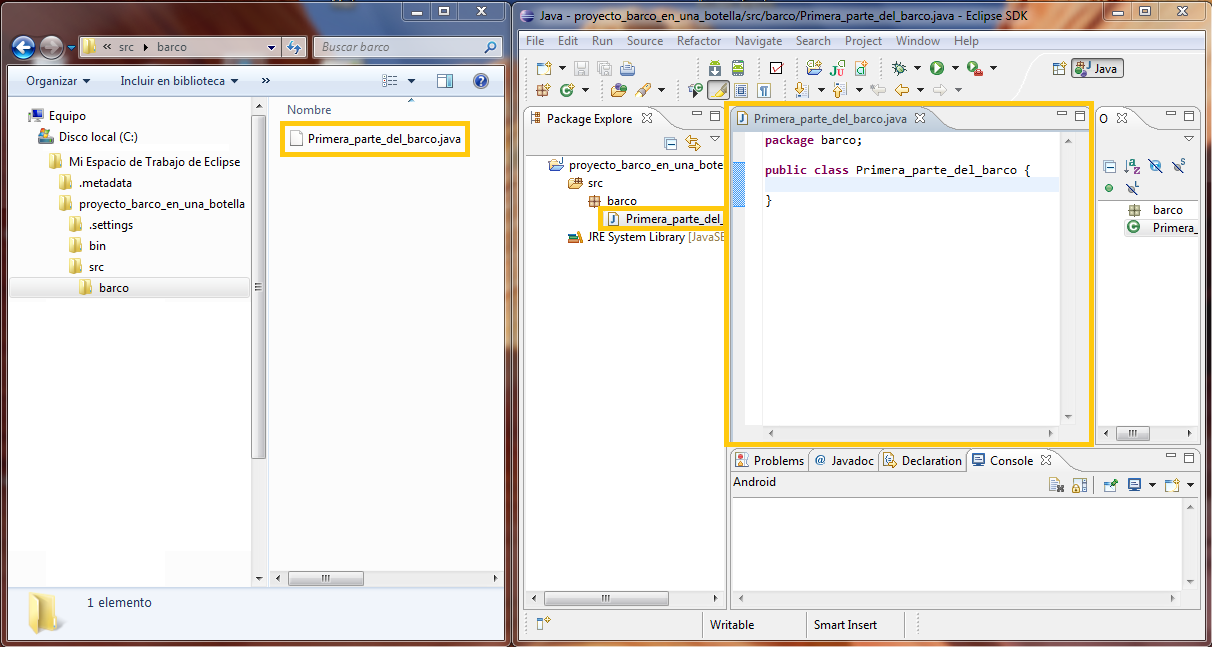
Let’s not get tangled up in this code. Although Eclipse is very smart, Java isn’t so much; it is pretty dumb and you have to repeat things to it. The first line of code is the package the open class belongs to, and the next line of code is the class itself. So, to write code in the class, we have to put it between the two curly braces “{}” that are there.

Now we are going to write our first program. In the future we will be able to put whatever we want, but what we are going to put between the two braces is the following code:
public static void main(String[] args) {
	System.out.print("Mi primer palo");
}
So everything in our class will be (the empty line breaks don’t affect the code; they are only there for readability):
package barco;

public class Primera_parte_del_barco {

	public static void main(String[] args) {
		System.out.print("Mi primer palo");
	}

}
This code tells the computer to start executing from here. The part “System.out.print("Mi primer palo");” is what we want our program to do when it runs. In this case, it displays the text “Mi primer palo” in the terminal -we will expand on this explanation later. We save our first code with the floppy disk icon.
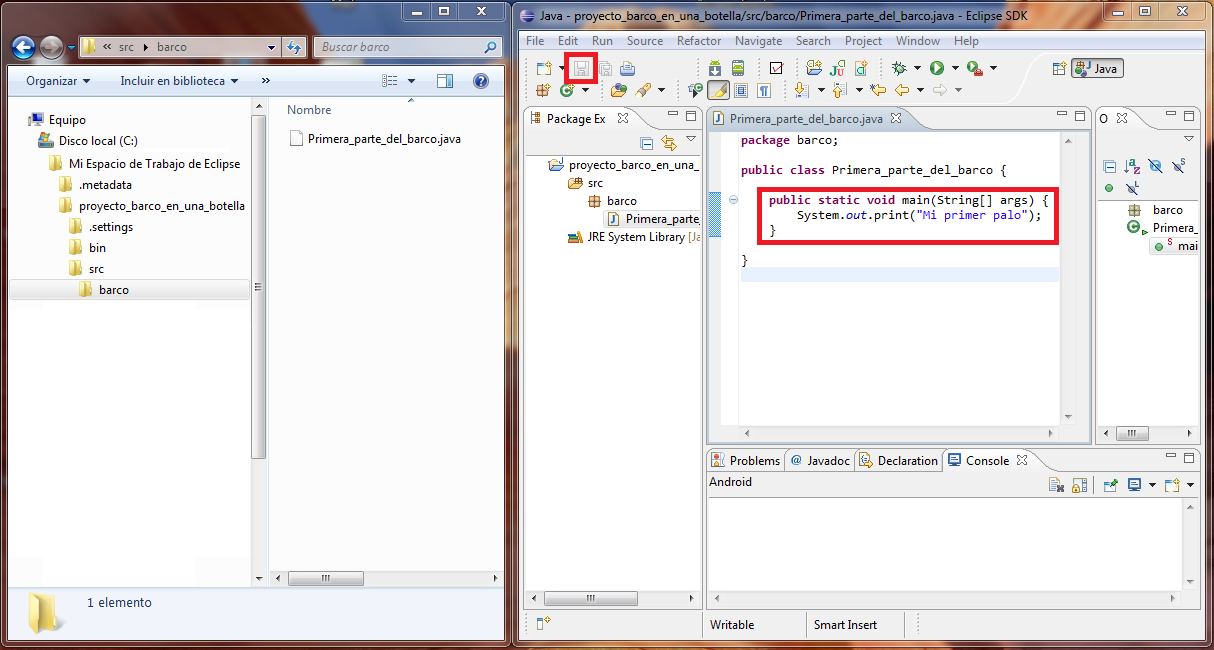
And we run it to see how it works. To do so, we click the arrow on the green circle.

As we can see in the console at the bottom of Eclipse, the text we wrote appears. If we change it, save and run again, the new text will appear.
|
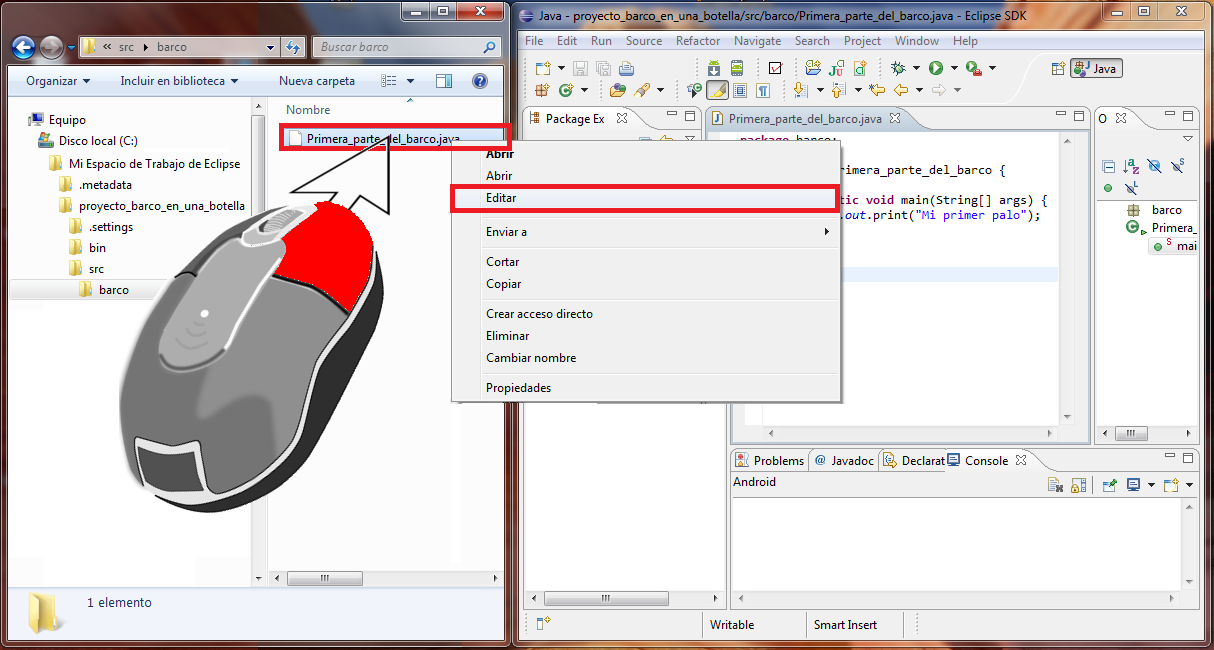
FUN FACT: If we go to our briefcase folder, inside our project, then inside the “src” folder, and so inside the package, we will reach the class we created. We right-click the file with the “.java” extension, that is, the class, and click "Edit".
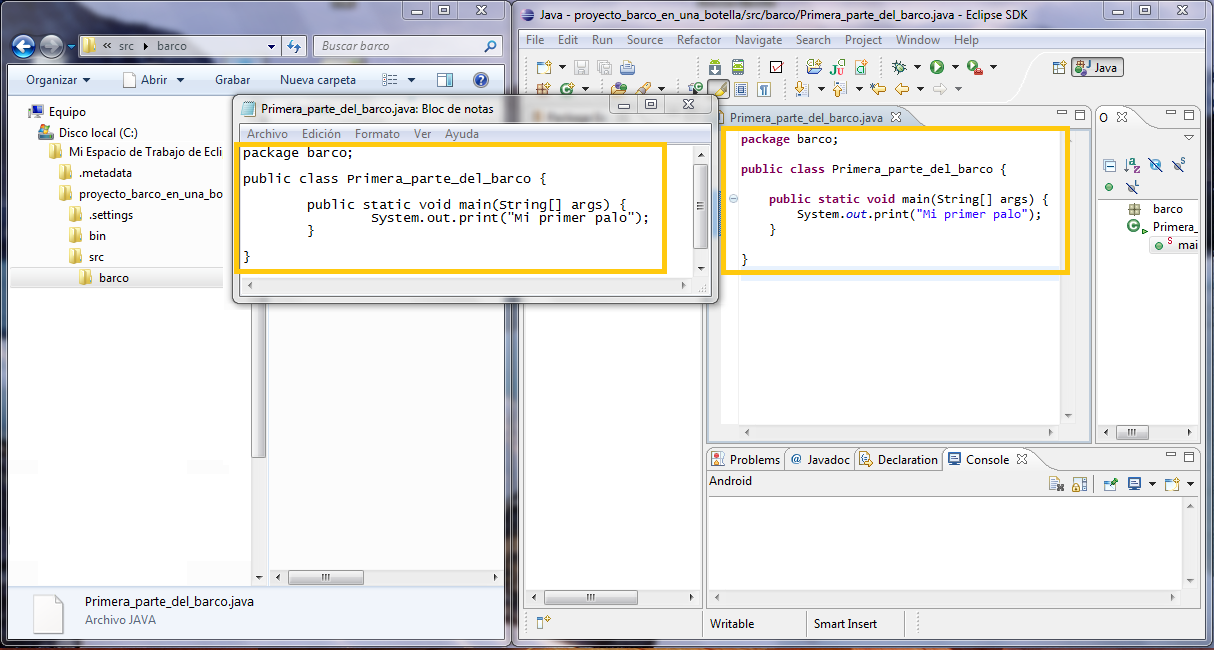
It will open in Notepad. We will see the same code we wrote in Eclipse.
Obviously, if we change something in Notepad and save it, it will change in Eclipse too. That is why a class is the same as a notepad file, except it ends in “.java” instead of “.txt”; Notepad also acts as an integrated development environment -as a desk- but with very few tools: for example, it can’t run code, and it doesn’t color your code, etc. That is why we use Eclipse: it is better. |
“Workspace for Storing the Projects We Create in Eclipse” by Ramón Invarato at jarroba.com, licensed under Creative Commons Attribution-NonCommercial-ShareAlike 3.0. Registered at Safe Creative.

You may also like


How to Install Eclipse the Right Way (One IDE Among Many)
Learn how to download and install Eclipse step by step: pick the right version, set up your workspace, install Java and the JDK, and fix common startup errors.

How to Program Web Apps and Servlets in Eclipse
Learn how to set up Tomcat in Eclipse, install the web development plugins and run a local server to program web apps and servlets step by step.
Leave a comment