
How to Program Web Apps and Servlets in Eclipse
Learn how to set up Tomcat in Eclipse, install the web development plugins and run a local server to program web apps and servlets step by step.
Eclipse on its own can’t simulate a server, but with some add-ons for the IDE we can do a ton of things.
Before we start, I recommend having Eclipse installed. If you don’t have it yet, I recommend starting with the Eclipse installation tutorial.
Also, if you haven’t followed it yet, we recommend reading the steps to install Tomcat.
The beauty of using Tomcat linked with Eclipse, besides being free, is that we can use all the power of Eclipse to work with code (if you have ever used Eclipse you’ll understand what I mean) and simulate practically everything that happens on a real server.
To start, we first need to install the necessary plugins that will make Eclipse understand web programming code, such as HTML, JSP, JavaScript, XML, etc.
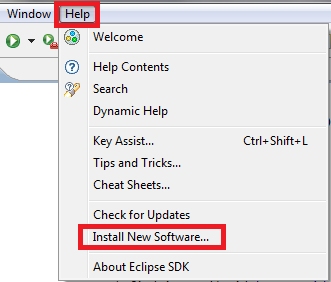
In the menu, go to “Help” and click “Install New Software”.
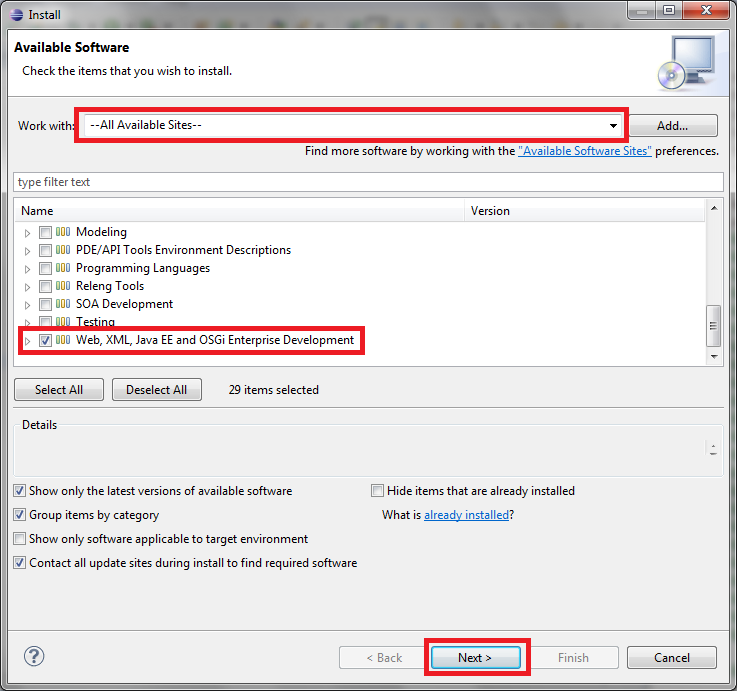
In the window that opens, next to “Work with” select the option “–All Avaible Sites–” so it loads the plugins available for download.
The plugin package we’re interested in is called “Web, XML, Java EE and OSGi Enterprise Development”. I recommend checking the whole package if we’re not sure what we want; after all, it’s free (if we know what we want, for example, just programming in HTML, we open the package and check only the options we need).
When you’re done, click “Next”.
In the next window click “Next” again, and in the third one check that we accept the terms with “I accept the terms of the license agreements” and finish with “Finish”. We wait for everything to download and that’s it.
Now let’s actually link Tomcat with Eclipse.
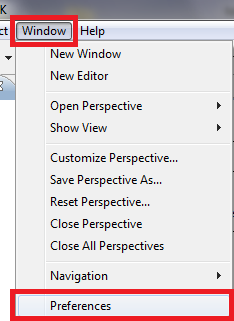
In the menu, go to “Windows” and then “Preferences”.
In the window that opens, in the left column, expand “Server” and click “Runtime Environments”. Then add a server with the “Add…” button. Another window will open, where we’ll look for the “Apache” folder, and inside this folder we’ll select the version of Tomcat we installed (in the example from the Tomcat installation tutorial we installed version 7, so we choose “Apache Tomcat v7.0”). Click “Next” to continue.

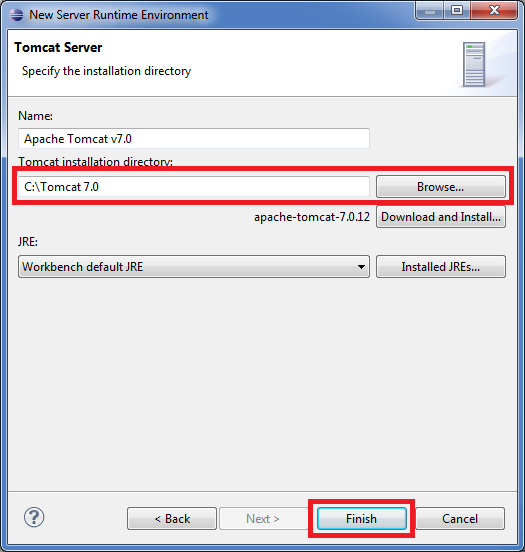
In the next step we can give the server a name if we don’t like the default one. Then, in “Tomcat installation directory”, we look for the folder where we installed Tomcat (since in the Tomcat installation example we installed it directly on the C drive, that’s where we look for it and select it). Click “Finish”.
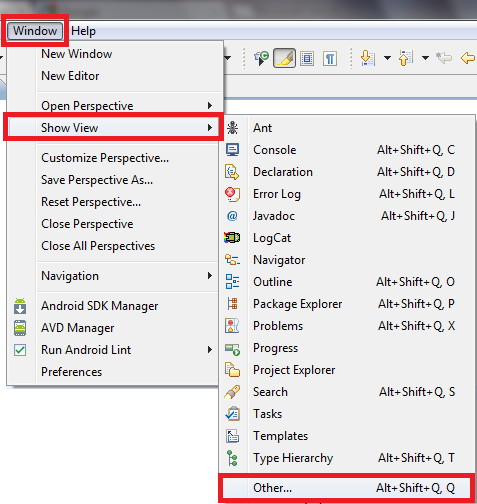
Now let’s find the servers view. To do so, go to the menu again, to “Windows”, then “Show View” and finish with “Other…”.
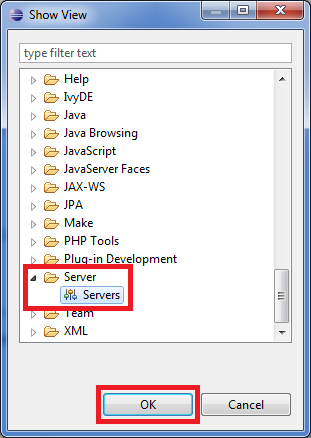
In the window that opens, look for the folder called “Server” and select the “Servers” view inside it.
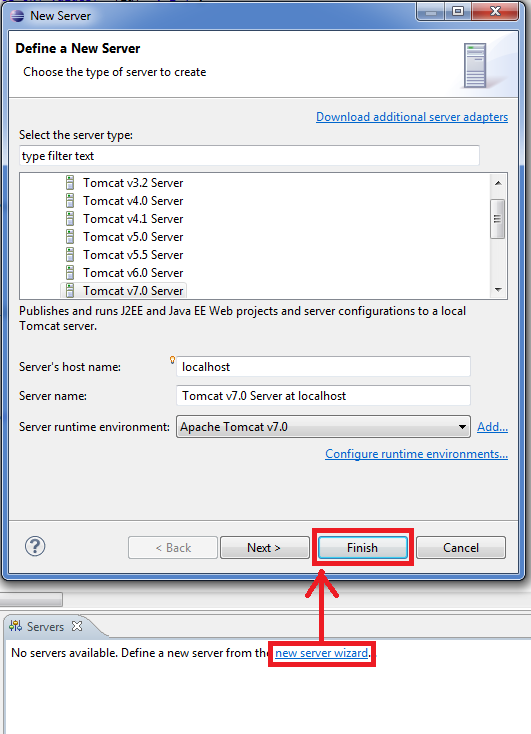
A new view will have appeared as a new tab called “Servers”. It will tell us that no server is available. This is quickly fixed by clicking the link that says “new server wizard”.
In the window, if it isn’t already selected, select the server we installed (in our case we installed “Tomcat v7.0 Sever”). Finish with “Finish”.
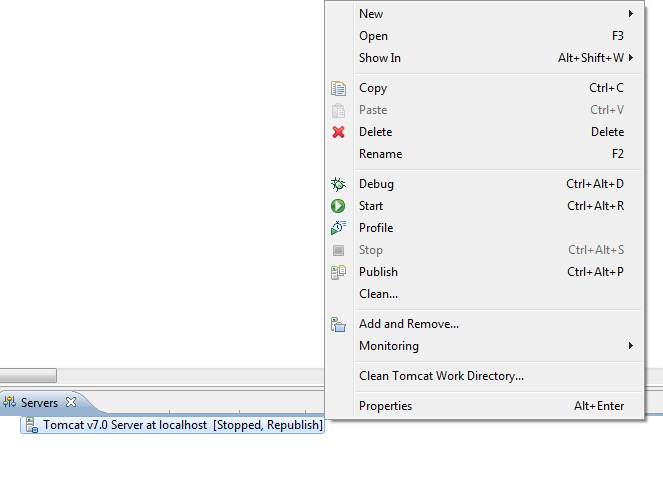
Our local server is now ready. But it’s turned off, as shown by the blue square next to the tower icon.

Just like with the one that appears next to the Windows clock, if we right-click we’ll see the different options, such as starting or stopping the server.
Everything is installed. But now we need to get the server running.
To do that, we first need to make sure there’s no other simulated server running on our computer.
If we followed the previous Tomcat installation tutorial, then we probably have one running.
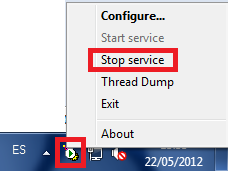
Go to the Windows clock and stop it if it’s running. Right-click the feather and choose “Stop service”.


|
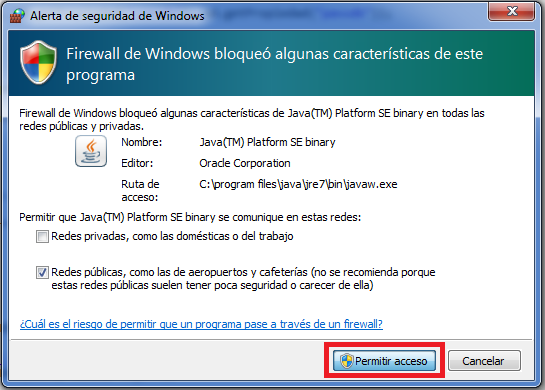
Note: The first time we start it, the firewall may block Java from running. We need to allow access if we want everything to work properly.
|
|
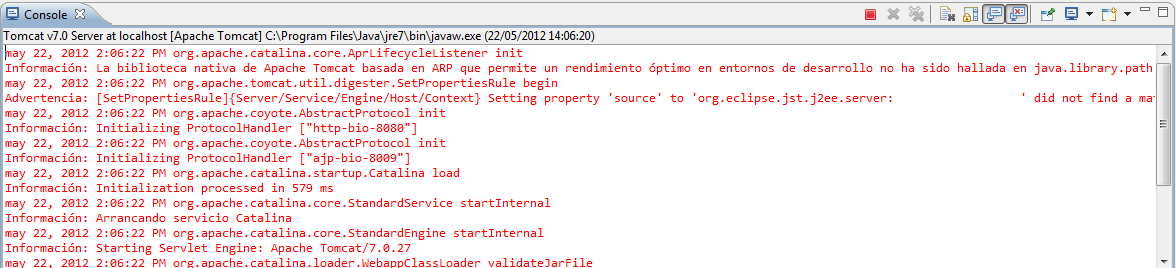
Supposed error shown in the console when starting the local server
It will give an error similar to this one: may 24, 2012 7:51:00 AM org.apache.catalina.core.AprLifecycleListener init Información: La biblioteca nativa de Apache Tomcat basada en ARP que permite un rendimiento óptimo en entornos de desarrollo no ha sido hallada en java.library.path: C:Program FilesJavajre7bin;C:WindowsSunJavabin;C:Windowssystem32;C:Windows; C:Windowssystem32;C:Windows;C:WindowsSystem32Wbem;C:WindowsSystem32WindowsPowerShellv1.0;C:apache-ant-1.8.3;C:Program FilesJavajdk1.7.0_03bin;. may 24, 2012 7:51:01 AM org.apache.tomcat.util.digester.SetPropertiesRule begin Advertencia: [SetPropertiesRule]{Server/Service/Engine/Host/Context} Setting property 'source' to 'org.eclipse.jst.j2ee.server:xxxxxxxxxxx' did not find a matching property. may 24, 2012 7:51:01 AM org.apache.coyote.AbstractProtocol init Información: Initializing ProtocolHandler [“http-bio-8080”] may 24, 2012 7:51:01 AM org.apache.coyote.AbstractProtocol init Información: Initializing ProtocolHandler [“ajp-bio-8009”] may 24, 2012 7:51:01 AM org.apache.catalina.startup.Catalina load Información: Initialization processed in 725 ms may 24, 2012 7:51:01 AM org.apache.catalina.core.StandardService startInternal Información: Arrancando servicio Catalina may 24, 2012 7:51:01 AM org.apache.catalina.core.StandardEngine startInternal Información: Starting Servlet Engine: Apache Tomcat/7.0.27 may 24, 2012 7:51:01 AM org.apache.catalina.loader.WebappClassLoader validateJarFile Información: validateJarFile(C:Proyectos Eclipse.metadata.pluginsorg.eclipse.wst.server.coretmp0wtpwebappsxxxxxxxxxxxxxxWEB-INFlibjbosgi-http-api-1.0.5.jar) – jar not loaded. See Servlet Spec 2.3, section 9.7.2. Offending class: javax/servlet/Servlet.class may 24, 2012 7:51:01 AM org.apache.coyote.AbstractProtocol start Información: Starting ProtocolHandler [“http-bio-8080”] may 24, 2012 7:51:01 AM org.apache.coyote.AbstractProtocol start Información: Starting ProtocolHandler [“ajp-bio-8009”] may 24, 2012 7:51:01 AM org.apache.catalina.startup.Catalina start Información: Server startup in 587 ms
This is normal; they’re startup warnings even though they show up in red. They don’t affect normal use of the program.
|
“How to Program Web Apps and Servlets in Eclipse” by Ramón Invarato at jarroba.com, licensed under Creative Commons Attribution-NonCommercial-ShareAlike 3.0. Registered at Safe Creative.

You may also like


How to Set Up Eclipse for PHP Programming (VIDEO)
Learn how to set up the Eclipse IDE for PHP development with a local XAMPP server. Follow our video tutorial and try the example PHP code step by step.

Installing a Local Servlet Container: Tomcat
Learn how to install Apache Tomcat on Windows step by step, run it as administrator and check that your local Servlet container works.
How to Install Eclipse the Right Way (One IDE Among Many)
Learn how to download and install Eclipse step by step: pick the right version, set up your workspace, install Java and the JDK, and fix common startup errors.

Maven in Eclipse
Learn how to get started with Maven in Eclipse and use it. Step-by-step installation and usage. Everything you need to know about Maven.
Leave a comment