
Hash Tables (or Hash Maps): How They Work
Hash Table explained simply. What is a Hash Table and how does it work without writing code? A key type of "data structure" every developer should know.

How do “Hash Tables” work (in some programming structures they are also called a “Data Dictionary“)? Here at Jarroba.com we’re going to reveal the secret (I could say the “best-kept secret”, but no, it’s public knowledge, so it’s not exactly well kept 😉 ) in a simple and snappy way, without code: how a Hash Table works (and it can be applied to code very easily; at the end I’ll give a few examples for those interested in the practical side).
Have you never wondered how an online search engine (Google, Bing, Yahoo, etc.) searches so fast? Or how the search tool of an operating system (Windows, Linux, iOS, Android, etc.) finds any file so quickly when we type a word? Or even how the newest personal assistants (Cortana, Google Now, Siri, Sherpa, etc.) find information so fast?
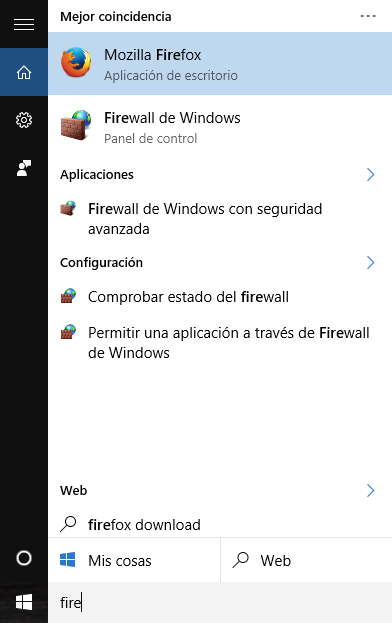
I don’t know if you’ve noticed that sometimes “indexing” shows up in the operating system’s search (it usually appears right after we format a computer, or when many new files have been added), and at that moment the search becomes very slow; but when it doesn’t say “indexing”, searching for anything on our computer is instant.
This is because that “indexing” creates the “Hash tables” and fills them with the information about the files on the computer, as we’ll see below. “Indexing” is usually quite complex, as complex as its creator wanted to make it (it won’t be the same the way Google does it, Microsoft, Apple, and others); it could be complemented with other data structures such as trees (some are B, B+ or B* trees), use the cloud to get pre-computed data, etc.
Note
Note about the brands mentioned above:
First, the examples above are just the ones that popped into my head; I neither recommend nor discourage any brand or product, and none of them sponsors us. Second, any of the products mentioned, like Google search or Windows, will obviously use extra algorithms; and since they use private or secret algorithms, we can’t know for sure whether they use “Hash tables” exactly as they are or some variant of them, but we assume so for the example because it’s quite likely.
Let’s see how Hash tables work with an almost real example. Suppose we have the following Hash function: “count the number of letters in a word”
Note
Note about the level of this article:
If you want to dig deeper into Hash, I recommend you take a look at the article about Hash codes, where we explain it in full detail and in an easy read. Also, this “Hash Tables” article might require some basic notions about Hash codes before you continue (I say “might require” because I think you can understand a good part of it without fully understanding Hash, but you won’t get the most out of it if you don’t know what Hash codes are and how they work from a broader view; that is, if this article sounds like Greek to you, read the article about Hash codes first to understand everything; it will only take a few minutes and then you’ll be back here).
Note
Note about the Hash function in the example:
As we’ve seen, there are more complex Hash functions; the one I use for this example is very simple and causes many collisions; I could have chosen something more complex like assigning a number to each letter of the alphabet and using the sum as the Hash code, or directly using Hash functions like MD5 or SHA2. But for the example and the images, it would look awful and be hard to understand at a glance.
Tool
Free hash generator
“Hash Tables” are a type of “Data structure”. It’s a “data structure” because it’s used to organize data and to access, search, sort or modify it in a much more efficient way than any other approach. Let’s see an example step by step.
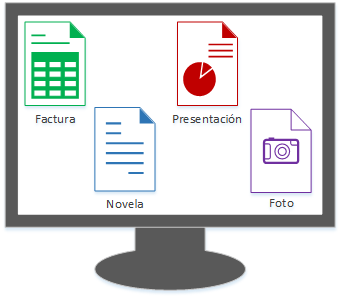
Our computer has several files with a name that we want to search for quickly (on a computer you also search by internal metadata, date, type, etc.; I won’t complicate it here, only by name, but you can extrapolate it to something more complex). These files are named:
- Foto
- Presentación
- Novela
- Factura
Each of these files resides in the computer’s memory (on the hard drive, whether a platter hard drive or an SSD; or it may even be in RAM or other types of memory like the cache). In the image I’ll represent the memory as RAM (because it’s more direct to understand than a circle that could be a platter, and because it resembles how an SSD stores data; either way, the idea is the same), although it could be a hard drive; a memory divided into 64 memory addresses.
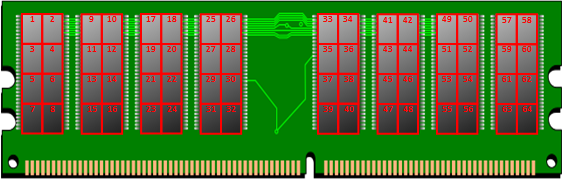
As a curiosity, each memory address is usually 32 bits (it depends on what the manufacturer wants and what the operating system supports, otherwise it doesn’t work). In the example in the image we won’t use the size of each memory address, but know that it’s always there, whatever the size. For example, let’s suppose the files above take up:
- Foto: 6 memory addresses
- Presentación: 4 memory addresses
- Novela: 2 memory addresses
- Factura: 4 memory addresses
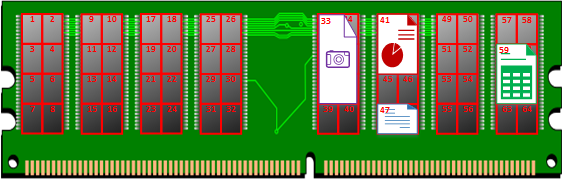
Obviously, in reality a file will tend to take up hundreds of memory addresses. Can you imagine how much a high-definition movie would take? Also, the last address of a file won’t use all its bits exactly (whatever is left over gets filled, possibly with “0s”, depending on the memory’s policy), and the counts could also be odd (in the image it’s more visual with the file painted on top, but remember that what the memory stores are zeros and ones; the memory doesn’t care whether it’s an invoice or a novel, it just stores and returns what was stored, whatever it is). A file starts at its first position, so we’ve placed:
- Foto: at address 33
- Presentación: at address 41
- Novela: at address 47
- Factura: at address 59
When a new memory of any type is installed in a computer, the operating system has to reserve memory space for each of the needs. So, for this example, our “simulated operating system” will reserve half of the memory for the “Hash Table” (from memory address 1 to 32, both included), and the other half for the files (from memory address 33 to 64, both inclusive); as you can imagine, on a real computer the files consume most of the memory, and the Hash tables very little in comparison (remember that this article explains a simple example; in reality everything is done at large scale and automatically, millions of times per second and across millions of memory addresses; it’s up to your mind to extrapolate what you’ve learned to reality 😉 ). Also, the hash table doesn’t have to be at the beginning of the memory addresses; it’s enough that the operating system knows where it starts and where it ends, and of course the operating system also takes care of managing it (updating it when necessary).
Note
Aside
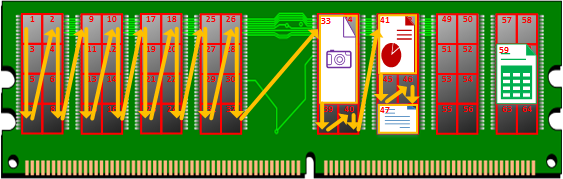
At this point I’ll make an aside, as a comparison for optimization. If we wanted to search for a file, for example “Novela”, using the traditional search, and supposing it takes 1 second to access each memory address, how long would it take?
Well, if we start at memory address “1”, it would take 32 seconds to reach the first file at memory address “33”; reading that file would take 6 seconds (its whole size in memory) just to ask for its name, which is “Fotos”, so it’s not the one we want. Knowing where the file ends, we continue searching from address “39”. 2 more seconds to address “41”, where we find another file that adds 4 seconds of access to ask for its name, and it’s “Presentación”, so we still haven’t found it. The search continues another 2 seconds to the next file at memory address “47”, 2 seconds to read it, and on seeing that it’s called “Novela” we would have found it. Total time spent: 32 + 6 + 2 + 4 + 2 + 2 = 48 seconds, which is a lot of unnecessary wasted time (a computer takes milliseconds to access a memory location, but remember that today it’s not unusual to see Terabytes on home computers; so a search like this could take hours, it’s not optimal at all and any user would lose their patience). Also, keep in mind that in the previous search, the worst case, where no file with that name exists in memory, is searching all the way to the end of memory, with the resulting waste of time for nothing.
Look at the waste of resources and time in the following image to find the file:
The solution? Hash Tables
How long does the Hash table search take in this example? 1 second to access the memory location holding the pointer to the memory address that contains the file we want, plus the time spent reading the file, which in the example was 2 seconds; so the total time would be 1 + 2 = 3 seconds, and we’ve saved a ton of seconds. Also, this will always be the time it takes to return the file we’re looking for, regardless of the memory position where the file is. And what if there’s no file with the name we’re looking for? Then the Hash Table memory position will be empty, so it will spend 1 second, since there’s nothing to point to
As you can see, the advantage of Hash tables is more than notable. Not only are searches immediate, but reading less from memory also extends the life of the hardware. We’ve optimized.
Apply the letter-counting Hash code:
- Foto: 4 letters
- Presentación: 12 letters
- Novela: 6 letters
- Factura: 7 letters
Performing the action we’re about to explain is what is usually called “Indexing” in operating systems. At each memory address matching the number of the Hash code above, we store the memory address where the file is located:
- Foto: at memory address 4 we store the number 33 (it points to memory address 33)
- Presentación: at memory address 12 we store the number 41 (it points to memory address 41)
- Novela: at memory address 6 we store the number 47 (it points to memory address 47)
- Factura: at memory address 7 we store the number 59 (it points to memory address 59)
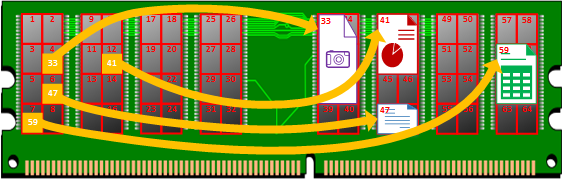
And now we have our “Hash Table”. This way, searching for anything will be immediate.
Comparing with the earlier examples of operating system search tools, up to this point we’ve done the “indexing”, which shows up on two occasions:
- When the “Hash Table” is created: this normally happens the first time the indexing system exists in a file system (for example, when the operating system is first installed; or when we install a program that has to index files, such as a music player or a photo viewer). So the indexing system will go file by file through all the memory units, creating a map (the “Hash Table”) of pointers to these files
- When the “Hash Table” is updated: once the “Hash Table” already exists, this happens when a file is created, modified, moved to another memory position, or deleted (since the pointer may no longer be valid and may need to point to another memory address, or to nothing if it has been deleted).
The “Hash Table” has to be precomputed before any search. I suppose you’ve noticed that the first time you buy or format a computer, whatever operating system it has, and turn it on, you can’t yet do instant searches; but after a while (a few hours) you normally can, because everything is already precomputed. If the “Hash Table” isn’t precomputed, or is still incomplete (parts of the memory are yet to be calculated), then the operating system has no choice but to go file by file searching the slow way we discussed in the “Aside” box above (and most likely it takes advantage of this slow search to do the calculations).
Now, an example of searching the stored data step by step:
- A user searches their computer for “Novela” (the search tool they use is the one we’ve been talking about, the computer’s operating system one, for example).
- The operating system calculates the Hash code of the word “Novela”, which is “6”
- So the operating system looks at “memory address 6” to see which memory address it points to, and it’s “memory address 47”
- The operating system now knows that the file being searched for is at that memory address, gets it, and returns it to the user.
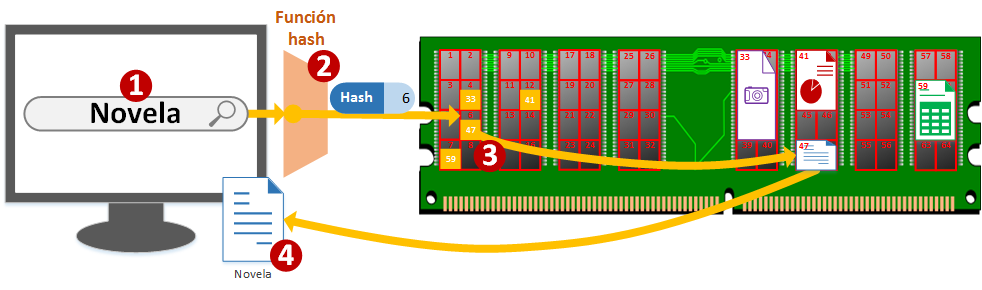
For the user the search was instantaneous, and for the computer the resource consumption was minimal.
Hash table representation
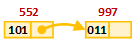
I drew it here so that it would be very easy to understand in context how a “Hash Table” works in memory. What you’ll normally see, now that you understand the above, is memory represented as a column of many rows. Then, the memory addresses are pointed to with an arrow; each memory address is usually divided into boxes that each represent one of the values, normally stored data (the files chopped up across memory addresses) and pointers to other memory addresses (memory addresses that point to others so the whole file can be rebuilt by joining all its pieces). An example: the following two memory addresses “552” and “997” (in the later images I represent the decimal numbers in red, or the texts too; but watch out, they will always be binary), where each address (in its 32 bits of consecutive “1s” and “0s”) we’ve found it handy to divide into two values:
- The left one stores data (pieces of images, videos, text documents, etc.)
- And the right part, which is used to point to the next memory address if there is one to point to (if it’s a video chopped into many memory addresses, each piece will point to the next until the whole video file is complete; here I represent the data as 3 random bits like “101” or “011”). If there is no memory address to point to, it’s said to be “null” (“null” is NOT text, it’s a character like any other such as the letters “A”, “B”, “C”, etc.; but it’s a so-called “non-printable” character, since the user won’t see it, like the “page break”, “tab” or “blank space” characters; they are characters that you can’t see but they exist. If we have several people in a queue and each person is pointing a finger at the one in front of them, the one at the head of the queue has no one to point to, but has a finger that has to point at something, and that something will be “nobody”; that person pointing at “nobody”, we say they point to “null”)

This is because it’s easier to draw with a pencil on paper than the previous images you’ve seen. Its representation can be made even simpler: the pointers aren’t even written, they are represented with an arrow, and many times it isn’t even necessary to write the memory address (here I keep the memory address numbers right above, so I can build a simple example in the following paragraphs):
Now that we understand this summary of memory representation, we can represent the previous “Hash Table” (to make it more visual I’ve grouped the sets of memory addresses that make up each file; the rest is the same as the previous memory representation, but swapping the grid for a column, and only representing the Hash table in the column; it doesn’t matter where the other memory addresses are as long as they’re pointed to correctly, I’ve put them on top so you can have a view alongside the earlier RAM drawing):

By the way, this is why Hash tables are called “data dictionaries“. Because they work in a similar way to a paper dictionary. The memory address that points is the “dictionary word” and the memory address that is pointed to is the “definition of the dictionary word” (You’ll see it more clearly in the programming examples below).
As could not be otherwise, we don’t escape collisions (when at least two messages result in the same Hash code; more information in the article about Hash codes). In this case, the collision of two Hash codes is called “synonyms” (as we saw in the previous paragraph, the term was copied straight from the language “dictionaries” we’ve always known). For example, with the earlier Hash function of counting the number of letters, we know that “Factura” has the Hash code “7”; now if we create another document called “Escrito”, we find that its Hash code is also “7”, a full-blown collision. Which one do we store at memory address “7”? Well, both.
To handle collisions (to understand it in a very simple way I recommend you look at the drawing below along with the explanation in this paragraph), what we do is link pointers to files that are synonyms; that is, we’ll have three values to store at each memory address: the title, the memory address where the file is, and, as an extra, the memory address of the next one (the next one will have these same values, and so on for each collision). So, if we first have “Factura”, we’ll store:
- A first pointer to the file “Factura” at memory address “7” (memory reserved for the initial hash table); which, as we saw in the previous example, points to memory address “59” (where the file “Factura” is stored); now we’ll also store a second pointer that points to memory address “65”
- A second pointer at memory address “65” (as you can see, this memory address is new memory space reserved for the hash table, it may or may not be contiguous, depending on the memory management policy), which points to memory address “51” (where the file “Escrito” is stored; for this example it takes up from memory address 51 to 56)
- If we had a third, fourth, fifth, etc. file whose Hash was “7”, we would keep chaining them with the same logic
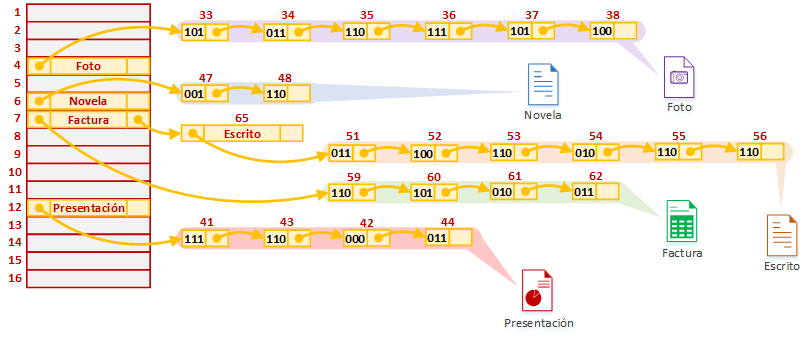 Searching will be similar to how it was done before. But now, when we locate the memory address with the list of synonym keys, we go one by one through the list of synonym keys, comparing against the title we stored earlier until we find the file we want. So, in the example, if we search for the new file “Escrito”, the Hash function takes us to memory position “7”, and we start with the first element of the list. Is it “Escrito”? As we can see in the image, it’s “Factura”, so it isn’t, and we move on to the next one at memory position “65”. Is it “Escrito”? In this case it is, so we’ve found it and can go to the memory address that contains the file, “51”.
Performance could be improved even further when handling collisions, for example by sorting each list of synonym keys with some algorithm, like “Quicksort” (more information about the “Quicksort” algorithm at Quicksort (Wikipedia)), to speed up the search afterwards; or by using some search algorithm so we don’t have to go one by one through the list of synonym keys (remember that Hash tables are already a search algorithm in themselves; nevertheless, if well studied, one algorithm can be used to speed up another; or even the same algorithm can be used inside itself).
If you’re curious about the many things Hash codes do for us, don’t miss the article about Hash codes by clicking here.
Examples of using “Hash Tables” in programming
Java
For this example I’m going to use “HashMap” because it’s more widely used and more interesting for many things; for the developer it works the same as “HashTable” (Java includes both “HashMap” and “HashTable”, among other variants. Some differences are that “HashTable” is thread-safe, meaning it can be synchronized across several threads at once; that it’s slower than “HashMap” in a single thread; that “HashMap” allows the “null” value; among others). Either way, both use the idea of “Hash Tables” explained above (that’s why they’re called “HashSomething”).
In this article I’ll explain what’s needed to understand “HashMap”. You’ll find much more information about “HashMap” in the dedicated article at https://jarroba.com/map-en-java-con-ejemplos/
Let’s suppose we want to store the parts of a tree and their definition. The name of the tree part is the “key” we want to search for, and the description is the “value”. We’ll create a “HashMap” made up of a string for the name of the tree part and another for its definition (“<String, String>”, the first being for the key and the second for the value; we could use anything as a key or as a value, like an integer, a boolean, an object, etc.). With the “put()” method we’ll insert each name of each tree part and its definition (I got the information about trees from Árbol (Wikipedia)). And with that, our “Hash Table” is created.
Map tablaHash = new HashMap<string, string>();

tablaHash.put("Raíz","Las raíces fijan el árbol al suelo. Las raíces pueden tener un...");
tablaHash.put("Tronco","El tronco sostiene la copa. Su capa exterior se llama corteza...");
tablaHash.put("Ramas","Las ramas suelen brotar a cierta altura del suelo...");
tablaHash.put("Hojas","A través de las hojas el árbol realiza la fotosíntesis y puede por lo tanto alimentarse...");
If we want to instantly look up the definition of any word like “Ramas”, we would simply use “get()” (“get()” returns an object; we convert it to what we’re interested in, which is a string, by putting “(String)” in front) and we’d have it.
String descripcionBuscada = (String) tablaHash.get("Ramas");
It’s that easy 😉
Bibliography
- “Hash Tables” slides. By Jenifer Pérez Benedi, for the UPM
- The author’s own experience for this article


Leave a comment