
How to Protect Our Wi-Fi Wireless Network
Learn why a Wi-Fi network is vulnerable, how data can be intercepted, and how to protect it with encryption keys, router settings and MAC address filtering.
First of all, let’s make clear that here we are going to talk about security in Wi-Fi networks: we will explain how to protect yourself and what the problem is. There are other attacks, such as infecting the computer with a virus or intercepting data on the Internet itself. Those attacks can be similar to the ones discussed here, but not the same, and we will cover them in other articles on www.jarroba.com. Here we only focus on the connection between Wi-Fi receivers and transmitters.
To begin with, we will understand why a direct cable connection hardly compromises security without applying any kind of protection, while a wireless connection compromises it to a great extent if we have no security at all.
Direct cable connection
Let’s suppose the following: we have a neighbor who wants to connect to our Internet. Since the ADSL router is connected by cable to our computer -it has no Wi-Fi or it is turned off- this is the most reliable way to make sure he doesn’t steal our Internet. There is one way the neighbor could connect to our Internet: if he comes into our home and splices the cables -this is too much for someone who wants to use somebody else’s Internet without being seen.
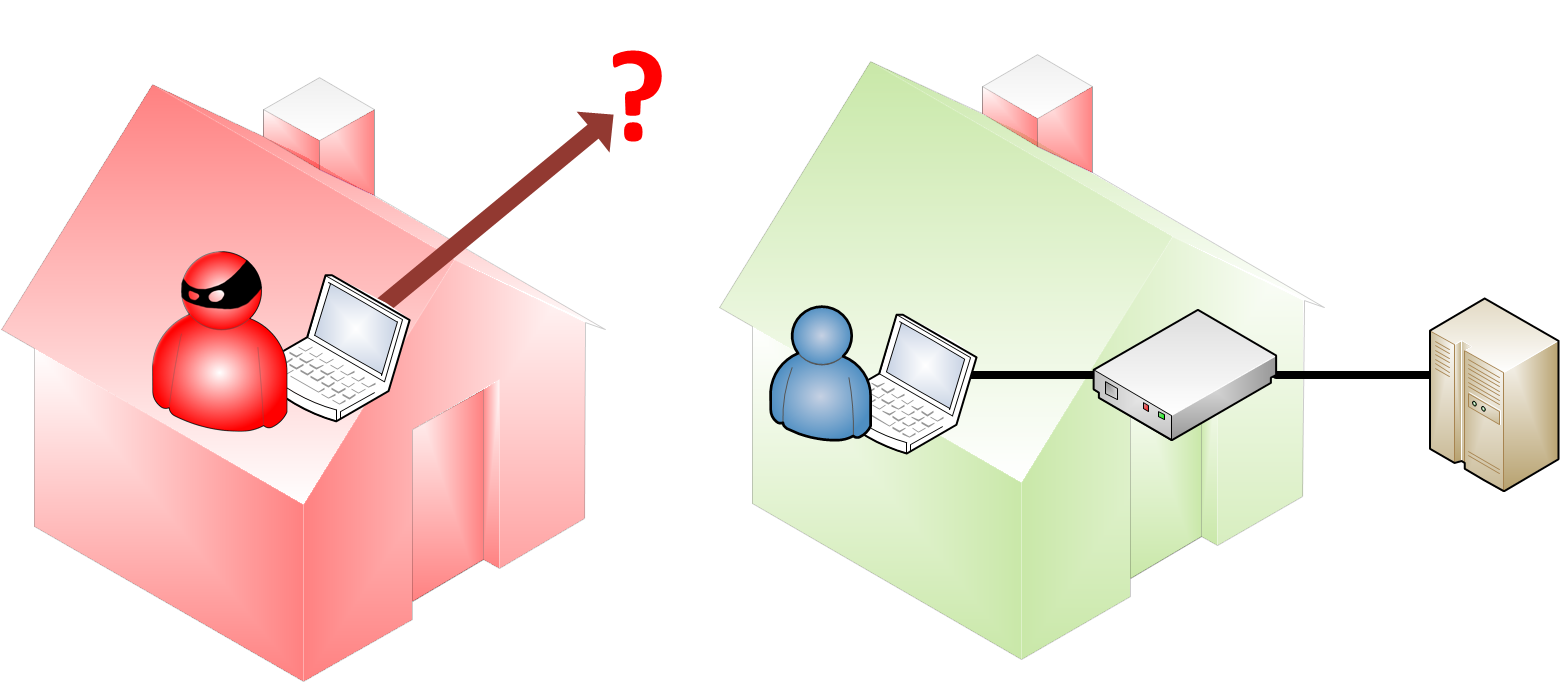
Connecting the computer with an Ethernet cable directly to the ADSL router is so secure that it is almost impossible to break into (there is always an “almost”; in this case, splicing cables inside our own home, which is pretty complicated, right?). There is no way to protect this type of connection, because it is so extremely secure that it isn’t needed.
You could say that a direct cable connection is 100% secure, so there is no need to adopt extra protection measures.
Wi-Fi connection
Now, let’s suppose we have a Wi-Fi ADSL router (we know it is Wi-Fi because it says so somewhere on the casing; some models have external antennas, or there is a wave symbol with an LED indicating that the Wi-Fi is working). This is very convenient because we can move our device (laptop, tablet, smartphone, etc.) anywhere in our home and still have Internet without needing cables.
In the following example we represent the Wi-Fi range with a purple circle. Wherever we go with our laptop, phone, etc., inside that circle it will have Internet.
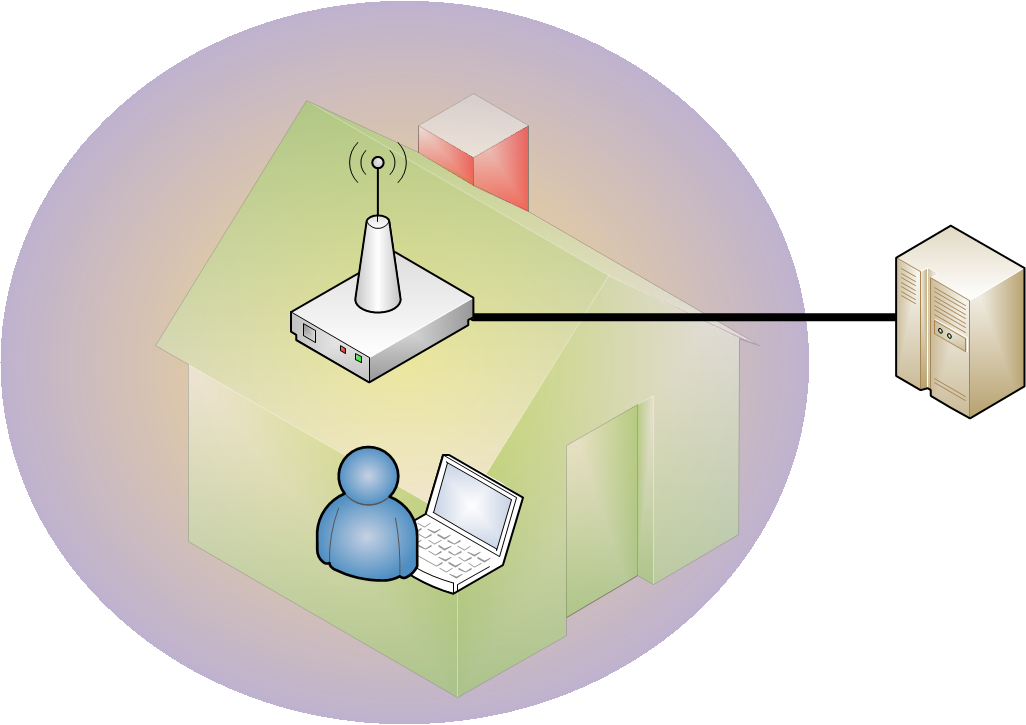
The problem comes when a Wi-Fi ADSL router has too wide a radius. Some are configured to have a range of just a few meters; others, however, are set to the maximum range, which is normally 100 meters (we tend to think the range of the Wi-Fi ADSL router is horizontal, but what about the neighbors who live above or below us? How far are they from our Wi-Fi ADSL router? At most 3 meters away, so the signal easily reaches them). Such a range reaches other homes besides ours, especially if we live in an apartment building.
A neighbor or someone walking down the street who wants free Internet will have the chance to get it. But only if our Wi-Fi ADSL router is not properly configured, and therefore not protected.

As you have probably figured out, a Wi-Fi wireless connection is not 100% secure. Its security depends on the measures we take.
Why is it dangerous?
As we saw in the article where we explained how Wi-Fi works, and using the same example: for us to send an email to someone, it first has to leave our laptop and travel to the Wi-Fi ADSL router.
The danger here is that any data we send or receive over Wi-Fi could be captured by someone we don’t want, and that person could read our private email.
In the following image, our friend’s reply email reaches our Wi-Fi ADSL router from the Internet. Due to the way the Wi-Fi ADSL router works, it is sent in all directions. Everyone connected to the network could read its content (A note for those who know the subject and are telling themselves that nothing would happen if the email were encrypted; everyone else is better off skipping this parenthesis. This is an example of data capture; even if the content is encrypted, it can still be read, even though the content is a bunch of meaningless characters because of the encryption. If you have the email you can try to decrypt it; if you don’t, you can’t even try).
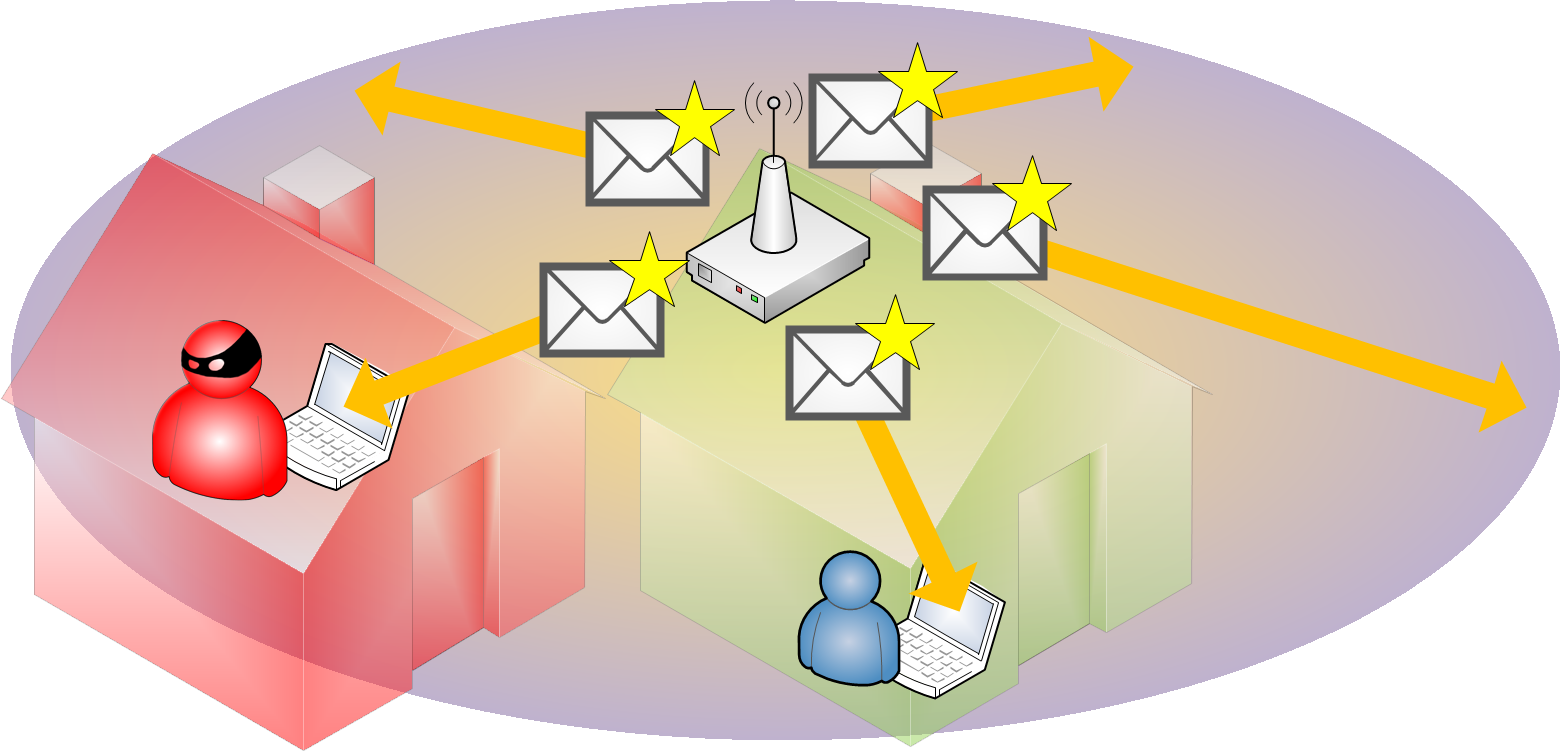
Let’s imagine for a moment that our friend’s reply email is intercepted by a nosy neighbor with dubious intentions. You might tell yourself: “the data protection law protects me, and if I find out someone is reading my private emails I’ll report them.” Now here’s the problem with that claim: there is no way to know whether it has actually reached someone who is reading it (unless the nosy neighbor is an idiot and tells you one day on the street, to your face, that he’s reading your mail because he feels like it, which is presumably impossible, right?).
This data capture can happen both with the transmission from the Wi-Fi ADSL router and with the one from the laptop or another Wi-Fi device. In the example, the neighbor capturing the data could also have captured the email we sent to our friend (as long as the laptop’s coverage reached him, since it is going from the computer to the Wi-Fi ADSL router), so he could have our whole conversation. And not just the email conversation, but everything we do on the Internet through our Wi-Fi.
Now that you’ve seen the danger, you surely have the following question.
How do I protect my Wi-Fi wireless network?
Here we are first going to explain how each form of protection works. At the end of each explanation there is a link on how to carry out that protection.
Each protection we apply will be one more step in the protection. Let’s remember that nothing, not even the cable, is truly 100% protected; there are always ways to break security. But the more protections, the harder it will be -think of banks: the more police officers and safes with thicker walls, the harder it is to break the security, but, and there is always a but, it could still be broken.
Change some of the factory settings of the Wi-Fi ADSL router
It is always important to change the name of the Wi-Fi ADSL router. So are the username and password used to access it (don’t confuse the password to access the Wi-Fi ADSL router with the Wi-Fi encryption password that we will see in the next section).
Someone outside who connects to our network will have easy access to the device that gives us Internet, and therefore be able to learn a lot and even knock out our Internet.
There are programs that, if you give them the default name of the Wi-Fi ADSL router, can work out the Wi-Fi encryption keys instantly (the relationship between the name and the encryption key is the algorithm manufacturers use when generating both; that’s why it is important to change the name).
Another problem is the default usernames and passwords. They are usually very easy to find out, because the factory password rarely differs from “0000” and the username from “admin”. By searching the Internet it is easy to find both the default password and the default username of the Wi-Fi ADSL router. They come that way so that you change them as soon as you get the Wi-Fi ADSL router.
Wi-Fi encryption password
Protecting our Wi-Fi network is nothing more than encrypting the content of the data that is transmitted. Encrypting is, for example, shuffling the order of all the characters in a message so that nobody who doesn’t know how to put the characters back in the right order can understand it. The secret key tells us how to put the characters in the correct position (we will talk about this in a future article). To do this, we use a key that we design ourselves, and we enter it in every device that will communicate -for example, the Wi-Fi ADSL router and the laptop.
As we can see in the following image, we represent the key with a key icon that we place everywhere we want devices to understand each other.

Let’s continue with the previous example, on the receiving end of our friend’s email. Our friend’s email arrives, as we saw, following the path from our friend’s computer to the Internet, and then from the Internet to our Internet provider. Our provider will send the email to our Wi-Fi ADSL router, and it will encrypt it, creating a set of seemingly random characters (in the image we represent the encryption with the purple email with a padlock). Watch out: whoever reads this encrypted data won’t even know whether it is an email or something else; they won’t know anything without the correct key.
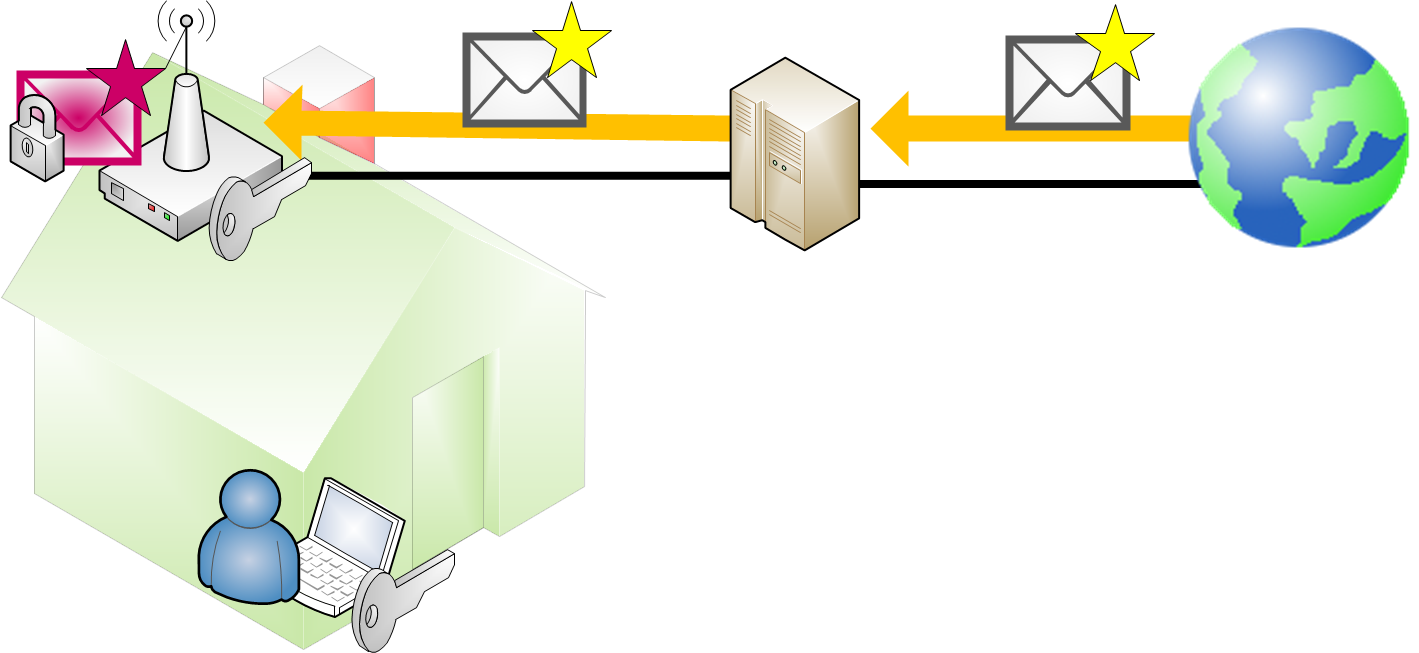
And, as usual in a Wi-Fi network, the Wi-Fi ADSL router will send the email in all directions. But careful! Our nosy neighbor wants to capture an email.
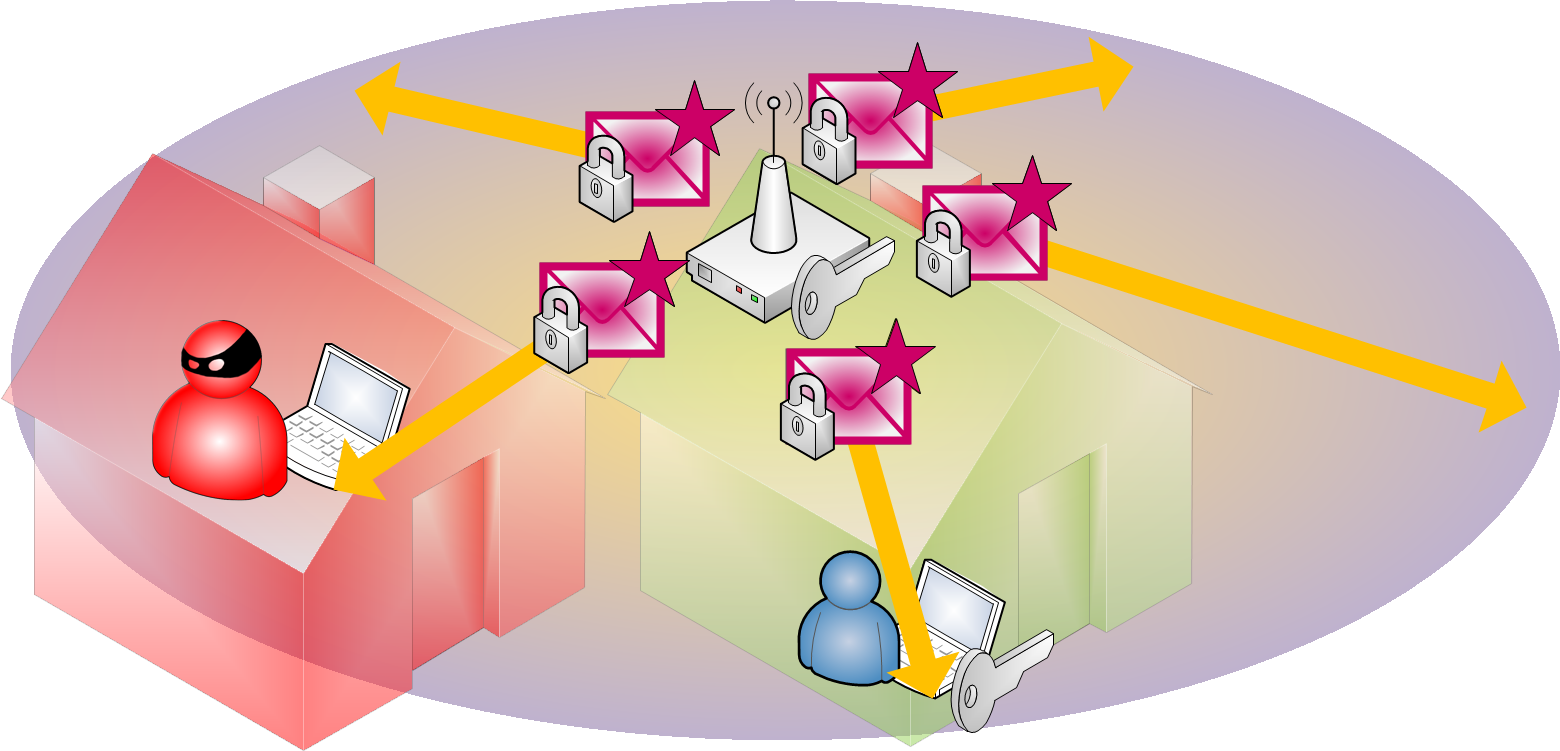
Luckily, since it is encrypted, all our nosy neighbor has on his computer is a pile of meaningless data that is useless to him. Our computer, however, with the key, has instantly decrypted that meaningless data and turned it into the original message our friend sent. We can read it on our computer! (Note: a piece of data can be encrypted multiple times. In the case of the example, and as indicated in the previous note, the email itself could be encrypted from our friend’s computer; then the Wi-Fi ADSL router encrypts it again and sends it, and when it reaches our computer it will decrypt both layers so we can read it. We will talk about this in more depth in other articles).

With this, we manage to transmit data securely between a Wi-Fi access point and a Wi-Fi device (this works in both directions, from the Wi-Fi ADSL router to the laptop, and vice versa). It is almost as if we had a cable connected between our Wi-Fi ADSL router and our computer, since nobody can see the content of the data being sent.
We used the example of an email that is sent and received over Wi-Fi. This email represents all the data traveling between the Wi-Fi ADSL router and our laptop, so it could be a video, an image, etc. If you haven’t figured it out already, it means that only devices that have the correct key will have Internet through this Wi-Fi network. Therefore, to connect to our LAN they will need the key we have set; otherwise they won’t be able to connect to our network.
Protection by MAC address filtering
No, it’s not that the Apple computer has so much protection to spare that it can even protect our Wi-Fi wireless network.
Besides being the name of a computer brand, MAC is the acronym for Media Access Control. And this MAC is an address, hence the name “MAC address”. We can also find it under the name “physical address”.
As an address, just like your home address, it is unique. An example of a MAC address is “12:34:56:78:90:ab”, which is 6 groups of two hexadecimal digits (in case we don’t remember, a hexadecimal digit can be any of the following: 0,1,2,3,4,5,6,7,8,9,A,B,C,D,E,F).
The MAC address is located on the network card. Every device with an Internet connection has at least one network card (it’s called a card because they started out mounted like graphics cards inside computers, in the expansion slots; nowadays it is usually a chip inside laptops, smartphones, tablets, etc.).
Wouldn’t it be wonderful to allow only the computers we want, and not all of them, to access our Wi-Fi wireless network? Well, it can be done thanks to MAC address filtering.
We have our computer with a unique MAC address, which means there are no two the same on the entire planet. And we have our Wi-Fi ADSL router with an empty table in which to store MAC addresses (the Wi-Fi ADSL router, just like the computer, has memory to store data).
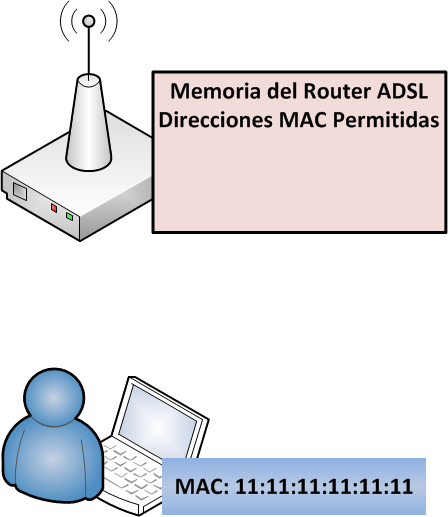
We copy the MAC address of our computer to the Wi-Fi ADSL router.
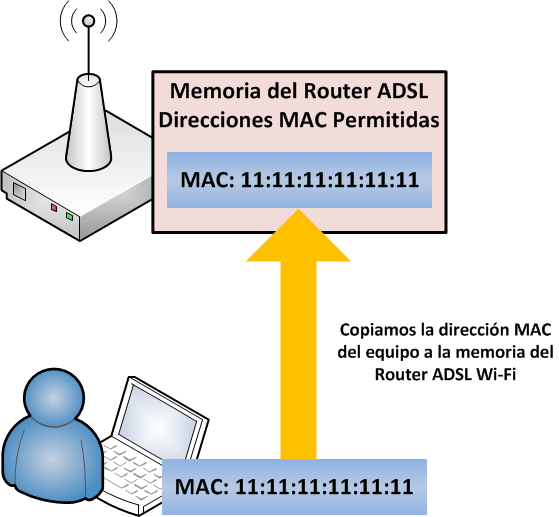
It is important to enable “MAC address filtering” on our Wi-Fi ADSL router in order to make use of this protection. Until now, all devices were allowed. Once we enable it, only the computers whose MAC address is in the table stored in the Wi-Fi ADSL router will be allowed. For every request any computer makes to the Wi-Fi ADSL router, the router will ask for the device’s MAC address, and if it appears in the router’s table, the computer will pass the filter and have Internet.
After doing this, let’s suppose the following: the Wi-Fi-stealing neighbor wants to connect to our network again. His computer has a different MAC address, which is also unique.
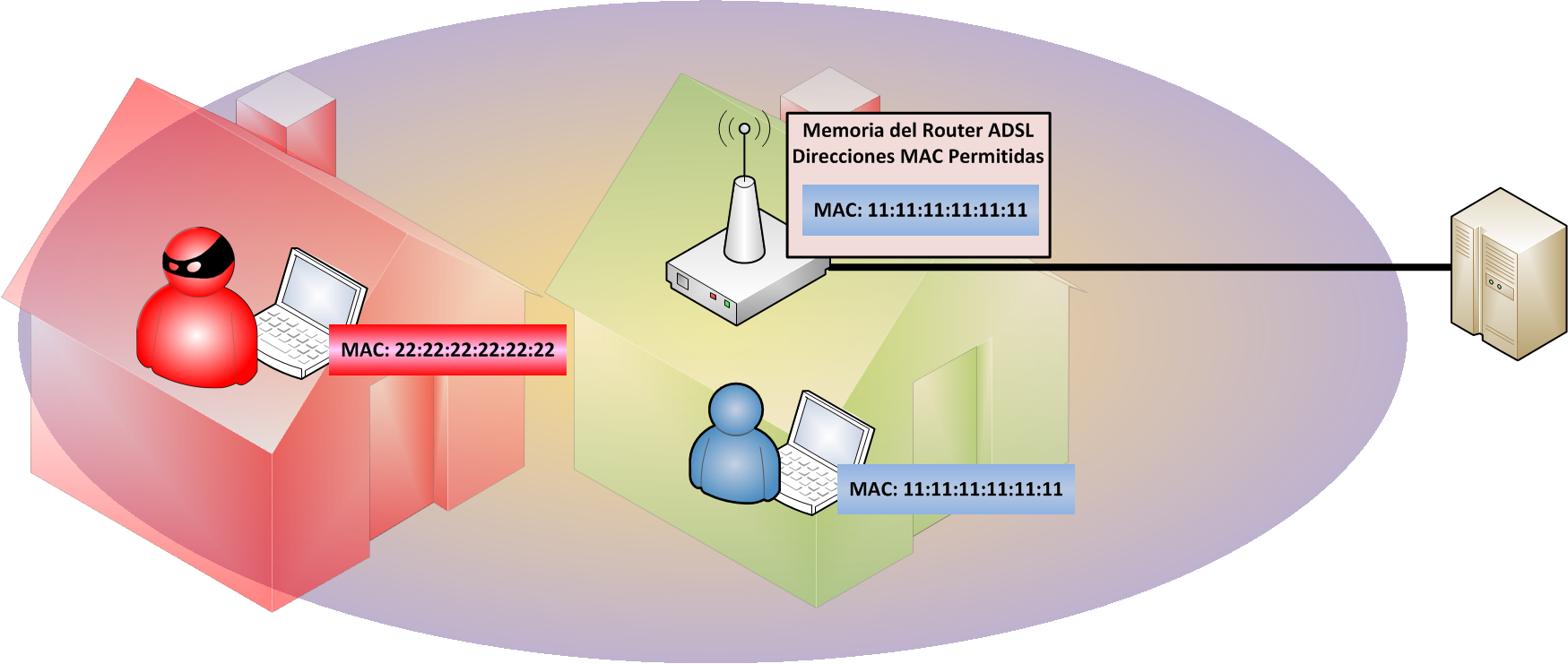
As soon as he tries to establish a connection to our network, the Wi-Fi ADSL router will ask for his MAC address. It will check that it doesn’t match any of the ones it has stored and will reject him. However, when the Wi-Fi ADSL router checks our MAC address, it will give us access to the network and therefore to the Internet.
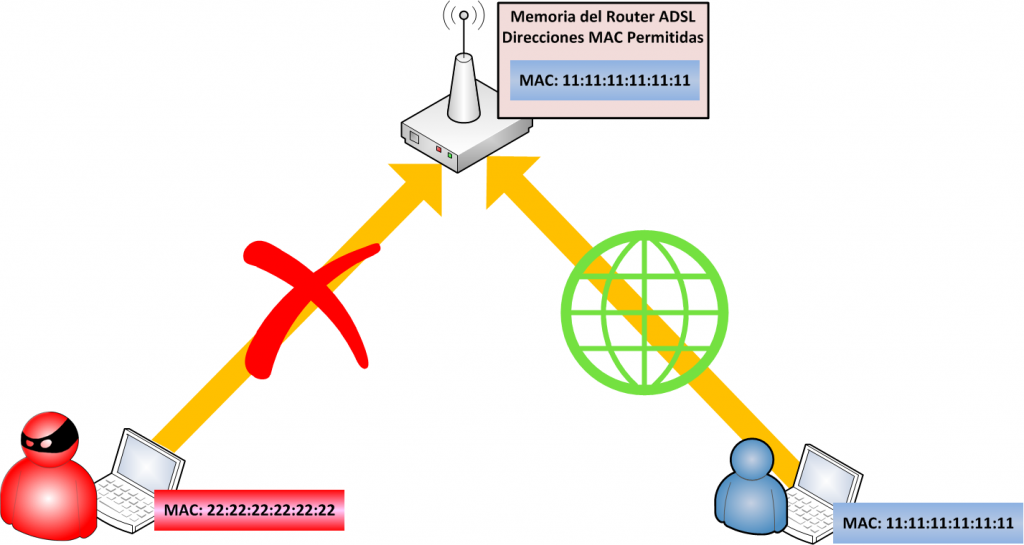
This form of protection is very robust, so much so that it is very hard to get around. To connect, the neighbor would have to change the MAC address of his network card to fool the Wi-Fi ADSL router into giving him access (this isn’t science fiction, it can be done). Even if he does, he would still need to know an allowed MAC address. There’s no way the neighbor can pull it off.
“How to Protect Our Wi-Fi Wireless Network” by Ramón Invarato at jarroba.com, licensed under Creative Commons Attribution-NonCommercial-ShareAlike 3.0. Registered at Safe Creative.

You may also like


Know the Dangers of the Internet to Prevent Them
Learn the biggest dangers of the Internet at home: Wi-Fi theft, stolen money, personal data, middleman attacks and more. Know them to protect yourself.
Fault-Tolerant, Highly Available Apache Kafka Cluster
Learn how to set up a Kafka cluster with multiple brokers, distributed across several real cloud servers, step by step.
Leave a comment