
Fault-Tolerant, Highly Available Apache Kafka Cluster
Learn how to set up a Kafka cluster with multiple brokers, distributed across several real cloud servers, step by step.
To get all the benefits of Apache Kafka, we need more than one broker (if a broker fails, at least another one has a copy of the data) and it has to be distributed across several machines (if a machine fails, the other machines keep working as if nothing had happened); it also has to be scalable.
I’m going to explain separately how to create multiple brokers on one side and then a distributed setup across several machines, although, as you can imagine, you can then build whatever configuration you want.
Multi-broker
We are going to create 3 brokers (which is also the minimum and optimal number for a production environment, so we can have a decent replication factor for each topic) managed by our Zookeeper, following this architecture:
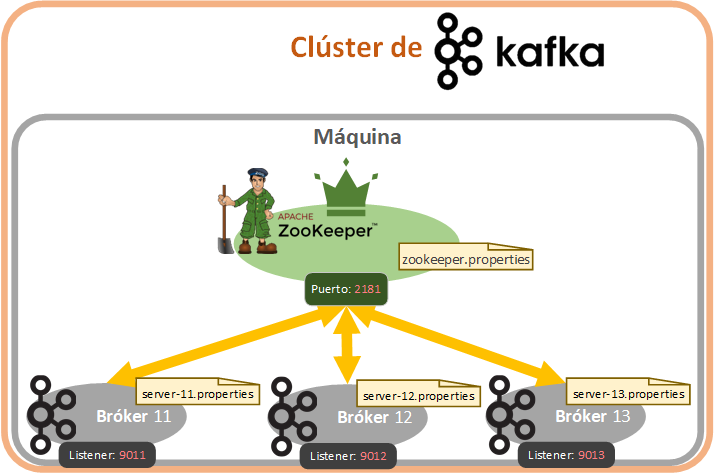
First we need to create a properties file (using “server.properties” as a template) for each Kafka broker server we want. For this example I’m going to create 3 Kafka brokers in files with the following configuration (at a minimum you have to change “broker.id” and “listeners”):
- server-11.properties: will be the broker with id 11 and will listen on port 9011.
- server-12.properties: will be the broker with id 12 and will listen on port 9012.
- server-13.properties: will be the broker with id 13 and will listen on port 9013.
To do this, in our Kafka installation, inside the “config” folder, we copy the “server.properties” file to create each of the files:
cp server.properties server-11.properties
cp server.properties server-12.properties
cp server.properties server-13.properties
Next, we edit the files one by one (I’ll use vim). Starting with the first one:
vim server-11.propertiesIn this file we’ll modify the following parameters so they end up like this (in addition to the id and the port, I’ll change the logs folder name in “log.dirs” to keep each broker’s logs separate; by the way, “listeners” is commented out on line 31, since the default port is 9092, but if we want more than 1 broker we need to uncomment it and set a unique port, because each broker needs its own):
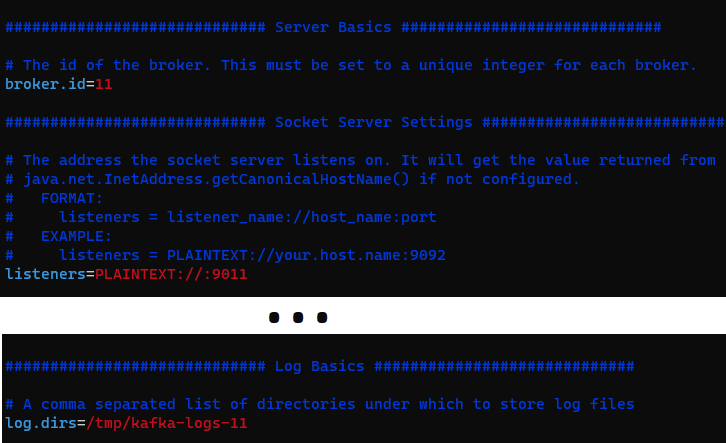
- broker.id=11
- listeners=PLAINTEXT://:9011
- log.dirs=/tmp/kafka-logs-11
The inside of the “server-11.properties” file should end up looking something like this (the following image is cropped; I only show the parameters I modified):
Save the changes to the file and we’ll modify the rest of the files in the same way:
vim server-12.propertiesWith the modified parameter values:
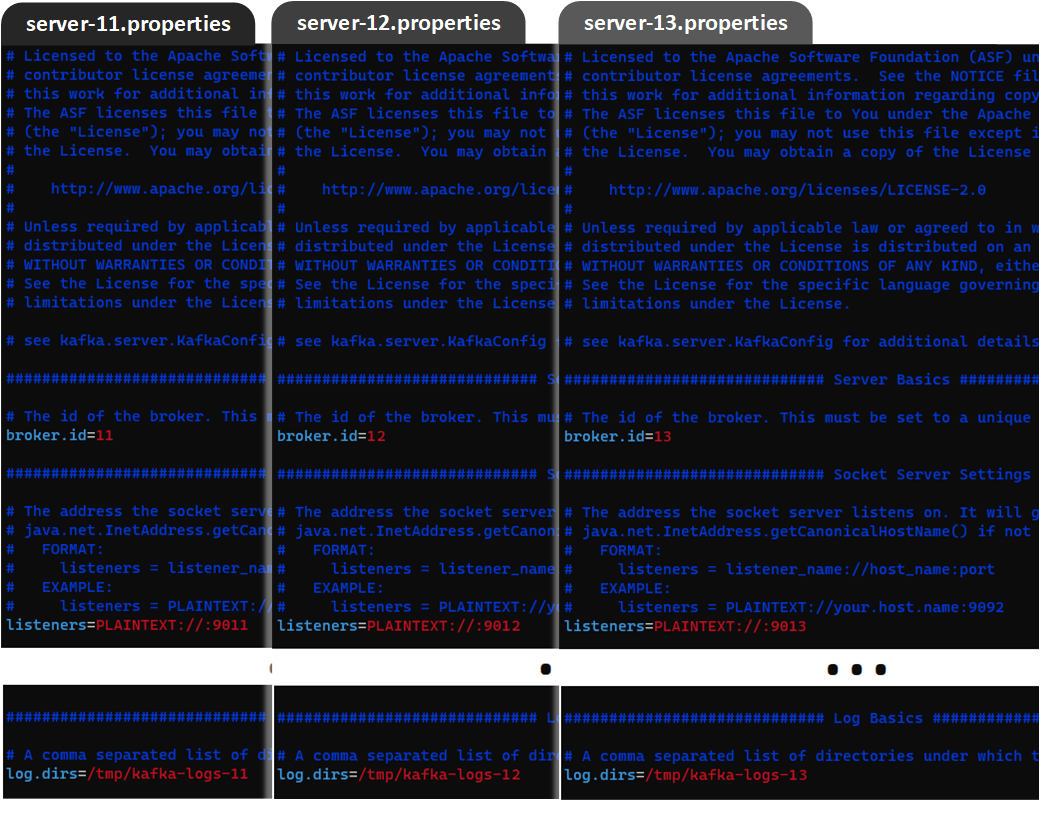
- broker.id=12
- listeners=PLAINTEXT://:9012
- log.dirs=/tmp/kafka-logs-12
And the same with the last file:
vim server-13.propertiesWith the values:
- broker.id=13
- listeners=PLAINTEXT://:9013
- log.dirs=/tmp/kafka-logs-13
The three files end up like this:
Make sure you have a Zookeeper server running, as we saw before, but here’s the command as a reminder:
zookeeper-server-start.sh ~/kafka_2.13-3.1.0/config/zookeeper.propertiesNow we’ll launch each of the brokers (to start with, I recommend launching each one in a different shell and watching what each one prints). I’m listing the three commands together, but you’ll need to copy each one into a different shell:
kafka-server-start.sh ~/kafka_2.13-3.1.0/config/server-11.properties
kafka-server-start.sh ~/kafka_2.13-3.1.0/config/server-12.properties
kafka-server-start.sh ~/kafka_2.13-3.1.0/config/server-13.properties
If you’re already comfortable with the shell, we can run them all in the same shell, send their output to 3 files that I’ve named “salida<ID>.out” and leave them in the background:
kafka-server-start.sh ~/kafka_2.13-3.1.0/config/server-11.properties > salidaB11.out &
kafka-server-start.sh ~/kafka_2.13-3.1.0/config/server-12.properties > salidaB12.out &
kafka-server-start.sh ~/kafka_2.13-3.1.0/config/server-13.properties > salidaB13.out &
Quick Reminder About Jobs in Linux
The previous processes will create three jobs (background processes) that we can see with the command:
jobs
We can bring each one back with “fg [job_id]” (“fg” for “ForeGround”). For example, to get the first one:
fg 1Once we’ve brought one of the processes back, we can either:
- Terminate it with [Ctrl]+[C], or
- Send it back to the background, stopped, with [Ctrl]+[Z].
- Leave it running in the background with bg [job_id] (“bg” for “BackGround”).
We can see a process’s log in real time with “tail -f”, for example:
tail -f salidaB11.outOr we can watch all the files at once, in real time, with:
tail -f *Kafka Cluster Distributed Across Several Machines
Kafka can run on several different machines (physical servers) (distributed). Each of these machines can be in a different place on the planet, and the whole set works like “a normal Kafka queue” (in other words, how Kafka is configured is transparent to producers and consumers, but the data they send and read is safe because it is replicated and processed on separate physical machines).
For this example I’m going to set up two Zookeepers with one broker each, one Zookeeper per machine, and connect them to each other (although the ideal for high availability and fault tolerance is to have 3 machines).
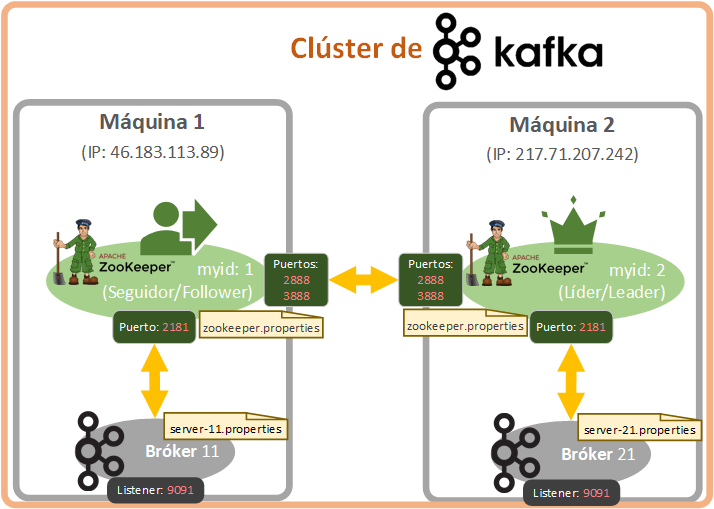
When we work with a single Zookeeper we don’t need much more, but if we’re going to have a cluster with several, each one has to be uniquely identified with a number, so start thinking about which number you want to assign to each Zookeeper. We also have to tell each Zookeeper the address of all the Zookeepers (on all the machines) so they can talk to each other, exchange the information they need, compare messages, decide which Zookeeper is the leader, etc.
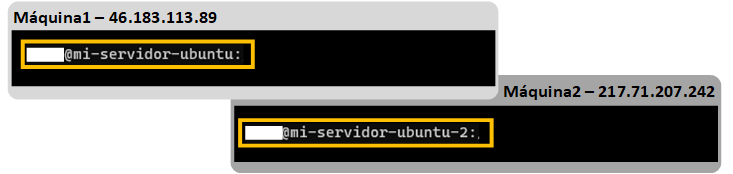
I’ll have two terminals open the whole time, each one pointing to one of my machines:
- Machine 1, which I’ve named “mi-servidor-ubuntu”, with the IP “46.183.113.89”.
- Machine 2, which I’ve named “mi-servidor-ubuntu2”, with the IP “217.71.207.242”.
Tool
Trying It Out with Two Real Cloud Machines
For this part I’ll have two real remote machines, which is just like working in a real enterprise Big Data environment, so if you’re learning, you’ll be able to learn the same way as in a real environment, and from home.
In my case I’m going to use the cloud portal https://portal.clouding.io/ (the service is paid, but if you’re new they give you free credit to try their servers, which is more than enough to set up a couple of machines and try distributed Kafka. Once the free 5€ balance runs out, if we decide to keep using the service, we can top up our balance, since Clouding is a prepaid service).
I am going to set up 2 machines with 1 core, 2 GB of RAM and 20 GB of disk.
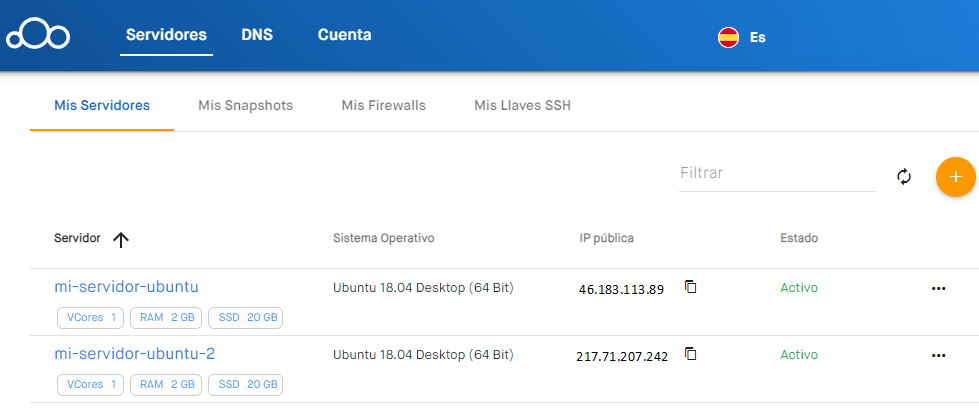
Note on working with several shells, each one pointing to a different machine: I recommend keeping the “ifconfig” command handy so you always know the IP of the shell you’re working in. It’s important not to mix up the IPs, especially in the configuration files.
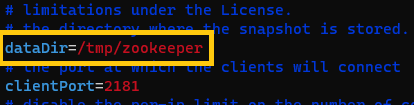
First, we edit the “zookeeper.properties” file on each of our machines and check the value of the “dataDir” parameter (the path where the data is stored). In my case, since I left the default value, it’s “/tmp/zookeeper”:
And at the end of each of these files we’ll add some parameters (“tickTime”, “initLimit”, “syncLimit” and the correctly identified servers) with values that weren’t there before, but that are necessary for the Zookeepers on the two machines to communicate. An example of what we need to add at the end of each “zookeeper.properties” file is:
# zookeeper heartbeat in milliseconds
tickTime=2000
# Initial synchronization time
initLimit=10
# Ticks before timeout
syncLimit=5
# Next, define all the servers line by line as: server.<id>=IP:2888:3888
# 2888 for follower-to-leader connections
# 3888 for connections during the leader election phase
server.1=46.183.113.89:2888:3888
server.2=217.71.207.242:2888:3888
Note about this configuration: if we don’t point to localhost and instead point to each server by its IP, we can quickly copy and paste the same file to all the machines.
We save the “zookeeper.properties” files and we’re done with them.
Opening Ports to Establish a Distributed Apache Kafka Connection
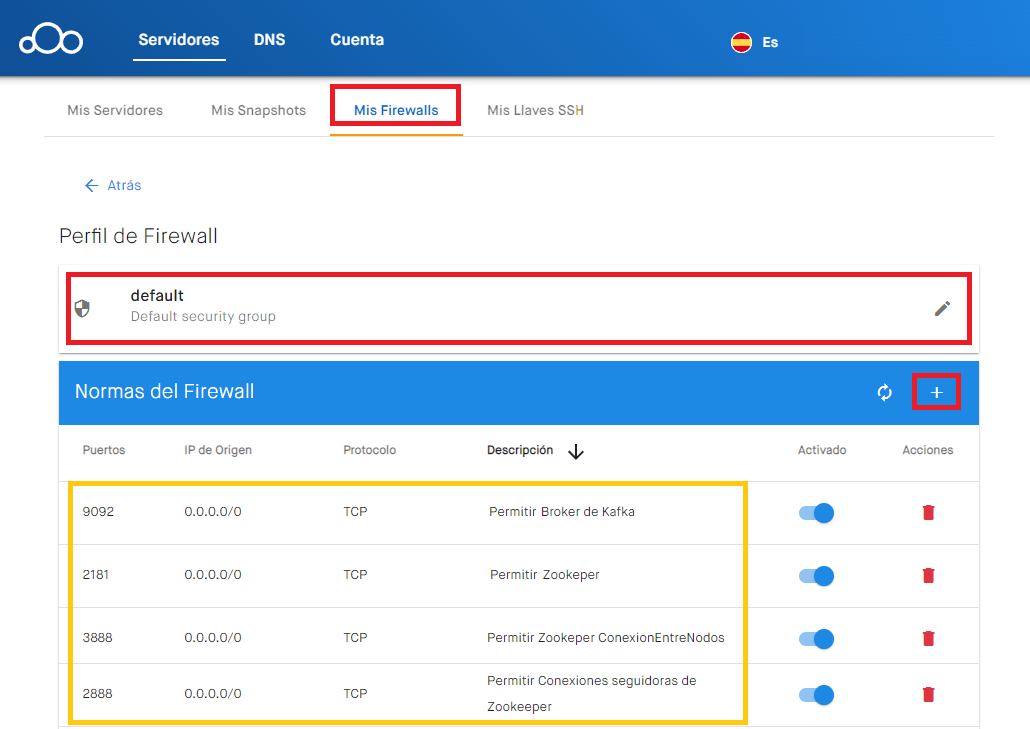
To create our Kafka cluster we have to open the following TCP ports to allow connections from the outside, so that all our machines running a Kafka server can interact:
- 2888: for follower-to-leader connections.
- 3888: for connections during the leader election phase.
If we use the services of VPS Cloud: Tu Servidor Virtual en España (Clouding.io), we’ll have to open these ports from their “My Firewalls” panel, leaving all the necessary Kafka ports open, as in the following example image (in the image I’ve opened the “Source IP” to everyone, “0.0.0.0”; for security we should be more restrictive, especially in production):
Now we go to the “dataDir” directory (in my case “/tmp/zookeeper”; Zookeeper creates this directory when it starts, but if you haven’t started it yet you can create it by hand with “mkdir /tmp/zookeeper”) on each machine, where we’ll create a file called “myid” containing a unique identifying number for our Zookeeper. For the first server I’m going to use 1 as the Zookeeper id, so I’ll create a file called “myid” and write a 1 in it. You can create it with an editor like Vim or directly:
echo 1 > /tmp/zookeeper/myidAnd on my second machine I’ll set the Zookeeper id in “myid” to 2:
echo 2 > /tmp/zookeeper/myidNote about the myid files: each myid file on each machine will contain only the number we’ve given it, nothing else.
We’re now ready to run zookeeper on each machine. To keep a terminal free, I’ll run the following command on both machines (wherever you run it, it will generate the output file “zookeeper.out” with the output and the process will go to the background):
zookeeper-server-start.sh ~/kafka_2.13-3.1.0/config/zookeeper.properties > zookeeper-server.out &We wait a few minutes, or watch the output file, until each of the two Zookeepers is up.

If we look at the contents of each of the two “zookeeper-server.out” files (we can view them with, for example, “tail” or “less”):
less zookeeper-server.outWe’ll notice something interesting: first each of them has been created (in the output where it says “binding”), they’ve detected each other, and then one of the Zookeepers has become the leader of the other and the other one the follower (following). In my case my second machine became the “leader” and the first one the “following”. I recommend reviewing both Zookeeper output files to understand how each one connected and to confirm that they are really talking to each other.
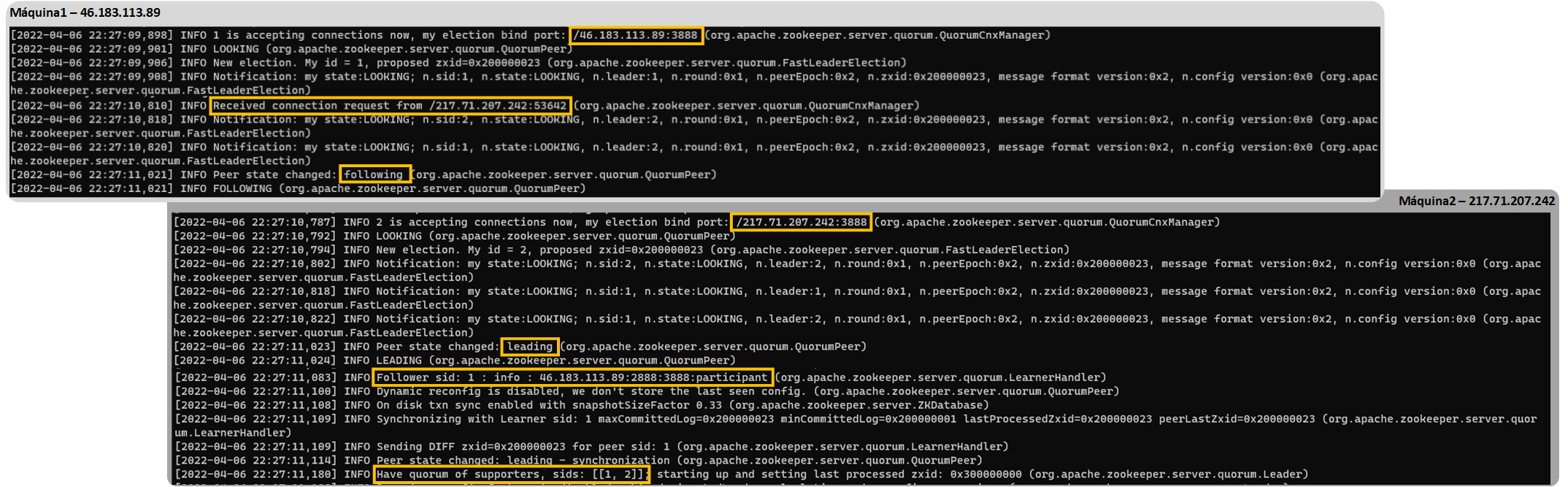
Once all the Zookeepers are up, we can create whatever brokers we want on each machine. To keep it easy, I’ll create one broker on each machine with its “server.properties” configuration file (similar to how we did it when creating several brokers on a single machine) and give it a unique identifier in the “broker.id” parameter (you don’t need to change the other parameters if we’re only going to have one broker per machine; if you’re going to have more than one broker per machine, remember to change “log.dirs” and “listeners” as well). We also have to fill in the “advertised.listener” property (this property is commented out).
Note
Difference Between the Listeners and Advertised.listeners Properties
- Listeners: List of addresses (interfaces) that the current broker binds to in order to listen. You set the IP the broker is going to listen on (earlier we used values like “PLAINTEXT://:9092” so each broker listens on a port of the local machine). It’s necessary to fill it in if we have many brokers per machine.
- Advertised.listeners: List of addresses that clients (producers, consumers, other brokers, etc.) have to point to in order to communicate with the current broker. You set the IP and port of the current machine (for example, “PLAINTEXT://46.183.113.89:9092”). It’s necessary to fill it in if we have many machines.
So, on each machine we’ll have to fill in a “server.properties” file in the “config” folder of our Kafka installation, which I’ll do with the following configuration:
- In the “server-11.properties” file on machine 1 (46.183.113.89): broker.id=11 and “advertised.listeners=PLAINTEXT://46.183.113.89:9092”.
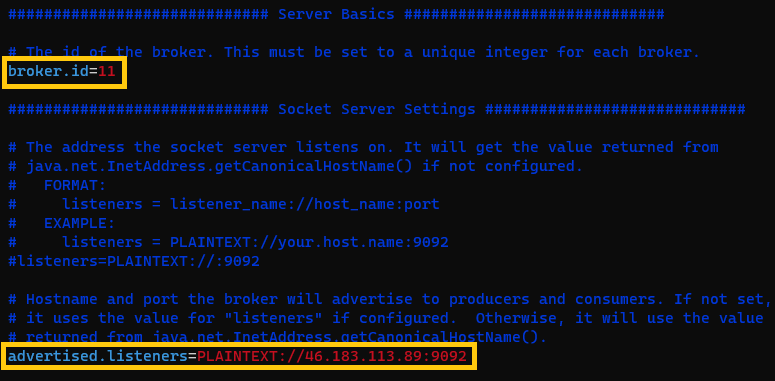
- In the “server-21.properties” file on machine 2 (217.71.207.242): broker.id=21 and “advertised.listeners=PLAINTEXT://217.71.207.242:9092”.
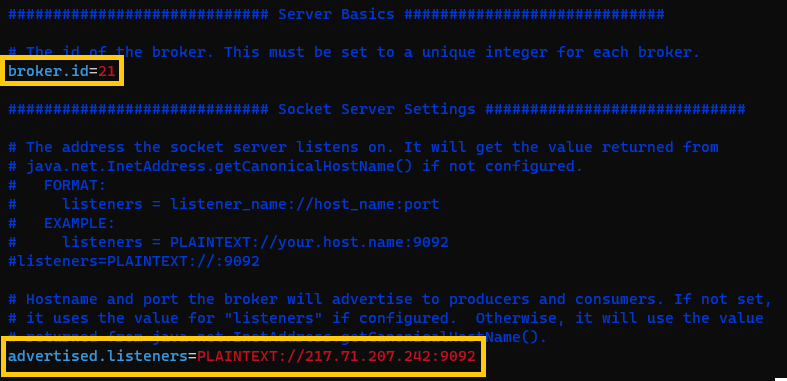
On machine 1 I’ll run the broker with id 11 (I put it in the background and save its output to a file in the current path):
kafka-server-start.sh ~/kafka_2.13-3.1.0/config/server-11.properties > broker11.out &And on machine 2 I’ll launch the broker with id 21:
kafka-server-start.sh ~/kafka_2.13-3.1.0/config/server-21.properties > broker21.out &From now on, it’s good practice for all consumers and producers to add the IPs of all our brokers to the “bootstrap-server”, so that if a machine isn’t available, they’ll jump to another one that is. In whatever programming language or terminal your consumers or producers use, it could look like this with my example addresses (pointing to the brokers, in my case on port 9092, with the addresses separated by commas):
bootstrap-server=46.183.113.89:9092,217.71.207.242:9092This way, we’ll have high availability and fault tolerance (together with replication, the “replication-factor”); so if something happens to one of our machines (it catches fire, for example), the other machine will keep working and the clients using our Kafka (consumers and producers) won’t notice that a machine is unavailable. Once the failed machine is fixed, all you need to do is start the Zookeeper and the broker again (it won’t have any data, but Kafka will take care of filling it back in from the other machine that did have it) so they share data with each other and everything works again.
We can now use our Kafka. For example, we could create a topic that uses both brokers as if they were on the same machine (although each one is really on a different machine). And the beauty is that you can run the following command from one of these two machines or from a third one:
kafka-topics.sh --create --topic miTopic --replication-factor 2 --partitions 3 --bootstrap-server 46.183.113.89:9092,217.71.207.242:9092In the brokers’ output we’ll see how the leader handled the creation of the topic and the follower obeyed its leader:
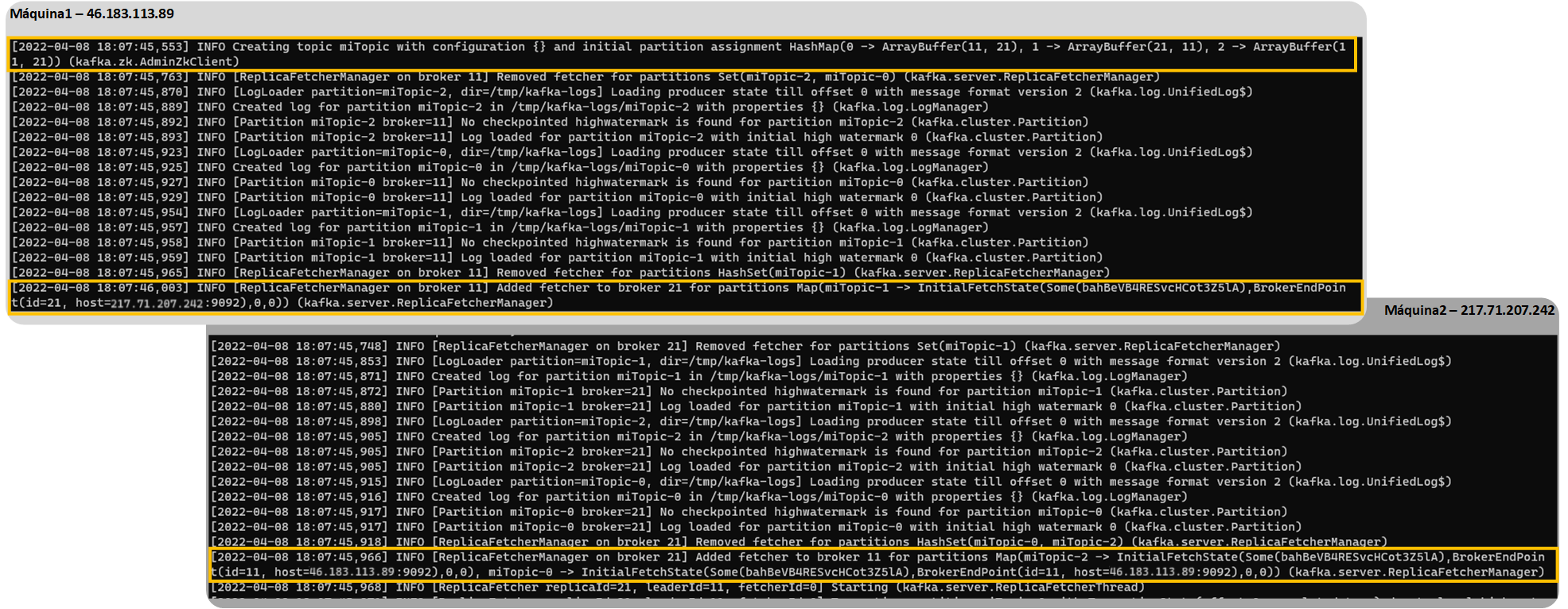
And we can analyze how the topic was created with “–describe”:
kafka-topics.sh --describe --topic miTopic --bootstrap-server 46.183.113.89:9092,217.71.207.242:9092
Security Warning
Here I’ve explained how to get a Kafka cluster working across two physical machines, but at a simple level, just to make sure it works, with no security in the transfer of messages between machines (they travel in plain text) and without many of the appropriate security layers.
You’ll need to take into account aspects such as:
- Creating an operating system user exclusively for Kafka, with restricted permissions.
- Limiting the open firewall ports.
- Restricting the accepted IPs.
- Enabling an SSL protocol for message exchange.
- Locking down Topics with permissions.
- Not allowing Kafka to be managed from outside the machine itself.
- Data protection in Consumers and Producers.
- Etc.
References
“Fault-Tolerant, Highly Available Apache Kafka Cluster” by Ramón Invarato at jarroba.com, licensed under Creative Commons Attribution-NonCommercial-ShareAlike 3.0. Registered at Safe Creative.

You may also like


Apache Kafka Consumers and Producers with Java and Python
Learn step by step how to program Kafka Consumers and Producers in both Java and Python, and test them in a real environment.
How to Install Apache Kafka
Learn how to install and use Apache Kafka in a professional cloud environment step by step: technical tips, commands, scripts and more.
Leave a comment