
Install Jupyter Notebook and JupyterLab from the Terminal from Scratch and Learn How to Use Them
Install Jupyter Notebook and JupyterLab easily on any operating system and learn how to work in an interactive, multi-language environment.
Jupyter Notebook and JupyterLab are very powerful open-source development tools for working interactively with multiple programming languages, and they are very useful for data analysis, exploratory analysis, data visualization, etc.; especially for working with “Big Data” (for example, using Apache Spark; if you are interested, after reading this article I recommend taking a look at the complete article we have prepared about Spark).
Jupyter Notebook and JupyterLab can be installed on any operating system (Windows, Linux, Mac), although to do it in a more uniform way (and because it is more “standard”) we are going to focus on installing on Linux from the terminal (which is very similar on Mac), and for Windows it is the same, but we will use WSL2 (so we will be using Linux); in fact, this article has been tested with WSL2 running Ubuntu on Windows.
Note about installing WSL2 on Windows: it is very quick to install; you just need to enable a Windows feature called “Windows Subsystem for Linux” and install an operating system such as Ubuntu from the Store; you can find the steps at Instalación de WSL (Microsoft Learn) .
In this article I am going to explain everything step by step and from scratch. The installation really takes no more than a few minutes, and the rest is using Jupyter for whatever we need.
Note if you are looking to install Jupyter using Anaconda: this article does not require Anaconda (since installing Anaconda already installs Jupyter Notebook and JupyterLab) and this installation is independent (from the one fully managed by Anaconda), because it will be done on top of the base Python; even so, if you want to install Anaconda and have Jupyter, you can see all the steps explained in this article with videos (Warning to avoid confusion: Anaconda manages its own Python and Jupyter, which are different from the ones described in this article, in which we will learn to manage Jupyter manually on top of a base Python).
What are Jupyter Notebook and JupyterLab?
Once we start Jupyter Notebook, we can access it through a web page and have an interactive environment to work with Notebook documents with support for multiple languages.
On the other hand, we have JupyterLab, which is an improvement over Jupyter Notebook (one is built on top of the other), both visually and for working much more comfortably with Notebook files, with new features and other additions that Jupyter Notebook doesn’t have (and I assure you they are sorely missed, like “a side file explorer” or a “powerful tab system”). JupyterLab offers the experience of other desktop IDEs, but on the web.
Both are installed as Python packages using “PIP”, so I am going to explain step by step how to set everything up: both the installation of Python and of Jupyter Notebook and JupyterLab.
Install Python
Whether you want to program with Python, or you want to program in Notebooks, whether in Jupyter or JupyterLab, we need to install Python.
Warning
Update APT
If APT doesn’t have up-to-date links to the repositories, we may not find everything we will need next (getting an error on download).
To update APT’s package lists, just run (this doesn’t update the installed software):
sudo apt updateInstalling Python is easy; we just have to install the stable version of Python we want with APT (for example, I have chosen “python3.9”):
sudo apt install python3.9Tip
Check the available Python versions
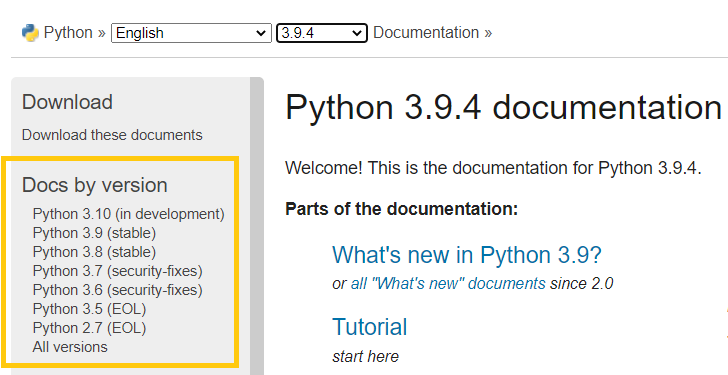
We can check the current Python versions on the official documentation page Python 3.15 documentation (Python docs), and in the box on the left we can see the current versions. I recommend the stable versions (the ones with the word “stable” next to them).
We check that Python is correctly installed by querying the version:
python3 --versionIf it doesn’t work, try this (it depends on your environment variables and the Python version you have installed):
python --version
Also test that PIP works (in some versions it comes preinstalled, in others it doesn’t; if the Python version check worked for you with “python3” you will have to use “pip3”, and if it worked with plain “python” you will have to use “pip”):
pip3 --versionOr if the previous one doesn’t work, try:
pip --version
Warning
If PIP doesn’t work for you
Then you have to install PIP with:
sudo apt install python3-pipTest it:
pip --versionIf the above works for you, skip the rest of this box.
If you have problems, you can install PIP the traditional manual way, first downloading the “get-pip.py” file:
wget https://bootstrap.pypa.io/get-pip.pyRun the “get-pip.py” file with Python:
python get-pip.pyAdd it to the PATH environment variable (not mandatory, see the end of this box):
export PATH="$HOME/.local/bin:$PATH"Test it:
pip --versionIf you don’t add it to the PATH, you can still run PIP, but you will have to do it with a command like this (you won’t be able to conveniently call “pip”, although it is the same thing):
python -m pip install PAQUETENote if you want to learn Python: we have opened a free Python course at https://jarroba.com/courses/curso-de-python-gratis/ where you will learn Python from a professional perspective for working with large amounts of data, with plenty of code examples and video theory.
Install Jupyter and JupyterLab
After installing Python and PIP, we proceed to install Jupyter and then JupyterLab so we can work more comfortably.
Note on Jupyter vs JupyterLab: JupyterLab is an improved version of Jupyter that offers more functionality, and it’s the one I recommend working with, although you can also work with Jupyter.
Install Jupyter:
pip install jupyterInstall JupyterLab (you must have installed Jupyter beforehand):
pip install jupyterlabThe folder where we start Jupyter or JupyterLab will be the folder where the Notebooks we create in Jupyter or JupyterLab are saved.
I recommend creating a “projects” folder (or “notebooks” or whatever we like):
mkdir proyectosGo into it:
cd proyectosAnd we start the “JupyterLab” server with the command:
jupyter labOnce it has started (it takes a few seconds), a URL will appear that we will copy and paste into the browser (or http://localhost:8888/lab):
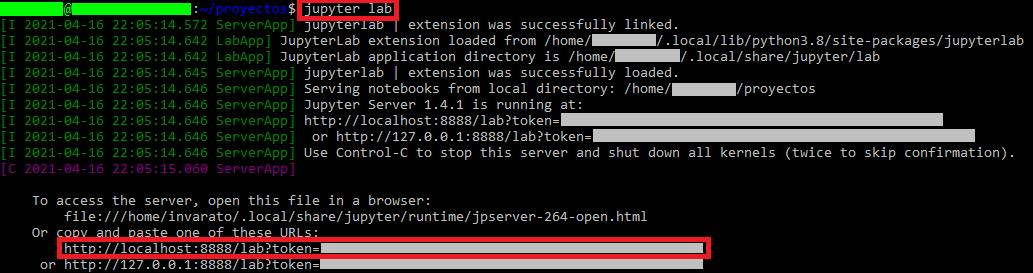
This URL will open our local JupyterLab and we can start using it (and all the Notebooks we create will be saved in this “proyectos” folder).
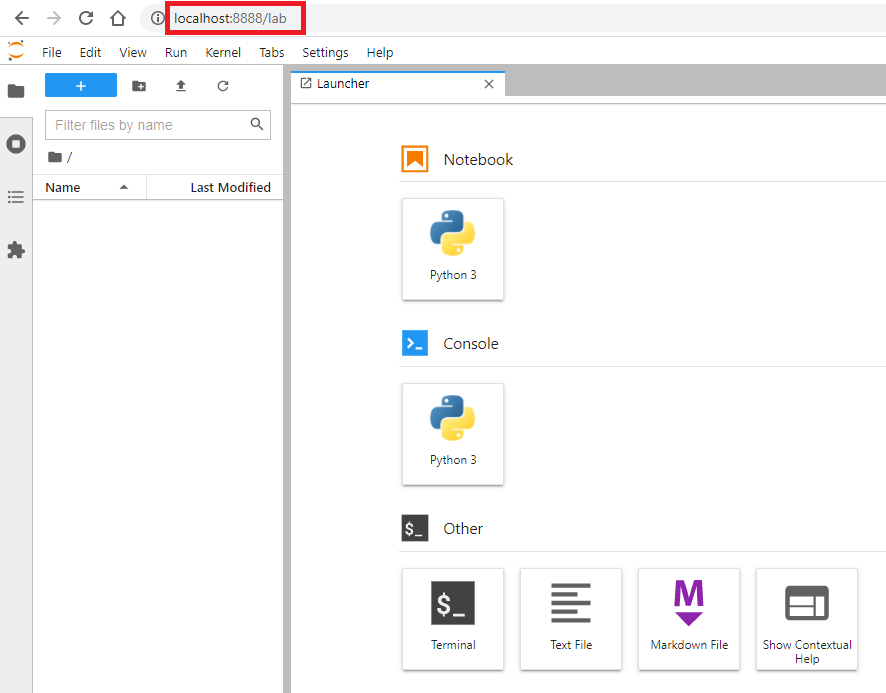
Don’t close the terminal or the server while you use JupyterLab, since it is running on top of it (you can actually close the terminal, but then it will be a bit more of a hassle to shut down the server).
When you finish working with JupyterLab, besides closing the browser tab where JupyterLab is open, you will have to shut down the JupyterLab server (since it is consuming your computer’s resources) by pressing: [ctrl]+[c]
Note
If you want to use Jupyter instead of JupyterLab
The steps are all the same (skipping the “JupyterLab” installation), but instead of starting with the “jupyter lab” command we start with:
jupyter notebookJust like with JupyterLab, the Jupyter server starts and gives us a URL to copy (or http://localhost:8888/tree), and after pasting the URL into the browser, Jupyter Notebook will open:

The rest works the same, except that Jupyter’s interface is plainer, with fewer options and aids than JupyterLab, which is more complete. It’s good to know it, since it may be useful to us.
To shut down the server it is also: [ctrl] + [c]
Quick JupyterLab Tutorial in Python
This won’t be an extensive tutorial (there are many other things left to explain, like Markdown, keyboard shortcuts, etc.), but I will give you more than enough to work comfortably and quickly.
We create a new Notebook file by clicking the Launcher shortcut (if it doesn’t appear, click the “+” button) in the “Notebook” category, called “Python 3” (or you can also create it from “File/New/Notebook”):
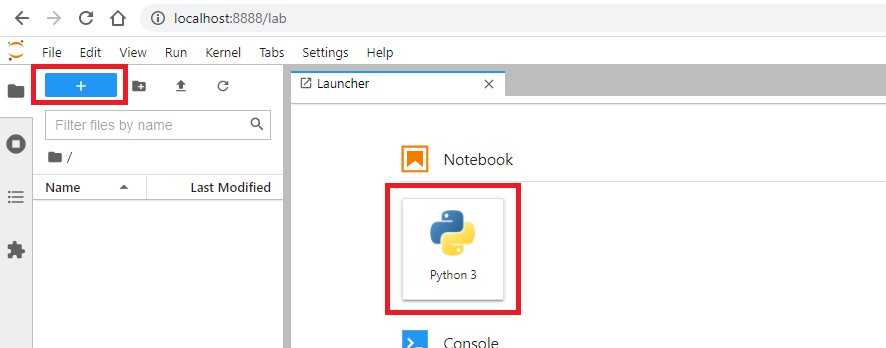
A Notebook file named “Untitled.ipynb” will have been created and opened.
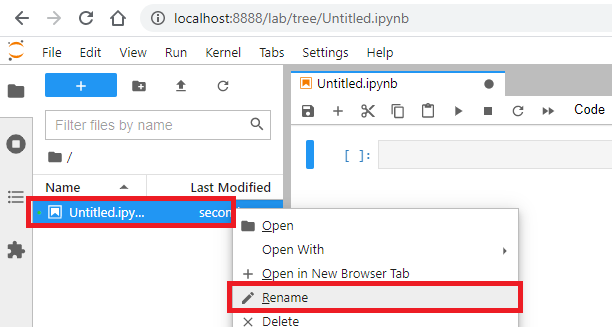
We can rename the file to whatever name we want by right-clicking the file in the file browser on the left and selecting “Rename” (change the name but keep the “.ipynb” extension; I will call mine “MiPrimerProyecto.ipynb”):
In the open Notebook on the right we can write Python code in a cell and run it with the triangle (or with the keyboard shortcut: [shift]+[enter] ):
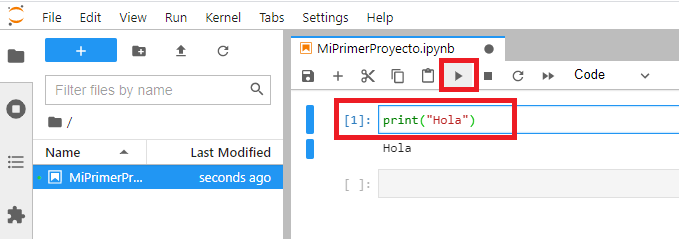
Below the cell with Python code, the output will be shown (and we can take advantage of all the goodness of JupyterLab, like writing code in several cells and running them separately, changing the order of the cells, adding Markdown comments, etc.).
To save the changes we make to a Notebook, go to “File/Save Notebook” (or use the keyboard shortcut: [ctrl]+[s] )
Note
Notebook files created with JupyterLab
The files created with JupyterLab (or Jupyter if we use that one) are located in the folder where we started JupyterLab. We can see them with “ls”, for example:

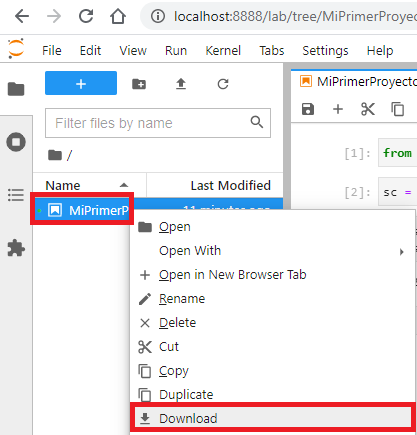
But it is actually more convenient (especially if you work with WSL on Windows) to access them by “downloading” them from the JupyterLab file browser: select the file you want to download and click “Download”:
Or by uploading them, dragging files directly into the JupyterLab file browser (or clicking the upload arrow):
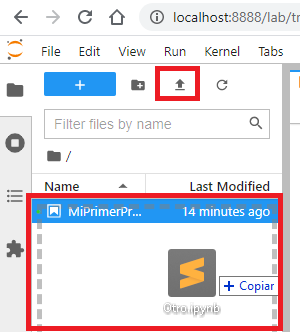
And it will appear inside the “proyectos” folder in Linux.
References
“Install Jupyter Notebook and JupyterLab from the Terminal from Scratch and Learn How to Use Them” by Ramón Invarato at jarroba.com, licensed under Creative Commons Attribution-NonCommercial-ShareAlike 3.0. Registered at Safe Creative.

You may also like
Install Apache Spark on Any Operating System and Learn to Program It with Python, Scala or Java
Install and test Apache Spark step by step with Python, Scala and Java, also with Jupyter Notebook and JupyterLab. Work with Big Data the easy way.
Advanced Dockerfile: Multi-Stage Builds, Registries, and Tricks
Free Docker course. Expert Docker tricks: multi-stage builds, optimizing images, faster build times, and distributing images through Docker registries.
Leave a comment