
Advanced Dockerfile: Multi-Stage Builds, Registries, and Tricks
Free Docker course. Expert Docker tricks: multi-stage builds, optimizing images, faster build times, and distributing images through Docker registries.
Let’s go beyond the basic operations in Docker, because it will reveal a whole bunch of tricks that will turn us into experts. For example, using multi-stage Dockerfiles, an approach to optimize your images, improve build times, and reduce management complexity. Likewise, handling Docker repositories effectively will greatly simplify image management and let us distribute images to the rest of the community.
Base Operating System Image Distributions
On Docker Hub there are numerous operating system distributions, mostly Linux, that will serve as a base (for the FROM in the Dockerfile) for whatever need we have. Before choosing one of these, we should check whether another kind of image that already includes more installed software meets our need (for example, if we want to work with Python, it’s better to use the Python image than to pick a distribution and install Python by hand).
There’s no direct way to search for distributions, but we could run a search like: Explore Docker's Container Image Repository (Docker Hub)
Here I’ll tell you about the most popular ones, so you can understand all those “weird names” of the distributions:
- Alpine (alpine – Official Image (Docker Hub)): small size (around 5MB) and commonly used in Docker containers. With versions like 3.19, 3.18 or 3.17 (more versions at Alpine release branches (Alpine Linux) )
- Debian (debian – Official Image (Docker Hub)): known for its stability and consistency. With versions named like bookworm for Debian 12, bullseye for Debian 11 or buster for Debian 10 (more versions at Debian Releases (Debian) )
- Ubuntu (ubuntu – Official Image (Docker Hub)): the best known, easy to use, well documented, and with a large user community. With versions like Noble for Ubuntu 24, Mantic for Ubuntu 23 or Jammy for Ubuntu 22 (more versions at Images for Ubuntu Releases (Ubuntu) )
- Fedora (fedora – Official Image (Docker Hub)): from Red Hat. With versions like 41, 40 or 39 (more versions at https://es.wikipedia.org/wiki/Anexo:Versiones_de_Fedora
- openSUSE: openSUSE offers a stable version (Leap: opensuse/leap – Docker Image (Docker Hub)) and a rolling release version (Tumbleweed: opensuse/tumbleweed – Docker Image (Docker Hub)). With versions like 15.6, 15.5 or 15.4 (more versions at openSUSE:Roadmap (openSUSE Wiki)).
- Amazon Linux (amazonlinux – Official Image (Docker Hub)): from Amazon Web Services (AWS), commonly used in the AWS ecosystem. With versions like 2023, 2 or 1 (more versions at Amazon Linux 2 release notes (AWS Documentation))
Keep this in mind when choosing a good base image:
- Size: If we want our image to be as lightweight as possible, the best option is to use a distribution whose tag includes the suffix “little”, “slim” or some synonym (for example, that’s the difference between “debian/bookworm” and “debian/bookworm-slim”), or a well-known image that’s already light by nature, like “Alpine”. The downside of a light image is that it comes stripped bare (that’s why it takes up almost nothing), meaning we’ll have to install everything we need (it might not even have “curl” installed, and we’d have to install it before downloading what we want).
- Package management: It changes with the operating system. For example, Alpine uses “apk” (light and fast), compared to Ubuntu, which uses “apt” (more familiar to many users).
- Compatibility: They don’t include the same installed software. For example, Alpine uses “musl libc” as its C library (because it’s the lightest, but with compatibility problems), compared to Ubuntu, which includes “glibc” (compatible with a huge amount of software).
- Ease of use: Ubuntu can be easier to use (bigger user community, more documentation, and more available packages).
- Architecture: the base image we choose (in general, although this limitation comes from the operating system) will define which hardware architectures we can run it on, since an image for an x86_64 architecture (most PCs) is not the same as one for ARM (some phones). For example, Alpine is available for these architectures: linux/386, linux/amd64, ,linux/arm/v6, linux/arm/v7, linux/arm64/v8, linux/ppc64le, linux/s390x. To make this easier, Docker supports multi-architecture images (multi-arch images), which let you specify multiple images for different architectures under a single name, so Docker will automatically select the right image based on the architecture of the host it’s running on.
Dockerizing Without a Project
Besides Dockerizing a project, we can have a standalone Dockerfile (with no associated code), since we might want to build an image with existing technologies.
For this example I want my own Jupyter Lab Notebook server (a web application that lets you create and share documents containing live code, equations, visualizations, etc. More information at https://jarroba.com/instalar-jupyter-notebook-y-jupyterlab-por-consola-desde-cero-y-aprender-a-usarlos/ ). In this example I’m going to make a custom image “however I feel like it, covering my supposed needs”. I’ll use as many directives as I can so they serve as usage examples for you (if you’re looking for a prebuilt Jupyter, there are plenty at jupyter (Docker Hub) ). I’ll try to keep Jupyter as standard as possible according to the documentation, and I’ll also install Python by hand (I will NOT use the earlier image from python – Official Image (Docker Hub), but a clean base image instead) along with everything else I need.
For Python I’ll need:
- python3: the package for the Python 3 programming language.
- python3-pip: the package manager for Python. I install it from the APT package manager because it’s good practice for APT to manage all packages in Docker images (mainly in case someone uses the image we’re building as a base, so they can quickly see what you’ve installed).
- python3-venv: as good practice, it will let us create “virtual environments”, where we’ll install and manage Python packages independently, without interfering with the system libraries.
To do all this I’ll do the following (here I summarize the directives; they’re all in the Dockerfile that follows this explanation):
- I want an operating system that’s as lightweight and up to date as possible with the APT package management system: debian:bookworm-20240211-slim
- Since I’m the one building it, I’ll add LABELs with information like my name and the version: LABEL authors=”Ramon Invarato”
- From the Jupyter documentation I know its standard port is 8888 (Running the Notebook (Jupyter Documentation)), so I document it: EXPOSE 8888
- I make sure I’m the root user to run the installations with: USER root
- I update APT and install what I need for Python: RUN apt install -y python3 python3-pip python3-venv
- I’ll set the environment variables I consider necessary for Python so they’re available: ENV PIP=/usr/bin/pip3
- I create a non-root user to take away root permissions from whoever uses my image: RUN adduser –disabled-password –gecos ” misuarionoroot
- I create a folder and give permissions to the non-root user: RUN chown -R misuarionoroot:misuarionoroot /usr/src/app
- I’ll create a virtual environment for the user, so I’ll also give them permissions and set it as an environment variable to make their future work easier: RUN python3 -m venv /opt/venv
- I’ll switch to the user without permissions: USER misuarionoroot
- I’ll change the working directory to the one I gave permissions to, so they can work directly in it: WORKDIR /usr/src/app
- I’ll activate the virtual environment: RUN . /opt/venv/bin/activate
- I’ll install the Jupyter libraries we need inside the virtual environment: RUN pip3 install jupyter jupyterlab
- I start Jupyter Lab: ENTRYPOINT [“jupyter”, “lab”, “–no-browser”, “–port=8888”]
- Also, I add default arguments to the previous command (which the user of my image can change if they want): CMD [“–NotebookApp.token=””, “–ip=0.0.0.0”]
The complete Dockerfile:
# We download a bare base image of an operating system
FROM debian:bookworm-20240211-slim

# We document whatever metadata we need
LABEL authors="Ramon Invarato"
LABEL description="Esta es una imagen personalizada de Python con Jupyter "
LABEL maintainer="ramon@jarroba.com"
LABEL version="1.0"
LABEL build_date="2024-03-01"

# We document that we expose the Jupyter server port
EXPOSE 8888

# We make sure we are root to run the installations
USER root

# We install Python, pip, and other dependencies the Python libraries will need:
RUN apt update
RUN apt install -y python3 python3-pip python3-venv

# We set useful Python environment variables so they're available to whoever uses our image
ENV PYTHON=/usr/bin/python
ENV PIP=/usr/bin/pip3
ENV PATH=$PATH:$PIP:$PYTHON

# We create an unprivileged user (non-root) for whoever uses the image, create a folder where they can work, and give it to that user
RUN adduser --disabled-password --gecos '' misuarionoroot
RUN mkdir -p /usr/src/app
RUN chown -R misuarionoroot:misuarionoroot /usr/src/app

# We create the Python virtual environment, give the user permissions to use it, and add it to the environment variable
RUN python3 -m venv /opt/venv
RUN chown -R misuarionoroot:misuarionoroot /opt/venv
ENV PATH="/opt/venv/bin:$PATH"

# To send the output immediately to Docker's output
ENV PYTHONUNBUFFERED=1


# We switch to the user without root permissions
USER misuarionoroot

# We change the working directory
WORKDIR /usr/src/app

# We activate the Python virtual environment
RUN . /opt/venv/bin/activate

# We install the Python libraries we need in the Python virtual environment
RUN pip3 install jupyter jupyterlab

# We set Jupyter as the default application of this container
ENTRYPOINT ["jupyter", "lab", "--no-browser", "--port=8888"]

# We add more default arguments, which can be changed if required
CMD ["--NotebookApp.token=''", "--ip=0.0.0.0"]
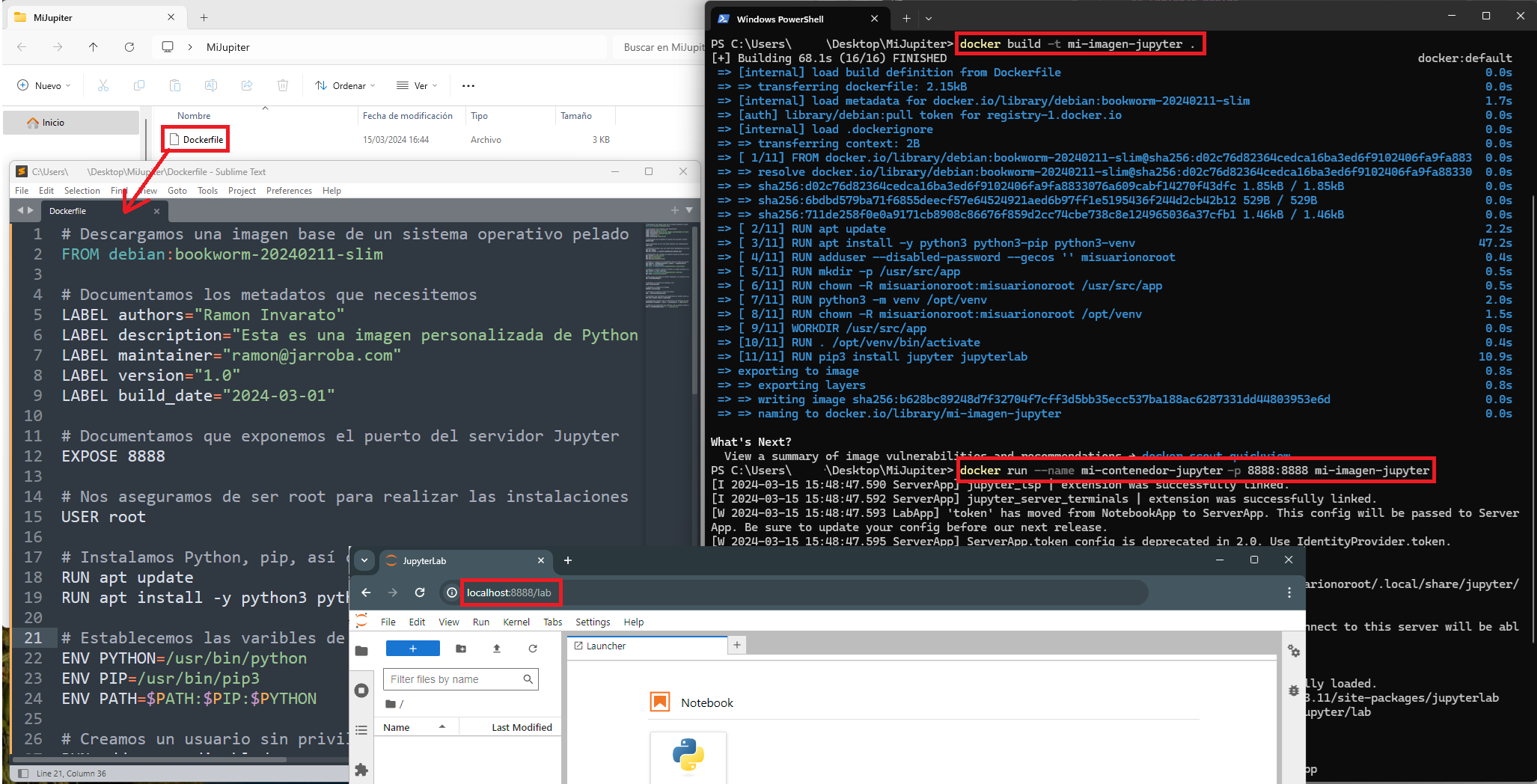
In a terminal, we go to the directory of this Dockercompose:
docker build -t mi-imagen-jupyter .We run the container from our image, mapping port 8888 to our local machine:
docker run --name mi-contenedor-jupyter -p 8888:8888 mi-imagen-jupyterFinally, we check that it works in a browser: http://localhost:8888/lab
Here’s a screenshot with all the steps I took:
Dockerfile Built with Docker Compose
If we’re in the middle of developing our Dockerized microservices or Dockerfiles, we may want to test them together with other containers. To do that we can build our previous Dockerfile with a Docker Compose.
For example, I’ll create a “compose.yaml” inside the “MiJupiter” folder from the previous example, ending up with something like this (I give you the code after the screenshot):
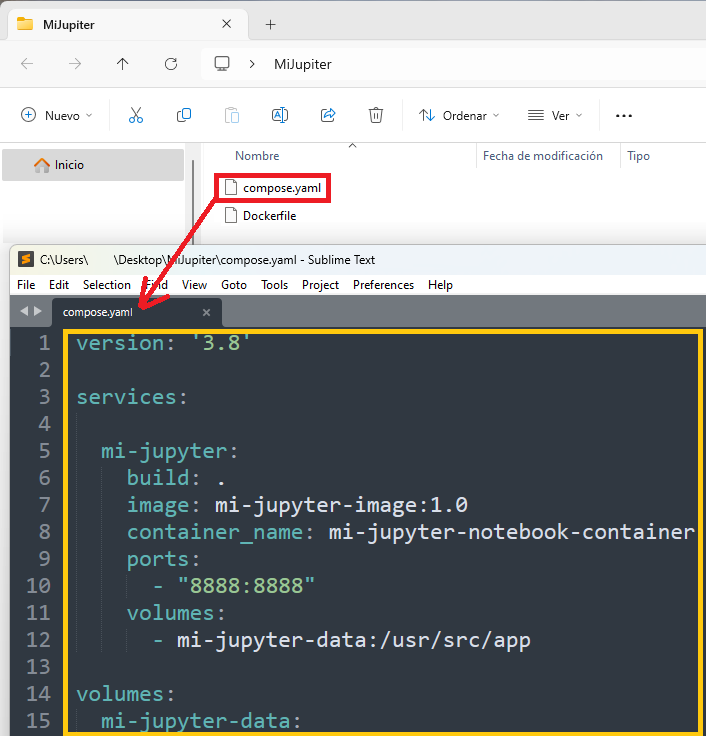
And I’ll add the following code to the “compose.yaml”, which will create the image from my Dockerfile and use it together with the rest of the Docker Compose:
version: '3.8'

services:

  mi-jupyter:
    build: .
    image: mi-jupyter-image:1.0
    container_name: mi-jupyter-notebook-container
    ports:
      - "8888:8888"
    volumes:
      - mi-jupyter-data:/usr/src/app

volumes:
  mi-jupyter-data:
There are several interesting new parts in this code:
- build: where we define the location of the “Dockerfile” we’ll use (“.” means it’s in the same location as the “compose.yaml”).
- image: it’s not mandatory, but I like to set the version to invalidate Docker’s cache. If you run this “compose.yaml” once, then change the Dockerfile and run the “compose.yaml” again, it will be taken from the cache and the Dockerfile won’t be rebuilt (that is, the changes we made won’t be reflected). By adding this versioned image, changing the version forces it to create new images with that tag (although every new tag will generate an image and take up disk space, so you’ll need to clean them up from time to time).
- container_name: I always like to name the container so I can identify it easily.
- ports: I map the Dockerfile’s internal port 8888 to port 8888 on our local computer.
- volumes: since we created the Dockerfile we know our data is saved at the path “/usr/src/app” in our container, so if we assign a volume to it, it will persist across container restarts.
As we did in the previous article on “Docker Compose in a project”, we bring up the “compose.yaml” with:
docker compose up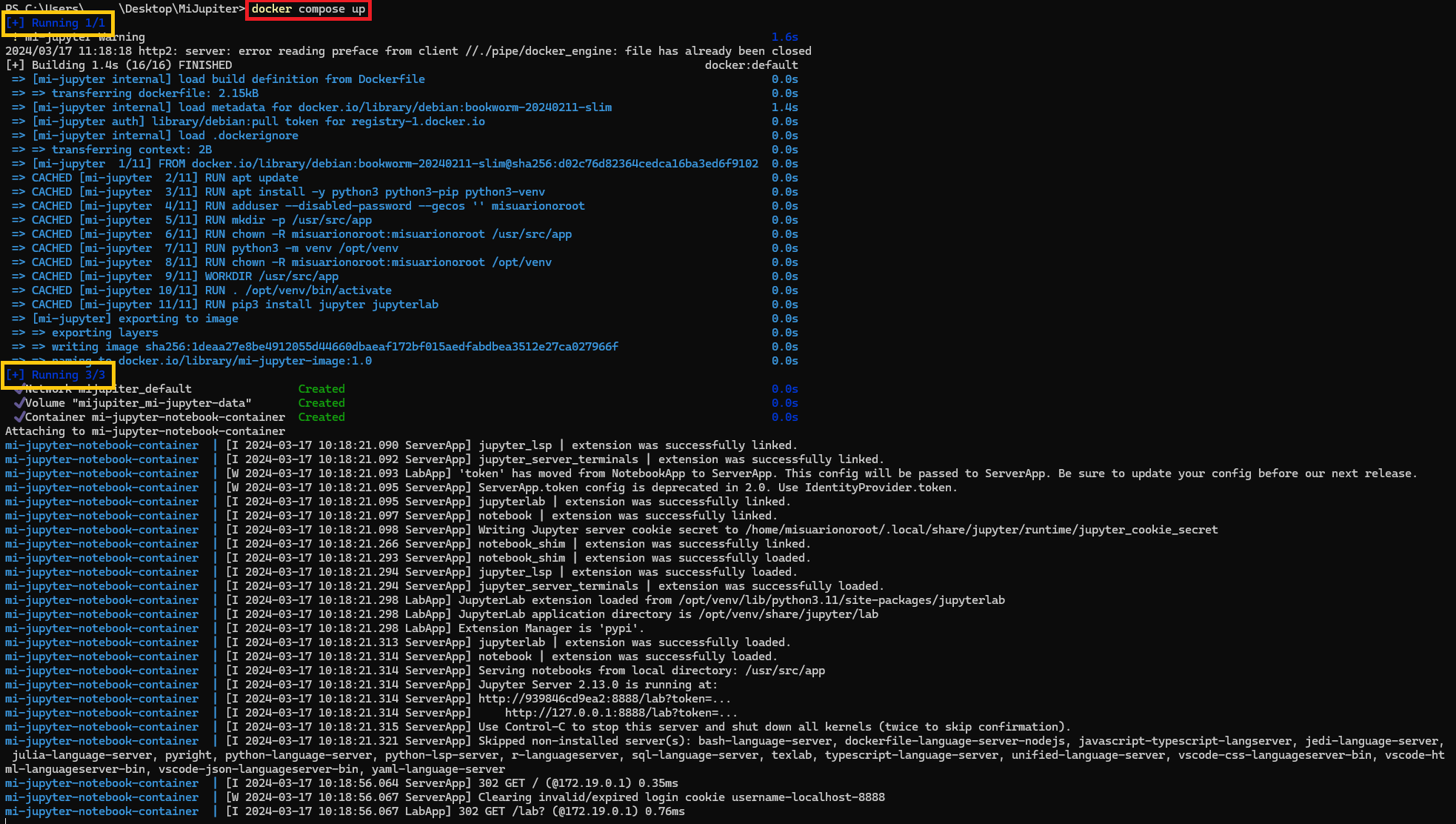
We can see that first the Dockerfile was built (just as we did with build) and then it started the container from that image; in other words, with a single command it did everything (building the image and starting the container from it).
We can now use our Jupyter Notebook by going to: http://localhost:8888/lab
When you’re done, press [CTRL]+[C] to stop the process above (docker compose down).
Now let’s modify our “compose.yaml” to see a couple more important details:
version: '3.8'

services:

  mi-jupyter:
    build:
      context: .
      dockerfile: Dockerfile
    image: mi-jupyter-image:1.1
    container_name: mi-jupyter-notebook-container
    ports:
      - "8888:8888"
    volumes:
      - mi-jupyter-data:/usr/src/app
    command: ["--NotebookApp.token='nuevo_token'", "--ip=0.0.0.0"]

volumes:
  mi-jupyter-data:
Notice:
- build: I’ve detailed it with a “context” that indicates the location of the Dockerfile, and the “dockerfile” argument is the name of the file we want (I follow the standard of naming it “Dockerfile”, but I could have called it “DevDockerfile”, “DockerTest”, or whatever I want). This comes in very handy for working with multiple environments.
- image: I’m going to force the image to be recreated by changing the version (in this example it doesn’t make much sense, since we haven’t modified the Dockerfile; if you modify the Dockerfile, then this will help you)
- command: Remember the CMD in the Dockerfile? With this argument we override it. In my example I’m going to add a token “nuevo_token” just to change something. It’s handy for letting whoever uses our image modify optional parameters.
We run it again:
docker compose upNote on forcing image recreation: there’s another way to force the image to be recreated (without having to enumerate versions and end up with a thousand images) which is the “–force-recreate” argument. The downside is that many IDEs that help us with Docker only run a bare “docker compose up”, but if you use the terminal you can run:
docker compose up --force-recreatePushing an Image to a Registry
When we create an image, it’s common to want to upload it to a repository so more people can download it. Depending on how it’s configured, a repository can be public (anyone in the world has access) or private (only a few people with certain credentials have access). Also, a repository can be managed by us (for example, a Harbor installation Harbor) or by third parties (for example, the famous Docker Hub Docker Hub Container Image Library (Docker Hub)).
As an example image, and as a continuation of the previous section, in this example we’ll use the Jupyter image we created earlier (the one from the “Dockerizing Without a Project” section), so we’ll use the same Dockerfile. But first let’s get everything ready: we’ll create the repository where we’ll upload the image, and we’ll also need the Token to authenticate from the terminal and be able to connect.
To do that, we go to Docker Hub Container Image Library (Docker Hub) and click “Sign in” if we already have an account (if you followed the article where I teach you how to install “Docker Desktop”, then you already have an account and we can use that one). If you don’t have an account, you’ll have to create one with “Sign up”.

We create a new repository: in the “Repositories” tab, we select a “namespace” (by default the same one as the account is created, which works for this test) and click “Create repository“.
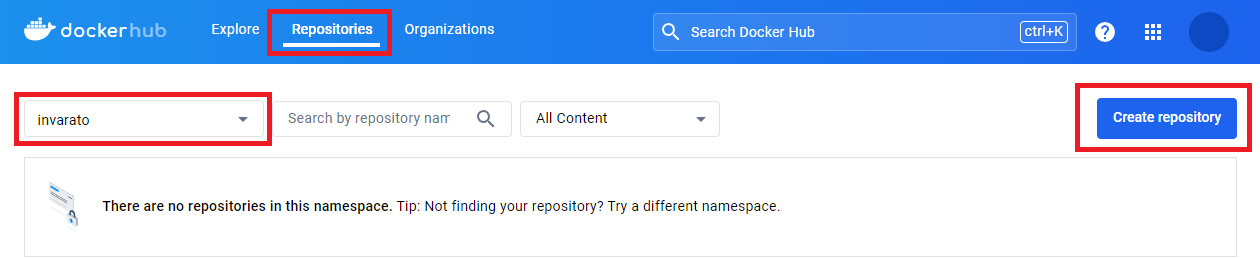
We fill in the details: in “Repository Name” I’ll call my repository “jarroba_repo”; in “Short description” I’ll write a description of my repository (it’s optional); in “Visibility” we choose whether we want a public or private repository (private is a paid option, but we get 1 private repository for free); we take a look at the commands on the right (we’ll see them later) and click “Create”.
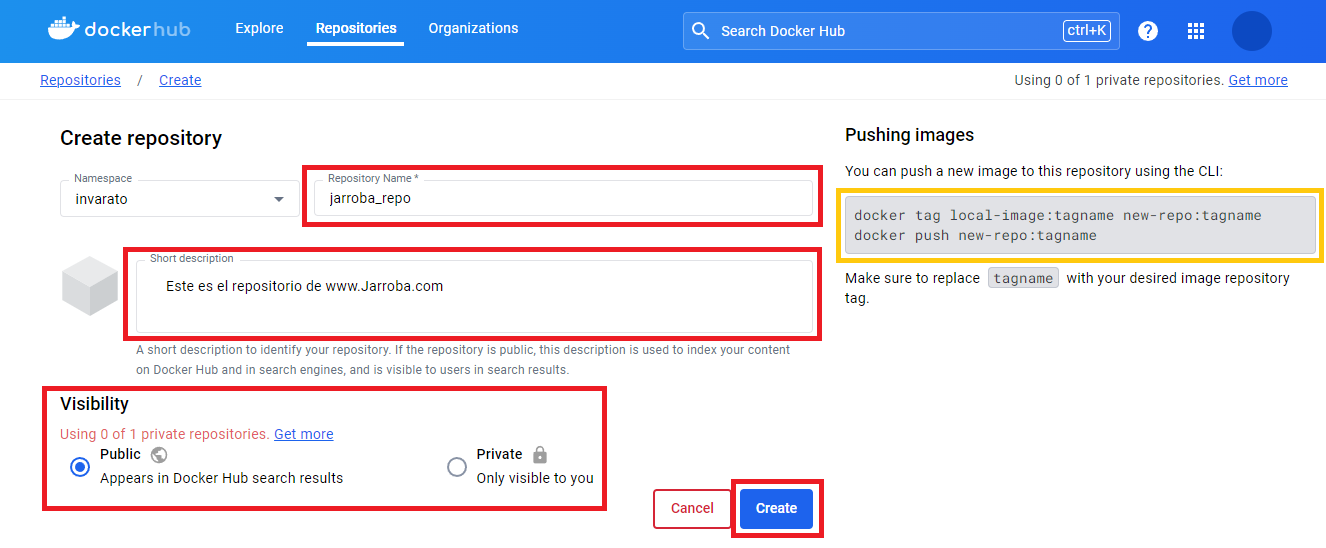
Note about “Repository Name”: the name we enter will be the name of the image that people will use to download our image, that is, “<Namespace>/<RepositoryName>” will be used. In my case it will be “invarato/jarroba_repo” (given the characteristics of the image I’m going to upload, I could have named my repository “jupyter” so it would be “invarato/jupyter”, but in this article I want the difference from the repository to be clear).
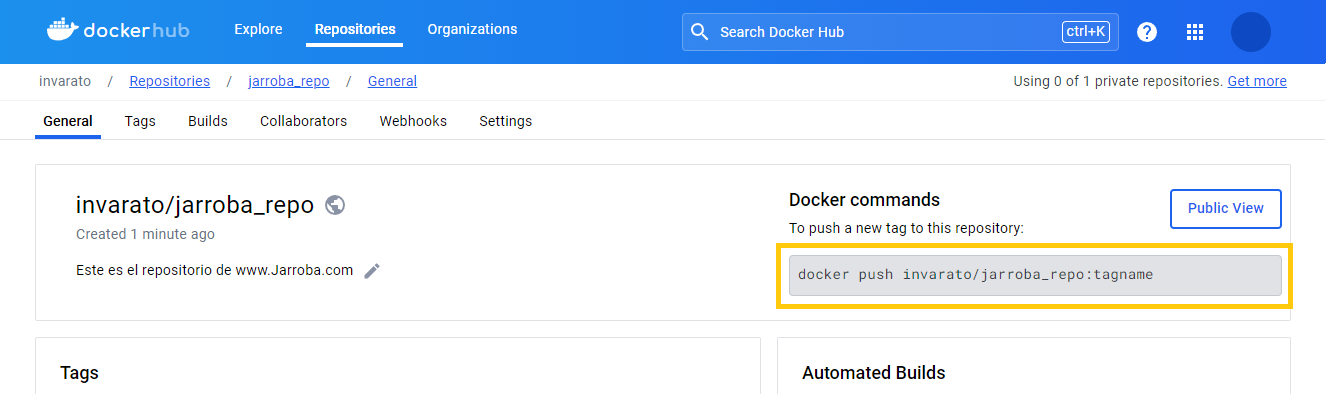
Inside the repository we’ll see its information and settings, but right now the most important thing is to look at the command on the right.
New Token
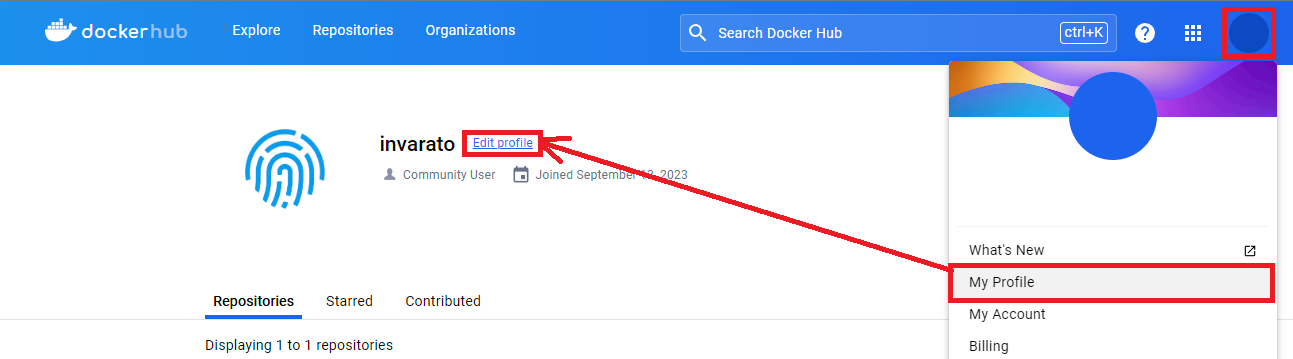
We’ll create a new Token: to do so, we go to our profile (the circle at the top right), click “My Profile” and then “Edit profile“.
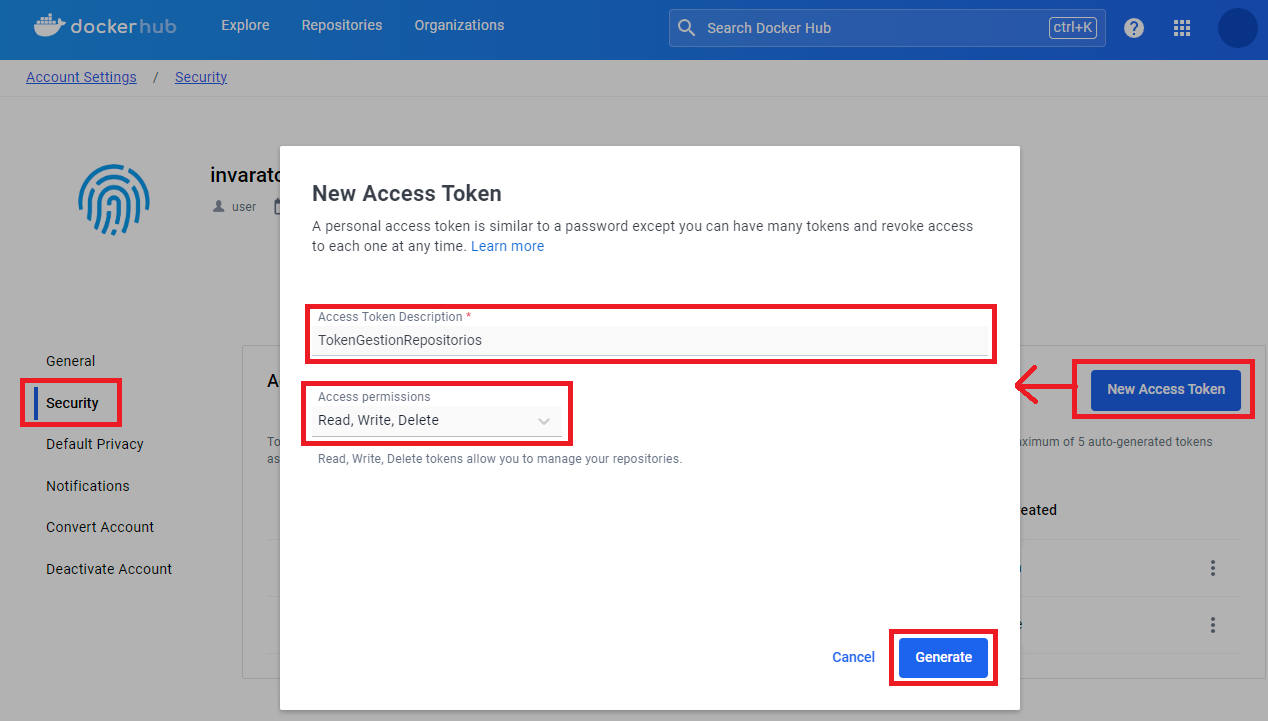
Then, in the left menu we go to “Security” and create a token by clicking “New Acces Token“. A window will open where we give our Token a name in “Access Token Description” (I’ll call it “TokenGestionRepositorios”), in “Access permissions” we give it permissions of “Read, Write, Delete” and click “Generate“.
In the next window, we copy the Token that was generated (it’s important to copy it here, because it won’t be shown again and we’ll need it to log in from the terminal with the “docker login” command, as we’ll see).
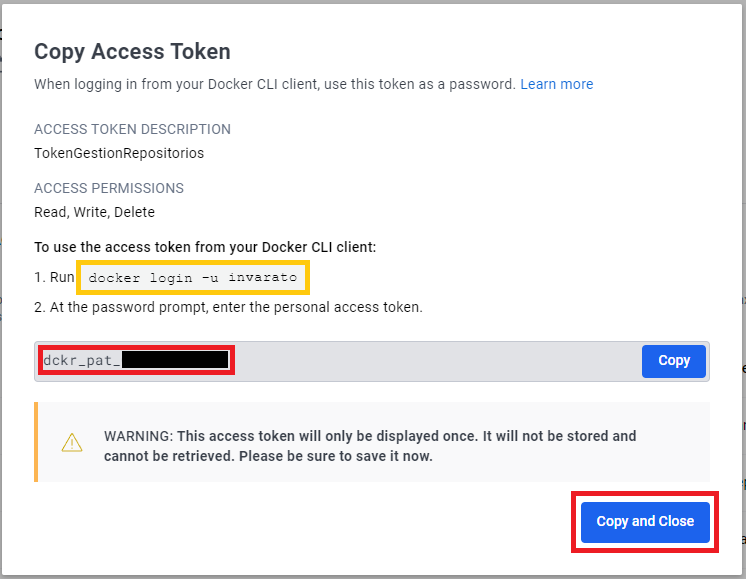
Note: Remember this Token, because we’ll need it to log in from the terminal.
Now we have everything ready to upload our image to the Docker Hub repository.
Although we built the image earlier and could upload it, here we’re going to build it again with a few more good practices (you can delete the previous image with: docker rmi -f mi-imagen-jupyter ). To build an image for a repository, the following scheme is usually followed:
docker build -t <nombre_imagen_local>:<version> .Let’s create the image locally with a version, in case we have several:
docker build -t mi-imagen-jupyter:1.0 .Note on the local image name vs. the repository name: the image name in the build is the tag itself, so we could put it directly in the format the repository requires, but here I want to keep them separate so it’s clearly visible. That is, after the build I’ll have an image named (tagged) “mi-imagen-jupyter”, but for the repository I’ll need one named “invarato/jarroba_repo:1.0”.
Once the image is built, we’ll need to create new tags appropriate for the repository that follow the scheme “<espacio_de_nombres>/<repositorio>:<version>”, and we’d use the “tag” command:
docker image tag <tag_de_imagen_existente> <nuevo_tag>For my example it would be:
docker image tag mi-imagen-jupyter:1.0 invarato/jarroba_repo:1.0Also, if we want a “latest” pointing to our most recent version, the “latest” tag has to be generated by hand, so we can use the “tag” command like this:
docker image tag mi-imagen-jupyter:1.0 invarato/jarroba_repo:latestNote on checking image tags: to make sure everything is correct, it’s a good idea to review our images with the command: docker images
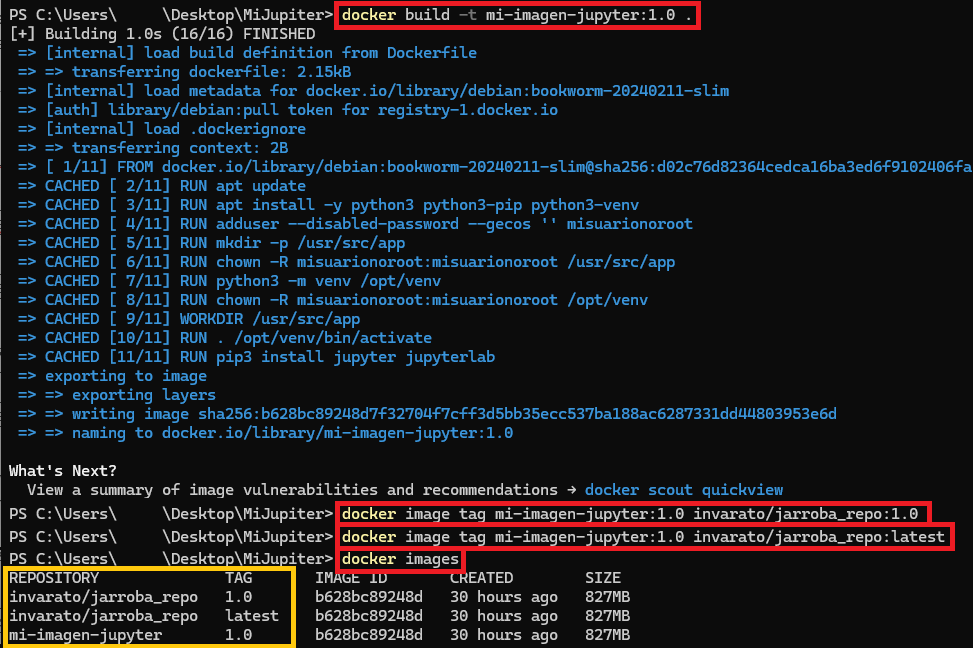
Our image is ready with its tags, so now we connect to our repository with login:
docker login <url-a-mi-mi-repositorio> -u <usuario> -p <token>Note on “url-a-mi-mi-repositorio”: for Docker Hub it’s not needed, but if we want to point somewhere else, for example a Harbor, you do have to include it (in this article I add it to demonstrate it).
For my example I log in with (the URL of the official Docker Hub registry is “https://index.docker.io/v1” as stated in the documentation docker login (Docker Docs) ; remember I include it here just as an example, it’s set by default, so you wouldn’t need to put it):
docker login https://index.docker.io/v1 -u invaratoNote on the password/token: the previous command will ask for a password; use the Token we created and copied earlier. You can also use the “-p” parameter to put the password on the same command line (although it’s safer to type it in by hand as I explained before).
After logging in, all that’s left is to push our image.
docker push invarato/jarroba_repo:1.0And we repeat it for “latest”:
docker push invarato/jarroba_repo:latestAnd that’s it: your image should now be on Docker Hub, ready to be used.
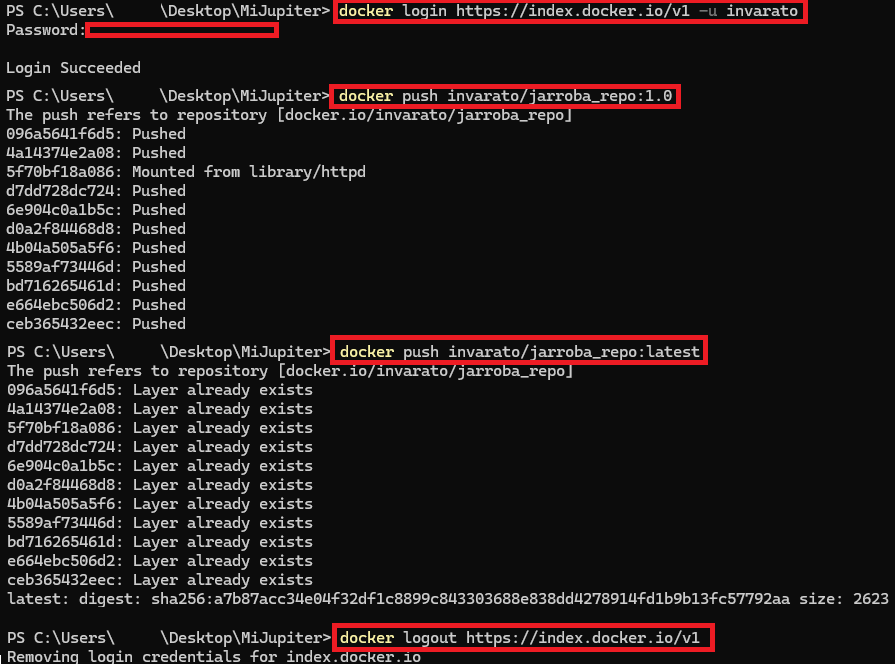
To log out:
docker logout https://index.docker.io/v1If you go to our repository on Docker Hub, it will be ready for the world to use and download:
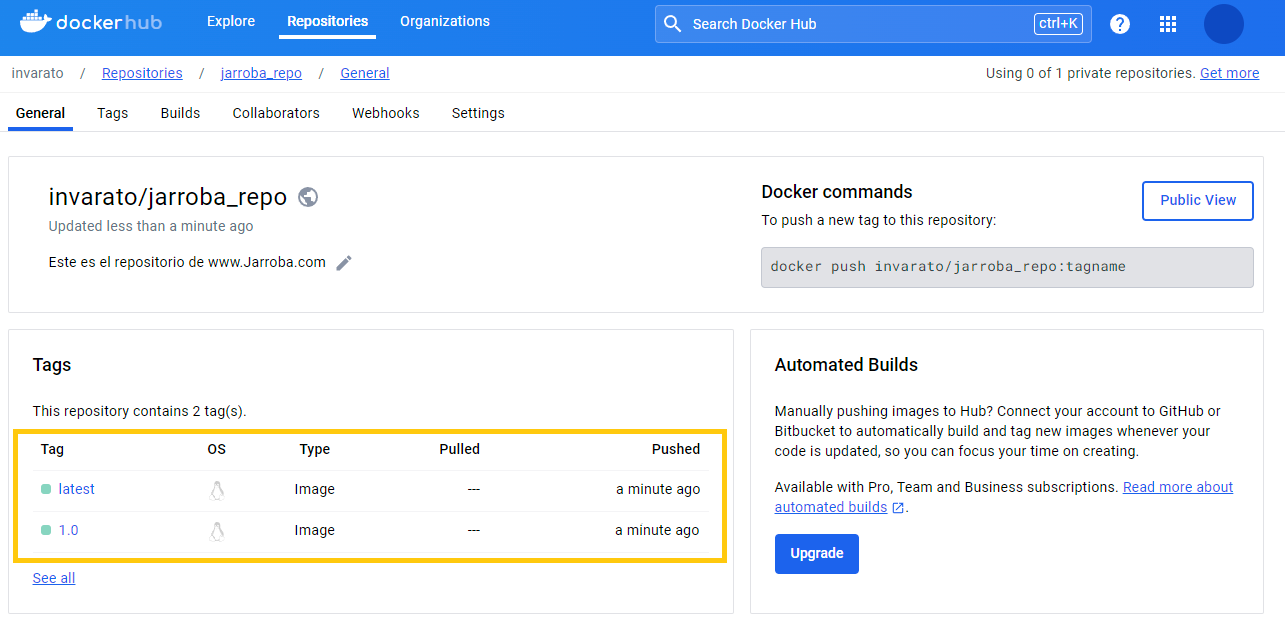
You can check out this demo repository at: invarato/jarroba_repo – Docker Image (Docker Hub)
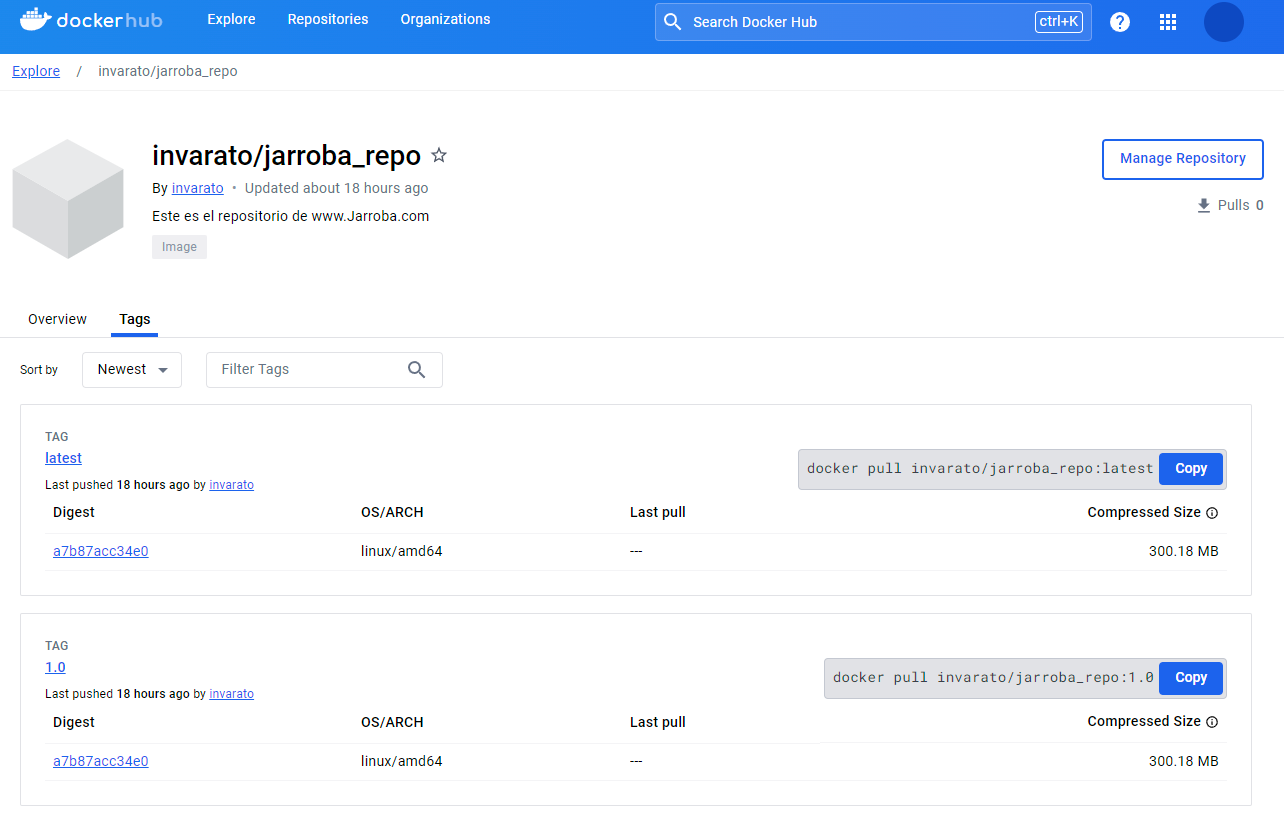
Additionally, I’ll quickly tell you about the pull command, although it’s not commonly used, since a pull happens on its own when, after running the build, a FROM requires an image that isn’t there, or when Docker Compose defines it. An example of pull would be (you can put the version “:1.0”, “:latest”, or nothing, which defaults to “:latest”):
docker pull invarato/jarroba_repo:1.0Multi-Stage Dockerfile
Multi-stage Dockerfiles are great for many things, mainly for slimming down images and speeding up our development by not having to rebuild everything each time we change something (we take advantage of Docker’s layer caching). For example, you can have a first stage to build your project and a second one to use only the bare minimum, so only the last stage is kept and you’re left with just what you need.
I’ll give you a very quick example so you get the idea (I won’t get this example running in this article, that would be material for another one, but the Dockerfile is real).
Imagine you’ve finished a Spring Boot (Java) project with its respective Docker files, looking something like this (look at the Docker files in the screenshot):
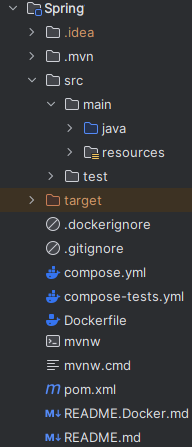
To create the “Dockerfile”, we know Java has to be compiled into a Jar file and that we do it with Maven, so we can define:
- A first stage: compiling all our code with Maven (you’ll notice I pass in the APP_VERSION of my microservice from the terminal; I do it for CD/CI reasons).
- A second stage: where we throw away everything except the Jar we want to run on a lightweight Java base (here I also use the HEALTCHECK directive so Docker takes care of checking the health of my Spring Boot microservice).
ARG APP_VERSION=unknown

FROM maven:3.9.6-eclipse-temurin-17-alpine AS build
LABEL authors="Ramon Invarato"

ARG APP_VERSION

WORKDIR /app
COPY pom.xml .

RUN --mount=type=cache,target=/root/.m2 mvn dependency:go-offline

COPY src/ /app/src

RUN mvn versions:set -DnewVersion=${APP_VERSION} && mvn package -Dspring.profiles.active=build


FROM eclipse-temurin:17-alpine

ARG APP_VERSION

EXPOSE 8080

WORKDIR /usr/src/app

COPY --from=build /app/target/*.jar app.jar

HEALTHCHECK --start-period=60s --interval=30s --timeout=3s CMD curl -f http://localhost:8080/actuator/health || exit 1

ENTRYPOINT ["java", "-jar", "app.jar"]
General Recommendations for Creating Good Dockerfiles
Recommendations:
- Use official, verified base images.
- Pin the version of the base image.
- Set the working directory first WORKDIR, before using COPY and RUN
- Use COPY instead of ADD (unless you need to handle “tar” files and remote URLs).
- Parameterize with ARG whatever needs to change between builds (for example, your project’s version).
- Minimize layers by combining RUN instructions.
- Clean up unnecessary cache and temporary files in the final stage, in order to reduce the image size as much as you can.
- Build in multiple stages so your image is small and secure. We saw a Java example earlier; now I’ll give you another example for Node:
# First stage: build the project
FROM node:14.17.3-alpine as builder
ARG PROJECT_VERSION=1.0.0

# Set the working directory
WORKDIR /app

# Copy the package json files
COPY package*.json ./

# Install the dependencies
RUN npm install

# Copy the rest of the application files
COPY . .

# Build the application
RUN npm run build

# Second stage: create the final image
FROM node:14.17.3-alpine

# Set the working directory
WORKDIR /app

# Copy from the build stage
COPY --from=builder /app ./

# Clean up unnecessary temporary and cache files
RUN rm -rf /var/cache/* \
    && rm -rf /tmp/*

# Expose port for the application
EXPOSE 8080

# Start command
CMD ["npm", "start"]
- Never put credentials or passwords in the Dockerfile.
- Drop root access when you finish the root tasks (for example, when you finish installing). Example:
FROM ubuntu:18.04

# root to work without restrictions
USER root

# Install the necessary packages here as the root user
RUN apt-get update && apt-get install -y \
    paquete-requerido-1 \
    paquete-requerido-2 \
    etc.

# Then create your non-root user and switch to that user
RUN useradd -ms /bin/bash usuarionoroot
USER usuarionoroot

# Now you're running commands as usuarionoroot
RUN whoami # It will print "usuarionoroot"
- Design each container to handle a different aspect of your application; don’t use one container for everything.
- Don’t forget to use ENTRYPOINT or CMD to specify the start command, otherwise your Dockerfile will be useless.
- Avoid build scripts in the image, better use multi-stage builds.
- Keep only the necessary files in the build directory.
- Specify ports with EXPOSE if they’re needed.
- Structure the Dockerfile instructions to maximize layer reuse.
Recommendations for Reducing the Size of a Docker Image
When we build our own image, we should take care to reduce its size to a minimum (we’ll want it to be portable, to deploy quickly, to take up as little space as possible to save memory, and to download quickly when we pull). Recommendations:
- Multi-stage build: for example, in a first stage you can compile your code and package your application (for example, if you work with Spring, turn it into a “jar”), which takes up a lot of space; and in a second stage you can copy only what’s strictly necessary for the final image (in the previous example, that would be copying only the “jar”), so everything we used before to compile wouldn’t be included, which reduces the space quite a lot.
- Always start with the purest images possible: always use base images that are as standard as possible and without extras. For example, what is NOT recommended is this: if I now create a simple Java “Hello World”, I could perfectly well use the image generated by the previous Dockerfile (since it includes a pure Java image) and it would work, but I’d be adding the Spring Boot project’s “jar” that I don’t need in this new image.
- Use the bare minimum: the more stages you add, the more space it will take, since each stage adds its own metadata and files. Also, understand very well the instructions you use; for example, every time you use the “COPY” instruction it will copy content, and if you use the “FROM” instruction it will download a new image if it didn’t have it before.
“Advanced Dockerfile: Multi-Stage Builds, Registries, and Tricks” by Ramón Invarato at jarroba.com, licensed under Creative Commons Attribution-NonCommercial-ShareAlike 3.0. Registered at Safe Creative.

You may also like
Dockerfile: Directives and Dockerizing Projects
Free Docker course. A Dockerfile is a file of directives for building and deploying custom applications with Docker. Learn how to Dockerize your projects.
Docker Images: Complete Guide to Docker Commands
Free Docker course. Take full control of Docker images and learn to work in depth with Docker commands, from pull and run to volumes and networks.
Leave a comment