
Python Environments: Stock Python and Anaconda (base)
Learn to program in Python using multiple Python environments, from Anaconda (base) to stock Python, plus others such as virtual environments.
This article is aimed both at people who are just starting to program in Python from the basics and at professionals who want to catch up on Python environments. It is set up like a course so you understand, and finish knowing how to use, both the stock Python environment and Anaconda’s base environment, and clearly see the difference between them (we will cover the virtual environments of both in this other article), and how Python environments are used today in professional settings.
Although installing Python and starting to code is very easy, these days I think it is extremely important to be very clear about the different Python environments (stock, base, virtual, etc.) both so you can work comfortably with them without any surprises (for example: What is “base”? Or what is “venv”? I will answer these later) and so you know the scope of each one (For example: why doesn’t a package I installed work? Maybe because it is in a different environment on the same computer; or why does it run with an old Python if I have the newest Python installed? Because of how the different environments are configured; etc.).
Python environments
When we install Python (I explain how to install it later) in any of the available ways, we will have the executable “python.exe” on our computer (although in this example I write “.exe” for Windows, if you use Linux or Mac it works in a similar way), which is the famous “Python interpreter“.
The Python interpreter can be called directly from the terminal by typing “python” (since installing Python will have created a system environment variable pointing to this “python.exe” executable). This executable will run Python in one of its versions (Python 2.8, Python 3.7, etc.); that is, depending on the installed Python version, the same method may be more or less optimized, and one syntax or another will be allowed.
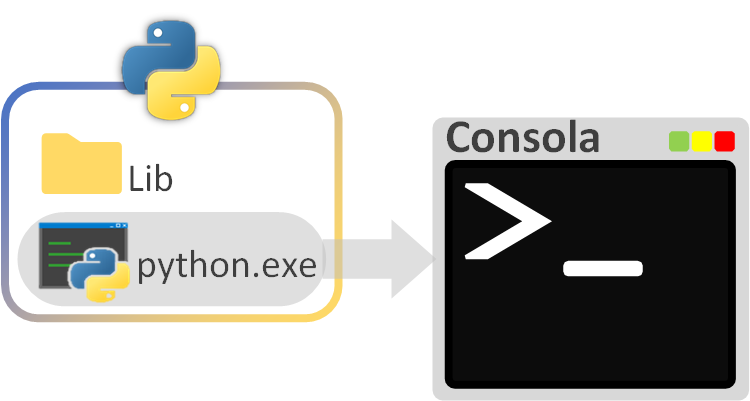
On the other hand, inside the same Python installation (inside the folder holding all the Python files) we will have folders with a lot of files that make Python work, the most interesting being the “Lib” folder (on Linux libraries are stored differently, but the concept is the same; we will see this later for each operating system); this folder is where all the preinstalled Python libraries are, ready for us to use (for example the Math library, which lets you do math operations like the square root very easily; among many other libraries) and other libraries that we install in the future will be stored here too.
If we wanted to expand the contents of the “Lib” folder we could download some of the libraries (called “packages” in Python) by hand and paste them into this “Lib” folder; however, it is better to use a “package management system”, which works something like a free “app store” and saves us a lot of work: if a library has dependencies (it needs other libraries to work), it will automatically install everything it needs so you can work with the library right away without further worries. The most widely used “package management system” in Python, which usually comes preinstalled, is called Pip, and the site where you can browse all the libraries is PyPI · The Python Package Index; so, Pip will manage for us the contents of the “Lib” folder it is pointing to (I explain its installation and full usage with examples later).
This is the “Python environment“, that is, everything within reach of our Python project/code, such as the libraries our Python code needs (from the “Lib” folder) and the Python interpreter that runs our Python code (the “python.exe” executable) in particular.
For example, on our computer we write Python code that uses the Math library because we do math operations; later, we want to copy our script to another computer (which may have the same environment or a different one) that has Python installed, and we want to run it, but it turns out that this computer does not have the Math library because whoever managed it decided to remove it to save space (this could be a server with a peculiar “Python environment”). Our code will not be able to run on that other computer and will return an error (we will have several options: install the Math library if possible; or, the hard way, create/copy by hand the code of the Math operations we use).
Today we have to distinguish between the types of “Python environment” we can use on the same computer:
- Global (base): the base environment that affects all projects (although it does not have to be used directly by a project).
- Specific to a set of projects: you can create a (virtual) environment that one or several projects can use at the same time.
- Specific to a project: an environment that only a single project has access to.
As we said, and as a quick summary, it will depend on the Python executable (“python.exe”) and the libraries (“Lib”) a project has access to.
Global environment (base)
Today it is very common to run into these types of global Python environments:
- Stock Python: this is the Python installed directly on the operating system, and you can use the Python interpreter directly from the operating system’s terminal.
- Python managed by a “package management system” (such as Anaconda): this is a Python managed by the package manager, and its Python interpreter is not accessible from the regular system terminal; you need to access it from the package manager’s terminal (for example, from the Anaconda terminal, where it is also called “base”).
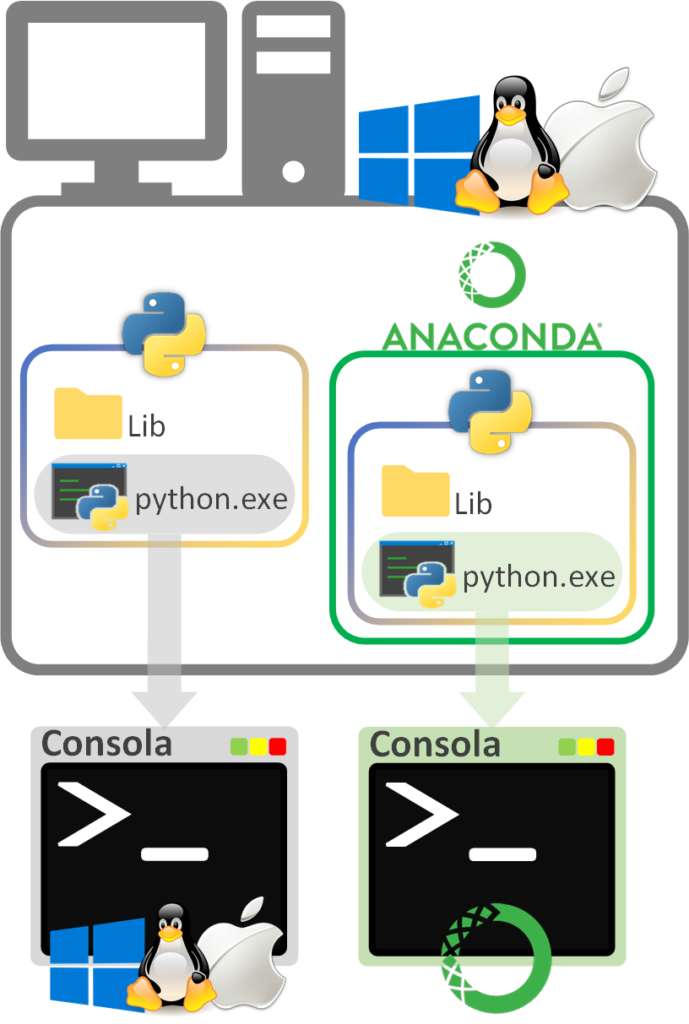
You can have both installed at the same time (“stock Python” and Python managed by a “package management system”), but each Python interpreter will be separate (they are two different programs, even though both are Python and may even be the same version), and if you have both installed you need to be clear about which environment you want to run your code with each time.
You can also have several “stock Pythons” at the same time in different paths of the operating system (this is usually done to have several Python versions on the same computer).
Next, I explain how to install stock Python and Python managed by the Anaconda “package management system” (if you already have it installed you can skip these sections). It is important to install the one you need; if in doubt I recommend installing Anaconda, and if you want to understand everything well, it is better to install both so you learn from each.
Note
Installing an IDE
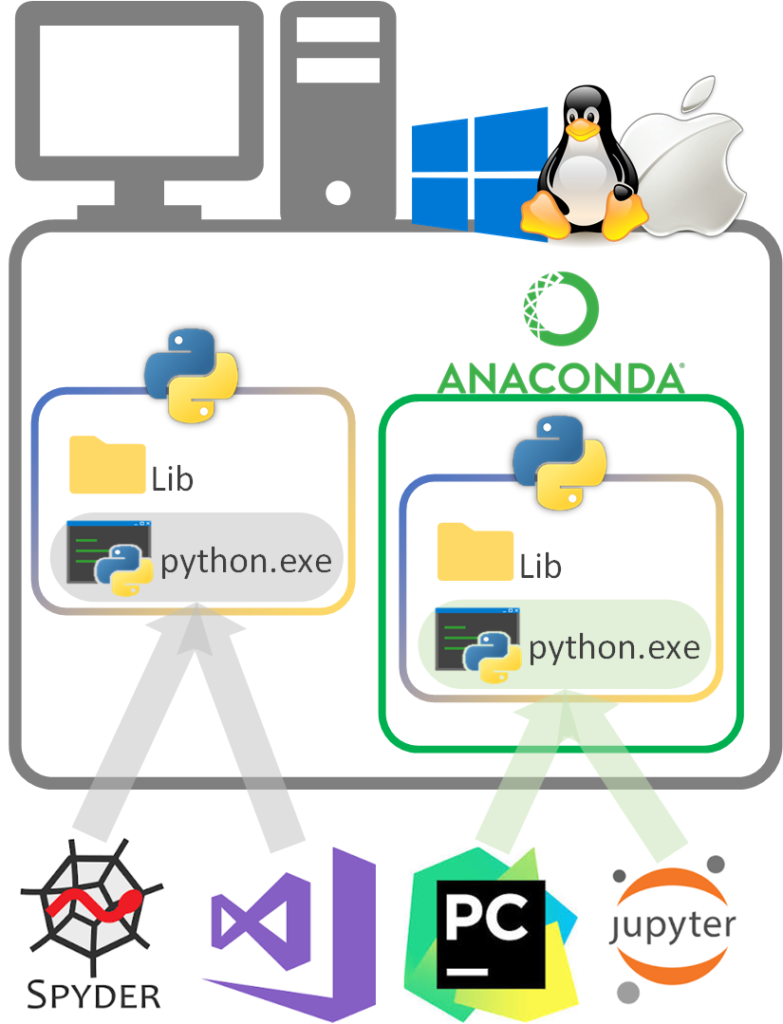
If you install an IDE (such as Visual Studio, PyCharm, Spyder, Jupyter, etc.), by default it will point to a global environment, which is the one it will run, although you can change it from the IDE itself and it even lets you configure different environments. Some may even bring their own Python environment (usually installed in the IDE’s own installation folder).
In reality, under the hood each IDE opens a terminal and types the commands you see in this article, so depending on the terminal the IDE has opened, it will run one environment or another (and the same applies to the virtual environments we will see later).
If you want to know more and how to install one (PyCharm in this case), I recommend you take a look at the video we have prepared at:
Installing stock Python
On Windows from the Microsoft Store: Python 3.8 — Free download and install on Windows (Microsoft Store) (for version 3.8; a newer one may have come out, which you can look up directly in the search: Search Microsoft.com: "python" (Microsoft)) or from the official website Download Python (Python.org)
Note about the 32-bit and 64-bit installers: If you are working on a 32-bit system, make sure you install 32-bit Python; likewise, if you are working with the 64-bit version of the operating system, install 64-bit Python (mixing up the installations will give you an error when you try to get Python working).
On Linux (it usually comes preinstalled, at least on Ubuntu; you can check it with the command: python3 -V) you can install it with APT using the command (check the version before installing at Download Python (Python.org)):
sudo apt install python3.8On Mac it usually comes preinstalled, or it is simply easier to use the Anaconda “package management system”.
You can check the Python installation on any operating system by asking for the Python version from the terminal:
python3 -VOr:
python -VNote about these two commands: depending on the environment variable that was created, it will be “python3” or just “python”. It tends to be confusing, although today they are the same thing (and most likely only one of them exists on your computer, so watch out for this). As a curiosity, back when Python2 and Python3 coexisted, the “python” command was used for Python2 (you also saw it around as “python2”) and “python3” for Python3, since both were installed on the same computer (the reason was so old Python scripts would not stop working while you could still code with the new Python); today, with Python3 being the only one (Python2 is no longer supported), it does not matter what it is called, but you need to know what it is called (and you may still run into a system that has both variables); it tends to go back to just “python” since it is easier.
Default paths where the Python executable is installed (“VV” is the installed Python version):
- Windows: C:\Users\<usuario>\AppData\Local\Programs\Python\PythonVV-VV\python.exe
- Linux/Mac: /usr/bin/pythonVV
Default paths where the “Lib” folder is:
- Windows: C:\Users\<usuario>\AppData\Local\Programs\Python\PythonVV-VV\Lib\
- Linux/Mac: /usr/lib/pythonVV
Additional information about the installation:
- Windows: Using Python on Windows (Python docs)
- Unix: Using Python on Unix platforms (Python docs)
- Mac: 5. Using Python on macOS (Python docs)
Installing a Python “package management system”: Anaconda
Download from Download Anaconda Distribution (Anaconda) and install.
Step-by-step installation of Anaconda on video at:
Default paths where the Python executable is installed (“VV” is the installed Python version):
- Windows: C:\Users\<usuario>\Anaconda3\python.exe
- Linux: /home/<usuario>/anaconda/bin/python
- Mac: /Users/<usuario>/anaconda/bin/Python
Default paths where the “Lib” folder is:
- Windows: C:\Users\<usuario>\Anaconda3\Lib\
- Linux: /home/<usuario>/.anaconda/lib/pythonVV
- Mac: /Users/<usuario>/.anaconda/lib/pythonVV
Additional information about the installation: Find your install guide (Anaconda Documentation)
Testing a Python environment by programming in Python
Ways to program in Python:
- With interactive mode: It lets us write code directly and run each line. Its limitation is that it lives in RAM, that is, when we close the terminal the code will be lost.
- With a file: we create a file with Python code inside and run it. The file normally gets the “.py” extension. Since it is a file saved on disk, we won’t lose the Python code we write if the terminal is closed (or if we turn off the computer), and we can copy it elsewhere (for example, to other computers).
For both, the first thing we need is to open a terminal.
1. Open a terminal
We open the system terminal or the Anaconda one.
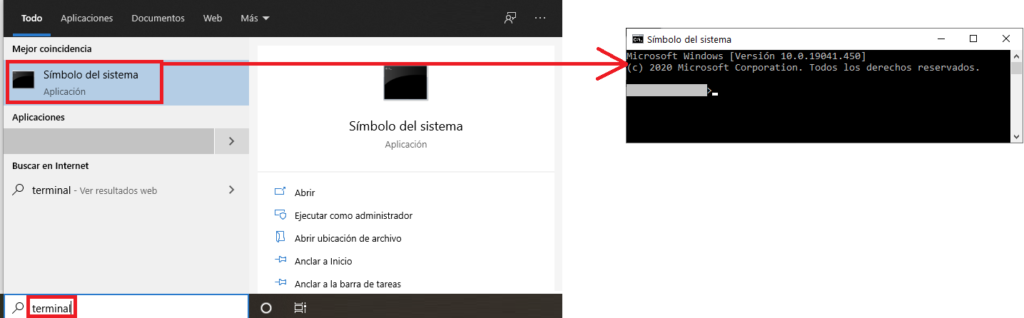
To open the operating system terminal we simply open a new terminal. On any operating system, search for the word “terminal” in its search box and run it to open it (the following image is from the Windows search; it applies equally to the other operating systems with a graphical interface: Mac, Ubuntu, etc.).
Or if we want to open the Anaconda terminal, typing “Anaconda” in the search box of the operating system will show one called “Anaconda Prompt”.
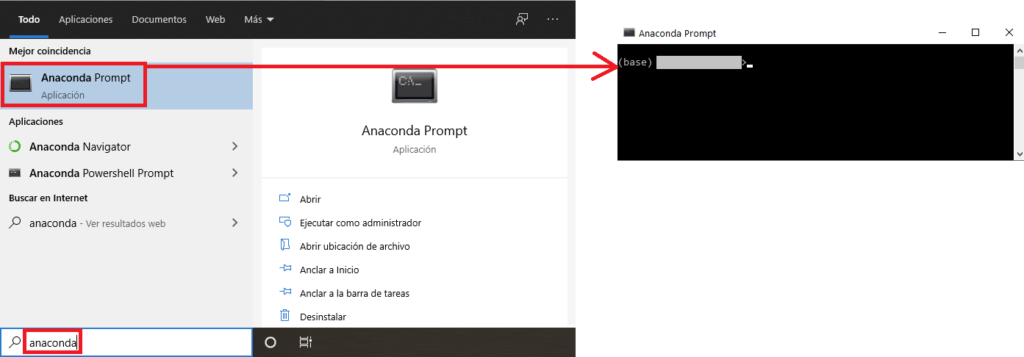
Note about the Anaconda terminal: you will see that it puts the word “(base)” in parentheses before the path; this indicates that the Python code we write in this terminal will be interpreted by the base Python (the Python managed by Anaconda). As a follow-up to this article you have the article on Python virtual environments to see how to switch from this environment to a virtual one and learn to manage it. It means that Anaconda is already managing the Python environment for us, and by default it won’t let us run code directly on its global Python installation.
Recommendation for learning: I recommend trying both terminals (“Anaconda Prompt” and the system terminal).
2. Python’s “interactive mode”
In either terminal, enter Python’s “interactive mode” by typing “python” in the terminal and pressing the “Enter” key:
pythonIf it doesn’t work, try typing (as mentioned earlier, it depends on the environment variable that was created):
python3You will have entered the Python interpreter (at this point the terminal is no longer controlling the system; that is, you can write Python code, but you can’t navigate your computer’s directories until you exit the Python interpreter). After the three greater-than symbols “>>>” you can write Python code line by line.
Try writing a couple of lines of Python code, like printing some text, and run the line by pressing the “Enter” key:
print("hola")Or add a couple of numbers:
2 + 5To exit the Python interpreter, type:
exit()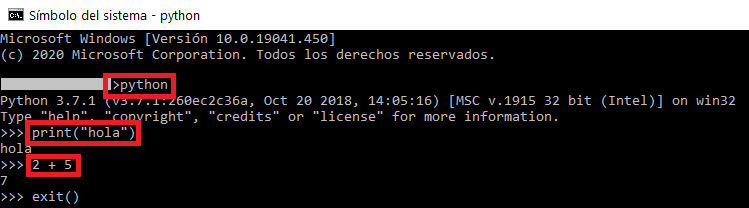
To try the global libraries (the ones in the “Lib” folder) we can import “Math”, for example. Enter the Python interpreter again and type:
from math import sqrtAnd try taking the square root of 9 (the next image shows that you will get an error if you try to use this method before importing, and that it works correctly after importing):
sqrt(9)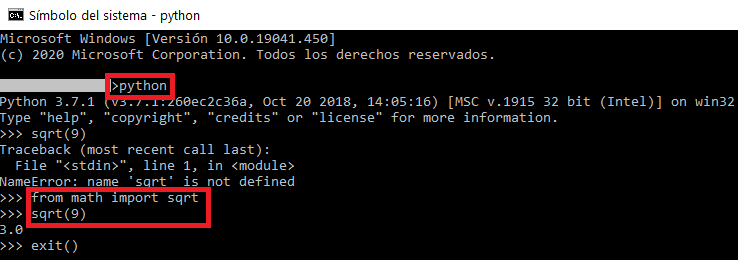
3. Running a file with Python code
The interactive Python mode above is great for small tests in RAM, but the most convenient way to handle a lot of code and have it saved on the hard drive is to create a file with Python code and run it.
A Python project is simply a folder that holds files with Python code ready to run (this is a quick summary of a Python project; we will see its parts later).
Create a file on your operating system with a couple of lines of Python, for example, showing some text and adding some numbers (to see the result in the terminal use the “print” method):
print("Ejecutando desde un fichero")
print(2+3)
For example, I created a blank Notepad file on my computer’s desktop (if you use the Linux terminal you can create this file with “Vim”; there is a simple explanation of how to use Vim, with the example of creating a file with code, in the article https://jarroba.com/usar-servidores-y-crear-una-web/ in the box “Learn to use VIM in a couple of minutes”) and renamed it “mi_script.py” (without the quotes). And a very important detail: make sure you save the file.
To run this file with Python code, we simply type the word “python” in the terminal, a space, followed by the full path to the file, and press “Enter”; this will run the Python code saved in the file. Here is the example with the path to my file:
python C:\Users\<usuario>\Desktop\mi_script.py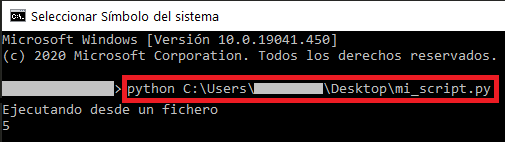
4. The PIP package manager
It is important to know how to use this “package manager”, since it will make it much easier to manage the packages/libraries in each Python environment.
Open the system terminal or the Anaconda one; it works the same in both, but in each terminal it will manage a different “Lib” folder (either the “stock Python” one or the “Anaconda” one).
For this we will use the PIP package manager, which usually comes preinstalled.
Checking and installing PIP
Check whether you have PIP installed with the command (if it gives an error, it is not properly configured or not installed; if the version appears, it is properly configured and ready to use):
pip --versionThe “pip” command is just like the “python” and “python3” commands: depending on the system you may have to type “pip3” instead of “pip” (they usually go together; if you have to type “python3” you will probably have to type “pip3”):
pip3 --versionIf PIP is not installed, I made a video on how to install it at:
Note if you have Anaconda installed: Anaconda comes with PIP configured by default; if you are working with the Anaconda terminal it should work (don’t confuse the operating system terminal with the Anaconda terminal).
Note if you have both stock Python and Anaconda installed: it may work in one terminal and not in the other; after all, they are completely different environments.
You can browse all the PIP packages in the official repository: PyPI · The Python Package Index
Or the quick installation of PIP step by step:
On Linux/Mac download the get-pip.py file:
curl https://bootstrap.pypa.io/get-pip.py > get-pip.pyTo install, open the terminal and type (point to the path where you have “get-pip.py”; here I am assuming it is in the same path):
python get-pip.pyYou may have seen the following “WARNING” in the terminal:
WARNING: The scripts pip, pip3 and pip3.8 are installed in '/home/<USUARIO>/.local/bin' which is not on PATH.Copy the path without the quotes to add PIP to the “PATH” environment variable and make using PIP easier. To do so, use the following command, replacing the path with the one you copied (paste it between the colon and the closing double quote):
export PATH="$PATH:/home/<USUARIO>/.local/bin"On Windows (or from a browser on any operating system) download the get-pip.py file from: get-pip.py (script de instalación de pip, PyPA)
Install with the command:
python get-pip.pyAnd you may have seen the following “WARNING” in the terminal:
WARNING: The scripts pip.exe, pip3.7.exe and pip3.exe are installed in 'C:\Users\<USUARIO>\AppData\Local\Programs\Python\Python37-32\Scripts' which is not on PATH.Copy the path without the quotes to add PIP to the “PATH” environment variable and make using PIP easier. To do so, search the Windows search box for “Edit the system environment variables”. In the window called “System Properties” click the “Environment Variables…” button; in the next window that opens, called “Environment Variables”, select “Path” at the bottom in the “System variables” section and click the “Edit” button; in the next window, called “Edit environment variable”, click the “New” button and paste the path you copied, “C:\Users\<USUARIO>\AppData\Local\Programs\Python\Python37-32\Scripts”; finish by closing all the windows by clicking “OK”.
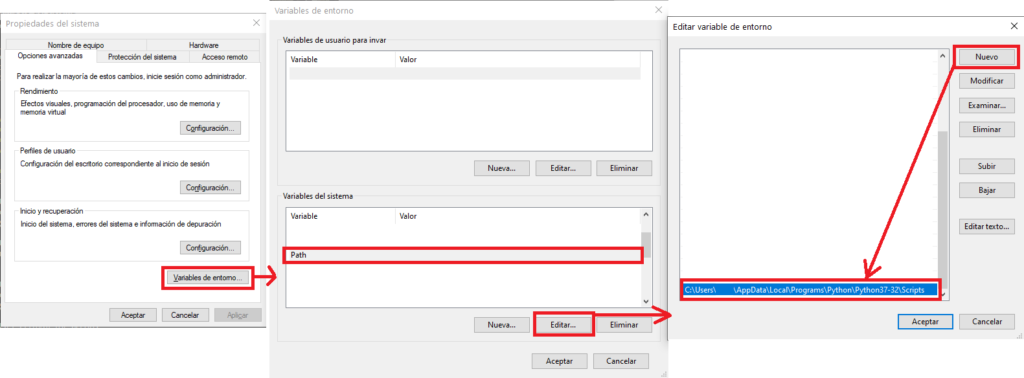
It is important to close the Windows terminal and open it again so that it uses the new environment variable.
On both Linux/Mac and Windows, once PIP is installed you can delete the get-pip.py file, since we won’t need it for anything else.
Let’s check which packages/libraries are installed in the current environment with the PIP command:
pip list --localThe following image shows an example and a comparison of “stock Python” on the left and “the Anaconda terminal” on the right. You can see that Anaconda has far more packages by comparison, since that is what it is for: making it quick to start using Python by bundling a bunch of libraries/packages; unlike “stock Python”, which comes emptier so that we can configure it to our liking.
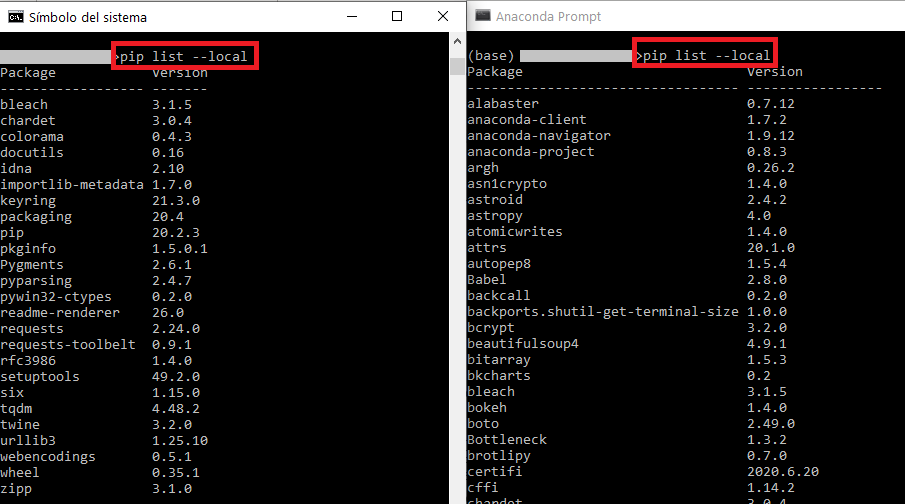
For this example I am going to install the package “quick-queue” (it is an open source project I made that is about 1800% faster than the multiprocessing queue -multiprocessing.queue- that Python ships with; you can find more information at quick-queue: Quick Multiprocessing Queue for Python (PyPI); to test, you can install any package you like):
pip install quick-queueIt and its dependencies (if it has any) will be installed thanks to PIP:

We check the libraries installed in the current environment again:
pip list --local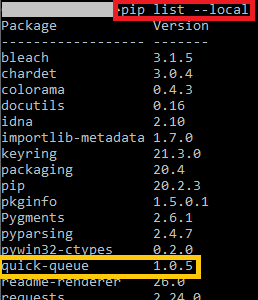
And all that’s left is to use the package we just installed. We open the Python interpreter by typing (or create a file with Python code as we saw before):
pythonAnd we import the package we just installed:
from quick_queue import QQueue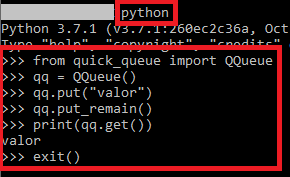
If importing gives no error, it works correctly. We can also try it out and, when finished, leave the interactive Python terminal by typing “exit()”; for example, it is enough to get the class (in the image I show a complete example of using “quick_queue”, which doesn’t make much sense to use without multitasking; I include it mostly so you can see that we can use the package we imported and it will work):
qq = QQueue()
exit()
And finally, if you want to uninstall a package we installed in the Python environment:
pip uninstall quick-queueReferences
- Welcome to Python.org
- Python 3 documentation (Python docs)
- Advance AI with Open Source (Anaconda)
- Anaconda Documentation
- pip documentation v26.2.1 (pip)
- PyPI · The Python Package Index
- Using Python on Windows (Python docs)
- Using Python on Unix platforms (Python docs)
- 5. Using Python on macOS (Python docs)
- Find your install guide (Anaconda Documentation)
- Personal experience
“Python Environments: Stock Python and Anaconda (base)” by Ramón Invarato at jarroba.com, licensed under Creative Commons Attribution-NonCommercial-ShareAlike 3.0. Registered at Safe Creative.

You may also like
Python Course – 0. Development Environment for Python
Set up your computer to run your first Python program: install Anaconda with the Spyder IDE or PyCharm, and practice with simple exercises.

venv (virtual environments) in python
In this post we will show examples of how to use virtual environments (venv) in python to isolate our projects between each other
Leave a comment