
Installing a Local Servlet Container: Tomcat
Learn how to install Apache Tomcat on Windows step by step, run it as administrator and check that your local Servlet container works.
Before we start the installation, you need to have the Java JRE installed. You can download it from: Java Downloads (Oracle)
To install Tomcat on Windows, go to its website: Apache Tomcat
In the left column, select the version you want (obviously, we recommend the latest one).
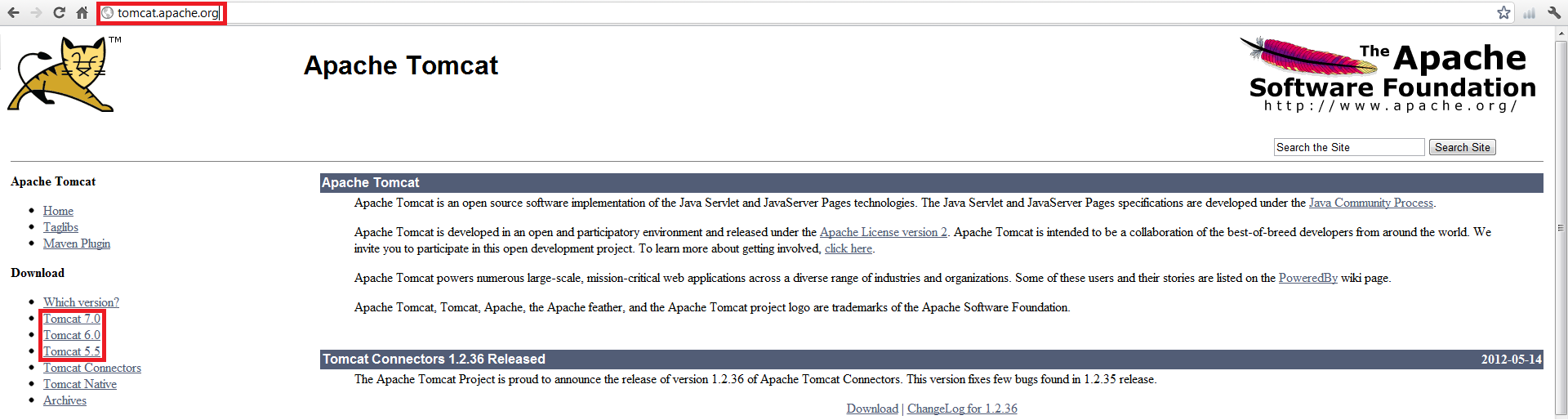
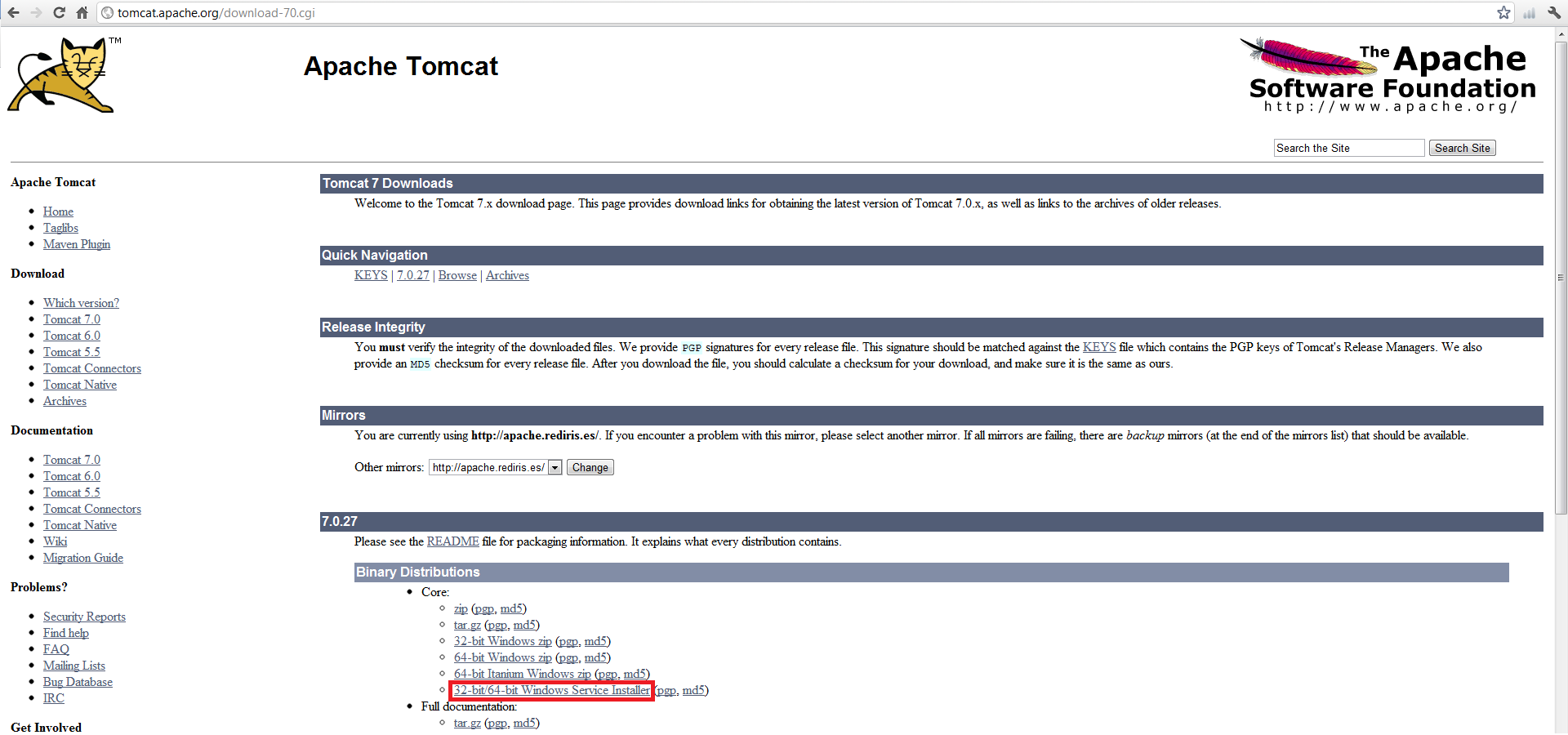
At the time of writing this tutorial, the latest version available was 7.0.
Select “32-bit/64-bit Windows Service Installer” to start downloading Tomcat.
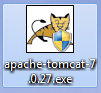
Once you have the exe file, run it.
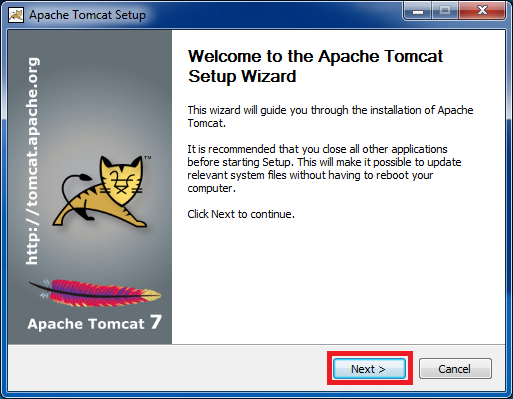
Install Tomcat by clicking “Next” on the welcome screen.
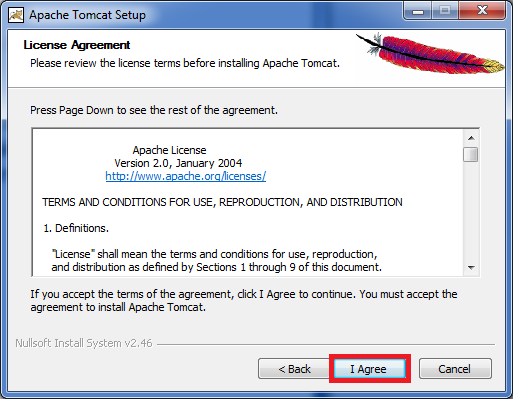
On the next screen, accept the terms by clicking “I Agree”.
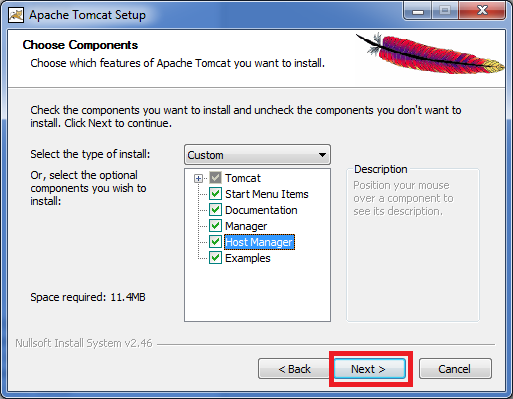
Check all the boxes (“Examples” is optional) and click “next”.
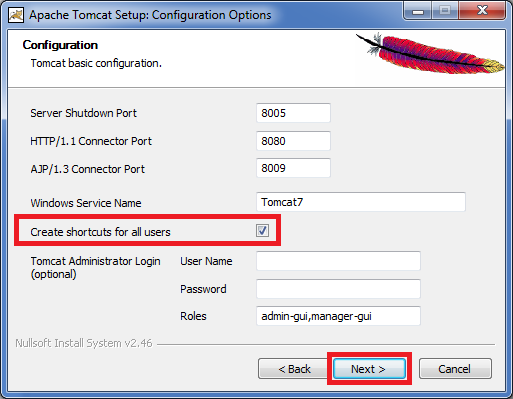
In the next window, check “Create shorcuts for all users” if you want shortcuts to be created. You can also enter a username and password if you like, although it isn’t necessary if you’re just going to tinker around. Then click “next”.
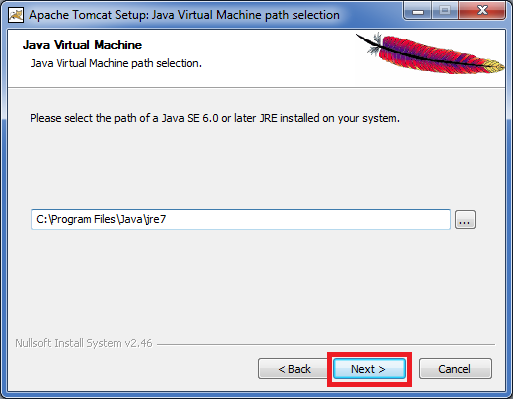
In the next window, choose the location on your disk where the Java JRE is installed. By default the installer finds it on its own; if not, you’ll have to browse for it. Click “next” again.
Now you need to tell the installer where on your disk you want to install Tomcat. Finish with “Install”. The installation will begin, and when it finishes, close the installer.
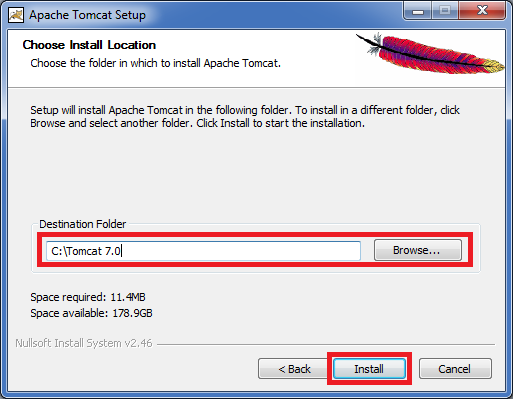
Tomcat is now installed. Next we have to run it. On Windows Vista and later, you need to run it with Administrator permissions (otherwise Tomcat will throw an error on startup). To do that, right-click the shortcut (if it isn’t on the desktop, it will be under All Programs; you can also search for “Monitor Tomcat” in the Windows search box) and select “Run as administrator”.
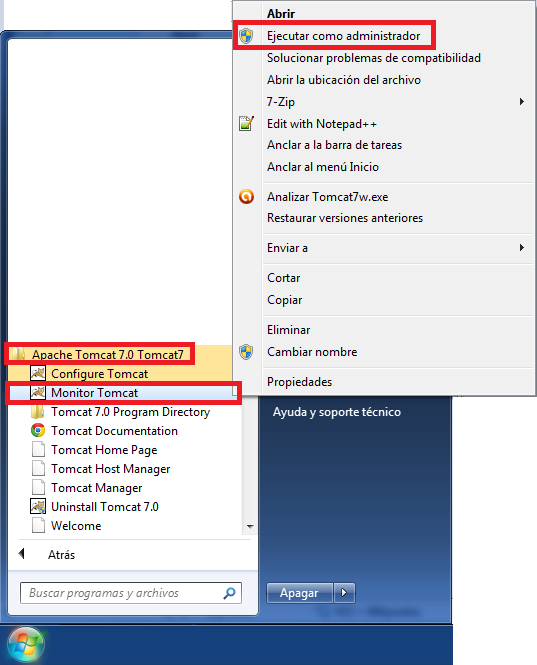
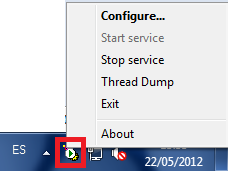
You’ll know Tomcat is running when you see a feather with a green arrow next to the Windows clock (to access all the settings or to stop Tomcat from Windows, just right-click the feather and the options will appear).
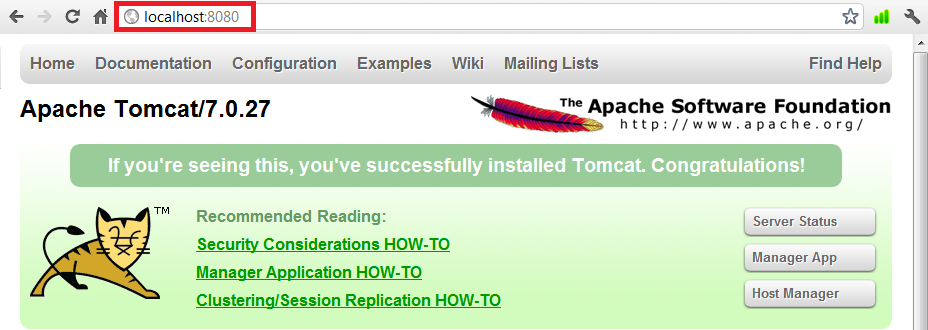
To check that Tomcat was installed correctly, do the following. With Tomcat running, open a browser and enter the address: http://localhost:8080/
If you see the Tomcat tiger and the success message that says “If you’re seeing this, you’ve successfully installed Tomcat. Congratulations!”, then everything is ready.
“Installing a Local Servlet Container: Tomcat” by Ramón Invarato at jarroba.com, licensed under Creative Commons Attribution-NonCommercial-ShareAlike 3.0. Registered at Safe Creative.

You may also like


How to Program Web Apps and Servlets in Eclipse
Learn how to set up Tomcat in Eclipse, install the web development plugins and run a local server to program web apps and servlets step by step.

Installing XAMPP on Windows
Learn what XAMPP is, how to download and install it on Windows, and test your setup with a simple PHP example running on your local Apache server.
Leave a comment