
Installing XAMPP on Windows
Learn what XAMPP is, how to download and install it on Windows, and test your setup with a simple PHP example running on your local Apache server.
1.- Introduction: What is XAMPP?
3.- Installing XAMPP on Windows
4.- A small example of how to use it
1.- Introduction: What is XAMPP?
[Wikipedia] “XAMPP is a free, cross-platform web server package that mainly consists of the MySQL database, the Apache web server, and interpreters for the scripting languages PHP and Perl. The name is an acronym of X (for any of the different operating systems), Apache, MySQL, PHP, Perl.”.

XAMPP is a “program” that simulates an Apache server on your own PC so you can develop web pages in PHP, using MySQL databases and the Perl language. In this tutorial we are going to focus simply on installing this program (on Windows) and briefly showing how to use it with a simple PHP example.
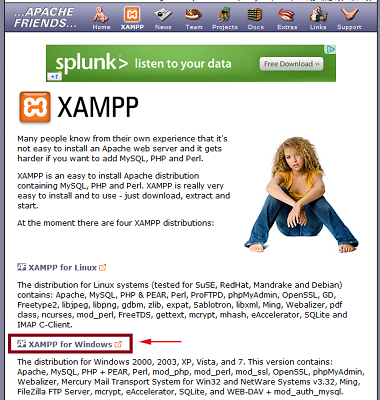
First, go to “http://www.apachefriends.org/en/xampp.html” to download the program. Once you are on that page, download XAMPP for the operating system you want (Linux, Windows, Mac OS X,…), in this case for Windows:
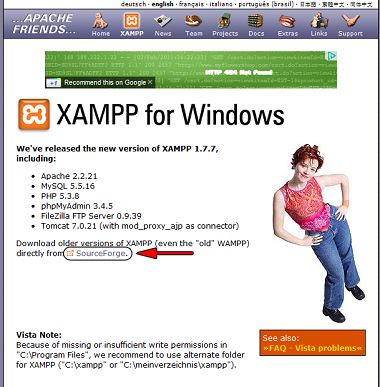
Once you click “XAMPP for windows” you will go to another page that looks like this, and you have to click “SourceForge”, which will take you to a download site where you can get XAMPP:
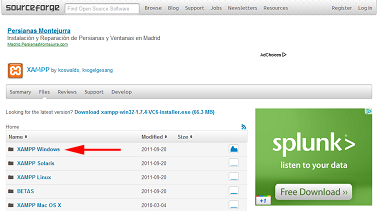
Then it will send you to a “sourceforce” page where you can download the program. Click the version for the operating system you want, in this case Windows:
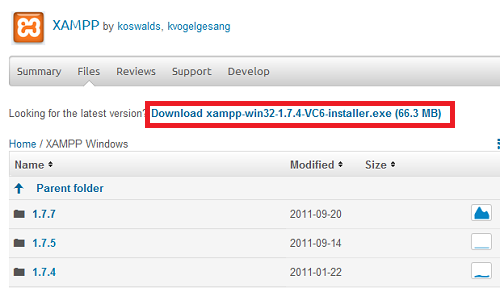
After clicking where indicated, you will be taken to another page where you can finally download the program. At the top of that page there will be a link to the latest available version of XAMPP, so click it to download the latest version, which is about 60-65 MB. If you want a different version, look for it in the various folders on the page:
After the download, you should have an “.exe” file like this in the downloads folder of your PC:

3.- Installing XAMPP on Windows
Once you have downloaded the installer file, double-click it to start the installation. The first thing to do is choose the installation language. In this case we choose English and click “OK”:
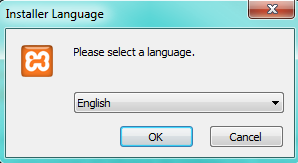
If an “alert” window shows up after this, always click “OK”. Then the program’s installation window will appear, and we click OK:
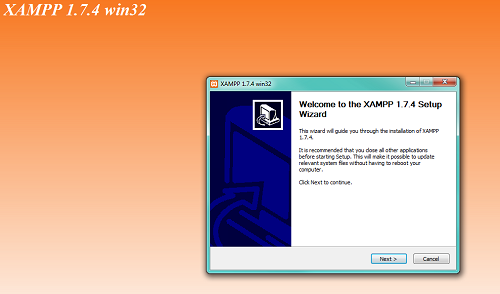
A window will appear for choosing where to install XAMPP. We recommend keeping it on the “C” drive, which is the default in the installer, as shown in the following image. In principle you can install it on any partition you like, but from experience, installing it on another partition has caused some problems when working with this program, so we recommend keeping the default path:
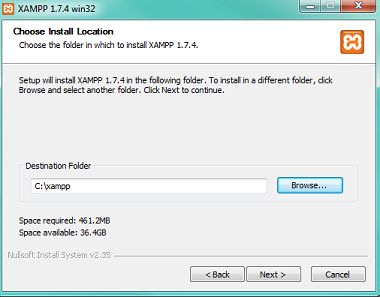
After clicking “Next” you will see a series of installation options. In this case we select all of them and start the installation by clicking the “Install” button. You can select the three options under “Service Section” so that those three services start when XAMPP starts, but it’s better to leave them unselected so you have more control over the tool.
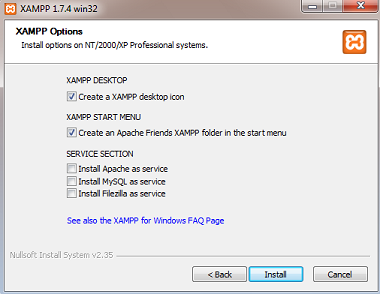
After this step the program starts installing, which can take a few minutes. During the installation, a window like this should appear:
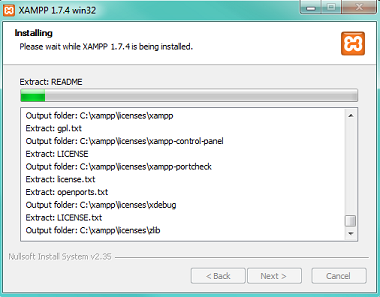
After the installation, some command-line windows will briefly pop up; just let them run. Then you will get an installation-finished window like the one shown below:
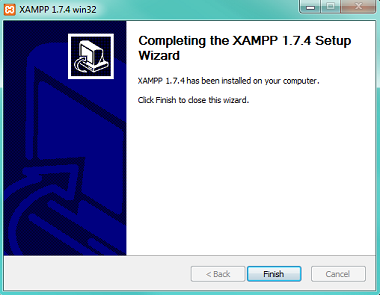
After clicking the “Finish” button, some command windows will appear that configure a few features of the local server on your computer. These windows will look like this, and we let them run:
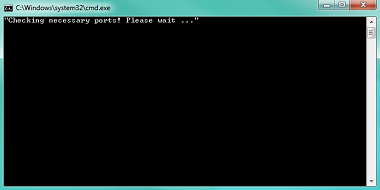
After these command windows finish, an XAMPP installation-finished window like the following will appear:
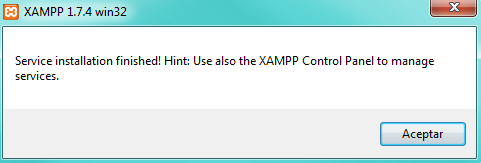
4.- A small example of how to use it
Once it is installed, open the “XAMPP Control Panel” to start using the program. Here we are going to do a simple example to see how this local server works, so when you start the program you only need “Apache” to be active, as shown in the following image. If “MySql” and “FileZilla” are also active, leave them that way, since all it means is that you will be able to work with databases and FTP.
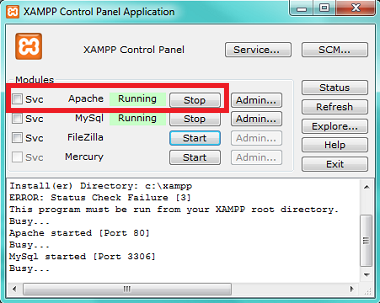
Once the server is running, you can start working with it. As we said, XAMPP lets us “simulate” a server, so we have to go to the right folder where we will store the files we would have on the server so we can view them. In this case, you should save the files of the website you are developing in the “htdocs” folder, which is the equivalent of the “public_html” folder on a “real” server. This “htdocs” folder is inside the “xampp” folder. If you installed it the way we did in this tutorial, the contents of the “htdocs” folder are at this path: “C:xampphtdocs”.
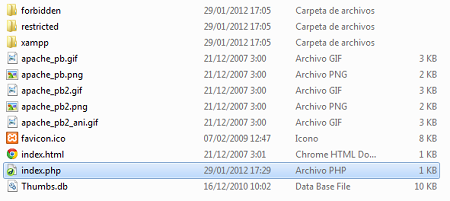
As you can see, the “htdocs” folder contains a number of files and folders that are included by default after the installation. As we said, this folder does the job of the “public_html” folder on a real server, so you can delete all those files. To be able to view a web page, the server must always have the file “index.html” or, in the case that interests us, the file “index.php”. This is extremely important, because whenever you visit a website, you are actually accessing the “index.php” file (this last explanation is not entirely accurate, but we explain it this way to make it clear why there must always be a file with that name).
The reason you need to install a local server is that nowadays a huge number of web pages are dynamic, and one of the languages used to build web pages is PHP, an interpreted language that runs on the server side, hence the need to install XAMPP in order to work with it. The goal of this tutorial is not to explain a web architecture, so we won’t go into more detail on this.
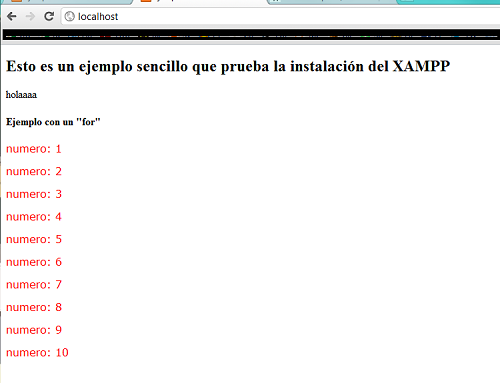
Now let’s build a simple PHP page and see how we can view it in the browser. To do that, we write this simple PHP web page example in which we display some strings with an “echo” and use the “for” statement to display a sequence of numbers. We save this content in a file named “index.php” in the “htdocs” folder mentioned earlier.
<!DOCTYPE HTML PUBLIC "-//W3C//DTD HTML 4.01 Transitional//EN" "http://www.w3.org/TR/html4/loose.dtd">
<html>
<head>
<title>Ejemplo de Jarroba.com</title>
<meta http-equiv="Content-Type" content="text/html; charset=iso-8859-1">
</head>
<body>
	<h2>Esto es un ejemplo sencillo que prueba la instalación del XAMPP</h2>
	<?php echo"holaaaa" ?>
	<br>
	<h4>Ejemplo con un "for"</h4>
	<?php
		for ( $i = 1 ; $i <= 10 ; $i ++) {
			echo "<p style="color:#FF0000;font-family: Verdana, Arial, Helvetica, sans-serif;">";
			echo"numero: ";
			print $i ;
			echo"</p>";
		}
	?>
</body>
</html>
To see what the web page you are creating will look like, open a browser and enter the following URL: “http://localhost/”. That way you will see the web page you are developing. In this example we would see the following page in the “Chrome” browser:
And if, for example, you are working on several web projects and want to organize them in folders, you can create several folders inside the “htdocs” folder without any problem. To view one in the browser, you would enter the URL “http://localhost/folder_name”, with the “index.php” file that “launches” that website always inside that folder.
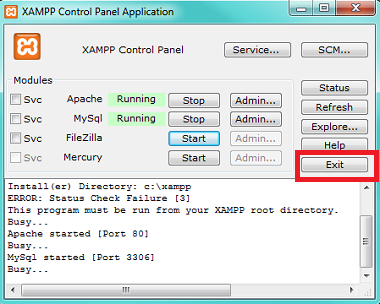
Finally, when you close the program, it is important to click the “Exit” button so that the program really shuts down, otherwise it would keep running “undercover”:
“Installing XAMPP on Windows” by Ricardo Moya at jarroba.com, licensed under Creative Commons Attribution-NonCommercial-ShareAlike 3.0. Registered at Safe Creative.

You may also like


Installing WordPress on a Local Server (XAMPP)
Learn how to install WordPress on a local XAMPP server step by step: create the database, configure wp-config and finish the setup from your browser.

How to Set Up Eclipse for PHP Programming (VIDEO)
Learn how to set up the Eclipse IDE for PHP development with a local XAMPP server. Follow our video tutorial and try the example PHP code step by step.
LAMP Step by Step on Your Own Server
Learn step by step how to build a dynamic website with the full LAMP architecture: Linux, Apache, MySQL or MariaDB, and PHP, Perl or Python.

Installing a Local Servlet Container: Tomcat
Learn how to install Apache Tomcat on Windows step by step, run it as administrator and check that your local Servlet container works.
Leave a comment