
Installing WordPress on a Local Server (XAMPP)
Learn how to install WordPress on a local XAMPP server step by step: create the database, configure wp-config and finish the setup from your browser.
[Wikipedia]: “WordPress is a content management system focused on creating blogs (regularly updated websites). Developed in PHP and MySQL, under the GPL license and with modifiable code, its founder is Matt Mullenweg. WordPress was created from the now-defunct b2/cafelog and, together with MovableType, has become the most popular CMS in the blogosphere. The reasons for its enormous growth include its license, its ease of use and its features as a content manager.
Another reason to consider for its success and spread is the huge community of developers and designers who work on it in general or create plugins and themes for the community. As of August 2011, it was used by 14.7% of all existing websites on the internet.”.
In this tutorial we are going to install a content management system (WordPress) on a local server (XAMPP). Link to the XAMPP installation tutorial.
The first thing we need to do is download the WordPress content management system. To do so, go to its website: Herramienta de blog, plataforma de publicación y sistema de gestión de contenidos (WordPress.org España) to download the Spanish version. To download it, click the download button you can see in the following image.
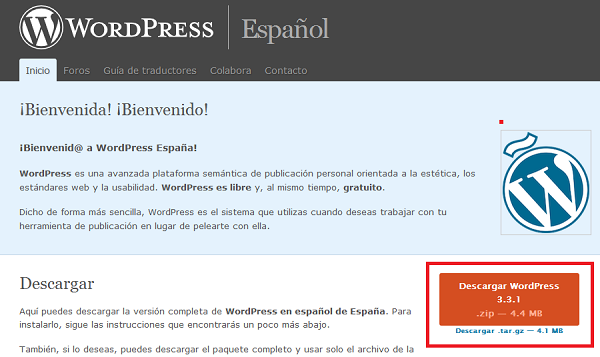
After the download, we will have a compressed file with a “.zip” extension of about 4.4 MB:
Inside this file there is a folder named “wordpress” that we have to copy into the “htdocs” folder of our local XAMPP server. As mentioned in the XAMPP installation tutorial, the “htdocs” folder is the equivalent of the “public_html” folder on a “real” server, so let’s copy the downloaded “wordpress” folder into XAMPP’s “htdocs” folder:
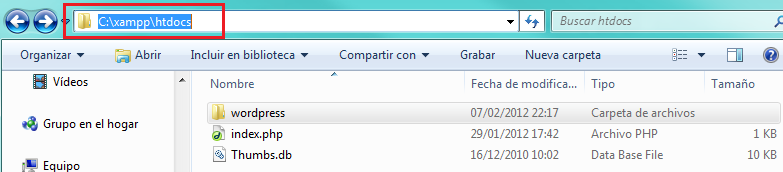
If you followed the XAMPP installation tutorial, the path to the “htdocs” folder is the one shown in the red box. There may be many more files in that folder, but that doesn’t matter, since everything we do will be done through the wordpress folder. That last statement isn’t technically correct, but we explain it this way to make it easier to understand.
Once these steps are done, we have to start our local server, XAMPP in this case, so we can create the database that will hold all the content of the website. First, click the “Start” buttons for “Apache” and “MySql” to start the local server and be able to work with databases.
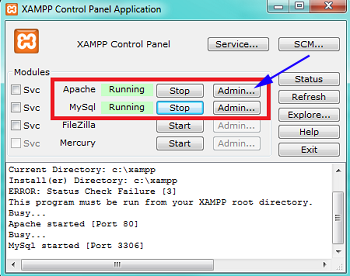
After starting MySql, click the “Admin…” button next to MySql to create a database that will store the content of our website. Once you click “Admin…”, the “phpMyAdmin” page will open in your browser (Note: if nothing happens when you click "Admin…", you can also go directly to: http://localhost/phpmyadmin/), as shown in the following image. Depending on the XAMPP version you downloaded, another page with orange colors may open. In that case, you should go to its sidebar and click the “phpMyAdmin” link to open the following page:
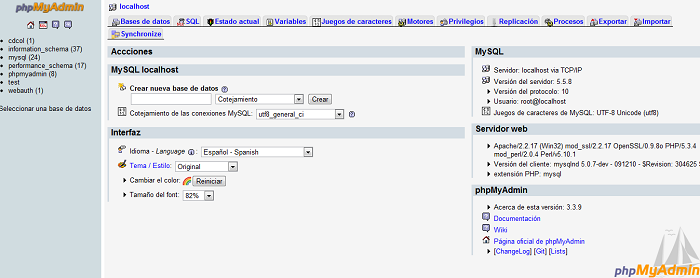
Once we are on this page, we will create a database by giving it a name. In this case we will name it “prueba” and click the create button:
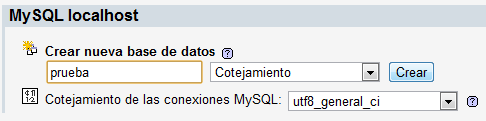
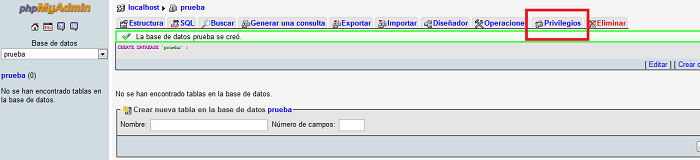
Then it will take us to a page to create a table in the database, but we don’t have to do anything there, since “wordpress” itself will create and fill the different tables that will make up the database. On that same page, click the privileges tab (red box) to create a user and give it permissions to manage the database:
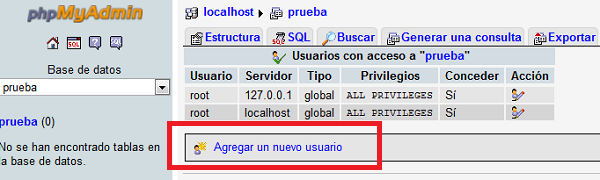
After clicking the privileges tab, click the “Add new user” link:
Then a page to create the user will appear. This user needs a name, a password and a set of privileges. It is important to remember the username and password so you can later configure WordPress’s configuration file. In this case we entered the following data:
Username: rambo.
Password: infierno.
Then click the “Check all” link next to global privileges to give the new user all the privileges to manage the database we created. Finally, click the continue button to create the user:
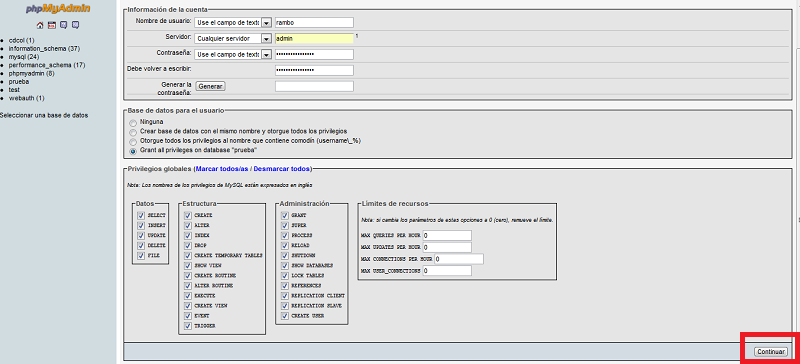
After these steps, we have created the database to store all the information of our “wordpress” content management system.
Now we are going to configure the content management system. To do so, we need to open the “wp-config-sample.php” file, in which we have to set a series of parameters: the database name, the user, the password and some other configuration parameters that we will have to obtain.

First, we are going to enter the database name, the database user and its password as follows:
// ** Ajustes de MySQL. Solicita estos datos a tu proveedor de alojamiento web. ** //
/** El nombre de tu base de datos de WordPress */
define('DB_NAME', 'prueba');

/** Tu nombre de usuario de MySQL */
define('DB_USER', 'rambo');

/** Tu contraseña de MySQL */
define('DB_PASSWORD', 'infierno');

/** Host de MySQL (es muy probable que no necesites cambiarlo) */
define('DB_HOST', 'localhost');

/** Codificación de caracteres para la base de datos. */
define('DB_CHARSET', 'utf8');

/** Cotejamiento de la base de datos. No lo modifiques si tienes dudas. */
define('DB_COLLATE', '');
We only set those values; we leave the rest of the values shown as they are. Then we have to go to the following address “https://api.wordpress.org/secret-key/1.1/salt/” to get a set of secret keys that WordPress will give us. Copy those keys from your web browser and paste them into the “wp-config-sample” file, replacing the default keys. In this case, WordPress gave us the following keys:
define('AUTH_KEY',         'hQBfr#!K_}{ZkmI;n3#?_LrLS`p,#$vv^dGGg@FHxXx^>?|CQ{`yL3ms-M&e37oa');
define('SECURE_AUTH_KEY',  '}PaH1P8:|-^AaP-J@gCF-[0H@?u#-T.@.[C)9zaPFu%AqAW#k-11Nr|Kb!AT#By9');
define('LOGGED_IN_KEY',    'vDcA-{[<8JqDqCi:`sVFCP}~O-HW+ApzyyT2|Nb9.OUxb2;?wczpWB;]LWI-{V=0');
define('NONCE_KEY',        '7J<zUC#uH?q2=`)%yzSJS])5UgsZpkmd%hY*v*yE;X2>:KXvihA(/zx:1NgP~0 6');
define('AUTH_SALT',        '%iGn4!uW|eOvsX#|K,ZWdHYtPV.(|xcdv~_ltkwzS5E/Wl&2W-WWh-!S7HQPz%#r');
define('SECURE_AUTH_SALT', '&wC{-F.IY_+3a|^c,&|BR@4/7;.=fb[jtxw$DWx;O`72#c_aS?k[8IwtO7Q/s4#W');
define('LOGGED_IN_SALT',   'o[Q!9*[0-@=S~;58peA_TWJxe3iYWQlDFJrnCFwT7nOF7:]Zi?>r5;r|kgn<$N4d');
define('NONCE_SALT',       'N9tPFIve=*)zu<cd?$.2mi1[-*pP&|NjhgRK1(}yF<3&J7CaHib9-S&M|Bzgk+5*');
With these changes we have edited WordPress's configuration file. Now we have to rename this file to “wp-config”:

Once that's done, open a browser and enter the following URL: “http://localhost/wordpress/”. A start page will open (the one in the following image) to finish the WordPress installation. On this start page you will be asked for some information (site title, username, password, etc.). At this point you should enter whatever data you see fit, but it is very important that you remember it, since the username and password are what will let you access the “dashboard” of your content management system to manage the content of your website (pardon the redundancy). In this case, the username and password don't have to be the same as the database ones. Finally, and this is very important, if you are going to allow comments on the posts of your website, enter the email address where you want to receive the comment notifications.
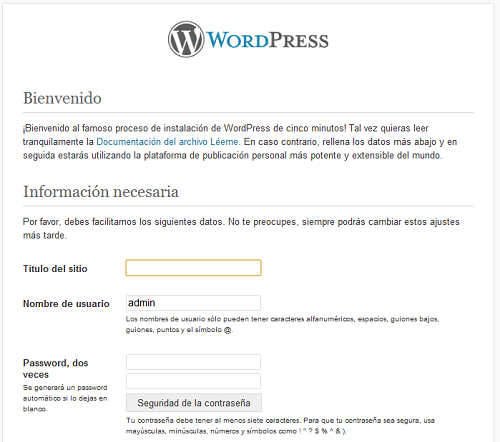
Once you have filled in all this information, click the continue button and a screen will appear saying “Success!” and you click the log in button. You will then get to a page like the following one, where you have to enter your username and password to access the dashboard of the content management system.
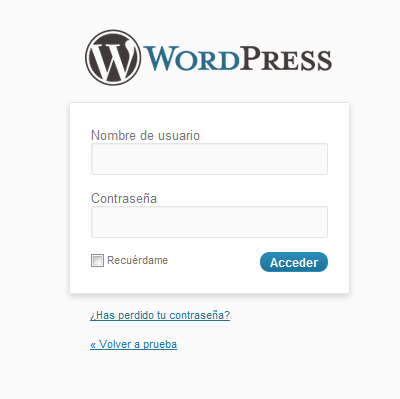
After entering your username and password, you will finally get to your WordPress dashboard, which will look like this:
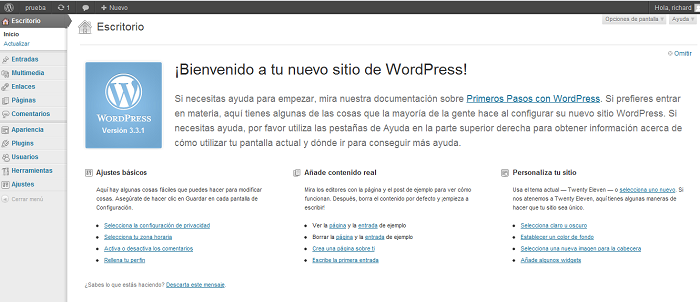
At this point you have your WordPress content management system installed on a local server “simulated” by the XAMPP program. From here on you can work with this content management system and edit and create the web pages it supports. Finally, for future access to WordPress, you will need to enter the following URL: “http://localhost/wordpress/wp-admin” to get to the dashboard after entering your username and password.
“Installing WordPress on a Local Server (XAMPP)” by Ricardo Moya at jarroba.com, licensed under Creative Commons Attribution-NonCommercial-ShareAlike 3.0. Registered at Safe Creative.

You may also like


Installing XAMPP on Windows
Learn what XAMPP is, how to download and install it on Windows, and test your setup with a simple PHP example running on your local Apache server.
LAMP Step by Step on Your Own Server
Learn step by step how to build a dynamic website with the full LAMP architecture: Linux, Apache, MySQL or MariaDB, and PHP, Perl or Python.
Leave a comment