
LAMP Step by Step on Your Own Server
Learn step by step how to build a dynamic website with the full LAMP architecture: Linux, Apache, MySQL or MariaDB, and PHP, Perl or Python.
If you already know how to create a static website, or you followed the previous article about using servers and creating a static website, it’s really worth taking a step further and learning in detail how to create a dynamic website where we can store data in a database and run code on the web server with Apache and PHP. From here on you’ll become an expert and be able to build anything you can imagine, and later you can dig deeper into whichever parts interest you most.
To create a dynamic website we can use one of the existing architectures. Here we’ll focus on the full LAMP architecture, which means we need:
- Linux: if you already have it, or if you set it up following the previous article on how to create a website and the article on how servers and hosting services work, then this part is more than ready (specifically, the Ubuntu Linux distribution).
- Apache: we’ll keep assuming you have the Apache server software installed and running (you have how to install the Apache server in full detail in the previous article)
- MySQL or MariaDB: a database server (also called a “database manager”) that we’re still missing and will install now; you can choose whichever database server you like. Here we’ll use MySQL, which is widely used.
- PHP, Perl, Python: an interpreted language for the web server. Here we’ll go with PHP, which is also very commonly combined with Apache and MySQL.
Before continuing, I should say that I’m going to explain every point in great detail so you learn as much as possible, especially if you’re just starting out. If you already have more than enough knowledge about LAMP (or you’ve already read this whole article) and you want a quick summary, you have it in the article on how to configure Apache on a Linux server.
MySQL Database Server
Let’s install the latest version of the MySQL database server with (as always, it will ask for confirmation to install; press “Y” and “Enter” when it does):
sudo apt install mysql-serverOnce the installation finishes, the MySQL database server will have started on its own.
Useful commands for the MySQL database server
Note: You don’t need to use these commands right now; I’m putting them here because they’re quite useful in case you have any problem with the MySQL server software
See the status of the MySQL server:
sudo service mysql statusStop the MySQL server:
sudo service mysql stopStart the MySQL server:
sudo service mysql startRestart the MySQL server (performs a stop and a start):
sudo service apache2 restartIf you want to see more, you have all the information in the official documentation: A Quick Guide to Using the MySQL APT Repository (MySQL docs)
Opening the MySQL Port in the Firewall
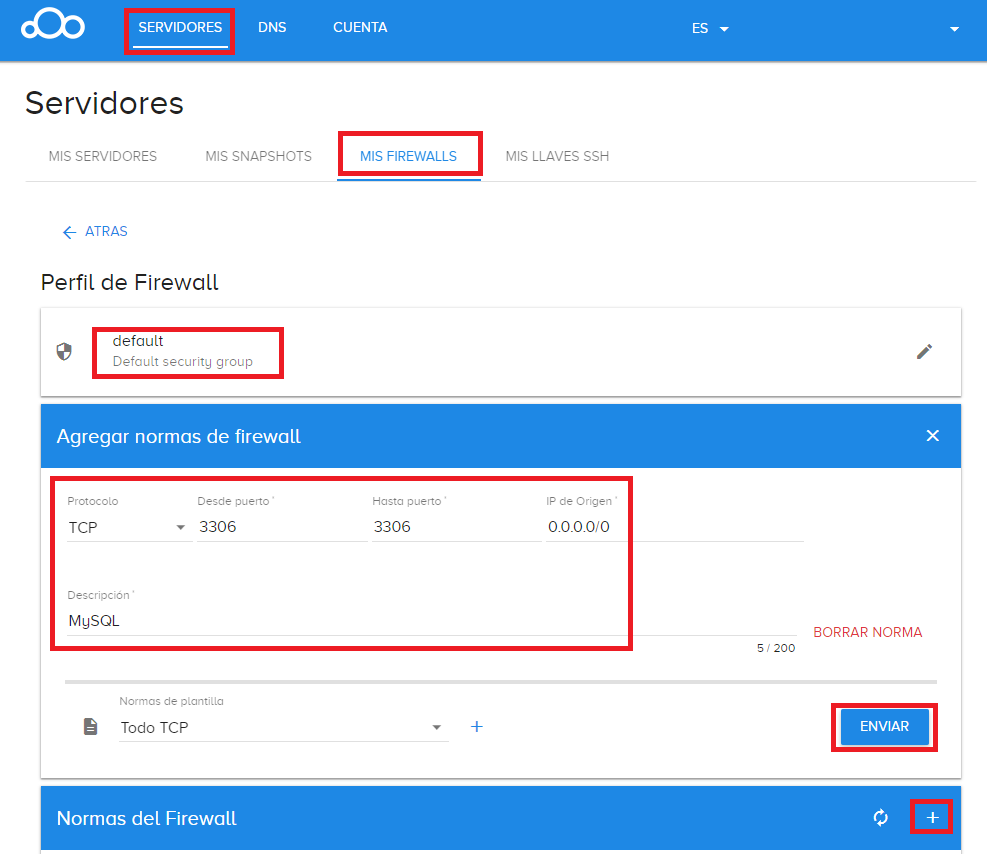
You need to have the MySQL port open in your Firewall, which by default is 3306.
It’s very simple, and it’s done the same way we saw in the previous article.
We go to the “control panel” of our physical server, which is where we’ll add a new rule to the Firewall.
For example, if you followed the previous articles, we used clouding.io. So in the “Servers” section and under “My firewalls” we can select the one used by our Cloud VPS Server (which in my example is “default”); in the blue bar that says “Firewall rules” we click the “+” to add a new rule to this Firewall; in the rule we’ll set TCP and only for port 3306:
Configuring MySQL Security
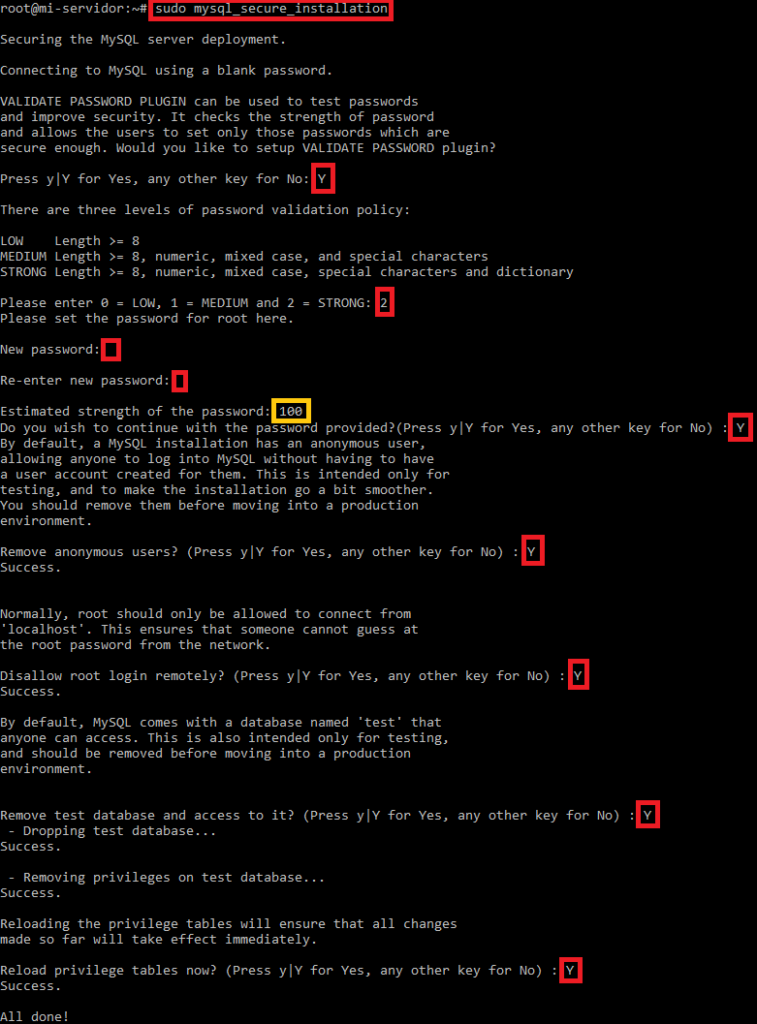
Next we’ll configure the database security with the following command (configuring the security of the “MySQL instance” is necessary before creating any “MySQL database”; the mysql-server service must be running, make sure of this with the command ‘sudo service mysql start’):
sudo mysql_secure_installationIt will ask you a series of fairly simple questions (for most of them, typing “Y” and pressing “Enter” is enough; in other words, it’s very much “next”, “next”, “next”…. 😉 ):
- Would you like to setup VALIDATE PASSWORD plugin?: Do you want to enforce valid passwords? Type: Y (and press the “Enter” key)
- Please enter 0 = LOW, 1 = MEDIUM and 2 = STRONG: 0 to allow weak passwords and up, 1 to allow medium passwords and up, 2 to allow only strong passwords. I recommend 1 or 2, preferably 2 (although it will be more tedious to remember and type the password, it’s much more secure)
- Your password. This password must meet the minimum strength we chose before. Type your password (for these examples I typed: grY3h5%5dDsJJbdXj ; don’t copy this password to use it, since by publishing it it has become insecure and known to everyone)
- Do you wish to continue with the password provided?: Continue with the password you entered? It will give an estimate of the password strength (in “Estimated strength of the password”, I recommend 100). If we’re happy with the password: Y
- Remove anonymous users?: Remove the anonymous user? A default user that is not very secure. To remove it: Y
- Disallow root login remotely?: Disable remote root login? To disable it: Y
- Remove test database and access to it?: Remove the test database and access to it? It’s a database with a few fake data to play with. To remove it: Y
- Reload privilege tables now?: Reload the privilege tables now? So the privilege tables go back to their defaults. To reload them: Y
Here is a complete image with everything I filled in:
Databases are pretty simple, but there are a couple of things to get straight before continuing:
- The database server/manager can have multiple databases
- A database can have multiple tables
- A database can be managed by multiple users
- A user will have a set of permissions on certain databases and certain tables (for example, someone who can only read information and has no way of messing things up by deleting it)
- Data is stored in rows of tables
- Queries are run on one or several tables
Enter the MySQL console:
mysql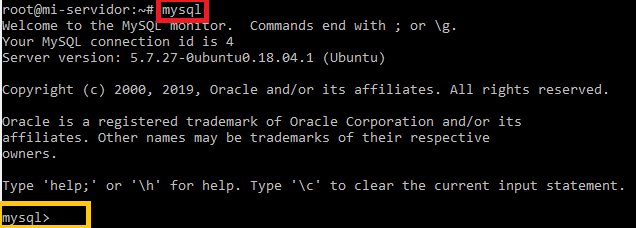
Here you need to understand that we’re switching from one console to another. We’ll leave the Linux console and the MySQL console will take over (“mysql>” appears in front of the console; that is, in this console we can give orders to our database, but not to the operating system). Don’t panic, a couple of paragraphs further on I’ll explain how to leave this console, but for now it’s time to learn how to use it.
Note about MySQL console mode: in the following commands I’ve put the word “mysql>” in front; you don’t need to type this word (it’s already there), I leave it to indicate that the command has to be typed inside the MySQL console (and not in the Linux one).
To leave the MySQL console we type the word “exit”
mysql> exitAnd to get back in we type the word “mysql”
mysqlStay inside the MySQL console to continue with the article.
MySQL lets you have several databases, and we don’t have any yet (remember that earlier we configured the security of the “MySQL instance”, not a “MySQL database”). Let’s create a database with “CREATE DATABASE”, which I’ll call “MiBaseDeDatos” (call it whatever you like):
mysql> CREATE DATABASE MiBaseDeDatos;Note in case you made a mistake or want to delete the database: you can delete the database with the “DROP DATABASE” statement (careful with this command, because if there is data in the database it will all be deleted; right now, just after creating it, we have no data, but later on, when we use it, we will; to continue you need to have the database created):
mysql> DROP DATABASE MiBaseDeDatos;By the way, in the MySQL console, “SQL statements” are the “commands” that perform operations affecting the database (and in any database console, not just MySQL, also in others such as SQL Server), and plain “commands” are everything else. That is, the word “exit” from before was a “command” and “CREATE DATABASE” was an “SQL statement”.
To use this MySQL database we just created, you need to select it with “USE” (this is because we can create as many MySQL databases as we want and we have to select the one we want to use; creating it does NOT select it automatically):
mysql> USE MiBaseDeDatos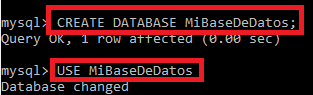
Now we need to create a database user that can access from the same physical server with “CREATE USER” (I’ll use “localhost” to point to the same physical server, although I could also use the public IP; it will ask for a password matching the strength we selected earlier):
mysql> CREATE USER 'MiUsuarioDeMiBaseDeDeatos'@'localhost' IDENTIFIED BY 'contraseña de mi usuario';Note in case you want to delete a database user: you can delete a database user with “DROP USER” (to continue you need to have the database user created):
mysql> DROP USER 'MiUsuarioDeMiBaseDeDeatos'@'localhost';Since we want this user to be the one PHP uses to manage the website for the database we created, we’ll use the “GRANT” command (privileges always sound boring and complicated; but on the contrary, in MySQL there are very few, they’re easy to set and quite easy to deduce). We’ll give this user the following privileges:
- SELECT: query the data in a database
- INSERT: insert new data into a table of a database
- UPDATE: update existing data in a table of a database
- DELETE: delete existing data from a table of a database
mysql> GRANT SELECT, INSERT, UPDATE, DELETE ON MiBaseDeDatos.* TO 'MiUsuarioDeMiBaseDeDeatos'@'localhost';The “MiBaseDeDatos.*” means we’re giving these privileges on all the tables of the database “MiBaseDeDatos”. If we wanted to specify a single table within a database we would write “MiBaseDeDatos.Table_to_grant_privileges_on”
Although we won’t use them here, I’ll tell you about a few other privileges that exist in MySQL in case you want to use them in the future:
- CREATE: Create a new database
- DROP: Completely delete a database (watch out with this privilege, as it can cause us problems if we allow a user to delete the database)
- ALL PRIVIEGES: Grants all the privileges above (instead of writing them one by one)
Now we’re going to create our first table in our MySQL database with the “CREATE TABLE” statement, in which we’ll specify the columns and the type of each one (the column type is whether it will be text, a number, etc.).
For this example I’ll create a table called “MiTAbla” with two columns:
- id: which we’ll make an integer, a primary key (every table needs a primary key) and auto-incremental (so that 1 is automatically added to the previous id inserted whenever a new row/record is inserted).
- correo_electronico: accepts text of up to 50 characters and doesn’t accept nulls (no value).
I’ll create this table with this data by typing (the MySQL console allows line breaks when typing a statement by pressing “Enter”, and it will show arrows “->” indicating the statement hasn’t been closed yet; it only closes and runs the statement when it detects that we’ve typed a semicolon “;” at the end):
mysql> CREATE TABLE MiTabla (
id INT AUTO_INCREMENT PRIMARY KEY,
correo_electronico VARCHAR(50) NOT NULL);
Testing the Database Table
If the above was interesting, this is even more so, because we’ve reached the juicy part. We’ll test our table and see that our work pays off 🙂
Insert a test value into the table we created with the “INSERT INTO” statement; as an example we’ll insert an email “jarroba.com@gmail.com” into our “correo_electronico” column, which belongs to the “MiTabla” table (if you have any doubts, further down I give you a clarifying image with each of the steps I’m about to explain):
mysql> INSERT INTO MiTabla (correo_electronico) VALUES ('jarroba.com@gmail.com');See the values of the table column we created with “SELECT”. To do so we tell it to “select” the “correo_electronico” column from our “MiTabla” table (since our MySQL database could have hundreds of tables with different names):
mysql> SELECT correo_electronico FROM MiTabla;The “SELECT” statement lets us build filters as complex as we want (although I won’t go into much detail here, I recommend learning to use the more complex “SELECT” filters, since today it’s a very powerful tool and in the computing profession it’s as basic and necessary as knowing how to “add” or “type”; for that we offer you a complete database course for free by clicking here, although for this article you won’t need to know more). A simple statement to see everything our table contains (the asterisk “*” means I want all the columns to be shown):
mysql> SELECT * FROM MiTabla;To delete the data from the table we can select it by its Id (that’s what we created it for, and it’s also unique; we could have duplicate emails and not want to delete them all):
mysql> DELETE FROM MiTable WHERE id=1;And here’s the image I mentioned before with each of the steps and its result:
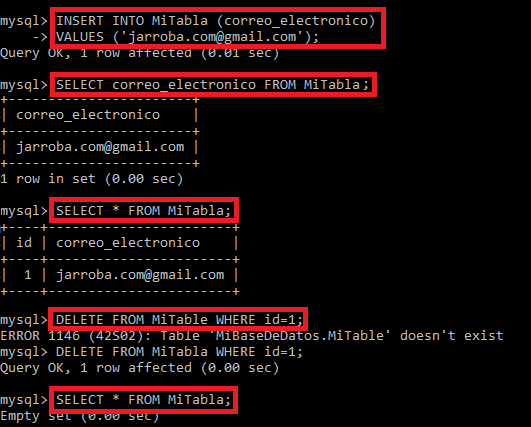
At the end I run a “SELECT *” to check that it has been deleted.
PHP
To install the latest version of PHP (press “Y” and “Enter” when it asks):
sudo apt install phpOnce it’s installed we can already use it.
Note on connecting PHP to MySQL: if it doesn’t come with the php-mysql module, you have to install it with (if it does come with it, installing may not be necessary; otherwise, reinstalling it doesn’t hurt either. If you’re curious about the modules you can use in PHP, you can look them up at: Alphabetical (Manual de PHP)):
sudo apt install php-mysqlAnd you need to restart the Apache web server to start using PHP:
sudo service apache2 restartPHP Crash Course
How PHP code works is quite simple: you just write your code enclosed between “<?php” and “?>”, for example:
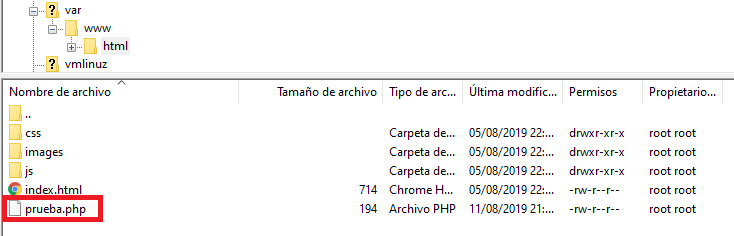
<?php echo 'Imprimir este texto'; ?>To try it out, create in “/var/www/html” (with FileZilla over SFTP or with Vim; as we saw in the previous article) a file called “prueba.php” (the following image shows, in FileZilla, the files we created in the previous article; for this article they are NOT needed, you only need the ones I’ve marked in red; I’m leaving the old ones in case you’re continuing from the previous article and so you can compare them):
And we’ll write HTML code that creates five paragraphs dynamically from PHP (from the web Server side) like the following (in PHP, if you leave a “{” open it encloses everything up to the next “}”; in this case the HTML code (<p>) between “{” and “}” is repeated because it belongs to a “for” loop; in PHP variables are written with the dollar sign in front, like: “$i”):
<!DOCTYPE html>
<html>

	<head>
		<meta charset="UTF-8">
	</head>

	<body>

		<?php for($i=1;$i<=5;$i++){ ?>
		<p>Párrafo <?php echo $i; ?></p>
		<?php } ?>

	</body>

</html>
I’m providing this code, as well as all the following code that appears in this article, at the following GitHub URL: View on GitHubInvarato/JarrobaWeb / AvanzadoPHP
Save the file (upload it to the server if you’re editing it locally). If we go to this file’s URL in the browser we’ll see that the Apache web server has run the PHP file and returned to the browser an HTML page with 5 simple paragraphs (in my case I’ll type: http://85.208.20.119/prueba.php):
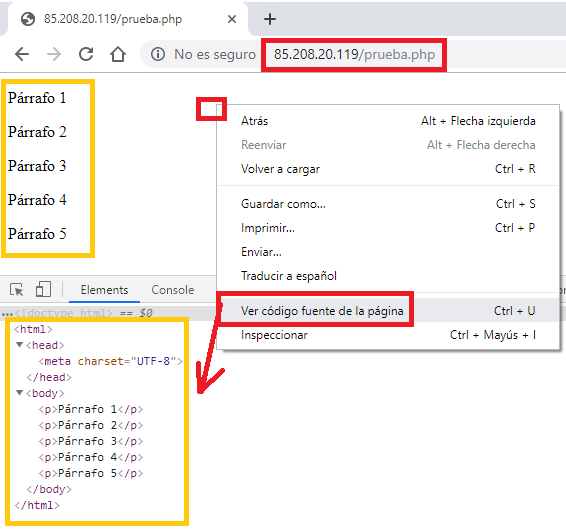
If you right-click and select “View page source”, you’ll see what your browser actually received from the web server. It will be static HTML code, but code that we created dynamically (although the browser will never know that 😉 ).
Testing LAMP
We’ll create an HTML form called “miformulario.html” that collects email addresses; we’ll validate it on the client, and send it to the server to the PHP file “guardar_correo.php” where we’ll validate it again, and if everything is correct we’ll save it in the database and respond to the client whether it went well or not.
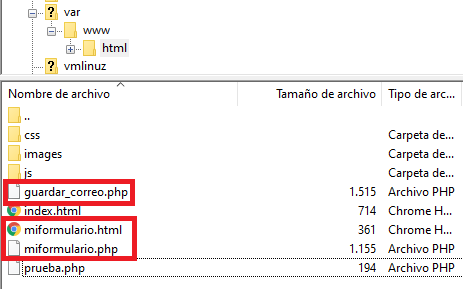
In “/var/www/html” we’ll create two new files called “miformulario.html” and “guardar_correo.php” (the HTML and PHP extensions are important so that the Apache web server understands them correctly).
To avoid any confusion, I’ll tell you in advance that when we finish this article we’ll have created the three files in the image (it’s very important that you pay attention to the php or html extension):
The HTML “miformulario.html” will have the following code:
<!DOCTYPE html>
<html>


	<head>
		<meta charset="UTF-8">
		<title>Formulario</title>
	</head>


	<body>

		<form action="/guardar_correo.php" method="get">
		  Inserte su correo electrónico:
		  <br>
		  <input type="email" name="input_correo_electronico">
		  <br>
		  <input type="submit" value="Enviar">
		</form>

	</body>


</html>
The HTML tags:
- <form>: indicates that this is a form; in “action” we put the address the information is sent to when the “submit” button is pressed, which will be our “guardar_correo.php“; in method we set it to “get”.
- <input>: we’ll create two, one of type “email” (which gives us basic email validation without having to do anything ourselves; it’s as if we had written the JavaScript code without writing it, since the browser already includes it, we simply use it). And another of type “submit”, which will be the send button.
If we type our public IP and the HTML file in the browser (in my case: http://85.208.20.119/miformulario.html) we can see what we’ve created with this HTML code:
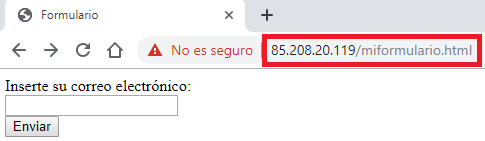
But this doesn’t do anything yet: it tries to send the data to the server and the web server completely ignores it, since it’s missing the code to pick up this data.
But we can test the validation on the browser (client) side. For example, type something that is definitely not an email (without an at sign “@”). You’ll see that the browser shows you the error message we mentioned before:

With the following PHP file “guardar_correo.php” we’ll be able to pick up the data and save it in the database (methods of objects in PHP are called with “->”: object->method() ):
<?php

	// Receive the value sent via GET that we named in the <input> as "input_correo_electronico"
	$correo_recibido = $_GET["input_correo_electronico"];

	echo "El código PHP ha recibido: " . $correo_recibido;

	// Check that it is a valid email on the server side:
	$patron = "/[A-Za-z]+@[a-z]+\.[a-z]+/";
	$esCoincidente = preg_match($patron, $correo_recibido);

	if (!$esCoincidente) {
	    exit("<br/>No es un correo electrónico válido: " . $correo_recibido);
	}

	// Connect to the database to save the value
	$nombreDelServidor = "127.0.0.1";   // "localhost"
	$nombreDeUsuario = "MiUsuarioDeMiBaseDeDeatos";
	$contrasenia = "grY3h5%5dDsJJbdXj";
	$nombreDeLaBaseDeDatos = "MiBaseDeDatos";

	echo '<br/>Abriendo conexión con la base de datos MySQL';
 	$conexion_bd = new mysqli($nombreDelServidor, $nombreDeUsuario, $contrasenia, $nombreDeLaBaseDeDatos);

 	echo '<br/>Comprobando conexión con la base de datos MySQL';
	if ($conexion_bd->connect_error) {
	    exit('No pudo conectarse: ' . $conexion_bd->connect_error);
	}

	echo '<br/>Creando consulta de INSERT para la base de datos MySQL';

	$sentencia_sql = $conexion_bd->prepare("INSERT INTO MiTabla (correo_electronico) VALUES (?)");
	$sentencia_sql->bind_param('s', $correo_recibido);

	echo '<br/>Insertando en la base de datos MySQL';
	$sentencia_sql->execute();

	echo '<br/>Cerrando conexión con la base de datos MySQL';
	$conexion_bd->close();

?>
This PHP code does the following:
- It picks up the value sent with the “get” method using: $_GET[“input_correo_electronico”]
- With “preg_match” we perform a check on whether what arrived at the server is really an email address (here the check will be more thorough than on the client side).
- We create the database connection with “mysqli” (here you’ll have to put in your own details, replacing my example ones; by the way, never upload your database credentials anywhere, I’m doing it here to show you a complete example; obviously by the time you’re reading this article my example database with these credentials will no longer exist)
- With “prepare” we create the SQL query for the insert (just like we showed before; but where the value coming from the form will go, we put a question mark “?”)
- With “bind_param”, whose letter “s” indicates that the value we pass is a string. This protects us against SQL injection
- With “execute” we run the SQL query against the MySQL database server.
- And it’s always important to close the database connection at the end with “close”
Save both files and upload them. Let’s try something that passes the JavaScript validation but not the server’s. Let’s type something with an at sign “@” but without a dot after it. We’ll see that it doesn’t pass the server-side validation.

When you press the send button and it’s processed on the server side, as you can see in the address bar, the browser has redirected you to the PHP file and its result is shown here (there are tricks so the page doesn’t change and the PHP runs in the background while you stay in the same window; here I want you to clearly see each of the parts involved separately).
To try inserting another email, you can press the browser’s back button.
If you type a valid email you’ll see that it does pass the server validation and is saved correctly in the database:

Note on security: Don’t send confidential or private information, because you’re sending it in plain text over the Internet (from your browser to your server it travels unencrypted) and anyone could read it; so it’s fine for playing around and testing, but if you want something more serious you’ll have to set up HTTPS with its certificate.
In the MySQL console you can see that it was really inserted into our table using the same SELECT we saw before:
SELECT * FROM MiTabla;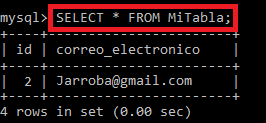
We could stop here, but I wanted to give you a bonus: querying the data and showing you how to combine the database with HTML. So we’re going to create another PHP file with a name similar to the previous one, but changing the extension from “.html” to “.php”, giving “miformulario.php” with the following code (we’ve only added the PHP part compared to the previous HTML):
<!DOCTYPE html>
<html>


	<head>
		<meta charset="UTF-8">
		<title>Formulario</title>
	</head>


	<body>

		<form action="/guardar_correo.php" method="get">
		  Inserte su correo electrónico:
		  <br>
		  <input type="email" name="input_correo_electronico">
		  <br>
		  <input type="submit" value="Enviar">
		</form>


		<h2>Correos guardados:</h2>

		<?php
			$nombreDelServidor = "127.0.0.1";
			$nombreDeUsuario = "MiUsuarioDeMiBaseDeDeatos";
			$contrasenia = "grY3h5%5dDsJJbdXj";
			$nombreDeLaBaseDeDatos = "MiBaseDeDatos";

		 	$conexion_bd = new mysqli($nombreDelServidor, $nombreDeUsuario, $contrasenia, $nombreDeLaBaseDeDatos);
			if ($conexion_bd->connect_error) {
			    exit('No pudo conectarse: ' . $conexion_bd->connect_error);
			}

			$sentencia_sql = $conexion_bd->prepare("SELECT correo_electronico FROM MiTabla");
			$sentencia_sql->execute();

			$resultado = $sentencia_sql->get_result();
			while ($fila = $resultado->fetch_assoc()) {
			    echo '<br/> * ' . $fila["correo_electronico"];
			}
			$resultado->free();

			$conexion_bd->close();
		?>

	</body>

</html>
This PHP does the same as before: it connects to the MySQL database with our details, but to run the query we do the following:
- In “prepare” we create the SELECT query and run it with “execute”
- We get the results with “get_result”
- In a loop we fetch row by row with “fetch_assoc()”
- And we free both the result with “free” and the connection with “close”.
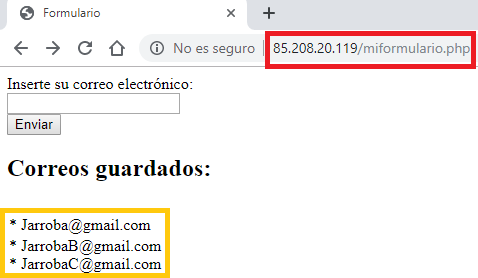
Try inserting several emails and you’ll see the full list appear right below (each time you submit an email, press the browser’s back button to send another; if you don’t see the emails appear below, you may need to refresh the browser so the server is called again and the PHP is processed):
If you’re curious to learn more about PHP, there is a tutorial on the official website in Spanish at: Un tutorial sencillo (Manual de PHP)
You can also take a look at everything PHP offers at Alphabetical (Manual de PHP)
And that’s where I leave you, so you can create everything you set your mind to, and use any software or hardware server without it being a problem for you. You’ll have to read their manuals, but the path is similar once you’ve understood this article. So from now on, when it comes to clients and servers, you’ll be able to successfully carry out lots of developments in an agile way with everything you’ve learned here 🙂
References
“LAMP Step by Step on Your Own Server” by Ramón Invarato at jarroba.com, licensed under Creative Commons Attribution-NonCommercial-ShareAlike 3.0. Registered at Safe Creative.

You may also like

Using Servers and Building a Website
Learn what you can do with a physical server: install Apache, build your first website, edit it with Vim or an IDE, upload files over SFTP and pick a domain.


Installing WordPress on a Local Server (XAMPP)
Learn how to install WordPress on a local XAMPP server step by step: create the database, configure wp-config and finish the setup from your browser.
Leave a comment