
PHP2Shell: what to do if your site runs on PHP or WordPress
PHP2Shell: which PHP versions are patched, how to find the one your site runs, whether you were exposed, and what to check and rotate afterward.

On October 21, 2026, the PHP project published two critical security advisories, CVE-2026-109618 and CVE-2026-109619, known as PHP2Shell after the write-up by Wiz Research, one of the teams that discovered them. Both let an attacker run code on the server without a username or password, under the account the website runs as, and both have a CVSS score of 9.2 out of 10 (CVE-2026-109618 advisory, CVE-2026-109619 advisory).
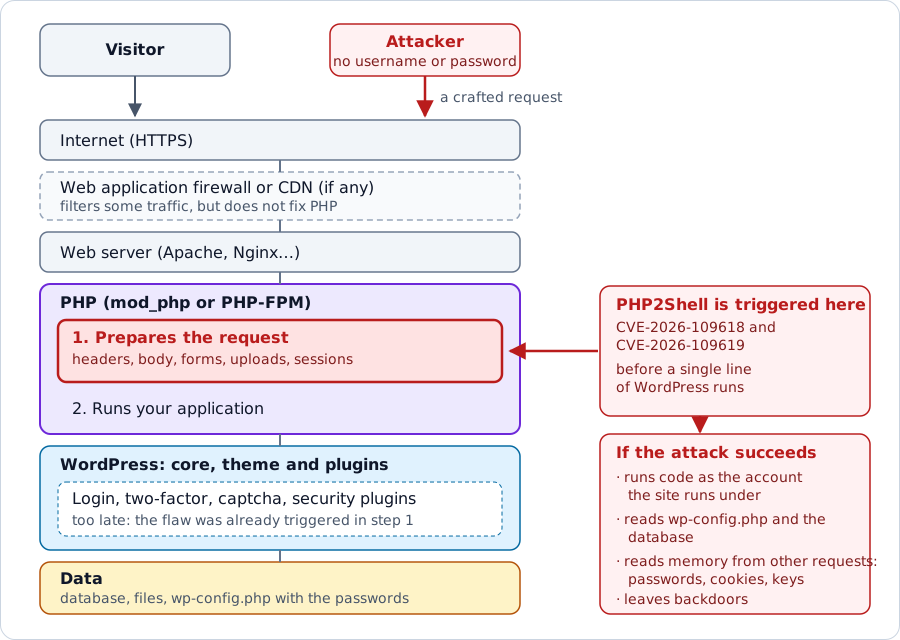
What sets them apart from the usual weekly advisories is where they are: in PHP, not in WordPress, a plugin or your own code. In the confirmed case with Apache and mod_php, the flaw is triggered while PHP prepares the request, “entirely before any application-specific code begins execution”, according to the CVE-2026-109618 advisory. It makes no difference whether you use WordPress, Drupal, Laravel or hand-written PHP.
At jarroba.com, the alert reached us on October 23. The first thing we did was pin down where the flaw sits: a request to a website goes through several layers before it reaches the data, and PHP2Shell is in the PHP layer, right before WordPress. That is why nothing you set up in WordPress can stop it.
Which versions are patched
| PHP branch | Version with the fix |
|---|---|
| 8.5 | 8.5.12 |
| 8.4 | 8.4.27 |
| 8.3 | 8.3.36 |
| 8.2 | 8.2.35 |
| 8.1 and earlier | no official release (see below) |
The versions come from the two advisories, and the PHP project released all four on October 21, with its own announcement that summarizes the problem and the mitigations.
Branches 8.1 and earlier are no longer supported, and there will be no new release for them. Given how serious the flaw is, the PHP security team did publish the patch as source code for 7.4, 8.0 and 8.1, but it only helps if you compile PHP yourself. If your PHP comes from a Linux distribution, it may already be patched (the next section explains this); if not, you have to move to another branch.
Warning
Both advisories agree: upgrading is the only complete protection. The configuration changes they suggest reduce the risk, but do not eliminate it.
The version that actually serves your site
It sounds easy: you check your PHP version and compare it with the table. In practice, there are three traps.
The header does not always tell the whole story. PHP announces its full version in the X-Powered-By header (SAPI_PHP_VERSION_HEADER in its source code), but some hosting providers shorten it or remove it. Ours said X-Powered-By: PHP/8.3, which does not tell you whether it is 8.3.31 or 8.3.36.
The command line may be a different PHP. On shared hosting, the php -v you see over SSH is not necessarily the one that runs your site: in many control panels each site picks its own version, and the command line may use another.
A distribution’s version number is not PHP’s. Some Linux distributions patch their packages without changing the version. On Ubuntu 24.04, php -v still says 8.3.6, a version the table lists as vulnerable, and yet the package has been patched since 8.3.6-0ubuntu0.24.04.13; on Ubuntu 22.04, 8.1 has been patched since 8.1.2-1ubuntu2.28 (Ubuntu’s CVE tracker). If your PHP comes from a distribution, what counts is the package version and that distribution’s security notice, not the table above.
The most reliable ways, in order:
- In WordPress, Tools → Site Health → Info → Server: this is the version the site runs on.
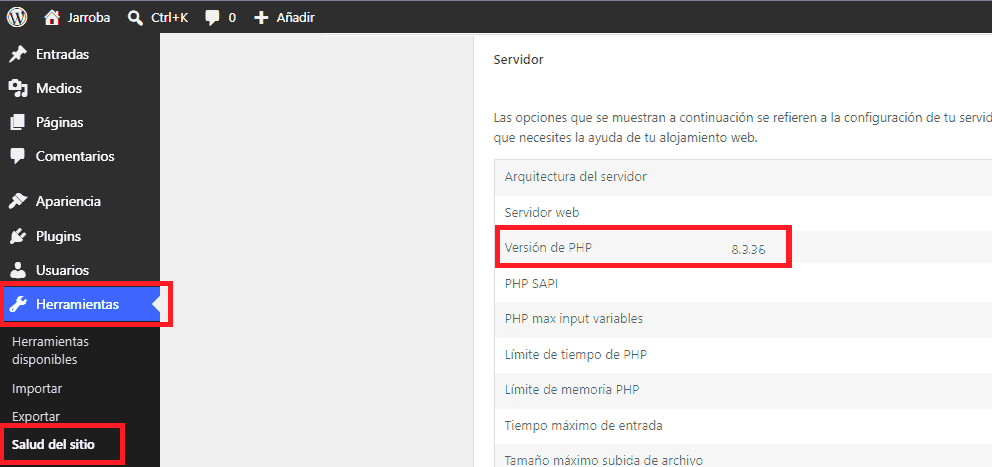
- In your hosting control panel, the version configured for that site.
- Over SSH, the version and the build date (the first line of the output):
$ php -v
PHP 8.3.36 (cli) (built: Oct 21 2026 14:05:40) (NTS)- If you use Docker, the version in the container that is serving the site, not the one on your machine or in the image you have downloaded (
docker exec):
$ docker exec <container> php -vA tag like php:8.3 or latest is not a version: you have to pull the image again and rebuild.
Was I exposed before the patch?
Knowing that you are fine now does not answer the question that matters: which version your site was running in the days before. Your provider will not tell you, and access logs do not record the PHP version.
In WordPress there is a way to find out without changing anything. Every time someone opens the Dashboard (or Site Health), WordPress checks whether its PHP version is up to date and stores the answer for a week, in an option whose name contains the MD5 of the version (wp_check_php_version(), in wp-admin/includes/misc.php). If the version changed during that week, both are there.
$ wp transient list --network --search='php_check_*' --fields=name,expiration
$ php -r 'foreach (["8.3.31", "8.3.36"] as $v) echo $v, " ", md5($v), PHP_EOL;'
The first command lists the stored checks and when they expire; the second calculates the MD5 of the versions you suspect, so you can recognize them. The expiration is in seconds since 1970 (date -u -d @<number> converts it to UTC), and subtracting seven days tells you when each check was made. That is how we found out about ours: a check with 8.3.31 from October 17 and another with 8.3.36 from October 21 at 16:40 UTC. Our provider updated PHP on its own the same day the patch came out; in the days before, the site ran on a vulnerable version.
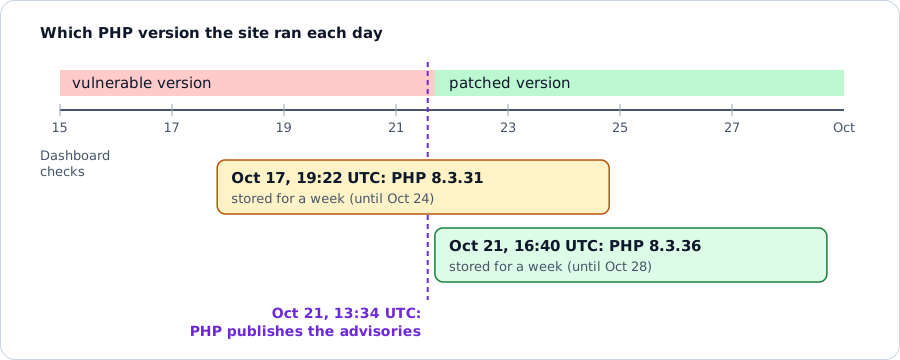
It only works if someone opened the Dashboard or Site Health on those days, and it only tells you about those dates. It does not work either if the site uses a persistent object cache (Redis or Memcached): with one, the check is not stored in the database, and wp-cli warns that it only lists what is there. And you have to look soon: each check expires after a week, and WordPress deletes expired ones once a day. When we looked again on October 26, the 8.3.31 one was gone. Even so, it was the only record of that period’s version that we found.
What to do now
- Shared hosting. Your provider is the one who updates PHP. Check the version as described above and, if it is not patched, ask for the upgrade in writing and check it again afterward. If you are on 8.1 or earlier, move to a newer branch: we did it from the control panel, and WordPress, the plugins and our own code kept working without warnings (the only one came from wp-cli, the command-line tool).
- Your own server. Update PHP and restart PHP-FPM or Apache: processes that were already running keep the old code until they restart.
- Docker. Rebuild the image with
docker build --pull, which downloads the base image again (“Always attempt to pull all referenced images”), and redeploy. - If you cannot upgrade right away, the advisories suggest measures that reduce the risk without eliminating it:
session.upload_progress.enabled=0, which blocks one of the two confirmed cases of CVE-2026-109619. The advisory recommends leaving it disabled even after patching if you do not use that feature, because it is hardly used and hardly tested, and it is where most people will go looking for new flaws. WordPress core does not use it;- in PHP 8.5,
fatal_error_backtraces=0, which blocks the other confirmed case; memory_limit=-1set by the administrator, against CVE-2026-109618, and never withRLIMIT_ASorRLIMIT_DATA, which, according to the advisory, cause exactly the failure you are trying to avoid.
All three go in the configuration loaded at startup (php.ini, the FPM pool or the web server configuration), and then all processes have to be restarted. ini_set() and .user.ini do not work: according to the php.net announcement, they are applied after PHP parses the request, and the flaw is triggered before that.
What does not protect you
Plugins that limit login attempts, two-factor authentication, captchas and keeping WordPress up to date are good measures, but they do not help here: the attack does not go through the login, and it happens before WordPress starts. The email we received, from a company that makes login plugins, said so itself, and we appreciate the honesty.
Nor will a scanner that only looks at files warn you if what was taken was memory (this is explained further down).
Did someone get in? What we checked
We did it over SSH with wp-cli; almost all of it can also be done with the control panel’s file manager, with more patience. The idea is to look for what someone who manages to run code leaves behind: new PHP files, new accounts and recurring tasks.
- WordPress and the plugins, against the originals:
$ wp core verify-checksums --include-root 2>&1 | grep -E 'should not exist: .*(\.ph|\.user\.ini)|Success|Error'
$ wp plugin verify-checksums --all
Read the warnings, not just the last line: an extra file only produces a Warning: File should not exist, and the command still ends with Success. With --include-root it also checks the site’s root folder, and warns about everything that is not WordPress; the grep keeps only PHP files, .user.ini files and the result.
They do not cover .l10n.php translation files, which are PHP too, a custom theme, or plugins that do not come from wordpress.org (paid or in-house ones): those are skipped with a warning, and the result is still Success. Compare the theme and those plugins with your repository if you have one.
- PHP that is new or changed since before the exposure window, across your whole account, not just the site folder:
$ cd ~ && find . -newerct 2026-10-15 -type f \
    \( -name '*.php*' -o -name '*.phtml' -o -name '*.phar' -o -name '.user.ini' \) \
    -not -path '*/wp-admin/*' -not -path '*/wp-includes/*' -not -path '*/wp-content/cache/*'
-newerct looks at when the file changed on disk, a timestamp that, according to the touch manual, cannot be set by hand, unlike the modification time. Step 1 already checked wp-admin and wp-includes. And it starts with cd ~ because on some hosts the home folder is a symbolic link, and find ~ does not go into it: it finds nothing and reports no error. It happened to us while checking the commands for this article.
Plenty of legitimate things will show up (updates, restored backups, permission changes): for us, thousands. To see them by folder, add | cut -d/ -f1-4 | sort | uniq -c | sort -rn at the end, and look at the ones you cannot explain.
- Usual hiding places: PHP inside
wp-content/uploads, thewp-content/mu-pluginsfolder (what is in there is always loaded, cannot be deactivated from the Dashboard and is listed separately from the regular plugins, according to the WordPress documentation), modified.htaccessfiles, new.user.inifiles (withauto_prepend_filethey load a PHP file on every request without touching WordPress, on servers with FPM or CGI) and, if you have SSH,~/.ssh/authorized_keys: a key you do not recognize is a backdoor. - Accounts and access:
$ wp user list --role=administrator --fields=ID,user_login,user_registered
$ wp user list --orderby=registered --order=DESC --number=20 --fields=ID,user_login,user_registered
$ wp user application-password list <user> --fields=name,created,last_used,last_ip
$ wp cron event list --fields=hook,next_run_relative
Administrators you do not know, recent sign-ups (the second command lists the newest first), application passwords nobody created (the third, for each administrator; they are also in their profile) and scheduled tasks with odd names. created and last_used are in seconds since 1970, like the expiration earlier.
- The error logs. The CVE-2026-109619 advisory says to look for fatal errors, repeated warnings before the script runs and
Maximum execution time exceeded. But it also warns that finding nothing in the logs does not prove you are safe. On many shared hosts the error logs are not readily available: you have to enable downloading them in the control panel. Do it before you need them.
In our case nothing turned up: the files matched the originals and our repository, and there were no new accounts or odd tasks.
Why rotate your secrets even if you find nothing
The CVE-2026-109619 advisory lists memory disclosure among the confirmed impacts: whatever went through the server in other requests. In WordPress, that includes the database password and the keys used to sign cookies (they are loaded on every request), the keys for external services and the session cookies of anyone who was logged in. Reading memory leaves no files or accounts behind: the checks above will not detect it.
If you were exposed, change:
- the database password (in the hosting control panel and, right after, in
wp-config.php); - the external service keys stored in
wp-config.php(captcha, email, APIs); - the application passwords your integrations use;
- the WordPress salts, last, because they close every session and your users will have to log in again:
$ wp config shuffle-salts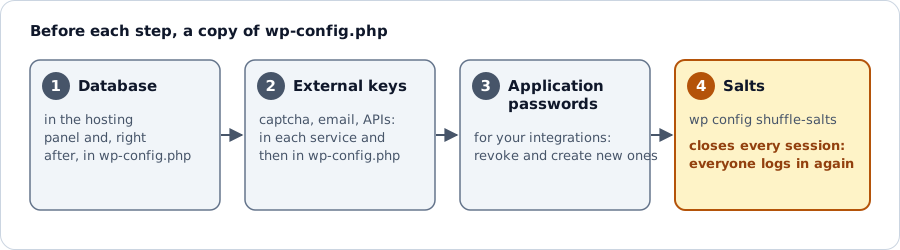
Before each change, copy wp-config.php outside the website folder (for example, to your home folder) and delete the copy when you are done. A mistake in that file leaves the site blank, and PHP does not execute a copy with another name inside the site (wp-config.php.copy), so the server may hand it out as plain text, with the database password you are changing.
If someone got in
The first actionable step in the WordPress guide for hacked sites is something that seems obvious but is not: write everything down. What you see, since when, what you changed on those days. After that, according to the guide:
- ask your hosting provider: on shared hosting, the attack may affect more than your site;
- check whether search engines or antivirus software have flagged your site, in Google Search Console and Bing Webmaster Tools;
- change all credentials, for everyone: SFTP or FTP, the WordPress admin, the hosting control panel and the database;
- and scan your own computer as well: sometimes password theft starts there.
From experience, we would add one more thing: restore from a backup older than the exposure window, not from last night’s, which may contain whatever the attacker left behind. For that, you need backups from several days, stored off the server, and to have tried restoring one at some point. We did it in a separate environment: the database and the files brought the site up in less than a minute, with the same articles, users and comments as the real one. What really takes time is rebuilding wp-config.php if it is not in the backup (some people leave it out on purpose, because it holds the passwords): it pays to have a note of what it contains and where each value comes from.
What we learned
PHP2Shell found us with the basics in place, and that made checking everything a matter of a morning. It also showed us what was missing: having the error logs at hand before we needed them, and daily monitoring that flags suspicious changes, instead of only looking when something makes the news.
And a lesson about shared hosting. Having your provider update PHP for you is a huge advantage: ours did it the same day. But you have to check it, not assume it, and until that moment the site was exposed.
Further reading
- The PHP project’s two advisories, with the technical details and the mitigations: CVE-2026-109618 and CVE-2026-109619.
- The WordPress guide for hacked sites and the one on hardening.
“PHP2Shell: what to do if your site runs on PHP or WordPress” by Ramón Invarato at jarroba.com, licensed under Creative Commons Attribution-NonCommercial-ShareAlike 3.0. Registered at Safe Creative.

You may also like
LAMP Step by Step on Your Own Server
Learn step by step how to build a dynamic website with the full LAMP architecture: Linux, Apache, MySQL or MariaDB, and PHP, Perl or Python.

Using Servers and Building a Website
Learn what you can do with a physical server: install Apache, build your first website, edit it with Vim or an IDE, upload files over SFTP and pick a domain.
Leave a comment