
Speeding Up the Android Emulator
Learn how to speed up the Android emulator with Intel HAXM: install it, enable virtualization in the BIOS and get your emulator running in seconds.
Every Android developer has run into the emulator and how slow it is. To fix this, Intel has developed a technology called HAXM (Hardware Accelerated Execution Manager), which consists of emulator images that speed it up considerably: the emulator takes seconds to load the first time instead of the minutes it takes if we don’t use them. They are also perfectly integrated with the Android development environment. The first thing is to make sure our computer will support this technology. To do that, our processor has to be an Intel and it must have Virtualization Technology enabled (we’ll see how to do this later on). Let’s start by going to the "Android SDK Manager"

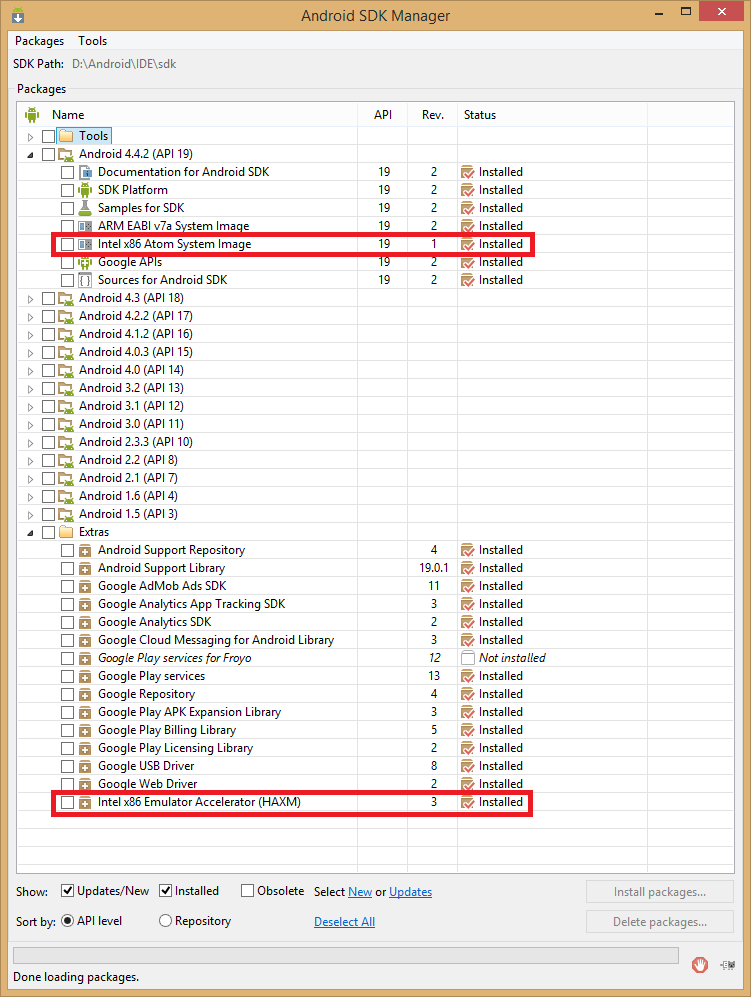
to download the files we need. One essential file is in the "Extras" folder: download "Intel x86 Emulator Accelerator (HAXM)". The others we need to download are the operating system images prepared by Intel. To get them, go to the Android folders of the version you want to download (in the next screenshot we’re downloading it from "Android 4.2.2 (API 19)") and download the ones called "Intel x86 Atom System Image".
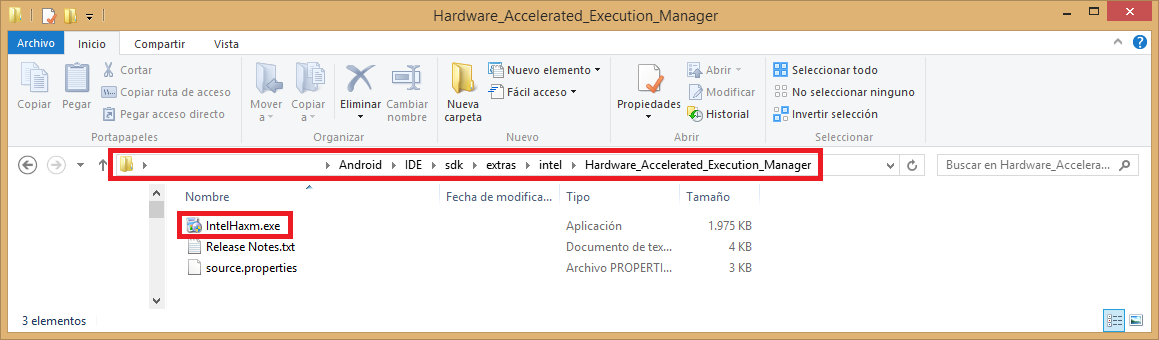
After the download, go to the folder where you have the Android SDK installed. Go to the path "IDE/sdk/extras/intel/Hardware_Accelerated_Execution_Manager". There you’ll find the executable "IntellHaxm.exe", which we’ll run.
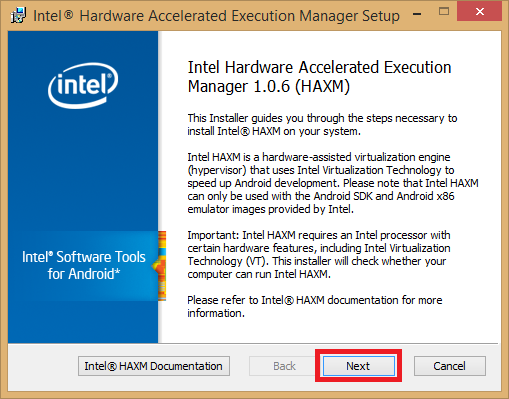
An installer will open, of course. The first screen essentially tells us that it will only work if we have an Intel processor with virtualization technology. Click "Next"
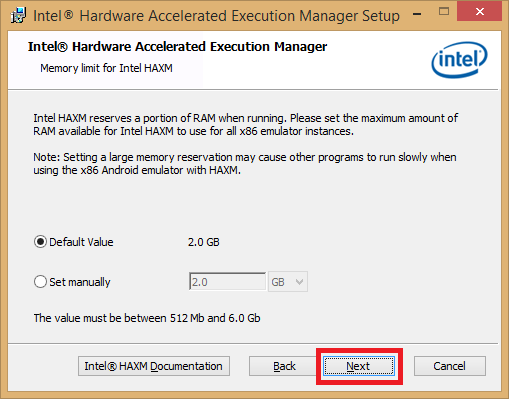
The second window asks how much of our computer’s RAM we want to give to the emulator. Keep in mind that the emulator will consume it when it launches (in theory, the more RAM we allow, the faster the emulator will run and the slower our computer will be in general), so the default value is recommended, which is a quarter of the computer’s memory (to avoid problems we recommend setting a minimum of 2GB, since we’ve tried with less and it doesn’t always start). Let’s continue with "Next".
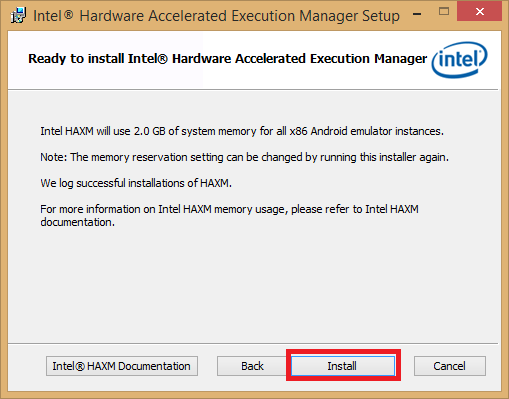
We’re almost done once we click "Install" in the next window.
Possible error that may show up: Don’t panic if the following window appears, because it’s not an error but a warning: This computer meets the requirements for HAXM, but Intel Virtualization Technology (VT-x) is not turned on. HAXM can be installed, but will not work until VT-x is enabled. Please refer to the Intel HAXM documentation for more information
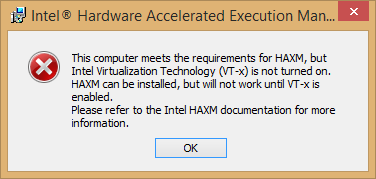
It simply tells us that our computer meets all the requirements but that we don’t have Virtualization Technology enabled. For that we’ll have to go into the BIOS and enable it (we explain it a bit further down).
We finish the installation by clicking "Finish".
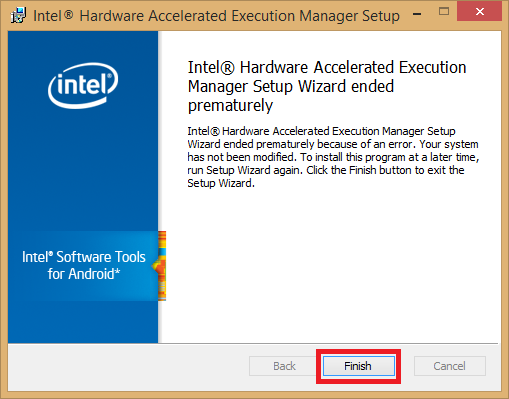
Whether or not it asked us to, we need to restart our computer now.
Enabling Virtualization Technology: This is only necessary if the previous warning message appeared, or if we want to make sure it’s enabled. Note: the BIOS interface varies from one motherboard to another, though they’re similar, so yours may not look like the images shown here. Because this part of the computer is so sensitive, we recommend not touching anything else, and not doing this at all unless you’re completely sure of what you’re touching, since you could break something. Of course, we are not responsible for what anyone does to their computer or what may happen as a result; even though the process is very simple and risk-free if done right. To do it, as soon as the computer starts, on the motherboard screen press either the "Delete" key, the "Escape" key, or whichever one this screen tells you to press to enter the BIOS setup. Here, go to the section called "BIOS Features" and enable the one called "Intel Virtualizacion Technology" (set the value to "Enable").
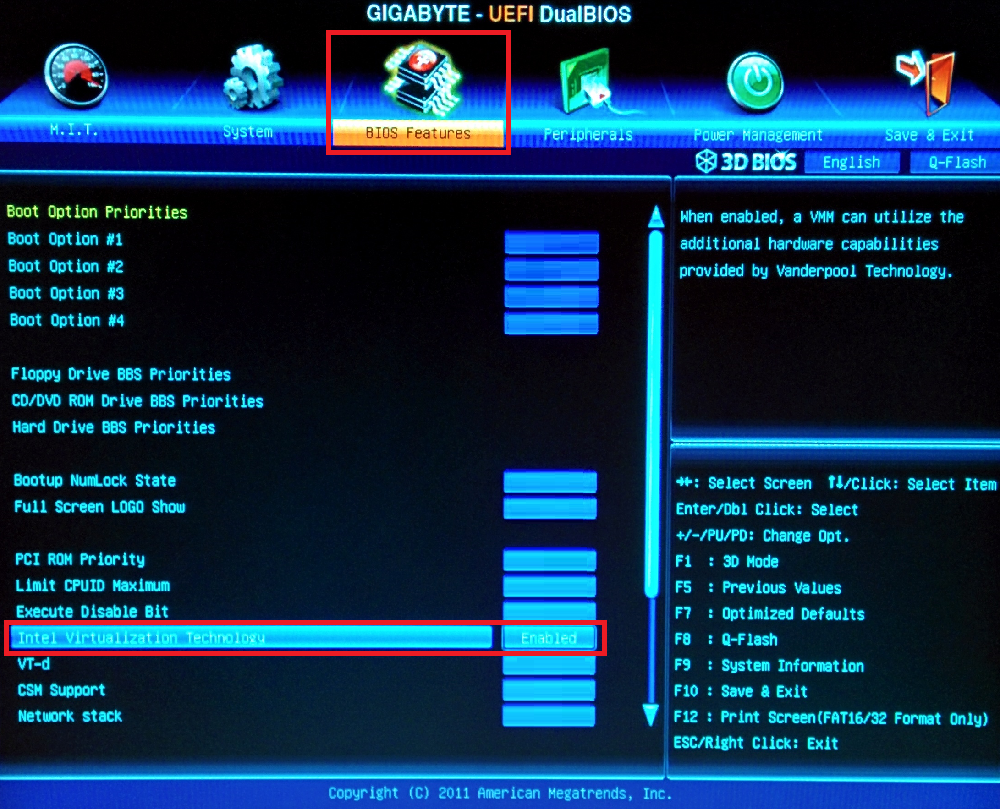
Here’s another example image from a different BIOS, where you have to go to "Advanced", then "CPU Configuration", and enable the one that says "Intel(R) Virtualization Tech"
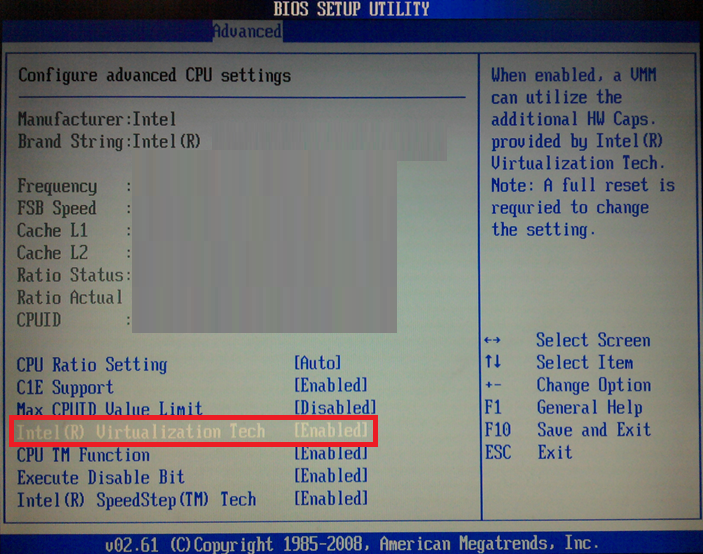
Then save and exit by pressing F10 and accepting the message
When the computer starts up, go back to Eclipse. Go to the "Android Virtual Device Manager" to set up an emulator.

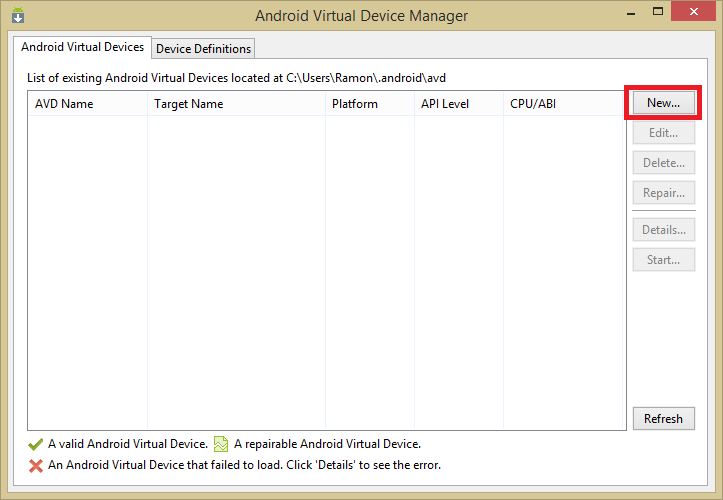
Here we create a new emulator by clicking "New…"
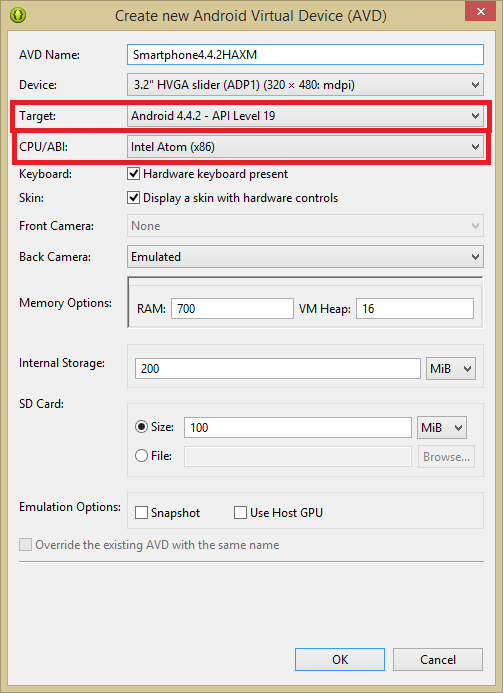
Among all the configuration parameters, the really interesting ones right now are "Target", to select an operating system version for which we’ve downloaded the Intel image (the ones that start with Google APIs (Google Inc.) don’t work, the other ones do). And above all the "CPU/ABI" section, where we’ll select "Intel Atom (x86)" to process everything. To learn more about this section, I recommend that you take a moment to read this article.
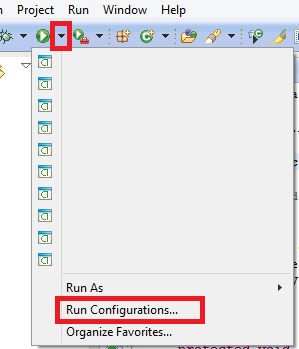
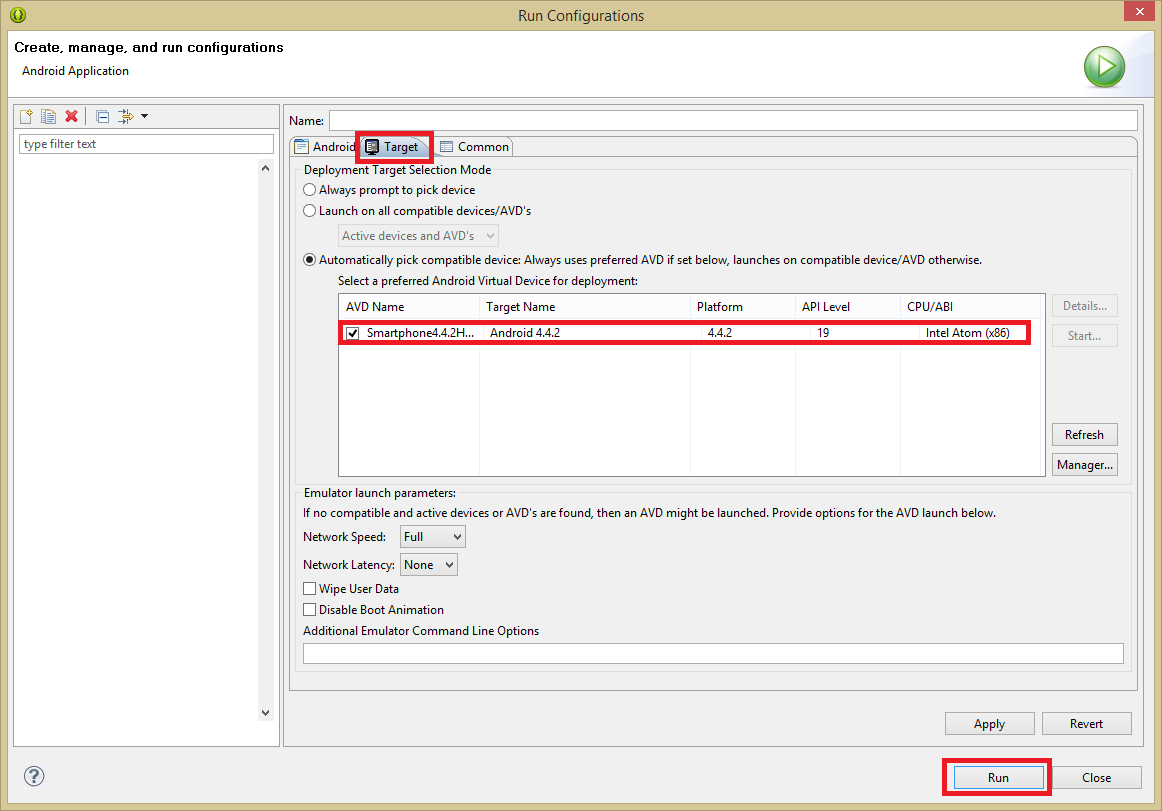
Now let’s configure how to launch the emulator we’ve set up. To do that, go to Eclipse and click the black arrow right next to the green arrow called "Run Stack", and there select "Run Configurations…"
In the window that opens, go to "Target", choose the emulator we’ve configured, and run it with "Run".
The emulator will open in a few seconds and the "Console" will show the following message saying everything went well: "HAX is working and emulator runs in fast virt mode"
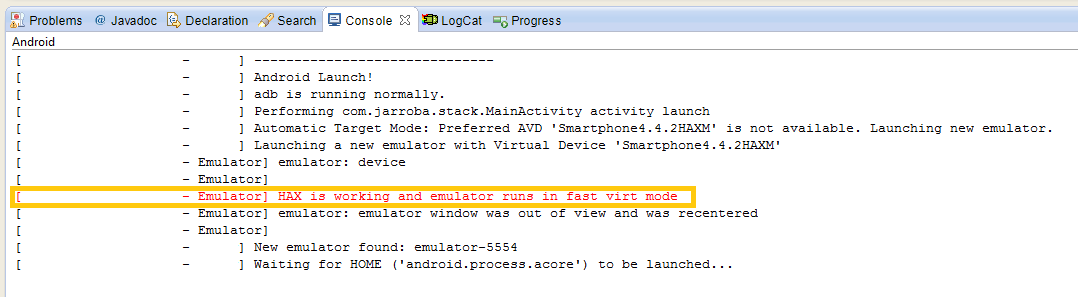
Error if you have Windows 8.1: The console may not show the previous message but this other one, which is an error message meaning the emulator is not working properly: emulator: Failed to open the HAX device! HAX is not working and emulator runs in emulation mode emulator: Open HAX device failed To fix this, we have to download the patch for Windows 8.1 from http://software.intel.com/en-us/articles/intel-hardware-accelerated-execution-manager and install it. Try again and you’ll see the error is gone.
Now we can enjoy the top speed of our Android emulator 🙂
References:
Run apps on the Android Emulator (Android Developers) http://software.intel.com/en-us/articles/speeding-up-the-android-emulator-on-intel-architecture
“Speeding Up the Android Emulator” by Ramón Invarato at jarroba.com, licensed under Creative Commons Attribution-NonCommercial-ShareAlike 3.0. Registered at Safe Creative.

You may also like
How to Use Multiple GitHub Accounts over HTTPS
Learn how to use several GitHub accounts over HTTPS: configure git so each repository gets its own credentials in your keychain and avoid 403 errors.

Android Architecture – ART vs Dalvik
Android architecture explained in a technical yet easy way. ART vs Dalvik compared, APK contents, AOT and JIT compilation, and the Odex vs Deodex difference.
Leave a comment