
Setting Up the Tools You Need to Develop for Android
Learn how to get your Android environment ready: use the SDK Manager, create an emulator with the AVD Manager, and set up LogCat filters in Eclipse.
Before we start, we need to have the whole Android environment installed. You can learn how in this tutorial.
To work with Android, it is very important to know the basic tools that its SDK gives us inside and out. The tools are distributed throughout Eclipse, and we will describe the most important ones.
You have surely noticed that Eclipse has been “invaded” by the Android robot. More specifically, in the toolbar:
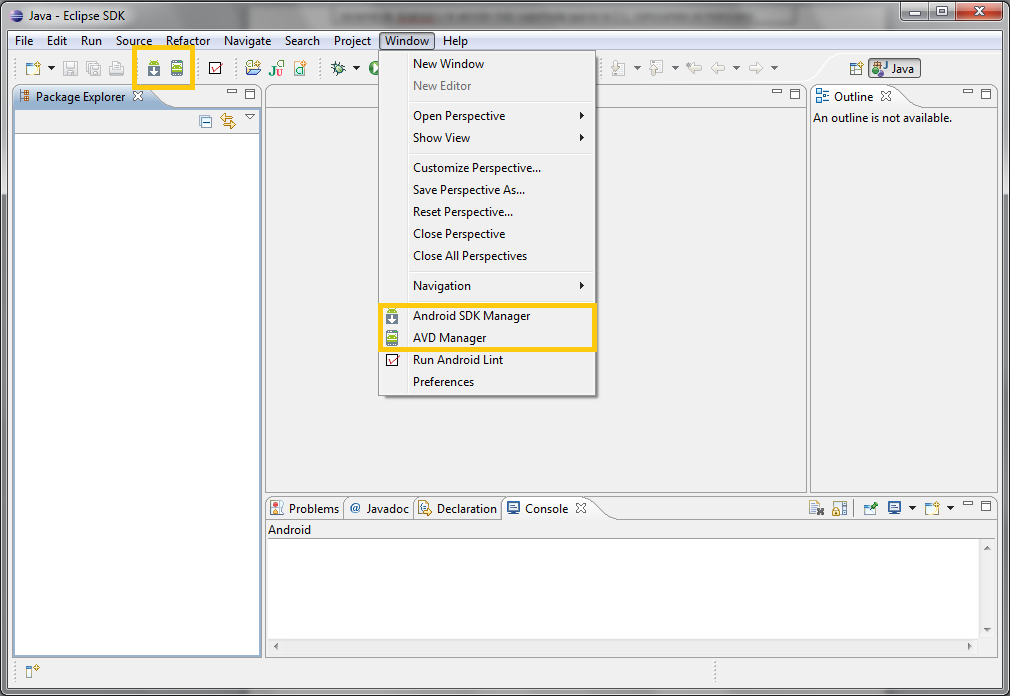
We can see that each one has a different icon and name.
The one called “Android SDK Manager” opens a window where we can see what we have downloaded from the Android SDK, download other packages, and even update the ones we already have if a newer version is available. This window will surely look familiar from the tutorial where we installed the SDK. It takes care of interpreting the code, as well as autocorrection, since it knows the different versions of the operating systems available. You could say it manages the tools installed in Eclipse, although that is not the whole truth.
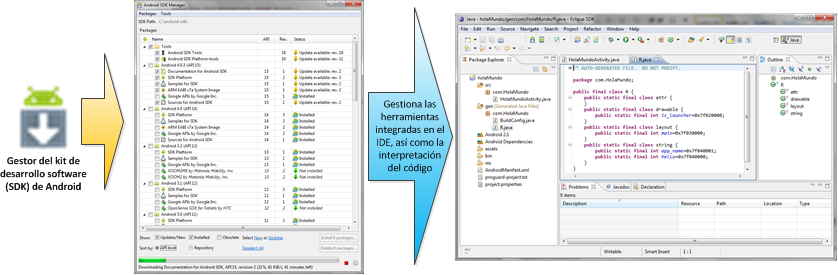
Make sure you have at least one complete emulator installed (complete means having both the “SDK Platform” and “Google APIs” packages installed in the same version). For the Jarroba.com tutorials we will use version 2.1 at minimum. When you are done, close the window you opened.
Now click the one called “AVD Manager”. Another window will open. In this window we can manage our emulators.
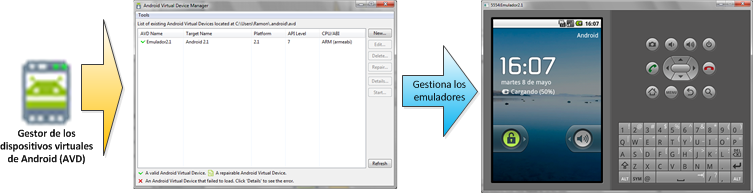
You will have figured out that without an emulator to test our code, we can’t run Android programs. If you have had the chance to try a few mobile devices, or have heard about them, you will know it is almost impossible to find two Android devices with the same features. So you have probably also figured out that an Android emulator can have any operating system we choose (version 1.5 or Cupcake, 1.6 or Donut, 4.0 or Ice Cream Sandwich, etc.), as well as any screen resolution, whether it has a memory card (and what capacity), among many other parameters that will mostly be enabled by default (whether it has a gyroscope, a compass, USB, maybe HDMI, perhaps 3G, 4G, etc.).
One thing we need is a place to test our Android applications. A physical device is an option, but it is not the most advisable one; an emulator is better. Let’s see how to create an emulator.
First, picture yourself building an Android phone (imagine you are going to build the Nexus, for example, though obviously a limited one, since we don’t want your computer to choke on so much power). To do that, think about which of the features above you are going to need.
To do so, click the “New…” button to create our phone with the Android operating system.
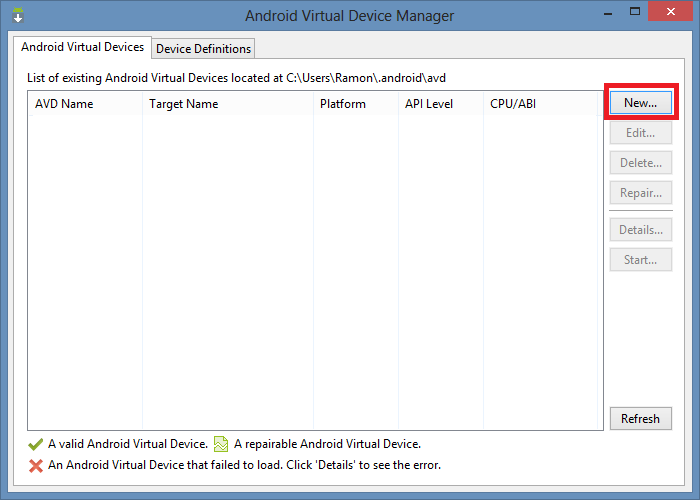
We will see several options that we will fill in:
- AVD Name: enter a descriptive name (it’s a good idea to include the operating system version or the API level), for example “Emu_4.3_Movil”
- Device: Choose a screen resolution that suits the power of your computer (I recommend the “HVGA” density (for example, 3.2" HVGA slider (ADP1) (320 x 480; mdpi) ). For two reasons: first, because it doesn’t demand a very powerful computer, since at 320×480 there are few pixels to process; and second, so that, without touching anything else, the emulator has a manageable size on screen for most monitors). To find out what each acronym means, you can see a table with all of them at: Screen compatibility overview (Android Developers)
- Target: Choose the operating system that will be installed on the emulator we are building.
- CPU/ABI: Here you can choose which simulated processor you want your emulator to have. Since ARM is the predominant architecture for mobile devices, at Jarroba we recommend you select "ARM (armeai-v7a)".
- Keyboard: Whether we want to be able to use our physical keyboard (the computer’s keyboard, the one next to the mouse) or not (in which case we can only use the on-screen one). We recommend checking the box.
- Skin: To show the physical buttons (such as back, home, volume, power, etc.). We recommend checking the box.
- Front Camera: How we want to simulate the front camera.
- Back Camera: How we want to simulate the back camera.
- Memory Options: Set the RAM to about 512 and the VM Heap to about 16 (dynamic storage space for the virtual machine; it is the space needed to hold one instance of the Dalvik virtual machine).
- Internal Storage: To set the internal memory to about 200 MegaBytes (which is the default, shown as “MiB”).
- SD Card: in the “Size” field, enter 100 MegaBytes (which is the default, shown as “MiB”). Don’t enter a very large amount, since whatever you enter will be space the emulator reserves on your hard drive.
- Snapshot: For now, leave the box unchecked until we see how to use it later on. As in some operating systems, it lets you suspend the emulator so that it loads in the state you left it in last time (saving you the wait for the operating system to boot). This way we can start the emulator faster.
- Use Host GPU: To use the GPU of your graphics card (it will use the OpenGL libraries installed by your computer’s graphics drivers). If you are not going to create video games, it’s better to leave it unchecked for now (you can edit it later 😉 ).
To finish, click “Create AVD”.
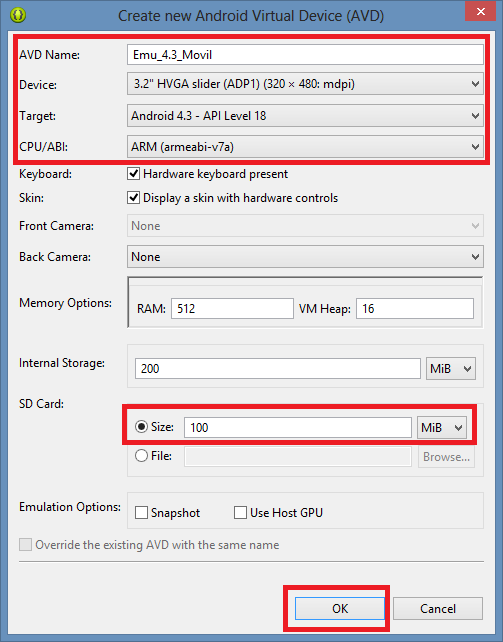
You will see that our emulator has been created.
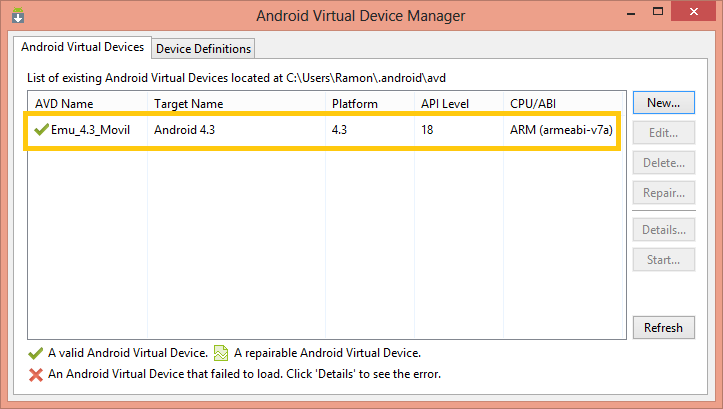
By repeating these steps we can create as many emulators as we want, with the operating systems we want and with whatever simulated hardware we feel like.
Note: the Android emulator usually takes quite a while to load and is slow as a rule. You can see how to configure the Android emulator to make it much faster in this article.
We won’t touch the “Android Virtual Device Manager” window any more, so we can close it and go back to Eclipse to start writing every program we can imagine.
First, one more small detail. Android doesn’t use the same console that Java uses (that’s not entirely true, it does use it, but so little that you won’t even notice). In programming it is very important to know how to use the console, since it will tell us what is causing problems or show the traces we have added (a trace is a piece of text we put in, for example inside an if, to know where the code is going).
Android uses what is called LogCat as its output console. To show LogCat, go to “Windows/Show View/Other…”
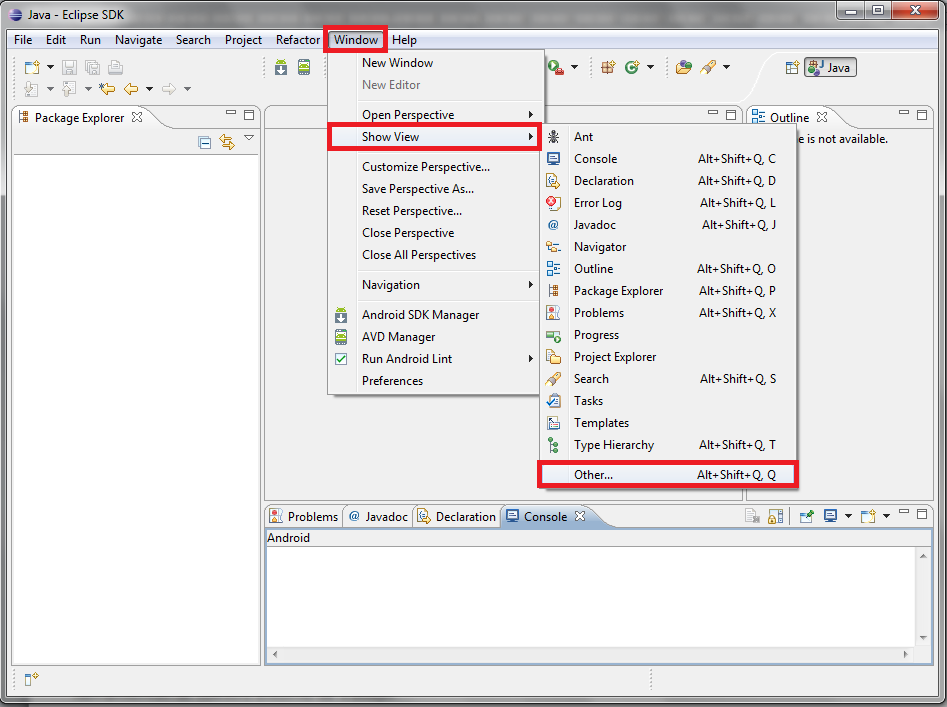
In the window that opens, go to the “Android” folder, select the one called “LogCat”, and finish by clicking “OK”.

You will see the LogCat tab.
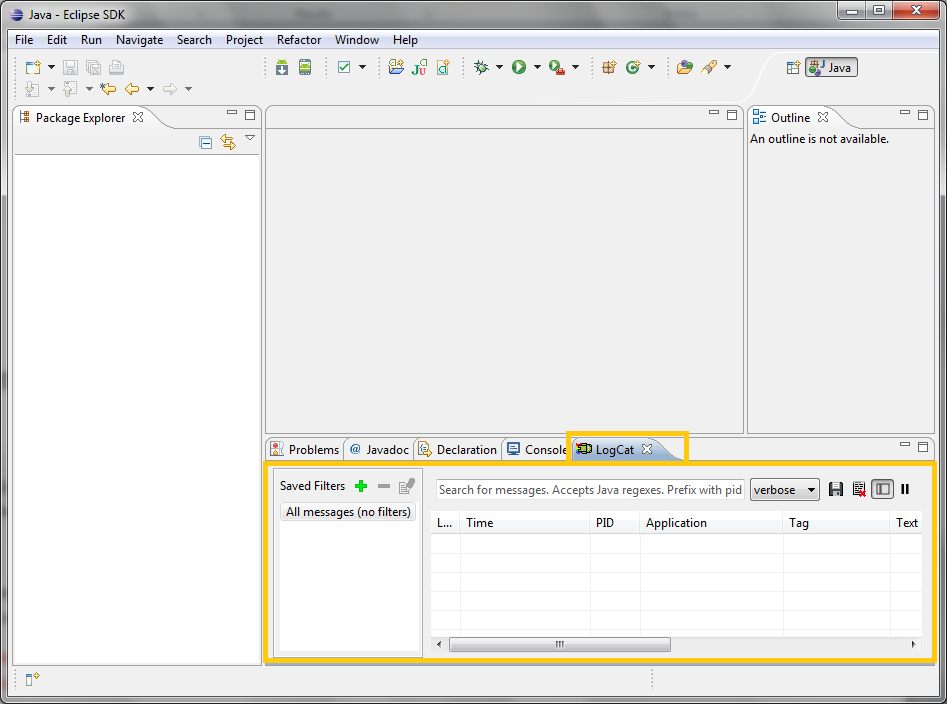
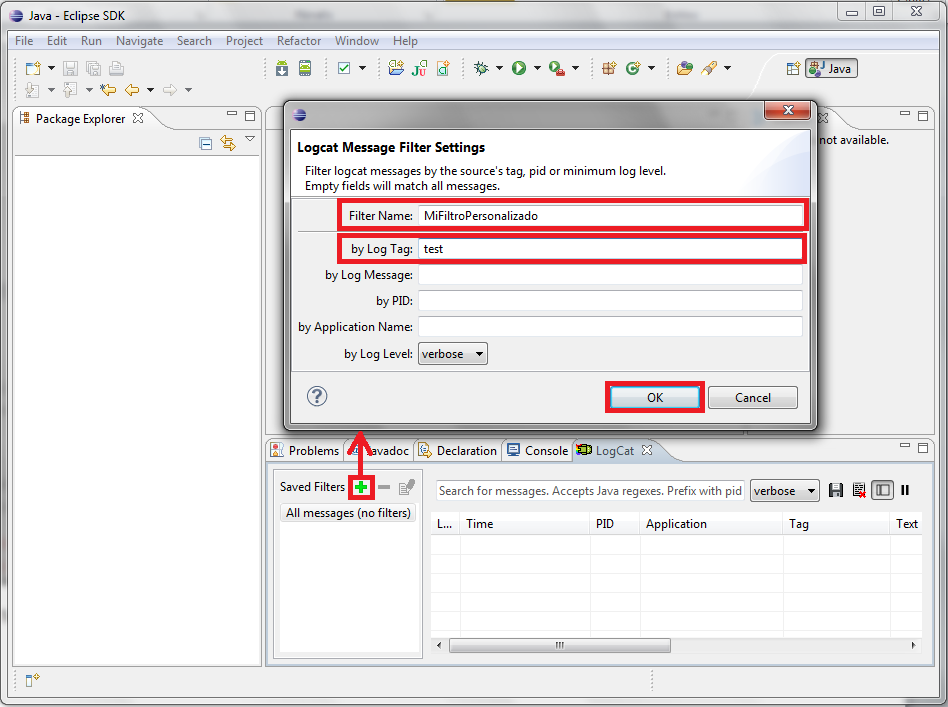
Creating a filter is as easy as clicking the “+” button. In the dialog box that opens, fill in the “File Name” field with whatever name you want the filter to have, and fill in as many of the following fields as you like, although to start I recommend filling in only the “by Log Tag” field.
Before explaining what each field is for, I want to mention that to print a line of text in LogCat you don’t use “System.out.print(Message);”, but rather: “Log.v(TAG, MESSAGE);”.
Here is what each field is for:
- by Log Tag: The tag we will use to filter (I recommend a short word for convenience). For example, if we write “test”, we will use: Log.v(“test”, “este mensaje se filtra por el TAG”);
- by Log Message: Filter by part of the message.
- by PID: Filters by the process identifier.
- by Application Name: Filters by the application name.
- by Log Level: Filters by the Log level (put simply, it filters by colors).
That was a lot of work. Fortunately, we will only have to do it once, since we have now set up the tools of our work environment.
We are now ready to get down to the business of writing code.
If you are just getting started with Android, I advise you to keep learning the most basic thing, and also what controls all Android applications: Activities
“Setting Up the Tools You Need to Develop for Android” by Ramón Invarato at jarroba.com, licensed under Creative Commons Attribution-NonCommercial-ShareAlike 3.0. Registered at Safe Creative.

You may also like


Installing the Android SDK and Linking It with Eclipse
Learn how to install the Android SDK and link it to Eclipse with the ADT plugin, step by step, so your Android development environment works perfectly.

Android Error – Eclipse Doesn’t Show the Android Buttons After Installing the ADT and the SDK
Eclipse doesn't show the Android SDK Manager and AVD Manager buttons after installing the ADT and SDK? Here's how to bring them back in a few steps.
Android Error – Android SDK Not Found
Fix the Android error "Location of the Android SDK has not been setup in the preferences" that appears when you create a new Eclipse workspace.
Android Error – A Newer ADT Version Is Required
Getting the Android error "This Android SDK requires Android Developer Toolkit version X or above"? Learn how to install or update the ADT plugin in Eclipse.
Leave a comment