
Activity – Understanding and Using an Android Activity
Learn what an Android Activity really is, how its lifecycle works, and how to create and launch activities with a full working example, step by step.
Here we are going to take our time to fully explain what an activity is. If you want to go straight to the code, it’s at the end. And if you’re not interested in understanding exactly what an activity is, you’re better off checking out one of the hundreds of more direct tutorials out there on the Internet. Let’s start getting a deep understanding of what an Android Activity is.
We all know what a computer application is. But in case we’ve forgotten, here’s a quick summary: an application is a program, which is a tool that lets the user do some kind of work (this work can be editing a text with a text editor, playing a game, using a calculator, anything we can think of). And internally, an application consists of code, as well as files that can be audio, binaries, and so on. If, for example, an application were “Sports”, internally it would contain all the possible sports, like rhythmic gymnastics, push-ups, cycling, running, basketball, etc. By the way, applications for mobile devices are called Apps -it comes from making the English word “Application” chic and stylish by keeping just its first three letters- it’s the same thing with a more modern, cooler name.
Among the code we find in Android, the term Activity is used to name a type of Java class that inherits from Activity -don’t worry if you didn’t understand this, we’ll explain it a bit later. An activity, as its name suggests, is something the user can do. The analogy that comes to mind right now, using the previous example, is physical activity, which is a set of body movements that result in energy expenditure. In Android an activity is the same thing: it’s a set of actions (touching the screen to press a button, typing on the keyboard, etc.) that are direct interaction with the user and that affect one part of the application. To be more specific, let’s suppose that our physical activity is running -it’s an active part of the application- so our activity will be running.
To understand it better, let’s suppose that the App mentioned before is called “Sports”. It has these activities inside:
- Running
- Basketball
- Push-ups
These are enough to illustrate what we want; there could be more or fewer, as mentioned before.
What we want to do is run, so we launch our running activity. An activity that will be in the foreground and that will have a lifecycle.
An activity is characterized by having a lifecycle. A lifecycle, just like the life cycle of an animal: it’s born, grows, eats, reproduces and dies; and it’s similar in an activity. The running activity would have the following lifecycle: we stretch before we start running, we start running, we run at full speed, at some point we decide to take a break to do push-ups, then we may decide to continue running, and at another moment we stop running until another day. The following diagram (a modification of the official one to build the example; we’ll show the official diagram later) shows how the lifecycle of the running activity unfolds. Take a quick look and keep reading the explanation:
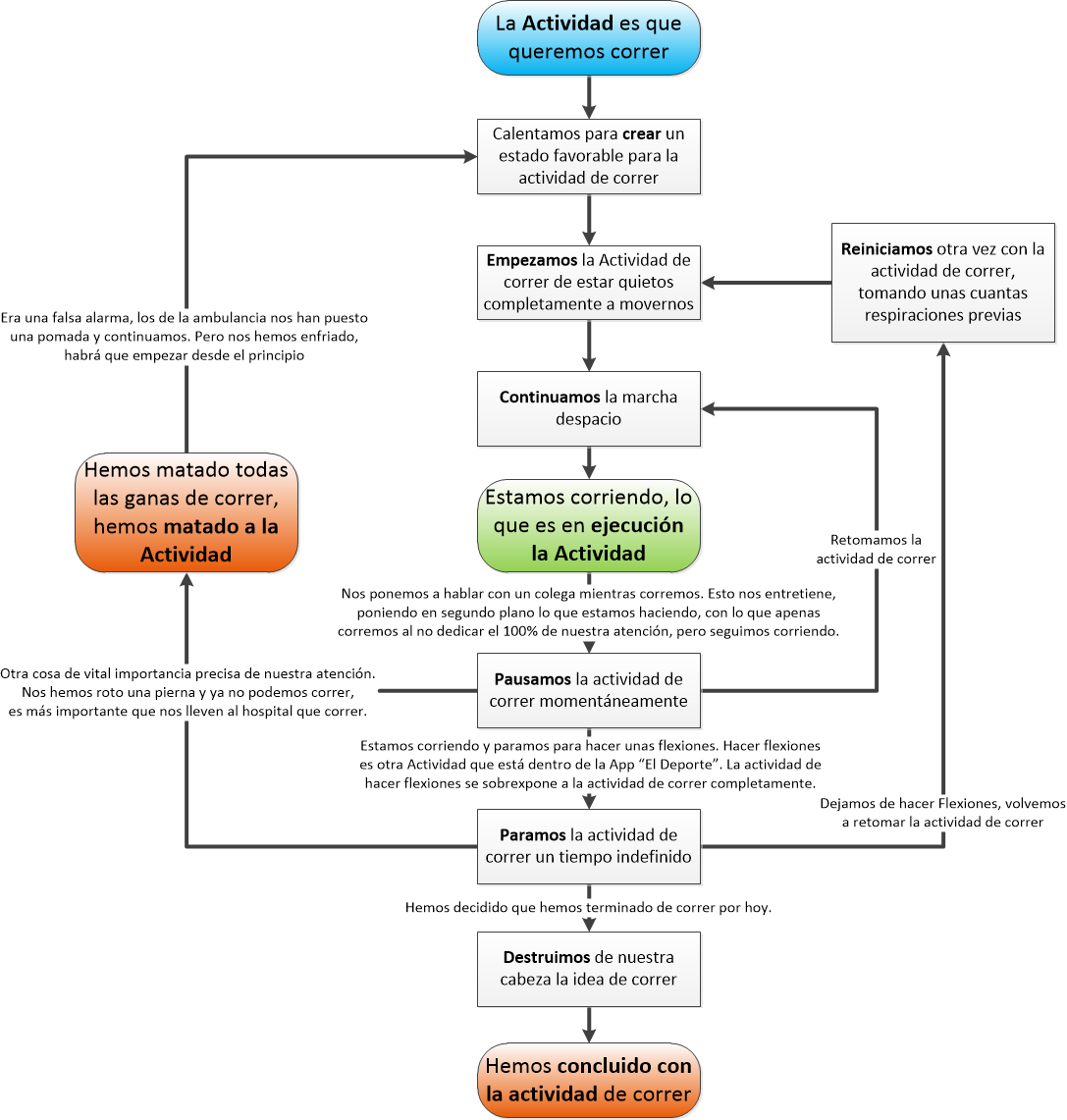
As you’ve seen, the lifecycle isn’t completely linear; we can make decisions and act accordingly. For example, we can decide to take a break and then continue running, or finish. But what is linear is linear (in an animal’s life cycle, eating before doing your business is linear; if you don’t do the first, the second is impossible), we will always warm up before running, otherwise it’s not a sport –deciding to skip the warm-up doesn’t remove the linearity, since warming up can’t be done while running; either you do it before or you don’t do it (to avoid doubts about vocabulary, we explain that “warming up” always happens before doing a sport, not after; for further doubts consult the dictionary).
You may have questions about the two red circles in the diagram; they tend to cause confusion, but they are completely different (there can also be doubts about some states like pausing and stopping, but those and any others that raise doubts will be cleared up as soon as we see a bit later how this lifecycle works in App form):
- The one that “kills the activity” does so because something more important demands our full attention, and we don’t have time to keep running. We don’t decide to stop running, but it ends. We’ll resume the running activity from the beginning whenever we want.
- The one that “finishes the activity” is because we decide to stop running, so we end the activity.
We’ve mentioned two other activities: doing push-ups and basketball. At some point in the lifecycle of the running activity, we can decide to do the push-ups activity. So we put the running activity in the background and start the push-ups one –it’s worth saying that the push-ups activity also has its own lifecycle, which we won’t draw because it’s unnecessary, you can imagine it 😉 . The basketball activity also has its own lifecycle, but in this example it will never be started –we simply included the basketball activity to illustrate that there can be activities that never run.
Now go back to the previous graphic and imagine you’ve gone out for a run, take a mental walk through the lifecycle of the running activity and you’ll see how everything starts to make sense.
When you’re done, look at the next lifecycle of the same example diagram (the diagram is a modification of the official one that we’ll show a little later, be patient), this time supposing it’s a real App on a Smartphone or Tablet. As you look at the following diagram, imagine that you have the “Sports” application installed, and that you’re about to start the running activity on your phone, that you’re going to see it on the screen, and you’ll be able to touch it and interact with it directly; this will be the active activity.

If we think about everything we can do with our phone while the application is running, with the running activity in execution in front of us, it’s possibly the following (these are not the only actions; others will also trigger the same paths through the lifecycle):
- Start the activity: It will go through Create, Start and Resume, to reach normal execution.
- Use the activity normally: we’re in the running activity.
- A pop-up window has opened: It will go through Pause.
- Switch to another activity or lock the phone: It will go through Pause and Stop. (Clarifying note: if you switch to another activity it necessarily goes through pause and stop; a pop-up window doesn’t have to appear for it to go through pause. If you switch activities it goes through both states directly; this happens with other actions that go through several states).
- Turn off the phone: It will go through Pause, Stop and Destroy.
Now that this is understood, let’s look at the official lifecycle of an activity (just as the previous graphics are a modification provided by www.Jarroba.com to illustrate the official one, the following graphic is a translation of the official Android one; the official diagram is available at Activity — API reference (Android Developers)).
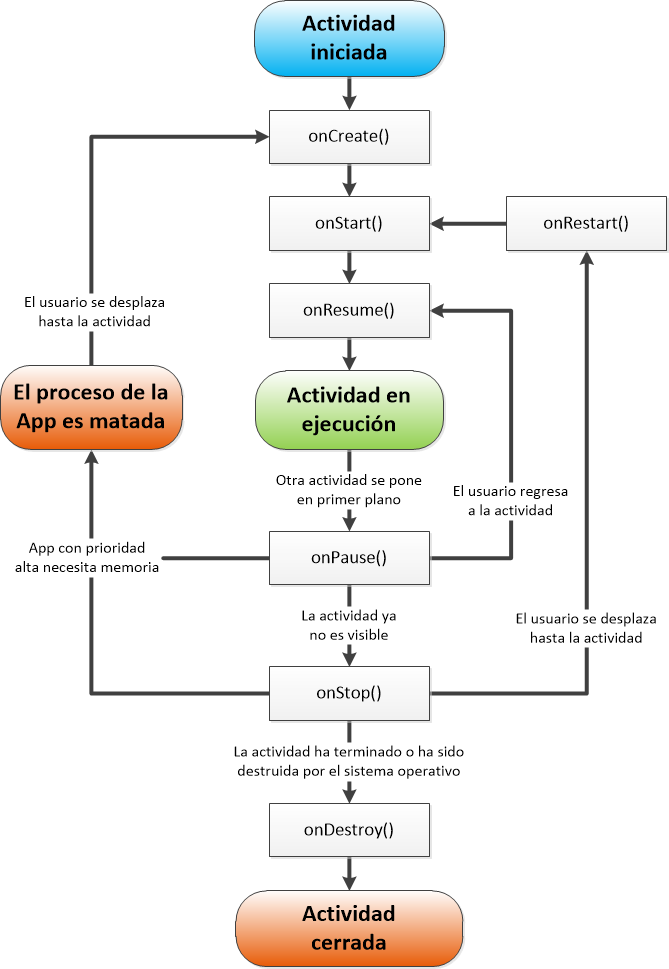
We’re starting to talk in programming terms. As we can see in the boxes, there are several methods with English names equal to the ones we explained earlier. These methods are in the Activity class, a class we’ll have to extend so that our class becomes an activity, like this (Note: until I say otherwise, this is non-functional code, with just enough to understand the theory; I’ll let you know later when the functional code appears):
public class Correr extends Activity {
    //The contents of the whole Correr (running) activity will go here
}
We can optionally add each of the methods to override them (this is what @Override indicates) from the parent class Activity; none of them is mandatory. Inside we’ll write the code we want to run, and each method will be called by the Activity class at the moment indicated earlier. Below we write all the possible methods; the ones we don’t need, we simply don’t write. Not writing them doesn’t make them stop existing: they still exist in the Activity class, and therefore in the lifecycle of our Activity, but when they run at their moment they will be empty.
public class actividad_de_correr extends Activity {

    @Override
    public void onCreate(Bundle savedInstanceState) {
        super.onCreate(savedInstanceState);
        //Our code to run at this moment
    }

    @Override
    public void onStart(){
        super.onStart();
        //Our code to run at this moment
    }

    @Override
    public void onRestart(){
        super.onRestart();
        //Our code to run at this moment
    }

    @Override
    public void onResume(){
        super.onResume();
        //Our code to run at this moment
    }

    @Override
    public void onPause(){
        super.onPause();
        //Our code to run at this moment
    }

    @Override
    public void onStop(){
        super.onStop();
        //Our code to run at this moment
    }

    @Override
    public void onDestroy(){
        super.onDestroy();
        //Our code to run at this moment
    }

}
To start with, I recommend using only the onCreate method, which is the one that runs when the activity starts; we’ll use the rest of the methods if we need them.
If you’re wondering what the rest of the methods are for, imagine a game on our phone. We’re playing and at some point we turn off the phone. So we don’t lose our progress, in onDestroy we collect the game data and save it to persistent storage. That way, the next time we play, onCreate will ask the storage whether there’s saved game data, and will load the game at the exact moment where we left it.
public class actividad_de_correr extends Activity {

    @Override
    public void onCreate(Bundle savedInstanceState) {
        super.onCreate(savedInstanceState);
        //Our code to run at this moment
    }

}
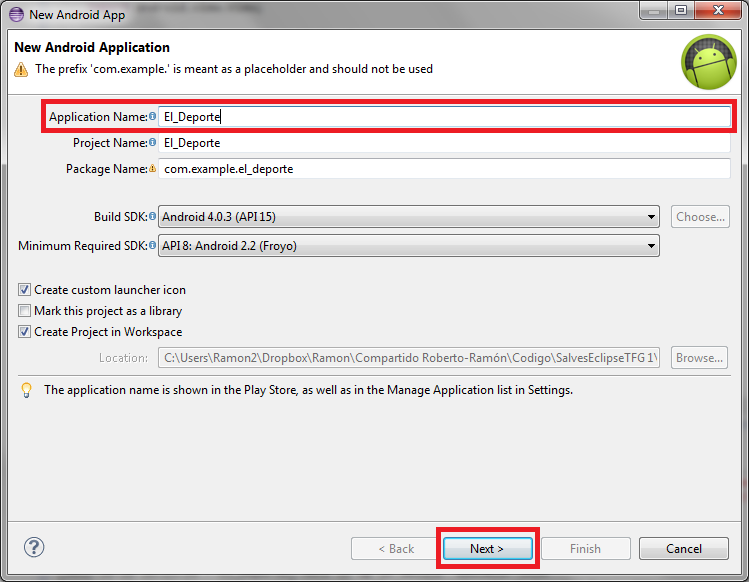
From here on we’ll present an example with completely functional code. We’ll build the “El_Deporte” (“Sports”) application. It will contain two activities: Correr (Running) and Flexiones (Push-ups) (we drop the basketball one to simplify the code). We create a new Android project, name the application “El_Deporte” and keep clicking “Next” until we finish, so we have the project ready to work with.
We go to the “res” folder, then to the “layout” folder, and create two XML files.
One called “layout_correr.xml” with the following code (how to build and understand this XML code we’ll explain in another tutorial; here we just take it on trust):
<?xml version="1.0" encoding="utf-8"?>
<LinearLayout xmlns:android="http://schemas.android.com/apk/res/android"
    android:layout_width="match_parent"
    android:layout_height="match_parent"
    android:gravity="center"
    android:orientation="vertical" >

    <TextView
        android:id="@+id/textView1"
        android:layout_width="wrap_content"
        android:layout_height="wrap_content"
        android:text="Estamos corriendo"
        android:textAppearance="?android:attr/textAppearanceLarge" />

    <Button
        android:id="@+id/button_flexiones"
        android:layout_width="wrap_content"
        android:layout_height="wrap_content"
        android:text="Ponerse a hacer Flexiones"
        android:onClick="clicEnBoton_IrAFlexiones"
         />

</LinearLayout>
This layout shows the user:

And another one, “layout_flexiones.xml”, with the following code:
<?xml version="1.0" encoding="utf-8"?>
<LinearLayout xmlns:android="http://schemas.android.com/apk/res/android"
    android:layout_width="match_parent"
    android:layout_height="match_parent"
    android:gravity="center"
    android:orientation="vertical" >

    <TextView
        android:id="@+id/textView1"
        android:layout_width="wrap_content"
        android:layout_height="wrap_content"
        android:text="Estamos haciendo Flexiones"
        android:textAppearance="?android:attr/textAppearanceLarge" />

</LinearLayout>
This other one shows on the screen:

As a general rule, an activity is associated with a Layout. A Layout is the window or view that the user sees on the screen: buttons, texts, scroll bars, etc. The association is made in onCreate with the method called "setContentView", as we’ll see in the following code.
If you’ve seen something about the Model-View-Controller pattern, I should tell you that what we call a Layout in Android is the View, the Activity should be the Model, and the rest of the classes will act as the Controller.
We create a new activity that we call “Correr” and put in the following code.
package com.example.el_deporte;

import android.app.Activity;
import android.content.Intent;
import android.os.Bundle;
import android.view.View;

public class Correr extends Activity {

    @Override
    public void onCreate(Bundle savedInstanceState) {
        super.onCreate(savedInstanceState);
        setContentView(R.layout.layout_correr);
    }

    public void clicEnBoton_IrAFlexiones (View view) {
        Intent intent = new Intent(this, Flexiones.class);
        startActivity(intent);
    }

}
Here we have onCreate, which receives a parameter, a variable called “savedInstanceState” of type “Bundle”. We’ll explain this at greater length in another tutorial. But so you can start picking up concepts, a quick summary: a Bundle is data that we pass to this activity to initialize its state. In this example we don’t use it, but think, for example, of a game in which one activity asks for the character’s gender, and we move on to the next activity, where our character is shown with the chosen gender; the gender, as a male or female variable, has had to be passed somehow from one activity to the other, and that’s done with a “Bundle”.
onCreate requires initializing the parent first of all, hence the line: super.onCreate(savedInstanceState);
In the next line we set which Layout we want to associate with this activity; since it’s the “correr” (running) activity, it makes sense to associate the “layout_correr” layout with it. It’s done as shown in: setContentView(R.layout.layout_correr);
There’s another plain, ordinary method called “cliclEnBoton_IrAFelxiones” that runs when we click the button with the text “Ponerse a hacer Flexiones” (“Start doing push-ups”). It’s called from the XML itself in the line android:onClick="clicEnBoton_IrAFlexiones" and what it does is make this method run when the button is pressed.
The only thing this method does is open the other activity, “Flexiones”. This is done with something called an “Intent”. An “Intent” is a declaration of the intention of what we want to do; in this case the intention is to run the Flexiones activity –although I could add that besides opening another activity we may also want to pass certain data, as in the earlier game example with the gender. Put another way, an “Intent” is a package with everything we want to configure the new activity with. All that’s left to say is that “this” is the context of the current activity (to learn everything about Context, see this article). This is done by the code: Intent intent = new Intent(this, Flexiones.class);
After declaring the intention, we have to launch the activity with: startActivity(intent);
To reach the next activity and its associated Layout we need its code. We create another new activity that we call “Flexiones” with this code:
package com.example.el_deporte;

import android.app.Activity;
import android.os.Bundle;

public class Flexiones extends Activity {

    @Override
    public void onCreate(Bundle savedInstanceState) {
        super.onCreate(savedInstanceState);
        setContentView(R.layout.layout_flexiones);
    }

}
This way, when we reach this activity, the corresponding Layout will be shown on the screen.
But there’s a security issue that will make the application fail if we try this as is. We still need to modify the file called “AndroidManifest.xml”. This file is in charge of managing the application’s permissions, and here we have to declare everything in our application that could pose a security problem. In this Manifest we have to say whether our application will use the Internet, whether it will be able to make calls, etc.; these are the permissions the user has to accept when they’re about to install an application. Opening activities has to be controlled from this file.
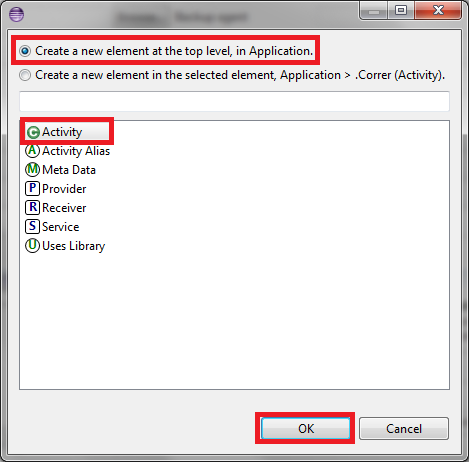
To do so, we go to “AndroidManifest.xml”. In the “Application” tab, in the “Application Nodes” section, we click the “Add…” button.
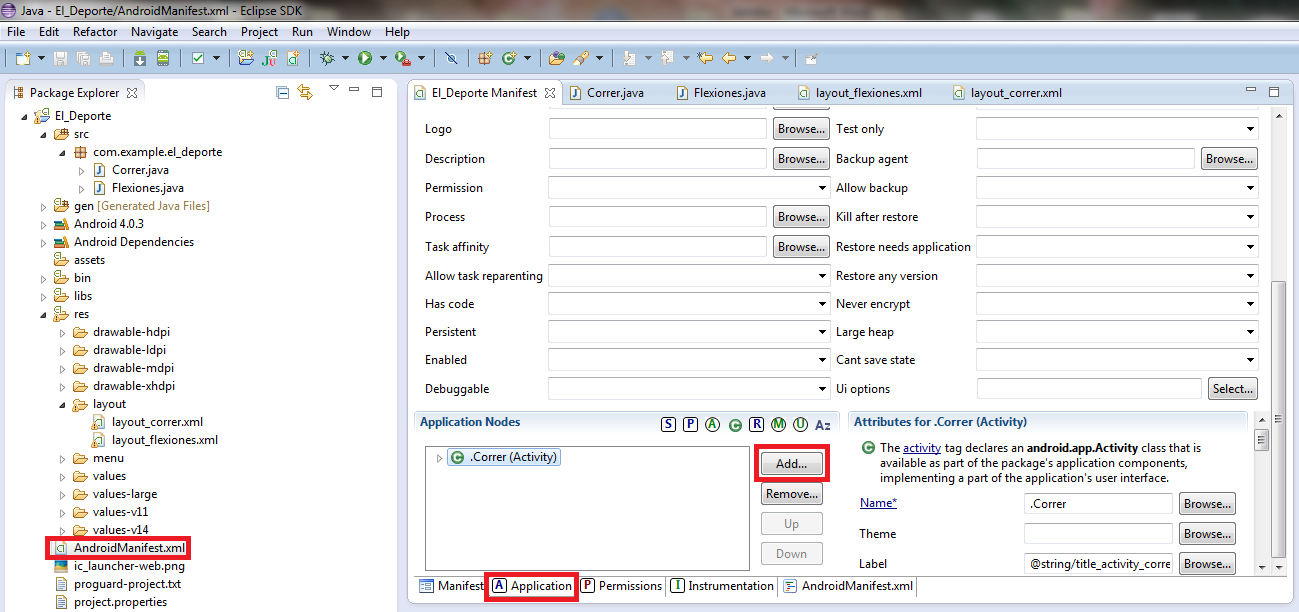
In the window that opens, we make sure the “Create a new element at the top level, in Application” box is checked. We choose “Activity” and click “OK”.
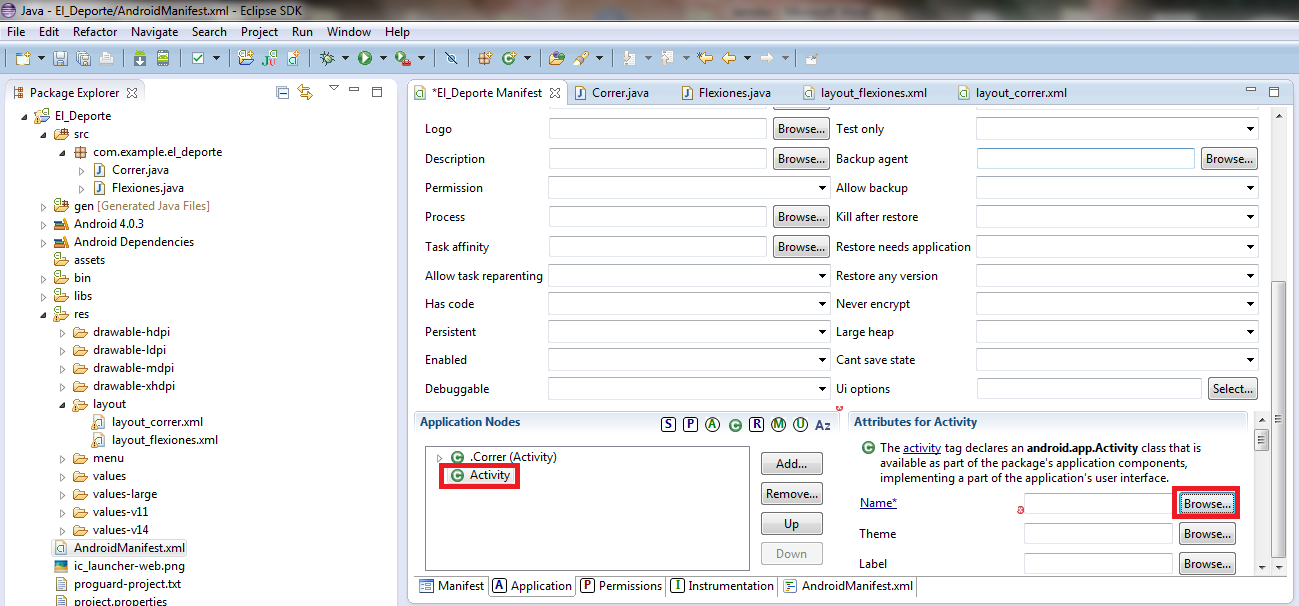
Now we make sure the new node we’ve created, called “Activity”, is selected. All its corresponding fields on the right will be blank; next to Name we click the “Browse…” button.
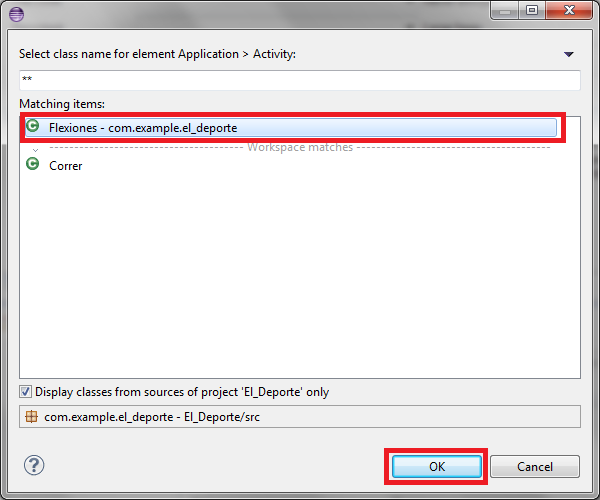
Another new window will open. We wait a few seconds for all our activities to load –a percentage will tell us about it- and we select the activity we want, in this example “Flexiones”. We finish by clicking “OK”.
We save the “AndroidManifest.xml” file and that’s it. Here’s a screenshot of how it ends up:
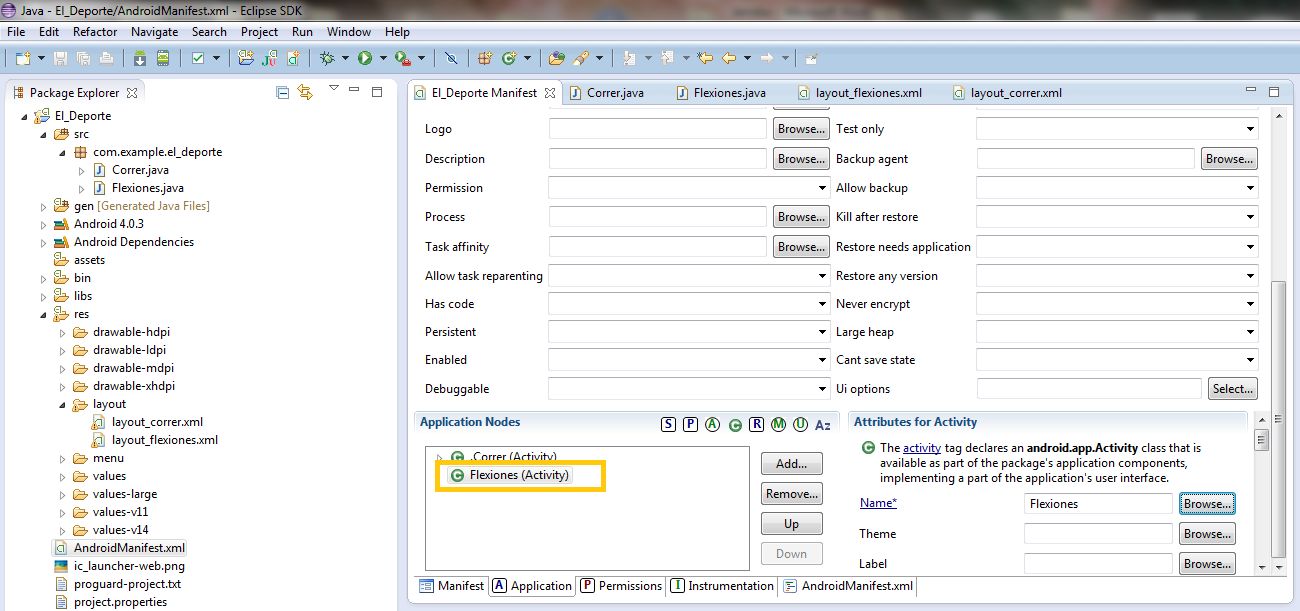
All we’ve done in the "AndroidManifest.xml" is add the following line to its XML:
<activity android:name="Flexiones"></activity>If we open the XML of the "AndroidManifest.xml" we’ll find a structure similar to the following:
<manifest xmlns:android="http://schemas.android.com/apk/res/android"
    package="com.example.el_deporte"
    android:versionCode="1"
    android:versionName="1.0" >

    <uses-sdk
        android:minSdkVersion="8"
        android:targetSdkVersion="15" />

    <application
        android:icon="@drawable/ic_launcher"
        android:label="@string/app_name"
        android:theme="@style/AppTheme" >
        <activity
            android:name=".Correr" android:label="">
            <intent-filter>
                <action android:name="android.intent.action.MAIN" />

                <category android:name="android.intent.category.LAUNCHER" />
            </intent-filter>
        </activity>
        <activity android:name="Flexiones"></activity>
    </application>

</manifest>
Now we can run our application in the emulator and try out the activity we’ve built that moves to the other one when we press the button. As we’ve been saying in the running example, we are running on the following screen:
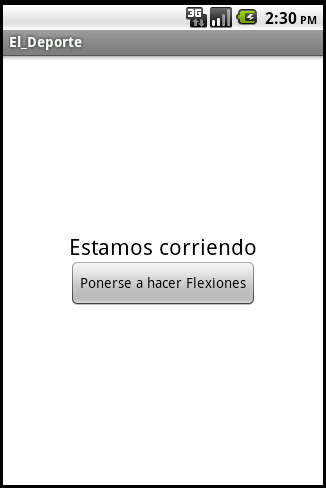
We press the “Ponerse a hacer Flexiones” (“Start doing push-ups”) button and pause the Correr activity to start the Flexiones activity.
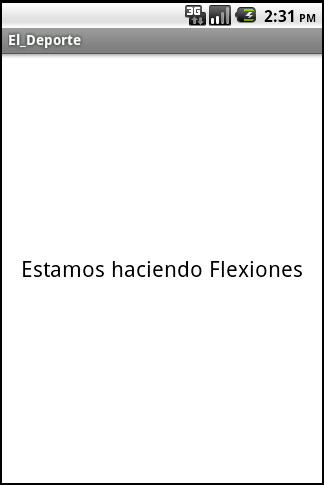
To go back to the previous activity we press the device’s back button, and the Correr activity will continue.
You can download the whole project from here: Download the El_Deporte App
We hope this has cleared up everything related to Android activities, since it’s the biggest -and most important- part of Android and needs to be well understood. For any question or clarification, leave a comment and we’ll answer as soon as possible.
I recommend that you continue studying Android with the next article about Context, by clicking here, where we explain in depth what it is and what it’s for.
See live how the lifecycle of an activity works:To test how the lifecycle of an activity works, the best thing is to see it for ourselves. To do so we replace the Correr activity with the following code, which shows all the states it can go through:
package com.example.el_deporte;

import android.app.Activity;
import android.content.Intent;
import android.os.Bundle;
import android.view.View;
import android.util.Log;

public class Correr extends Activity {

    @Override
    public void onCreate(Bundle savedInstanceState) {
        super.onCreate(savedInstanceState);
        setContentView(R.layout.layout_correr);
        Log.v("test", "Create");
    }

    public void clicEnBoton_IrAFlexiones (View view) {
        Intent intent = new Intent(this, Flexiones.class);
        startActivity(intent);
    }

    @Override
    public void onStart(){
    	super.onStart();
        Log.v("test", "Start");
    }

    @Override
    public void onRestart(){
    	super.onRestart();
        Log.v("test", "Restart");
    }

    @Override
    public void onResume(){
    	super.onResume();
        Log.v("test", "Resume");
    }

    @Override
    public void onPause(){
    	super.onPause();
        Log.v("test", "Pause");
    }

    @Override
    public void onStop(){
    	super.onStop();
        Log.v("test", "Stop");
    }

    @Override
    public void onDestroy(){
    	super.onDestroy();
        Log.v("test", "Destroy");
    }

}
We’ve added a log to each lifecycle method in this code so we can see the output in Android’s LogCat.
Tinkering with this a bit will help us understand how the lifecycle of an activity works.
For example:
1º Suppose we start the application; the Correr activity will load, and LogCat will show, line by line: Create, Start and Resume.
2º Now we press the button; since another activity is placed on top, completely hiding it, this will be shown in this order: Pause and Stop.
3º If we press the back button, we resume the Correr activity and it will show: Restart, Start and Resume.
4º If we press the home button to go back to the home screen, it will show: Pause and Stop.
We can run all the tests we want to understand the lifecycle of the activity perfectly. It’s a good idea to take a look at the diagram so you can follow the life of an activity.
“Activity – Understanding and Using an Android Activity” by Ramón Invarato at jarroba.com, licensed under Creative Commons Attribution-NonCommercial-ShareAlike 3.0. Registered at Safe Creative.

You may also like


Fragments in Android
Learn what Fragments are in Android, how they differ from Activities, and how to build apps that adapt to any screen size, with their lifecycle explained.
Intent – Passing Data Between Activities – Android App (Video)
Learn how to pass data from one Activity to another in an Android app using an Intent after a button click, with a step-by-step video tutorial in Eclipse.
Android Context
Learn what Android's Context is, the types that exist, how to get it, and how to avoid memory leaks, explained with a simple example and code.
AsyncTask in Android
Learn how to use Android's AsyncTask for real multitasking, with a complete working example, its lifecycle and how to cancel tasks. Read it now!
Leave a comment