
Intent – Passing Data Between Activities – Android App (Video)
Learn how to pass data from one Activity to another in an Android app using an Intent after a button click, with a step-by-step video tutorial in Eclipse.
This tutorial shows the Eclipse IDE being used to build an Android app, and how to pass data from one activity to another after an event. In other words, how to pass data from one screen to another after pressing a button. To follow this tutorial you will need to have and know the following:
- You must have the "Eclipse" IDE installed and linked to the Android SDK. If you haven’t done this yet, you can do it by following this tutorial:(Install the Android SDK and link it with Eclipse)
- You must have Eclipse configured correctly. In this case you only need the phone emulator configured, although it is also a good idea to have the data output terminal called "LogCat" configured so you can trace your app while developing it. If you haven’t configured Eclipse yet, you can see how to do it in this tutorial:(Set up the tools you need to program in Android)
- Finally, although it isn’t required, it is recommended that you read this tutorial (Activity – understand and use an Activity) to understand the life cycle of an activity. You don’t need to read it to follow this tutorial, and if you are a "newbie" at app development it may be hard to grasp the first time, but it is highly recommended so that you understand many things later on in app development.
The goal of this tutorial (besides showing the IDE and the files in a project) is to build the following app, which collects some data in the first activity and displays it in the second one, as shown in the following image:
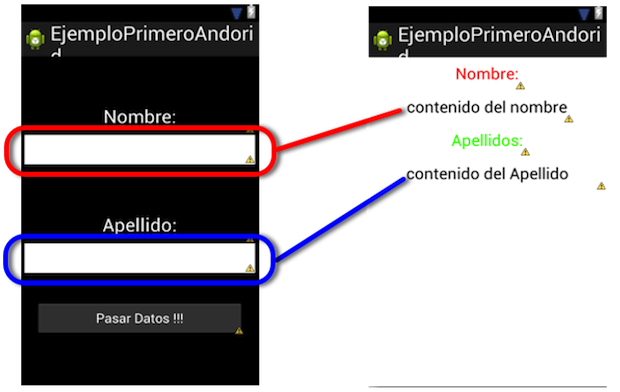
Now that you’ve seen what this app should do, here is the video showing how to build it from scratch:
You can download the project built in this video tutorial by clicking HERE.
As you’ve seen in this tutorial (apart from building the interfaces, which takes quite a while), the key to passing data from one activity to another is to create an "Intent". This Intent is declared inside the code that defines the event to run after pressing the button, that is, in the "OnClickListener". The part of the code that describes this action and declares the Intent is the following:
miBoton.setOnClickListener(new OnClickListener() {
			@Override
			public void onClick(View v) {
				Intent i = new Intent (PrimerActivity.this, SegundoActivity.class);
				i.putExtra("nombre", campoNombre.getText()+"");
				i.putExtra("apellido", campoApellidos.getText()+"");
				startActivity(i);
			}
		});
As you can see, two "variables", 'nombre' and 'apellido', are "declared" in the intent (I put it in double quotes because that isn’t really what happens, but I say it this way so it’s easier to understand) and are passed to the second activity (Intent i = new Intent (PrimerActivity.this, SegundoActivity.class)) after the "startActivity(i)" method runs.
When the "Intent" 'i' arrives at the second activity, you have to assign the data it carries to some variable or element of the second activity. It is recommended, though not required, to assign what you get from an Intent to variables so the code is more "readable and understandable". We collect the data in the second activity like this:
		String nombre = getIntent().getStringExtra("nombre");
		String apellidos = getIntent().getStringExtra("apellido");
After collecting the data, we display it on the screen in the corresponding TextViews.
That’s all. We hope this tutorial helps you 😉
“Intent – Passing Data Between Activities – Android App (Video)” by Ricardo Moya at jarroba.com, licensed under Creative Commons Attribution-NonCommercial-ShareAlike 3.0. Registered at Safe Creative.

You may also like


Passing Data Between ViewControllers Using Storyboards and Segues (Video)
Learn how to pass data between ViewControllers in iOS using Storyboards and Segues, with a video tutorial and the prepareForSegue method explained.

Activity – Understanding and Using an Android Activity
Learn what an Android Activity really is, how its lifecycle works, and how to create and launch activities with a full working example, step by step.
Leave a comment