
Fragments in Android
Learn what Fragments are in Android, how they differ from Activities, and how to build apps that adapt to any screen size, with their lifecycle explained.
Series: Fragments in Android part 1 of 2
This article is so deep and illustrative that we could well have titled it “Fragment vs Activity”, “Apps Supported for Several Screen Sizes”, “Learn to Develop for Android for Multi-Device Apps” or even “Fragments Made Easy, or Fragments for Dummies". Before we start, I have to say that it requires advanced Android knowledge. Before the description, I recommend that you take a look at Activities at https://jarroba.com/activity-entender-y-usar-una-actividad/. For the examples we will use lists, which we cover in detail at https://jarroba.com/listview-o-listado-en-android/, so I recommend you take a look if you haven’t already. We will start with a few minimal but brief concepts, and we will program our first working program with Fragments in Android.
I loved the quote the philosopher Confucius once said (taken from Confucio (Wikiquote)):
Everything has its beauty, but not everyone sees it
If we extrapolate it to the technological field we work in, that of touch screens, we will discover that a phone is not the same as a tablet, a watch, a monitor of a few inches, or a big television, etc. All these things have screens of very different sizes, and each one is beautiful for what it is. We can’t resist seeing the beauty of screen sizes, because users shouldn’t all see the same thing if they use devices with different screen sizes. As developers we have to see the full beauty of each thing. And there is a reason for it.
As an Android developer, it is very common to be used to programming views using dp for sizes, so the views scale for each type of screen. That is fine for screens with roughly the same number of inches as the one we first developed the app on. But it is not fine at all for screens with a big difference in inches. If you design an app for a 100-inch TV and it also has to work on a 2-inch watch, obviously it will look tiny and unmanageable. The same goes for shape: a smartphone tends to be quite elongated and rectangular, while a tablet usually respects the golden ratio (the same shape as a credit card). We must always make the best use of the space on each screen –both in size and shape– always for the user’s comfort.
Note: Here we are only interested in the screen size (besides the screen shape). We talk in inches (usually written as 7’’ or 7 inches): more inches means a bigger screen, fewer inches a smaller one. We are not interested in, and you shouldn’t confuse it with size, the screen resolution (which we usually see as 1024×768). And why aren’t we interested in it? Because the screen is also the touch interface, so it defines how comfortable it is to use. On a bigger screen you will see more content than on a smaller one with the same effort; also, a bigger screen has more room to tap and handle than a smaller one. That’s why resolution is irrelevant.
To understand it, let’s suppose the following example. We want a list of animals. Each row of the list will show the name of the animal and a thumbnail photo.
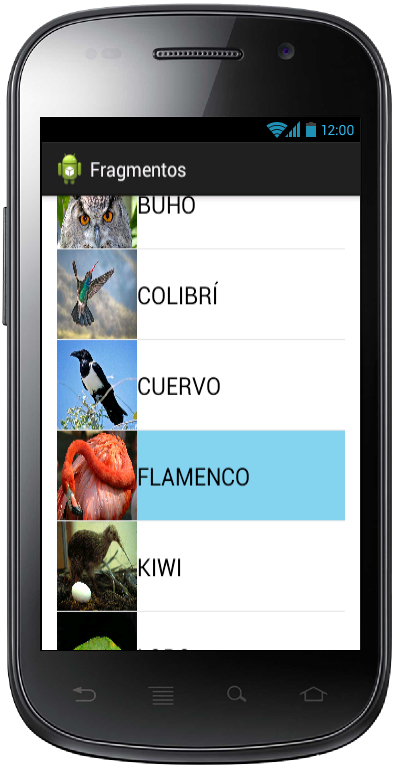
When we select an animal (a row of the list), it shows the animal in detail, that is, the description of the animal.
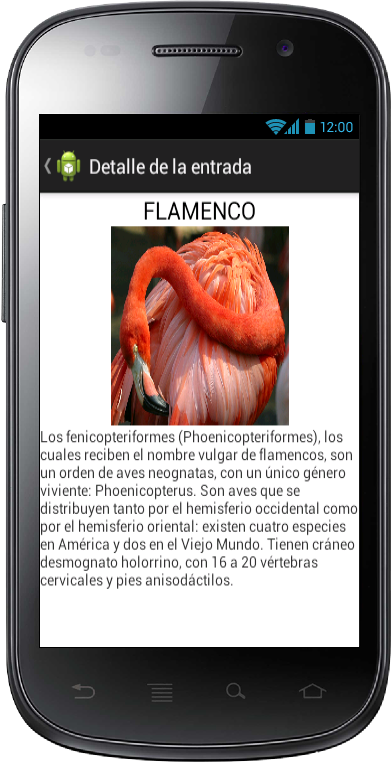
If you look at the previous images, you can see the example’s requirements perfectly reflected in them. But notice one more thing: what device is running the app? A smartphone, of course. That is, a device that fits in your hand and goes from about 3 to 5 inches; also, its shape is usually an elongated rectangle. Now imagine the same two images on a tablet of roughly 7 to 10 inches. If we used the app directly on a tablet, here is how the list would look:
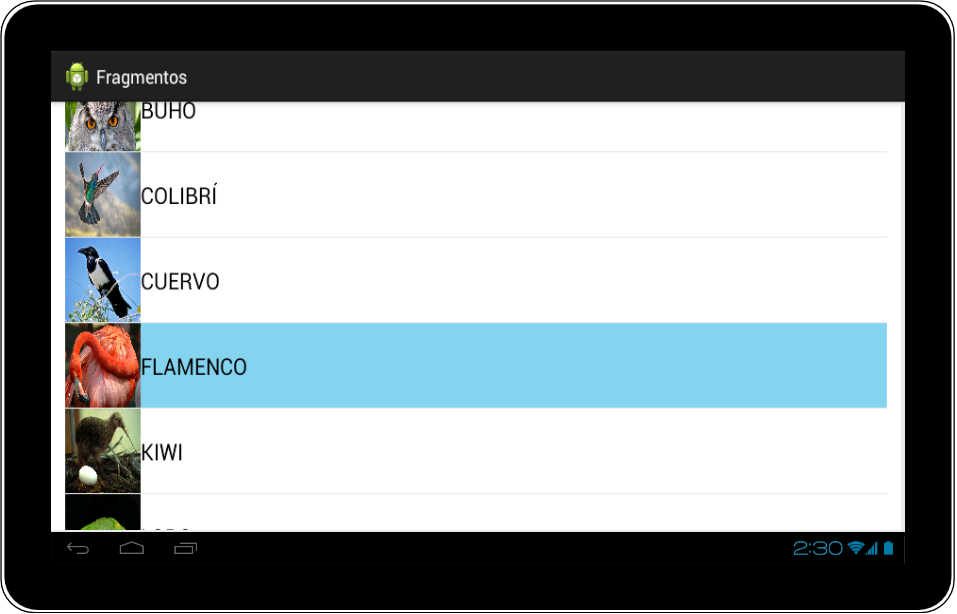
Horrible, right? Don’t you think it’s a huge waste of screen space? The right-hand part could be used to show the user something else. With so much screen, you should make use of it. This is about providing a better experience to users on screens of different sizes, as well as providing actions that couldn’t be carried out without a certain screen size, and also avoiding the fragmentation of our program (you’ve surely heard of Android fragmentation; in an Android program it is fixed by using fragments, so our app will be universal and usable on any screen size).
With the example, for a tablet, I think we could use the right-hand space to show the detail. That is much more comfortable and you don’t have to keep going back every time.
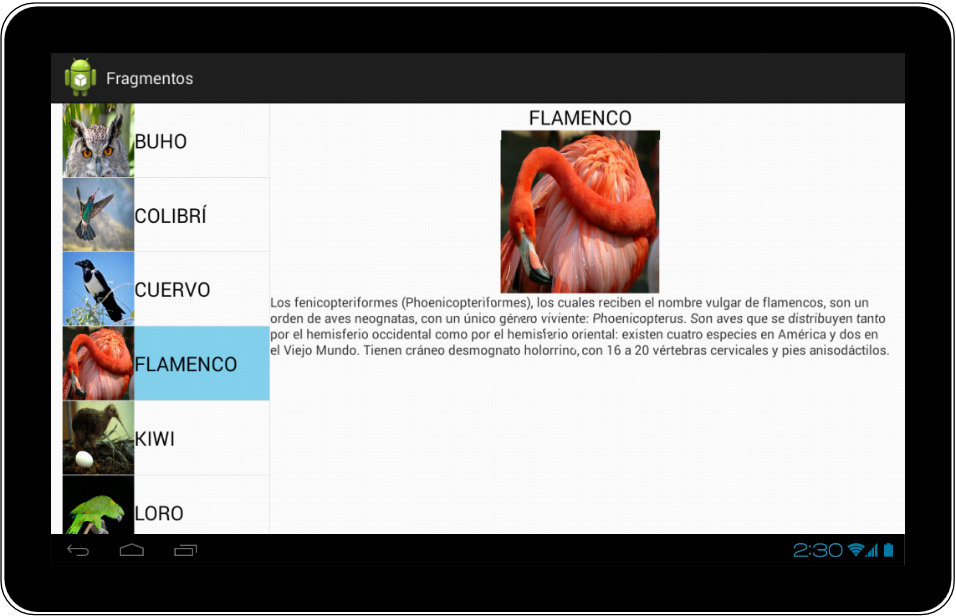
Much better. When you select an item in the list, its detail is shown on the right. Better use of the screen and much more comfortable (you don’t have to go back, you can select another item right away).
It’s worth clarifying that if we keep this design on a smartphone, the tablet’s comfort is lost, since the bird’s description would appear very small and hard to read, and the list would be difficult to tap because it would be so narrow. That’s why it makes sense for the phone to have a different design and features from the tablet.
For space reasons we will limit ourselves to the smartphone and tablet example. But imagine we want to build this same app for a watch of about 2 inches: instead of a list, we might use a grid with the bird images so your finger can tap the items more easily, and the description would appear separately without a photo. Or on a 40-inch television, imagine how much would fit; we could, for example, put a video of the bird flying next to the description and the technical sheet below it, all on the same screen. This means that we adapt the design and functionality to the size.
Luckily for us, we don’t have to make a design for every inch of every screen and every shape. We stick to a limited set based on what is common. Here are all the existing Android devices where it could be worth paying attention to design and functionality. Always depending, of course, on the scope of our app (the inches and shapes are approximate):
- Watch (1 to 2 inches, square)
- Smartphone or GPS device (3 to 5 inches, elongated rectangle)
- Phablet (5 to 7 inches, elongated rectangle)
- Tablet (7 to 12 inches, golden ratio)
- Computer monitor (14 to 30 inches, elongated rectangle or golden ratio)
- Television (30 to 80 inches, golden ratio)
- Projector (80 to 300 inches, golden ratio)
It will be up to the developer to know which designs and features to target at any given time.
And can this be done in the same app? Or do you develop an app for each screen size? The answer, always from the perspective of the “good developer”, is that it should be and can be done in the same app. The reasons are very simple, and you’re surely sick of hearing them: modularity and reusability. This is achieved with Fragments.
If you know how Activities behave (see https://jarroba.com/activity-entender-y-usar-una-actividad/), you’ll notice that they have a lifecycle and are associated with a view (a Layout in XML).
A Fragment is a piece (or a fragment, if we go by the very name it wears) of an activity. A Fragment has its own Layout and its own lifecycle.
You can see that by programming it once, you can reuse the code so it adapts to different screen sizes with whatever arrangement of elements you want.
So you can guess that a Fragment always has to live inside an Activity; it can’t exist on its own. And the lifecycle of the containing Activity will affect the Fragment’s; for example, if the Activity is paused, the Fragment or Fragments in that activity will be paused.
Speaking of the lifecycle of a Fragment, we can’t go on without giving it the space it deserves. Here it is, and don’t be scared by how long it is; if you understood the Activity one, this one is similar (graphics taken from Fragments (Android Developers), modified and translated by www.Jarroba.com):
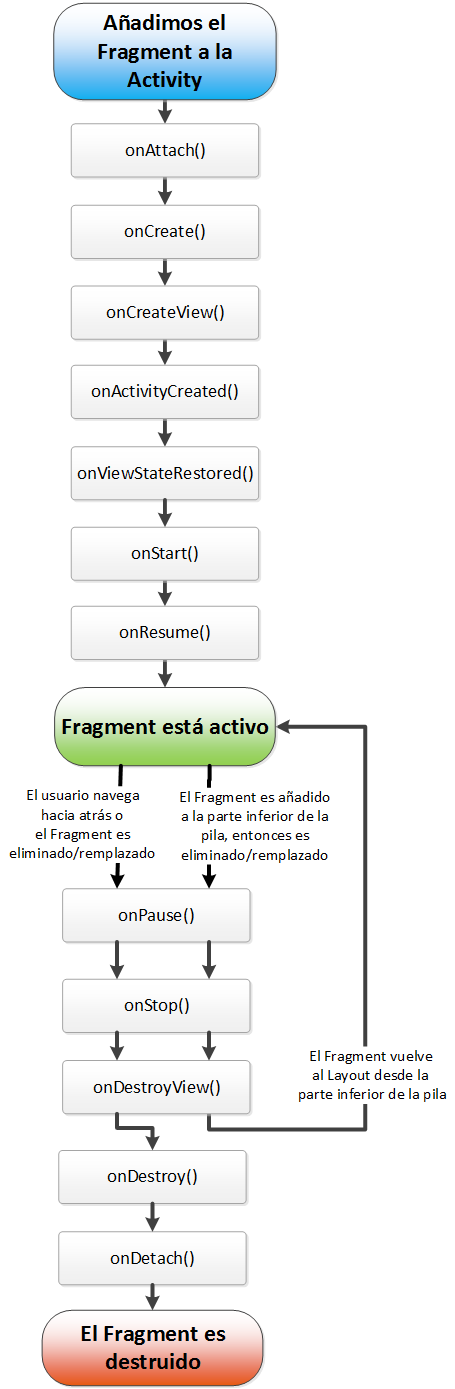
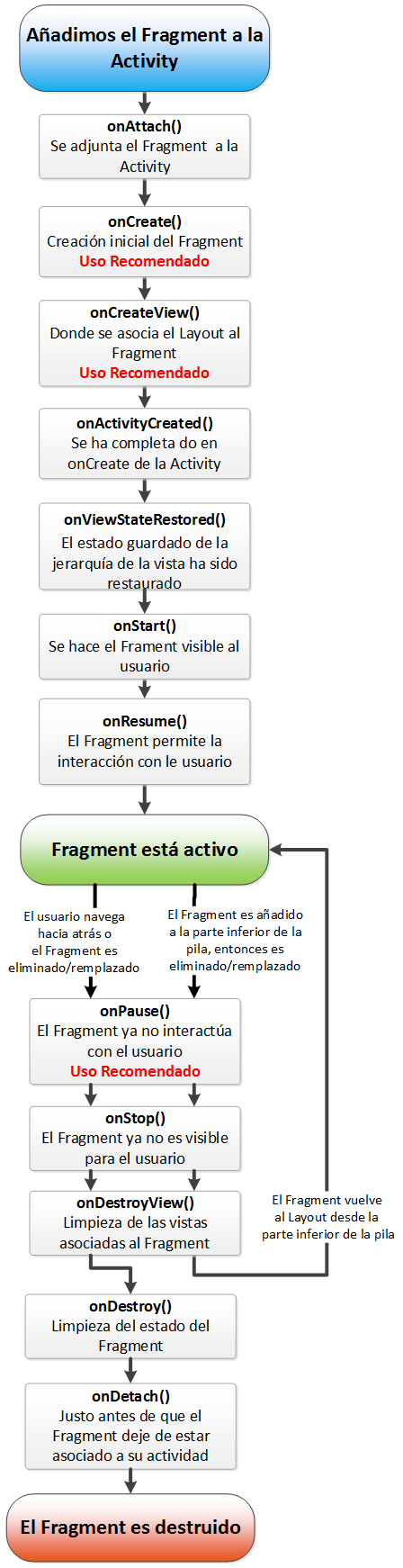
So you get a general idea of what each of the methods does, I detail them in the following image (reference at Fragment (API reference, Android Developers)):
Note: As we did with Activity in this other article, I’m leaving a simple example –it works as a template or snippet– of a Fragment, with all its methods (needless to say, not all of them are required; but the empty constructor is, and I explain it in the next article) and the log set up so you can see where execution goes:
public class Fragment_de_ejemplo extends Fragment {

	private final String LOG_TAG = "test";

	public Fragment_de_ejemplo() {
	}

	@Override
	public void onAttach (Activity activity) {
		super.onAttach(activity);
		Log.v(LOG_TAG, "onAttach");
	}

	@Override
	public void onCreate (Bundle savedInstanceState) {
		super.onCreate(savedInstanceState);
		Log.v(LOG_TAG, "onCreate");
	}

	@Override
	public View onCreateView (LayoutInflater inflater, ViewGroup container, Bundle savedInstanceState) {
		View rootView = inflater.inflate(R.layout.miLayout, container, false);
		Log.v(LOG_TAG, "onCreateView");
		/* Here we can select the Views contained in the Layout to work with them, for example with:
		 * TipoView miView = (TipoView) rootView.findViewById(R.id.miViewXML);
		 */
		return rootView;
	}

	@Override
	public void onActivityCreated (Bundle savedInstanceState) {
		super.onActivityCreated(savedInstanceState);
		Log.v(LOG_TAG, "onActivityCreated");
	}

	@Override
	public void onViewStateRestored (Bundle savedInstanceState) {
		super.onViewStateRestored(savedInstanceState);
		Log.v(LOG_TAG, "onViewStateRestored");
	}

	@Override
	public void onStart () {
		super.onStart();
		Log.v(LOG_TAG, "onStart");
	}

	@Override
	public void onResume () {
		super.onResume();
		Log.v(LOG_TAG, "onResume");
	}

	@Override
	public void onPause () {
		super.onPause();
		Log.v(LOG_TAG, "onPause");
	}

	@Override
	public void onStop () {
		super.onStop();
		Log.v(LOG_TAG, "onStop");
	}

	@Override
	public void onDestroyView () {
		super.onDestroyView();
		Log.v(LOG_TAG, "onDestroyView");
	}

	@Override
	public void onDestroy () {
		super.onDestroy();
		Log.v(LOG_TAG, "onDestroy");
	}

	@Override
	public void onDetach () {
		super.onDetach();
		Log.v(LOG_TAG, "onDetach");
	}

}
We thought it convenient to split this article into two parts for convenience and optimization. This first one is more theoretical, and a second part has a complete, fully explained example of how to program with Fragments for Android: on the next page, which you can reach by clicking right here.
“Fragments in Android” by Ramón Invarato at jarroba.com, licensed under Creative Commons Attribution-NonCommercial-ShareAlike 3.0. Registered at Safe Creative.

You may also like


Activity – Understanding and Using an Android Activity
Learn what an Android Activity really is, how its lifecycle works, and how to create and launch activities with a full working example, step by step.
How to Use Multiple GitHub Accounts over HTTPS
Learn how to use several GitHub accounts over HTTPS: configure git so each repository gets its own credentials in your keychain and avoid 403 errors.
Leave a comment