
AsyncTask in Android
Learn how to use Android's AsyncTask for real multitasking, with a complete working example, its lifecycle and how to cancel tasks. Read it now!
Series: Multitasking in Android part 2 of 2
In this article we will show you all the secrets of Android’s AsyncTask for programming real multitasking. Before we start, a quick note: here we will focus on programming AsyncTask from scratch, with a real, working example, making sure you understand every part of it. We explain it in a very easy way, and we think it will clear up all your doubts for good (and if it doesn’t, ask us, we’ll be happy to give you a hand). Whether you have never used AsyncTask or you have already worked with it and want to go deeper, it is highly recommended that you read the first part of this article about Android multitasking here. It is theoretical, but it is fairly storytelling-style and has plenty of images, so it is very enjoyable and rewarding. As always when we program in Android, I have to say that this tutorial assumes you understand the basics of Android, such as Activities and their lifecycle (review Activities here). Are we ready? There’s no time for a break, let’s get going 😀
To program multitasking in Android, you can use Java’s good old Thread class with synchronized methods and control everything yourself. But thanks to a special class called AsyncTask, life will be much easier and it will be far more efficient, so it’s the one we recommend. This class acts as a publisher and we subscribe to it by extending (inheriting from) it. When we do, it asks us to override and implement certain methods that will be empty.
To understand how to do it, it is best to first understand the lifecycle of the AsyncTask class. Let’s imagine an application like the “Example of working with the main thread only for the graphical interface and the rest in the background” from the previous article on Android multitasking. When the button to download data from the Internet is pressed, we would create the background thread using AsyncTask. Take a quick look at the following image and keep reading the explanation.

When the AsyncTask object is created, its first method onPreExecute() is called, which runs on the main thread. When it finishes, AsyncTask creates a secondary thread and runs its work inside doInBackground(). While it runs in the background, we can make calls to the main thread (for example, to advance the progress bar as the background thread executes) from doInBackground(), with the help of publishProgress(), to an overridden method called onProgressUpdate(). Calling publishProgress() is not mandatory: you can never call it, in which case we will never enter onProgressUpdate(), or call it as many times as you like. When doInBackground() finishes, onPostExecute() is called immediately, and this background thread is considered done.
A quick aside: did you notice in the image how the method names start? Which ones start with do and which with on? Smells like event-driven programming.
You may be wondering, why so many overridden methods on the main thread? Well, each one has a purpose that you will have to find out for yourself. Anyway, none of the main thread ones are mandatory to implement (only “doInBackground()” is mandatory, which runs in the background, and without it there is no point in using “AsyncTask”). An example of using the methods overridden on the main thread would be:
- onPreExecute: open a pop-up window with an empty progress bar that tells the user to wait a moment.
- onProgressUpdate: repeat 100 times to draw the window’s progress bar from 0 to 100.
- onPostExecute: close the pop-up window.
Do we always have to run doInBackground() to the end? Not necessarily. We can cancel the background task whenever we need to by calling the cancel() method (it could be invoked, for example, in the catch of a try because something went wrong). The only thing is that we are the ones who decide to stop the execution of doInBackground(). And if, for example, there is a while inside it, we will have to check on each iteration whether it has been cancelled with isCancelled(). When the contents of doInBackground() finish, the overridden method onPostExecute() will not run; onCancelled() will run instead.

Note that onCancelled() only works properly from Android 3.0 onwards (in earlier versions it never enters this method). It is important to know it and know how to handle it, since it is good practice for error handling and for telling application states apart (above all to warn the user with a pop-up window that the process has been cancelled, for example).
Read the following note, but don’t spend too long on it, since everything will become clear when you see an example working a bit later. For now, just look at the overridden methods (the ones with an @Override above them) so you can compare them with the previous images. And notice that it extends the AsyncTask class. Watch out: if you see symbols or strange things you don’t understand, don’t worry, take it easy and keep reading, because we explain them a few lines below.
Note: below is the code snippet showing how to create an AsyncTask, and the first line with the creation of the object so the background thread starts. This code does nothing; that is, it does compile and run, but it is an empty template for you to copy and paste in the future. Once you understand AsynkTask you are going to be a real hotshot, programming threads quickly and properly; even more so with this snippet for creating an Android AsyncTask (courtesy of Jarroba 🙂 ).
new HiloEnSegundoPlano().execute("variable Tipo_empezarBackground", "variable Tipo_empezarBackground", "..."); //Start the AsyncTask. The "execute" method sends data directly to doInBackground()

	private class HiloEnSegundoPlano extends AsyncTask <Tipo_empezarBackground, Tipo_duranteBackground, Tipo_terminarBackground> {

		public HiloEnSegundoPlano(){
			//TODO constructor code
		}

		@Override
		protected void onPreExecute() {
			//TODO onPreExecute code (Main Thread)
		}

		@Override
		protected Tipo_terminarBackground doInBackground(Tipo_empezarBackground... varEntrarBackground) {
			//TODO doInBackground code (Background Thread)

			//...
			publishProgress(valor_Tipo_duranteBackground); //Optional. To pass the value and call onProgressUpdate()
			//...

			//...
			cancel(true); //Optional. To cancel so that, instead of running onPostExecute() at the end, onCancelled() runs. Check whether it was cancelled with isCancelled()
			//...

			return valor_Tipo_terminarBackground;
		}

		@Override
		protected void onProgressUpdate(Tipo_duranteBackground... varDuranteBackground) {
			//TODO onProgressUpdate code (Main Thread)
		}

		@Override
		protected void onPostExecute(Tipo_terminarBackground varTerminarBackground) {
			//TODO onPostExecute code (Main Thread)
		}

		@Override
		protected void onCancelled (Tipo_terminarBackground varTerminarBackground) {
			//TODO onCancelled code (Main Thread)
		}

	}
In the code above, the only mandatory method is doInBackground(); you can delete the rest if you are not going to use them. In case this tutorial isn’t enough for you, you can find all the official information about AsyncTask at: AsyncTask (Android Developers)
And finally, what everybody was waiting for: the shiny working code of a complete example application. With a determinate progress bar, and even how to handle it when doInBackground() is cancelled.
Let’s suppose we want to download some images from the Internet (we won’t really download them, we will simulate the download by pausing the secondary thread for a bit), while the user can do something else, like pressing a button and having a message appear (this would be impossible without threads, as you will have deduced from the hints in the previous article).
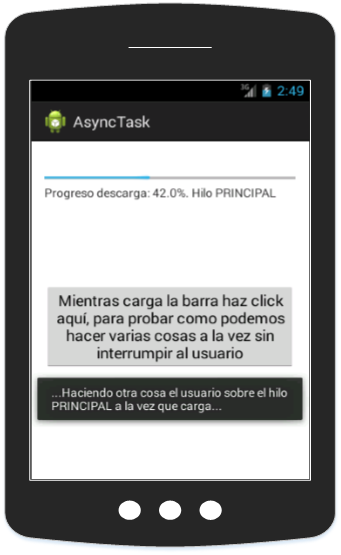
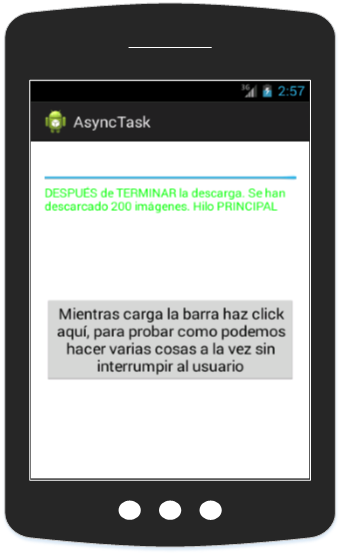
As soon as the download finishes, the text will turn green. Besides changing what it tells us, which, if you look closely, says "Hilo PRINCIPAL" (main thread) the whole time, because the text only changes on the main thread.
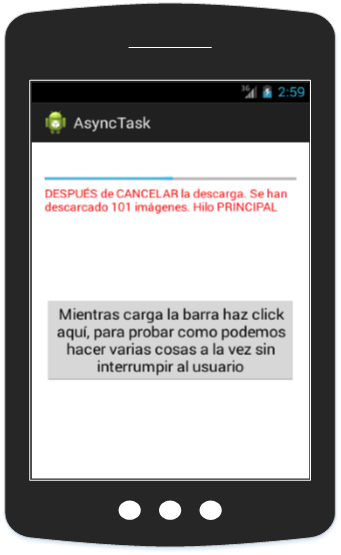
We also want that, if a certain condition is met (if we set a variable to true so that it cancels after more than 100 images are downloaded), the download is interrupted immediately and the text appears in red.
The XML code of activity_main.xml is nothing special: a progress bar, a text and a button.
<LinearLayout xmlns:android="http://schemas.android.com/apk/res/android"
    xmlns:tools="http://schemas.android.com/tools"
    android:layout_width="wrap_content"
    android:layout_height="wrap_content"
    android:orientation="vertical"
    android:paddingBottom="@dimen/activity_vertical_margin"
    android:paddingLeft="@dimen/activity_horizontal_margin"
    android:paddingRight="@dimen/activity_horizontal_margin"
    android:paddingTop="@dimen/activity_vertical_margin"
    tools:context=".MainActivity" >

    <ProgressBar
        android:id="@+id/progressBar_indicador"
        style="?android:attr/progressBarStyleHorizontal"
        android:layout_width="fill_parent"
        android:layout_height="wrap_content"
        android:layout_marginTop="20dp" />

    <TextView
        android:id="@+id/TextView_mensajesAlUsuario"
        android:layout_width="wrap_content"
        android:layout_height="wrap_content" />

    <Button
        android:id="@+id/button_probarComoPodemosHacerOtraCosa"
        android:layout_width="wrap_content"
        android:layout_height="wrap_content"
        android:layout_marginTop="100dp"
        android:text="Mientras carga la barra haz click aquí, para probar como podemos hacer varias cosas a la vez sin interrumpir al usuario" />

</LinearLayout>
For the rest we will work only on MainActivity.java. We will create a class that extends Activity. It will start with three global variables.
The first one will decide whether or not we cancel the download after 100 images. We will set it to “true” if we want to see how it works when doInBackground() is cancelled.
private final boolean CANCELAR_SI_MAS_DE_100_IMAGENES = false;The log tag so we can see in the console what our application is doing.
private final String TAG_LOG = "test";And the TextView that will display the message that changes color.
private TextView TV_mensaje;We will create the Activity’s onCreate, where we will bind the TextView. We will give the button its functionality so that it shows the Toast. And at the end we will create and run our AsyncTask , passing to its constructor whether we want it to be cancelled.
	@Override
	protected void onCreate(Bundle savedInstanceState) {
		super.onCreate(savedInstanceState);
		setContentView(R.layout.activity_main);

		TV_mensaje = (TextView) findViewById(R.id.TextView_mensajesAlUsuario);

		Button B_probarHacerDosCosasALaVez = (Button) findViewById(R.id.button_probarComoPodemosHacerOtraCosa);
		B_probarHacerDosCosasALaVez.setOnClickListener(new OnClickListener() {
			@Override
			public void onClick(View v) {
				Log.v(TAG_LOG, "...Haciendo otra cosa el usuario sobre el hilo PRINCIPAL a la vez que carga...");
				Toast toast = Toast.makeText(getApplicationContext(), "...Haciendo otra cosa el usuario sobre el hilo PRINCIPAL a la vez que carga...", Toast.LENGTH_SHORT);
				toast.show();
			}
		});

		new DescargarImagenesDeInternetEnOtroHilo(CANCELAR_SI_MAS_DE_100_IMAGENES).execute(" Estos Strings van a variableNoUsada que no usaremos en este ejemplo y podiamos haber declarado como Void "," si lo necesitaramos podemos cambiar el String por otro tipo de datos "," podemos añadir más de 4 datos que los de este ejemplo, todos los que necesitemos "," y recuerda que se usan como un array, para acceder en concreto a este usaríamos variableNoUsada[3] "); //Start the AsyncTask. The "execute" method sends data directly to doInBackground()
	}
Those of you who have read other tutorials of mine will know that I like to keep the code as compact and clear as possible. We could have split the last line in two, like the following (execute doesn’t need parameters if we don’t want to pass any; in fact, in this example we don’t use their values at all, although we could if we wanted).
DescargarImagenesDeInternetEnOtroHilo miTareaAsincrona = new DescargarImagenesDeInternetEnOtroHilo(CANCELAR_SI_MAS_DE_100_IMAGENES);
miTareaAsincrona.execute();
And inside our “MainActivity” class we will declare a private class called “DescargarImagenesDeInternetEnOtroHilo”. I’m going to put all the code in one piece (at first glance it may put you off, but if you skip the gray comments it is only a few lines of code 😀 ) and I will explain it in parts below.
	private class DescargarImagenesDeInternetEnOtroHilo extends AsyncTask <String, Float, Integer> {
		private boolean cancelarSiHayMas100Archivos;
		private ProgressBar miBarraDeProgreso;

		/**
		 * Example constructor that we can create in the AsyncTask
		 *
		 * @param in this example we pass it a boolean that indicates whether there are more than 100 files or not. If you pass true it is cancelled halfway through the progress; if you pass false it will continue to the end without cancelling the simulated download
		 */
		public DescargarImagenesDeInternetEnOtroHilo(boolean cancelarSiHayMas100Archivos) {
			this.cancelarSiHayMas100Archivos = cancelarSiHayMas100Archivos;
		}

		/**
		 * Runs before the background thread starts. After this one, the "doInBackground" method runs in the Background
		 *
		 * Runs on thread: MAIN
		 */
		@Override
		protected void onPreExecute() {
			TV_mensaje.setText("ANTES de EMPEZAR la descarga. Hilo PRINCIPAL");
			Log.v(TAG_LOG, "ANTES de EMPEZAR la descarga. Hilo PRINCIPAL");

			miBarraDeProgreso = (ProgressBar) findViewById(R.id.progressBar_indicador);
		}

		/**
		 * Runs after "onPreExecute". You can call the Main thread with the "publishProgress" method, which runs the "onProgressUpdate" method on the Main thread
		 *
		 * Runs on thread: IN THE BACKGROUND
		 *
		 * @param array with the values passed to "execute"
		 * @return returns a value when this background work finishes. It sends it to and runs "onPostExecute" if it has finished, or "onCancelled" if it was cancelled with "cancel"
		 */
		@Override
		protected Integer doInBackground(String... variableNoUsada) {

			int cantidadImagenesDescargadas = 0;
			float progreso = 0.0f;

			//We suppose we have 200 images somewhere on the Internet. isCancelled() checks whether we have cancelled the background thread with cancel().
			while (!isCancelled() && cantidadImagenesDescargadas<200){
 				cantidadImagenesDescargadas++;
 				Log.v(TAG_LOG, "Imagen descargada número "+cantidadImagenesDescargadas+". Hilo en SEGUNDO PLANO");

 				//We simulate downloading an image. The code would go here........................
 				try {
 					//Simulates the random time it takes to download an image, by sleeping the background thread for a random number of milliseconds
 					Thread.sleep((long) (Math.random()*10));
 				} catch (InterruptedException e) {
 					cancel(true); //We cancel if we enter the catch because something went wrong
 					e.printStackTrace();
 				}
 				//We simulate downloading an image. The code would go here........................

 				progreso+=0.5;

 				//We send the progress to "onProgressUpdate" so it shows it to the user, since from the background thread we can't call anything in the interface
 				publishProgress(progreso);

 				//If we decided to cancel after more than 100 downloaded images, we enter here.
 				if (cancelarSiHayMas100Archivos && cantidadImagenesDescargadas>100){
					cancel(true);
				}
			}

			return cantidadImagenesDescargadas;
		}

		/**
		 * Runs after "doInBackground" executes the "publishProgress" method.
		 *
		 * Runs on thread: MAIN
		 *
		 * @param array with the values passed to "publishProgress"
		 */
		@Override
		protected void onProgressUpdate(Float... porcentajeProgreso) {
			TV_mensaje.setText("Progreso descarga: "+porcentajeProgreso[0]+"%. Hilo PRINCIPAL");
			Log.v(TAG_LOG, "Progreso descarga: "+porcentajeProgreso[0]+"%. Hilo PRINCIPAL");

			miBarraDeProgreso.setProgress( Math.round(porcentajeProgreso[0]) );
		}

		/**
		 * Runs after "doInBackground" finishes.
		 *
		 * Runs on thread: MAIN
		 *
		 * @param array with the values passed by the return of "doInBackground".
		 */
		@Override
		protected void onPostExecute(Integer cantidadProcesados) {
			TV_mensaje.setText("DESPUÉS de TERMINAR la descarga. Se han descarcado "+cantidadProcesados+" imágenes. Hilo PRINCIPAL");
			Log.v(TAG_LOG, "DESPUÉS de TERMINAR la descarga. Se han descarcado "+cantidadProcesados+" imágenes. Hilo PRINCIPAL");

			TV_mensaje.setTextColor(Color.GREEN);
		}

		/**
		 * Runs if the "cancel" method has been called and after "doInBackground" finishes. So it runs instead of "onPostExecute"
		 * Note: This onCancelled only works from Android 3.0 (Api Level 11 onwards). In earlier versions onCancelled doesn't work
		 *
		 * Runs on thread: MAIN
		 *
		 * @param array with the values passed by the return of "doInBackground".
		 */
		@Override
		protected void onCancelled (Integer cantidadProcesados) {
			TV_mensaje.setText("DESPUÉS de CANCELAR la descarga. Se han descarcado "+cantidadProcesados+" imágenes. Hilo PRINCIPAL");
			Log.v(TAG_LOG, "DESPUÉS de CANCELAR la descarga. Se han descarcado "+cantidadProcesados+" imágenes. Hilo PRINCIPAL");

			TV_mensaje.setTextColor(Color.RED);
		}

	}
I think the code is pretty well documented and you should be able to deduce practically everything, but I’ll explain it anyway so no doubts are left hanging. When we create the “DescargarImagenesDeInternetEnOtroHilo” object, we first enter the constructor and nothing more. When we call execute(), we tell the AsyncTask to start the background thread. Doing the following:
- onPreExecute(): we bind the progress bar.
- doInBackground(): with the “while” and the “Thread.sleep((long) (Math.random()*10))” we simulate downloading the images by “downloading” several, each taking a random amount of time. On each iteration of the while we call “publishProgress()”, which sends the number of images downloaded so far to onProgressUpdate().
- onProgressUpdate(): it updates the progress bar every time “publishProgress()” is called. It happens in parallel with doInBackground()
- onPostExecute() or onCancelled(): changes the text, and the color to green if we enter through onPostExecute() or to red if we enter through onCancelled().
Notice that all the calls to Views (to the TextView) are made from the methods that start with “on”. If we had done it directly in doInbackground it would give an error because one of the rules would be broken.
By the way, don’t miss a look at the Log while the application runs. If, while the download action is in progress (while the bar is filling up), we clicked the button three times, we would get a Log similar to the following (the Log output you see may be different; that’s because we have cleaned it up to keep only what matters, arranged it so it can be seen at a glance and summarized it).
ANTES de EMPEZAR la descarga. Hilo PRINCIPAL

Imagen descargada número 1. Hilo en SEGUNDO PLANO
Imagen descargada número 2. Hilo en SEGUNDO PLANO
Imagen descargada número 3. Hilo en SEGUNDO PLANO
Imagen descargada número 4. Hilo en SEGUNDO PLANO
Imagen descargada número 5. Hilo en SEGUNDO PLANO
...
Progreso descarga: 12.0%. Hilo PRINCIPAL
Progreso descarga: 12.5%. Hilo PRINCIPAL
Imagen descargada número 27. Hilo en SEGUNDO PLANO
Imagen descargada número 28. Hilo en SEGUNDO PLANO

...Haciendo otra cosa el usuario sobre el hilo PRINCIPAL a la vez que carga...

Imagen descargada número 29. Hilo en SEGUNDO PLANO
Imagen descargada número 30. Hilo en SEGUNDO PLANO
Progreso descarga: 13.0%. Hilo PRINCIPAL
Progreso descarga: 13.5%. Hilo PRINCIPAL
Progreso descarga: 14.0%. Hilo PRINCIPAL
...
Progreso descarga: 22.5%. Hilo PRINCIPAL
Imagen descargada número 48. Hilo en SEGUNDO PLANO
Progreso descarga: 23.0%. Hilo PRINCIPAL
Progreso descarga: 23.5%. Hilo PRINCIPAL
Imagen descargada número 49. Hilo en SEGUNDO PLANO

...Haciendo otra cosa el usuario sobre el hilo PRINCIPAL a la vez que carga...

Progreso descarga: 24.0%. Hilo PRINCIPAL
Progreso descarga: 24.5%. Hilo PRINCIPAL
Imagen descargada número 50. Hilo en SEGUNDO PLANO
Imagen descargada número 51. Hilo en SEGUNDO PLANO
...
Progreso descarga: 32.0%. Hilo PRINCIPAL
Progreso descarga: 32.5%. Hilo PRINCIPAL
Imagen descargada número 68. Hilo en SEGUNDO PLANO
Imagen descargada número 69. Hilo en SEGUNDO PLANO
Progreso descarga: 33.0%. Hilo PRINCIPAL

...Haciendo otra cosa el usuario sobre el hilo PRINCIPAL a la vez que carga...

Imagen descargada número 70. Hilo en SEGUNDO PLANO
Progreso descarga: 33.5%. Hilo PRINCIPAL
Progreso descarga: 34.0%. Hilo PRINCIPAL
Imagen descargada número 71. Hilo en SEGUNDO PLANO
...
Progreso descarga: 99.0%. Hilo PRINCIPAL
Imagen descargada número 199. Hilo en SEGUNDO PLANO
Progreso descarga: 99.5%. Hilo PRINCIPAL
Imagen descargada número 200. Hilo en SEGUNDO PLANO
Progreso descarga: 100.0%. Hilo PRINCIPAL

DESPUÉS de TERMINAR la descarga. Se han descarcado 200 imágenes. Hilo PRINCIPAL
In the Log you can clearly see how the threads interleave, and how one acts at the same time as the other (it’s better to see it live, while it runs). Also, be aware that if we invoke publishProgress(), onProgressUpdate() is not called immediately, which means that this method is mainly designed to give feedback to the user.
AsyncTask introduces advanced Java features that you may not know. For that, the following two notes will fully clear up the inner workings.
Note on type inference (<Type>) If you have never seen anything about type inference, you will probably be surprised to see types (Integer, String, etc.) between the “greater than” and “less than” symbols. Like in the header of the previous class:
private class DescargarImagenesDeInternetEnOtroHilo extends AsyncTask <String, Float, Integer>You will have spotted at the end: <String, Float, Integer> This is an ability Java has that is used to make variables generic. What does generic mean? That the variable can be of whatever type you want; that is, if you wanted all the variables to be Strings you could write:
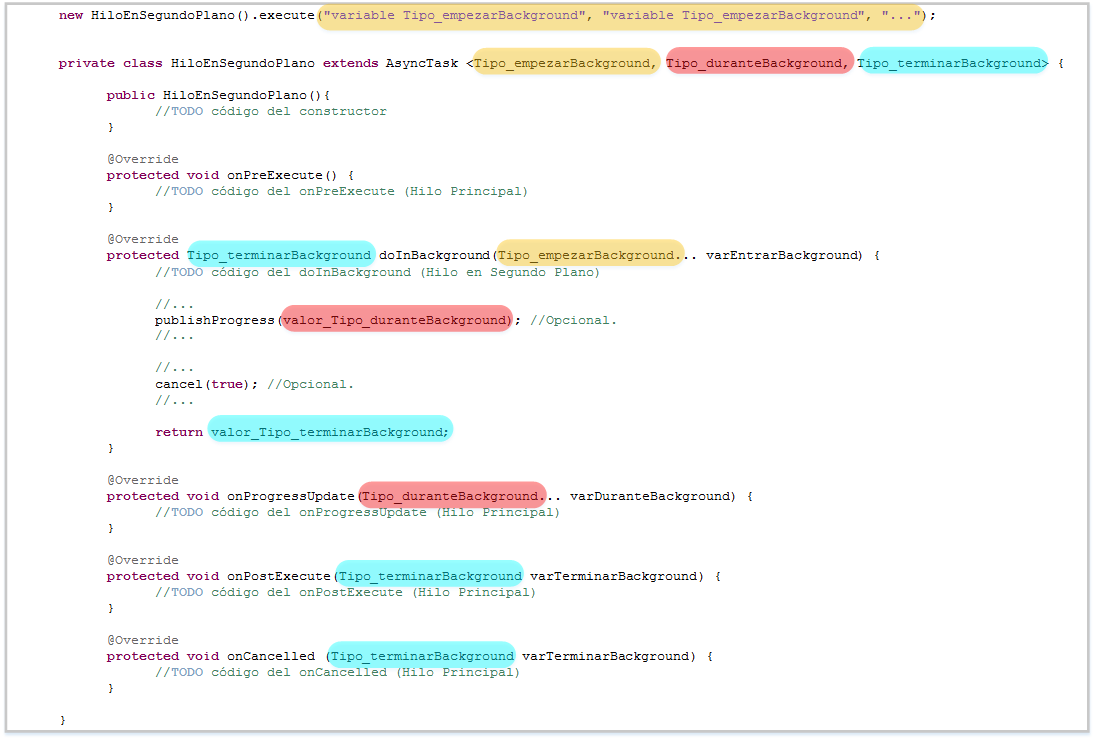
private class DescargarImagenesDeInternetEnOtroHilo extends AsyncTask <String, String, String>And why might you want that? Because the methods of the class will use these variables with the type you have defined; if you need it to be a String, why not? And if you need one to be an integer, that works too. The only condition is that primitive types are not allowed, only object types; what we mean is that for an integer you can’t write “int”, but “Integer” –for practical purposes it’s the same. From the previous note, let’s look at the whole code colored with its inferred types. Look at the three colors in the class header, and how they propagate to the types of the variables of the methods it overrides.
And why might you want that? Because the methods of the class will use these variables with the type you have defined; if you need it to be a String, why not? And if you need one to be an integer, that works too. The only condition is that primitive types are not allowed, only object types; what we mean is that for an integer you can’t write “int”, but “Integer” –for practical purposes it’s the same.
From the previous note, let’s look at the whole code colored with its inferred types. Look at the three colors in the class header, and how they propagate to the types of the variables of the methods it overrides.
Note on variable arguments (…) This may be the first time you see three dots in Java, as in the following line of code:
protected void onProgressUpdate(Float... porcentajeProgreso)You might even find it all Greek to you, but don’t worry. The three dots are almost the same as an array. Let me explain: when it’s the variable passed to a function, it works just like a normal, ordinary array:
public void hacer (String... variasCosas) {
	Log.v(TAG_LOG, "Contenido: "+ variasCosas [0] + variasCosas [1] + variasCosas [2]);
}
Notice that it is the same as (we have changed … to []):
public void hacer (String[] variasCosas) {
	Log.v(TAG_LOG, "Contenido: "+ variasCosas [0] + variasCosas [1] + variasCosas [2]);
}
It only changes when calling the function. If we call it with a plain old array, we won’t even notice:
int[] arrayDeTodaLaVida = {"Cosa 1", "Cosa 2", "Cosa 3"};
hacer (arrayDeTodaLaVida);
But what if I tell you that, thanks to the three dots, we can pass it a single value directly, like:
hacer ("Cosa 1");Or two:
hacer ("Cosa 1", "Cosa 2");Or three:
hacer ("Cosa 1", "Cosa 2", "Cosa 3");Or none:
hacer ();Or as many as we want, directly, without having to declare the array. You could say that the values the function takes adapt to what we need. Although what it really does is take them all together and put them in an array to then work with it as we saw. And like any array it has a size (remember that if we access an array position that doesn’t exist we will get a lovely “java.lang Array Index Out Of Bounds Exception” error), and it can be traversed (with for, foreach, while, etc).
With that, I leave you the code and we’re done: Click here to download the complete, working code of the Android AsyncTask example
We can’t say goodbye without mentioning the official Android page about threads: Processes and threads overview (Android Developers)
“AsyncTask in Android” by Ramón Invarato at jarroba.com, licensed under Creative Commons Attribution-NonCommercial-ShareAlike 3.0. Registered at Safe Creative.

You may also like


Activity – Understanding and Using an Android Activity
Learn what an Android Activity really is, how its lifecycle works, and how to create and launch activities with a full working example, step by step.


Multitasking and Threads in Java with Examples (Thread & Runnable)
Learn how multitasking works in Java with threads. Step-by-step examples using the Thread class and the Runnable interface, with a supermarket checkout demo.
Leave a comment