
inflate() in Android – Inflating and Attaching Views
Learn what Android's inflate() method really does, the difference between inflating and attaching Views, and how to use it in Fragments, Dialogs and Adapters.
So much importance and mystery surround the inflate() method, which belongs to the LayoutInflater class. It is the method used to build and add Views to the layouts of:
- Fragment
- Menu or ActionBar
- Adapter
- Dialogs
- To add one View to another whenever we need to
- Among many other cases
- And doesn’t Activity use it? Of course it does, but Android makes it easier for us in a different way. Instead of the inflate() method -which is an implicit inflation- they called it setContentView() -an explicit inflation.
That’s reason enough to make this method one of the most important in Android, so it deserves its own article.
Before we start: after a long time searching for a clear explanation that doesn’t seem to exist anywhere, or for a consensus on what the inflate() method really does, I should point out that this explanation is my own view (after years of working with it, and researching and deducing a reasonable explanation). I don’t mean to criticize, but it seems that even Google’s own people barely know what it does, given the lack of explanations in the documentation, and the fact that it’s taken for granted or poorly described in the places where I’ve seen it appear. Here, however, I’m going to explain it in detail after a lot of research and deduction. Now, let’s begin.
One thing you need to be very clear about with the inflate() method is –and this is what causes so much confusion– that inflating does NOT mean inserting some Views into a ViewGroup, but applying the layout attributes of what could be the parent ViewGroup. Here you’re probably wondering: but when I inflate, aren’t the Views added to the ViewGroup? Well, besides inflating, inflate() also has the option to attach (attaching is an extra value added to the inflate() function, but attaching has nothing to do with inflating).
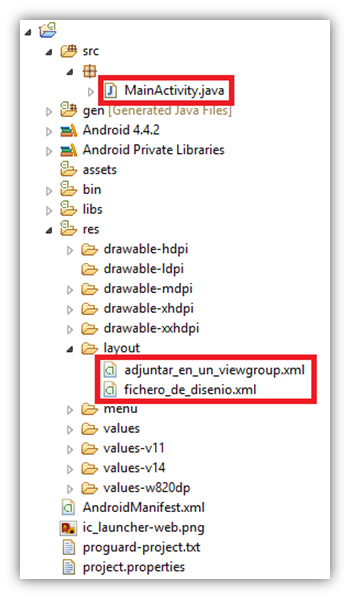
Let’s clear it up with an example, in which we’ll have the following folder structure (the code in this example is a complete working project, you can create a new project and try it):
Suppose we have a layout that draws a text, like the following one (here I won’t use screenshots from the Android emulator, but abstractions of what the user will see, so we can focus on what’s important in the images):

Its corresponding layout file in res/layout/adjuntar_en_un_viewgroup.xml:
<LinearLayout xmlns:android="http://schemas.android.com/apk/res/android"
android:id="@+id/LinearLayout1"
android:layout_width="match_parent"
android:layout_height="match_parent"
android:gravity="center"
android:orientation="vertical" >

	<TextView
	android:id="@+id/textView1"
	android:layout_width="wrap_content"
	android:layout_height="wrap_content"
	android:text="@string/otro_fichero_de_dise_o_xml"
	android:textAppearance="?android:attr/textAppearanceLarge" />

</LinearLayout>
And what we want is to attach the previous layout to the RelativeLayout of this other layout:
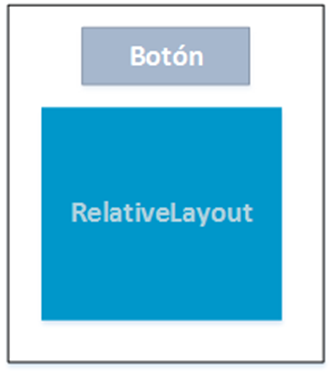
With the file res/layout/fichero_de_disenio.xml:
<LinearLayout xmlns:android="http://schemas.android.com/apk/res/android"
android:layout_width="match_parent"
android:layout_height="match_parent"
android:orientation="vertical" >

	<Button
	android:id="@+id/button1"
	android:layout_width="wrap_content"
	android:layout_height="wrap_content"
	android:layout_gravity="center"
	android:text="@string/otra_view" />

	<RelativeLayout
	android:id="@+id/RelativeLayout_contenedor"
	android:layout_width="100dp"
	android:layout_height="100dp"
	android:layout_gravity="center"
	android:orientation="vertical" >
	</RelativeLayout>

</LinearLayout>
What we want is for the structure of the first layout to be attached to the ViewGroup of the second layout (you could say it’s similar to what you do with the Merge and Include Views, but dynamically, from Java). To do that, we’ll get the LayoutInflater from the Activity’s Context and use its inflate() method like this:
public class MainActivity extends Activity {

	@Override
	protectedvoid onCreate(Bundle savedInstanceState) {
		super.onCreate(savedInstanceState);
		setContentView(R.layout.fichero_de_disenio);

		RelativeLayout contenedor = (RelativeLayout) findViewById(R.id.RelativeLayout_contenedor);

		LayoutInflater inflater = LayoutInflater.from(this);

		View laViewInflada = inflater.inflate(R.layout.adjuntar_en_un_viewgroup, contenedor, true);
	}

}
The time has come to be very clear about the difference between inflating and attaching:
Inflating
Contrary to intuition, it does NOT inflate the container ViewGroup with the Views we pass it (the XML layout file we want to attach to the container). What gets inflated is the new hierarchy of Views (the layout) that we pass in, using the layout attributes of the parent (the attributes of the container ViewGroup). In other words, we tell the new Views what size they need to be to fit in the parent, the gravity, and so on (it will depend on the ViewGroup we use to inflate: LinearLayout, FrameLayout, Fragment, etc.). That’s why you can deduce that the inflated result isn’t drawn on screen and therefore can’t receive events.
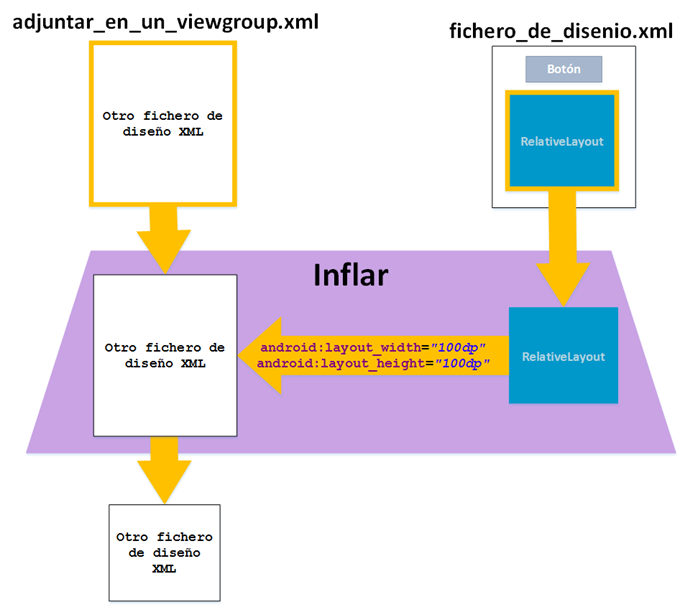
In the example, we would pass the inflate() method the layout file “adjuntar_en_un_viewgroup.xml” and the RelativeLayout that will be its container (look at the first and second parameters passed to the inflate() method). This way, the view structure of the file gets inflated with the parameters of the container we pass in, which will be the parent and container.
Attaching
It adds the new layout that was inflated to the ViewGroup, and now it does show it on screen and it can receive events. The third parameter of the inflate() method indicates whether we want it to be attached immediately or not (for example, in a Fragment we don’t, since the Fragment itself will do it at another time, which is why we return the LayoutInflater’s result in the onCreateView() method).
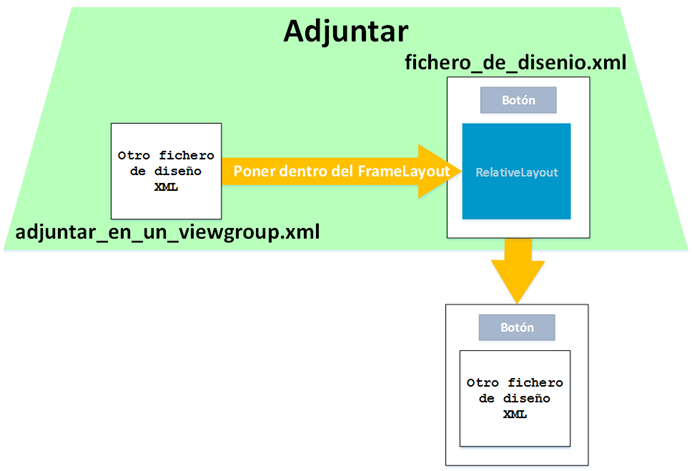
Back to the example. The third parameter of the inflate() method indicates whether we want the structure we inflated earlier to be attached to the container (true) or not (false).
So after attaching (not after inflating), internally the following layout structure will have been generated, which the user will be able to see and which will respond to events:
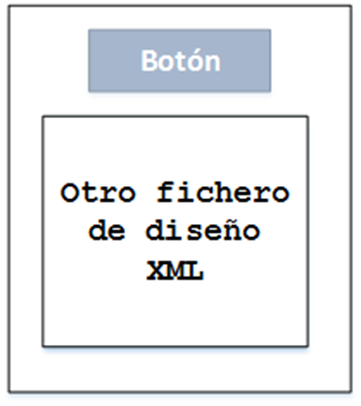
Although you can’t see it, internally Android will build the following XML layout structure:
<LinearLayout xmlns:android="http://schemas.android.com/apk/res/android"
android:layout_width="match_parent"
android:layout_height="match_parent"
android:orientation="vertical" >

	<Button
	android:id="@+id/button1"
	android:layout_width="wrap_content"
	android:layout_height="wrap_content"
	android:layout_gravity="center"
	android:text="@string/otra_view" />

	<RelativeLayout
	android:id="@+id/RelativeLayout1"
	android:layout_width="100dp"
	android:layout_height="100dp"
	android:layout_gravity="center"
	android:orientation="vertical" >

		<LinearLayout
		android:id="@+id/LinearLayout1"
		android:layout_width="match_parent"
		android:layout_height="match_parent"
		android:gravity="center"
		android:orientation="vertical" >

			<TextView
			android:id="@+id/textView1"
			android:layout_width="wrap_content"
			android:layout_height="wrap_content"
			android:text="@string/otro_fichero_de_dise_o_xml"
			android:textAppearance="?android:attr/textAppearanceLarge" />

		</LinearLayout>

	</RelativeLayout>

</LinearLayout>
Inflate() Parameters
We’ve already seen how it works. Now let’s define the three parameters the inflate() method takes (there are other overloads of this method, but we’ll explain the three-parameter one, which is the most commonly used and the recommended one):
- Layout resource (resource): The R reference of the layout we want to inflate.
- Root container (root of type ViewGroup): The container whose layout parameters (all its “android:layout_xxxxx”) will inflate the layout resource given in the previous parameter. And if the third parameter allows it with a true, the previous layout will be attached to this container. It may be useful to pass “null” here if we don’t want it to be inflated with any parameters from any parent.
- Whether to attach to the container that will be the root (boolean): If it’s “true”, it indicates that the layout (first parameter) that is inflated by the container ViewGroup (second parameter) must also attach its hierarchy of Views to this container. Sometimes you’ll want to set this parameter to “false” because you only want to inflate, since the inflated result will be attached at a different, later time (that’s why the inflate() method returns an inflated View); the reason is usually to avoid creating the same set of Views twice (like in the onCreateView() method of Fragment, where the Fragment takes care of attaching it when it should; if we set it to “true”, the same thing will appear twice)
A Few More Places to Use inflate()
In the previous example we saw how to apply inflate() directly on a ViewGroup at any time. Now let’s look at a few more examples:
Fragment
We use it in the onCreateView() part of the Fragment’s lifecycle. This same method gives us a LayoutInflater object that we can use, and the ViewGroup where it must fit. The inflate() will return the View we must return (Full use case and example in the article about Fragments).
public class MiFragment extends Fragment {

	public MiFragment() {
	}

	@Override
	public View onCreateView(LayoutInflater inflater, ViewGroup container, Bundle savedInstanceState) {
		View rootView = inflater.inflate(R.layout.adjuntar_en_un_viewgroup, container, false);

		return rootView;
	}
}
Dialog
Similarly, pop-up dialog boxes also use this inflate() method. Here we can get the LayoutInflater object from the same Context of the Activity that is going to include it.
public class MiCuadroDeDialogo extends DialogFragment {
	@Override
	public Dialog onCreateDialog(Bundle savedInstanceState) {
		AlertDialog.Builder builder = new AlertDialog.Builder(getActivity());

		View v = getActivity().getLayoutInflater().inflate(R.layout.mi_layout, null);
		builder.setView(v);

		return builder.create();
	}
}
Menu or ActionBar
Here it’s used in the onCreateOptionsMenu() method to fill the Menu or the ActionBar with options.
public class MainActivity extends Activity {

	@Override
	protected void onCreate(BundlesavedInstanceState) {
		super.onCreate(savedInstanceState);
		setContentView(R.layout.activity_main);
	}

	@Override
	public boolean onCreateOptionsMenu(Menu menu) {
		getMenuInflater().inflate(R.menu.elementos_menu_adjuntar_en_un_viewgroup,  menu);
		return true;
	}

}
Adapter
For an adapter we can get the LayoutInflater from the system service and then use inflate() (You have a complete example in the article about lists):
public class MiAdaptador extends BaseAdapter{

	private ArrayList<?> entradas;
	private Context contexto;

	public Lista_adaptador(Context contexto, ArrayList<?> entradas){
		super();
		this.contexto = contexto;
		this.entradas = entradas;
	}

	@Override
	public
	View getView(int posicion,View view,ViewGroup pariente){
		if(view == null){
			LayoutInflater vi =(LayoutInflater) contexto.getSystemService(Context.LAYOUT_INFLATER_SERVICE);
			view = vi.inflate(R.layout.adjuntar_en_un_viewgroup, null);
		}
		return view;
	}

	@Override
	public int getCount(){
		return entradas.size();
	}

	@Override
	public Object getItem(int posicion){
		return entradas.get(posicion);
	}

	@Override
	public long getItemId(int posicion){
		return posicion;
	}
}
I may have gone on a bit long. It’s necessary to understand this concept so you don’t copy and paste code without knowing what it does. Besides, you’ll surely use this method on more than one occasion 🙂
References:
As I said at the beginning of the article, because of the little information that exists on this topic, almost everything comes from experience, compilation and my own creation. I can’t leave out the well-deserved mention of the websites where I found inspiration:
“inflate() in Android – Inflating and Attaching Views” by Ramón Invarato at jarroba.com, licensed under Creative Commons Attribution-NonCommercial-ShareAlike 3.0. Registered at Safe Creative.

You may also like
How to Use Multiple GitHub Accounts over HTTPS
Learn how to use several GitHub accounts over HTTPS: configure git so each repository gets its own credentials in your keychain and avoid 403 errors.

Android Architecture – ART vs Dalvik
Android architecture explained in a technical yet easy way. ART vs Dalvik compared, APK contents, AOT and JIT compilation, and the Odex vs Deodex difference.
Leave a comment