
Programming Fragments in Android
Learn how to easily program Fragments in Android, step by step. Complete examples with phone and tablet layouts, callbacks and full source code to download.
Series: Fragments in Android part 2 of 2
After the first article (see part one here), we pick up where we left off, ready to program with Fragments in Android. I’ll start with an illustrated description so there are no doubts, or at least very few. Let’s continue where we left off. We’ll go back to the example of designing the Smartphone app. We’ll have an Activity with a list, and the design will look like this:
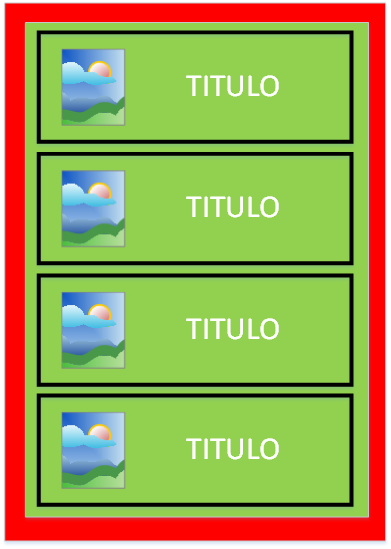
I’ll mark green as Fragment and red as Activity. The rest of the content belongs to the Layout (text, images, etc.). And when you tap an item in the list, it opens a second Activity that will be the detail of the post:
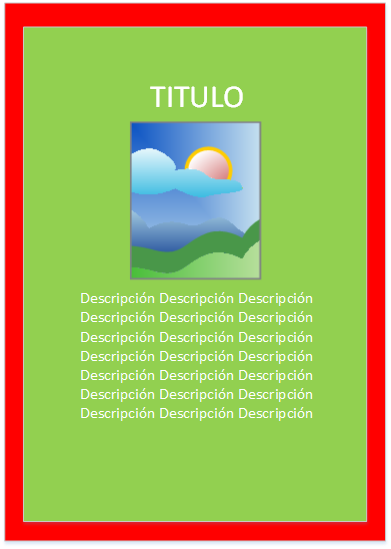
Now a couple of questions about the post detail screen (the previous image), to see if you’ve understood the theory. How many Layouts, that is, XML files in the Layout folder, make up this Activity? And where would they be located? The answer is 2 Layouts, and they are located as shown in the image below (the smaller bold text with a transparent rectangle):
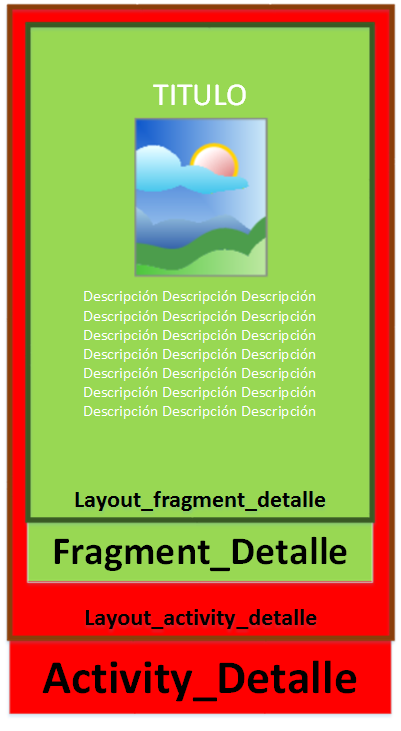
If you got it wrong, don’t worry, I’ll explain it next. If you got it right on the first try, hats off to you, because you’ve understood the complexity of Fragment views. The Activity has an associated Layout as always, which we’ll call “Layout_activity_detalle” (it covers the whole red rectangle) –it’s the typical Layout-to-Activity association. And we said that a Fragment is like a small Activity, so it also has an associated Layout that we call “Layout_fragment_detalle”. I hope the names are fitting and clear 🙂 We’ve left the first one for last, because it has a particularity. If I ask you the same two questions about the list, where and how many Layouts make it up? You might say 3, but it’s not 3, it’s 2. Take a look at the following image for a second and I’ll explain.
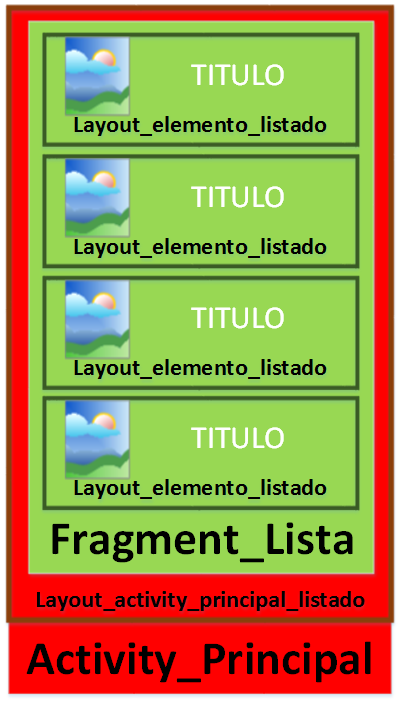
The activity has, as usual, its associated Layout called “Layout_activity_principal_listado”. The Fragment has no associated Layout file. Didn’t I just tell you it did have a Layout, and that the XML file clearly has a ListView? In Fragments the list is a special case. If you’ve worked with lists in a bit more depth, you’ll know that if we extend ListActivity instead of Activity, there’s no need to declare a file with the ListView. With Fragments it’s the same if we extend ListFragment. We’ll use this approach to simplify the code. To be clear, the Layout with the ListView does exist in this Fragment, but we won’t create it ourselves. We finish with the last Layout, the one for each list item, called “Layout_elemento_listado”. That’s the end of the design for mobile devices. Now the Tablet one, where I’ll go into less detail and get to the important part. Remember that we want everything to be shown at once (list and detail).
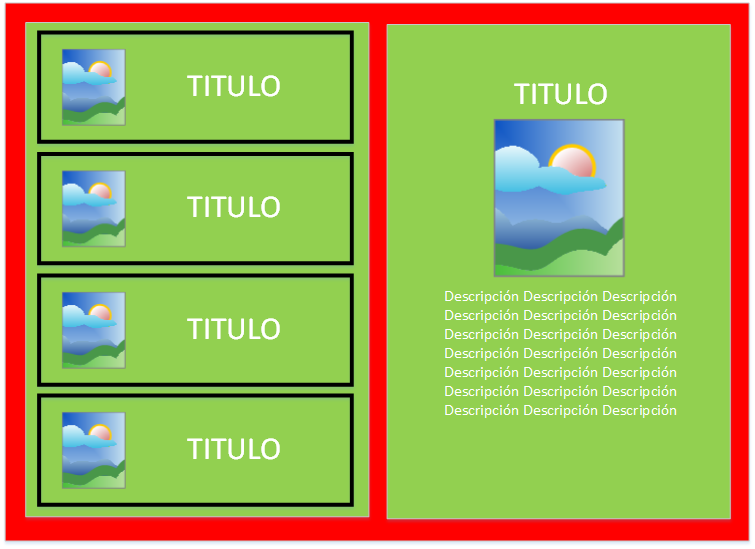
You’ll notice how the two Fragments are separate and that we only need one Activity. I’ll ask you the same questions about the Layouts again: how many are there and where are they located? This one is easy now that you’ve seen the previous ones.
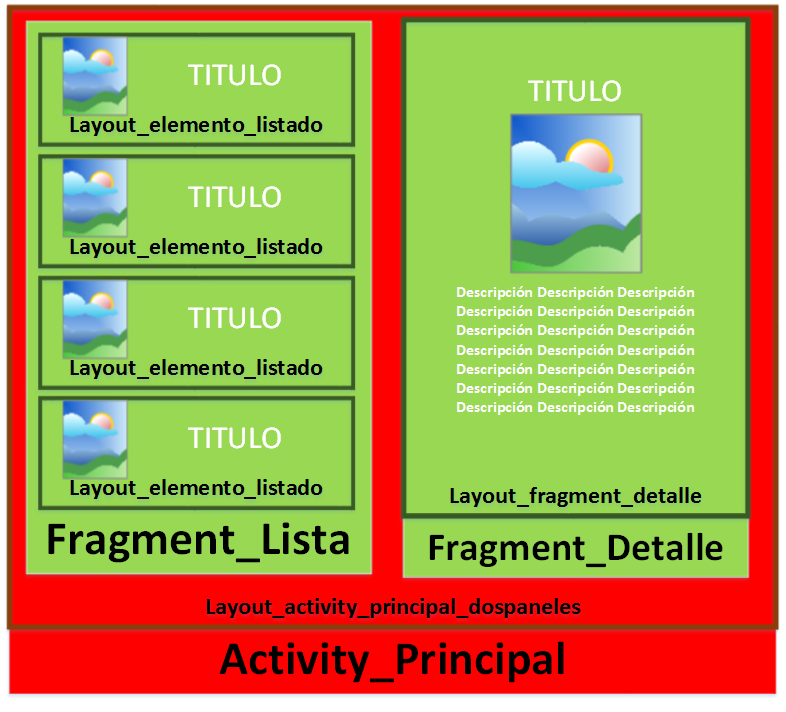
Well, there was a trick, since it’s only one Activity. In the phone design each activity had a Layout that contained one Fragment. In the Tablet design, there’s only one Activity, which has an associated Layout containing both Fragments. It makes sense that it’s this way; I wanted to make this difference clear. By the way, these are all the Layouts we’re going to use and no others (you’ve seen all of them in the previous images):
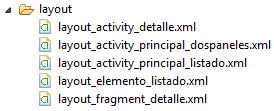
The code is coming, don’t worry. It’s important not to get lost with so many files and to have the ideas very clear. Before I reveal the XML code, there’s a simple concept you need to know. It’s usually overlooked and it shouldn’t be, because it’s the source of many errors, and therefore of desperation when dealing with Fragments (never again 😀 ). It’s the topic of static (or final) and dynamic Fragments:
- A static or final Fragment is one that is declared directly in the XML file in the Layout folder. This Fragment can’t be removed or replaced by anything -otherwise we’ll get errors.
- A dynamic Fragment is one that is created from Java code and attached to a ViewGroup (using a FrameLayout is recommended). This one can be removed or replaced by another Fragment or other content.
To understand it well, the Tablet example will be enough.
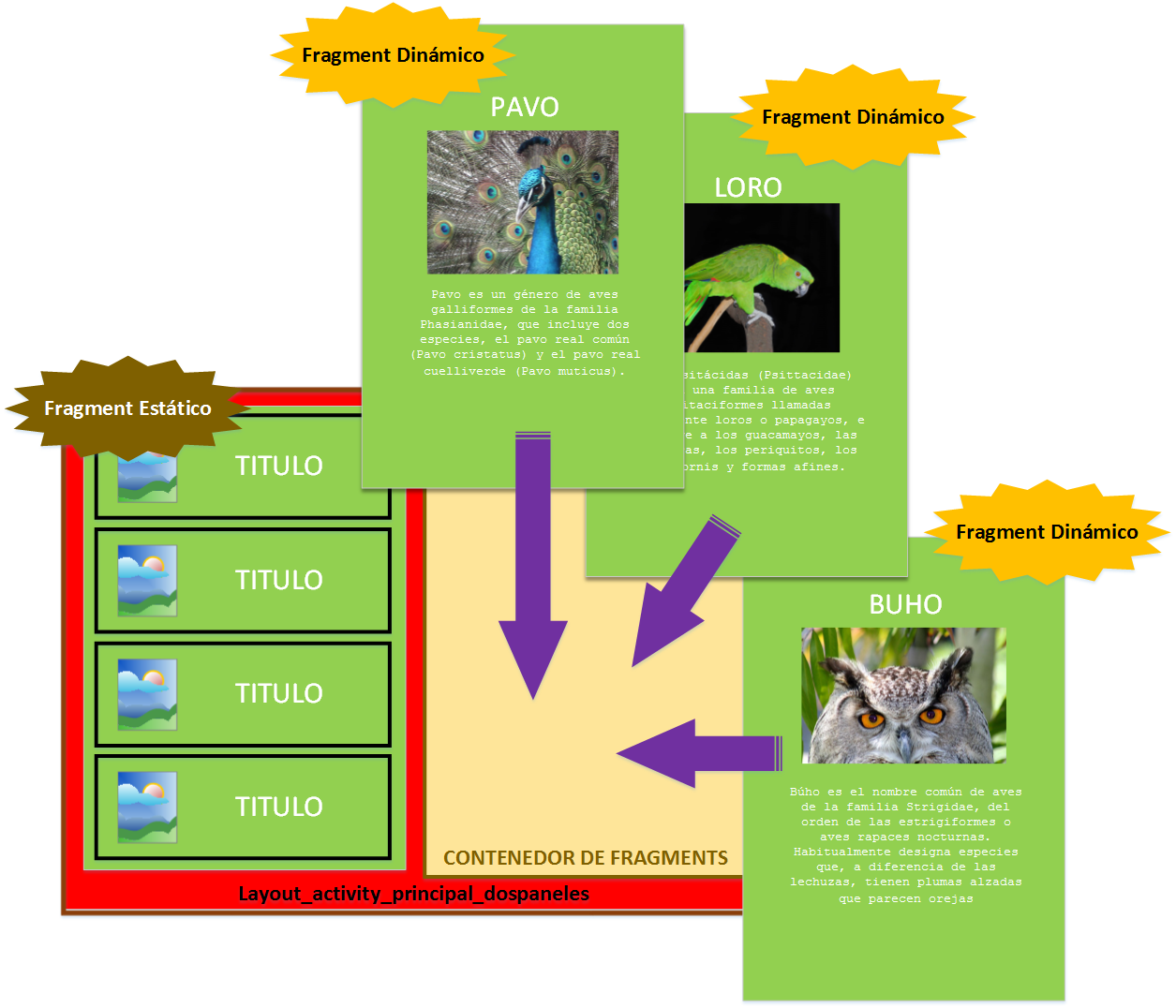
We have the list, which is something that will always be the same (the items in the list can increase or decrease, but it will always be a list), so we can declare its fragment in the XML; it’s static. Then we have the detail on the right side, which, depending on what’s selected in the list, will show the detail of a different bird (description, name and photo). So each bird’s detail will have its own Fragment -if we compare them to the pages of a book, switching Fragments would be like turning the pages of the bird book- which is why we want these Fragments to be dynamic. This gives us the following Layout, with a static Fragment in XML and a FrameLayout that will hold the dynamic Fragments.
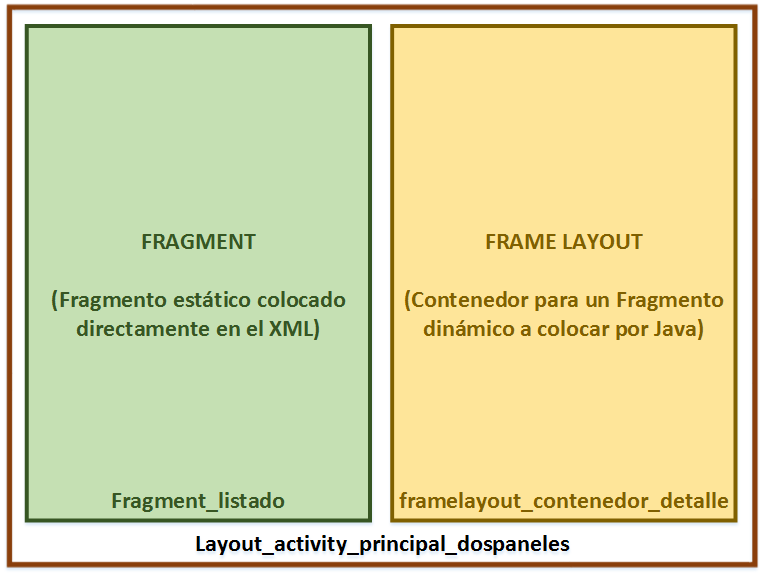
So the code of layout_activity_principal_dospaneles.xml will be:
<LinearLayout xmlns:android="http://schemas.android.com/apk/res/android"
    android:layout_width="match_parent"
    android:layout_height="match_parent"
    android:layout_marginLeft="16dp"
    android:layout_marginRight="16dp"
    android:baselineAligned="false"
    android:divider="?android:attr/dividerHorizontal"
    android:orientation="horizontal"
    android:showDividers="middle" >

    <!--
    This static fragment contains the list
    -->
    <fragment
        android:id="@+id/fragment_listado"
        android:name="jarroba.invarato.fragmentos.Fragment_Lista"
        android:layout_width="0dp"
        android:layout_height="match_parent"
        android:layout_weight="1"/>

    <!--
    This FrameLayout will contain a dynamic fragment with the content of the list item that was tapped
    -->
    <FrameLayout
        android:id="@+id/framelayout_contenedor_detalle"
        android:layout_width="0dp"
        android:layout_height="match_parent"
        android:layout_weight="3" />

</LinearLayout>
Likewise, for phones, we have the list separately with the static Fragment. Its code, in layout_activity_principal_listado.xml, is:
<!--
This static fragment contains the list
-->
<fragment xmlns:android="http://schemas.android.com/apk/res/android"
    android:id="@+id/fragment_listado"
    android:name="jarroba.invarato.fragmentos.Fragment_Lista"
    android:layout_width="match_parent"
    android:layout_height="match_parent"
    android:layout_marginLeft="16dp"
    android:layout_marginRight="16dp" />
And separately, but with the same logic we explained for the Tablet, we have the dynamic Fragment for the detail. For layout_activity_detalle.xml:
<!--
This FrameLayout will contain a dynamic fragment with the content of the list item that was tapped
-->
<FrameLayout xmlns:android="http://schemas.android.com/apk/res/android"
    android:id="@+id/framelayout_contenedor_detalle"
    android:layout_width="match_parent"
    android:layout_height="match_parent" />
We also have the simple structure of the view for each list item in layout_elemento_listado.xml:
<?xml version="1.0" encoding="utf-8"?>
<LinearLayout xmlns:android="http://schemas.android.com/apk/res/android"
    android:layout_width="fill_parent"
    android:layout_height="wrap_content"
    android:gravity="center|left"
    android:orientation="horizontal" >

    <ImageView
        android:id="@+id/imageView_imagen_miniatura"
        android:layout_width="80dp"
        android:layout_height="80dp"
        android:adjustViewBounds="true"
        android:scaleType="fitXY"
        android:contentDescription="Descripción del contenido de la imagen"
        android:src="@android:drawable/ic_menu_gallery" />

    <TextView
        android:id="@+id/textView_titulo"
        android:layout_width="wrap_content"
        android:layout_height="wrap_content"
        android:text="Large Text"
        android:textAppearance="?android:attr/textAppearanceLarge" />

</LinearLayout>
And the detail one, in layout_fragment_detalle.xml:
<LinearLayout xmlns:android="http://schemas.android.com/apk/res/android"
    android:layout_width="fill_parent"
    android:layout_height="wrap_content"
    android:gravity="center|top"
    android:orientation="vertical" >

    <TextView
        android:id="@+id/textView_superior"
        android:layout_width="wrap_content"
        android:layout_height="wrap_content"
        android:text="Large Text"
        android:textAppearance="?android:attr/textAppearanceLarge" />

    <ImageView
        android:id="@+id/imageView_imagen"
        android:layout_width="178dp"
        android:layout_height="178dp"
        android:adjustViewBounds="true"
        android:contentDescription="Descripción del contenido de la imagen"
        android:scaleType="fitXY"
        android:src="@android:drawable/ic_menu_gallery" />

    <TextView
        android:id="@+id/textView_inferior"
        android:layout_width="wrap_content"
        android:layout_height="wrap_content"
        android:text="Small Text"
        android:textAppearance="?android:attr/textAppearanceSmall" />

</LinearLayout>
We now have the views. Before getting into Java, we need to make one more distinction. We need to tell which type of screen we’re dealing with so we can apply the phone or tablet design. Android does this very well thanks to the “values” folders, which are inside the “res” folder.
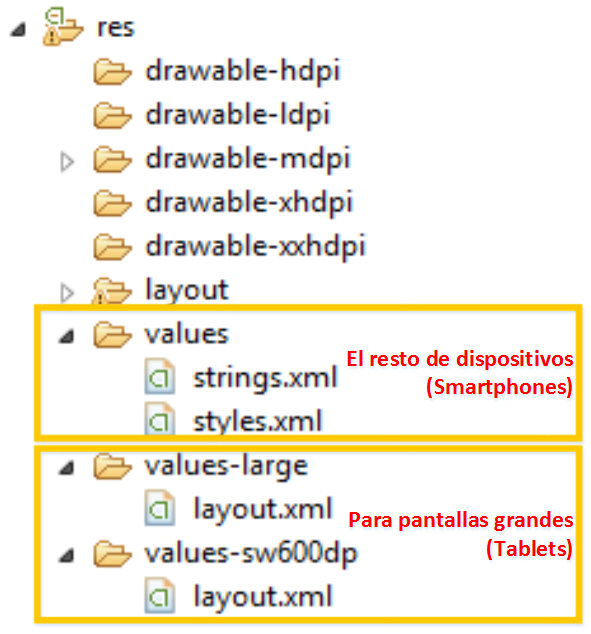
We’ll have 3 “values” folders (more information at Screen compatibility overview (Android Developers)):
- values-large: for large screens, that is, Tablets (needed for it to work on Android version 3). In this folder we’ll create a new XML file called “layout.xml” (I explain it a bit further down).
- values-sw600dp: for screens with a width greater than 600dp (regardless of screen rotation); for Tablets of this size or larger. We can change this value, but 600 will work very well for our purposes. In this folder we’ll create another new XML file also called “layout.xml” (I explain it a bit further down).
- values: the values folder for the rest of the devices that don’t meet the previous conditions. Smartphones will use it, as will small Tablets that don’t meet the minimum size we’ve set. We don’t touch or add anything in this folder.
We’ve created two files called “layout.xml”. Both will have the same content, which is the following:
<resources>
    <item name="layout_activity_principal_listado" type="layout">@layout/layout_activity_principal_dospaneles</item>
</resources>
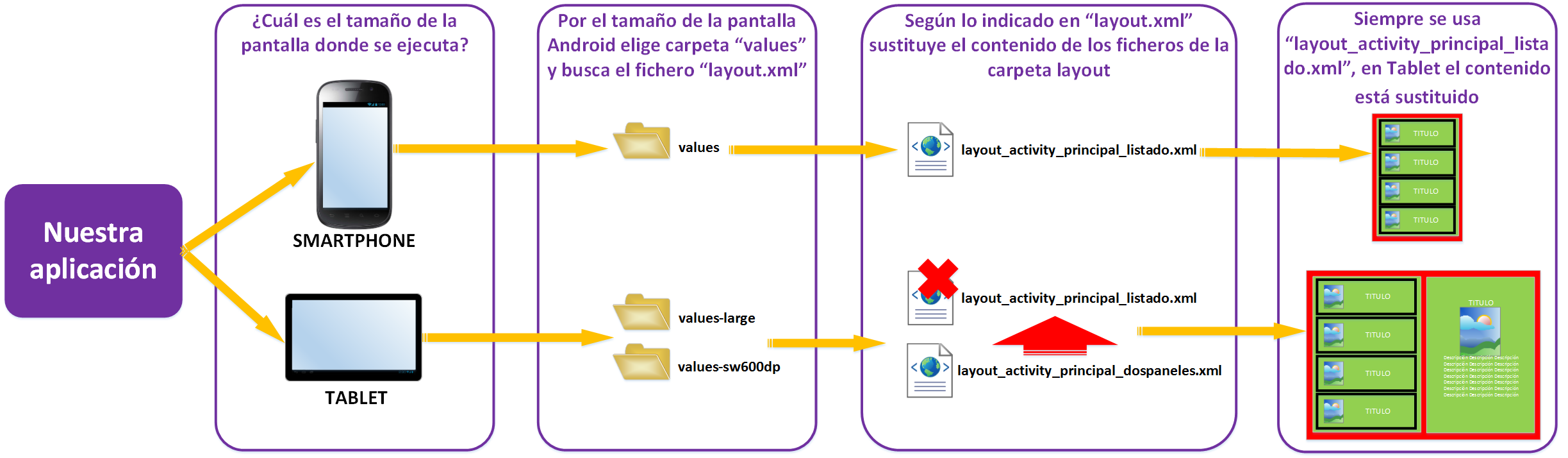
This is a little trick I’m sharing so we don’t repeat files: aliases. We could have created several “layout” folders, but we’d have duplicate code with the same content; with the alias we avoid repeating code unnecessarily. This alias just replaces the content of one XML with another. So, if the screen is small it will directly load the XML “layout_activity_principal_listado.xml”, which only shows a list; and if it’s large, the content of this file will be replaced by the content of the file “layout_acitivity_principal_dospaneles.xml”, which has a Fragment on the left for the list and a FrameLayout on the right for the dynamic detail Fragment. For more clarity, take a look at the following image:
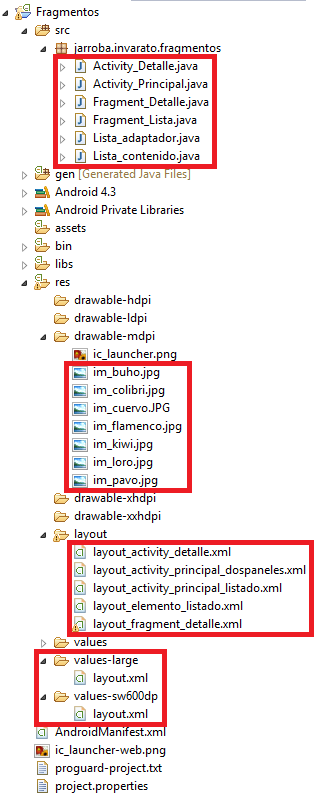
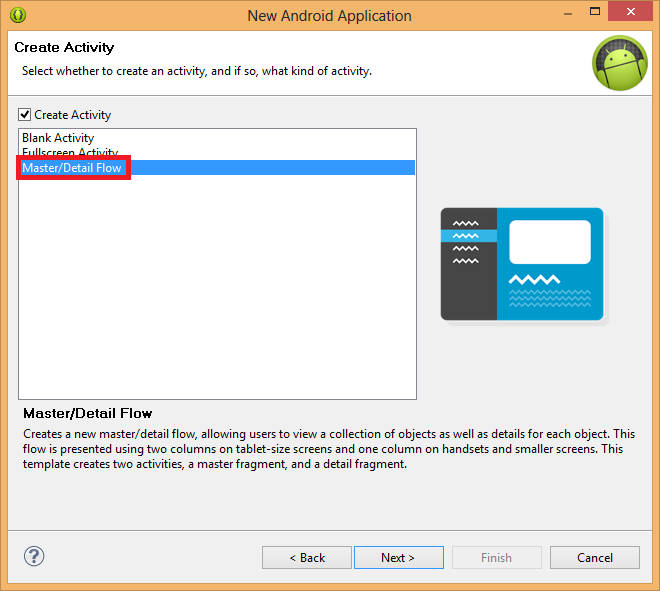
Now we can dive into the Java code. First I’ll show you the complete structure of the project; you’ll need to create the Java classes (which I detail below) and add the images. Everything in the “res” folder is already finished. In the following image, we’ve only created what’s in red to build the app.
Let’s start with the first code that runs, which is Activity_Principal.java. This is an Activity, but to work with Fragments we need a special type of Activity called “FragmentActivity”, which our class will extend. But first let’s explain in essence what it does, which is two things, and then I’ll show the code:
- Telling how many elements it handles for each type of device: In “onCreate” we’ll associate the Layout “layout_activity_principal_listado.xml” –remember that its content will have only a list, or a list and a detail, depending on the screen size. To know if we’re working with two Fragments in the same Activity, it’s as simple as checking whether the detail exists; if it doesn’t, we’re working with a single Fragment, which will undoubtedly be the list.
- Communicating between Fragments: We’ll program the Fragments in a completely modular way; that is, one Fragment doesn’t communicate with another directly but through interfaces. It works as follows (for more clarity, take a look at the image below, which is for the Tablet case; for the Smartphone it would be the same, but passing the data from one Activity to the other, and that one would then pass it on to the Fragment with the detail):
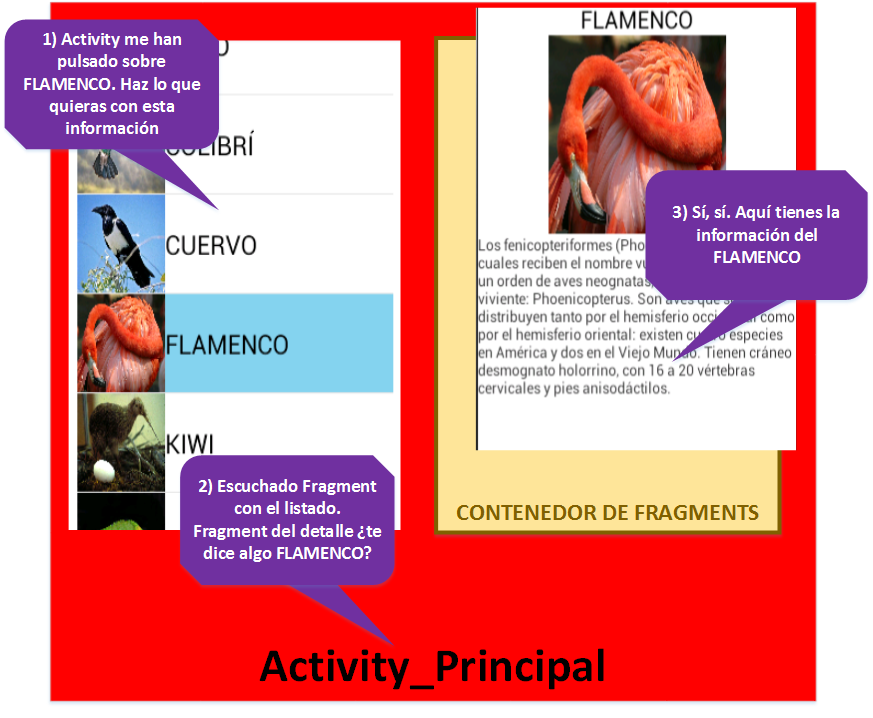
1) An item in the Fragment that contains the list is tapped. Through a Callback method “onEntradaSelecionada” (this is event-driven programming; in this article we explain how it behaves, but we only summarize it when explaining the code since it’s not the main topic of the article), it passes the id of the selected post to the Activity that contains it (which is why it implements “Fragment_Lista.Callbacks”).
2) The Activity receives the data. If it’s:
- A Tablet: it creates a new Fragment with the detail, sends it the id so it loads the appropriate content, and places it in the FrameLayout, replacing any other detail Fragment that may exist.
- A Smartphone: it creates a new Activity and sends it the id. The new Activity will load the detail Fragment into itself.
3) The Fragment with the detail is shown to the user. And this is the corresponding code for this class:
public class Activity_Principal extends FragmentActivity implements Fragment_Lista.Callbacks {

	private boolean dosFragmentos;

	@Override
	protected void onCreate(Bundle savedInstanceState) {
		super.onCreate(savedInstanceState);
		setContentView(R.layout.layout_activity_principal_listado);

		if (findViewById(R.id.framelayout_contenedor_detalle) != null) {
			dosFragmentos = true;
		}
	}

	@Override
	public void onEntradaSelecionada(String id) {
		if (dosFragmentos) {
			Bundle arguments = new Bundle();
			arguments.putString(Fragment_Detalle.ARG_ID_ENTRADA_SELECIONADA, id);
			Fragment_Detalle fragment = new Fragment_Detalle();
			fragment.setArguments(arguments);
			getSupportFragmentManager().beginTransaction().replace(R.id.framelayout_contenedor_detalle, fragment).commit();

		} else {
			Intent detailIntent = new Intent(this, Activity_Detalle.class);
			detailIntent.putExtra(Fragment_Detalle.ARG_ID_ENTRADA_SELECIONADA, id);
			startActivity(detailIntent);
		}
	}
}
Let’s start with a normal Fragment, which is the detail one. To do so we write the code of Fragment_Detalle.java. Since it’s a plain, ordinary Fragment, it will extend Fragment. I’ll explain the content of the methods:
- Constructor: in Fragments it’s always empty so it can be instantiated.
- onCreate: gets the content of the post.
- onCreateView: this is where the view is handled, that is, it creates and associates the Layout (in an Activity this is done in onCreate with the “setContentView” method; but this is a Fragment, it works differently and this is how it’s done, with inflate(). Find out everything about inflate() in this other article).
public class Fragment_Detalle extends Fragment {

	public static final String ARG_ID_ENTRADA_SELECIONADA = "item_id";
	private Lista_contenido.Lista_entrada mItem;

	public Fragment_Detalle() {
	}

	@Override
	public void onCreate(Bundle savedInstanceState) {
		super.onCreate(savedInstanceState);

		if (getArguments().containsKey(ARG_ID_ENTRADA_SELECIONADA)) {
			//Load the content of the post with the given ID selected in the list. Using a Loader to load the content is recommended
			mItem = Lista_contenido.ENTRADAS_LISTA_HASHMAP.get(getArguments().getString(ARG_ID_ENTRADA_SELECIONADA));
		}
	}

	@Override
	public View onCreateView(LayoutInflater inflater, ViewGroup container, Bundle savedInstanceState) {
		View rootView = inflater.inflate(R.layout.layout_fragment_detalle, container, false);

		//Show the content to the user
		if (mItem != null) {
			((TextView) rootView.findViewById(R.id.textView_superior)).setText(mItem.textoEncima);
			((TextView) rootView.findViewById(R.id.textView_inferior)).setText(mItem.textoDebajo);
			((ImageView) rootView.findViewById(R.id.imageView_imagen)).setImageResource(mItem.idImagen);
		}

		return rootView;
	}
}Now that you understand the normal Fragment, let’s move on to a special one. We’ll implement the list one in Fragment_Lista.java. This class is a Fragment, but a special Fragment that extends ListFragment, which is the list prepared to be a Fragment (here we don’t associate any Layout, since by extending ListFragment it already comes with one). Callback: it will implement the Callback that notifies the Activity of which list item was tapped. I’ll explain the methods used here one by one:
- Constructor: You’ll surely notice the empty constructor; it’s required for Fragments to work properly, so don’t even think about removing it :D.
- onCreate: as we did in the list article we assign the content of each post to each list item.
- onAttach: It simply makes sure the developer has implemented the Callback in the class that uses this Fragment.
- onDetach: Clears the Callback.
- onListItemClick: since we extend ListFragment, we need to override this method, which is the one that listens for taps on a list item. This way we use the Callback to notify the Activity of the id that was tapped.
public class Fragment_Lista extends ListFragment {

	private Callbacks mCallbacks = CallbacksVacios;

	public interface Callbacks {
		public void onEntradaSelecionada(String id);
	}

	private static Callbacks CallbacksVacios = new Callbacks() {
		@Override
		public void onEntradaSelecionada(String id) {
		}
	};

	public Fragment_Lista() {
	}

	@Override
	public void onCreate(Bundle savedInstanceState) {
		super.onCreate(savedInstanceState);

        setListAdapter(new Lista_adaptador(getActivity(), R.layout.layout_elemento_listado, Lista_contenido.ENTRADAS_LISTA){
			@Override
			public void onEntrada(Object entrada, View view) {
		        if (entrada != null) {
		            TextView texto_superior_entrada = (TextView) view.findViewById(R.id.textView_titulo);
		            if (texto_superior_entrada != null)
		            	texto_superior_entrada.setText(((Lista_contenido.Lista_entrada) entrada).textoEncima);

		            ImageView imagen_entrada = (ImageView) view.findViewById(R.id.imageView_imagen_miniatura);
		            if (imagen_entrada != null)
		            	imagen_entrada.setImageResource(((Lista_contenido.Lista_entrada) entrada).idImagen);
		        }
			}
		});

	}

	@Override
	public void onAttach(Activity activity) {
		super.onAttach(activity);

		if (!(activity instanceof Callbacks)) {
			throw new IllegalStateException("Error: La actividad debe implementar el callback del fragmento");
		}

		mCallbacks = (Callbacks) activity;
	}

	@Override
	public void onDetach() {
		super.onDetach();
		mCallbacks = CallbacksVacios;
	}

	@Override
	public void onListItemClick(ListView listView, View view, int posicion, long id) {
		super.onListItemClick(listView, view, posicion, id);
		mCallbacks.onEntradaSelecionada(Lista_contenido.ENTRADAS_LISTA.get(posicion).id);
	}

}
So far we have what makes the Tablet structure work. Let’s continue with the Smartphone case. We need a second Activity to hold the detail Fragment. We’ll call it Activity_Detalle. Remember what it extended? Not Activity, we’re working with Fragments, so it extends FragmentActivity. It only has an onCreate method that will check whether the detail Fragment has already been created, to load it, or otherwise to create it. Creating the detail Fragment is the same as in the case of Activity_Principal.java.
public class Activity_Detalle extends FragmentActivity {

	@Override
	protected void onCreate(Bundle savedInstanceState) {
		super.onCreate(savedInstanceState);
		setContentView(R.layout.layout_activity_detalle);

		// Check that we haven't previously entered this activity (for example, when rotating the device). If so, the fragment is added to the container
		if (savedInstanceState == null) {
			// Create the post detail fragment and add it to the activity
			Bundle arguments = new Bundle();
			arguments.putString(Fragment_Detalle.ARG_ID_ENTRADA_SELECIONADA, getIntent().getStringExtra(Fragment_Detalle.ARG_ID_ENTRADA_SELECIONADA));
			Fragment_Detalle fragment = new Fragment_Detalle();
			fragment.setArguments(arguments);
			getSupportFragmentManager().beginTransaction().add(R.id.framelayout_contenedor_detalle, fragment).commit();
		}
	}

}
We only have left to discuss Lista_adaptador.java, which you’ll find in the list article. And Lista_contenido.java, which contains the Lista_entrada class from the list article. We’ve done it this way to simplify the code. Since the data isn’t going to change, it’s very easy to make a static structure of items that is always visible to all classes at any moment of execution. We simply store some lists with the content of the posts statically; this is done when the app starts.
public class Lista_contenido {

	/**
	 * Where the list entries are stored.
	 */
	public static ArrayList<Lista_entrada> ENTRADAS_LISTA = new ArrayList<Lista_entrada>();

	/**
	 * Where the identifier is assigned to each list entry
	 */
	public static Map<String, Lista_entrada> ENTRADAS_LISTA_HASHMAP = new HashMap<String, Lista_entrada>();

	/**
	 * We create the entries statically
	 */
	static {
		aniadirEntrada(new Lista_entrada("0", R.drawable.im_buho, "BUHO", "Búho es el nombre común..."));
		aniadirEntrada(new Lista_entrada("1", R.drawable.im_colibri, "COLIBRÍ", "Los troquilinos (Trochilinae) son..."));
		aniadirEntrada(new Lista_entrada("2", R.drawable.im_cuervo, "CUERVO", "El cuervo común (Corvus corax) es ..."));
		aniadirEntrada(new Lista_entrada("3", R.drawable.im_flamenco, "FLAMENCO", "Los fenicopteriformes..."));
		aniadirEntrada(new Lista_entrada("4", R.drawable.im_kiwi, "KIWI", "Los kiwis (Apterix, gr. 'sin alas') son..."));
		aniadirEntrada(new Lista_entrada("5", R.drawable.im_loro, "LORO", "Las Psitácidas (Psittacidae) son..."));
		aniadirEntrada(new Lista_entrada("6", R.drawable.im_pavo, "PAVO", "Pavo es un género de aves..."));
	}

	/** Adds an entry to the list
	 * @param entrada Element that we add to the list
	 */
	private static void aniadirEntrada(Lista_entrada entrada) {
		ENTRADAS_LISTA.add(entrada);
		ENTRADAS_LISTA_HASHMAP.put(entrada.id, entrada);
	}

	/**
	 * Represents an entry of the list content
	 */
	public static class Lista_entrada {
		public String id;
		public int idImagen;
		public String textoEncima;
		public String textoDebajo;

		public Lista_entrada (String id, int idImagen, String textoEncima, String textoDebajo) {
			this.id = id;
		    this.idImagen = idImagen;
		    this.textoEncima = textoEncima;
		    this.textoDebajo = textoDebajo;
		}
	}

}
And we still need to add to the AndroidManifest.xml the Activity that isn’t the main one, that is, Activity_Detalle. This is my AndroidManifest:
<?xml version="1.0" encoding="utf-8"?>
<manifest xmlns:android="http://schemas.android.com/apk/res/android"
    package="jarroba.invarato.fragmentos"
    android:versionCode="1"
    android:versionName="1.0" >

    <uses-sdk
        android:minSdkVersion="7"
        android:targetSdkVersion="18" />

    <application
        android:allowBackup="true"
        android:icon="@drawable/ic_launcher"
        android:label="@string/app_name"
        android:theme="@style/AppTheme" >
        <activity
            android:name="jarroba.invarato.fragmentos.Activity_Principal"
            android:label="@string/app_name" >
            <intent-filter>
                <action android:name="android.intent.action.MAIN" />
                <category android:name="android.intent.category.LAUNCHER" />
            </intent-filter>
        </activity>
        <activity
            android:name="jarroba.invarato.fragmentos.Activity_Detalle"
            android:label="@string/titulo_detalle_entrada"
            android:parentActivityName=".Activity_Principal" >
            <meta-data
                android:name="android.support.PARENT_ACTIVITY"
                android:value=".Activity_Detalle" />
        </activity>
    </application>

</manifest>
I’m leaving the working code here for you to download, with plenty of comments to clear up any doubts that may still be left. Download it here: Fragmentos I recommend you try it on both a Smartphone and a Tablet emulator –or physical device- so you can see how it looks on each device.
And with this we finish Fragments. The mental model of a Fragment has some things in common with an Activity and some that are completely different. Once you understand them, I assure you they’re very easy 😀
“Programming Fragments in Android” by Ramón Invarato at jarroba.com, licensed under Creative Commons Attribution-NonCommercial-ShareAlike 3.0. Registered at Safe Creative.

You may also like
How to Use Multiple GitHub Accounts over HTTPS
Learn how to use several GitHub accounts over HTTPS: configure git so each repository gets its own credentials in your keychain and avoid 403 errors.

Android Architecture – ART vs Dalvik
Android architecture explained in a technical yet easy way. ART vs Dalvik compared, APK contents, AOT and JIT compilation, and the Odex vs Deodex difference.
Leave a comment