
Client-Server: The Client Request
How the Internet works, made easy. Client-Server architecture, the client request, the parts of a URL, and HTTP Request headers explained with examples.
I created this article as an introduction for the general public, no matter how much web development you know, so that anyone who has ever browsed the Internet can understand it.
I’ve tried to make the article as complete and concise as possible, with images to make things clearer. You might think it’s a bit long, and yes, it is, but first let me share a thought: the Internet was created around 1969, millions of people all over the planet worked on it for decades, and learning everything I’m about to tell you took me years. Even so, I’m going to describe the whole process in as much detail as possible, assuming you know at least how to use a web browser (otherwise I don’t know how you got to this web article, magic or something weird :S ), so that even advanced developers can fill in some gaps and so that you can then develop a web page; all of this in a few paragraphs and lots of images 😉
So cheer up, and think of this series of articles about the Internet as a science fiction story, though it’s neither history nor fiction, because it’s very much real and current. A story because we’re not going to program anything, which, paradoxically, is hugely useful for development.
When you connect to any web page like this one, the first thing you had to do was go to the “web browser” (Chrome, Firefox, Internet Explorer) and enter the address, like the one you entered to get to this site; okay, maybe you got here by clicking a link, but notice that by clicking the link you indirectly entered the address in the “address bar” (the search box at the top of your browser). A simpler example: we can type the following address: Jarroba
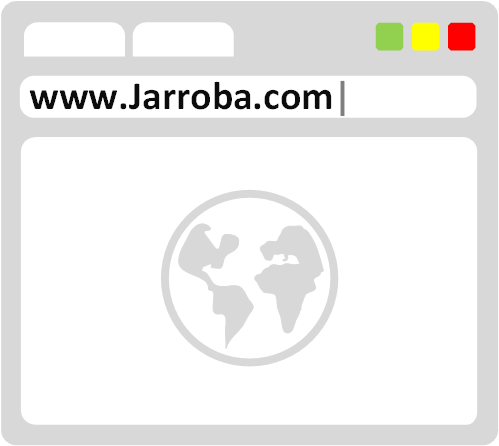
The browser is what we call the Client, not the user, as people often confuse. The browser is the one that asks a Server for a web page (a Service or Resource).
I know that the user (a flesh-and-blood human) is the one who types an address into the browser, which is what requests the information; but the user doesn’t do all the work going on underneath. So the Client is the browser, application, or any piece of software that sends the request to a Server. Needless to say, these clients live inside what is also considered the physical client, the hardware that connects to a Server, such as the desktop computer/PC, the laptop, the smartphone, etc.
Let’s focus on the browser you’re reading this article with (the rest of the Clients work the same way). Let’s go step by step. First we type an address into the browser (or we click a link, which does the same thing: it automatically types an address into the browser), an address like the one you see right now in your browser’s bar: https://jarroba.com/cliente-servidor-peticion-del-cliente.
Web Address, URL or URI
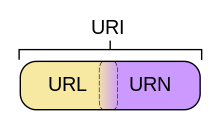
This web address that we enter is known as a URL (Uniform Resource Locator), although you may also find it called a URI (Uniform Resource Identifier). What’s the difference between a URI and a URL? A URI identifies something in some place, like a file inside a series of folders (something like “folder/another_folder/file.exe”); a URL locates something whose content can change, like this web page (something like “jarroba.com/articles/article_x”): today you’ll see it the way you see it today, tomorrow the styles, texts, images, etc. might change.
So a URI doesn’t change and a URL does? Watch out for this misunderstanding: a URI identifies and may or may not change over its whole life, while a URL locates, so it can change; that means a URL is always a URI, but not every URI is a URL. And what do you call a URI that never changes? This is just a curiosity, since it doesn’t matter for web and networking: it’s called a URN (Uniform Resource Name) and it’s used to identify things that don’t change, like published books or movies (the ISBN of a book is a URN, for example).
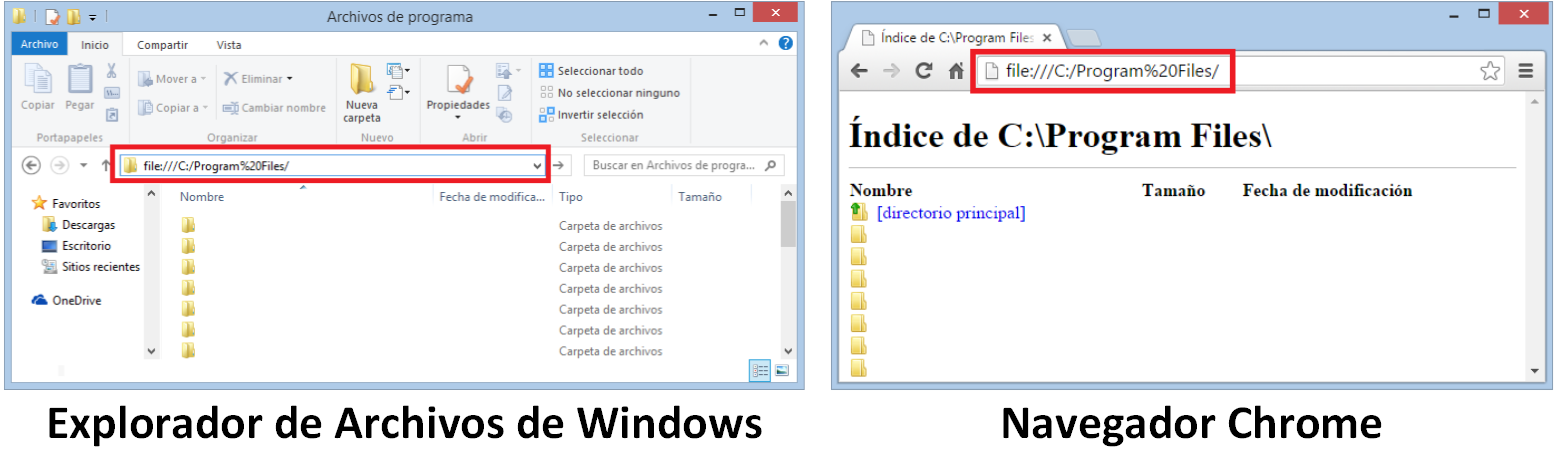
A URL isn’t only for going to a web page like “https://jarroba.com”; we also use it when we go from one folder to another in our operating system, as in Windows “file:///C:/Program%20Files/”, which is the same as going to the folder “C:\Program Files” (you can try it both from the address bar of the file explorer and from a browser; after all, the file explorer is a browser for navigating between folders); among others.
Before continuing, let me amaze you with a URL with all its parts (although it looks like a lot, it’s not as much as you’d guess at first glance; it has its logic, not everything is always used, and luckily you don’t have to memorize any of this, just know it so you know what to look for when you need it 🙂 ):
http://usuario:contrasenia@jarroba.com:80/articulos/unarticulo/?id=123&busqueda=java#comment-12345
What a stream of letters! They say so much in so little.
Parts of a URL
Each part would be:
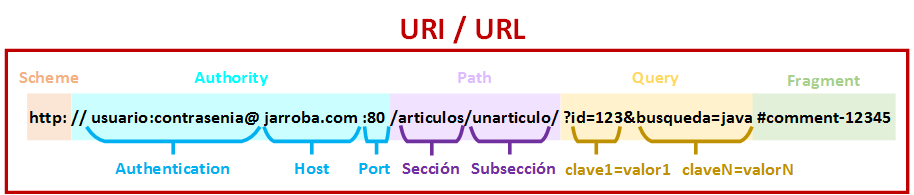
With that in mind, a URL is made up (its syntax) of the following standardized parts:
Scheme
It identifies what type of URL it is. It’s a prefix followed by a colon “:”, such as “http:”. Don’t we usually always put “http://” with two slashes? Yes, let’s not get ahead of ourselves. There are several types of Schemes, such as:
- http: for the protocol used for the World Wide Web (the one we use to browse the Internet).
- https: the same as http for browsing the Internet, but it indicates that the connection will be protected/encrypted (we’ll expand on this in another article).
- ftp: for transferring files between computers. If you’re going to work with Servers you’ll probably use it quite a lot; developers commonly use it to upload the files that make up a website.
- sftp: the same as ftp, but files are sent protected/encrypted
- file: for accessing files from within the same computer. For example, the one we saw earlier “file:///C:/Program%20Files/”, which goes to the operating system folder “C:/Program Files” on the computer, or paths that include the file too, like "file:///C:/Program%20Files/musica.mp3"
- mailto: for sending emails. For example, if you put the following address in the browser (it doesn’t work in some browsers) “mailto:jarrobaweb@gmail.com”, a new email composer will open to send an email to “jarrobaweb@gmail.com”
- data: for including data in the URL itself. For example, an image encoded in base 64 inside the following URL, which if you decode it (if you want to try it, you can search Google for "base64 to image online" and copy the following URL from the base 64 image example) will give you the Jarroba favicon that you can see in the browser tab “data:image/png;base64,iVBORw0KGgoAAAANSUhEUgAAABAAAAAQCAYAAAAf8/9hAAAABmJLR0QA/wD/AP+gvaeTAAAACXBIWXMAAARuAAAEbgHQo7JoAAAAB3RJTUUH3wsKFgwWdxvwsAAAA61JREFUOMtdk01MIgccxd98gBAIo5W6y2AXW1gUXC3RiLHrbpTd4FdmE0hIqkkvbeyeemx65dCe2sRsvPTYzaYXv2pjiNk1UeKhCeuqQTAiH0GoBATjKEZGYJzpwe2m6e/88vLe/59H4D0+nw/z8/Nwu93NNE33sCxrTyYS32tFsVFkmAVCll+Jori1trZWxn+gAMDj8WBxcRFer9fjcDi8nZ2drW93d8en0+muyasr5RuC6Bj3elMMwwwxDKOMx+PJiYkJJBKJW4NYLIbJycnnQ0ND5mQyKYRCoYX1tbU3KZ5/LvA88TKXW1Wr1T9LknR/YGDgU51OZ11eXt7+EGNsbOzR7Oysf2pq6jsAkGUZAOxtNH1mViqvAZj+1XIc55uZmfFzHDcBANTo6GiTw+H4qlAo3KTT6V+6u7vlSCRCF8/PF150dLR729rotNn8xPvsmd5msz3O5/O/lctlc3t7+wOVSvWWpChqwGQyiYeHh6/X19els7Mzulgs/uDhuMwez6N6eAi2tbXe1dUFjUZDbW5uXl9eXv7R0NBwo1Ao+kmTyXT/6OiIOjk5eQcARqPx2/7+fjqbyxHs/j5aLy5QrdUkkiSJbDa7AwCBQKDI87xkMBiMpFqt1lYqletwOCyOjIzctdlsd0iSxM7u7ilEEQWGgUatlkqlElGv1w98Pt/t+yhKwTDMJ3S9XhdIktQCAEmSD1iWlURRBH9+XjtRqfCR1QpZkuR8Pk+urq4m3x/9idVqrcdiMYkUBKFM07QCAHQ6XSNJkiAIQlbStPLGbodOqwVFUfLx8XEYAIaHh019fX1DFxcXUrVaLVN6vV7d29v7GYCz5uZm48np6UQ6m7W1W621j0ul7kZZRrSpKVsqFP60WCx3nU7nl+VyWRQEAfF4fIus1WpbxWKRNhgMw5FoVNIdHIw8LhYfHmUybk08juvbajc9PT1POY4b53leSKVS+7IsN1Sr1S06GAzWNBrNusvlevTX9rbtXjiMfq0WX9fr+l/LZWxFo8ir1VVGpSI2NjZ2eJ5POp3Oyb29vdfBYLBCAUAikUgzDGP6wuk08vl8n6dQwE+CQDQBeHl1hVeJxHgoFFqwWCxmp9M5ls1mc0tLS4sfxuR2u7GyshJuaWm5+VurfSobjdq6RoNthQIv9PrcN9PTvMvlGmNZ9l4kEnk3Nzf3u8fjQSwWA4H/8XBwsPm4UPhRxzCDd1paLj+321cqlcp5JpNJEQSxGwgESn6/H36/HwDwD6fprBvtjaoPAAAAAElFTkSuQmCC”

Authority
It starts with two slashes “//” (here are the famous two slashes). The Authority is the symbolic entry name of the provider. It consists of two parts:
- Authentication : for putting the username and password, separated by a colon “:” and ended by “@”; of the form “user:password@”. It’s not very well known, but it’s very handy for development, so you don’t have to enter the address on one side and the username and password on the other; with this trick you enter all the access data just by copying and pasting the full URL. It’s used a lot for ftp, as in “sftp://usuario:contrasenia@jarroba.com/ruta”, and even for private git repositories like “https://usuario:contrasenia@github.com/jarroba.git” (Security note: always use it on secure connections like “https” or “sftp”, otherwise it will travel in plain text to the Server and the access credentials could be stolen by someone listening along the way)
- Host: This is the easiest of all “jarroba.com”; that is, the registered name or the IP address like “213.186.33.40”. In other words, the address of where we want to travel (as a comparison, if it were a phone, it would be the phone number)
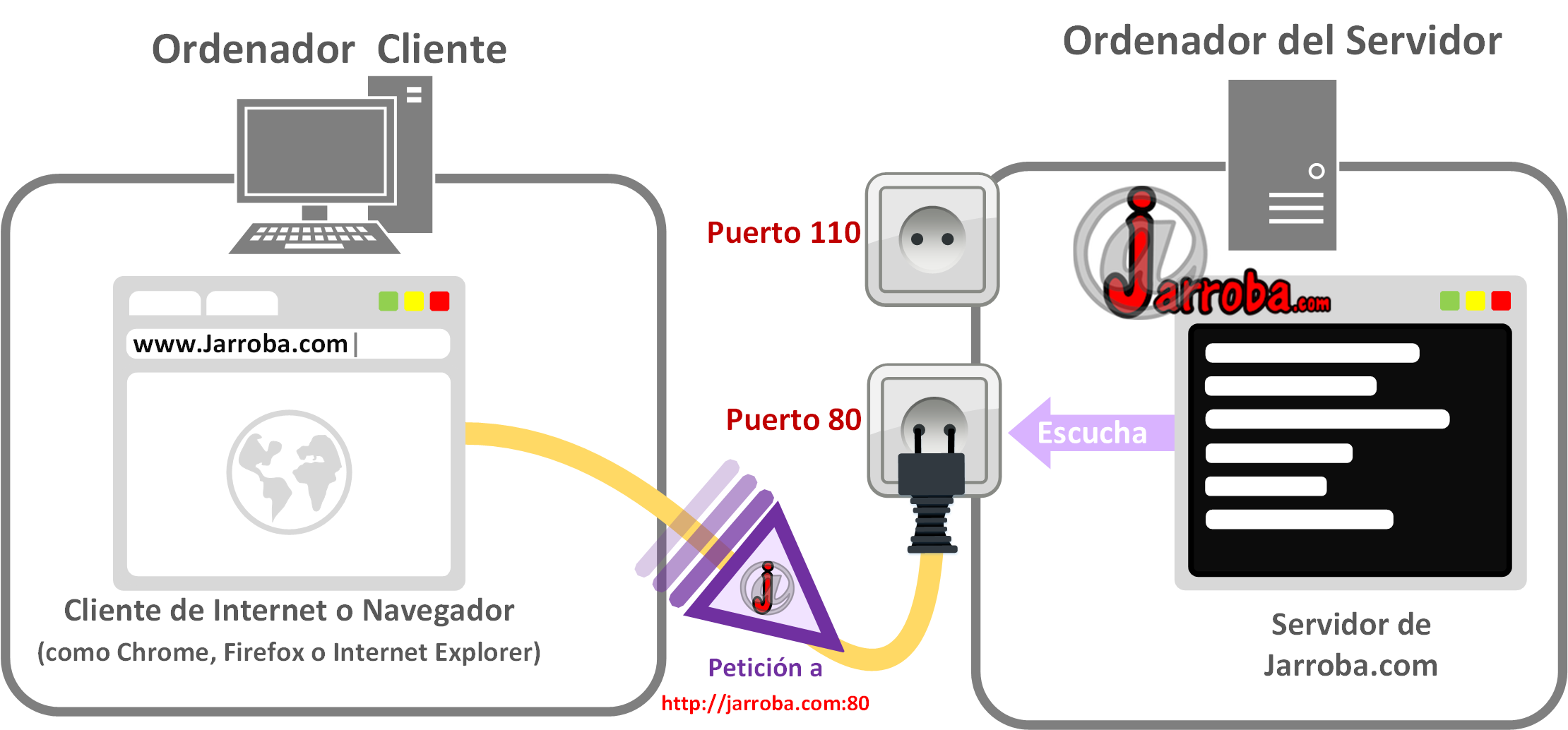
- Port : Always after the Host, it starts with a colon “:” followed by the port number, and although it doesn’t look like it, you always have to include it. But I never have to type it in my browser to visit a website? Of course, because the browser adds it for you automatically, much easier (it’s like air: just because we can’t see it doesn’t mean it doesn’t exist, it’s always there 😉 ). To understand ports you have to imagine that we send a URL such as “https://jarroba.com:80” through a cable to another house called “jarroba.com” that has thousands of computers, each computer with a numbered female socket (each numbered socket is a port); since “80” has reached us, we plug that cable into the computer with port “80”, so the computer listening on its port can receive data to work with and send back responses. With that understood, extrapolate it to a single computer that receives the URL: the operating system is in charge of deciding which port to send the data to, and the applications/processes (like a Server, a Browser, a game that connects to the Internet, etc.) are the ones that listen on the ports waiting for data. An example is when you requested this web page from our Server: your computer received a response on port “80” which your operating system redirected to port 80, which identifies HTTP, so you’ll understand that the browser was listening on this port waiting for the response to show you this page with this article. There are thousands of ports that, luckily, we don’t have to learn, we just use the one we need when we build URLs (we’ll use them directly as developers; as users, the program we use will always add it automatically). We’ll see more about ports later.
Path
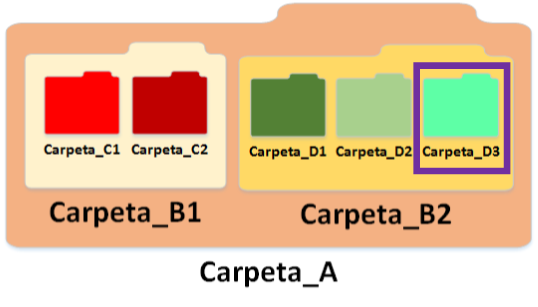
The name of the hierarchical path that starts with a slash “/”, each subsection is separated by another slash “/”, and it may end with another slash “/”. It could be a folder that has subfolders, as in the following example; if I want to refer to the folder “Carpeta_D3” I would write: “/Carpeta_A/Carpeta_B2/Carpeta_D3”
Query
The Query part starts with a question mark “?”. Then each query consists of a key and a value joined by an equals sign “=”, such as “?key=value”; you can separate several key and value pairs with an ampersand “&” or a semicolon “;”, as in “?key1=value1&key2=value2&key3=value3”.
The Query is used a lot to run queries against the database. For example, when you search for something in our search box like “Programar con Java” you’ll see something like “https://jarroba.com/?s=Programar+con+Java” in the browser’s bar, where “s” is the key that the Server will interpret as something to search for, and “Programar+con+Java” is the value to look for in the database.
Imagine we have a Username and Password form for logging in to some website; when you press the Login button, we could build a Query like “?user=ramon&contrasenia=abc123”.
This way of sending data in the URL itself is known as the GET method (which we’ll see a bit later).
Fragment
The Fragment starts with a hash sign “#” and simply indicates a section of a web page. What the web browser does when loading the page is scroll to that section.
For example, if you click on the date of the comments of any article on this site, it will take you to a URL like “https://jarroba.com/reflection-en-java/#comment-21793”. You’ll see that when the page loads, the browser scrolls down to the HTML element whose “id” matches the Fragment; in the case of this example the browser will look for the element:
<li id='comment-21793'>
Note
What is "<li …>"?
The HTML tag “li”, which for example can be “<li>Some Text</li>”, simply indicates that whatever is inside the tags, in the example “Some Text”, will get a bullet in front of it, as you can see below:
- Un Texto
Note
Note on encoding (URL encode) and decoding (URL decode) URL characters
URLs only allow certain characters, and you have to be careful when using the rest, since some are special delimiters “:/?#[]@!$&'()*+,;=” (that is, the ones used to form the URL parts above). Others aren’t allowed directly, like the space character “ ”. So, if we want to write some text like in the Query “Programar con Java”, we have to do URL encoding to turn it into “Programar+con+Java” or into “Programar%20con%20Java”. The percent sign “%” followed by a two-digit number indicates that a special character has been encoded (URL encoded character); another example is encoding an email like “jarrobaweb@gmail.com” to “jarrobaweb%40gmail.com”. To do the opposite, the characters are decoded (URL decoded). The only characters allowed for text are letters, digits and the characters “~.-_”. Luckily for everyone, there are very easy ways to do the “URL encode” and the “URL decode” on both the Server side and the Client side, so our concern about this will be minimal, and even more so if we develop with some Framework.
When we click a link or type an address in the browser, to make the connection the browser sends a bunch of information. What the browser does is create a packet with several pieces of data called an “HTTP Request”.
HTTP Request
The “HTTP Request” contains information both for the Server it’s addressed to and for the path the data will travel along.
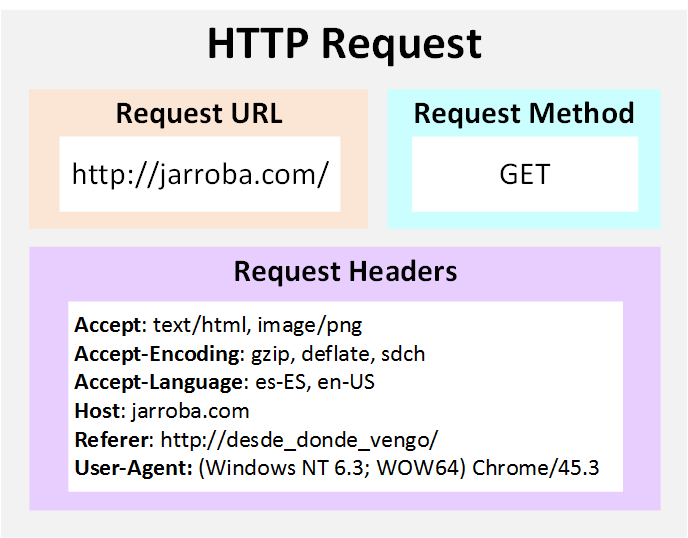
Its data is:
Request URL
The address, such as “www.jarroba.com”
Request Method (HTTP methods)
Here a verb is sent, just as you hear it: what the previous URL has to do, such as “get”, “delete” or “save”, though in English: GET, DELETE or PUT. That is, imagine you’re in your favorite email inbox and you click an email that has a link inside to open another web page with the content of the email; since it wants to get the information, that link will send GET as the “Request Method”.
The same goes for this Jarroba website: since it’s all information, the methods will all be GET. This is normally defined by the developer when creating forms. In practice only two methods are commonly used, and if you’re a developer you should know them: GET and POST. What about DELETE, PUT and the others that exist? They can be used, but they’ve fallen out of use in favor of just these two; I simply included PUT and DELETE to mention them and explain what this information is for. What’s the difference between GET and POST?
- GET: Search for anything on Google and look at the URL. It will be something like “https://www.google.es/webhp?sourceid=chrome-instant&ion=1&espv=2&ie=UTF-8#q=jarroba” and if you look closely, among other information, the search content comes after a “q=” in the URL. This is sending data via GET; that is, the developer who created the form (where you type in Google’s search box) made the text get sent directly concatenated in the URL itself. A limitation is that URLs only allow about 2000 characters, so you can use it for short texts, otherwise use POST.
- POST: This method is similar to GET but much more powerful, since it lets you send images, videos, files and any other type of file, as well as text of any length. The downside, if you can call it that, is that we won’t see the information in the URL; instead it’s sent in the “Request Payload Body” (the body of the request). If it’s so good, can I send everything via POST? If you configure the Server to accept it, yes; it requires a bit more work from the developer, but personally I find it very versatile. And can GET be dropped altogether? Sometimes it’s needed: the Google example from before makes requests via GET so that it’s very easy for the user to copy the URL with the data already in it and share the search easily with a friend; you can’t do this with POST, because if Google had used POST you would probably copy only “Google” and our friend wouldn’t get the search we made.
Request Payload Body
The “Request Payload Body” will only appear if the POST or PUT method is used. It contains the data you want to send, encoded as plain text: things like text, images, videos, etc. This plain text is sent to the Server and decoded again so it makes sense as the original data that was sent (Note on complex data sent with POST or PUT: if we send a file, like an image or a video, you’ll see a bunch of meaningless letters; let’s not fall into the trap of thinking it’s encrypted, because it isn’t: it’s information encoded in a standard format, possibly Base64, that anyone can decode in a second without any key).
Request Headers (HTTP request headers)
These data are like a letter of introduction to the Server it’s addressed to. They indicate things like (many more at List of HTTP header fields (Wikipedia)):
- Accept: The type of file the browser will accept when the Server sends the information back. Some are: text/html (accepts text documents with the “html” extension) or image/png (accepts images with the “png” extension). This information only serves to inform the Server and tell it that, if it sends us something the Browser doesn’t accept, the Browser will reject it for security.
- Accept-Encoding: Compression formats for the files the Browser will accept. To save bandwidth, transfers are compressed both from Server to Client and vice versa, and decompressed on the other side to read the compressed file. Some formats are: gzip (it may remind you of the “zip” of files compressed with “Winzip”), deflate or sdch
- Accept-Language: Human languages accepted in the response. Just that, like “es-ES” for Spanish from Spain, “en-US” for English from the United States, etc.
- Connection: Whether the connection has to be opened and closed for each HTTP Request and HTTP Response, or kept open for multiple HTTP Requests and HTTP Responses. “keep-alive” indicates that a single connection will be opened, multiple HTTP Requests will be sent and several HTTP Responses will also be received (for example, in our forum you can send several comments and receive the response that they were sent successfully over a single connection), and when everything is done the connection will be closed (if we had to open and close the connection for each HTTP request and response it would take much longer; keep-alive” saves a lot of time)
- Cookie: The HTTP Cookie (the famous Cookies, increasingly falling out of use, are nothing more than information that identifies a Browser with a user; a Browser where the user has entered a name and a password, so that the session stays open while the user navigates the site) that a Server sent previously (it will be empty if it’s the first time the request is made)
- Host: The domain name of the Server like “jarroba.com” or with the port like “jarroba.com:80”
- Referer: The address of the previous web page you navigated from. That is, I’m at the address “jarroba.com/primera” and it has a button that takes me to “jarroba.com/segunda”; I click that button and the Server returns the page “jarroba.com/segunda”, and now the Referer will say “jarroba.com/primera”
- User-Agent: a text that indicates the details of the Client (usually the Browser and the Operating System) the request was made from. For example: “Windows NT 6.3; WOW64”, which means the request was made from a computer with 64-bit Windows 8.1 installed; other data that may appear is “Chrome/41.3”, which indicates the request was made from a Chrome Browser whose version is 41.3
Note
Note on user privacy
After reading the above, you may feel uneasy knowing all the information that leaves our computer for the Internet, within reach of anyone (before, when you knew nothing about this, you lived happily; now that you know it, you’ll live the same, since it’s the same as always except now you know it; no need to worry). There’s no need to panic: the purpose of this information is simply for the Server to know what the Browser wants, so it can send one piece of information or another.
For example, if the Server knows the request was made from a mobile phone, it may send a lower quality video instead of the maximum quality one; another example is knowing the Browser version to send it Flash or HTML5 or CSS3 content, since not all Browser versions are compatible. Although all of this is positive and necessary for a good user experience, it doesn’t rule out that this information is used for less ethical purposes (like knowing which Browser version the user has to exploit a vulnerability in that specific version; or some malicious websites that try to trick the user into believing they have access to their computer just by showing the Request Header data that is always sent).
Either way, if you’re worried about privacy, the Browser has Security settings (see the help of the Browser in question for more information). The most advisable thing is for the user to always keep the Browser up to date, and for the Server to have good security policies.
How do you see the “HTTP Request” data?
We can see this information very easily in our browser. Simply place the cursor anywhere on a web page like the one you’re reading, right-click and choose “Inspect element” (in the image below we see Chrome, but it’s very similar in all browsers).
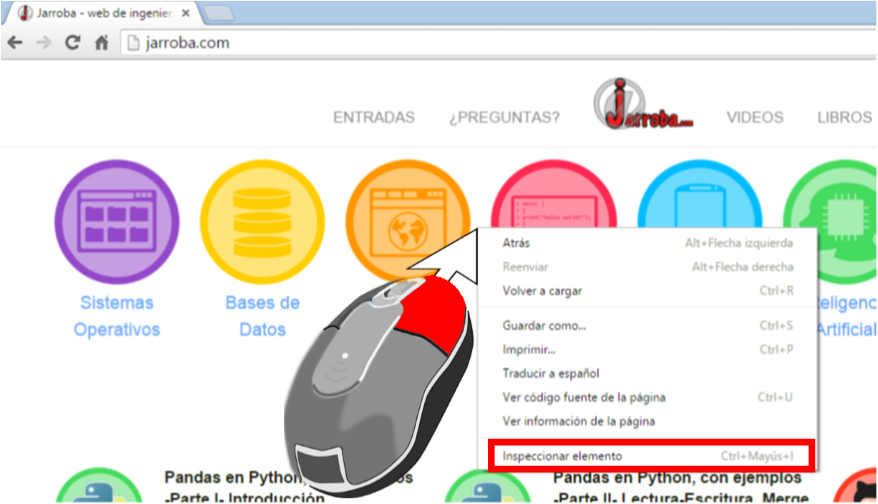
It will open a panel with a ton of information about the page (which, if we’re not developers, we don’t care about for now, and we’ll learn about it in other articles) called the “developer console” (or you may also see it called “Developer Tools”). In this article we’re not going to develop anything; we’re just going to snoop around a bit to see how this information comes in.
To see this data we’ll go to the tab called “Network”, which will initially be empty (because we’ve just opened the “developer console”, and it only captures data while it’s open), so we refresh the browser by pressing the “reload” button or just the “F5” key on our keyboard.
Among all the data that loads, in the panel on the left called “name” we look for the file that matches the URL we entered in the browser (it’s usually the first or one of the first), select it, and on the right the “Headers” information will load. For the “www.jarroba.com” example we’ll see that the browser indeed sent the Server the “Request URI”, the “Request Method” (since it’s GET, the “Request Payload Body” isn’t sent) and the “Request Headers”
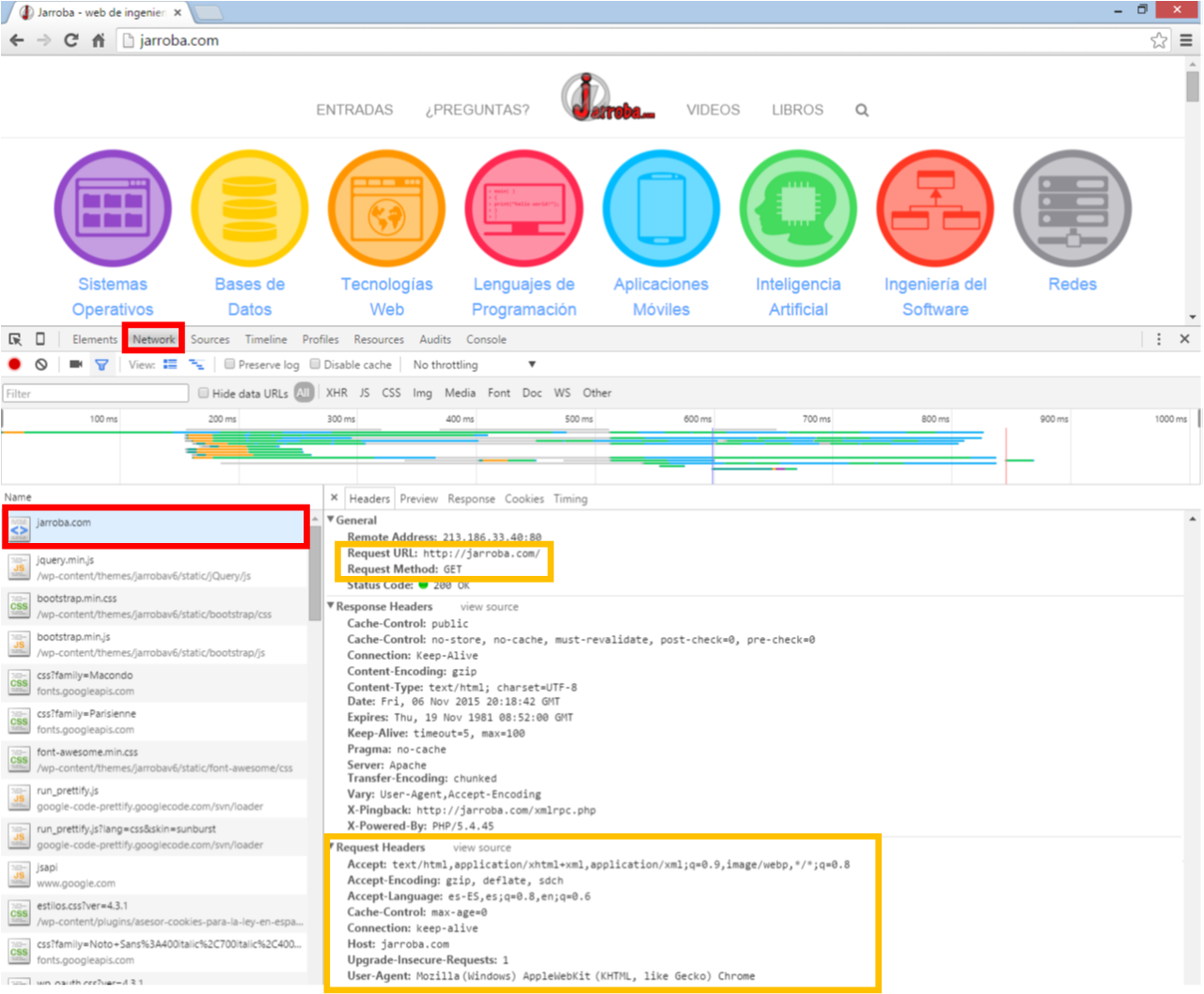
Although there’s a lot of other information, all the rest is information the Server sent us after the request. The “developer console” gives us the information mixed together: the Browser’s Request with the Server’s Response. At this point in the article I’m still telling you how to make requests to the Server from the Browser; we’ll get to the rest of the things that appear later.
You can close the “developer console” by clicking the “X” at the top right of the console itself.
That’s the Client’s request. Now let’s see how the data leaves our computer and travels to a different one across the Internet.
Attributions
- Unmodified image of URI = URL + URN by David Torres, obtained from: https://commons.wikimedia.org/wiki/File:URI_Euler_Diagram_no_lone_URIs.svg
References
- Years of personal experience
- Cliente (informática) (Wikipedia)
- Cliente-servidor (Wikipedia)
- POST (HTTP) (Wikipedia)
- Base64 (Wikipedia)
- HTTP cookie (Wikipedia)
- Port (computer networking) (Wikipedia)
- List of TCP and UDP port numbers (Wikipedia)
- Protocolo de transferencia de hipertexto (Wikipedia)
- URIs, URLs, and URNs: Clarifications and Recommendations 1.0 (W3C)
- Uniform Resource Identifier (Wikipedia)
- Uniform Resource Locator (Wikipedia)
- Uniform Resource Name (Wikipedia)
- tools.ietf.org/html/rfc3986
“Client-Server: The Client Request” by Ramón Invarato at jarroba.com, licensed under Creative Commons Attribution-NonCommercial-ShareAlike 3.0. Registered at Safe Creative.

You may also like
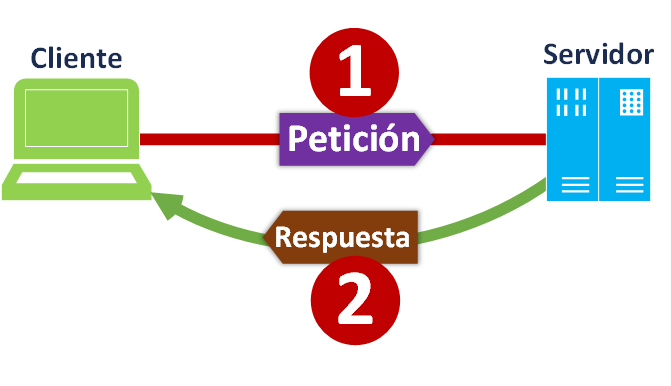
Client vs Server
Client and Server is an architecture for communicating and splitting up tasks. The Client asks for something and the Provider (Server) offers what was asked.
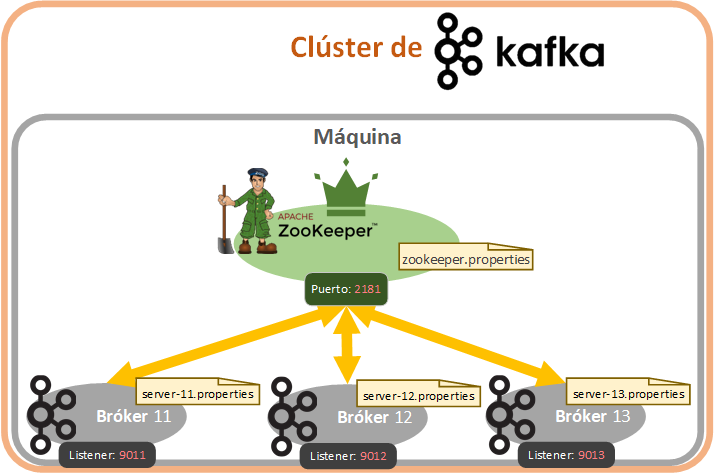

Fault-Tolerant, Highly Available Apache Kafka Cluster
Learn how to set up a Kafka cluster with multiple brokers, distributed across several real cloud servers, step by step.
Leave a comment