
Debug Mode in Eclipse for Java (Video)
Learn how to use debug mode in Eclipse to debug a Java program: breakpoints, step-by-step execution with F5-F8, and a video tutorial.
Debug mode lets you run programs and watch how the instructions in your program’s source code are executed. It also lets you see the values of variables and attributes, and you can change those values to force possible errors or exceptions in your program.
In this post we are going to show how to "debug" a program written in Java with the Eclipse IDE. To do that, we will need to use what are known as "BreakPoints", which are stop points that we put in our code so we can navigate through it while it runs.

To move through the code step by step we will use the F5, F6, F7 and F8 keys, which correspond to the following buttons in the IDE:
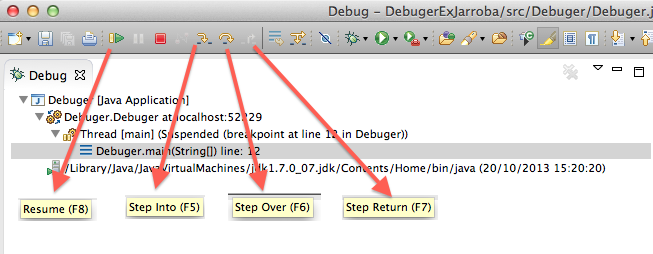
Below you have the video tutorial so you can see how debug mode works in Java:
We copy the program code below (we are not sharing the project, since it is a simple example program with no functionality at all):
public class Debuger {

	public static void main (String args[]){

		String primerString = " ";
		int contador = 10;
		boolean flag = true;

		for (int i=1; i<contador; i++){
 			primerString = "Numero "+i;
 			System.out.println(primerString);
 		}

 		while (flag){
			primerString = "Numero "+contador;
 			System.out.println(primerString);
 			contador++;
		if(contador>20)
			flag = false;
		}
	}
}
“Debug Mode in Eclipse for Java (Video)” by Ricardo Moya at jarroba.com, licensed under Creative Commons Attribution-NonCommercial-ShareAlike 3.0. Registered at Safe Creative.

You may also like


How to Set Up Eclipse for PHP Programming (VIDEO)
Learn how to set up the Eclipse IDE for PHP development with a local XAMPP server. Follow our video tutorial and try the example PHP code step by step.
How to Install Eclipse the Right Way (One IDE Among Many)
Learn how to download and install Eclipse step by step: pick the right version, set up your workspace, install Java and the JDK, and fix common startup errors.

Python Course – Part I – (Video) “Setting Up Eclipse”
Learn how to set up Eclipse to program in Python with PyDev. Watch the video tutorial and try a simple script to check that everything works.

A Lot of Java in One Simple Tutorial (for Dummies)
Learn Java basics by building a car engine in Eclipse: variables, methods, constructors, objects, visibility and if-else, explained step by step.
Leave a comment