
Maven
Complete Maven tutorial. Learn everything you need to know to master Maven: install it, create projects, lifecycles, plugin goals and the pom.xml file.
Maven manages and builds Java projects (paraphrasing Wikipedia, where you have the whole history and extended information in Spanish at Maven (Wikipedia)). I’m not going to tell you about it in encyclopedia format here (that’s what the Wikipedia article I just mentioned is for). Instead, I’ll give you a complete crash course on Maven with usage examples, so you don’t have to take my word for anything and can try it yourself in the time it takes you to read just this article (don’t look at the tiny scroll bar, most of it is images, and once you understand it you’ll do all this in five minutes 😉 ).
Some people call Maven a “dependency manager” (that is, it manages libraries). That’s not entirely right, since that’s just one of its tools (it’s like saying Eclipse is “a text editor”; it is, but it also compiles, runs, has lots of buttons that do things, etc). Maven does much more than just act as a “dependency manager”. Some of the things it does:
- Builds our project code (build)
- Runs the tests (testing)
- Works as a dependency manager: it automatically imports libraries from a remote repository. No more importing them by hand! It also stores (caches) those libraries in a local repository to speed up later imports of libraries it already has
- Uploads our own artifact (project) so others can download it: it doesn’t have to be to a public site. If you work at a company, imagine the possibilities of having a repository with all the libraries or projects we’ve created for the whole company. Or, to work with friends, so they can download the library we created and use it.
- Deploys the artifact (project) to a server.
- Downloads archetypes (artifacts/projects that are templates): it downloads projects that are templates, like the structure of a website for Java EE, so you already have the folder structure created, the most commonly used classes already written and the libraries you always need already imported; taking away the tedious task of creating the same thing over and over ourselves when someone has already done it before
- Creates and deploys a website with the documentation of the artifact (project).
- Integrates perfectly with JIRA, SVN, Git
To show you the full power of Maven, here’s a quick example of what it does: we want to build a website with Java EE. First we would develop the website locally. And we would create some tests to check our code. We’re working locally; we know that when we upload the project to the real server, things don’t always work as well. To upload the project to the real production server (the one customers or users will see) we have to follow these steps:
- First we would validate and compile the project (otherwise it has to be fixed in development)
- Then we would run the tests until they all pass (if any test fails, back to development)
- We would package the project into a WAR file (WAR is like JAR, used to distribute a web application, normally in Java)
- Next we would upload the WAR file to the real test/development server
- We would deploy the WAR file
- We would run the integration tests again on the server (if it fails, you know, back to development)
- Then we have to upload the WAR file to the production server (or pre-production, depending on the architecture you follow)
- Finally, deploy the project, which is in the WAR file, to the production server (or pre-production, depending on the architecture you follow)
- Once the new version of the project is finished, we’ll also want to create the documentation page.

That’s a lot of steps to do by hand one by one. Thank you, Maven, for doing all these steps automatically for us! 🙂 Except for the development code and the tests, of course. Maven can’t read minds yet, maybe in the next version…!
And all this by typing a couple of words on the command line (and if you use Eclipse, by clicking a button 😀 We’ll explain that too)
The following image shows the typical structure of a Maven artifact. If you’ve worked with Java you’ll see it doesn’t differ much from a classic Java project (you can tell the screenshot is from an Eclipse project):
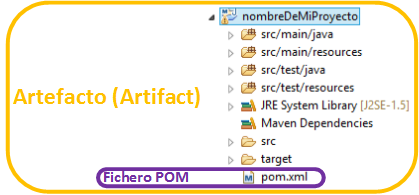
Since I’ve introduced the term Artifact: it’s simply a project (an Eclipse project, for example) managed by Maven; Maven just calls a project an “artifact”. Another difference from a simple Java project is that with Maven it will have a file called “pom.xml”.
The POM file (it stands for “Project Object Model”) or “pom.xml“: it’s a fundamental XML file in Maven that contains information about the project and its configuration (if you’re an advanced developer, it may help to know it’s like a Manifest, AndroidManifest.xml, etc). We’ll describe it in depth a bit later.
Let’s not get ahead of ourselves with theory without being able to try things out, and let’s start with the essentials: let’s install Maven.
Note for those who don’t use Windows: although here I show a working example of how to work with Maven on Windows, Maven commands work the same on all operating systems. Another option is to skip the command line and install an IDE like Eclipse directly, which I cover in this other article. Either way, read the theory and ignore the Windows screenshots if you work on any other operating system (except for the Maven command examples, which are the same for all operating systems). This article is just a sample of how to work with Maven, and the theory is the same whether you work on Windows or not 😉
Installing Maven
Let’s install Maven. First of all, you need to have the Java JDK installed. If you don’t have it installed, you can see how to install it in other tutorials on this site, such as this one about Eclipse.
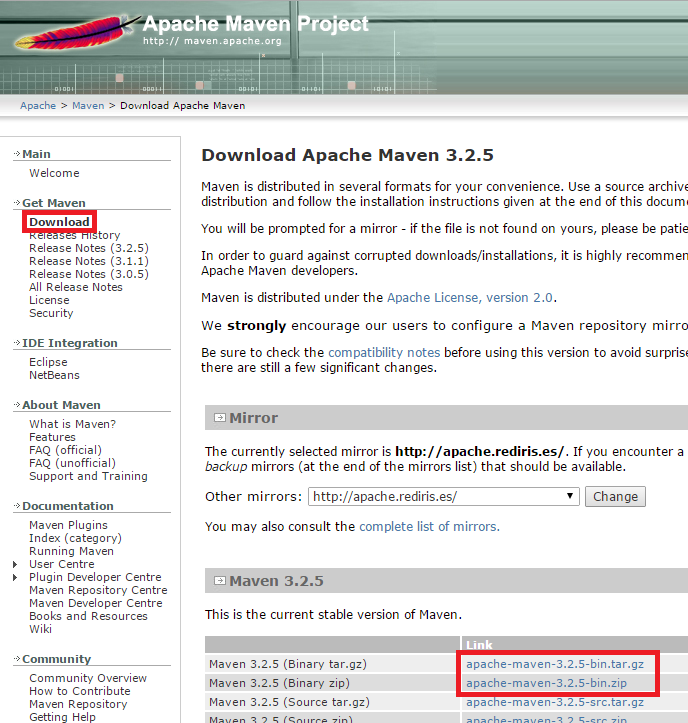
We have to download Maven from the official site Welcome to Apache Maven (Maven) and go to the “Download” section (or go straight to the downloads page at Download Apache Maven (Maven)). There we download a binary archive (it doesn’t matter which one. For example, if you have Windows, the one ending in “zip”, so you don’t have to install anything to unzip it):
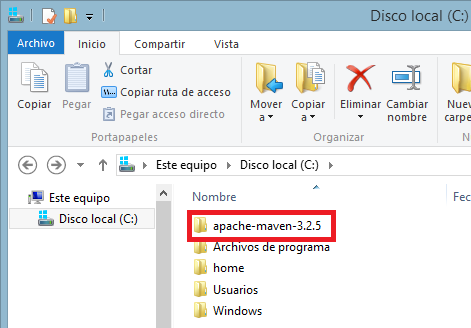
Once the file is downloaded, we unzip it. It’s recommended to unzip it directly onto the operating system drive (for example, drive C).
Now all that’s left is making the Windows terminal recognize the Maven commands. It’s as easy as going to the “system environment variables” (you can find this with the Windows search).
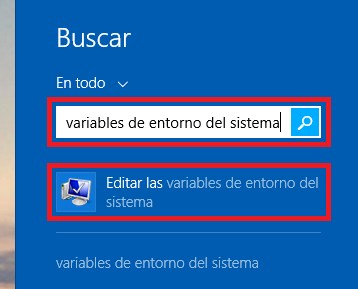
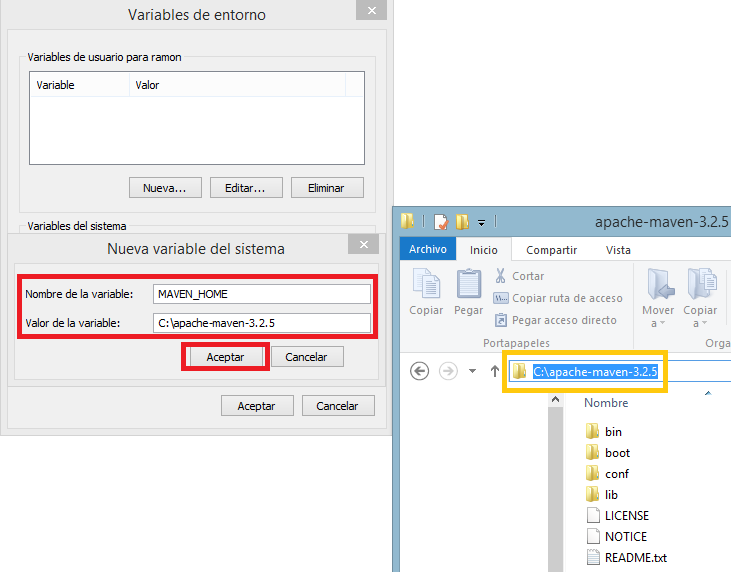
In the window that opens, go to the “Advanced” tab and choose “Environment Variables…”. We’ll start by creating a new environment variable by clicking “New…”.

In “Variable name” we’ll call it MAVEN_HOME, for example. And for “Variable value” we’ll enter the exact path to where the unzipped Maven files are (you can go into the unzipped Maven folder, copy the path and paste it into this field). We finish by clicking “OK”.
Now we select the system variable called “Path” and click the “Edit…” button. The window to edit it will open. In the “Variable value” field, at the very end, we’ll add (important note: the paths in this field have to be separated by a semicolon “;”):
;%MAVEN_HOME%/bin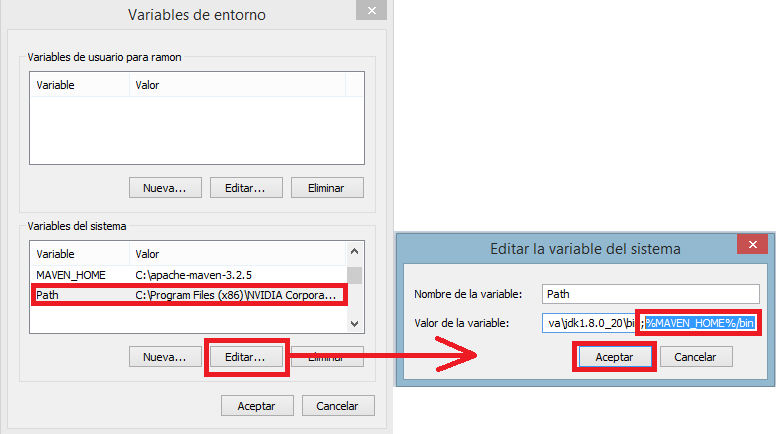
Maven should work now. Let’s test it with a very simple check: we’ll see which version of Maven we’ve installed. This will also serve us to try out the rest of the commands.
To do that, we open the command terminal. On Windows you can find it by searching for “cmd” and opening the “Command Prompt”.

In the terminal we’ll try the command:
mvn --version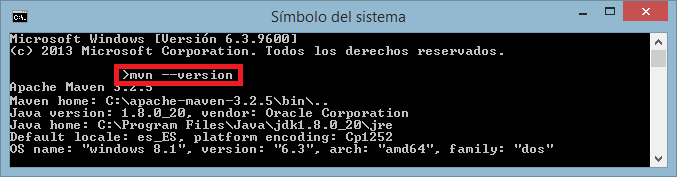
This command mainly consists of two parts:
- mvn: we tell the operating system that we want to use Maven, so it looks for it in the environment variable we set earlier. We’ll use this first word of the command whenever we want to do something with Maven.
- –version: it’s simply a call to a function named “–version” so it shows us the Maven version and assorted information gathered by Maven
If it shows the information: congratulations! You now have Maven configured. Now we’ll create our first project.
Creating a project with Maven from the terminal
Let’s create a workspace somewhere. For example, I’m going to create a folder on the Desktop called “proyectosMaven”, where I’ll keep all my Maven projects (create it wherever you like; I’m putting it on the Desktop for the example).
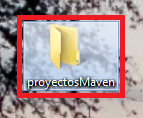
Now let’s go to this workspace in the terminal. For that we use the “cd” command. In my case, it’s enough to enter the following path (you’ll have to enter the path to your own workspace):
cd C:\Users\<mi usuario de Windows>\Desktop\proyectosMaven
To generate a simple Maven project we just have to enter the following command:
mvn archetype:generate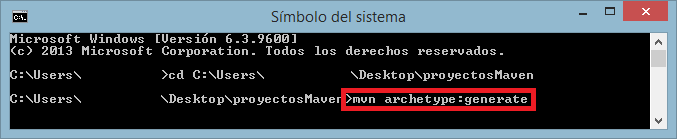
And it will download the simple Maven project. Halfway through, it will ask us a series of questions.
1. The first question asks whether we want to filter by one type of archetype or another. The default is 510 (whatever comes after the colon means default). We like the default, so we enter nothing and press “Enter”.

2. It will ask us for the version we want. The latest one, 6, is already selected by default. So we just press “Enter”.

3. It will ask for the “groupId”, which is just a unique identifier for creating our artifact (project). It’s usually the same as what we’d use for a Java package. In this example I’m going to type: com.jarroba.ejemplo

4. We enter the project name when it asks for the “artifactId”. For this example, I’ll type this as the project name: nombreDeMiProyecto

5. For the “version” we don’t type anything for now. We just press “Enter”

6. And for “package” it will suggest by default the same one we entered in “groupId”. As we said, this is the Java package name. We just press “Enter”.

7. Finally, it will ask us to confirm the data. We press “Enter” if we’re happy with the data we entered.
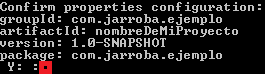
After that, the project will be generated. It’s important that it shows the words “BUILD SUCCESS” in big letters, which means the Maven project was created correctly.
Here’s the full screenshot of all the questions and the answers I gave, and the successful creation of my Maven project.

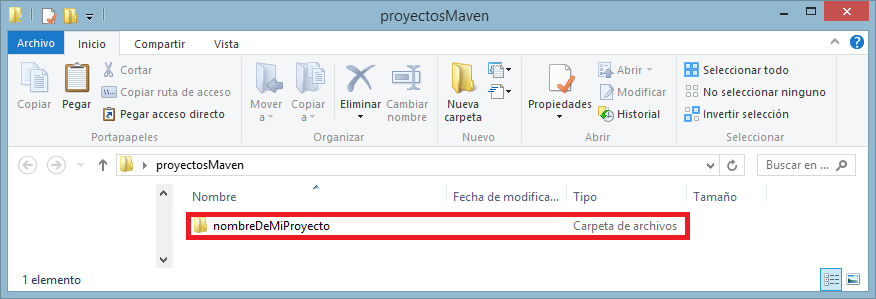
If we look in our workspace, we’ll see that our Maven project has indeed been created.
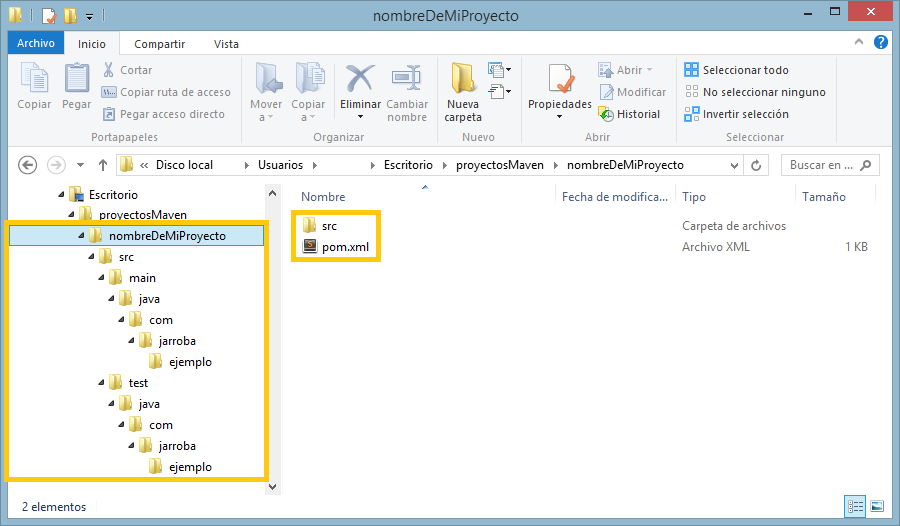
If we go inside, we’ll see the clear Maven structure (and Java, because it’s Java, of course):
- Code files in the “src” folder with the package structure we defined earlier. There we have two folders: “main” for Java and “test” for tests; each one with a “Hello World!” as a gift.
- The “pom.xml” file
We can now start working with our project. Now all we need is to learn how Maven works, its deepest secrets.
Build phases:
A phase is a step in the lifecycle of a Maven project.
Below are the tables with all the phases and a description of each. I’m whimsical enough to recommend you skip them and go straight to the next section, “Build lifecycle”. Then, if you want, come back to these tables; it will be much more revealing, and you’ll see how it’s so easy it’s annoying, ok?
Default Lifecycle phases
| validate | Validates that the project is correct and that all the necessary information is available |
| initialize | Initializes the build state. For example, sets properties or creates directories |
| generate-sources | Generates any source code to be included in the compilation |
| process-sources | Processes the source code. For example, to filter any values |
| generate-resources | Generates the resources to be included in the package |
| process-resources | Copies and processes the resources into the destination directory (the files in the “src” folder), preparing them for packaging |
| compile | Compiles the project source code |
| process-classes | Post-processes the files generated by compilation. For example: bytecode enhancement of Java classes |
| generate-test-sources | Generates any test source code to be included in the compilation |
| process-test-sources | Processes the test source code. For example: filtering any values |
| generate-test-resources | Creates resources for testing |
| process-test-resources | Copies and processes the resources into the test destination directory (the files in the “test” folder) |
| test-compile | Compiles the test source code from the test directory (“test” folder) |
| process-test-classes | Post-processes the files generated by compilation. For example: bytecode enhancement of Java classes |
| test | Runs the tests using a suitable unit testing framework (for example “JUnit”). These tests should not require the code to be packaged or deployed |
| prepare-package | Performs any operations necessary to prepare a package before the actual packaging. This often results in an unpacked, processed version of the package |
| package | Packages the compiled code into a distributable format, such as JAR, WAR, EAR, EJB, POM, MAVEN-PLUGIN |
| pre-integration-test | Performs actions required before integration tests are run. This may involve things like setting up the required environment |
| integration-test | Processes and deploys the package if necessary into an environment where integration tests can be run |
| post-integration-test | Performs actions required after integration tests have been run. This may include cleaning up the environment. |
| verify | Runs any checks to verify that the package is valid and meets quality criteria |
| install | Installs the package into the local repository, so it can be used as a dependency in other local projects |
| deploy | Done in an integration or release environment, copies the final project to the remote repository to share it with other developers and projects |
Clean Lifecycle phases
| pre-clean | Executes the processes needed prior to the actual project cleaning |
| clean | Removes all files generated by previous builds |
| post-clean | Executes the processes needed to finalize the project cleaning |
Site Lifecycle phases
| pre-site | Executes the processes needed prior to generating the documentation website (or site) |
| site | Generates the project’s documentation website |
| post-site | Executes the processes needed to finalize the generation of the documentation website, and prepares it for deployment |
| site-deploy | Deploys the generated documentation website to the specified web server |
Translation of the tables from Introduction to the Build Lifecycle (Maven), courtesy of Jarroba
Build lifecycle
A lifecycle is a sequence of phases that Maven will run in order. It’s called a “build” lifecycle because it takes care of building our project.
There are three lifecycles:
- Default: Controls the deployment of the project
- Clean: Controls the cleaning of the project
- Site: Controls the creation of the project’s documentation site
The complete Default Lifecycle of the project is (you don’t have to know them all, the ones highlighted in blue are the most useful. In fact, you don’t have to know any of them, that’s what this site is for, to remind you whenever you need them, explained in the tables above :D. I do recommend that you understand them and at least take a quick look at the lifecycle):
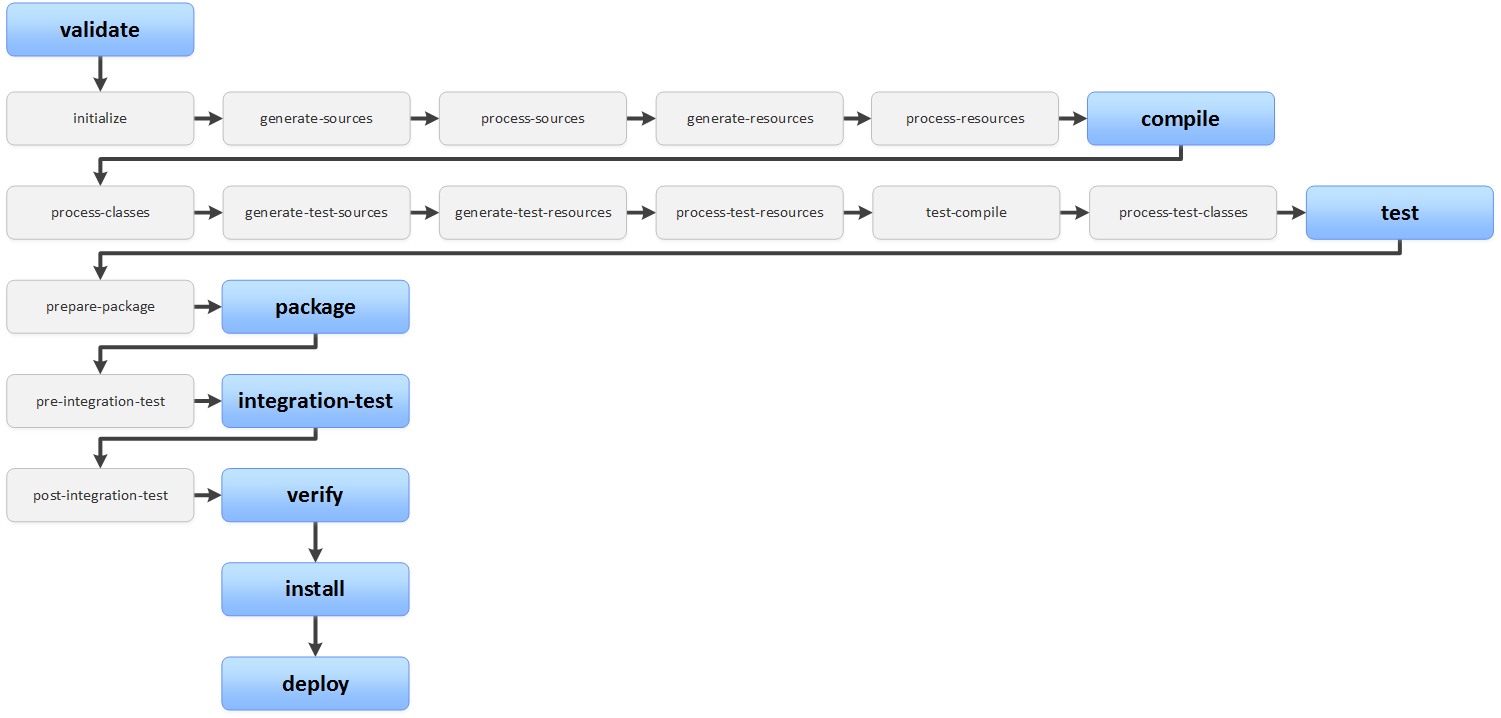
When we work with a Maven project, we don’t have to keep calling every phase of a lifecycle.
Let’s imagine for a moment that we’ve developed a Java project with tests. We want to run the tests. It’s enough to call:
mvn testIt will run everything up to the indicated phase, including that phase:

So every time you call a phase, remember that the previous ones in its lifecycle will always be run.
You probably already know what to do to call all the phases, and with that the whole lifecycle. We would have to run:
mvn deployWith that understood, here is the Clean Lifecycle:
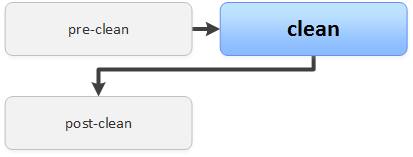
And the Site Lifecycle:
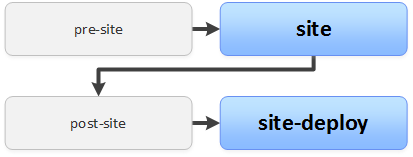
Much shorter and simpler than the first lifecycle.
And a gift: all the Maven lifecycles in a PDF: Click here to download the PDF of the Maven lifecycles
The ones used most during development are the default lifecycle and the clean lifecycle (the site lifecycle is usually used when the project is finished). Both can be combined like this:
mvn clean testIt works from left to right, running the first lifecycle (clean) first and then the second (default).
To save work, to clean and do something else at the same time, this combination is used a lot:
mvn clean [fase del ciclo de vida por defecto]Working example:
Give it a try. In the terminal, go to the project folder (the project inside the workspace we created earlier). Try the lifecycle with any phase, nothing bad will happen, we’re just experimenting. The simplest phase is validate (as we saw, I say it’s the simplest because no other phases run after it, since it’s the first one), as in the following example, which will validate the project:
mvn validate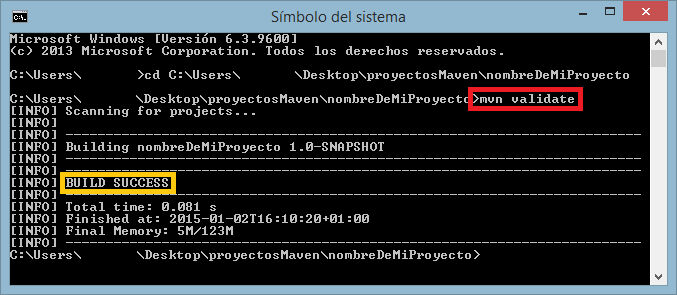
Plugin Goals
A goal is a specific task (smaller than a build phase) that contributes to building and managing the project. A goal can be bound to one of the phases. Comparing it to traditional programming, we could say that a phase is an empty function that needs to be filled with some code, and that code is the goals. And these goals come in plugins.
It could happen that a goal isn’t bound to any phase and is run outside the lifecycle; for example, through a direct call.
We’ll find a goal defined as:
[nombre del plugin]:[función del plugin a ejecutar]An example of calling a goal directly after cleaning (and its clean lifecycle) and before packaging (and its default lifecycle):
mvn clean dependency:copy-dependencies packageDon’t worry, at first I don’t think you’ll use them directly. But you will use them indirectly.
Let’s imagine now that we have a project for which we want to create a “jar” library (or a project to deploy as a “war”; in this case the example works just as well, except that where the image says “jar:jar” you’d replace it with the “war:war” goal). Now we want to deploy the project, so we would run:
mvn deployAnd it would run the following lifecycle, where some phases have goals bound to them (highlighted in orange):

Goals are the content of the phases. Empty phases don’t actually run anything, since they have nothing to run. So what would really run is the following:
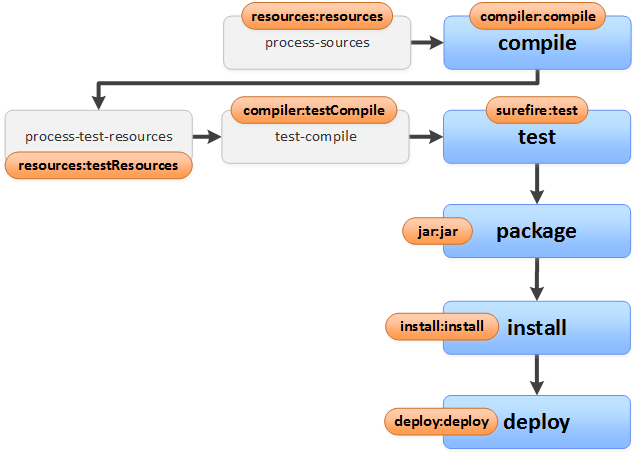
Maven does this on its own, so we don’t have to worry about it; still, it doesn’t hurt to understand it in case one day we need to add a new goal. If you’re curious about which goals are bound, I invite you to visit Introduction to the Build Lifecycle (Maven)
The POM file (pom.xml)
“POM” stands for “Project Object Model”.
As the Maven documentation describes, which I’m translating freely:
The “pom.xml” file is the core of a project’s configuration in Maven. It’s simply a configuration file that contains most of the information needed to build a project the way you want. The POM is huge and its complexity can be intimidating, but it’s not necessary to understand all its ins and outs to use it effectively.
Put in plain terms: Maven will do whatever you write in the “pom.xml”. And the “huge” part is true, but there’s a “but”: we’re going to work with a very small fraction of it, so small that I want you to open the “pom.xml” of the archetype we downloaded earlier.
<project xmlns="http://maven.apache.org/POM/4.0.0" xmlns:xsi="http://www.w3.org/2001/XMLSchema-instance"
xsi:schemaLocation="http://maven.apache.org/POM/4.0.0 http://maven.apache.org/xsd/maven-4.0.0.xsd">
	<modelVersion>4.0.0</modelVersion>

	<groupId>com.jarroba.ejemplo</groupId>
	<artifactId>nombreDeMiProyecto</artifactId>
	<version>0.0.1-SNAPSHOT</version>
	<packaging>jar</packaging>

	<name>nombreDeMiProyecto</name>
	<url>https://jarroba.com/</url>

	<properties>
	<project.build.sourceEncoding>UTF-8</project.build.sourceEncoding>
	</properties>

	<dependencies>
		<dependency>
			<groupId>junit</groupId>
			<artifactId>junit</artifactId>
			<version>3.8.1</version>
			<scope>test</scope>
		</dependency>
	</dependencies>

</project>
Not that big, is it? You may not understand what each line does yet, but it’s only 25 measly lines of XML (what the official documentation calls big is actually the “effective POM”, though we don’t need that to work for now).
Let’s break down each part.
First we have the <project> tag that wraps the whole POM (it’s the one that starts and ends the file). Here, as in any XML, we simply have the namespaces reserved for the XML file. This tag has no further mystery.
<project xmlns="http://maven.apache.org/POM/4.0.0" xmlns:xsi="http://www.w3.org/2001/XMLSchema-instance"
xsi:schemaLocation="http://maven.apache.org/POM/4.0.0 http://maven.apache.org/xsd/maven-4.0.0.xsd">

	</!-- Contenido del proyecto del POM -->

</project>
Then we have a series of data that define the artifact.
The first tag is <modelVersion>. It’s the POM version; to work in Maven 2 and 3 it has to be version “4.0.0”, no more, no less; so it’s best not to change it and forget about this tag, since it’s mandatory.
<modelVersion>4.0.0</modelVersion>The tags that probably already sound familiar (we entered them ourselves when creating the project) are the so-called basics that a Maven project requires. These are:
- <groupId>: as we already entered, it’s a unique name that is usually the name or website of the organization. Although it doesn’t need dots as separators in Maven, it’s recommended so it acts like a Java package.
- <artifactId>: The name of the project
- <version>: The version of our project, to tell versions apart in the repository. By default “0.0.1-SNAPSHOT” is usually used, though it doesn’t matter if we use “1.0” or “3.0.1” as the version, however we want to set up our versioning system.
- <packaging>: how we want our project to be packaged when Maven builds it. If, for example, we use “jar” (which is Maven’s default), a typical Java library will be created. Another example would be “war”, which would be a web package to deploy on a server. Or we can also package the project as “pom”, which indicates it’s a Maven module for multi-module projects (we’ll see that in another tutorial). Whatever we need.
<groupId>com.jarroba.ejemplo</groupId>
<artifactId>nombreDeMiProyecto</artifactId>
<version>0.0.1-SNAPSHOT</version>
<packaging>jar</packaging>
Then we have project information tags like <name> and <url>. They’re all optional, so if you don’t want to add any, don’t; although I know you’ll want to, they’re very useful for describing our project. Some of these tags are:
- <name>: the project name. It can contain spaces, it’s just informational
- <url>: a link to your website, for example.
- <description>: a description of the project, or whatever we want.
- <organization>: the name of the company.
- <developers>: the developers involved.
- <contributors>: the contributors who helped us.
- <inceptionYear>: the year we started the project.
- <licenses>: the licenses.
<name>nombreDeMiProyecto</name>
<url>https://jarroba.com/</url>
Then we have a <properties> tag that wraps a set of tags (in this case <project.build.sourceEncoding>UTF-8</project.build.sourceEncoding>). What’s inside the <properties> tag can be thought of as global variables that can be used in other parts of the POM file (of the form <my.variable.name>variable value</my.variable.name>). The archetype we downloaded gives us a global variable called “project.build.sourceEncoding” with the value “UTF-8”. Why do they give us a variable that isn’t used? Because they’re nice, and because some plugins use it to know which text format the file has to be encoded in (in this case “UTF-8”), so I recommend keeping it so all the files in our project have this character encoding (besides, this variable prevents each platform from using whatever encoding it feels like by forcing it to always be “UTF-8”; for example, if we work with the Eclipse IDE on Windows, by default it saves with the “Cp1252” character encoding, which would wreck our accents and “Ñ” with strange symbols appearing if the file was previously created with another encoding such as “UTF-8” itself). What are they usually used for? Just like global variables, to put a value in several places at once without having to hunt down each one of those places; in short, to optimize and not forget.
<properties>
	<project.build.sourceEncoding>UTF-8</project.build.sourceEncoding>
</properties>
If I wanted to use the previous value, it’s as simple as using the syntax: ${my.variable.name}. An example would be:
<un_tag>${project.build.sourceEncoding}</un_tag>
We’re left with the best tag in Maven, where Maven has all its power: relationships.
Relationships can be of several types: by dependencies, by inheritance, or by module aggregation (multi-module Maven projects). In this tutorial we’ll look at the dependency relationship; we’ll cover the other relationships in later articles.
Dependency relationship <dependencies>: It’s the one we have in the example. It wraps all the dependencies, so each dependency is separated by <dependency> (note that it’s singular). A dependency is a Java library. This is where we save ourselves from searching Google for a library, downloading it, importing it, etc. Maven makes it easy for us, so let’s do a quick example. Let’s download the “JUnit” library to run tests with Java (I know it’s already there, the dependency that comes as a gift; but so you can see where things come from).
<dependencies>
	<dependency>
		<groupId>junit</groupId>
		<artifactId>junit</artifactId>
		<version>3.8.1</version>
		<scope>test</scope>
	</dependency>
</dependencies>
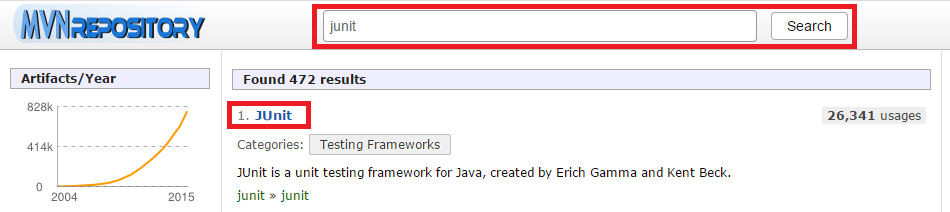
We go to the official Maven repository website at Maven Repository: Search/Browse/Explore. We search for the library we want to import, which is “JUnit”.
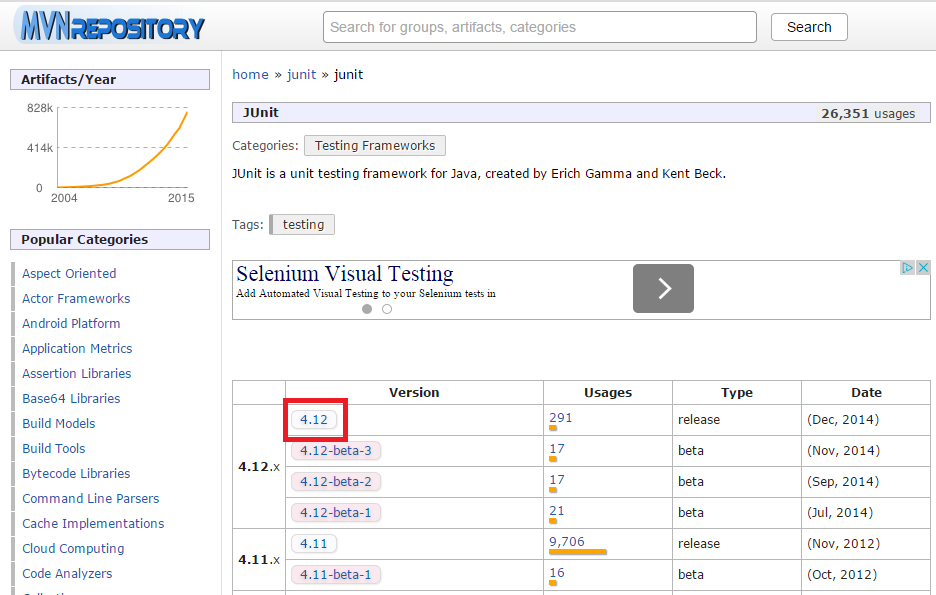
We choose the “JUnit” version we want, preferably one that isn’t “beta” (look how cool, we have a newer version than the one the archetype gave us, which for me was “3.8.1”, and now I’m going to have “4.12”! 😀 )
All that’s left is to go to the “Maven” tab and copy the code, which the site kindly provides already formatted the way Maven likes it in the POM.
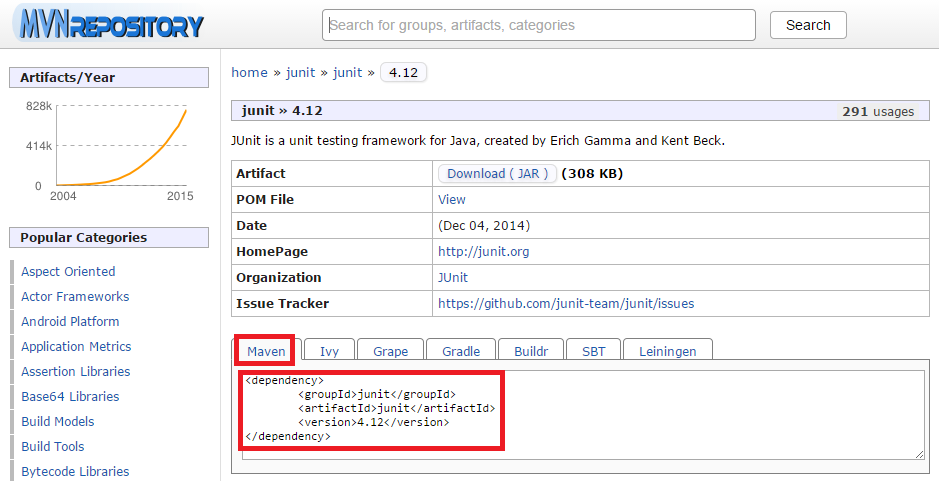
And paste it into the POM, inside the <dependencies> tag. So my POM looks like this:
<project xmlns="http://maven.apache.org/POM/4.0.0" xmlns:xsi="http://www.w3.org/2001/XMLSchema-instance"
xsi:schemaLocation="http://maven.apache.org/POM/4.0.0 http://maven.apache.org/xsd/maven-4.0.0.xsd">

	<modelVersion>4.0.0</modelVersion>

	<groupId>com.jarroba.ejemplo</groupId>
	<artifactId>nombreDeMiProyecto</artifactId>
	<version>0.0.1-SNAPSHOT</version>
	<packaging>jar</packaging>

	<name>nombreDeMiProyecto</name>
	<url>https://jarroba.com/</url>

	<properties>
		<project.build.sourceEncoding>UTF-8</project.build.sourceEncoding>
	</properties>

	<dependencies>
		<dependency>
			<groupId>junit</groupId>
			<artifactId>junit</artifactId>
			<version>4.12</version>
			<scope>test</scope>
		</dependency>
	</dependencies>
</project>
If you look closely, inside the dependency, besides the <gropuId>, <artifactId> and <version> tags needed to identify the library and its version, I’ve added one more tag called <scope>. It tells Maven when we want it to use a library. For example, if I set “test”, we tell Maven that this library is only for when tests are run; that is, in development. In production we don’t want this library taking up space, so Maven won’t include it there (another great thing about Maven). Obviously, we do want libraries to be in production too if they’re needed (otherwise the program will throw an error when it runs, because of missing libraries); since JUnit is only useful for running tests in development, we don’t need it in production.
The possible values of <scope> are (don’t spend too long reading them, you’ll use them as you need them, I’m listing them here for convenience):
- compile: this is the default if we don’t set the <scope> tag. Dependencies are available on all classpaths. Moreover, those dependencies are propagated to dependent projects.
- provided: similar to “compile”, except that it expects the JDK or a container to provide the runtime. Only available on the compilation and test classpaths, and not transitive.
- runtime: indicates that the dependency is not required for compilation, but is needed at runtime. It will be on the runtime and test classpaths, but not on the compilation classpath.
- test: indicates that the dependency is not required for normal use of the application, and will only be available for the test compilation and execution phases.
- system: similar to “provided”, except that you have to import the JAR manually. The artifact will always be available and won’t be looked up in the repository
All that’s left is to run the part of the default lifecycle we need. For example, we can run “install”, so that besides compiling, testing, etc., it also downloads the library for us.
mvn installIf you want to know more about the POM, you can look at POM Reference (Maven)
You’ve learned a lot about Maven. It’s highly recommended that you use an IDE that helps you develop with Maven. It saves a lot of work. For example Eclipse, which you can read about in this article dedicated to Maven in Eclipse.
Bibliography
“Maven” by Ramón Invarato at jarroba.com, licensed under Creative Commons Attribution-NonCommercial-ShareAlike 3.0. Registered at Safe Creative.

You may also like

Maven in Eclipse
Learn how to get started with Maven in Eclipse and use it. Step-by-step installation and usage. Everything you need to know about Maven.
LAMP Step by Step on Your Own Server
Learn step by step how to build a dynamic website with the full LAMP architecture: Linux, Apache, MySQL or MariaDB, and PHP, Perl or Python.
Leave a comment