
How to Install TensorFlow with GPU on Windows
Want to install TensorFlow with GPU support on Windows without losing your mind? In this tutorial we show you how to install it step by step.
In the article “What do we need to know to correctly install TensorFlow with GPU?” we explained which components (and versions) you need to install so that TensorFlow can use the GPU: NVidia drivers, CUDA, cuDNN, Python and TensorFlow.
In this article we are going to explain how to install all of these components by following these steps (for a “GeForce RTX 2060” GPU on Windows 10):
- Installing the NVidia drivers for Windows
- Installing CUDA Toolkit 11.2
- Installing cuDNN 8.1
- Installing TensorFlow 2.6.0 on Python 3.7 (Virtual environment with Anaconda)
As a final step:
- We will test that TensorFlow works correctly using both the GPU and the CPU, and we will see the differences in training times; with the library ai-benchmark
Prerequisites:
To follow the steps in this tutorial you must already have the following installed:
- Microsoft Visual C++ compiler: CUDA Toolkit uses the C++ compiler. The easiest way to install it is through Microsoft Visual Studio.
- Anaconda: Needed to create a virtual environment with Python 3.7 and TensorFlow-gpu 2.6.0. We will use it in this tutorial to test that the GPU works correctly with TensorFlow. At the following link from the course “Python desde cero, con ejemplos” you can see the steps to install Anaconda: https://jarroba.com/curso-de-python-0-entorno-de-desarrollo-para-python/
Installing the drivers:
Once we know which GPU we have and which operating system we want to work on, we go to the NVidia website, to the drivers download section (Descarga los últimos controladores oficiales de NVIDIA (NVIDIA)), and fill in the form:
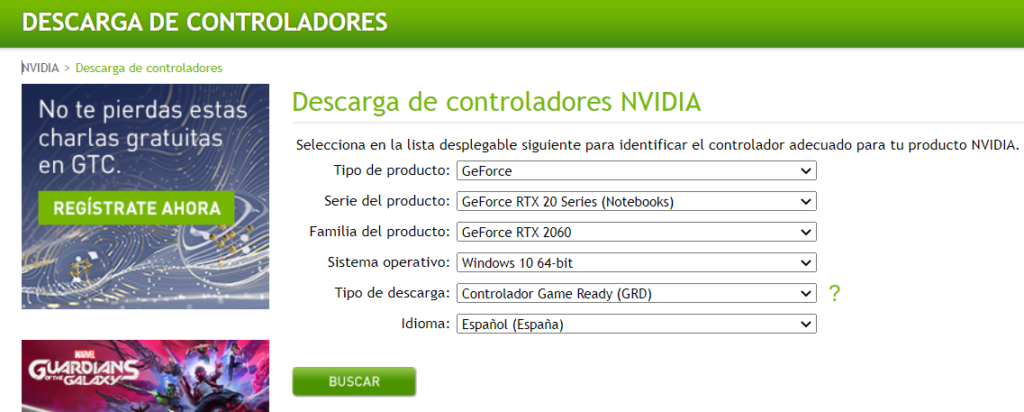
Once it’s filled in, we click search and it takes us to a page with information about the driver version to download, and we download it:
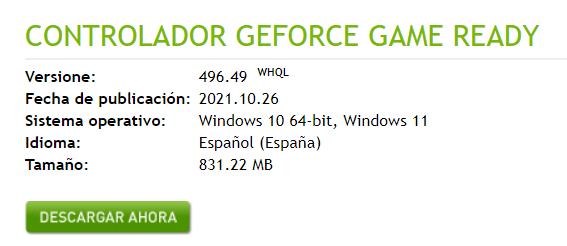
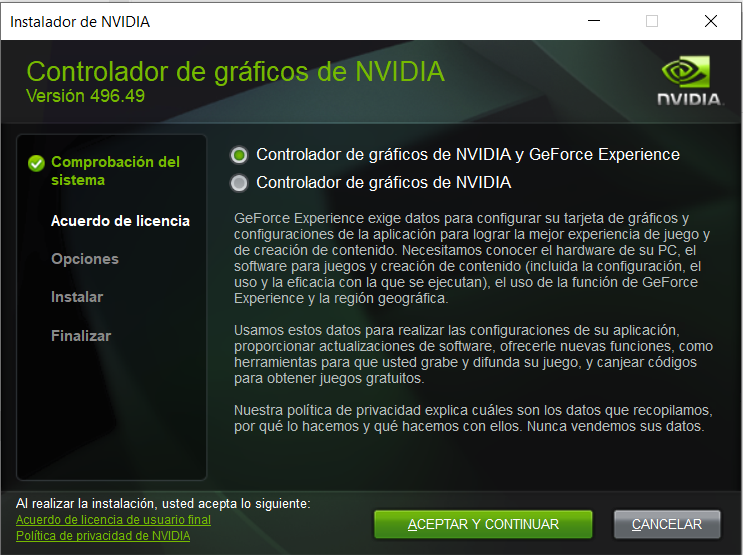
With the drivers downloaded (in an .exe file), we proceed to install them in “Windows-style nonsense mode: yes to everything (Quequé)“:
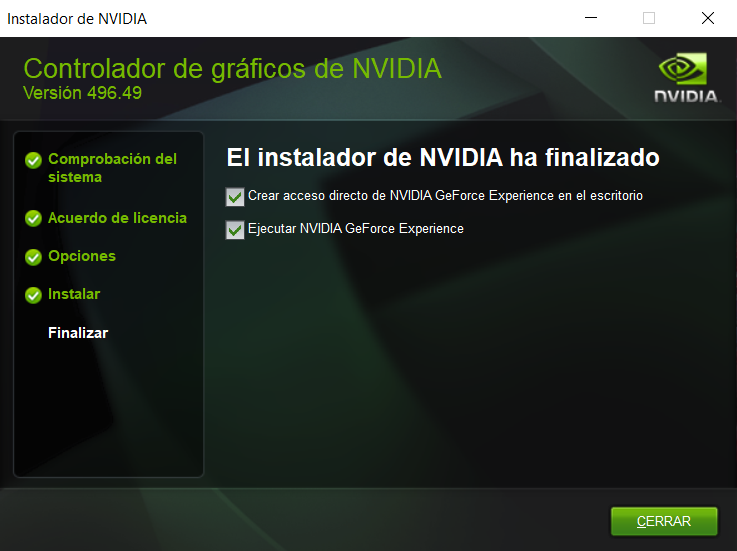
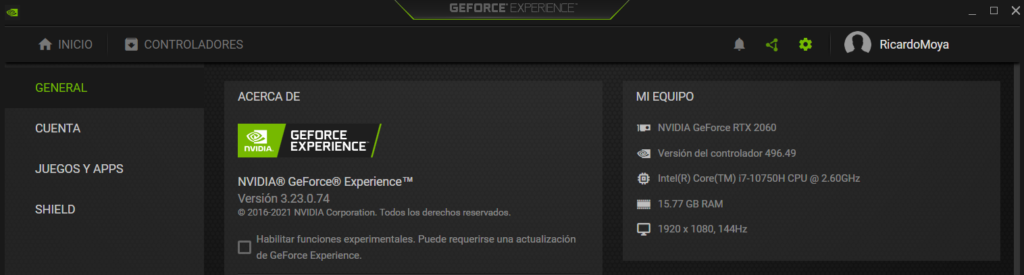
Once installed, we can open NVidia’s “GeForce Experience” application and see the specs of our PC (drivers and GPU, among other things):
Installing CUDA Toolkit 11.2:
Note
CUDA is the “generic” set of libraries dedicated to performing computations on the GPU.Warning
NOTE: Remember that CUDA Toolkit needs the Microsoft Visual C++ compiler, so you must have Visual Studio installed.Before installing CUDA, we need to know which CUDA versions are compatible with the installed driver version. To do that, go to the following link (CUDA Compatibility (NVIDIA Docs)) to check the compatibilities.
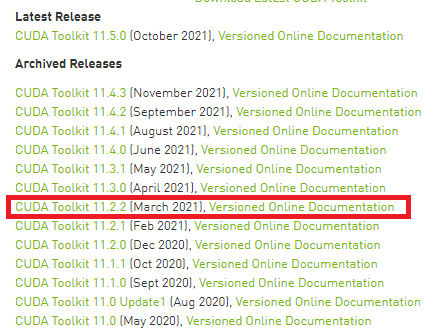
In our case (and as we already explained in the article “What do we need to know to correctly install TensorFlow with GPU?“) we are going to download CUDA version 11.2. To do so, we go to the download page (CUDA Toolkit Archive (NVIDIA Developer)) and select the 11.2 version we want to download:
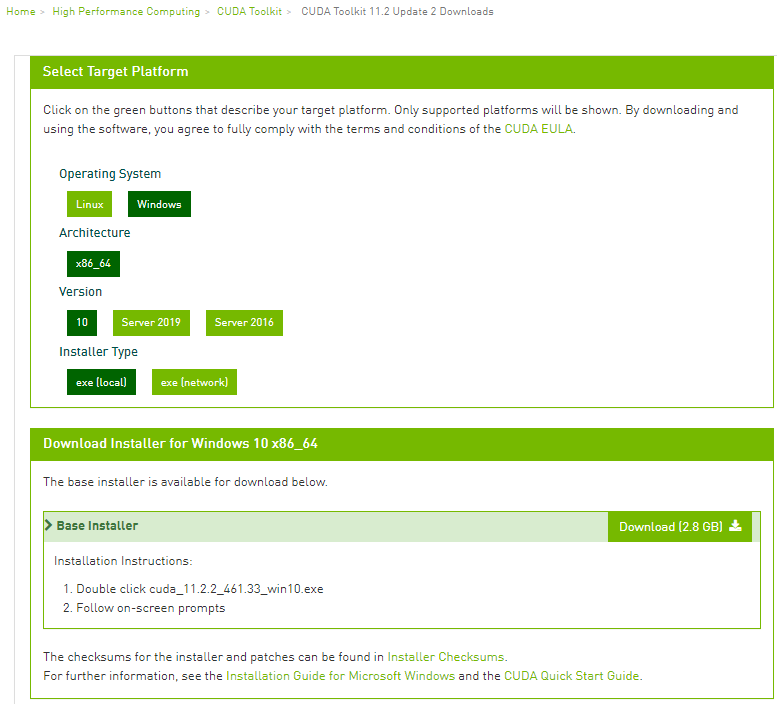
Next we select the operating system (Windows) and the installer type (.exe), and they give us the download link:
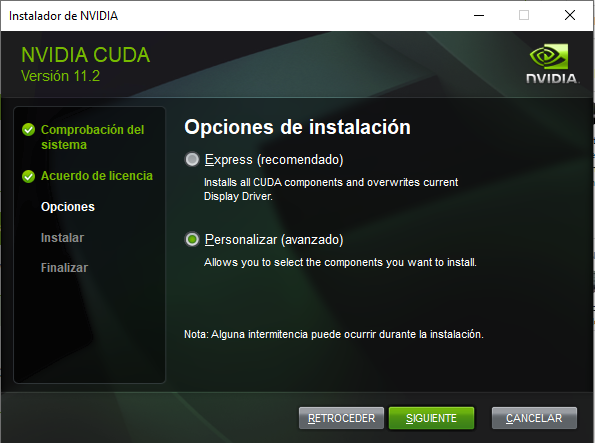
We proceed with the “custom” installation, clicking “yes” and “next” on everything:
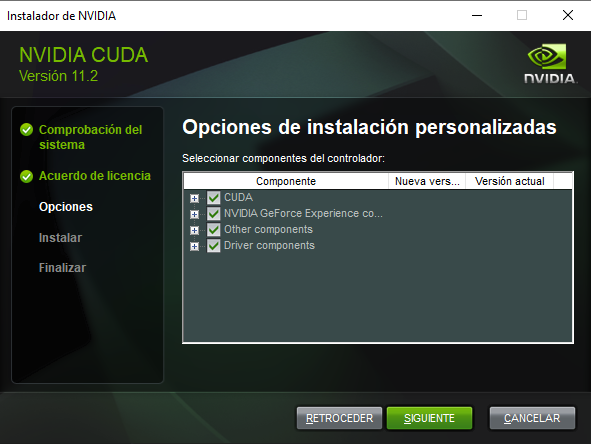
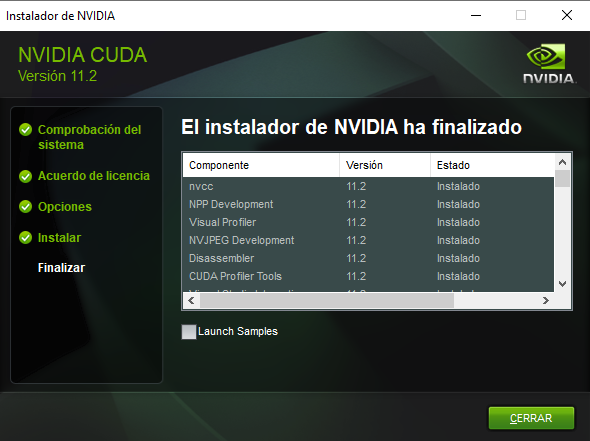
Warning
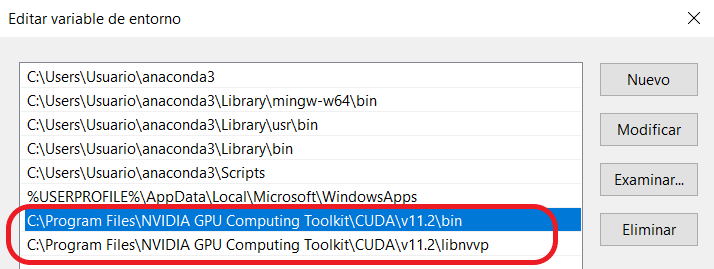
IMPORTANT: Once CUDA is installed, you must add it to the environment variables. CUDA has to be in the folder “Program Files -> NVIDIA GPU Computing Toolkit -> CUDA -> “version” (v11.2) -> bin”. You must also add the “libnvvp” folder:
Installing cuDNN 8.1:
Note
cuDNN is the “specific” set of libraries dedicated to performing the computations for DNNs (Deep Neural Networks).The first step is downloading cuDNN. To download it you need to sign up on the NVidia website: https://developer.nvidia.com/cudnn-download-survey.

Once signed up, we download the cuDNN version we want; in our case, version 8.1. At the following link you can find the different cuDNN versions: cuDNN Archive (NVIDIA Developer).
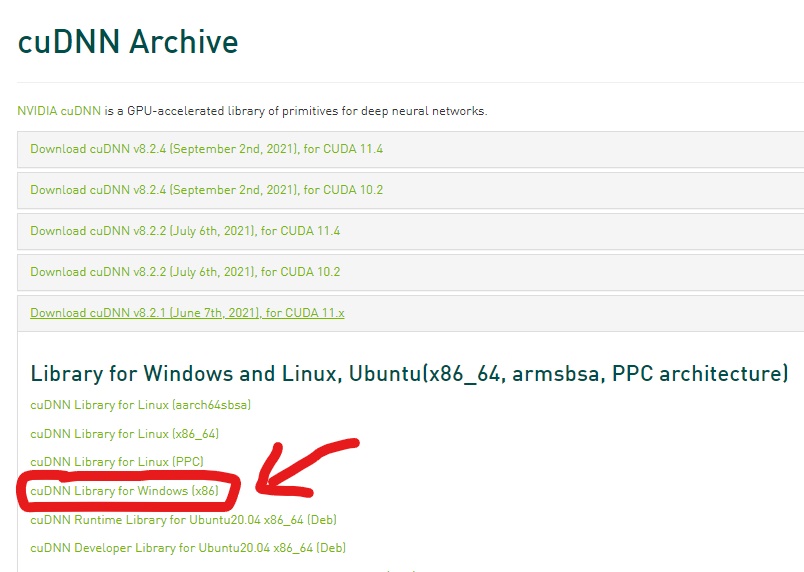
cuDNN is not an installer. If we open the compressed file we downloaded, we’ll see that the downloaded folder is called “cuda” and contains a few folders (bin, include and lib) with some files:
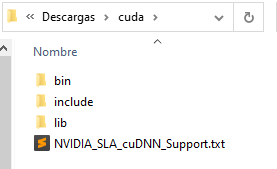
We have to copy these files into the corresponding folders (bin, include and lib) of the CUDA 11.2 installation, which are located (if you did the standard installation) at “C:\Program Files\NVIDIA GPU Computing Toolkit\CUDA\v11.2”:
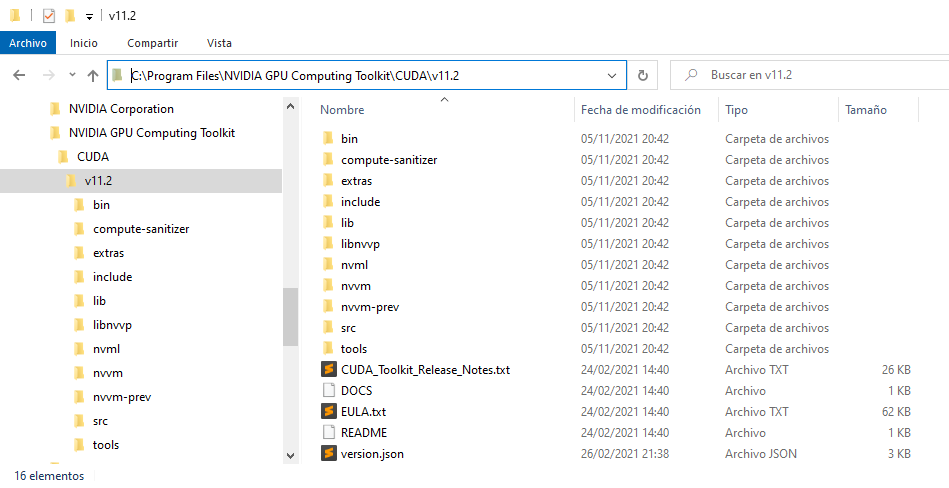
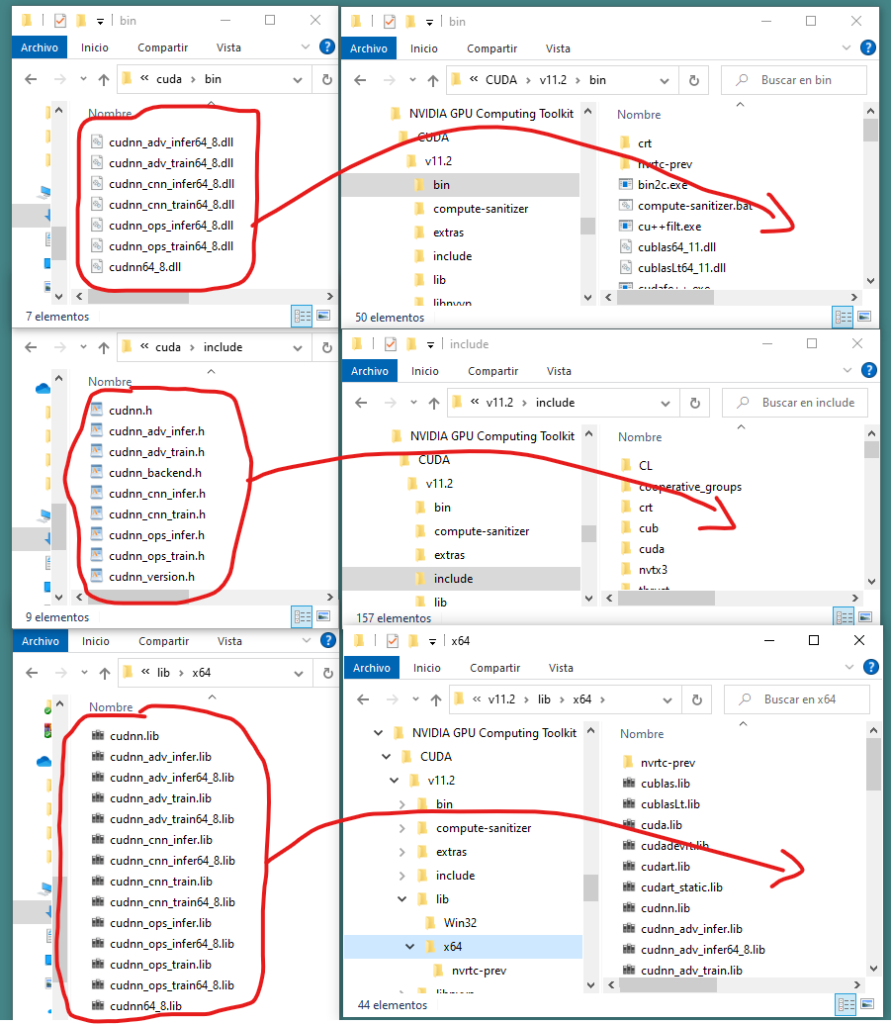
So you need to copy all the cuDNN files from the bin, include and lib folders into the same folders in CUDA:
Installing TensorFlow 2.6.0 on Python 3.7:
Note
At the following link (Build from source on Windows (TensorFlow)) you can see the compatibilities between the versions of TensorFlow, Python, CUDA and cuDNN.We are going to create a new virtual environment with Anaconda with Python 3.7, in which we will install version 2.6.0 of tensorflow-gpu. To create a new environment (which we’ll call “test_tensorflow_gpu”) we open an Anaconda terminal and type:
>> conda create -n test_tensorflow_gpu python=3.7
Once it’s installed, we activate the environment like this:
>> conda activate test_tensorflow_gpu
And we install version 2.6.0 of tensorflow with pip:
>> pip install tensorflow-gpu==2.6.0
To check that we have installed tensorflow-gpu correctly and that it works, we open a Python terminal and enter the following (Watch out for the indentation):
>>> import tensorflow
>>> from tensorflow.python.client import device_lib
>>> def print_info():
...     print('  Versión de TensorFlow: {}'.format(tensorflow.__version__))
...     print('  GPU: {}'.format([x.physical_device_desc for x in device_lib.list_local_devices() if x.device_type == 'GPU']))
...     print('  Versión Cuda  -> {}'.format(tensorflow.sysconfig.get_build_info()['cuda_version']))
...     print('  Versión Cudnn -> {}\n'.format(tensorflow.sysconfig.get_build_info()['cudnn_version']))
...
>>> print_info()
As a result of this code, we get the TensorFlow, CUDA and cuDNN versions, as well as information about the GPU:
  Versión de TensorFlow: 2.6.0
  GPU: ['device: 0, name: NVIDIA GeForce RTX 2060, pci bus id: 0000:01:00.0, compute capability: 7.5']
  Versión Cuda  -> 64_112
  Versión Cudnn -> 64_8
Testing TensorFlow GPU (with ai-benchmark):
ai-benchmark is a library for evaluating hardware performance (GPU, TPU and CPU) with TensorFlow; it measures the training and inference times of the most popular pre-trained models such as MobileNet, Inception, ResNet, VGG, etc.
We will install this library with pip (with the virtual environment we created earlier activated) like this:
>> pip install ai-benchmark
Next we will open a Python terminal and evaluate the training times of these models (both with GPU and with CPU) like this (BE PATIENT: it takes quite a while to run):
For GPU
>>> from ai_benchmark import AIBenchmark
>>> benchmark_gpu = AIBenchmark(use_CPU=False)
>>> benchmark_gpu.run_training()
We get the following training time results:
*  TF Version: 2.6.0
*  Platform: Windows-10-10.0.19041-SP0
*  CPU: N/A
*  CPU RAM: 16 GB
*  GPU/0: NVIDIA GeForce RTX 2060
*  GPU RAM: 3.9 GB
*  CUDA Version: 11.2
*  CUDA Build: V11.2.152

The benchmark is running...
The tests might take up to 20 minutes
Please don't interrupt the script

1/19. MobileNet-V2
1.1 - training  | batch=50, size=224x224: 325 ± 5 ms

2/19. Inception-V3
2.1 - training  | batch=20, size=346x346: 385 ± 2 ms

3/19. Inception-V4
3.1 - training  | batch=10, size=346x346: 407 ± 5 ms

4/19. Inception-ResNet-V2
4.1 - training  | batch=8, size=346x346: 451 ± 4 ms

5/19. ResNet-V2-50
5.1 - training  | batch=10, size=346x346: 236 ± 2 ms

6/19. ResNet-V2-152
6.1 - training  | batch=10, size=256x256: 357 ± 7 ms

7/19. VGG-16
7.1 - training  | batch=2, size=224x224: 293 ± 3 ms

8/19. SRCNN 9-5-5
8.1 - training  | batch=10, size=512x512: 387 ± 2 ms

9/19. VGG-19 Super-Res
9.1 - training  | batch=10, size=224x224: 465 ± 8 ms

10/19. ResNet-SRGAN
10.1 - training  | batch=5, size=512x512: 308 ± 6 ms

11/19. ResNet-DPED
11.1 - training  | batch=15, size=128x128: 349 ± 4 ms

12/19. U-Net
12.1 - training  | batch=4, size=256x256: 429 ± 8 ms

13/19. Nvidia-SPADE
13.1 - training  | batch=1, size=128x128: 344 ± 3 ms

14/19. ICNet
14.1 - training  | batch=10, size=1024x1536: 475 ± 18 ms

15/19. PSPNet
15.1 - training  | batch=1, size=512x512: 317 ± 4 ms

16/19. DeepLab
16.1 - training  | batch=1, size=384x384: 263 ± 2 ms

17/19. Pixel-RNN
17.1 - training  | batch=10, size=64x64: 8149 ± 760 ms

18/19. LSTM-Sentiment
18.1 - training  | batch=10, size=1024x300: 3692 ± 220 ms

19/19. GNMT-Translation

Device Training Score: 6172
For CPU
>>> benchmark_cpu = AIBenchmark(use_CPU=True)
>>> benchmark_cpu.run_training()
We get the following training time results:
*  TF Version: 2.6.0
*  Platform: Windows-10-10.0.19041-SP0
*  CPU: N/A
*  CPU RAM: 16 GB

The benchmark is running...
The tests might take up to 20 minutes
Please don't interrupt the script

1/19. MobileNet-V2
1.1 - training  | batch=50, size=224x224: 3148 ± 83 ms

2/19. Inception-V3
2.1 - training  | batch=20, size=346x346: 6586 ± 239 ms

3/19. Inception-V4
3.1 - training  | batch=10, size=346x346: 7742 ± 106 ms

4/19. Inception-ResNet-V2
4.1 - training  | batch=8, size=346x346: 10347 ± 47 ms

5/19. ResNet-V2-50
5.1 - training  | batch=10, size=346x346: 4618 ± 13 ms

6/19. ResNet-V2-152
6.1 - training  | batch=10, size=256x256: 6686 ± 66 ms

7/19. VGG-16
7.1 - training  | batch=2, size=224x224: 2069 ± 70 ms

8/19. SRCNN 9-5-5
8.1 - training  | batch=10, size=512x512: 18523 ± 415 ms

9/19. VGG-19 Super-Res
9.1 - training  | batch=10, size=224x224: 23369 ± 95 ms

10/19. ResNet-SRGAN
10.1 - training  | batch=5, size=512x512: 11348 ± 132 ms

11/19. ResNet-DPED
11.1 - training  | batch=15, size=128x128: 13336 ± 1105 ms

12/19. U-Net
12.1 - training  | batch=4, size=256x256: 8660 ± 74 ms

13/19. Nvidia-SPADE
13.1 - training  | batch=1, size=128x128: 3285 ± 88 ms

14/19. ICNet
14.1 - training  | batch=10, size=1024x1536: 5136 ± 16 ms

15/19. PSPNet
15.1 - training  | batch=1, size=512x512: 5876 ± 104 ms

16/19. DeepLab
16.1 - training  | batch=1, size=384x384: 4025 ± 21 ms

17/19. Pixel-RNN
17.1 - training  | batch=10, size=64x64: 10582 ± 201 ms

18/19. LSTM-Sentiment
18.1 - training  | batch=10, size=1024x300: 25986 ± 19 ms

19/19. GNMT-Translation

Device Training Score: 392
Conclusion: GPU vs CPU
After running these tests on the GPU and the CPU, we can see that training models on a GPU is about 8 to 10 times faster than on a CPU. In particular, the training time of “MobileNet-V2” for a batch of 50 is 325 ms on the GPU versus 3148 ms on a CPU; that is, almost 10 times faster on a GPU than on a CPU.
“How to Install TensorFlow with GPU on Windows” by Ricardo Moya at jarroba.com, licensed under Creative Commons Attribution-NonCommercial-ShareAlike 3.0. Registered at Safe Creative.

You may also like


What Do We Need to Know to Install TensorFlow with GPU Correctly?
Installing TensorFlow and getting it to work with your GPU is easy: you just need to know what to install and which versions are compatible with each other.

“If It Works, Don’t Touch It” and Other Excuses That No Longer Hold
Four corporate excuse-phrases, why the calculus has changed with AI, and what to do if you're stuck in an inertia-bound organization.
Leave a comment