
Python Course – 0. Development Environment for Python
Set up your computer to run your first Python program: install Anaconda with the Spyder IDE or PyCharm, and practice with simple exercises.
We will install everything we need on our computer so that our first program works, and from there on, we can program whatever we want.
Theory
Skip to PDF contentInstalling and Using Anaconda and the Spyder IDE
We will install Python and an IDE that comes included in Anaconda, from: Download Anaconda Distribution (Anaconda)
Installing and Using the PyCharm IDE
For a professional environment that offers many more features, you can use PyCharm (download it from: PyCharm, el único IDE de Python que necesita (JetBrains)). Note: I only recommend it once you have practiced with Python for a few hours.
Note
To learn more, see the following posts (I recommend reading the next article once you are comfortable with Python):
Exercises
Exercise 1
Go to Welcome to Python.org
Click the remote terminal button (the “>_” icon on a yellow background):
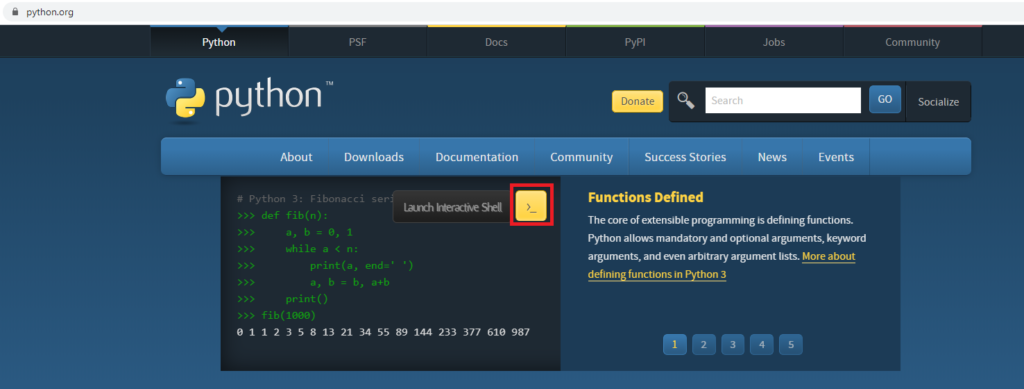
In this terminal:
- Add two numbers.
- For example: 3+7 and press the [Enter] key
- Display some text in the terminal (hint: the “print()” function prints text to the terminal).
- For example: print(“Un texto”) and press the [Enter] key
Exercise 2
Run the following code in an IDE (for example, Spyder):
print(2+5)
print("Texto a imprimir por la consola")“Python Course – 0. Development Environment for Python” by Ramón Invarato at jarroba.com, licensed under Creative Commons Attribution-NonCommercial-ShareAlike 3.0. Registered at Safe Creative.

You may also like
Python Environments: Stock Python and Anaconda (base)
Learn to program in Python using multiple Python environments, from Anaconda (base) to stock Python, plus others such as virtual environments.

Python Course – Part I – (Video) “Setting Up Eclipse”
Learn how to set up Eclipse to program in Python with PyDev. Watch the video tutorial and try a simple script to check that everything works.
Leave a comment