
Python Virtual Environments: Standard Python and Anaconda
Learn how to isolate your Python projects with virtual environments using Virtualenv, with both standard Python and Anaconda.
Python virtual environments give us the following advantages:
- They isolate the execution of your projects (you can run different projects that work with different versions of both Python and a given library/package)
- Use of particular, prepared environments (virtual ones, with certain libraries/packages installed); that is, each project will run in the virtual environment that suits projects of a certain kind (for example, if we create a chemistry project, we will want to run it in an environment that uses libraries/packages for chemical calculations or for connecting to servers that provide chemical information)
- Exclusive use of one environment per project for maximum isolation between projects.
- It prevents errors in the global Python installation (“standard Python” or the “Anaconda base”); above all, it prevents the unwanted overwriting of variables, methods and classes.
- It guarantees the use of the right version of Python and of the libraries/packages for each project.
- For those of us who like to work with the latest technology (version), it makes it easier to use new versions of Python and libraries/packages in new projects (it doesn’t matter if half of the projects are running on an old version on a machine; working with the new version will also work on that same machine and won’t step on anything from the old version).
- It speeds up refactoring old Python code to the new one (maintenance): by decoupling environments, you can run tests separately and make the switch when you are ready. Also, since the global installation isn’t used, you can update each project independently without affecting the rest.
- It lets you create a list of requirements (mainly package dependencies and the Python version) to distribute the project to another machine (move/copy the project to another machine, or hand the project over to someone): just by copying the project with its list of requirements, the dependency manager will take care of preparing everything so it works correctly (this list is used to download the dependencies and whatever else is needed automatically, so we’ll have the project ready to use in no time and with barely any effort).
We will enjoy these advantages after a very short setup that we need to think through carefully before applying it. And for that we must be clear about the differences between Python environments and the business side (that is, the projects it will be applied to and the place, which can be a company or your home, a single computer or a server farm). To understand all of this about Python environments, I recommend first reading the article on Python Environments: Standard and Anaconda (base) which I conceived as a foundation and a first part for this article (although if you already have plenty of experience with Python environments, Anaconda and standard Python from the terminal, as well as PIP, then you can skip it).
Since we’ll see how virtual environments are used with “Anaconda Prompt”, let’s get the most out of it and also learn to manage virtual environments with the “Anaconda Navigator” graphical interface, in the section I’ve created for you at the end of this article.
Note: In this article I’m going into detail to understand both how virtual environments work and how to use them in Python, between “standard Python” and “Python installed with Anaconda”. If you want a more direct and brief explanation of Python virtual environments, we’ve prepared one in the article on venv (virtual environments) in Python.
What is a Python virtual environment?
A Python virtual environment is a copy of a Python environment, made to isolate one Python environment from another.
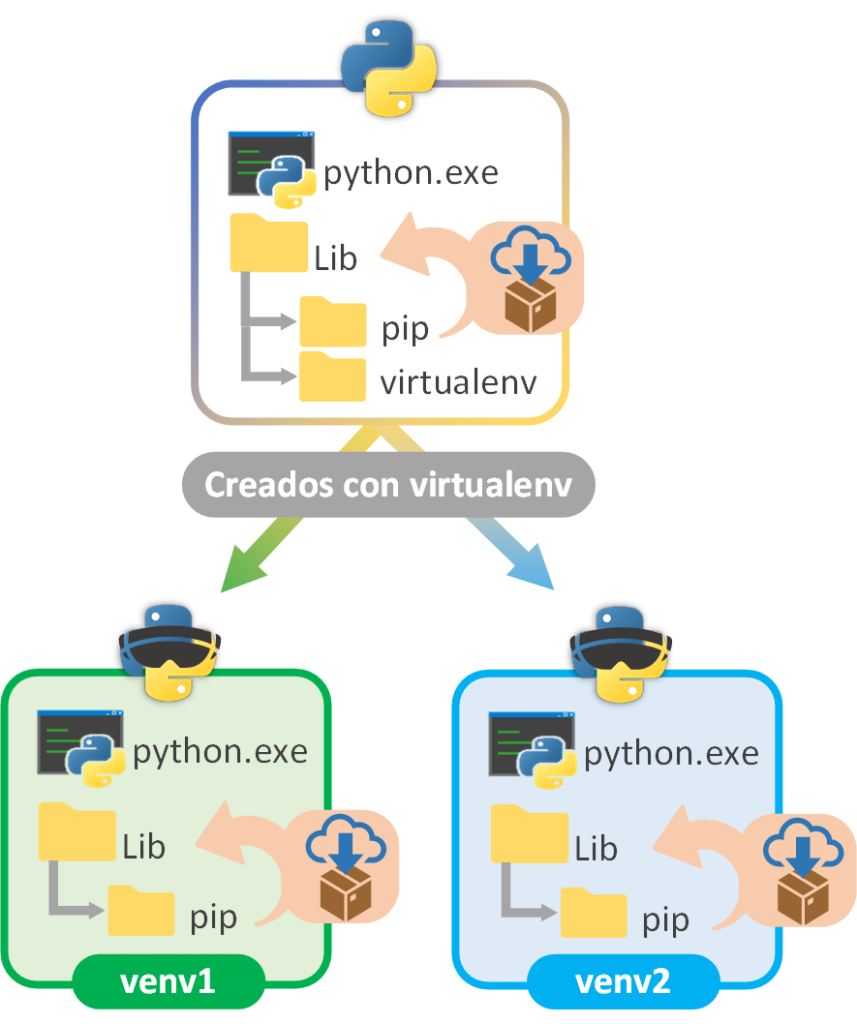
The following image shows how a “standard Python” environment or a base environment of “Python installed with Anaconda” (in the image I write “base” to represent both) would be “copied” (using Python’s “virtualenv” library/package) into separate virtual environments (“venv1”, “venv2”, “venv3”). You can see that both the Python interpreter and the “Lib” folder have been copied to another directory, so if something happens to the files of one virtual environment it won’t affect the rest. So Python scripts won’t run with “base”, but with a virtual environment (either “venv1”, “venv2” or “venv3”).
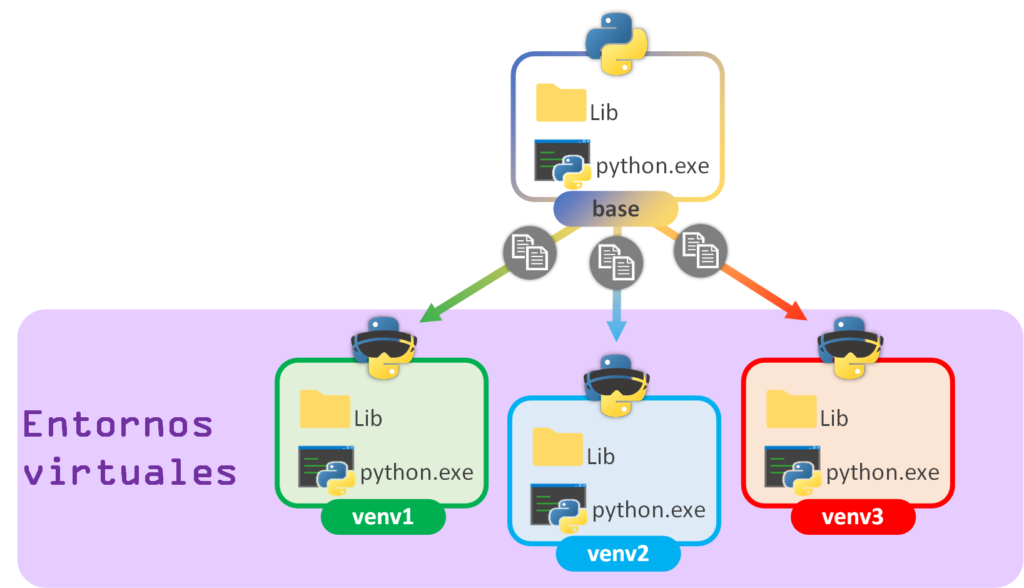
Since each virtual environment works with its own files, several virtual environments can have the same or different versions of Python (but they are separate installations); and, on the other hand, they can have the same or different libraries (in separate folders).
The main virtue of a virtual environment is that our projects always run in an environment prepared exclusively for them, on the same machine where other projects that require a different environment may exist. We will also protect our project from external tampering with the environment and make sure it works correctly.
Note on creating virtual environments as a “copy” of the global one: to make things easier to understand, in the previous image I talk about a “perfect copy” of the global (or base) Python environment into each “Python virtual environment”, and that’s not really the case: not everything is copied. Some things are downloaded directly and others are referenced, to save space and to take less time when creating virtual environments (for example, Python’s built-in packages are not copied, but referenced from the global/base one; so be careful when changing/updating the global/base environment if there are virtual environments that use it).
A realistic example to understand when to use virtual environments
Suppose you work for a company that has thousands of Python scripts on a single machine (probably a server) and all of them run on Python 2, which is installed as the “standard Python”. Now we want to create a script that works with the new Python 3; if we decide to upgrade the machine’s Python, most likely all of the company’s scripts will stop working, so we’ll have to write our Python script in the old version 🙁
To avoid this, virtual environments are commonly used: we can have a virtual environment with Python 2 on which the old scripts will run, and one for Python 3 for the new scripts.
But now we want to install a package (a library) for our project, and it turns out we want to use the new version of a certain library that includes a “NEW method” that works better than the old “OLD method” from the previous version. If we update the library both in the “standard Python” and in a virtual environment shared by several projects that use the library’s old “OLD method”, they will stop working; because the method called “OLD method” will have been removed -since it has been replaced by the one called “NEW method”- so all references to the “OLD method” will fail.
Because of this, in this example you can go one step further, which is to have a dedicated virtual environment for each project, so that all the Python projects are completely independent, with no compatibility problems
Also, this way, by copying the project with its dedicated virtual environment to another computer, we make sure our project will work on any machine (there may be other kinds of problems later, but not environment ones). Although in theory this sounds nice and is one of the advantages, in practice you should NOT copy the virtual environment to another computer; instead we copy its requirements and replicate it (we’ll see this later).
Note on this example: I want to make it clear that this is a completely made-up example (based on personal experience), to understand the “why” of virtual environments and know where to apply them. I don’t need to tell any company how to do its job; each one knows what’s best for itself, or whether it should use one thing or another.
If we create a Python project, we’ll have to choose which Python environment to run our code with (in the example: “base”, “venv1”, “venv2” or “venv3”).
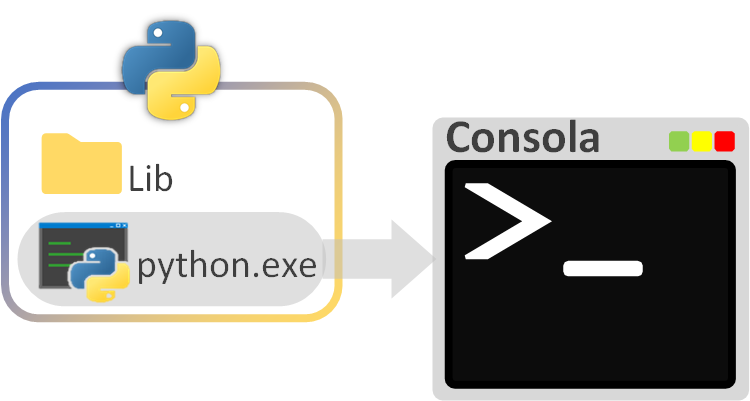
That is, which environment to activate in order to run our Python script the way we normally do from the terminal:
python mi_script.pyTypes of Python virtual environments
We distinguish two types of Python virtual environments depending on what they isolate (where I say “project” it can be anything from a single Python script to a package with several):
- A set of projects: A virtual environment used by several projects at once.
- A single project: A virtual environment exclusive to a single project.
Example of virtual environments isolating one or several projects
Say we have a “Project A” (we’ve created a folder on our computer and written one or more files with Python code) that we want to run with the virtual environment we’ve called “venv1”. We simply activate that virtual environment (or directly run the “python.exe” in the “venv1” folder) and run the main script of this project. On the other hand, we have two projects, “Project B” and “Project C”, that need different libraries (for example, libraries that are in beta and could destabilize “Project A”, which is critical for us), so we create the virtual environment “venv2” to install the libraries we need, and these two projects (“Project B” and “Project C”) are run by the Python in “venv2”. Now that we’re in the habit of creating virtual environments, we decide to create another one, “venv3”, exclusive to a new project, “Project D”, to avoid problems in the future.
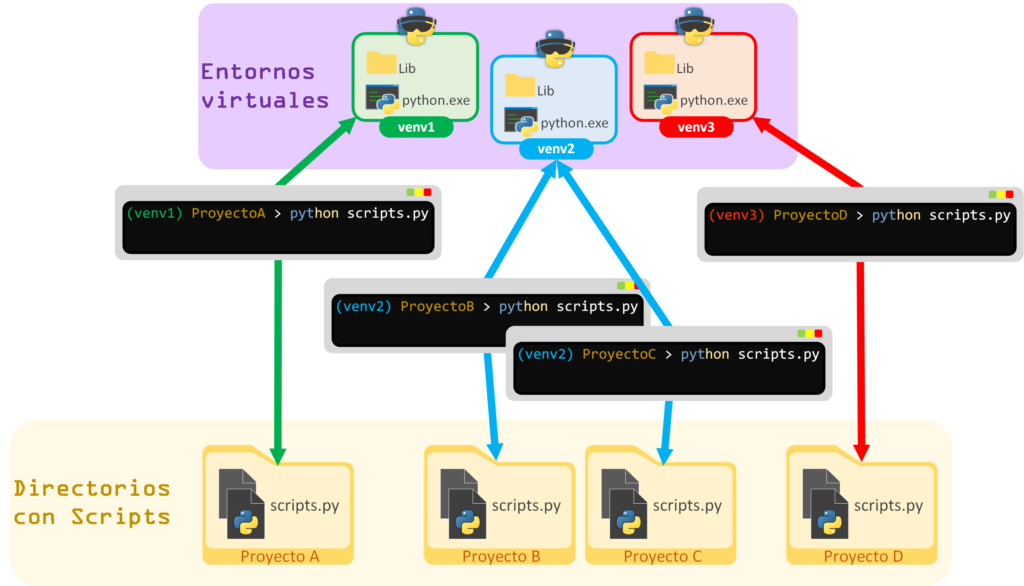
Each virtual environment can serve one or several projects; which one to choose depends on our needs. For example, if we know for certain that a set of projects will need exactly the same group of packages/libraries (for example, packages for working with Big Data), a virtual environment prepared for several projects will be enough and easier to manage (for example, updating a package that all the projects use in one go). However, the ideal is for each virtual environment to belong to a single project, to isolate it completely from the rest, and the downside of having to manage each virtual environment separately is exactly what we’re after as an advantage (for example, so that an update in one environment doesn’t affect the other projects).
When we create “an exclusive virtual environment” for a single project, it can be located:
- Inside the project’s own directory: when we manually create a virtual environment for a single project, this is usually the most convenient option, since we create the virtual environment directly inside the project’s root folder and that’s it. It is usually used for small or hobby projects (although it isn’t the most professional option; mainly because you shouldn’t share/distribute a virtual environment’s folder to other machines). Since the virtual environment is inside the project itself, to keep things simple it’s usual to always name the virtual environment “venv“.
- In a separate directory: even though each virtual environment will only be used by a single project, it is stored outside the project so that it doesn’t belong to it. Although we can manually create a separate folder for the virtual environments, it is usually a hassle to remember which virtual environment goes with which project (also, if in the future we delete a project that has an associated virtual environment, we’ll have to remember to delete this virtual environment too, since it will never be used again). It’s convenient and worthwhile to have a “package manager” handle this separate folder of virtual environments for us (like Anaconda, which creates the folder “envs” for this, or Pipenv with the “virtualenvs” folder). To clearly identify which virtual environment corresponds to each project (since they’re exclusive per project; one virtual environment corresponds to one project and vice versa) it is usual to name it after the project itself.
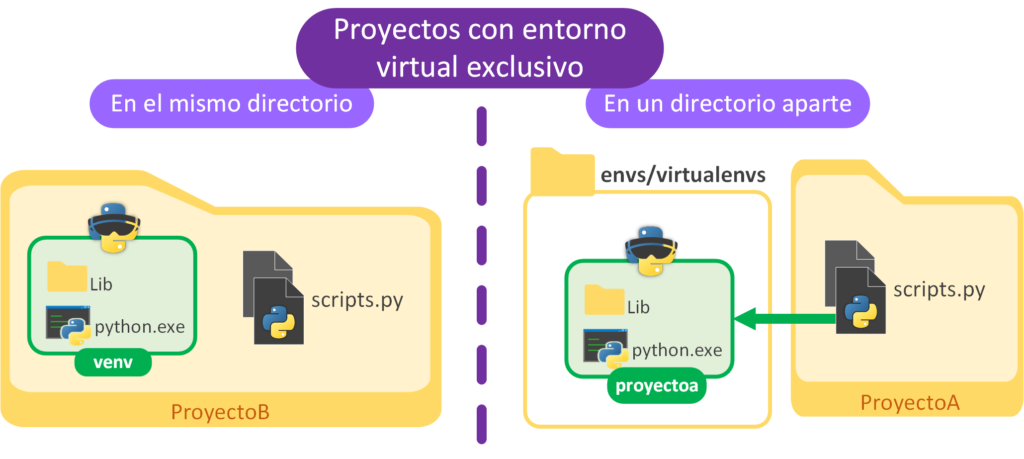
If we use a “package manager” like Anaconda, it will take care of managing the virtual environments for us and will automatically store all the virtual environments inside the “envs” directory that lives inside the Anaconda installation. Each Anaconda virtual environment can be used for a set of projects or exclusively for just one, as we wish.
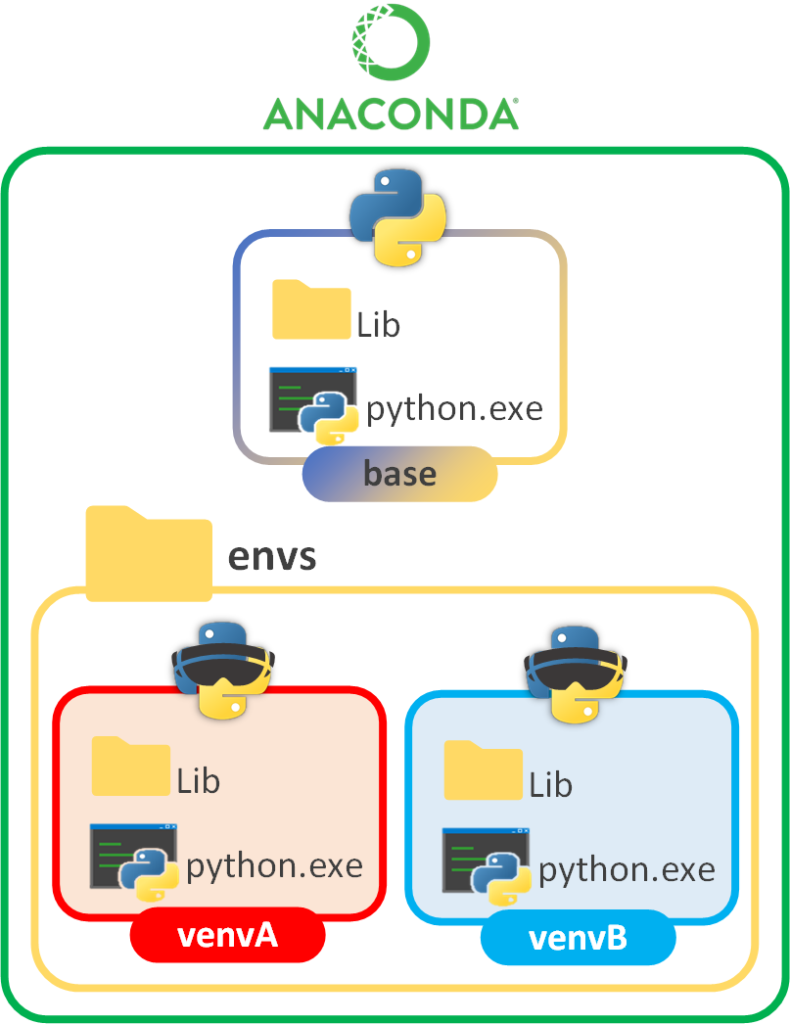
In the following steps we’ll create virtual environments with Virtualenv, both directly ourselves (by hand) and through a package management system (Anaconda, Pipenv, etc.). No matter how we create them, we will have a global environment (“standard Python” or the “Anaconda base”) where we’ll install Virtualenv using PIP (nowadays both are usually installed, so it’s enough to understand where everything is). When we create a virtual environment in any of these ways (by hand or through a “package manager”), a series of files will be copied into it (among them the Python version and the “Lib” folder); inside “Lib” some packages will be included, and one of them is none other than PIP. Each PIP will take care of saving the packages/libraries we download into the “Lib” folder where it lives; since each PIP runs within the context of an environment (the global one or an active virtual one), it will refer to the “Lib” folder where it is located.
Install virtualenv globally (usually comes preinstalled)
In Anaconda it’s already preinstalled, you don’t have to do anything.
Since Python 3.3 it comes preinstalled and you won’t have to do anything either (more information in the official documentation venv — Creation of virtual environments (Python docs)).
If you use an older version of Python, in an operating system terminal with Python (and with PIP installed; you can find how to install PIP and usage examples at https://jarroba.com/entornos-de-python-anaconda-y-comun/) you can install “virtualenv” with:
pip install virtualenvLinux: if it asks for it, you’ll need to install virtualenv with:
sudo apt install python3-venvCreate a Python virtual environment
To create a Python virtual environment we need two things (to make the following two points clear, I recommend you try the creation command below; you’ll see it’s very simple once you watch it work):
- Point to the Python executable we want to copy: If we have several Pythons installed on the computer, we’ll pick one (for example “standard Python 2.8”, “standard Python 3.9”, “Some Python version included in Anaconda”, etc.); you will quite likely want to use the Python pointed to by the “python” or “python3” environment variable, which is easier (if you’re just starting out in this world of virtual environments, use the one from the environment variable as in the following examples).
- The path where we want to create the Python virtual environment: Choose a place on your computer to store the folder with all the copied Python files that will be the virtual environment. If you want to create an “exclusive virtual environment”, point to a folder inside your project to create the virtual environment (and call it “venv”; we saw the reasons for this name earlier), for example: /path/to/my/project/venv; or create a folder to store all the exclusive virtual environments you’re going to create (call it, for example, “my_virtual_environments”); then, I suggest you name each virtual environment the same as your project’s folder (in lowercase, with no weird symbols and with underscores instead of spaces) and add an identifier after it (it can be the date with the hour and minute of creation) in case in the future you want to have several virtual environments for the same project (for example, to run tests or as a backup before updating packages).
From an operating system terminal with standard Python we type the Python we want to use (for example “python” or “python3” to use the system environment variable, or the full path to wherever the Python we want to use is installed on our computer; in the box below I show you a trick to find all the paths to the “Pythons” installed on your computer), the parameter “-m venv” (“-m” indicates that we want to run an installed module, which in this case is “venv”), ending with the path where we want to create the Python virtual environment (“mi_virtual_env” will be the folder in the root directory where the virtual environment will be created):
python -m venv /ruta/a/mi_virtual_envNote if you installed virtualenv with “pip install virtualenv”: you may have to use the old way of creating environments with the “virtualenv” command (where “-p” defines the Python to be used by the virtual environment):
virtualenv -p python3 /ruta/a/mi_virtual_envTip
Find Python on your system
You can look for the Python (or Pythons) installed on your operating system by typing this in your system’s terminal:
Windows:
where PythonLinux and Mac:
which PythonRemember to try “python3” in case the environment variable is called that instead of just “python”.
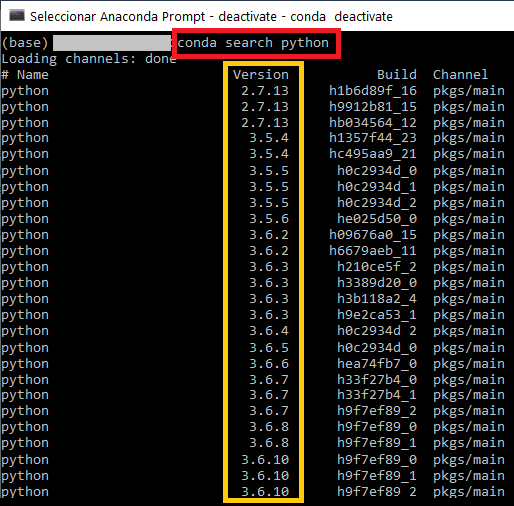
From the Anaconda terminal, with the “conda create” command we create the virtual environment with the parameter “-n mi_virtual_env” (“mi_virtual_env” is the name of the virtual environment I want to create), and to define the Python version we then write “python=VV.VV anaconda” (where “VV.VV” is the Python version we want to install; to see which Python versions are available I’ve left a box further below; I recommend creating it with the highest Python version).
conda create -n mi_virtual_env python=3.8 anacondaPay attention, because halfway through the creation you’ll be asked to accept the libraries to be incorporated; to do so, type the letter “y” and press “Enter”
Find the Python versions available in Anaconda
You can search for the Pythons from the Anaconda terminal:
conda search pythonIn Anaconda, we’re interested in the Python version:
Note
Where does Anaconda store virtual environments?
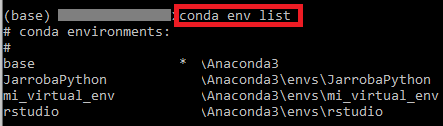
Anaconda stores all virtual environments in the “envs” directory (that’s why it isn’t asked for in the creation command). For example, the previous command (whose virtual environment I named “mi_virtual_env”) will create the virtual environment in the following directory:
- Windows in “C:\Users\<User>\Anaconda3\envs\mi_virtual_env\”
- Linux/Mac in “/Users/<User>/opt/anaconda3/envs/mi_virtual_env\”
You can see all the virtual environments managed by Anaconda with the command:
conda env listOr with:
conda info --envsYou’ll see all the virtual environments created along with each of their paths (and an asterisk “*” that marks the virtual environment active in this terminal):
Activate a Python virtual environment
From an operating system terminal with standard Python (“mi_virtual_env” is the path to the virtual environment’s root directory):
Windows (the activation file “activate.bat” for CMD or “activate.ps1” for PowerShell with permissions are in the “Scripts” folder where the virtual environment was created; both can be activated simply with):
mi_virtual_env\Scripts\activateLinux/Mac (the bash activation file “activate” is in the “bin” folder where the virtual environment was created; it can be activated simply with):
source mi_virtual_env/bin/activateFrom the Anaconda terminal (“mi_virtual_env” is the name of the virtual environment):
activate mi_virtual_envNote on virtualenv commands on Linux/Mac: you may have to always type the “source” command in front (at least on Ubuntu I’ve only needed it to activate; for the rest I was able to avoid typing the “source” command). For example:
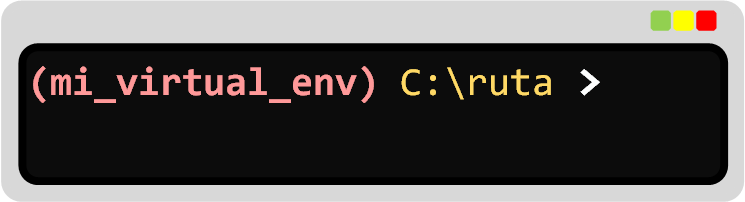
source activate mi_virtual_envThe name of the activated Python virtual environment will appear in parentheses to the left of the terminal’s path. If, for example, I activate the virtual environment I’ve called “mi_virtual_env”, it will look something like this:
From this moment on, when using Python in the “normal way”, with the example command:
python mi_script.pyThe Python and the Lib packages of the activated virtual environment will be used (therefore, the PIP stored in this Lib folder will be used, and it will point to this same folder to install any other packages we want).
Note on Anaconda Navigator: In a box further below I explain how to “manage virtual environments from Anaconda Navigator” (it’s the graphical interface; don’t confuse it with “Anaconda Prompt”, which is the terminal we’ve been using until now).
Deactivate a Python virtual environment
To deactivate a virtual environment, type the following command from an operating system terminal or from the Anaconda terminal (one that has an active virtual environment):
deactivateAnd although the previous one works, in Anaconda it’s better to use:
conda deactivateAfter deactivating the virtual environment, if you use Python in the future, keep in mind that:
- In the system terminal, the “standard Python” will be used.
- In the Anaconda terminal, “(base)” will be used, which is the Python installed in Anaconda.
Note on closing the terminal: If you close a terminal, the virtual environment is also deactivated (activation actually happens in memory and the state isn’t saved between terminal instances). If you reopen the terminal or open a separate one, you’ll have to activate the virtual environment again if you want to use it.
Delete a Python virtual environment
With standard Python, just delete the folder that was created with the environment and you’re done.
Windows: right-click the folder (which I’ve called “mi_virtual_env”) and delete it.
Linux/Mac: Delete the folder (which I’ve called “mi_virtual_env”):
rm -rf mi_virtual_envAnaconda, being a package manager, has its own command that does it for us (it will ask whether you’re sure you want to delete the virtual environment; to confirm, type “y” and press “Enter”):
conda remove --name mi_virtual_env --allTest our Python virtual environment
As we saw before, we activate our virtual environment. We’ll know it’s active because, in my case, the name of the active virtual environment appears on the left in parentheses, in my case: (mi_virtual_env)
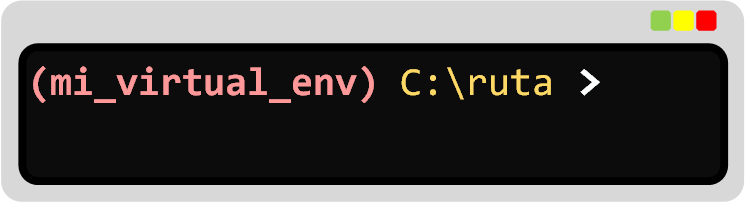
It doesn’t matter where we do it, whether in the system terminal with “standard Python” or in the Anaconda terminal; the following steps work exactly the same.
To test it, we’re going to install some package we want using the PIP package manager (you can find how to install PIP and usage examples at https://jarroba.com/entornos-de-python-anaconda-y-comun/); it will be saved in the virtual environment’s “Lib” folder (without cluttering the rest, and when we delete the virtual environment, the packages installed in it will be deleted too).
Note: Before continuing, I want to point out that this is the same as any other Python package installation with PIP; the only “special” thing is that we must have a virtual environment active in order to use the packages installed in that environment (and make sure where the new packages are going to be installed, so we don’t pick the wrong environment).
Since we’re working with the virtual environment, first we’re going to check which packages/libraries are installed in this virtual environment with the PIP command:
pip list --localYou’ll see all the packages that have been copied to your virtual environment and that you’ll have available. Want more packages? Let’s install one right now 😉
For this example I’m going to install the package “sorted-in-disk” (it’s an open-source project I made to sort huge amounts of data on disk, since Python’s “sorted” is limited to RAM and that much data doesn’t fit there; more information at sorted-in-disk: Sort a bulk of data in disk and parallel (PyPI); to test, you can install whichever package you like):
pip install sorted-in-diskThis package and its dependencies will be installed:
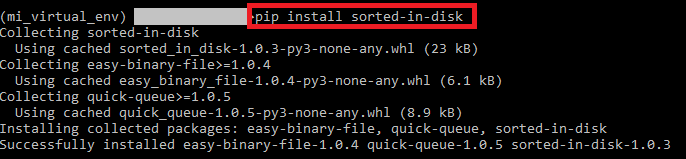
We check the libraries installed in the virtual environment again:
pip list --local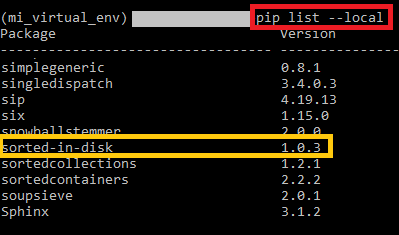
And we can test that it does find the library if we open the Python interpreter by typing:
pythonAnd import the library:
from sorted_in_disk import sorted_in_disk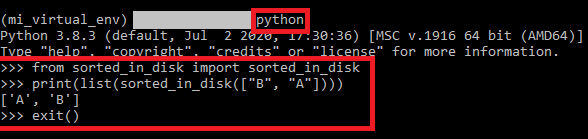
If the import raises no error, it works correctly. Although if we want, we can try it out and, when done, leave Python’s interactive terminal by typing “exit()”, for example with:
print(list(sorted_in_disk(["B", "A"])))
exit()
Now we deactivate the virtual environment:
deactivateIf we look for the package/library we just installed in the virtual environment in the “standard Python” or in “(base)” in Anaconda, we won’t find it:
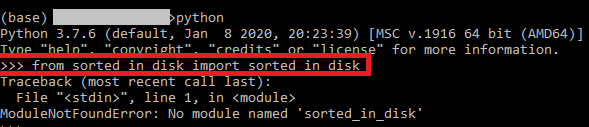
pip list --localAnd if we go back to Python’s interactive terminal (by typing “python” in the terminal) and try to import the package we installed in the virtual environment.
from sorted_in_disk import sorted_in_diskIt will give us an error saying it doesn’t exist.
Manage virtual environments from Anaconda Navigator (a quick Anaconda Navigator tutorial)
Most of what we’ve done in the Anaconda terminal can also be done from the Anaconda Navigator graphical interface.
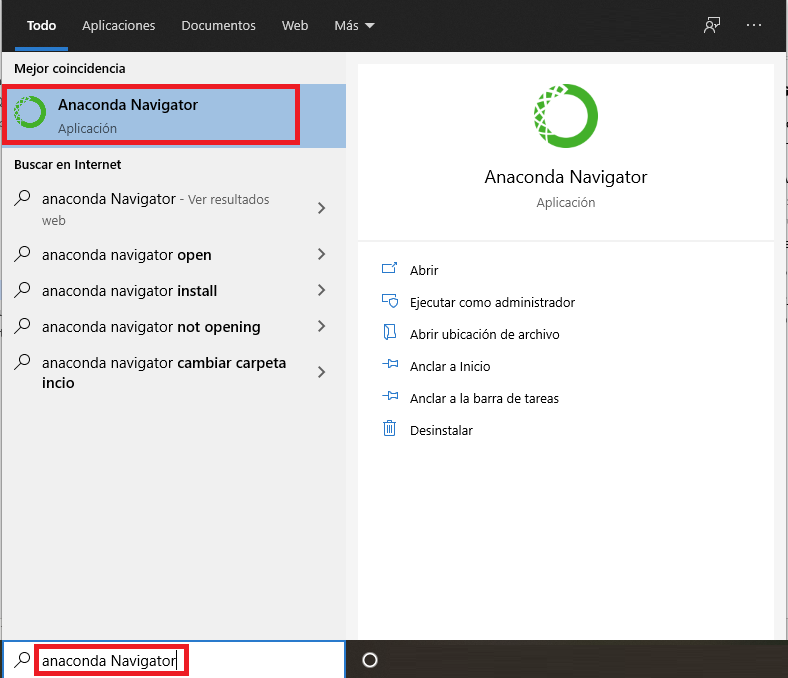
We open Anaconda Navigator (with Anaconda installed as explained previously, search for “Anaconda Navigator” in your operating system’s search).
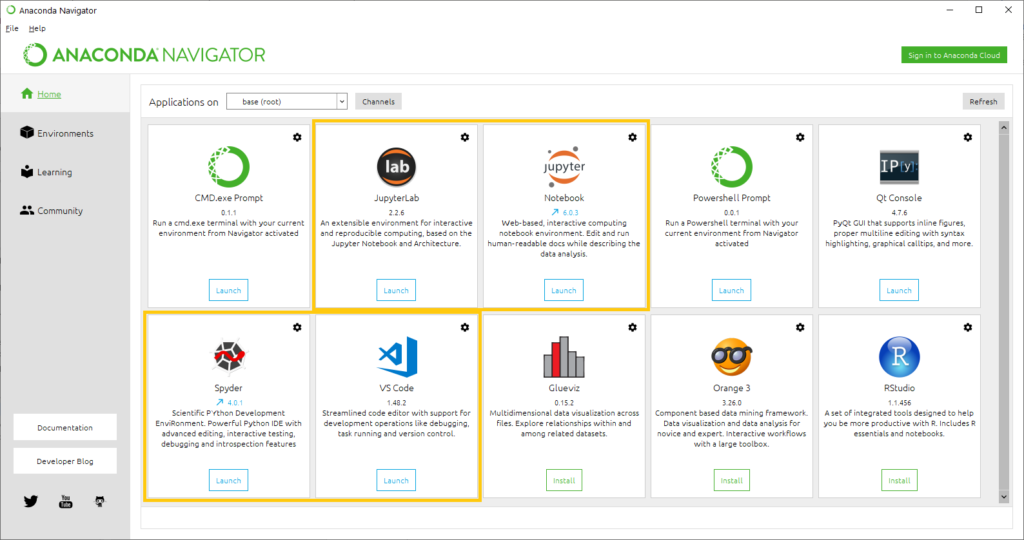
“Anaconda Navigator” shows us a series of tabs on the left and the content of that tab on the right. As soon as you open “Anaconda Navigator” you’ll be on the “Home” tab, which shows several preinstalled IDEs on the right that you can use. Although I won’t go through each IDE in detail, I’ll tell you that for Python it comes with these preinstalled: JupyterLab, Notebook, Spyder, VS Code or PyCharm (some are installed on first use and the IDEs may vary over time). We won’t worry about the IDEs for now; try them in the future, and if you want more information about some of them, there are explanatory videos at https://jarroba.com/curso-de-python-0-entorno-de-desarrollo-para-python/
Go to the tab on the left called “Environments”. This “Environments” tab lists all the virtual environments we create, which are stored in the “envs” folder (except “base” and “rstudio”, which are the base Pythons for the Python and R programming languages respectively).
To create a new virtual environment, click “Create” at the bottom, give it a name (for example, I’ve named mine “mi_virtual_env”), choose a Python version and click the “Create” button.
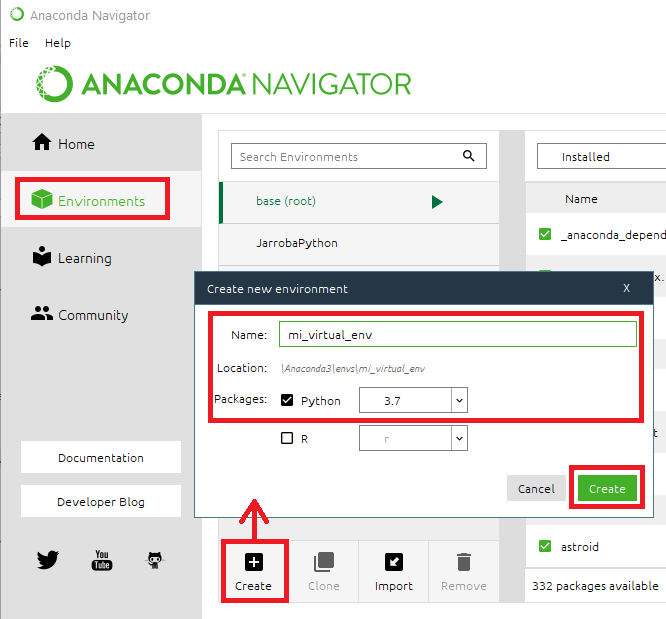
With this we’ll have our Python virtual environment created and ready to use.
If we select our virtual environment, we’ll see on the right the packages (libraries in the virtual environment’s “Lib” directory) installed in our virtual environment (here we can manage them too).
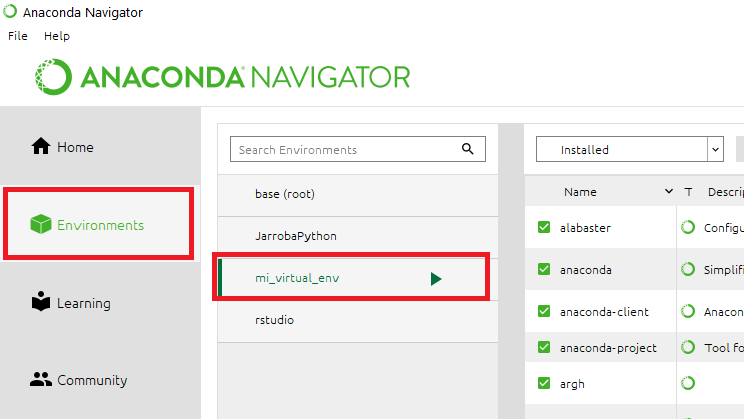
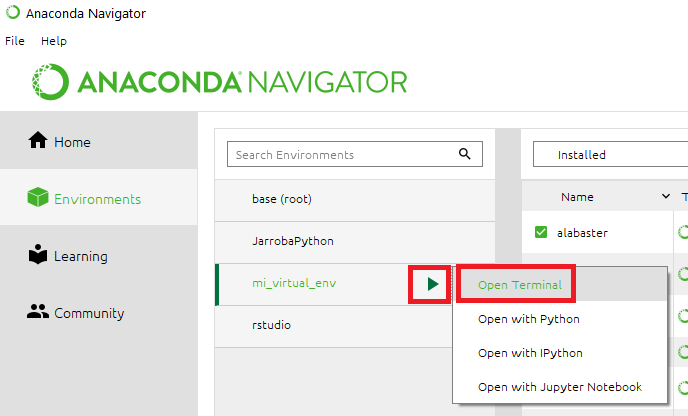
To open an Anaconda terminal with the virtual environment we want, first we select it in the list on the “Environments” tab and click the green arrow next to its name; in the dropdown, clicking “Open Terminal” will open a new terminal with this virtual environment active and ready to use.
If we want to delete a virtual environment from here, we select it and click the “Remove” button to delete it.
Sharing/distributing a virtual environment
The virtual environment itself (its executables, folders and files) should not be shared or distributed, since it won’t guarantee correct operation on a computer/server other than the one where it was created (configurations and files may be created in the virtual folder that only work on the specific computer where it was created).
It’s better to create a requirements file (as we’ll see later) and copy it to the other machine with a new virtual environment; and if you want this to be even easier, I explain how to use Pipenv to share/distribute virtual environments the right way in an article dedicated to Pipenv as a Python virtual environment manager.
Therefore, a virtual environment’s folder should not be pushed to the repository (Git or any other). Only the project and the virtual environment’s requirements should be pushed to the repository (we’ll see how to do this later and in the article on Pipenv). For example, if you have an exclusive virtual environment created inside the project itself and you use Git, add the virtual environment’s folder and all its subfolders to “.gitignore” to exclude them.
A good practice is to create the “exclusive virtual environments per project” in a folder outside the projects (that is, on one side we could have a “virtual_environments” folder and, on the other, “python_projects”) so we don’t have to worry about cluttering the project or excluding files from sharing (also, everything needed to make the project work on another machine gets shared). On the other hand, creating the virtual environment by hand outside the project means you’ll have to remember that this folder exists and belongs to that specific project, so that if you delete the project you remember to delete the virtual environment folder too (to avoid having to do this by hand, Pipenv is used, which I explain in its own article); because if you forget to delete the virtual environment, you’ll have junk files taking up space (without the project, an “exclusive virtual environment” is useless).
Manually copy an (virtual) environment from one machine to another
To copy an environment (virtual or global) from one machine (computer/server) to another manually, simply open the terminal with the environment (activate the virtual environment if necessary). And with the PIP command, export all the requirements to a file:
pip freeze > requisitos.txtCopy that “requisitos.txt” file to the other machine.
Create a new environment on the new machine (global, or preferably virtual); if it’s virtual, activate this new environment on the other machine and run:
pip install -r requisitos.txtThe same requirements as on the other machine will now be installed.
References
“Python Virtual Environments: Standard Python and Anaconda” by Ramón Invarato at jarroba.com, licensed under Creative Commons Attribution-NonCommercial-ShareAlike 3.0. Registered at Safe Creative.

You may also like


venv (virtual environments) in python
In this post we will show examples of how to use virtual environments (venv) in python to isolate our projects between each other
Python Course – 0. Development Environment for Python
Set up your computer to run your first Python program: install Anaconda with the Spyder IDE or PyCharm, and practice with simple exercises.
Leave a comment