
Installing the Android SDK and Linking It with Eclipse
Learn how to install the Android SDK and link it to Eclipse with the ADT plugin, step by step, so your Android development environment works perfectly.
A note before you start: before you continue with the tutorial, you should know there is a bundle that includes Eclipse, with the ADT and the SDK already set up and working perfectly. You can download the "Eclipse+ADT plugin+SDK" bundle from: http://developer.android.com/sdk/index.html . It’s as easy as this: unzip the contents into a folder on your hard drive, go to the "IDE" folder, then to the "eclipse" folder, and run the "eclipse.exe" file. So if you want to skip this whole tutorial, you can just do that. If you want to learn, and it will surely help you as it helped me avoid many problems later on, complete this tutorial at least once; that way you’ll understand the ins and outs of Android development. For future installations, use this bundle and finish sooner 😉
One more short note: There is another, newer working environment called Android Studio, and you can see how to use and install it in a video by clicking here. It looks different from Eclipse, but it’s actually much closer than it seems; you could practically say it’s the same thing, only more modern. For those just starting with Android, I recommend Eclipse over Android Stuidio, since it’s in Beta and lacks some important features (like the AndroidManifest.xml editor).
This tutorial is long so that it’s precise and everything ends up working perfectly. If it’s any consolation, once you know how to do it, what is described here takes 5 minutes.
In this tutorial we’re going to show how to install the Android SDK in version r20 -later versions should work too, but with older ones some things change slightly- on Eclipse Indigo -It’s the same in earlier versions of Eclipse, only the data download links that we’ll see later change, and it’s also the same with later versions such as Eclipse Juno.
Because of changes in Android and Eclipse versions, the installation method tends to vary. So we’ll try to keep this tutorial as up to date as possible with the latest versions.
To begin, let’s make sure that we have Eclipse installed -it’s required, since the Android SDK is a plugin for it; in other words, it’s a tool that comes separately- along with Java and the Java JDK, from the previous tutorial.
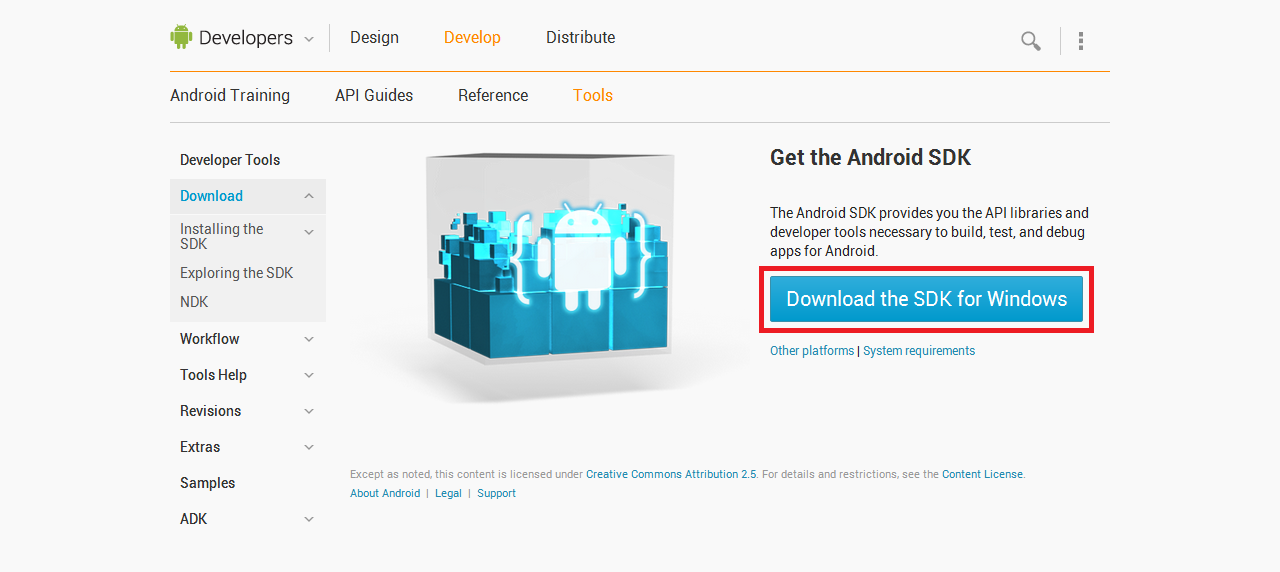
We continue by downloading the Android SDK from: http://developer.android.com/sdk/index.html
We run the installer and click “Next” once.
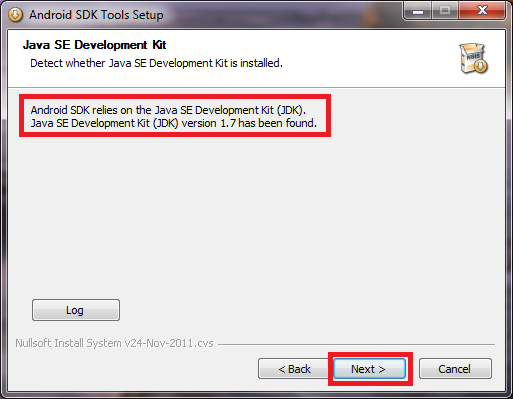
If the installer detects that the Java JDK is installed, that’s the ideal case, and we click “Next” again.
If it doesn’t detect the Java JDK (Error: Java SE Development Kit (JDK) not found), the installer won’t let us continue. This can have two possible causes:
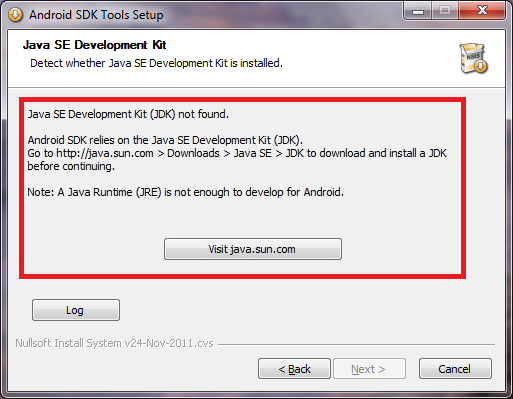
To see how to fix this error (both on Windows 8 and on earlier versions of Windows), go to the solution here.
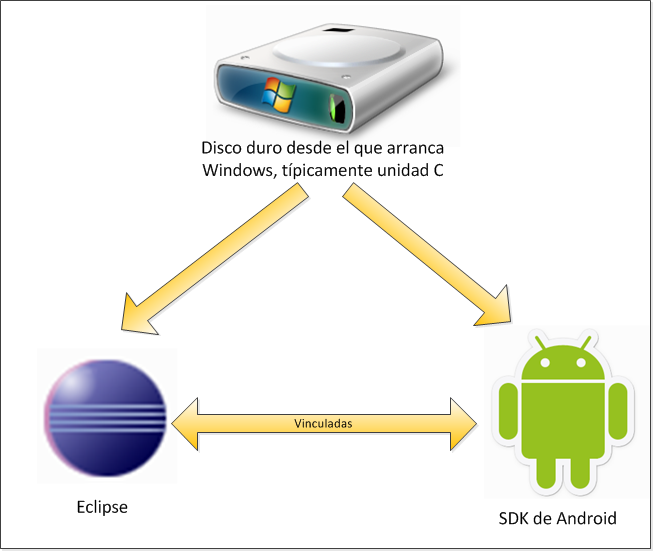
Once you get to the point of choosing a path, I strongly recommend that you install it directly in the root of the drive that boots the operating system, to avoid future problems. That’s usually the “C” drive. Typing “C:android-sdk” is enough to create a folder called “android-sdk”.
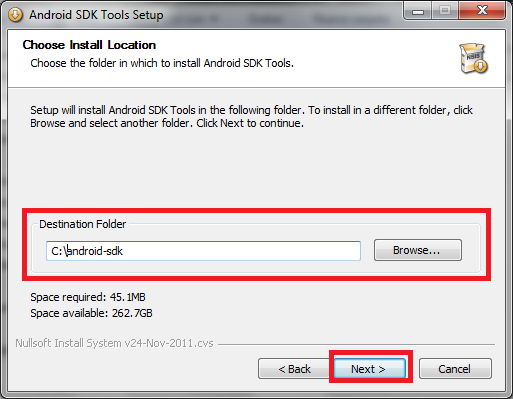
We click “Next” as many times as needed until it’s installed. When the installation finishes and the installer reaches the end and asks whether we want to run the SDK -make sure the “Start SDK Manager (to dwnload system images, etc.)” box is checked- we click Finish.
At this point we’ll have installed the Android SDK. A part of the SDK called “Android SDK Manager” will open. It will be empty, meaning it doesn’t have any Android operating system as such.
We wait for the bar to finish searching the Internet for what we can download. For the emulator to work, we need at least one operating system.
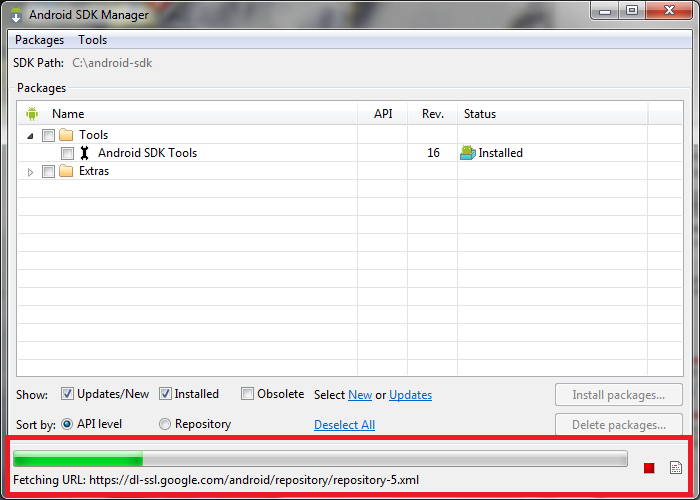
When it finishes searching, some options will already be checked for installation. By default it will want to install the USB drivers, so you can test your apps on a physical Android device if you have one, and the latest Android version to date.
Although the latest Android version sounds very tempting, using it means accepting a number of problems:
- If your computer isn’t very powerful, you may despair at how slow the Android emulator will run with the new operating system.
- If you want to upload the app you develop for this version to the Market (it’s called Play now), you’ll find that very few people will download it, since almost nobody has the latest version until nearly a year after it comes out.
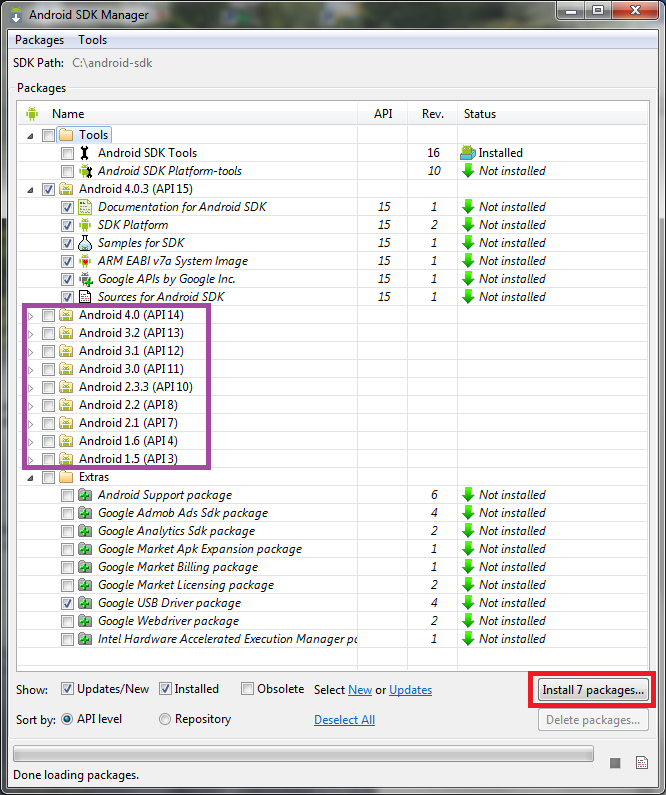
So I recommend betting big and installing version 2.1 as a minimum, which ensures a fast emulator and that your app can be used by many people. Newer versions of Android run apps written for older versions of the operating system, but not the other way around. And if we look at the Android version usage chart, it pays off today, since it covers close to 90% of the market: Distribution dashboard (Android Developers)
So if we want to install 2.1, for example, we check its box. And we check any other boxes that might interest us. We can check them all to try things out, but it will download several gigabytes -everything is a bit more than 4 GB. So I recommend thinking it over, depending on what we want, the time we have, and our internet connection.
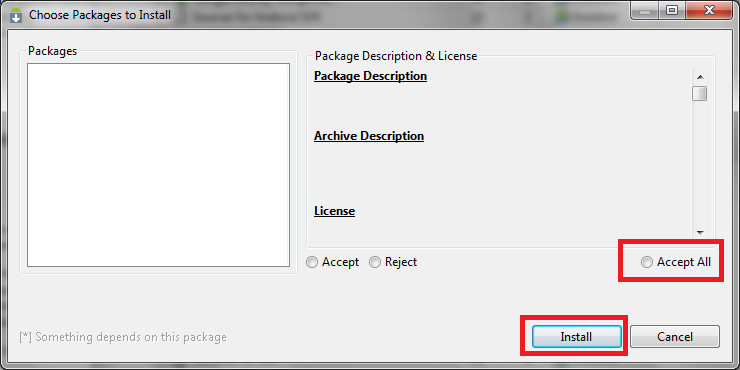
We click the “install X packages…” button. A new window will open where we’ll accept everything -you can click “Acept All”- we click “Install” -if it doesn’t let us, it’s because some package depends on another one that isn’t installed; we note which one it is, cancel, uncheck its box, and redo the steps- and we wait.
During the installation, a dialog box may open asking for a username and password among other information; since we don’t have any of that, we click “Cancel”. That part won’t be installed (it’s not important, those are private and some are paid), and the rest will continue.
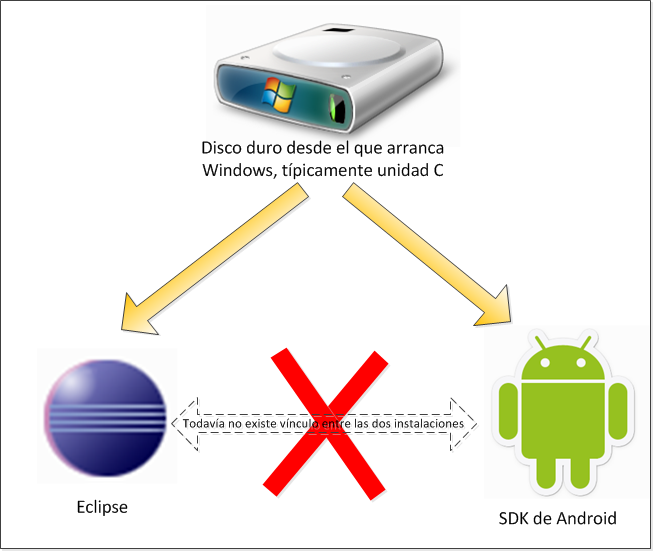
While it installs, let me point out that we have two programs that are separate and not linked at all:
- On one side we have the Android SDK -the window that is downloading is the download wizard, which is part of the Android SDK.
- On the other side we have Eclipse. If we open it, we’ll see there’s nothing new. That means nothing is linked with Eclipse, so we need to link them so they recognize each other.
When everything we want has been downloaded, we close the “Android SDK Manager” window.
Now we’ll work with Eclipse, and we need to link the SDK to our development environment. This is done by installing an Eclipse plugin called ADT (Android Developent Tools). It makes sense that the plugin is the Android development tools, since Eclipse as a working environment needs these tools, which it doesn’t have, to program for Android.
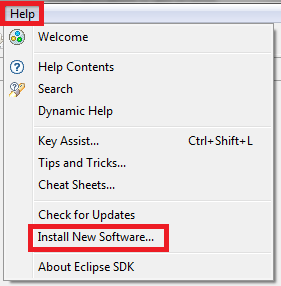
In the menu we go to “Help”, and there we choose “Install New Software…”
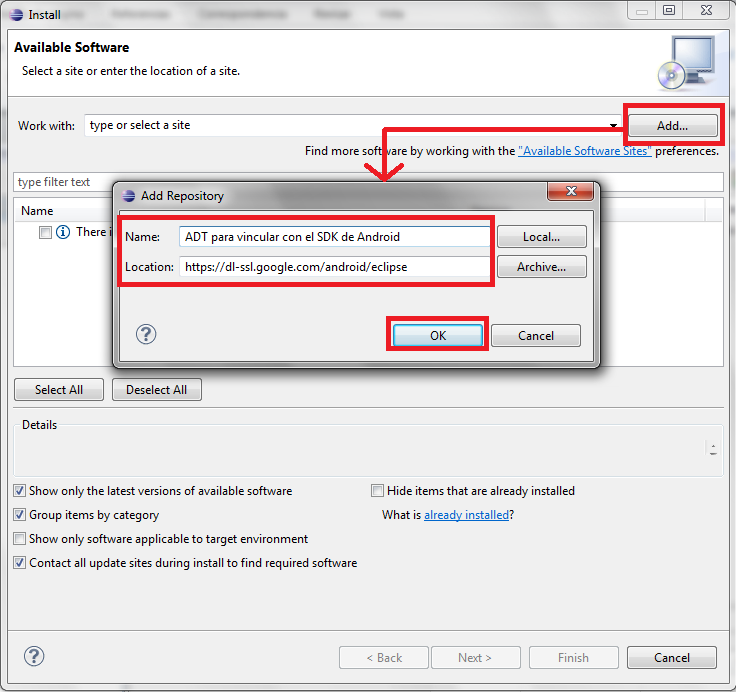
A new window will open. We click “Add…”, and in the small pop-up window that appears we enter the name we want the plugin to have -for example: "ADT to link with the Android SDK". In the URL field, we enter the following address to download the ADT plugin:
https://dl-ssl.google.com/android/eclipse/
| Note: As a good developer, you may not trust this address in case it downloads unwanted software. If you want to copy it from the original Android Developers source, it’s at: http://developer.android.com/sdk/installing/installing-adt.html |
When we’re done, we accept the small pop-up window.
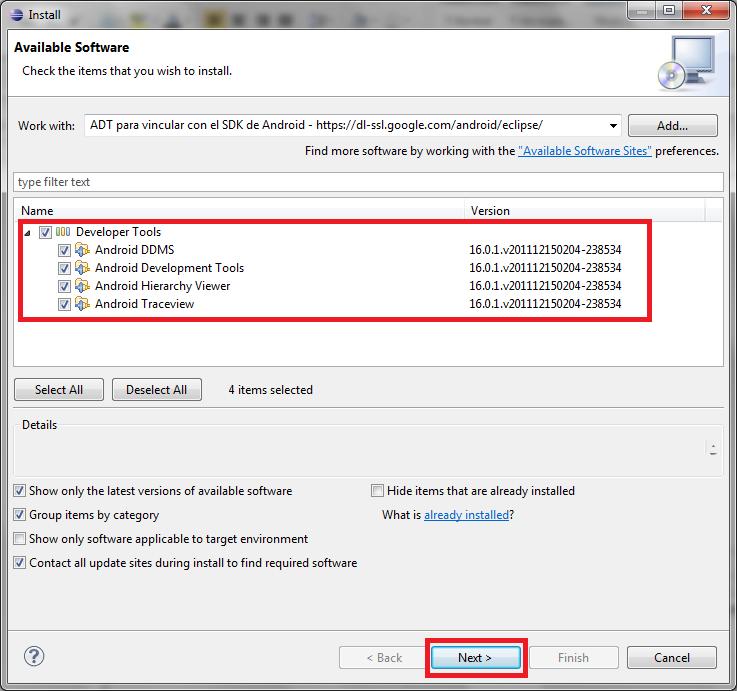
Now we check the “Developer Tools” box so that everything under it gets checked, and we click Next.
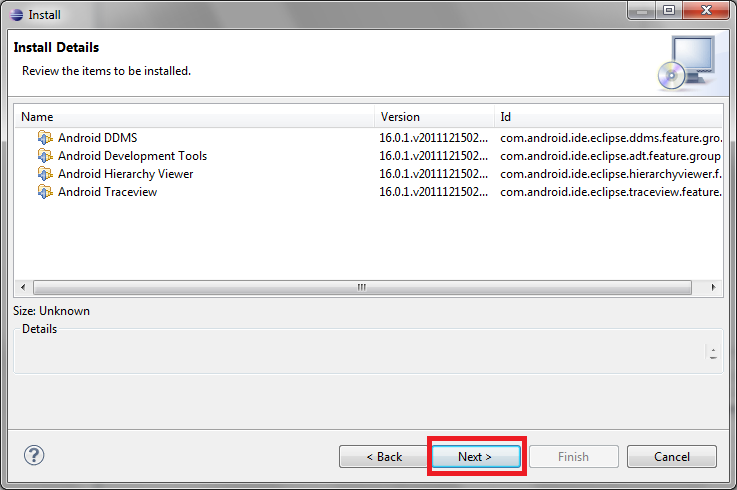
In the next step we just click Next.
We’ll reach another step where we have to accept the license, and then we click Finish.
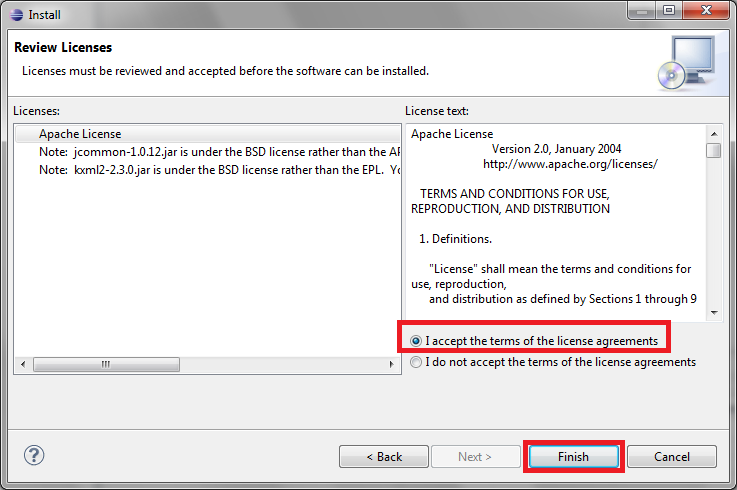
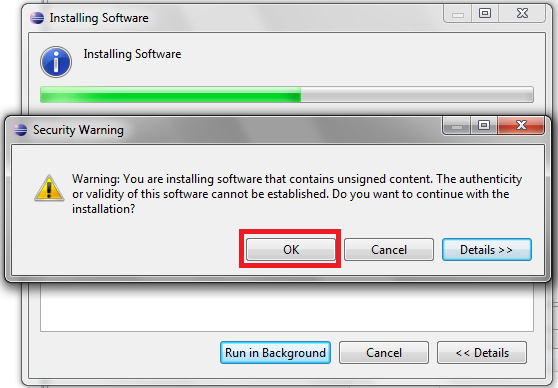
The installation will then begin. Halfway through, a warning window will probably appear telling us there is unsigned content that can’t be validated; we simply click “OK” and wait for it to finish.
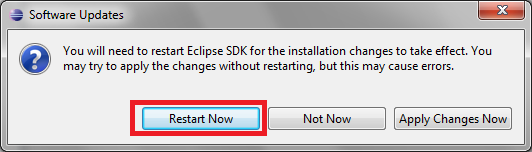
When it finishes, it will ask us to restart Eclipse. We tell it to restart now.
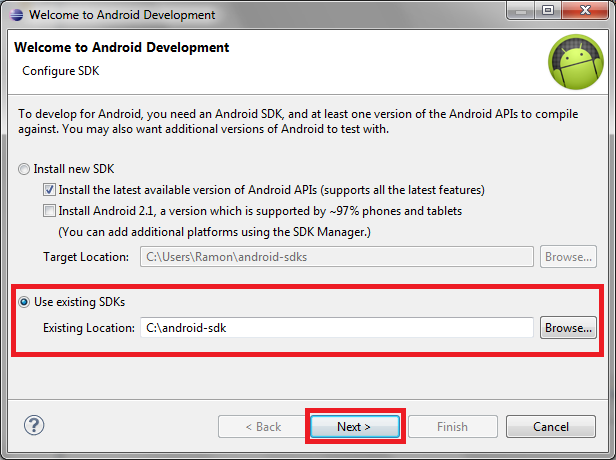
When Eclipse restarts, a window will ask whether we want to install the SDK. The SDK is already installed, so we click “Use existing SDKs” and choose the folder where we installed the SDK earlier.
| Note: We could have started by installing the ADT and then let Eclipse take care of installing the SDK, but that way the difference between the programs isn’t clear: the SDK is one thing and Eclipse is another, and they are linked through the ADT.One remark about this window: it gives the option to install the SDK with the most recent Android version and the most widely supported one, which is 2.1, as mentioned before. |
The next window will ask whether we want to send usage statistics to Google. If we want to help Google, we say yes; otherwise, no, and we click Finish.
Eclipse and the Android SDK are now linked.
With a quick look at Eclipse, we’ll see the newly installed tools, which we can access from several places.
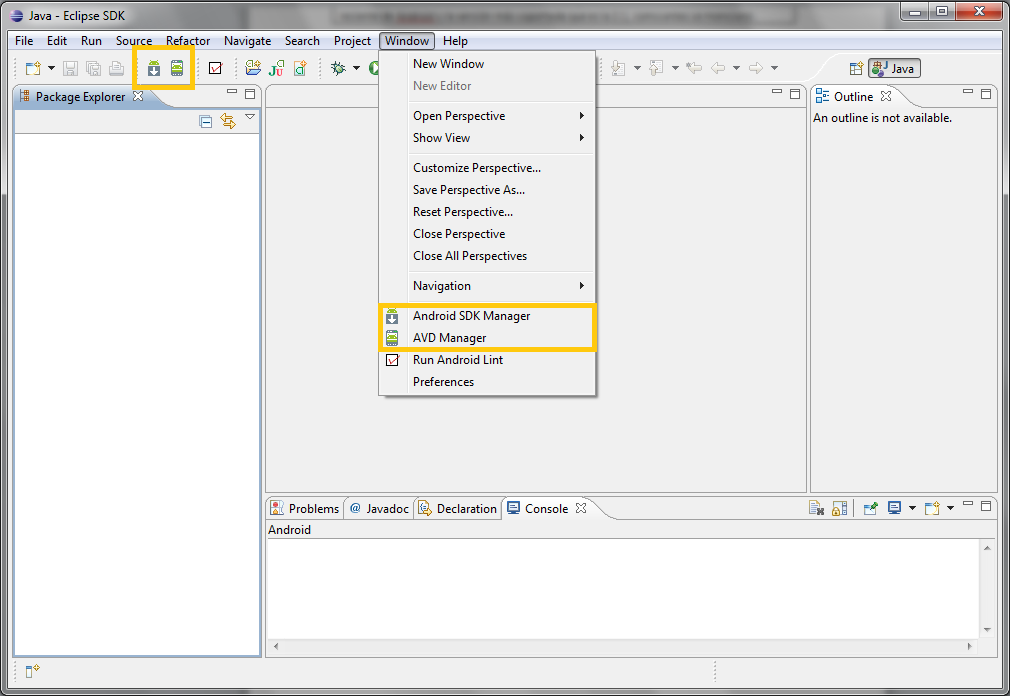
The Android icons don’t appear: The icons for the Android SDK Manager and the AVD Manager (Android Virtual Device Manager) may not show up. To see them, you can find out how to make them appear in this other article.
Everything is installed. Now it’s time to prepare the tools of our development environment and get to know them. Keep going in the next article, about how to prepare the tools you need to program in Android.
Note: the Android emulator usually takes quite a while to load and is generally slow. You can see how to configure the Android emulator to run much faster in this article.
“Installing the Android SDK and Linking It with Eclipse” by Ramón Invarato at jarroba.com, licensed under Creative Commons Attribution-NonCommercial-ShareAlike 3.0. Registered at Safe Creative.

You may also like


Setting Up the Tools You Need to Develop for Android
Learn how to get your Android environment ready: use the SDK Manager, create an emulator with the AVD Manager, and set up LogCat filters in Eclipse.

Android Error – Eclipse Doesn’t Show the Android Buttons After Installing the ADT and the SDK
Eclipse doesn't show the Android SDK Manager and AVD Manager buttons after installing the ADT and SDK? Here's how to bring them back in a few steps.
Android Error – Android SDK Not Found
Fix the Android error "Location of the Android SDK has not been setup in the preferences" that appears when you create a new Eclipse workspace.


How to Install Eclipse the Right Way (One IDE Among Many)
Learn how to download and install Eclipse step by step: pick the right version, set up your workspace, install Java and the JDK, and fix common startup errors.
Leave a comment